
Knowledgebase (2417)
Children categories
Format Data Labels of Series Chart in Presentation in C#, VB.NET
2014-09-04 08:33:56 Written by KoohjiBy default, Microsoft PowerPoint automatically hides the data labels when we create a series chart on presentation slide. In order to make your readers have an intuitive understanding of your chart, you can choose to set formatting of label to display series name, category name, value, percentage and adjust its displayed position. In this article, I would like to show you how to format data labels in PowerPoint presentation via Spire.Presentation.
In the class of Spire.Presentation.Charts.ChartDataLabel, it contains properties like LabelValueVisible, PercentageVisible, SeriesNameVisible, CategoryNameVisible, Position and etc , which will enable us to easily manage the data labels formatting as you desired. Look at the pie chart below, it is not that informative if it doesn’t display data labels.
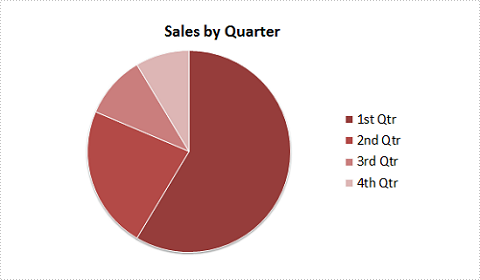
Now, let's format pie chart to display percentages in data labels with following code snippet:
Step 1: Create a new instance of Presentation class and load test the file that contains the pie chart.
Presentation ppt = new Presentation();
ppt.LoadFromFile("Test.pptx");
Step 2: Get the chart from presentation slide.
IChart chart = ppt.Slides[0].Shapes[0] as IChart;
Step 3: Get chart's series.
ChartSeriesFormatCollection sers = chart.Series;
Step 4: Set the position of legend on chart.
chart.ChartLegend.Position = ChartLegendPositionType.TopRight;
Step 5: Initialize four instance of series label and set parameters of each label.
ChartDataLabel cd1 = sers[0].DataLabels.Add();
cd1.PercentageVisible = true;
cd1.Position = ChartDataLabelPosition.Center;

ChartDataLabel cd2 = sers[0].DataLabels.Add();
cd2.PercentageVisible = true;
cd2.Position = ChartDataLabelPosition.Center;

ChartDataLabel cd3 = sers[0].DataLabels.Add();
cd3.PercentageVisible = true;
cd3.Position = ChartDataLabelPosition.Center;

ChartDataLabel cd4 = sers[0].DataLabels.Add();
cd4.PercentageVisible = true;
cd4.Position = ChartDataLabelPosition.Center;
Step 6: Save the changes to a new .pptx file.
ppt.SaveToFile("Result.pptx", FileFormat.Pptx2007);
Result:
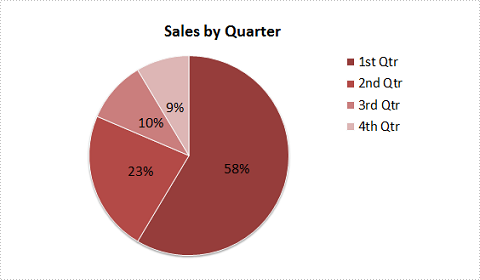
Full Code:
using Spire.Presentation;
using Spire.Presentation.Charts;
using Spire.Presentation.Collections;

namespace FormatData
{

    class Program
    {
        static void Main(string[] args)
        {

            Presentation ppt = new Presentation();
            ppt.LoadFromFile("Test.pptx");

            IChart chart = ppt.Slides[0].Shapes[0] as IChart;
            ChartSeriesFormatCollection sers = chart.Series;
            chart.ChartLegend.Position = ChartLegendPositionType.TopRight;

            ChartDataLabel cd1 = sers[0].DataLabels.Add();
            cd1.PercentageVisible = true;
            cd1.Position = ChartDataLabelPosition.Center;
            ChartDataLabel cd2 = sers[0].DataLabels.Add();
            cd2.PercentageVisible = true;
            cd2.Position = ChartDataLabelPosition.Center;
            ChartDataLabel cd3 = sers[0].DataLabels.Add();
            cd3.PercentageVisible = true;
            cd3.Position = ChartDataLabelPosition.Center;
            ChartDataLabel cd4 = sers[0].DataLabels.Add();
            cd4.PercentageVisible = true;
            cd4.Position = ChartDataLabelPosition.Center;

            ppt.SaveToFile("Result.pptx", FileFormat.Pptx2007);

        }
    }
}
Imports Spire.Presentation
Imports Spire.Presentation.Charts
Imports Spire.Presentation.Collections

Namespace FormatData

	Class Program
		Private Shared Sub Main(args As String())

			Dim ppt As New Presentation()
			ppt.LoadFromFile("Test.pptx")

			Dim chart As IChart = TryCast(ppt.Slides(0).Shapes(0), IChart)
			Dim sers As ChartSeriesFormatCollection = chart.Series
			chart.ChartLegend.Position = ChartLegendPositionType.TopRight

			Dim cd1 As ChartDataLabel = sers(0).DataLabels.Add()
			cd1.PercentageVisible = True
			cd1.Position = ChartDataLabelPosition.Center
			Dim cd2 As ChartDataLabel = sers(0).DataLabels.Add()
			cd2.PercentageVisible = True
			cd2.Position = ChartDataLabelPosition.Center
			Dim cd3 As ChartDataLabel = sers(0).DataLabels.Add()
			cd3.PercentageVisible = True
			cd3.Position = ChartDataLabelPosition.Center
			Dim cd4 As ChartDataLabel = sers(0).DataLabels.Add()
			cd4.PercentageVisible = True
			cd4.Position = ChartDataLabelPosition.Center

			ppt.SaveToFile("Result.pptx", FileFormat.Pptx2007)

		End Sub
	End Class
End Namespace
Merge Selected Pages from Multiple PDF Files into One in C#/VB.NET
2014-09-02 09:25:30 Written by KoohjiUsing Spire.PDF, you can not only merge multiple PDF files into a single file, but also select specific pages from the source files and combine them in one PDF document. The following code snippets demonstrate the same.
Step 1: Get the PDF file paths and store in a string array.
string[] files = { "Sample1.pdf", "Sample2.pdf", "Sample3.pdf" };
Step 2: Load each PDF document to an object of PdfDocument and store all these objects in PdfDocument array.
         PdfDocument[] docs = new PdfDocument[files.Length];

        for (int i = 0; i < files.Length; i++)
        {
            docs[i] = new PdfDocument(files[i]);
        }
Step 3: Create an instance of PdfDocument class.
PdfDocument doc = new PdfDocument();
Step 4: Call InsertPage(PdfDocument doc, int pageIndex) method and InertPageRange(PdfDocument doc, int startIndex, int endIndex) method to insert selected pages to the new PDF document.
       doc.InsertPage(docs[0], 0);
       doc.InsertPage(docs[1], 1);
       doc.InsertPageRange(docs[2], 2, 5);
Step 5: Save and launch the file.
       doc.SaveToFile("Result.pdf");
       Process.Start("Result.pdf");
Screen Shot of Effect:
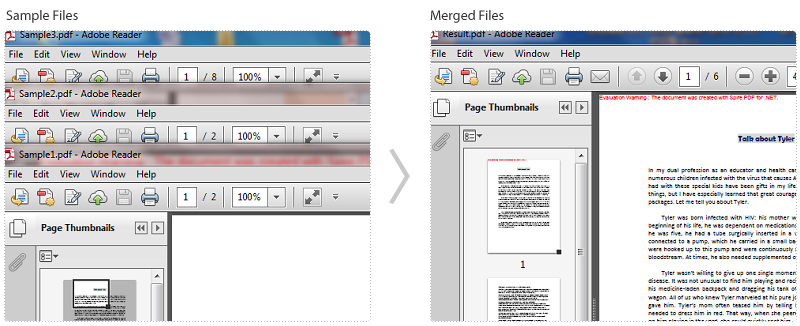
The six pages in the result file are extracted from three sample PDF files.
Full Code:
using Spire.Pdf;
using System.Diagnostics;

namespace MergeSelectedPages
{
    class Program
    {
        static void Main(string[] args)
        {
            string[] files = { "Sample1.pdf", "Sample2.pdf", "Sample3.pdf" };
            PdfDocument[] docs = new PdfDocument[files.Length];

            //open pdf documents
            for (int i = 0; i < files.Length; i++)
            {
                docs[i] = new PdfDocument(files[i]);
            }

            //create a new pdf document and insert selected pages
            PdfDocument doc = new PdfDocument();
            doc.InsertPage(docs[0], 0);
            doc.InsertPage(docs[1], 1);
            doc.InsertPageRange(docs[2], 2, 5);


            doc.SaveToFile("Result.pdf");
            Process.Start("Result.pdf");
        }
    }
}
Imports Spire.Pdf
Imports System.Diagnostics

Namespace MergeSelectedPages
	Class Program
		Private Shared Sub Main(args As String())
			Dim files As String() = {"Sample1.pdf", "Sample2.pdf", "Sample3.pdf"}
Dim docs As PdfDocument() = New PdfDocument(files.Length - 1) {}

'open pdf documents
For i As Integer = 0 To files.Length - 1
	docs(i) = New PdfDocument(files(i))
Next

'create a new pdf document and insert selected pages
Dim doc As New PdfDocument()
doc.InsertPage(docs(0), 0)
doc.InsertPage(docs(1), 1)
doc.InsertPageRange(docs(2), 2, 5)

doc.SaveToFile("Result.pdf")
Process.Start("Result.pdf")
		End Sub
	End Class
End Namespace
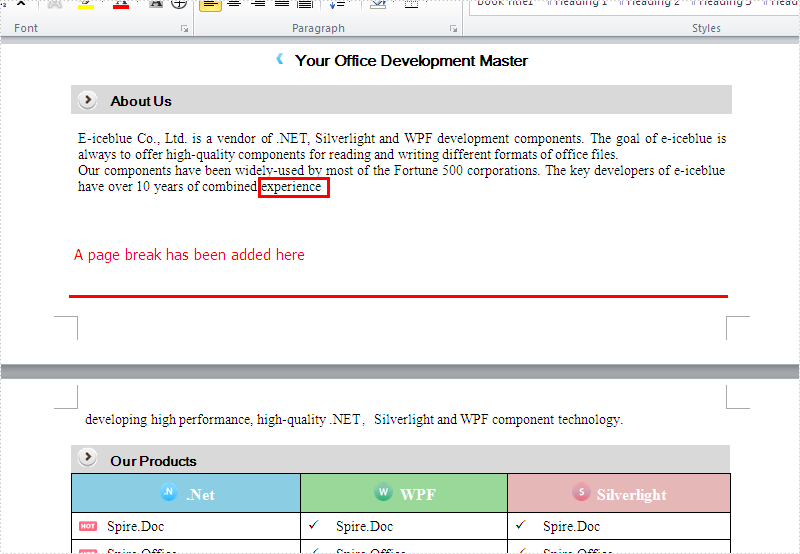
Spire.Doc supports to insert page breaks in C# and VB.NET. We have already had a tutorial article of how to insert a page break after a paragraph. This article we will demonstrate how to add a page break at a specified location by searching a single word.
First, download Spire.Doc and install on your system. The Spire.Doc installation is clean, professional and wrapped up in a MSI installer. Then adds Spire.Doc.dll as reference in the downloaded Bin folder though the below path: "..\Spire.Doc\Bin\NET4.0\ Spire.Doc.dll".
Here comes to the steps of how to insert a page break at a specified location.
Step 1: Create a new word document and load the document from the file.
Document doc = new Document();
doc.LoadFromFile("Test.docx");
Step 2: Find the specified word "experience" where we want to insert the page break.
TextSelection[] selections = doc.FindAllString("experience", true, true);
Step 3: Traverse each word "experience".
foreach (TextSelection ts in selections)
   {
     TextRange range = ts.GetAsOneRange();
     Paragraph paragraph = range.OwnerParagraph;
     int index = paragraph.ChildObjects.IndexOf(range);
     Break pageBreak = new Break(doc, BreakType.PageBreak);
   }
Step 4: Create a new instance of page break and insert a page break after the word "experience".
Break pageBreak = new Break(doc, BreakType.PageBreak);
paragraph.ChildObjects.Insert(index + 1, pageBreak);
Step 5: Save the word document to file and process it.
doc.SaveToFile("Break.docx", FileFormat.Docx);
System.Diagnostics.Process.Start("Break.docx");
Effective screenshot of the inserted page break after the word "experience":
Full codes:
using Spire.Doc;
using Spire.Doc.Documents;
using Spire.Doc.Fields;
namespace InsertPageBreak
{
    class Program
    {
        static void Main(string[] args)
        {
            Document doc = new Document();
            doc.LoadFromFile("Test.docx");
            TextSelection[] selections = doc.FindAllString("experience", true, true);
            foreach (TextSelection ts in selections)
            {
                TextRange range = ts.GetAsOneRange();
                Paragraph paragraph = range.OwnerParagraph;
                int index = paragraph.ChildObjects.IndexOf(range);
                Break pageBreak = new Break(doc, BreakType.PageBreak);
                paragraph.ChildObjects.Insert(index + 1, pageBreak);
            }
            doc.SaveToFile("Break.docx", FileFormat.Docx);
            System.Diagnostics.Process.Start("Break.docx");
        }
    }
}
