
Knowledgebase (2417)
Children categories
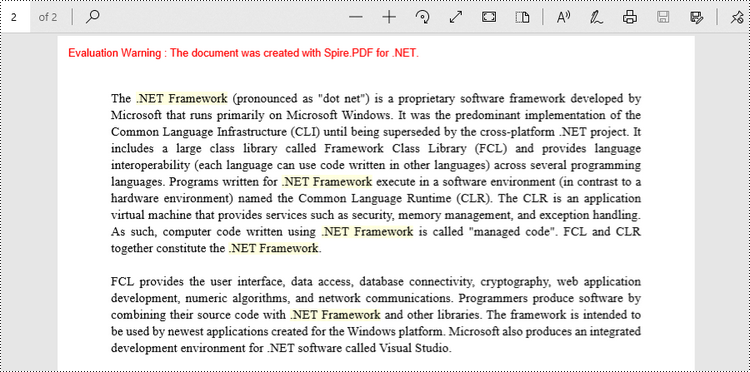
The task of searching for specific text within a PDF document and highlighting it serves as a valuable function across various situations. Whether you aim to find critical information, make annotations on significant details, or extract specific content, the capability to locate and highlight text within a PDF significantly enhances productivity and understanding.
This article provides guidance on how to effectively find and highlight text in a PDF document in C# using Spire.PDF for .NET.
- Find and Highlight Text in a Specific PDF Page in C#
- Find and Highlight Text in a Rectangular Area in C#
- Find and Highlight Text in an Entire PDF Document in C#
- Find and Highlight Text in PDF Using a Regular Expression in C#
Install Spire.PDF for .NET
To begin with, you need to add the DLL files included in the Spire.PDF for.NET package as references in your .NET project. The DLL files can be either downloaded from this link or installed via NuGet.
PM> Install-Package Spire.PDF
Find and Highlight Text in a Specific PDF Page in C#
Spire.PDF provides the PdfTextFinder class, which allows users to search for specific text within a page. By utilizing the Options property of this class, users have the ability to define search options such as WholeWord, IgnoreCase, and Regex. When utilizing the Find method of the class, users can locate all occurrences of the searched text within a page.
The following are the steps to find and highlight text in a specific PDF page in C#.
- Create a PdfDocument object.
- Load a PDF file from a given path.
- Get a specific page from the document.
- Create a PdfTextFinder object based on the page.
- Specify search options using PdfTextFinder.Options property.
- Find all instance of searched text using PdfTextFinder.Find() method.
- Iterate through the find results, and highlight each instance using PdfTextFragment.Highlight() method.
- Save the document to a different PDF file.
- C#
using Spire.Pdf;
using Spire.Pdf.Texts;
using System.Drawing;

namespace FindAndHighlightTextInPage
{
    class Program
    {
        static void Main(string[] args)
        {
            // Create a PdfDocument object
            PdfDocument doc = new PdfDocument();

            // Load a PDF file
            doc.LoadFromFile("C:\\Users\\Administrator\\Desktop\\Input.pdf");

            // Get a specific page
            PdfPageBase page = doc.Pages[1];

            // Create a PdfTextFinder object based on the page
            PdfTextFinder finder = new PdfTextFinder(page);

            // Specify the find options
            finder.Options.Parameter = TextFindParameter.WholeWord;
            finder.Options.Parameter = TextFindParameter.IgnoreCase;

            // Find the instances of the specified text
            List<PdfTextFragment> finds = finder.Find(".NET Framework");

            // Iterate through the find results
            foreach (PdfTextFragment fragment in finds)
            {
                // Highlight text
                fragment.HighLight(Color.LightYellow);
            }

            // Save to a different PDF file
            doc.SaveToFile("HighlightTextInPage.pdf", FileFormat.PDF);

            // Dispose resources
            doc.Dispose();
        }
    }
}
Find and Highlight Text in a Rectangular Area in C#
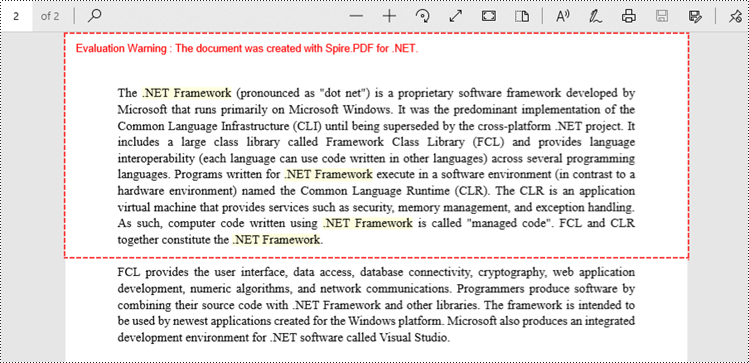
By highlighting text within a rectangular area of a page, users can draw attention to a specific section or piece of information within the document. To specify a rectangular area, you can use the Options.Area property.
The following are the steps to find and highlight text in a rectangular area in C#.
- Create a PdfDocument object.
- Load a PDF file from a given path.
- Get a specific page from the document.
- Create a PdfTextFinder object based on the page.
- Specify a rectangular area to search text using PdfTextFinder.Options.Area property.
- Find all instance of searched text within the rectangular area using PdfTextFinder.Find() method.
- Iterate through the find results, and highlight each instance using PdfTextFragment.Highlight() method.
- Save the document to a different PDF file.
- C#
using Spire.Pdf;
using Spire.Pdf.Texts;
using System.Drawing;

namespace FindAndHighlightTextInRectangularArea
{
    class Program
    {
        static void Main(string[] args)
        {
            // Create a PdfDocument object
            PdfDocument doc = new PdfDocument();

            // Load a PDF file
            doc.LoadFromFile("C:\\Users\\Administrator\\Desktop\\Input.pdf");

            // Get a specific page
            PdfPageBase page = doc.Pages[1];

            // Create a PdfTextFinder object based on the page
            PdfTextFinder finder = new PdfTextFinder(page);

            // Specify a rectangular area for searching text
            finder.Options.Area = new RectangleF(0, 0, 841, 200);

            // Specify other options
            finder.Options.Parameter = TextFindParameter.WholeWord;
            finder.Options.Parameter = TextFindParameter.IgnoreCase;

            // Find the instances of the specified text
            List<PdfTextFragment> finds = finder.Find(".NET Framework");

            // Iterate through the find results
            foreach (PdfTextFragment fragment in finds)
            {
                // Highlight text
                fragment.HighLight(Color.LightYellow);
            }

            // Save to a different PDF file
            doc.SaveToFile("HighlightTextInRectangularArea.pdf", FileFormat.PDF);

            // Dispose resources
            doc.Dispose();
        }
    }
}
Find and Highlight Text in an Entire PDF Document in C#
The initial code example illustrates how to highlight text in a specific page. To extend this functionality and find and highlight text throughout the entire document, you can iterate through each page of the document and sequentially apply the highlighting to the searched text.
The steps to find and highlight text in an entire PDF document using C# are as follows.
- Create a PdfDocument object.
- Load a PDF file from a given path.
- Iterate through each page in the document.
- Create a PdfTextFinder object based on a certain page.
- Specify search options using PdfTextFinder.Options property.
- Find all instance of searched text using PdfTextFinder.Find() method.
- Iterate through the find results, and highlight each instance using PdfTextFragment.Highlight() method.
- Save the document to a different PDF file.
- C#
using Spire.Pdf;
using Spire.Pdf.Texts;
using System.Drawing;

namespace FindAndHighlightTextInDocument
{
    class Program
    {
        static void Main(string[] args)
        {
            // Create a PdfDocument object
            PdfDocument doc = new PdfDocument();

            // Load a PDF file
            doc.LoadFromFile("C:\\Users\\Administrator\\Desktop\\Input.pdf");

            // Iterate through each page of the document
            foreach(PdfPageBase page in doc.Pages){

                // Create a PdfTextFinder object for the current page
                PdfTextFinder finder = new PdfTextFinder(page);

                // Specify the find options
                finder.Options.Parameter = TextFindParameter.WholeWord;
                finder.Options.Parameter = TextFindParameter.IgnoreCase;

                // Find the instances of the specified text
                List<PdfTextFragment> finds = finder.Find(".NET Framework");

                // Iterate through the find results
                foreach (PdfTextFragment fragment in finds)
                {
                    // Highlight text
                    fragment.HighLight(Color.LightYellow);
                }
            }

            // Save to a different PDF file
            doc.SaveToFile("HighlightAll.pdf", FileFormat.PDF);

            // Dispose resources
            doc.Dispose();
        }
    }
}
Find and Highlight Text in PDF Using a Regular Expression in C#
When searching for text in a document, using regular expressions can provide more flexibility and control over the search criteria. To utilize a regular expression, you need to configure the PdfTextFinder.Options.Parameter property to TextFindParameter.Regex, and provide the regular expression pattern as an input to the Find() method.
Here are the steps to find and highlight text in PDF using a regular expression in C#.
- Create a PdfDocument object.
- Load a PDF file from a given path.
- Iterate through each page in the document.
- Create a PdfTextFinder object based on a certain page.
- Set the PdfTextFinder.Options.Parameter property to TextFindParameter.Regex.
- Create a regular expression pattern that matches the specific text patterns you are seeking.
- Find all instance of the searched text using PdfTextFinder.Find() method.
- Iterate through the find results, and highlight each instance using PdfTextFragment.Highlight() method.
- Save the document to a different PDF file.
- C#
using Spire.Pdf;
using Spire.Pdf.Texts;
using System.Drawing;

namespace FindAndHighlightUsingRegularExpression
{
    class Program
    {
        static void Main(string[] args)
        {
            // Create a PdfDocument object
            PdfDocument doc = new PdfDocument();

            // Load a PDF file
            doc.LoadFromFile("C:\\Users\\Administrator\\Desktop\\Input.pdf");

            // Iterate through each page of the document
            foreach (PdfPageBase page in doc.Pages)
            {
                // Create a PdfTextFinder object based on the page
                PdfTextFinder finder = new PdfTextFinder(page);

                // Specify the search model as Regex
                finder.Options.Parameter = TextFindParameter.Regex;

                // Find the text that conforms to a regular expression
                string pattern = @"\bM\w*t\b";
                List<PdfTextFragment> finds = finder.Find(pattern);

                // Iterate through the find results
                foreach (PdfTextFragment fragment in finds)
                {
                    // Highlight text
                    fragment.HighLight(Color.LightYellow);
                }
            }

            // Save to a different PDF file
            doc.SaveToFile("HighlightTextUsingRegex.pdf", FileFormat.PDF);

            // Dispose resources
            doc.Dispose();
        }
    }
}
Apply for a Temporary License
If you'd like to remove the evaluation message from the generated documents, or to get rid of the function limitations, please request a 30-day trial license for yourself.
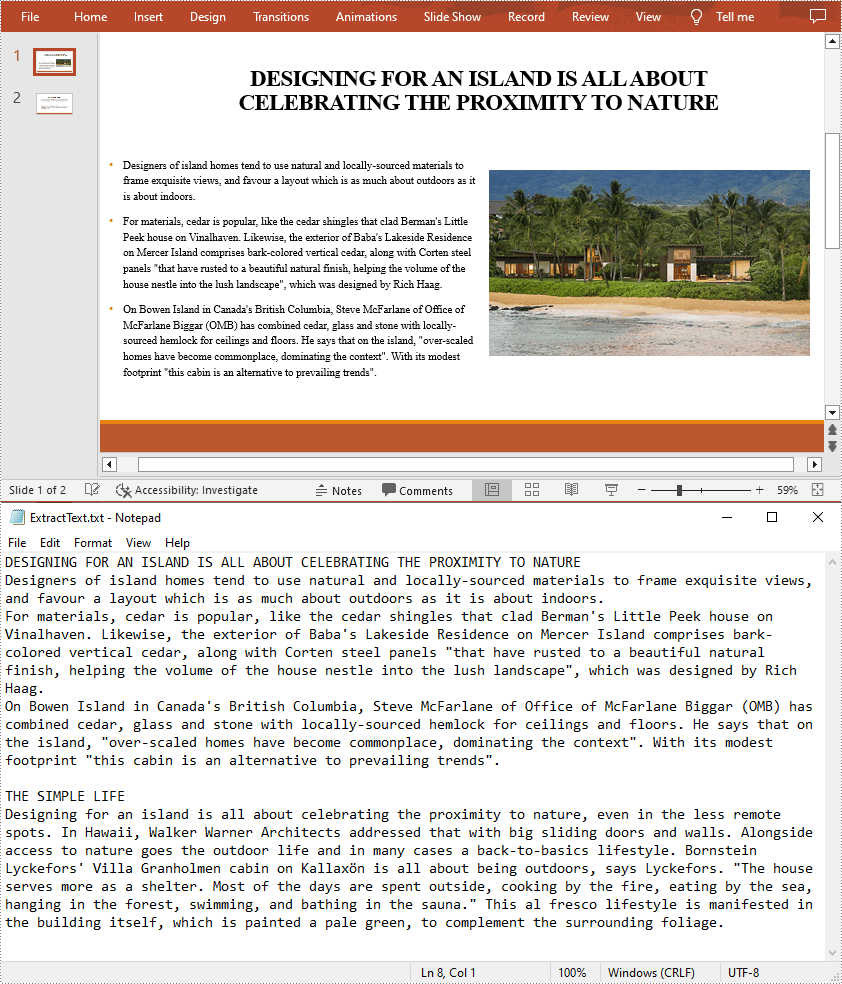
When sending a PowerPoint document containing a lot of media files and images to others for text proofreading, you may find that the transfer speed is quite slow because of the large file size. In such a case, it is better to extract the text from PowerPoint to MS Word or Notepad first, and then send only the text content. In addition, the extracted text content can also be archived or backed up for future reference. In this article, you will learn how to extract text from a PowerPoint Presentation in C# and VB.NET using Spire.Presentation for .NET.
Install Spire.Presentation for .NET
To begin with, you need to add the DLL files included in the Spire.Presentation for.NET package as references in your .NET project. The DLL files can be either downloaded from this link or installed via NuGet.
PM> Install-Package Spire.Presentation
Extract Text from PowerPoint Presentations in C# and VB.NET
To facilitate the sharing or delivery of text information in a PowerPoint document, text extraction is an operation occasionally required. The following are the steps to extract text from all presentation slides and save in a TXT file.
- Initialize an instance of the Presentation class.
- Load a sample PowerPoint document using Presentation.LoadFromFile() method.
- Create a StringBuilder instance.
- Iterate through each slide in the document, and then iterate through all the shapes in each slide.
- Determine whether the shapes are of IAutoShape type. If yes, iterate through all the paragraphs in each shape and get the paragraph text using TextParagraph.Text property.
- Append the extracted text to the StringBuilder instance using StringBuilder.AppendLine() method
- Create a new txt file and write the extracted text to the file using File.WriteAllText() method.
- C#
- VB.NET
using Spire.Presentation;
using System.IO;
using System.Text;
namespace ExtractText
{
    class Program
    {
        static void Main(string[] args)
        {
            //Initialize an instance of the Presentation class
            Presentation presentation = new Presentation();

            //Load a sample PowerPoint document
            presentation.LoadFromFile("Island.pptx");
            //Create a StringBuilder instance
            StringBuilder sb = new StringBuilder();

            //Iterate through each slide in the document
            foreach (ISlide slide in presentation.Slides)
            {
                //Iterate through each shape in each slide
                foreach (IShape shape in slide.Shapes)
                {
                    //Check if the shape is of IAutoShape type
                    if (shape is IAutoShape)
                    {
                        //Iterate through all paragraphs in each shape
                        foreach (TextParagraph tp in (shape as IAutoShape).TextFrame.Paragraphs)
                        {
                            //Extract text and save to StringBuilder instance
                            sb.AppendLine(tp.Text);
                        }
                    }
                }
            }
            //Create a new txt file to save the extracted text
            File.WriteAllText("ExtractText.txt", sb.ToString());
        }
    }
}
Apply for a Temporary License
If you'd like to remove the evaluation message from the generated documents, or to get rid of the function limitations, please request a 30-day trial license for yourself.
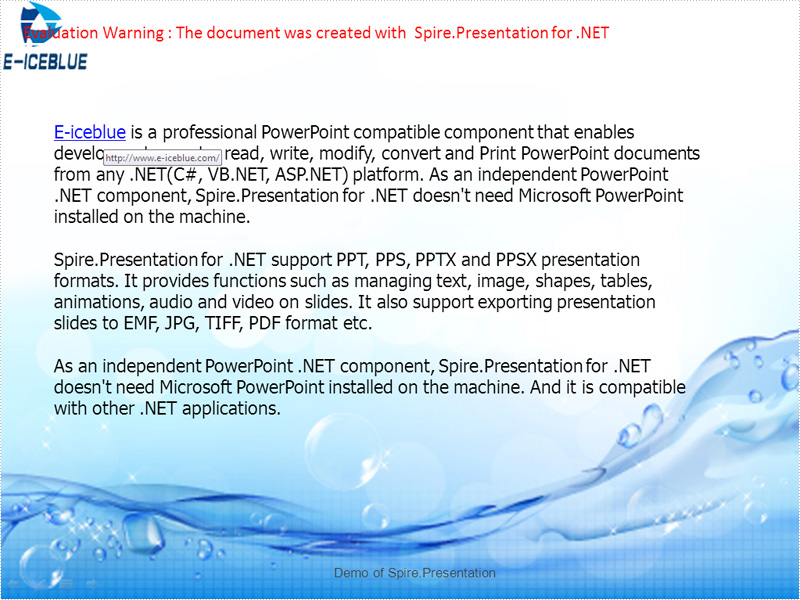
Hyperlinks can easily guide the readers to the place you want to point to and it displays large amount of information to readers. Spire.Presentation for .NET enables developers to insert hyperlinks in PowerPoint presentations. Developers can also modify the existing hyperlinks and replace with new link text or target URL. This section will show how to edit hyperlinks from presentation slides in C#. Firstly check the screenshot of the original hyperlink:

Spire.Presentation offers a ClickAction class for users to edit the hyperlinks. You can call the function ClickHyperlink to edit the hyperlinks. Here comes to the steps.
Step 1: Load a PowerPoint documents with hyperlinks.
Presentation pre = new Presentation();
pre.LoadFromFile(@"..\..\sample.pptx");
Step 2: Find the hyperlinks you want to edit.
IAutoShape shape = (IAutoShape)pre.Slides[0].Shapes[2];
Step 3: Edit the link text and the target URL.
shape.TextFrame.TextRange.ClickAction.Address = "http://www.e-iceblue.com";
shape.TextFrame.TextRange.Text = "E-iceblue";
Step 4: Save the document.
pre.SaveToFile(@"..\..\result.pptx",FileFormat.Pptx2010);
Effective screenshot after edit the hyperlink on presentation slide:
Full codes:
namespace EditHyperlink
{
    class Program
    {
        static void Main(string[] args)
        {
            Presentation pre = new Presentation();
            pre.LoadFromFile(@"..\..\sample.pptx");
            IAutoShape shape = (IAutoShape)pre.Slides[0].Shapes[2];
            shape.TextFrame.TextRange.ClickAction.Address = "http://www.e-iceblue.com";
            shape.TextFrame.TextRange.Text = "E-iceblue";
            pre.SaveToFile(@"..\..\result.pptx",FileFormat.Pptx2010);
            System.Diagnostics.Process.Start(@"..\..\result.pptx");
        }
    }
}
