
Knowledgebase (2417)
Children categories
Sometimes, audiences may feel bored when they see slides with only text and images. Inserting a video is a great way to add visual interest to your presentation and make it more engaging for your audience. In this article, you will learn how to insert videos as well as replace and extract videos in PowerPoint in C# and VB.NET using Spire.Presentation for .NET.
- Insert a Video into a PowerPoint Presentation
- Replace a Video in a PowerPoint Presentation
- Extract Videos from a PowerPoint Presentation
Install Spire.Presentation for .NET
To begin with, you need to add the DLL files included in the Spire.Presentation for.NET package as references in your .NET project. The DLL files can be either downloaded from this link or installed via NuGet.
PM> Install-Package Spire.Presentation
Insert a Video into a PowerPoint Presentation in C# and VB.NET
By inserting a video into your presentation, you can share the video with your audience instantly without having to look for it on your computer while presenting. The following steps demonstrate how to insert a video into a PowerPoint presentation:
- Create an instance of the Presentation class.
- Load a PowerPoint document using Presentation.LoadFromFile() method.
- Get a specific slide by its index through Presentation.Slides[int] property.
- Create an instance of the RectangleF class.
- Add a video to the slide using ISlide.Shapes.AppendVideoMedia(string, RectangleF) method.
- Set a thumbnail image for the video through IVideo.PictureFill.Picture.Url property.
- Save the result document using Presentation.SaveToFile() method.
- C#
- VB.NET
using Spire.Presentation;
using Spire.Presentation.Drawing;
using System.Drawing;

namespace InsertVideoInPPT
{
    class Program
    {
        static void Main(string[] args)
        {
            //Create a Presentation instance
            Presentation presentation = new Presentation();
            //Load a PowerPoint document
            presentation.LoadFromFile(@"Input.pptx");

            //Get the first slide
            ISlide slide = presentation.Slides[0];

            //Add description text
            RectangleF rec_title = new RectangleF(50, 280, 160, 50);
            IAutoShape shape_title = slide.Shapes.AppendShape(ShapeType.Rectangle, rec_title);
            shape_title.ShapeStyle.LineColor.Color = Color.Transparent;
            shape_title.Fill.FillType = FillFormatType.None;
            TextParagraph para_title = new TextParagraph();
            para_title.Text = "Video:";
            para_title.Alignment = TextAlignmentType.Center;
            para_title.TextRanges[0].LatinFont = new TextFont("Myriad Pro Light");
            para_title.TextRanges[0].FontHeight = 32;
            para_title.TextRanges[0].IsBold = TriState.True;
            para_title.TextRanges[0].Fill.FillType = FillFormatType.Solid;
            para_title.TextRanges[0].Fill.SolidColor.Color = Color.FromArgb(68, 68, 68);
            shape_title.TextFrame.Paragraphs.Append(para_title);

            //Add a video to the first slide
            RectangleF videoRect = new RectangleF(presentation.SlideSize.Size.Width / 2 - 125, 240, 240, 130);
            IVideo video = slide.Shapes.AppendVideoMedia("Video.mp4", videoRect);
            //Set a thumbnail image for the video
            video.PictureFill.Picture.Url = @"Picture.png";

            //Save the result document
            presentation.SaveToFile("InsertVideo.pptx", FileFormat.Pptx2010);
        }
    }
}

Replace a Video in a PowerPoint Presentation in C# and VB.NET
If you think an existing video cannot support your statements well, you can replace it with another suitable one. The following steps demonstrate how to replace an existing video with another video in a PowerPoint presentation:
- Create an instance of the Presentation class.
- Load a PowerPoint document using Presentation.LoadFromFile() method.
- Get a specific slide by its index through Presentation.Slides[int] property.
- Load a video into a byte array using File.ReadAllBytes() method.
- Add the loaded video to the video collection of the document using Presentation.Videos.Append(byte[]) method.
- Loop through all shapes on the slide and find the video shape.
- Replace the original video with the loaded video through IVideo.EmbeddedVideoData property. Then change the thumbnail image of the video through IVideo.PictureFill.Picture.Url property.
- Save the result document using Presentation.SaveToFile() method.
- C#
- VB.NET
using Spire.Presentation;
using System.IO;

namespace ReplaceVideoInPPT
{
    class Program
    {
        static void Main(string[] args)
        {
            //Create a Presentation instance
            Presentation ppt = new Presentation();
            //Load a PowerPoint document
            ppt.LoadFromFile("InsertVideo.pptx");

            //Get the first slide
            ISlide slide = ppt.Slides[0];

            //Load a video into a byte array
            byte[] bts = File.ReadAllBytes(@"NewVideo.mp4");
            //Add the loaded video to the video collection of the document
            VideoData videoData = ppt.Videos.Append(bts);

            //Loop through all shapes on the first slide
            foreach (Shape shape in slide.Shapes)
            {
                //Check if the shape is of IVideo type
                if (shape is IVideo)
                {
                    //Typecast the shape as IVideo
                    IVideo video = shape as IVideo;
                    //Replace the original video with the loaded video
                    video.EmbeddedVideoData = videoData;
                    //Change the thumbnail image of the video
                    video.PictureFill.Picture.Url = @"Picture1.png";
                }
            }

            //Save the result document
            ppt.SaveToFile("ReplaceVideo.pptx", FileFormat.Pptx2010);
        }
    }
}

Extract Videos from a PowerPoint Presentation in C# and VB.NET
If you like the videos in a PowerPoint presentation and want to use them in other places, you can extract and save them to your disk. The following steps demonstrate how to extract videos from a PowerPoint presentation:
- Create an instance of the Presentation class.
- Load a PowerPoint document using Presentation.LoadFromFile() method.
- Loop through all slides in the document.
- Loop through all shapes on each slide.
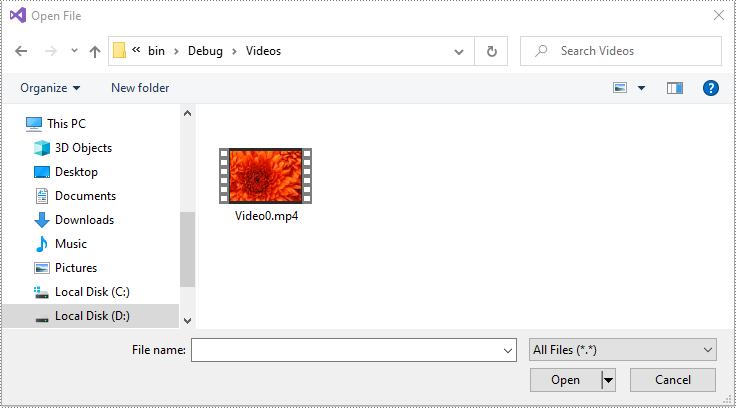
- Find the video shapes, then save the videos to disk using IVideo.EmbeddedVideoData.SaveToFile() method.
- C#
- VB.NET
using Spire.Presentation;

namespace ExtractVideosInPPT
{
    class Program
    {
        static void Main(string[] args)
        {
            //Create a Presentation instance
            Presentation presentation = new Presentation();
            //Load a PowerPoint document
            presentation.LoadFromFile(@"ReplaceVideo.pptx");

            int i = 0;
            //Specify the output file path
            string result = string.Format(@"Videos\Video{0}.mp4", i);

            //Loop through all slides in the document
            foreach (ISlide slide in presentation.Slides)
            {
                //Loop through all shapes on each slide
                foreach (IShape shape in slide.Shapes)
                {
                    //Check if the shape is of IVideo type
                    if (shape is IVideo)
                    {
                        //Save the video to the specified path
                        (shape as IVideo).EmbeddedVideoData.SaveToFile(result);
                        i++;
                    }
                }
            }
        }
    }
}
Apply for a Temporary License
If you'd like to remove the evaluation message from the generated documents, or to get rid of the function limitations, please request a 30-day trial license for yourself.
Slides are the most basic component of a PowerPoint document. Each PowerPoint presentation can be composed of a series of slides containing different elements, such as text, shapes, tables, and images. When you are working on a PowerPoint document, adding and removing slides are probably some of the most required actions. In this article, you will learn how to programmatically add or delete a PowerPoint slide using Spire.Presentation for .NET.
- Add a New Slide at the End of the PowerPoint Document
- Insert a New Slide Before a Specific Slide in PowerPoint
- Delete a Specific Slide from a PowerPoint Document
Install Spire.Presentation for .NET
To begin with, you need to add the DLL files included in the Spire.Presentation for.NET package as references in your .NET project. The DLL files can be either downloaded from this link or installed via NuGet.
PM> Install-Package Spire.Presentation
Add a New Slide at the End of the PowerPoint Document
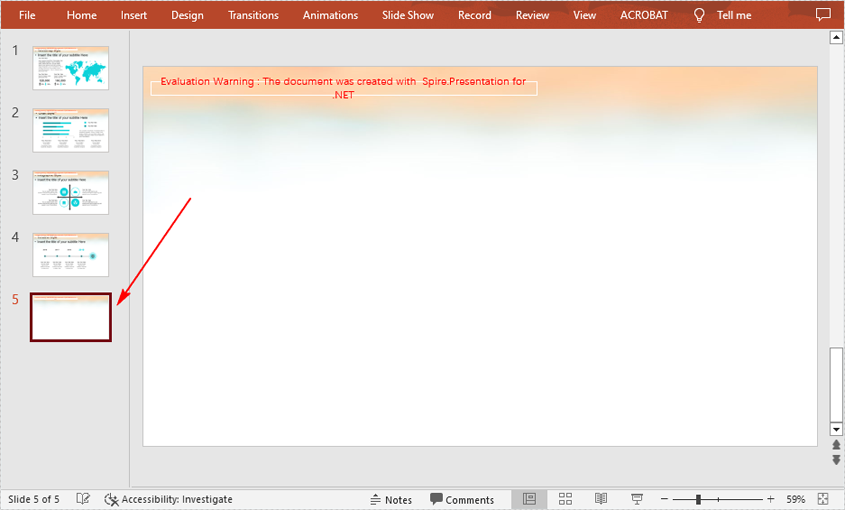
The Presentation.Slides.Append() method provided by Spire.Presentation for .NET allows you to append a new slide after the last slide of a PowerPoint document. The detailed steps are as follows.
- Initialize an instance of Presentation class.
- Load a PowerPoint document using Presentation.LoadFromFile() method.
- Add a new blank slide at the end of the document using Presentation.Slides.Append() method.
- Save the result document using Presentation.SaveToFile() method.
- C#
- VB.NET
using Spire.Presentation;

namespace AddNewSlideinPowerPoint
{
    class Program
    {
        static void Main(string[] args)
        {
            // Initialize an instance of Presentation class
            Presentation presentation = new Presentation();

            //Load a sample PowerPoint document
            presentation.LoadFromFile("Sample.pptx");

            //Add a new slide at the end of the document
            presentation.Slides.Append();

            //Save the result document
            presentation.SaveToFile("AddSlide.pptx", FileFormat.Pptx2013);
        }
    }
}
Insert a New Slide Before a Specific Slide in PowerPoint
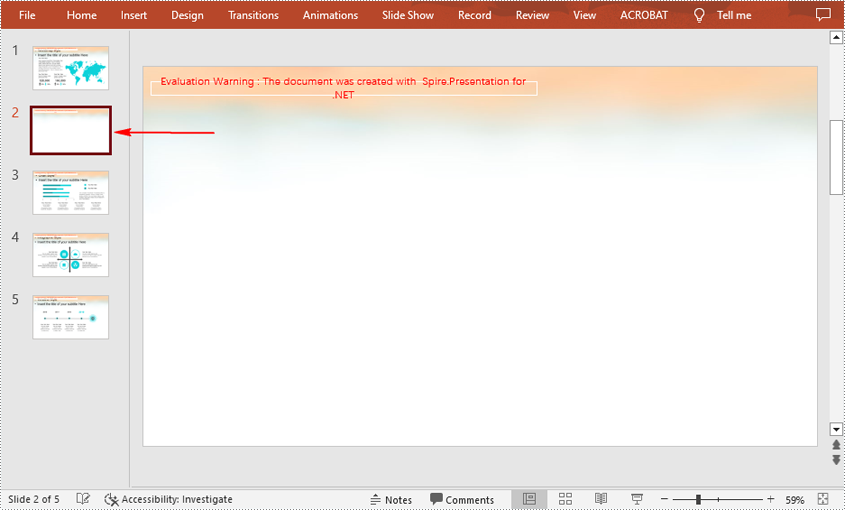
Sometimes you may also need to insert a slide before a specific slide to add additional supporting information, and below are the detailed steps to accomplish the task.
- Initialize an instance of Presentation class.
- Load a PowerPoint document using Presentation.LoadFromFile() method.
- Insert a blank slide before a specified slide using Presentation.Slides.Insert() method.
- Save the result document using Presentation.SaveToFile() method.
- C#
- VB.NET
using Spire.Presentation;

namespace InsertSlideinPowerPoint
{
    class Program
    {
        static void Main(string[] args)
        {
            //Create a Presentation object
            Presentation presentation = new Presentation();

            //Load a sample PowerPoint document
            presentation.LoadFromFile("Sample.pptx");

            //Insert a blank slide before the second slide
            presentation.Slides.Insert(1);

            //Save the result document
            presentation.SaveToFile("InsertSlide.pptx", FileFormat.Pptx2013);
        }
    }
}
Delete a Specific Slide from a PowerPoint Document
If you want to remove a unnecessary slide from the document, you can use the Presentation.Slides.RemoveAt(int index) method. The detailed steps are as follows.
- Initialize an instance of Presentation class.
- Load a PowerPoint document using Presentation.LoadFromFile() method.
- Remove a specified slide from the document using Presentation.Slides.RemoveAt() method.
- Save the result document using Presentation.SaveToFile() method.
- C#
- VB.NET
using Spire.Presentation;

namespace DeletePowerPointSlide
{
    class Program
    {
        static void Main(string[] args)
        {
            //Create a Presentation object
            Presentation presentation = new Presentation();

            //Load a sample PowerPoint document
            presentation.LoadFromFile("Sample.pptx");

            //Remove the first slide
            presentation.Slides.RemoveAt(0);

            //Save the result document
            presentation.SaveToFile("RemoveSlide.pptx", FileFormat.Pptx2013);
        }
    }
}

Apply for a Temporary License
If you'd like to remove the evaluation message from the generated documents, or to get rid of the function limitations, please request a 30-day trial license for yourself.
Animation is a great way to emphasize important points, to control the flow of information, and to increase viewer interest in your presentation. You can animate text, pictures, shapes, tables, SmartArt graphics, and other objects in PowerPoint slide to give them visual effects. This article will focus on how to apply animation effect to a shape using Spire.Presentation in C#.
Step 1: Initialize an instance of Presentation class and get the first slide from the presentation.
Presentation ppt = new Presentation();
ISlide slide = ppt.Slides[0];
Step 2: Insert a rectangle in the slide and fill the shape with purple.
IAutoShape shape = slide.Shapes.AppendShape(ShapeType.Rectangle, new RectangleF(50, 50, 200, 80));
shape.Fill.FillType = FillFormatType.Solid;
shape.Fill.SolidColor.Color = Color.Purple;
shape.ShapeStyle.LineColor.Color = Color.White;
Step 3: Apply FadedSwivel animation effect to the shape.
shape.Slide.Timeline.MainSequence.AddEffect(shape, AnimationEffectType.FadedSwivel);
Step 4: Save the file.
ppt.SaveToFile("animations.pptx", FileFormat.Pptx2010);
Output:

Full Code:
using Spire.Presentation;
using Spire.Presentation.Drawing.Animation;
using System.Drawing;
using Spire.Presentation.Drawing;

namespace SetAnimationsOnShapes
{
    class Program
    {
        static void Main(string[] args)
        {
            Presentation ppt = new Presentation();
            ISlide slide = ppt.Slides[0];

            IAutoShape shape = slide.Shapes.AppendShape(ShapeType.Rectangle, new RectangleF(50, 50, 200, 80));
            shape.Fill.FillType = FillFormatType.Solid;
            shape.Fill.SolidColor.Color = Color.Purple;
            shape.ShapeStyle.LineColor.Color = Color.White;
            shape.AppendTextFrame("Animated Shape");
            shape.Slide.Timeline.MainSequence.AddEffect(shape, AnimationEffectType.FadedSwivel);

            ppt.SaveToFile("animations.pptx", FileFormat.Pptx2010);
        }
    }
}
