
Knowledgebase (2417)
Children categories
We have previously introduced how to insert a custom table and how to edit a table in PowerPoint documents. Now, we are going to make a brief introduction about how to remove the rows or columns that belong to an existing table.
Spire.Presentation for .NET, built to provide flexible PowerPoint document handling capabilities, allows developers to add a table to a slide and perform some basic operations as removing rows and columns in the table in an easy way.
Step 1: Create a PowerPoint instance and load a sample file.
Presentation presentation = new Presentation();
presentation.LoadFromFile("table.pptx");
Step 2: Find the table and remove the second column and second row.
ITable table = null;
foreach (IShape shape in presentation.Slides[0].Shapes)
{
  if (shape is ITable)
  {
    table = (ITable)shape;
    table.ColumnsList.RemoveAt(1, false)
    table.TableRows.RemoveAt(1, false);
  }
}
Step 3: Save the document.
presentation.SaveToFile("result.pptx", FileFormat.Pptx2010);
System.Diagnostics.Process.Start("result.pptx");
The sample table with the second row and second column highlighted.
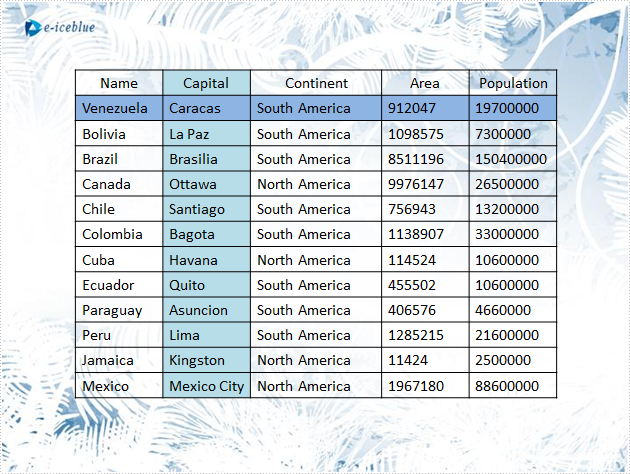
Result:

Full C# code:
using Spire.Presentation;

namespace RemoveRow
{

    class Program
    {

        static void Main(string[] args)
        {
            //create a PPT document
            Presentation presentation = new Presentation();
            presentation.LoadFromFile("table.pptx");

            //get the table in PPT document
            ITable table = null;
            foreach (IShape shape in presentation.Slides[0].Shapes)
            {
                if (shape is ITable)
                {
                    table = (ITable)shape;

                    //remove the second column
                    table.ColumnsList.RemoveAt(1, false);

                    //remove the second row
                    table.TableRows.RemoveAt(1, false);
                }
            }
            //save the document
            presentation.SaveToFile("result.pptx", FileFormat.Pptx2010);
            System.Diagnostics.Process.Start("result.pptx");

        }

    }
}
Save PowerPoint file to Stream and Load PowerPoint file from Stream
2014-06-12 02:48:45 Written by KoohjiSpire.Presentation is a powerful and easy-to-use .NET component, especially designed for developers. Using Spire.Presentation you can generate, modify, convert, render, and print documents without installing Microsoft PowerPoint on your machine. In this document, I will introduce you how to create PowerPoint file and save it to stream. I also introduce you how to load PowerPoint file from stream. Check it below.
Create PowerPoint file and save it to Stream
Step 1: Create Presentation instance.
Presentation presentation = new Presentation();
Step 2: Set background image.
string ImageFile = "bg.png";
RectangleF rect = new RectangleF(0, 0, presentation.SlideSize.Size.Width, presentation.SlideSize.Size.Height);
presentation.Slides[0].Shapes.AppendEmbedImage(ShapeType.Rectangle, ImageFile, rect);
presentation.Slides[0].Shapes[0].Line.FillFormat.SolidFillColor.Color = Color.FloralWhite;
Step 3: Add text to PowerPoint document.
IAutoShape shape = presentation.Slides[0].Shapes.AppendShape(ShapeType.Rectangle, new RectangleF(50, 70, 450, 150));
shape.Fill.FillType = FillFormatType.None;
shape.ShapeStyle.LineColor.Color = Color.White;

//add text to shape
shape.TextFrame.Text = "This demo shows how to Create PowerPoint file and save it to Stream.";
shape.TextFrame.Paragraphs[0].TextRanges[0].Fill.FillType = FillFormatType.Solid;
shape.TextFrame.Paragraphs[0].TextRanges[0].Fill.SolidColor.Color = Color.Black;
Step 4: Save document to stream.
FileStream to_stream = new FileStream("To_stream.pptx", FileMode.Create);
presentation.SaveToFile(to_stream, FileFormat.Pptx2010);
to_stream.Close();
Preview the generated PowerPoint file:

Load PowerPoint file from stream.
Step 1: Create Presentation instance.
Presentation presentationLoad = new Presentation();
Step 2: Load PowerPoint file from stream.
FileStream from_stream = File.OpenRead("sample.pptx");
presentationLoad.LoadFromStream(from_stream, FileFormat.Pptx2010);
Step 3: Save the document.
presentationLoad.SaveToFile("From_stream.pptx",FileFormat.Pptx2010);
from_stream.Dispose();
Preview the PowerPoint file:

Full code:
using Spire.Presentation;
using Spire.Presentation.Drawing;
using System.Drawing;
using System.IO;
namespace SavePPTtoStream
{
    class Program
    {
        static void Main(string[] args)
        {

            //A: create PowerPoint file and save it to stream
            Presentation presentation = new Presentation();

            //set background Image
            string ImageFile = "bg.png";
            RectangleF rect = new RectangleF(0, 0, presentation.SlideSize.Size.Width, presentation.SlideSize.Size.Height);
            presentation.Slides[0].Shapes.AppendEmbedImage(ShapeType.Rectangle, ImageFile, rect);
            presentation.Slides[0].Shapes[0].Line.FillFormat.SolidFillColor.Color = Color.FloralWhite;

            //append new shape
            IAutoShape shape = presentation.Slides[0].Shapes.AppendShape(ShapeType.Rectangle, new RectangleF(50, 70, 450, 150));
            shape.Fill.FillType = FillFormatType.None;
            shape.ShapeStyle.LineColor.Color = Color.White;

            //add text to shape
            shape.TextFrame.Text = "This demo shows how to Create PowerPoint file and save it to Stream.";
            shape.TextFrame.Paragraphs[0].TextRanges[0].Fill.FillType = FillFormatType.Solid;
            shape.TextFrame.Paragraphs[0].TextRanges[0].Fill.SolidColor.Color = Color.Black;

            //save to Stream
            FileStream to_stream = new FileStream("To_stream.pptx", FileMode.Create);
            presentation.SaveToFile(to_stream, FileFormat.Pptx2010);
            to_stream.Close();

            System.Diagnostics.Process.Start("To_stream.pptx");


            //B: Load PowerPoint file from Stream
            Presentation presentationLoad = new Presentation();

            //load PowerPoint file from stream
            FileStream from_stream = File.OpenRead("sample.pptx");
            presentationLoad.LoadFromStream(from_stream, FileFormat.Pptx2010);

            //save the document
            presentationLoad.SaveToFile("From_stream.pptx", FileFormat.Pptx2010);
            from_stream.Dispose();

            System.Diagnostics.Process.Start("From_stream.pptx");


        }
    }
}
If you couldn't successfully use Spire.Presentation, please refer Spire.Presentation Quick Start which can guide you quickly use Spire.Presentation.
In Word document, users can add new page break or remove existing page breaks. This sample shows how to remove page breaks from the word document by using Spire.Doc. Spire.Doc supports to remove the page breaks from the word document from the format of .docx, .doc, and RTF etc.
Firstly make sure Spire.Doc for .NET has been installed correctly and then add Spire.Doc.dll as reference in the downloaded Bin folder though the below path: ".. \Spire.Doc\Bin\NET4.0\ Spire.Doc.dll". Here comes to the details of how to remove page breaks in C#.
//Create a new word document and load from the file.
Document document = new Document();
document.LoadFromFile("sample.docx");

// Traverse every paragraph of the first section of the document
for (int j = 0; j < document.Sections[0].Paragraphs.Count; j++)
  {
   Paragraph p = document.Sections[0].Paragraphs[j];

// Traverse every child object of a paragraph
for (int i = 0; i < p.ChildObjects.Count; i++)
    {
     DocumentObject obj = p.ChildObjects[i];

//Find the page break object
 if (obj.DocumentObjectType == DocumentObjectType.Break)
    {
     Break b = obj as Break;

// Remove the page break object from paragraph
p.ChildObjects.Remove(b);

//save the document to file.
document.SaveToFile("result.docx");
Please check the effective screenshot:

Full codes:
using Spire.Doc;
using Spire.Doc.Documents;
namespace RemovePageBreak
{
    class Program
    {
        static void Main(string[] args)
        {
            Document document = new Document();
            document.LoadFromFile("sample.docx", FileFormat.Docx);
            for (int j = 0; j < document.Sections[0].Paragraphs.Count; j++)
            {
                Paragraph p = document.Sections[0].Paragraphs[j];
                for (int i = 0; i < p.ChildObjects.Count; i++)
                {
                    DocumentObject obj = p.ChildObjects[i];
                    if (obj.DocumentObjectType == DocumentObjectType.Break)
                    {
                        Break b = obj as Break;
                        p.ChildObjects.Remove(b);
                    }
                }
            }
            document.SaveToFile("result.docx", FileFormat.Docx);
            System.Diagnostics.Process.Start("result.docx");
        }
    }
}
