
Knowledgebase (2417)
Children categories
Counting the number of pages in a PDF file is essential for various purposes, such as determining document length, organizing content, and evaluating printing requirements. Apart from knowing page count information using PDF viewers, you can also automate the task through programming. In this article, you will learn how to use C# to get the number of pages in a PDF file using Spire.PDF for .NET.
Install Spire.PDF for .NET
To begin with, you need to add the DLL files included in the Spire.PDF for .NET package as references in your .NET project. The DLL files can be either downloaded from this link or installed via NuGet.
PM> Install-Package Spire.PDF
Get the Number of Pages in a PDF File in C#
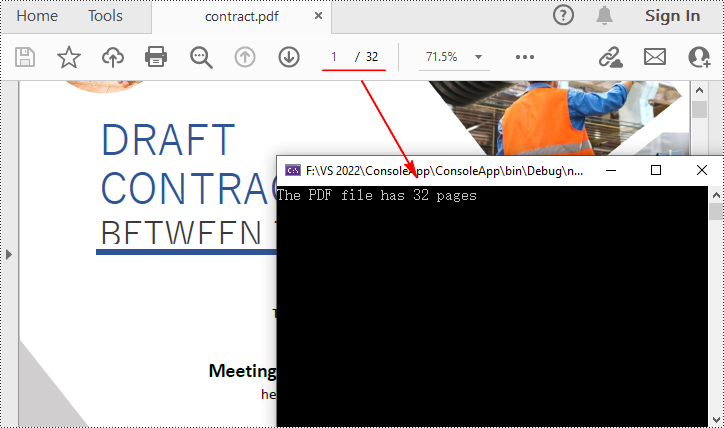
Spire.PDF for .NET offers the PdfDocument.Pages.Count property to quickly count the number of pages in a PDF file without opening it. The following are the detailed steps.
- Create a PdfDocument object.
- Load a sample PDF file using PdfDocument.LoadFromFile() method.
- Count the number of pages in the PDF file using PdfDocument.Pages.Count property.
- Output the result and close the PDF.
- C#
using Spire.Pdf;

namespace GetNumberOfPages
{
    class Program
    {
        static void Main(string[] args)
        {
            //Create a PdfDocument object
            PdfDocument pdf = new PdfDocument();

            //Load a sample PDF file
            pdf.LoadFromFile("Contract.pdf");

            //Count the number of pages in the PDF
            int PageNumber = pdf.Pages.Count;
            Console.WriteLine("The PDF file has {0} pages", PageNumber);

            //Close the PDF
            pdf.Close();
        }
    }
}
Apply for a Temporary License
If you'd like to remove the evaluation message from the generated documents, or to get rid of the function limitations, please request a 30-day trial license for yourself.
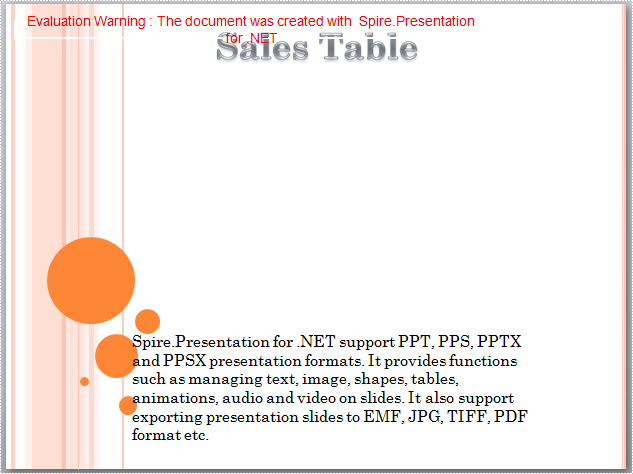
Spire.Presentation is a powerful and easy-to-use .NET component, especially designed for developers. Using Spire.Presentation you can generate, modify, convert, render, and print documents without installing Microsoft PowerPoint on your machine. There is a document in our website introducing you how to insert table. And in this document, I will introduce you how to remove tables within a PPT document.
Step 1: Create Presentation instance and load file.
Presentation presentation = new Presentation();
presentation.LoadFromFile("sample.ppt");
Step 2: Get the tables within the PPT document.
 List<IShape> shape_tems = new List<IShape>();
foreach (IShape shape in presentation.Slides[0].Shapes)
{
    if (shape is ITable)
    {
        //add new table to table list
        shape_tems.Add(shape);
    }
}
Step 3: Remove all tables.
foreach (IShape shape in shape_tems)
{
    presentation.Slides[0].Shapes.Remove(shape);
}
Step 4: Save the document.
presentation.SaveToFile("result.pptx", FileFormat.Pptx2010);
Download and install Spire.Presentation for .NET and refer to below code to remove tables within PPT document.
Screenshots:
Before:
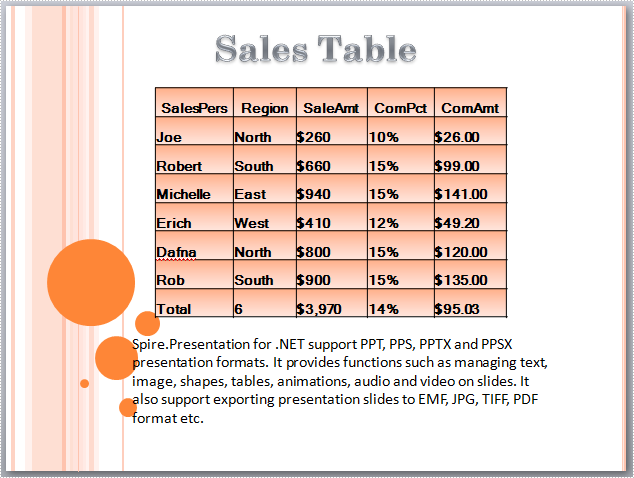
After:
Full Code:
//create Presentation instance and load file
Presentation presentation = new Presentation();
presentation.LoadFromFile("sample.ppt");

//get the tables in PowerPoint document
List<IShape> shape_tems = new List<IShape>();
foreach (IShape shape in presentation.Slides[0].Shapes)
{
    if (shape is ITable)
    {
        //add new table to table list
        shape_tems.Add(shape);
    }
}

//remove all tables
foreach (IShape shape in shape_tems)
{
    presentation.Slides[0].Shapes.Remove(shape);
}

//save the document
presentation.SaveToFile("result.pptx", FileFormat.Pptx2010);
System.Diagnostics.Process.Start("result.pptx");
'create Presentation instance and load file
Dim presentation As New Presentation()
presentation.LoadFromFile("sample.ppt")

'get the tables in PowerPoint document
Dim shape_tems As New List(Of IShape)()
For Each shape As IShape In presentation.Slides(0).Shapes
    If TypeOf shape Is ITable Then
        'add new table to table list
        shape_tems.Add(shape)
    End If
Next

'remove all tables
For Each shape As IShape In shape_tems
    presentation.Slides(0).Shapes.Remove(shape)
Next

'save the document
presentation.SaveToFile("result.pptx", FileFormat.Pptx2010)
System.Diagnostics.Process.Start("result.pptx")
If you couldn't successfully use Spire.Presentation, please refer Spire.Presentation Quick Start which can guide you quickly use Spire.Presentation.
In MS Word, a hyperlink is a clickable link that allows you to jump to a web page, a file, an email address, or even another location in the same document. It is undeniable that adding hyperlinks in Word documents is one of the most common operations in daily work, but there are times when you may also need to change the address or update the display text of an existing hyperlink. This article will demonstrate how to programmatically edit a hyperlink in a Word document using Spire.Doc for .NET.
Install Spire.Doc for .NET
To begin with, you need to add the DLL files included in the Spire.Doc for.NET package as references in your .NET project. The DLL files can be either downloaded from this link or installed via NuGet.
PM> Install-Package Spire.Doc
Edit a Hyperlink in a Word Document in C# and VB.NET
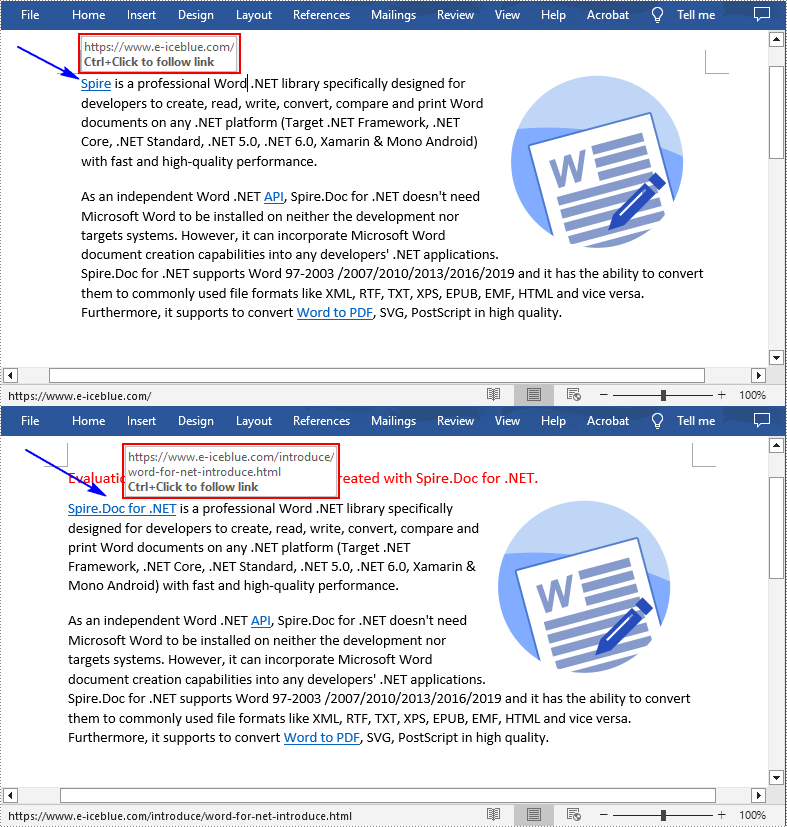
A hyperlink consists of two basic parts: the hyperlink address (URL) and its display text. With Spire.Doc for .NET, you are allowed to modify both the address and display text of an existing hyperlink using Field.Code and Field.FieldText properties. The detailed steps are as follows.
- Create a Document object.
- Load a sample Word document using Document.LoadFromFile() method.
- Create an object of List<Field>.
- Traverse through all body child objects of sections in the sample document to find all hyperlinks.
- Modify the address (URL) of a specified hyperlink using Field.Code property.
- Modify the display text of a specified hyperlink using Field.FieldText property.
- Save the document to another file using Document.SaveToFile() method.
- C#
- VB.NET
using Spire.Doc;
using Spire.Doc.Documents;
using Spire.Doc.Fields;
using System.Collections.Generic;

namespace ModifyHyperlink
{
    class Program
    {
        static void Main(string[] args)
        {
            //Create a Document object
            Document doc = new Document();

            //Load a sample Word document
            doc.LoadFromFile("Hyperlink.docx");

            //Create an object of List
            List<Field> hyperlinks = new List<Field>();

            //Loop through the items in the sections to find all hyperlinks
            foreach (Section section in doc.Sections)
            {
                foreach (DocumentObject sec in section.Body.ChildObjects)
                {
                    if (sec.DocumentObjectType == DocumentObjectType.Paragraph)
                    {
                        //Loop through all paragraphs in the sections
                        foreach (DocumentObject para in (sec as Paragraph).ChildObjects)
                        {
                            if (para.DocumentObjectType == DocumentObjectType.Field)
                            {
                                Field field = para as Field;

                                if (field.Type == FieldType.FieldHyperlink)
                                {
                                    hyperlinks.Add(field);
                                }
                            }
                        }
                    }
                }
            }
            //Modify the address (URL) of the first hyperlink
            hyperlinks[0].Code = "HYPERLINK \"" + "https://www.e-iceblue.com/Introduce/word-for-net-introduce.html" + "\"";

            //Modify the display text of the first hyperlink
            hyperlinks[0].FieldText = "Spire.Doc for .NET";

            //Save the result document
            doc.SaveToFile("EditHyperlinks.docx", FileFormat.Docx);
        }
    }
}
Apply for a Temporary License
If you'd like to remove the evaluation message from the generated documents, or to get rid of the function limitations, please request a 30-day trial license for yourself.
