Knowledgebase (2417)
Children categories
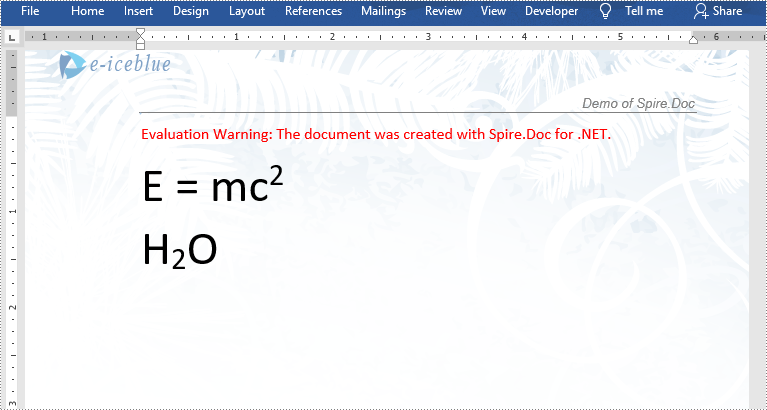
Superscripts or subscripts are characters positioned slightly above or below the normal line of text. They are commonly used in scientific formulas such as mathematical equations or chemical expressions. If you are creating a document containing scientific formulas, you most likely need to insert superscripts or subscripts. In this article, we will demonstrate how to insert superscripts and subscripts into Word in C# and VB.NET using Spire.Doc for .NET library.
Install Spire.Doc for .NET
To begin with, you need to add the DLL files included in the Spire.Doc for.NET package as references in your .NET project. The DLL files can be either downloaded from this link or installed via NuGet.
PM> Install-Package Spire.Doc
Insert Superscripts and Subscripts into Word using C# and VB.NET
The following are the main steps to insert a superscript or subscript into a Word document using Spire.Doc for .NET:
- Create a Document instance.
- Load a Word document using Document.LoadFromFile() method.
- Get the specific section through Document.Sections[sectionIndex] property.
- Add a paragraph to the section using Section.AddParagraph() method.
- Add normal text to the paragraph using Paragraph.AppendText() method.
- Add superscript or subscript text to the paragraph using Paragraph.AppendText() method.
- Apply superscript or subscript formatting to the superscript or subscript text through TextRange.CharacterFormat.SubSuperScript property.
- Save the result document using Document.SaveToFile() method.
- C#
- VB.NET
using Spire.Doc;
using Spire.Doc.Documents;
using Spire.Doc.Fields;

namespace InsertSuperscriptAndSubscript
{
    class Program
    {
        static void Main(string[] args)
        {
            //Create a Document instance
            Document document = new Document();
            //Load a Word document
            document.LoadFromFile("Sample.docx");

            //Get the first section
            Section section = document.Sections[0];

            //Add a paragraph to the section
            Paragraph paragraph = section.AddParagraph();

            //Add normal text to the paragraph
            paragraph.AppendText("E = mc");
            //Add superscript text to the paragraph
            TextRange superscriptText = paragraph.AppendText("2");
            //Apply superscript formatting to the superscript text
            superscriptText.CharacterFormat.SubSuperScript = SubSuperScript.SuperScript;

            //Start a new line
            paragraph.AppendBreak(BreakType.LineBreak);

            //Add normal text to the paragraph
            paragraph.AppendText("H");
            //Add subscript text to the paragraph
            TextRange subscriptText = paragraph.AppendText("2");
            //Apply subscript formatting to the subscript text
            subscriptText.CharacterFormat.SubSuperScript = SubSuperScript.SubScript;
            //Add normal text to the paragraph
            paragraph.AppendText("O");

            //Set font size for the text in the paragraph
            foreach (var item in paragraph.Items)
            {
                if (item is TextRange)
                {
                    TextRange textRange = item as TextRange;
                    textRange.CharacterFormat.FontSize = 36f;
                }
            }

            //Save the result document
            document.SaveToFile("InsertSuperscriptAndSubscript.docx", FileFormat.Docx2013);
        }
    }
}
Apply for a Temporary License
If you'd like to remove the evaluation message from the generated documents, or to get rid of the function limitations, please request a 30-day trial license for yourself.
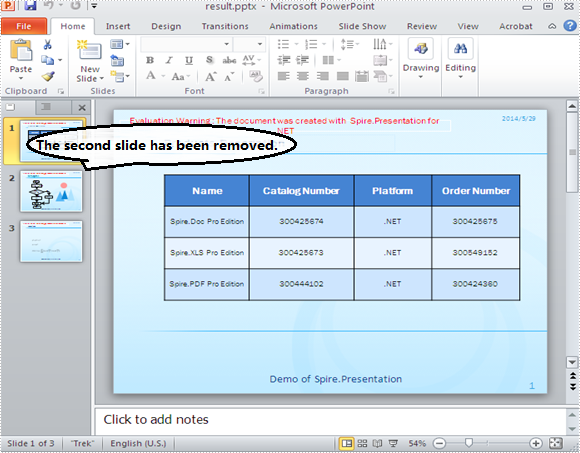
Sometimes, we may need to delete specific slide in a PowerPoint presentation due to any reason. This section will illustrate that how we can accomplish that task using Spire.Presentation for .NET.
As a matter of fact, it is quite easy and convenient to remove slides by only one line of core code if you have Spire.Presentation.Dll installed as a reference in your .NET project assemblies. Here is the method:
Step 1: Create an instance of presentation class and load PPT documents
Presentation presentation = new Presentation();
presentation.LoadFromFile("sample.pptx");
Step 2: Remove the second slide from the presentation by using its index position
presentation.Slides.RemoveAt(1);
Step 3: Save and review
presentation.SaveToFile("result.pptx",FileFormat.Pptx2010);
System.Diagnostics.Process.Start("result.pptx");
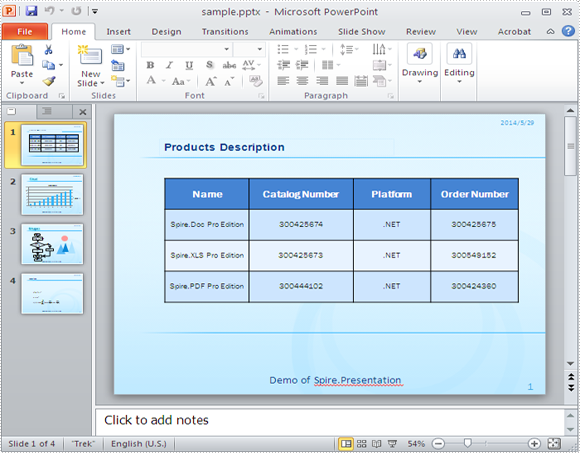
Original layout:
Result:
Full C# code:
using System;
using System.Collections.Generic;
using System.Linq;
using System.Text;
using Spire.Presentation;

namespace RemoveSlide
{
    class Program
    {
        static void Main(string[] args)
        {
            Presentation presentation = new Presentation();
            presentation.LoadFromFile("sample.pptx");

            //remove the second slide
            presentation.Slides.RemoveAt(1);

             presentation.SaveToFile("result.pptx",FileFormat.Pptx2010);
            System.Diagnostics.Process.Start("result.pptx");
        }
    }
}
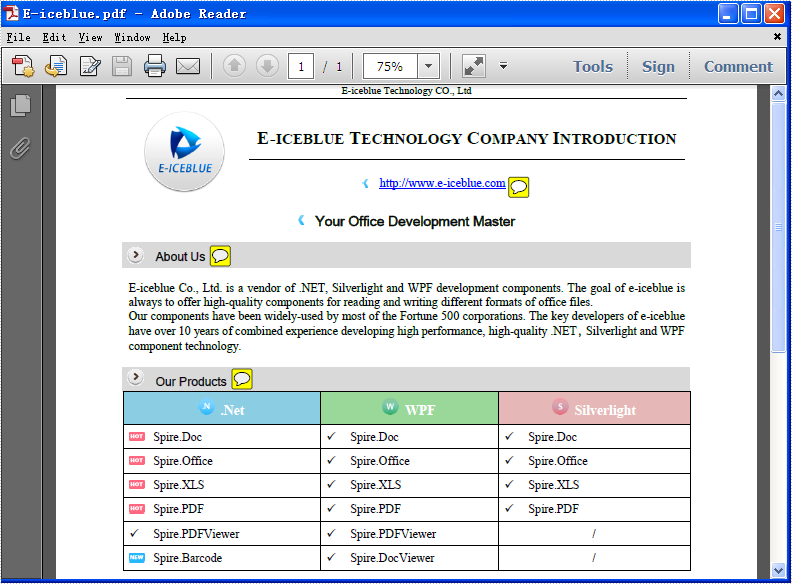
Text annotation is often used in PDF file to show readers the extra information of the item. By using Spire.PDF you can not only add a new annotation, edit an existing annotation, but also delete annotations from PDF file. In this article, we will introduce you how to delete a particular annotation and delete all the annotation at one time.
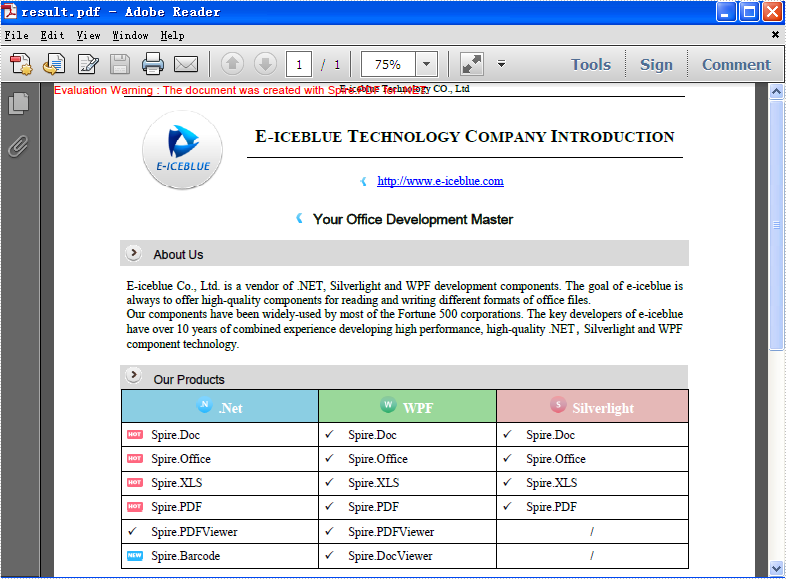
First, check the PDF document with annotations.
Here comes to the steps of how to remove the bookmarks in C#.
- Download Spire.PDF for .NET and install it correctly. The Spire.PDF installation is clean, professional and wrapped up in a MSI installer.
- Add Spire.Pdf.dll as reference in the downloaded Bin folder though the below path: "..\Spire.Pdf\Bin\NET4.0\ Spire.Pdf.dll".
- Check the code snippet of how to delete the annotations. With Spire.PDF.NET, we can remove both the particular annotation and remove all the annotations.
The code snippet of remove the first annotation from PDF file:
//Example 1: Remove the first annotation from the PDF file
PdfDocument document = new PdfDocument();
//load the pdf file
document.LoadFromFile("E-iceblue.pdf");

//remove the first annotation
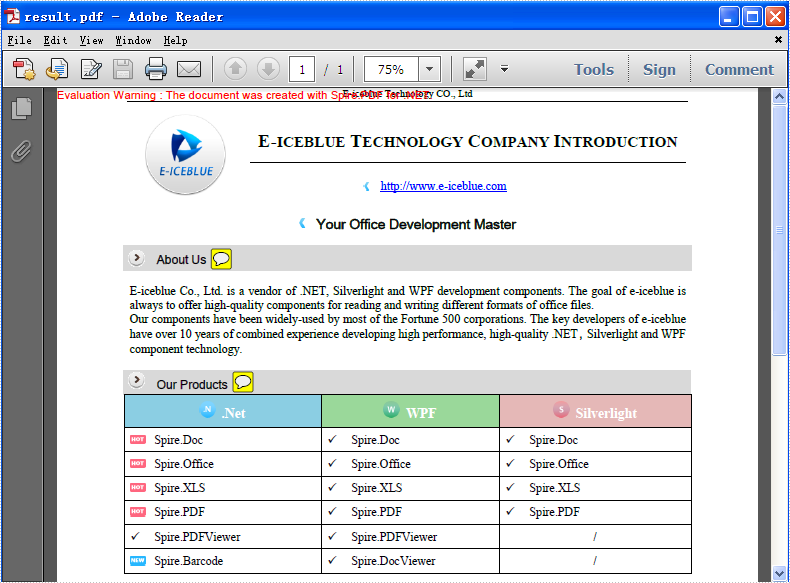
document.Pages[0].AnnotationsV2.RemoveAt(1);

document.SaveToFile("result.pdf");
System.Diagnostics.Process.Start("result.pdf");
The effective screenshot of remove the first annotation:
The code snippet of remove all annotations from PDF file:
//Example 2: Remove all annotations from the PDF file
PdfDocument document = new PdfDocument();
//load the pdf file
document.LoadFromFile("E-iceblue.pdf");

//remove all annotations
document.Pages[0].AnnotationsV2.Clear();

document.SaveToFile("result.pdf");
System.Diagnostics.Process.Start("result.pdf");
The effective screenshot of remove all the annotations: