Knowledgebase (2417)
Children categories
Generally, we tend to insert graphics, animation effects, audio frames or video frames into our PPT slides to make it more vivid and persuasive. Adding high-quality audio, background music for example, to a slide presentation can greatly increase the impact that it has on your viewers.
Spire.Presentation for .NET is a comprehensive toolkit which allows developers to process PPT slides in massive ways, including multitude of graphics and multimedia features. In this topic, we will make a simple introduction of how to insert audio into PPT using C#.
Step 1: Create a new PPT document first
Presentation presentation = new Presentation()
Step 2: Basically, we need to set a background image before inserting Audio file
string ImageFile = "bg.png";

            RectangleF rect = new RectangleF(0, 0, presentation.SlideSize.Size.Width, presentation.SlideSize.Size.Height);
            presentation.Slides[0].Shapes.AppendEmbedImage(ShapeType.Rectangle, ImageFile, rect);
            presentation.Slides[0].Shapes[0].Line.FillFormat.SolidFillColor.Color = Color.FloralWhite;
Step 3: Load the Audio file from disk
presentation.Slides[0].Shapes.AppendAudioMedia(Path.GetFullPath("paipai_sound.wav"), new RectangleF(100, 100, 20, 20));
Step 4: Set properties of AutoShape
IAutoShape shape = presentation.Slides[0].Shapes.AppendShape(ShapeType.Rectangle, new RectangleF(50, 150, 600, 250));
            shape.ShapeStyle.LineColor.Color = Color.White;
            shape.Fill.FillType = Spire.Presentation.Drawing.FillFormatType.None;
Step 5: Save PPT file
presentation.SaveToFile("Audio.pptx", FileFormat.Pptx2010);
            System.Diagnostics.Process.Start("Audio.pptx");
Effect Screenshot:
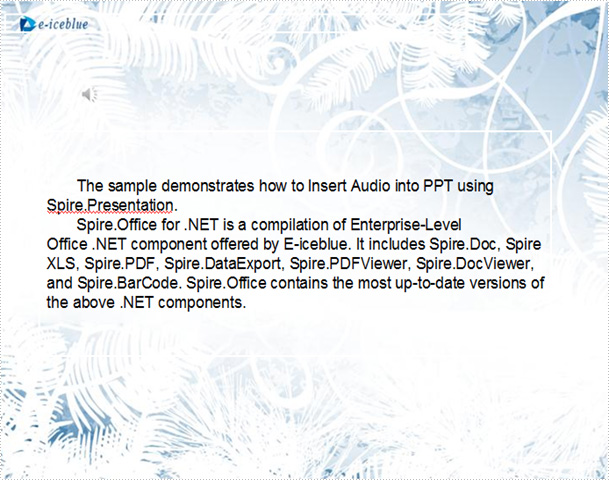
With Spire.Presentation, you can insert audio into your PowerPoint documents and do more same thing in your any .NET(C#, VB.NET, ASP.NET) applications without PowerPoint automation and any other third party add-ins.
Different printer drivers print out the document with different numbers of rows and columns. When we need to print an excel file with header and footer, the information of how many pages in one excel file and where is the first line start becomes very important. This article will show you how to get the page count of excel file and the row and column number of page break in C# by using Spire.XLS for .NET.
Firstly, make sure that Spire.XLS for .NET (version7.3.12 or above) has been installed on your machine. And then, adds Spire.XLS.dll as reference in the downloaded Bin folder thought the below path: "..\Spire.XLS\Bin\NET4.0\ Spire.XLS.dll".
Now it comes to the details of how to get the page count of excel file in C#:
//Create a new excel document
Workbook wb = new Workbook();
//load from the file
wb.LoadFromFile(@"D:\test.xlsx");
//get the page info.
var pageInfoList = wb.GetSplitPageInfo();
//Get the sheet count
int sheetCount = pageInfoList.Count;
//The page count of the first sheet
int pageCount = pageInfoList[0].Count;
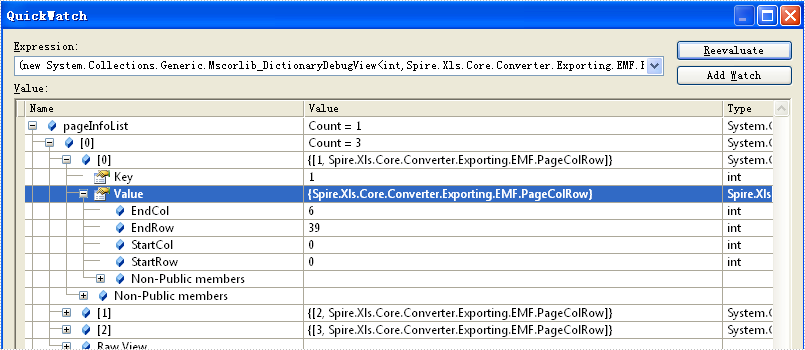
You could find a screenshot shows row number and column number of each Excel page.
Spire.XLS for .NET, as a professional Excel component, it enables you to generate, read, write and manipulate Excel files in C#, VB.NET in any .NET applications directly.
PPT file format is commonly used for office and educational slide shows. With Spire.Presentation, you can generate beautiful and powerful PPT files and edit them without utilizing Microsoft PowerPoint. The PPT files generated are compatible with PowerPoint.
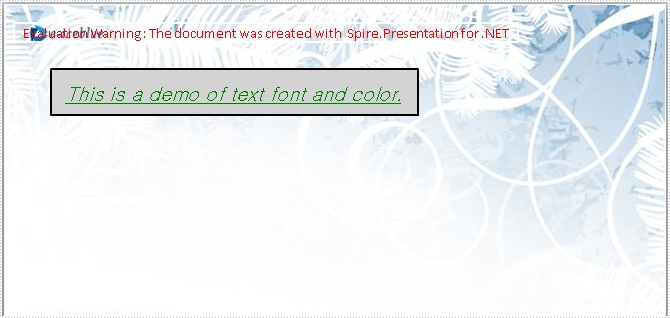
In this document, I will introduce you how to set Font of text in PPT file. First add IAutoShape to the slide. The IAutoShape is a TextBox. You have to add it first. Then add text to the IAutoShape using the method AppendTextFrame. Then you can get the property TextRange of the shape. Using TextRange, you can set Font of text finally.
Step 1: Add the shape to the slide.
IAutoShape shape = presentation.Slides[0].Shapes.AppendShape(ShapeType.Rectangle,
                new RectangleF(50, 70, 400, 50));
Step 2: Add the text to the shape.
shape.AppendTextFrame("This is a demo of text font and color.");
Step 3: Get the property TextRange of the text.
TextRange textRange = shape.TextFrame.TextRange;
Step 4: Set the Font of the text in shape.
textRange.FontHeight = 21;
textRange.IsItalic = TriState.True;
textRange.TextUnderlineType = TextUnderlineType.Single;
textRange.LatinFont = new TextFont("Gulim");
Step 5: Save the document.
presentation.SaveToFile("text.pptx", FileFormat.Pptx2007);
Full code:
using Spire.Presentation;
using System.Drawing;
namespace SetFont
{
    class Program
    {
        static void Main(string[] args)
        {
            //create PPT document
            Presentation presentation = new Presentation();

            //set background Image
            string ImageFile = @"..\..\..\..\..\..\Data\bg.png";
            RectangleF rect = new RectangleF(0, 0, presentation.SlideSize.Size.Width, presentation.SlideSize.Size.Height);
            presentation.Slides[0].Shapes.AppendEmbedImage(ShapeType.Rectangle, ImageFile, rect);
            presentation.Slides[0].Shapes[0].Line.FillFormat.SolidFillColor.Color = Color.FloralWhite;

            //append new shape
            IAutoShape shape = presentation.Slides[0].Shapes.AppendShape(ShapeType.Rectangle,
                new RectangleF(50, 70, 400, 50));

            //set the LineColor
            shape.ShapeStyle.LineColor.Color = Color.Black;

            //set the color and fill style
            shape.Fill.FillType = Spire.Presentation.Drawing.FillFormatType.Solid;
            shape.Fill.SolidColor.Color = Color.LightGray;
            shape.AppendTextFrame("This is a demo of text font and color.");

            //set the color of text in shape
            TextRange textRange = shape.TextFrame.TextRange;
            textRange.Fill.FillType = Spire.Presentation.Drawing.FillFormatType.Solid;
            textRange.Fill.SolidColor.Color = Color.Green;

            //set the Font of text in shape
            textRange.FontHeight = 21;
            textRange.IsItalic = TriState.True;
            textRange.TextUnderlineType = TextUnderlineType.Single;
            textRange.LatinFont = new TextFont("Gulim");

            //save the document
            presentation.SaveToFile("text.pptx", FileFormat.Pptx2007);
            System.Diagnostics.Process.Start("text.pptx");
        }
    }
}
Screenshot: