
Knowledgebase (2417)
Children categories
C#: Count Words, Characters, Paragraphs, Lines, and Pages in Word Documents
2024-04-30 07:38:58 Written by KoohjiAccurate counting of words, characters, paragraphs, lines, and pages is essential in achieving precise document analysis. By meticulously tracking these metrics, writers can gain valuable insights into the length, structure, and overall composition of their work. In this article, we will explain how to count words, characters, paragraphs, lines, and pages in Word documents in C# using Spire.Doc for .NET.
- Count Words, Characters, Paragraphs, Lines, and Pages in a Word Document in C#
- Count Words and Characters in a Specific Paragraph of a Word Document in C#
Install Spire.Doc for .NET
To begin with, you need to add the DLL files included in the Spire.Doc for .NET package as references in your .NET project. The DLL files can be either downloaded from this link or installed via NuGet.
PM> Install-Package Spire.Doc
Count Words, Characters, Paragraphs, Lines, and Pages in a Word Document in C#
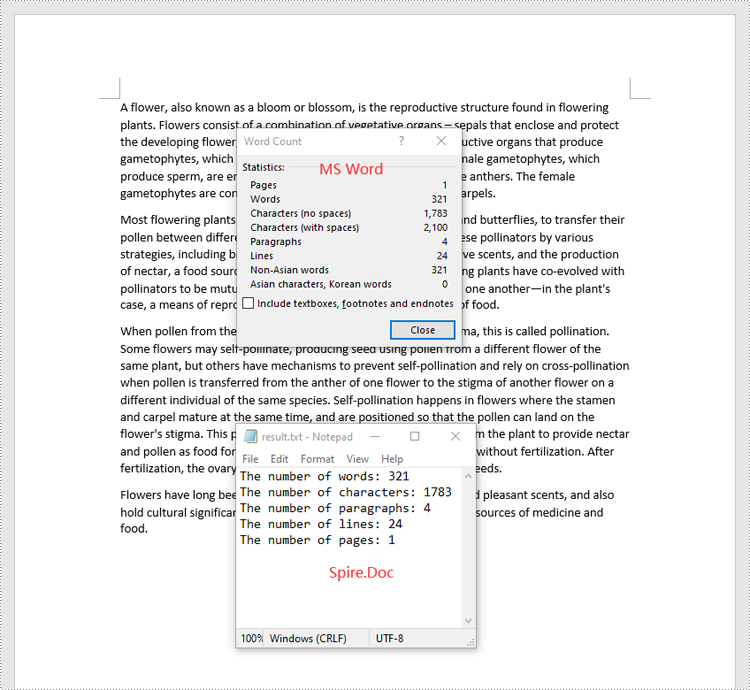
Spire.Doc for .NET provides the BuiltinDocumentProperties class that enables you to retrieve crucial information from your Word documents. By using this class, you can access a wealth of details, including both the built-in and custom properties, as well as the precise counts of words, characters, paragraphs, lines, and pages contained within the document. The detailed steps are as follows.
- Initialize an object of the Document class.
- Load a sample Word document using the Document.LoadFromFile() method.
- Get the BuiltinDocumentProperties object using the Document.BuiltinDocumentProperties property.
- Get the numbers of words, characters, paragraphs, lines, and pages in the document using the WordCount, CharCount, ParagraphCount, LinesCount and PageCount properties of the BuiltinDocumentProperties class.
- Initialize an object of the StringBuilder class and append the results to it using the StringBuilder.AppendLine() method.
- Write the content in the StringBuilder to a text file using the File.WriteAllText() method.
- C#
using Spire.Doc;
using System.IO;
using System.Text;

namespace CountWordsCharactersEtcInWord
{
    internal class Program
    {
        static void Main(string[] args)
        {
            //Initialize an object of the Document class
            Document document = new Document();
            //Load a sample Word document
            document.LoadFromFile("Input.docx");

            //Get the BuiltinDocumentProperties object
            BuiltinDocumentProperties properties = document.BuiltinDocumentProperties;

            //Get the numbers of words, characters, paragraphs, lines, and pages in the document
            int wordCount = properties.WordCount;
            int charCount = properties.CharCount;
            int paraCount = properties.ParagraphCount;
            int lineCount = properties.LinesCount;
            int pageCount = properties.PageCount;

            //Initialize an object of the StringBuilder class
            StringBuilder sb = new StringBuilder();
            //Append the results to the StringBuilder
            sb.AppendLine("The number of words: " + wordCount);
            sb.AppendLine("The number of characters: " + charCount);
            sb.AppendLine("The number of paragraphs: " + paraCount);
            sb.AppendLine("The number of lines: " + lineCount);
            sb.AppendLine("The number of pages: " + pageCount);

            //Write the content of the StringBuilder to a text file
            File.WriteAllText("result.txt", sb.ToString());
            document.Close();
        }
    }
}
Count Words and Characters in a Specific Paragraph of a Word Document in C#
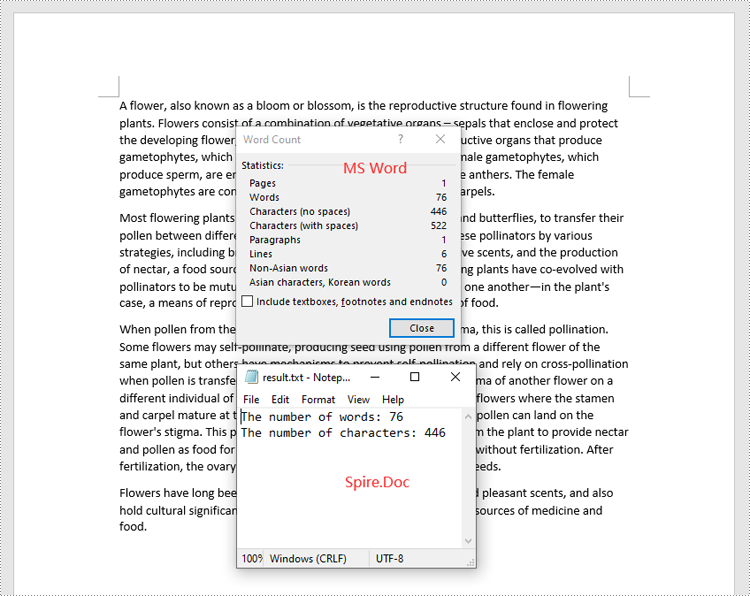
In addition to counting the words and characters in an entire Word document, Spire.Doc for .NET enables you to count the words and characters of a specific paragraph by using the Paragraph.WordCount and Paragraph.CharCount properties. The detailed steps are as follows.
- Initialize an object of the Document class.
- Load a sample Word document using the Document.LoadFromFile() method.
- Get a specific paragraph using the Document.Sections[sectionindex].Paragraphs[paragraphIndex] property.
- Get the numbers of words and characters in the paragraph using the Paragraph.WordCount and Paragraph.CharCount properties.
- Initialize an object of the StringBuilder class and append the results to it using the StringBuilder.AppendLine() method.
- Write the content in the StringBuilder to a text file using the File.WriteAllText() method.
- C#
using Spire.Doc;
using Spire.Doc.Documents;
using System.IO;
using System.Text;

namespace CountWordsAndCharactersForParagraph
{
    internal class Program
    {
        static void Main(string[] args)
        {
            //Initialize an object of the Document class
            Document document = new Document();
            //Load a sample Word document
            document.LoadFromFile("Input.docx");

            //Get a specific paragraph
            Paragraph paragraph = document.Sections[0].Paragraphs[0];

            //Get the numbers of words and characters in the paragraph
            int wordCount = paragraph.WordCount;
            int charCount = paragraph.CharCount;


            //Initialize an object of the StringBuilder class
            StringBuilder sb = new StringBuilder();
            //Append the results to the StringBuilder
            sb.AppendLine("The number of words: " + wordCount);
            sb.AppendLine("The number of characters: " + charCount);

            //Write the content of the StringBuilder to a text file
            File.WriteAllText("result.txt", sb.ToString());
            document.Close();
        }
    }
}
Apply for a Temporary License
If you'd like to remove the evaluation message from the generated documents, or to get rid of the function limitations, please request a 30-day trial license for yourself.
In the modern office environment, Microsoft Word has become an indispensable part of our daily work and study. Whether it's writing reports, creating resumes, or designing promotional materials, Word provides us with a rich set of features and tools. Among them, the function of adding shapes is particularly popular among users because it allows us to easily enhance the visual appeal and expressiveness of documents. Manipulating shape elements is one of the highlights of Spire.Doc functionality, and this article will introduce you to how to add or delete shapes in Word using Spire.Doc for Python.
Install Spire.Doc for Python
This scenario requires Spire.Doc for Python and plum-dispatch v1.7.4. They can be easily installed in your Windows through the following pip command.
pip install Spire.Doc
If you are unsure how to install, please refer to this tutorial: How to Install Spire.Doc for Python on Windows
Add Shapes in Word Document in Python
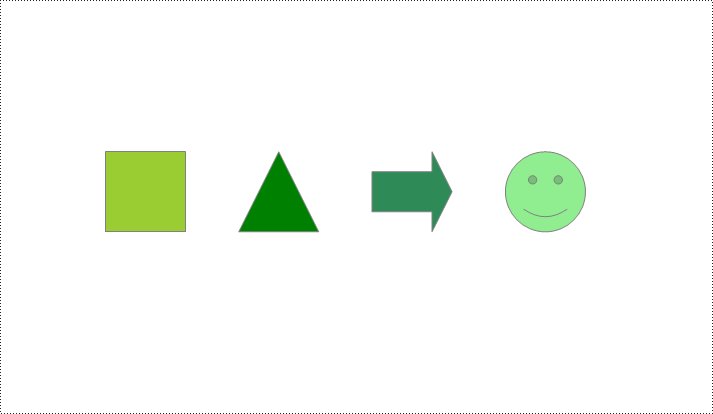
Spire.Doc for Python supports adding various shapes such as rectangles, trapezoids, triangles, arrows, lines, emoticons, and many other predefined shape types. By calling the Paragraph.AppendShape(width: float, height: float, shapeType: 'ShapeType') method, you can not only easily insert these shapes at any position in the document but also customize various properties of the shapes, such as fill color, border style, rotation angle, transparency, etc., to meet different typesetting needs and visual effects. Below are the detailed steps:
- Create a new Document object.
- Call Document.AddSection() and Section.AddParagraph() methods to add a section and a paragraph within the section, respectively.
- Call the Paragraph.AppendShape(width: float, height: float, shapeType: 'ShapeType') method to add a shape on the paragraph, where width and height represent the dimensions of the shape, and shapeType enum is used to specify the type of shape.
- Define the style of the shape, such as fill color, border color, border style, and width.
- Set the horizontal and vertical position of the shape relative to the page.
- Add multiple other types of shapes using the same method.
- Save the document using the Document.SaveToFile() method.
- Python
from spire.doc import *
from spire.doc.common import *

# Create a new Document object
doc = Document()

# Add a new section in the document
sec = doc.AddSection()

# Add a paragraph in the new section
para = sec.AddParagraph()

# Add a rectangle shape in the paragraph with width and height both 60
shape1 = para.AppendShape(60, 60, ShapeType.Rectangle)

# Define the fill color of the shape
shape1.FillColor = Color.get_YellowGreen()

# Define the border color
shape1.StrokeColor = Color.get_Gray()

# Define the border style and width
shape1.LineStyle = ShapeLineStyle.Single
shape1.StrokeWeight = 1

# Set the horizontal and vertical position of the shape relative to the page
shape1.HorizontalOrigin = HorizontalOrigin.Page
shape1.HorizontalPosition = 100
shape1.VerticalOrigin = VerticalOrigin.Page
shape1.VerticalPosition = 200

# Similarly, add a triangle shape in the same paragraph and set its properties
shape2 = para.AppendShape(60, 60, ShapeType.Triangle)
shape2.FillColor = Color.get_Green()
shape2.StrokeColor = Color.get_Gray()
shape2.LineStyle = ShapeLineStyle.Single
shape2.StrokeWeight = 1
shape2.HorizontalOrigin = HorizontalOrigin.Page
shape2.HorizontalPosition = 200
shape2.VerticalOrigin = VerticalOrigin.Page
shape2.VerticalPosition = 200

# Add an arrow shape and set its properties
shape3 = para.AppendShape(60, 60, ShapeType.Arrow)
shape3.FillColor = Color.get_SeaGreen()
shape3.StrokeColor = Color.get_Gray()
shape3.LineStyle = ShapeLineStyle.Single
shape3.StrokeWeight = 1
shape3.HorizontalOrigin = HorizontalOrigin.Page
shape3.HorizontalPosition = 300
shape3.VerticalOrigin = VerticalOrigin.Page
shape3.VerticalPosition = 200

# Add a smiley face shape and set its properties
shape4 = para.AppendShape(60, 60, ShapeType.SmileyFace)
shape4.FillColor = Color.get_LightGreen()
shape4.StrokeColor = Color.get_Gray()
shape4.LineStyle = ShapeLineStyle.Single
shape4.StrokeWeight = 1
shape4.HorizontalOrigin = HorizontalOrigin.Page
shape4.HorizontalPosition = 400
shape4.VerticalOrigin = VerticalOrigin.Page
shape4.VerticalPosition = 200

# Save the document
outputFile = "AddShapes.docx"
doc.SaveToFile(outputFile, FileFormat.Docx2016)

# Release the document
doc.Close()
Add Shape Group in Word Document
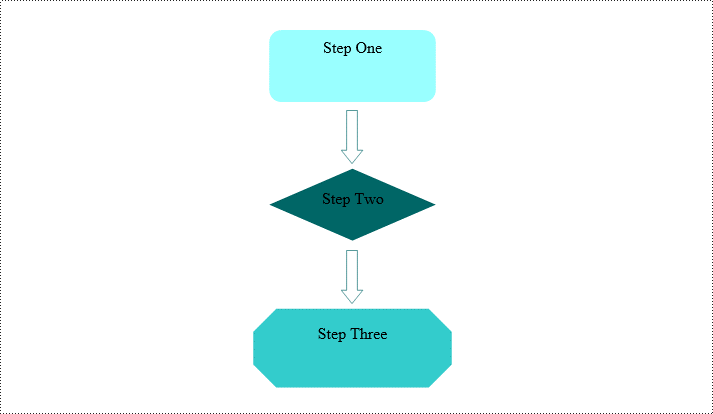
Spire.Doc for Python not only provides the functionality to add individual shapes (such as rectangles, circles, lines, etc.) but also supports creating and managing grouped shapes. A grouped shape is a special collection of shapes that organizes multiple independent shapes together to form a whole, sharing the same transformation properties (such as position, rotation angle, etc.). Here are the specific steps to achieve this:
- Create an object of the Document class.
- Call the Document.AddSection() method to add a blank section.
- Call the Section.AddParagraph() method to add a blank paragraph in the section.
- Call Paragraph.AppendShapeGroup() to add a shape group and specify its dimensions.
- Create a Textbox and specify its shape type, dimensions, position, fill color, and other properties.
- Add paragraphs within the Textbox and insert text, setting the paragraph's horizontal alignment to center.
- Add the Textbox to the list of child objects of the shape group.
- Similar to the above steps, create shapes for symbols like arrows, diamond-shaped text boxes, octagonal text boxes, and set their properties, adding them to the list of child objects of the shape group.
- Save the document using the Document.SaveToFile() method.
- Python
from spire.doc import *
from spire.doc.common import *

# Create a Document object
doc = Document()

# Add a section to the document
sec = doc.AddSection()

# Add a paragraph to the section
para = sec.AddParagraph()

# Add a shape group to the paragraph and specify its horizontal position
shapegroup = para.AppendShapeGroup(375, 350)
shapegroup.HorizontalPosition = 180

# Calculate the relative unit scale X and Y for the shape group for subsequent element size positioning
X = float((shapegroup.Width / 1000.0))
Y = float((shapegroup.Height / 1000.0))

# Create a rounded rectangle text box
txtBox = TextBox(doc)

# Set the shape type of the text box
txtBox.SetShapeType(ShapeType.RoundRectangle)

# Set the width and height of the text box
txtBox.Width = 125 / X
txtBox.Height = 54 / Y

# Add a paragraph inside the text box and set its horizontal alignment to center
paragraph = txtBox.Body.AddParagraph()
paragraph.Format.HorizontalAlignment = HorizontalAlignment.Center

# Add the text "Step One" to the paragraph
paragraph.AppendText("Step One")

# Set the horizontal and vertical position of the text box
txtBox.HorizontalPosition = 19 / X
txtBox.VerticalPosition = 27 / Y

# Set the fill color of the text box and remove the border line
txtBox.Format.FillColor = Color.FromRgb(153, 255, 255)
txtBox.Format.NoLine = True

# Add the text box to the list of child objects of the shape group
shapegroup.ChildObjects.Add(txtBox)

# Create a downward arrow shape and specify its shape type
arrowLineShape = ShapeObject(doc, ShapeType.DownArrow)

# Set the width and height of the arrow shape
arrowLineShape.Width = 16 / X
arrowLineShape.Height = 40 / Y

# Set the horizontal and vertical position of the arrow shape
arrowLineShape.HorizontalPosition = 73 / X
arrowLineShape.VerticalPosition = 87 / Y

# Set the stroke color of the arrow shape
arrowLineShape.StrokeColor = Color.get_CadetBlue()

# Add the arrow shape to the list of child objects of the shape group
shapegroup.ChildObjects.Add(arrowLineShape)

# (Similar subsequent code, creating diamond-shaped text boxes, downward arrow shapes, and octagonal text boxes, with corresponding property settings and positioning)

txtBox = TextBox(doc)
txtBox.SetShapeType(ShapeType.Diamond)
txtBox.Width = 125 / X
txtBox.Height = 54 / Y
paragraph = txtBox.Body.AddParagraph()
paragraph.Format.HorizontalAlignment = HorizontalAlignment.Center
paragraph.AppendText("Step Two")
txtBox.HorizontalPosition = 19 / X
txtBox.VerticalPosition = 131 / Y
txtBox.Format.FillColor = Color.FromRgb(0, 102, 102)
txtBox.Format.NoLine = True
shapegroup.ChildObjects.Add(txtBox)

arrowLineShape = ShapeObject(doc, ShapeType.DownArrow)
arrowLineShape.Width = 16 / X
arrowLineShape.Height = 40 / Y
arrowLineShape.HorizontalPosition = 73 / X
arrowLineShape.VerticalPosition = 192 / Y
arrowLineShape.StrokeColor = Color.get_CadetBlue()
shapegroup.ChildObjects.Add(arrowLineShape)

txtBox = TextBox(doc)
txtBox.SetShapeType(ShapeType.Octagon)
txtBox.Width = 149 / X
txtBox.Height = 59 / Y
paragraph = txtBox.Body.AddParagraph()
paragraph.Format.HorizontalAlignment = HorizontalAlignment.Center
paragraph.AppendText("Step Three")
txtBox.HorizontalPosition = 7 / X
txtBox.VerticalPosition = 236 / Y
txtBox.Format.FillColor = Color.FromRgb(51, 204, 204)
txtBox.Format.NoLine = True
shapegroup.ChildObjects.Add(txtBox)

# Define the output file name
outputFile = "ShapeGroup.docx"

# Save the document
doc.SaveToFile(outputFile, FileFormat.Docx2016)

# Close the document object
doc.Close()
Remove Shapes from Word Document
Spire.Doc for Python supports efficiently removing individual shapes and shape groups from a Word document. Below are the detailed steps:
- Create an object of the Document class.
- Call the Document.LoadFromFile() method to load a document containing shapes.
- Traverse through all the sections of the document and the body elements within the sections to get paragraphs.
- Check if the child elements under the paragraph are shape objects or shape group objects.
- Call the Paragraph.ChildObjects.Remove() method to remove the shape object.
- Save the document using the Document.SaveToFile() method.
- Python
from spire.doc import *
from spire.doc.common import *

# Create an object of the Document class
doc = Document()

# Load a Word document
doc.LoadFromFile("ShapeGroup.docx")

# Iterate through all sections of the document
for s in range(doc.Sections.Count):
    # Get the current section
    section = doc.Sections.get_Item(i)

    # Iterate through all child objects within the section
    for i in range(section.Body.ChildObjects.Count):
        # Get the current child object
        document_object = section.Body.ChildObjects.get_Item(i)

        # If the current child object is a paragraph
        if isinstance(document_object, Paragraph):
            # Convert the child object to a paragraph object
            paragraph = document_object

            # Initialize the inner loop index
            j = 0

            # Iterate through all child objects within the paragraph
            while j < paragraph.ChildObjects.Count:
                # Get the current child object within the paragraph
                c_obj = paragraph.ChildObjects.get_Item(i)

                # If the current child object is a shape group or shape object
                if isinstance(c_obj, ShapeGroup) or isinstance(c_obj, ShapeObject):
                    # Remove the shape object from the paragraph
                    paragraph.ChildObjects.Remove(c_obj)

                    # Update the inner loop index
                    j -= 1

                # Increment the inner loop index
                j += 1

# Save the document
doc.SaveToFile("RemovedShapes.docx", FileFormat.Docx2016)

# Close the document object
doc.Close()
Apply for a Temporary License
If you'd like to remove the evaluation message from the generated documents, or to get rid of the function limitations, please request a 30-day trial license for yourself.
In Microsoft Excel, text alignment and text orientation are crucial formatting options for optimizing the presentation of text within cells. Text alignment determines the horizontal or vertical positioning of text within a cell, while text orientation controls the tilt angle or display direction of the text. By flexibly utilizing these formatting options, you can customize the appearance of text within cells to create professional and visually appealing spreadsheets. In this article, we will demonstrate how to set text alignment and orientation in Excel in Python using Spire.XLS for Python.
Install Spire.XLS for Python
This scenario requires Spire.XLS for Python and plum-dispatch v1.7.4. They can be easily installed in your Windows through the following pip command.
pip install Spire.XLS
If you are unsure how to install, please refer to this tutorial: How to Install Spire.XLS for Python on Windows
Set Text Alignment and Orientation in Excel in Python
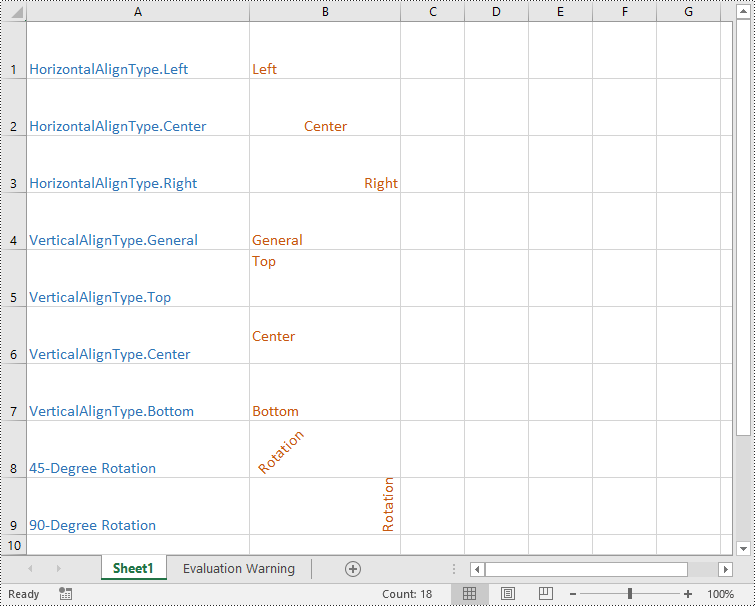
Spire.XLS for Python provides the CellRange.Style.HorizontalAlignment and CellRange.Style.VerticalAlignment properties that enable you to customize the horizontal and vertical alignment of text in a single cell or range of cells. Additionally, it allows you to change the orientation of text by applying rotation to cells using the CellRange.Style.Rotation property. The detailed steps are as follows:
- Create an object of the Workbook class.
- Load an Excel file using the Workbook.LoadFromFile() method.
- Get a specific worksheet using the Workbook.Worksheets[index] property.
- Set the horizontal alignment for text in specific cells to Left, Center, Right, or General using the CellRange.Style.HorizontalAlignment property.
- Set the vertical alignment for text in specific cells to Top, Center, or Bottom using the CellRange.Style.VerticalAlignment property.
- Change the orientation for text in specific cells using the CellRange.Style.Rotation property.
- Save the result file using the Workbook.SaveToFile() method.
- Python
from spire.xls import *
from spire.xls.common import *

# Create an object of the Workbook class
workbook = Workbook()

# Load an Excel file
workbook.LoadFromFile("Example.xlsx")

# Get the first worksheet
sheet = workbook.Worksheets[0]

# Set the horizontal alignment for text in a specific cell to Left
sheet.Range["B1"].Style.HorizontalAlignment = HorizontalAlignType.Left
# Set the horizontal alignment for text in a specific cell to Center
sheet.Range["B2"].Style.HorizontalAlignment = HorizontalAlignType.Center
# Set the horizontal alignment for text in a specific cell to Right
sheet.Range["B3"].Style.HorizontalAlignment = HorizontalAlignType.Right
# Set the horizontal alignment for text in a specific cell to General
sheet.Range["B4"].Style.HorizontalAlignment = HorizontalAlignType.General

# Set the vertical alignment for text in a specific cell to Top
sheet.Range["B5"].Style.VerticalAlignment = VerticalAlignType.Top
# Set the vertical alignment for text in a specific cell to Center
sheet.Range["B6"].Style.VerticalAlignment = VerticalAlignType.Center
# Set the vertical alignment for text in a specific cell to Bottom
sheet.Range["B7"].Style.VerticalAlignment = VerticalAlignType.Bottom

# Change the text orientation in specific cells by applying rotation
sheet.Range["B8"].Style.Rotation = 45
sheet.Range["B9"].Style.Rotation = 90

# Save the result file
workbook.SaveToFile("TextAlignmentAndOrientation.xlsx", ExcelVersion.Version2016)
workbook.Dispose()
Apply for a Temporary License
If you'd like to remove the evaluation message from the generated documents, or to get rid of the function limitations, please request a 30-day trial license for yourself.
