
Knowledgebase (2417)
Children categories
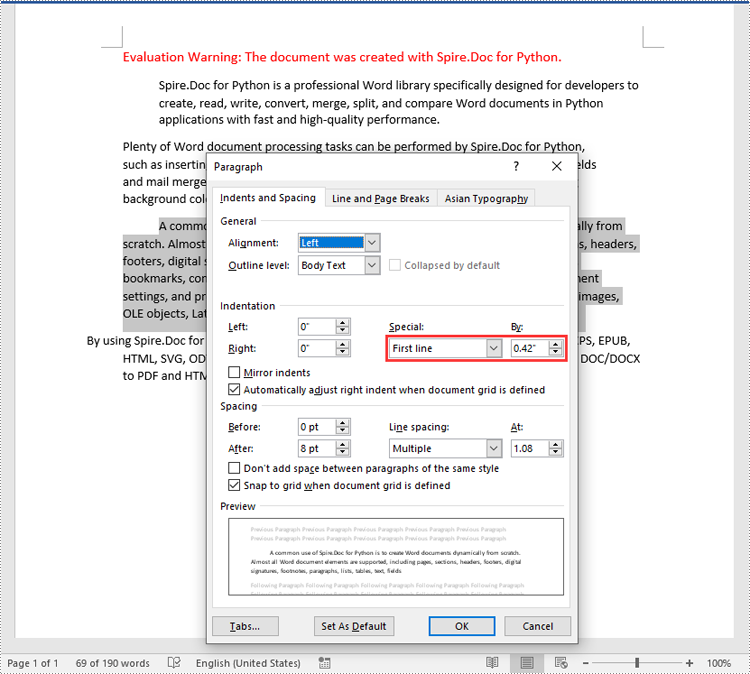
Paragraph indentations determine the horizontal space between the page margins and the text of paragraphs. They are an important formatting tool used in various types of written documents, such as essays, reports, and articles, to improve readability and create a visual distinction between paragraphs. In this article, we will demonstrate how to set paragraph indentations in Word documents in Python using Spire.Doc for Python.
Install Spire.Doc for Python
This scenario requires Spire.Doc for Python and plum-dispatch v1.7.4. They can be easily installed in your Windows through the following pip command.
pip install Spire.Doc
If you are unsure how to install, please refer to this tutorial: How to Install Spire.Doc for Python on Windows
Set Paragraph Indentations in Word in Python
Microsoft Word provides four types of paragraph indent options that enable you to format your document efficiently. These options are as follows:
- First Line Indent: The first line indent refers to the horizontal space between the left margin and the beginning of the first line of a paragraph. It indents only the first line while keeping the subsequent lines aligned with the left margin.
- Left Indent: The left indent, also known as the paragraph indent or the left margin indent, determines the horizontal distance between the left margin and the entire paragraph. It uniformly indents the entire paragraph from the left margin.
- Right Indent: The right indent sets the horizontal distance between the right margin and the entire paragraph. It indents the paragraph from the right side, shifting the text towards the left.
- Hanging Indent: The hanging indent is a unique indentation style where the first line remains aligned with the left margin, while all subsequent lines of the paragraph are indented inward. This creates a "hanging" effect, commonly used for bibliographies, references, or citations.
Spire.Doc for Python supports all these types of indents. The table below lists some of the core classes and methods that are used to set different paragraph indents in Word with Spire.Doc for Python:
| Name | Description |
| ParagraphFormat Class | Represents the format of a paragraph. |
| ParagraphFormat.SetLeftIndent() Method | Sets the left indent value for paragraph. |
| ParagraphFormat.SetRightIndent() Method | Sets the right indent value for paragraph. |
| ParagraphFormat.SetFirstLineIndent() Method | Sets the first line or hanging indent value. Positive value represents first-line indent, and negative value represents hanging indent. |
The steps below explain how to set paragraph indents in a Word document using Spire.Doc for Python:
- Create a Document instance.
- Load a sample Word document using Document.LoadFromFile() method.
- Get a specific section using Document.Sections[] property.
- Get a specific paragraph using Section.Paragraphs[] property.
- Get the paragraph format using Paragraph.Format property, and then set the paragraph indent using the above listed methods of ParagraphFormat class.
- Save the document to another file using Document.SaveToFile() method.
- Python
from spire.doc import *
from spire.doc.common import *

# Create a Document instance
doc = Document()
# Load a sample Word document
doc.LoadFromFile(""Sample6.docx"")

# Get the first section
section = doc.Sections.get_Item(0)

# Get the first paragraph and set the left indent
para1 = section.Paragraphs.get_Item(0)
para1.Format.SetLeftIndent(30)

# Get the second paragraph and set the right indent
para2 = section.Paragraphs.get_Item(1)
para2.Format.SetRightIndent(30)

# Get the third paragraph and set the first line indent
para3 = section.Paragraphs.get_Item(2)
para3.Format.SetFirstLineIndent(30)

# Get the fourth paragraph and set the hanging indent
para4 = section.Paragraphs.get_Item(3)
para4.Format.SetFirstLineIndent(-30)

# Save the document to file
doc.SaveToFile(""SetIndents.docx"", FileFormat.Docx2013)
doc.Close()
Apply for a Temporary License
If you'd like to remove the evaluation message from the generated documents, or to get rid of the function limitations, please request a 30-day trial license for yourself.
Python: Add, Modify, or Remove Footers from PowerPoint Documents
2024-04-18 01:08:25 Written by KoohjiIn a PowerPoint document, the footer is an area located at the bottom of each slide, typically containing textual information such as page numbers, dates, authors, and more. By adding a footer, you can give your slides a professional look and provide important information. Modifying the footer allows you to adjust the displayed content, style, and position to meet specific needs or styles. Removing the footer can clear the bottom content when extra information is not needed or to maintain a clean appearance. This article will introduce how to use Spire.Presentation for Python to add, modify, or remove footers in PowerPoint documents within a Python project.
- Python Add Footers in PowerPoint Documents
- Python Modify Footers in PowerPoint Documents
- Python Remove Footers in PowerPoint Documents
Install Spire.Presentation for Python
This scenario requires Spire.Presentation for Python and plum-dispatch v1.7.4. They can be easily installed in your Windows through the following pip command.
pip install Spire.Presentation
If you are unsure how to install, please refer to this tutorial: How to Install Spire.Presentation for Python on Windows
Python Add Footers in PowerPoint Documents
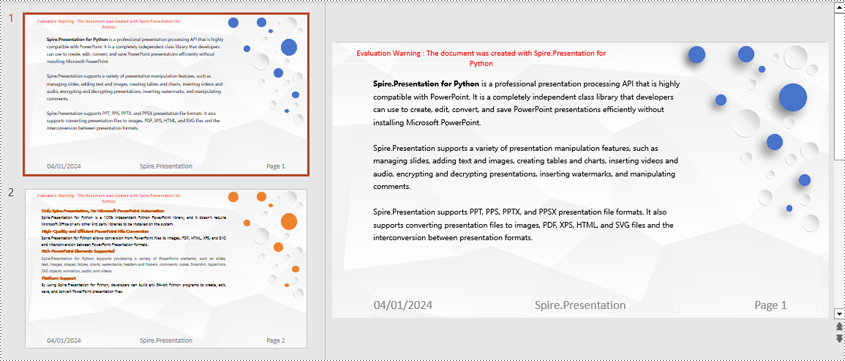
Using Spire.Presentation, you can add footers, page numbers, and time information to the bottom of each page in a PowerPoint document, ensuring consistent footer content across all pages. Here are the detailed steps:
- Create a Presentation object.
- Load a PowerPoint document using the Presentation.LoadFromFile() method.
- Set the footer visible using Presentation.FooterVisible = true and set the footer text.
- Set the slide number visible using Presentation.SlideNumberVisible = true, iterate through each slide, check for the lisence of a page number placeholder, and modify the text to the "Page X" format if found.
- Set the date visible using Presentation.DateTimeVisible = true.
- Set the format of the date using the Presentation.SetDateTime() method.
- Save the document using the Presentation.SaveToFile() method.
- Python
from spire.presentation.common import *
from spire.presentation import *

# Create a Presentation object
presentation = Presentation()

# Load the presentation from a file
presentation.LoadFromFile("Sample1.pptx")

# Set the footer visible
presentation.FooterVisible = True

# Set the footer text to "Spire.Presentation"
presentation.SetFooterText("Spire.Presentation")

# Set the slide number visible
presentation.SlideNumberVisible = True

# Iterate through each slide in the presentation
for slide in presentation.Slides:
    for shape in slide.Shapes:
        if shape.IsPlaceholder:
            # If it is a slide number placeholder
            if shape.Placeholder.Type == PlaceholderType.SlideNumber:
                autoShape = shape if isinstance(shape, IAutoShape) else None
                if autoShape is not None:
                    text = autoShape.TextFrame.TextRange.Paragraph.Text

                    # Modify the slide number text to "Page X"
                    autoShape.TextFrame.TextRange.Paragraph.Text = "Page " + text

# Set the date and time visible
presentation.DateTimeVisible = True

# Set the date and time format
presentation.SetDateTime(DateTime.get_Now(), "MM/dd/yyyy")

# Save the modified presentation to a file
presentation.SaveToFile("AddFooter.pptx", FileFormat.Pptx2016)

# Dispose of the Presentation object resources
presentation.Dispose()
Python Modify Footers in PowerPoint Documents
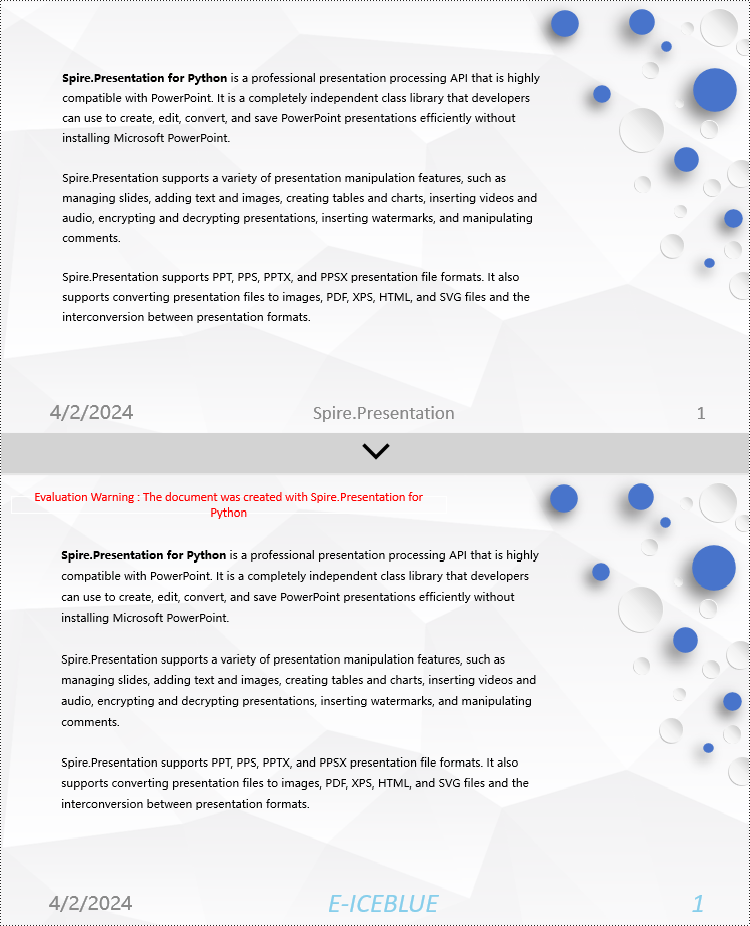
To modify the footer in a PowerPoint document, you first need to inspect the elements of each slide to locate footer and page number placeholders. Then, for each type of placeholder, set the desired content and format to ensure consistent and compliant footers throughout the document. Here are the detailed steps:
- Create a Presentation object.
- Load a PowerPoint document using the Presentation.LoadFromFile() method.
- Use the Presentation.Slides[index] property to retrieve a slide.
- Iterate through the shapes in the slide using a for loop, check each shape to determine if it is a placeholder such as a footer or page number placeholder, and then modify its content or format accordingly.
- Save the document using the Presentation.SaveToFile() method.
- Python
from spire.presentation.common import *
from spire.presentation import *

def change_font(paragraph):
    for textRange in paragraph.TextRanges:
        # Set the text style to italic
        textRange.IsItalic = TriState.TTrue

        # Set the text font
        textRange.EastAsianFont = TextFont("Times New Roman")

        # Set the text font size to 12
        textRange.FontHeight = 34

        # Set the text color
        textRange.Fill.FillType = FillFormatType.Solid
        textRange.Fill.SolidColor.Color = Color.get_SkyBlue()

# Create a Presentation object
presentation = Presentation()

# Load a presentation from a file
presentation.LoadFromFile("Sample2.pptx")

# Get the first slide
slide = presentation.Slides[0]

# Iterate through the shapes on the slide
for shape in slide.Shapes:
   # Check if the shape is a placeholder
   if shape.Placeholder is not None:
       # Get the placeholder type
       type = shape.Placeholder.Type

       # If it is a footer placeholder
       if type == PlaceholderType.Footer:
           # Convert the shape to IAutoShape type
            autoShape = shape if isinstance(shape, IAutoShape) else None
            if autoShape is not None:
                # Set the text content to "E-ICEBLUE"
                autoShape.TextFrame.Text = "E-ICEBLUE"

                # Modify the text font
                change_font(autoShape.TextFrame.Paragraphs[0])

       # If it is a slide number placeholder
       if type == PlaceholderType.SlideNumber:
            # Convert the shape to IAutoShape type
            autoShape = shape if isinstance(shape, IAutoShape) else None
            if autoShape is not None:
                # Modify the text font
                change_font(autoShape.TextFrame.Paragraphs[0])

# Save the modified presentation to a file
presentation.SaveToFile("ModifiedFooter.pptx", FileFormat.Pptx2016)

# Release the resources of the Presentation object
presentation.Dispose()
Python Remove Footers in PowerPoint Documents
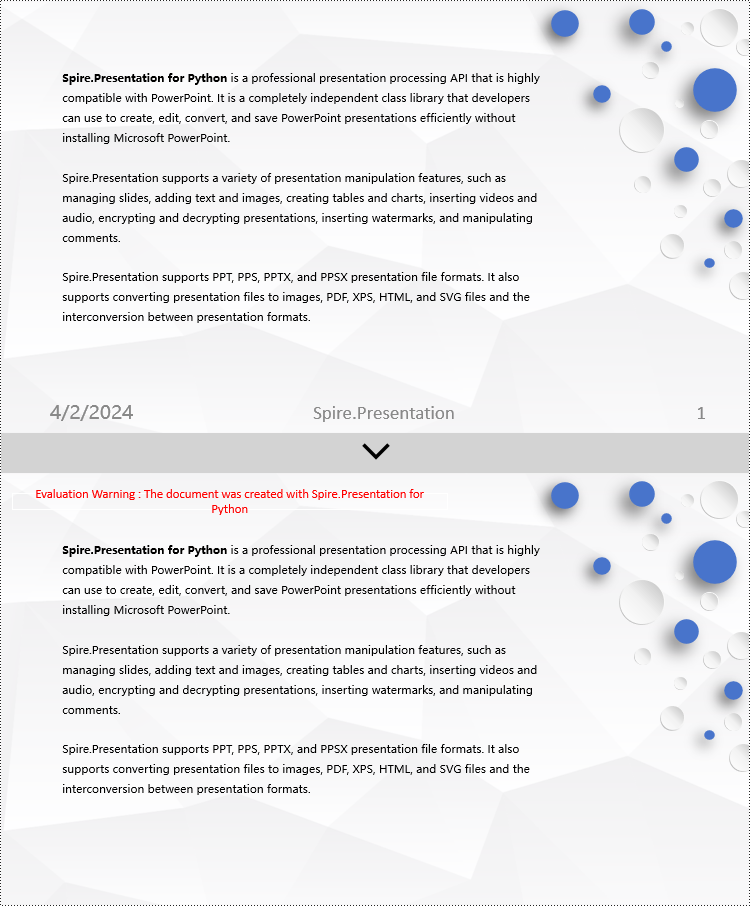
To delete footers in a PowerPoint document, you first need to locate placeholders such as footers, page numbers, and time in the slides, and then remove them from the collection of shapes in the slide to ensure complete removal of footer content. Here are the detailed steps:
- Create a Presentation object.
- Load a PowerPoint document using the Presentation.LoadFromFile() method.
- Use the Presentation.Slides[index] property to retrieve a slide.
- Iterate through the shapes in the slide using a for loop, check if they are placeholders, and if they are footer placeholders, page number placeholders, or time placeholders, remove them from the slide.
- Save the document using the Presentation.SaveToFile() method.
- Python
from spire.presentation.common import *
from spire.presentation import *

# Create a Presentation object
presentation = Presentation()

# Load a presentation from a file
presentation.LoadFromFile("Sample2.pptx")

# Get the first slide
slide = presentation.Slides[0]

# Iterate through the shapes on the slide
for i in range(len(slide.Shapes) - 1, -1, -1):
    # Check if the shape is a placeholder
    if slide.Shapes[i].Placeholder is not None:
        # Get the placeholder type
        type = slide.Shapes[i].Placeholder.Type

        # If it is a footer placeholder
        if type == PlaceholderType.Footer:
            # Remove it from the slide
            slide.Shapes.RemoveAt(i)

        # If it is a slide number placeholder
        if type == PlaceholderType.SlideNumber:
            # Remove it from the slide
            slide.Shapes.RemoveAt(i)

        # If it is a date and time placeholder
        if type == PlaceholderType.DateAndTime:
            # Remove it from the slide
            slide.Shapes.RemoveAt(i)

# Save the modified presentation to a file
presentation.SaveToFile("RemovedFooter.pptx", FileFormat.Pptx2016)

# Release the resources of the Presentation object
presentation.Dispose()
Apply for a Temporary License
If you'd like to remove the evaluation message from the generated documents, or to get rid of the function limitations, please request a 30-day trial license for yourself.
The AutoFit feature in Microsoft Excel is a handy tool that allows you to automatically adjust the height of rows or the width of columns in an Excel spreadsheet to fit the content within them. This feature is particularly useful when you have data that may vary in length or when you want to ensure that all the content is visible without having to manually adjust the column widths or row heights. In this article, we will explain how to AutoFit rows and columns in Excel in Python using Spire.XLS for Python.
Install Spire.XLS for Python
This scenario requires Spire.XLS for Python and plum-dispatch v1.7.4. They can be easily installed in your Windows through the following pip command.
pip install Spire.XLS
If you are unsure how to install, please refer to this tutorial: How to Install Spire.XLS for Python on Windows
AutoFit a Specific Row and Column in Python
To AutoFit a specific row and column in an Excel worksheet, you can use the Worksheet.AutoFitRow() and Worksheet.AutoFitColumn() methods. The detailed steps are as follows.
- Create an object of the Workbook class.
- Load an Excel file using Workbook.LoadFromFile() method.
- Get a specific worksheet using Workbook.Worksheets[index] property.
- AutoFit a specific row and column in the worksheet by its index (1-based) using Worksheet.AutoFitRow(rowIndex) and Worksheet.AutoFitColumn(columnIndex) methods.
- Save the result file using Workbook.SaveToFile() method.
- Python
from spire.xls import *
from spire.xls.common import *

# Create an object of the Workbook class
workbook = Workbook()
# Load an Excel file
workbook.LoadFromFile("Sample.xlsx")

# Get the first worksheet
sheet = workbook.Worksheets[0]

# Automatically adjust the height of the 3rd row in the worksheet
sheet.AutoFitRow(3)
# Automatically adjust the width of the 4th column in the worksheet
sheet.AutoFitColumn(4)

# Save the resulting file
workbook.SaveToFile("AutoFitSpecificRowAndColumn.xlsx", ExcelVersion.Version2016)
workbook.Dispose()
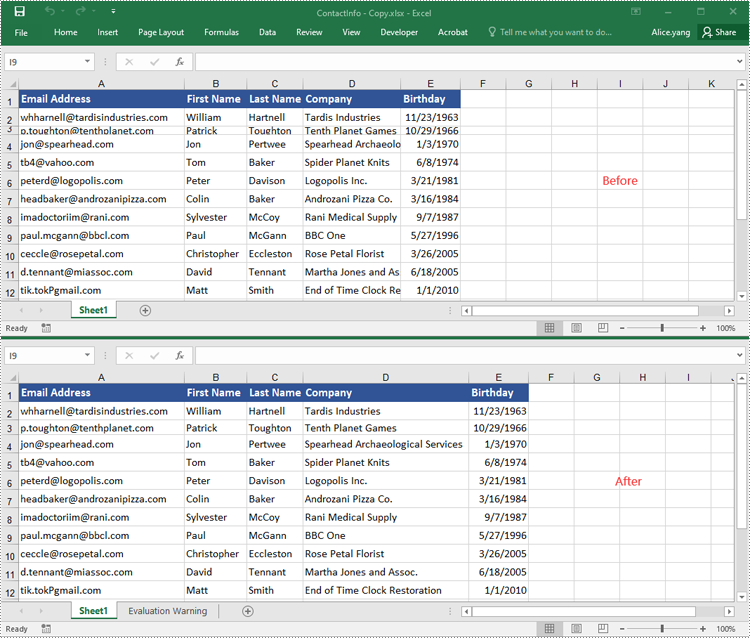
AutoFit Multiple Rows and Columns in Excel in Python
To AutoFit multiple rows and columns within a cell range, you can use the CellRange.AutoFitRows() and CellRange.AutoFitColumns() methods. The following are the detailed steps.
- Create an object of the Workbook class.
- Load an Excel file using Workbook.LoadFroFmFile() method.
- Get a specific worksheet using Workbook.Worksheets[index] property.
- Get a specific cell range in the worksheet using Worksheet.Range[] property.
- AutoFit the rows and columns in the cell range using CellRange.AutoFitRows() and CellRange.AutoFitColumns() methods.
- Save the result file using Workbook.SaveToFile() method.
- Python
from spire.xls import *
from spire.xls.common import *

# Create an object of the Workbook class
workbook = Workbook()
# Load an Excel file
workbook.LoadFromFile("Sample.xlsx")

# Get the first worksheet
sheet = workbook.Worksheets[0]

# Get a specific cell range in the worksheet
range = sheet.Range["A1:E14"]
# Or get the used cell range in the worksheet
# range = sheet.AllocatedRange

# Automatically adjust the heights of all rows in the cell range
range.AutoFitRows()
# Automatically adjust the widths of all columns in the cell range
range.AutoFitColumns()

# Save the resulting file
workbook.SaveToFile("AutoFitMultipleRowsAndColumns.xlsx", ExcelVersion.Version2016)
workbook.Dispose()
Apply for a Temporary License
If you'd like to remove the evaluation message from the generated documents, or to get rid of the function limitations, please request a 30-day trial license for yourself.
