
Knowledgebase (2417)
Children categories
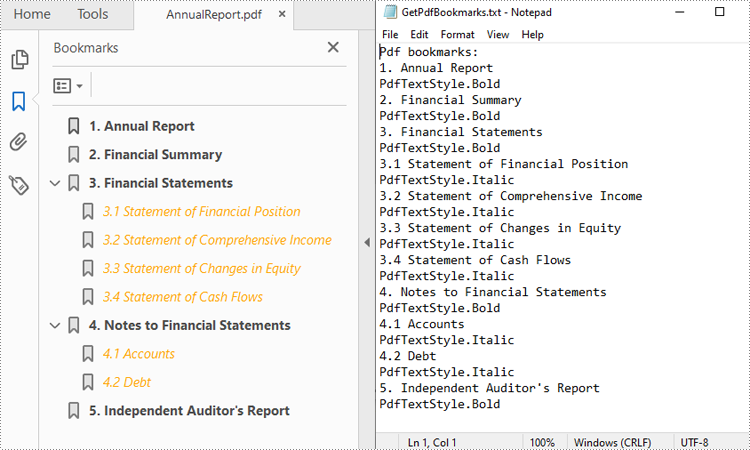
PDF files often contain bookmarks, which are clickable links that make navigating lengthy documents easier. Extracting these bookmarks can be beneficial for creating an outline of the document, analyzing document structure, or identifying key topics or sections. In this article, you will learn how to extract PDF bookmarks with Python using Spire.PDF for Python.
Install Spire.PDF for Python
This scenario requires Spire.PDF for Python and plum-dispatch v1.7.4. They can be easily installed in your Windows through the following pip command.
pip install Spire.PDF
If you are unsure how to install, please refer to this tutorial: How to Install Spire.PDF for Python on Windows
Extract Bookmarks from PDF Using Python
With Spire.PDF for Python, you can create custom methods GetBookmarks() and GetChildBookmark() to get the title and text styles of both parent and child bookmarks in a PDF file, then export them to a TXT file. The following are the detailed steps.
- Create a PdfDocument instance.
- Load a PDF file using PdfDocument.LoadFromFile() method.
- Get bookmarks collection in the PDF file using PdfDocument.Bookmarks property.
- Call custom methods GetBookmarks() and GetChildBookmark() to get the text content and text style of parent and child bookmarks.
- Export the extracted PDF bookmarks to a TXT file.
- Python
from spire.pdf.common import *
from spire.pdf import *

inputFile = "AnnualReport.pdf"
result = "GetPdfBookmarks.txt"

def GetChildBookmark(parentBookmark, content):
    if parentBookmark.Count > 0:
        # Iterate through each child bookmark in the parent bookmarks
        for i in range(parentBookmark.Count):
            childBookmark = parentBookmark.get_Item(i)
            # Get the title
            content.append(childBookmark.Title)
            # Get the text style
            textStyle = str(childBookmark.DisplayStyle)
            content.append(textStyle)
            cldBk = PdfBookmarkCollection(childBookmark)
            GetChildBookmark(cldBk, content)

def GetBookmarks(bookmarks, result):
    # Create an object of StringBuilder
    content = []
    # Get PDF bookmarks information
    if bookmarks.Count > 0:
        content.append("Pdf bookmarks:")
        # Iterate through each parent bookmark
        for i in range(bookmarks.Count):
            parentBookmark = bookmarks.get_Item(i)
            # Get the title
            content.append(parentBookmark.Title)
            # Get the text style
            textStyle = str(parentBookmark.DisplayStyle)
            content.append(textStyle)
            cldBk = PdfBookmarkCollection(parentBookmark)
            GetChildBookmark(cldBk, content)

    # Save to a TXT file
    with open(result, "w") as file:
        file.write("\n".join(content))

# Create a PdfDocument instance
pdf = PdfDocument()

# Load a PDF file from disk.
pdf.LoadFromFile(inputFile)

# Get bookmarks collection of the PDF file
bookmarks = pdf.Bookmarks

# Get the contents of bookmarks and save them to a TXT file
GetBookmarks(bookmarks, result)
pdf.Close()
Apply for a Temporary License
If you'd like to remove the evaluation message from the generated documents, or to get rid of the function limitations, please request a 30-day trial license for yourself.
Excel is a powerful tool for organizing and analyzing data, but the default black-and-white spreadsheet can make it difficult to interpret information at a glance. By adding fill colors, gradients, or patterns to specific cells, you can highlight important data, separate different categories of information, and make the spreadsheet more visually appealing. In this article, you will learn how to set a fill color, gradient or pattern in Excel cells using Spire.XLS for Python.
- Add Fill Color to Excel Cells with Python
- Add Gradient Fill to Excel Cells with Python
- Add Fill Pattern to Excel Cells with Python
Install Spire.XLS for Python
This scenario requires Spire.XLS for Python and plum-dispatch v1.7.4. They can be easily installed in your Windows through the following pip command.
pip install Spire.XLS
If you are unsure how to install, please refer to this tutorial: How to Install Spire.XLS for Python on Windows
Add Fill Color to Excel Cells with Python
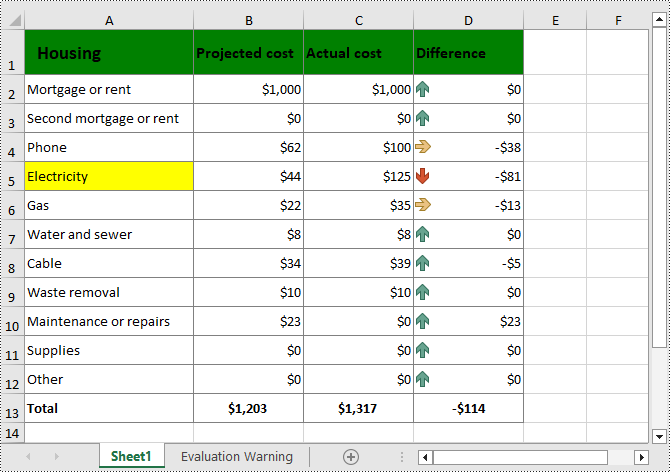
The CellRange.Style.Color property provided by Spire.XLS for Python allows to add a solid background color to Excel cells. The following are detailed steps.
- Create a Workbook instance.
- Load a sample Excel file using Workbook.LoadFromFile() method.
- Get a specified worksheet using Workbook.Worksheets[] property.
- Get a specified cell or cell range using Worksheet.Range[] property.
- Add a background color to the cells using CellRange.Style.Color property.
- Save the result file using Workbook.SaveToFile() method.
- Python
from spire.xls import *
from spire.xls.common import *

inputFile = "Cost.xlsx"
outputFile = "CellFillColor.xlsx"

# Create a Workbook instance
workbook = Workbook()

# Load an Excel file from disk
workbook.LoadFromFile(inputFile)

# Get the first worksheet
worksheet = workbook.Worksheets[0]

# Set fill color for a cell or cell range
worksheet.Range["A1:D1"].Style.Color = Color.get_Green()
worksheet.Range["A5"].Style.Color = Color.get_Yellow()

# Save the result file
workbook.SaveToFile(outputFile, ExcelVersion.Version2016)
workbook.Dispose()
Add Gradient Fill to Excel Cells with Python
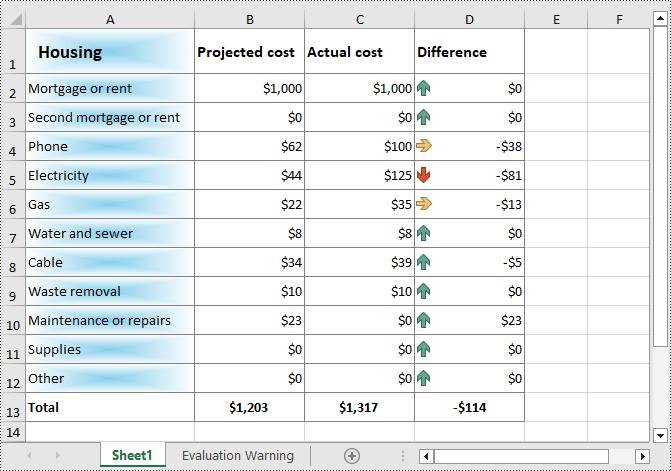
To apply gradient fill in Excel, you first need to set the cell fill pattern type to gradient, and then specify two colors and the shading style of the gradient fill. The following are detailed steps.
- Create a Workbook instance.
- Load a sample Excel file using Workbook.LoadFromFile() method.
- Get a specified worksheet using Workbook.Worksheets[] property.
- Get the cell style of a specified cell or cell range using Worksheet.Range[].Style property.
- Get the interior cell style using CellStyle.Interior property.
- Set cell fill effect to gradient through ExcelInterior.FillPattern property.
- Set the background and foreground colors of the gradient fill using ExcelInterior.Gradient.BackColor and ExcelInterior.Gradient.ForeColor properties.
- Set the gradient shading style using ExcelInterior.Gradient.GradientStyle property.
- Save the result file using Workbook.SaveToFile() method.
- Python
from spire.xls import *
from spire.xls.common import *

inputFile = "Cost.xlsx"
outputFile = "CellGradientFill.xlsx"

# Create a Workbook instance
workbook = Workbook()

# Load an Excel file from disk
workbook.LoadFromFile(inputFile)

# Get the first worksheet
worksheet = workbook.Worksheets[0]

# Get the cell style of a specified range
cellStyle = worksheet.Range["A1:A12"].Style

# Set cell fill pattern type to gradient
cellStyle.Interior.FillPattern  = ExcelPatternType.Gradient

# Set the background and foreground colors of the gradient fill
cellStyle.Interior.Gradient.BackColor = Color.get_SkyBlue()
cellStyle.Interior.Gradient.ForeColor = Color.get_White()

# Set the gradient shading style
cellStyle.Interior.Gradient.GradientStyle = GradientStyleType.From_Center

# Save the result file
workbook.SaveToFile(outputFile, ExcelVersion.Version2016)
workbook.Dispose()
Add Fill Pattern to Excel Cells with Python
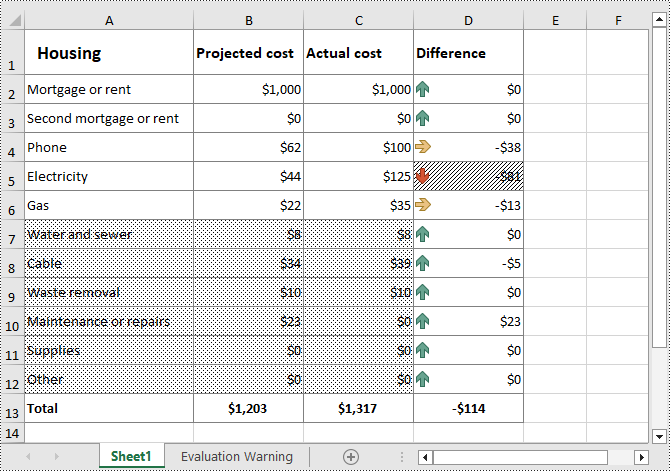
You can also add predefined patterns such as different styles of stripes, dots, and crosshatch to specific cells through the CellRange.Style.FillPattern property. The following are the detailed steps:
- Create a Workbook instance.
- Load a sample Excel file using Workbook.LoadFromFile() method.
- Get a specified worksheet using Workbook.Worksheets[] property.
- Get a specified cell or cell range using Worksheet.Range[] property.
- Add a background pattern to the cells using CellRange.Style.FillPattern property.
- Save the result file using Workbook.SaveToFile() method.
- Python
from spire.xls import *
from spire.xls.common import *

inputFile = "Cost.xlsx"
outputFile = "CellFillPattern.xlsx"

# Create a Workbook instance
workbook = Workbook()

# Load an Excel file from disk
workbook.LoadFromFile(inputFile)

# Get the first worksheet
worksheet = workbook.Worksheets[0]

#Set cell fill pattern for a cell or cell range
worksheet.Range["A7:C12"].Style.FillPattern = ExcelPatternType.Percent125Gray
worksheet.Range["D5"].Style.FillPattern = ExcelPatternType.ThinDiagonalStripe

# Save the result file
workbook.SaveToFile(outputFile, ExcelVersion.Version2016)
workbook.Dispose()
Apply for a Temporary License
If you'd like to remove the evaluation message from the generated documents, or to get rid of the function limitations, please request a 30-day trial license for yourself.
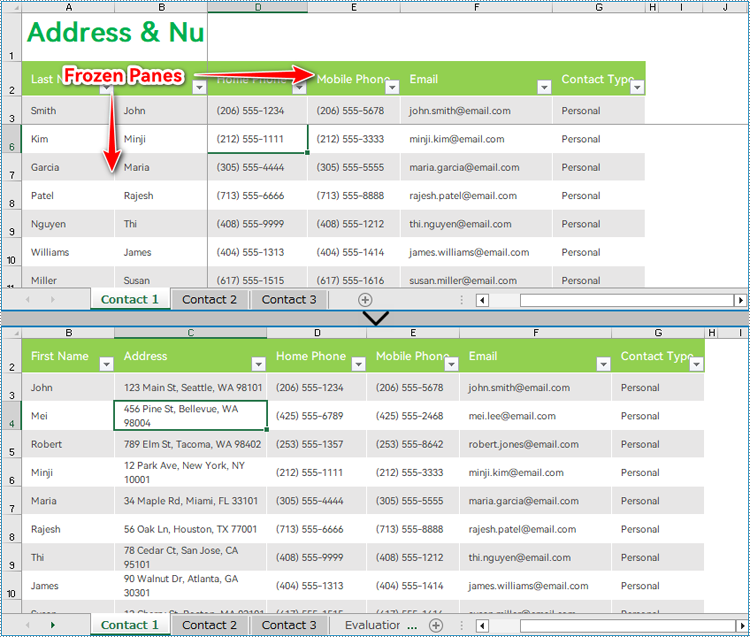
The Freeze Panes feature in Excel allows users to lock specific rows and columns while scrolling, ensuring that critical information remains visible regardless of the dataset's size. However, there are instances where unfreezing panes becomes necessary. Unfreezing rows and columns grants users the freedom to navigate large datasets seamlessly, facilitating comprehensive data analysis, editing, and formatting. the contents of frozen panes are often important information, and being able to obtain the range of frozen panes can facilitate easier access to this content. This article demonstrates how to use Spire.XLS for Java to unfreeze panes and obtain frozen rows and columns in Excel worksheets with Java code.
- Unfreeze Panes in Excel Worksheets with Java
- Obtain Frozen Rows and Columns in Excel Worksheets with Java
Install Spire.XLS for Java
First of all, you're required to add the Spire.Xls.jar file as a dependency in your Java program. The JAR file can be downloaded from this link. If you use Maven, you can easily import the JAR file in your application by adding the following code to your project's pom.xml file.
<repositories>
    <repository>
        <id>com.e-iceblue</id>
        <name>e-iceblue</name>
        <url>https://repo.e-iceblue.com/nexus/content/groups/public/</url>
    </repository>
</repositories>
<dependencies>
    <dependency>
        <groupId>e-iceblue</groupId>
        <artifactId>spire.xls</artifactId>
        <version>16.8.4</version>
    </dependency>
</dependencies>
Unfreeze Panes in Excel Worksheets with Java
With Spire.XLS for Java, developers get a worksheet using Workbook.getWorksheets().get() method and unfreeze the panes using Worksheet.RemovePanes() method. The detailed steps for unfreezing panes in an Excel worksheet are as follows:
- Create an object of Workbook class.
- Load an Excel workbook using Workbook.loadFromFile() method.
- Get a worksheet from the workbook using Workbook.getWorksheets().get() method.
- Unfreeze panes in the worksheet using Worksheet.removePanes() method.
- Save the workbook using Workbook.saveToFile() method.
- Java
import com.spire.xls.Workbook;
import com.spire.xls.Worksheet;

public class UnfreezePanes {
    public static void main(String[] args) {
        // Create an object of Workbook class
        Workbook wb = new Workbook();

        // Load an Excel workbook
        wb.loadFromFile("Sample.xlsx");

        // Get the first worksheet
        Worksheet sheet = wb.getWorksheets().get(0);

        // Unfreeze the panes
        sheet.removePanes();

        // Save the workbook
        wb.saveToFile("output/UnfreezePanes.xlsx");
        wb.dispose();
    }
}
Obtain Frozen Rows and Columns in Excel Worksheets with Java
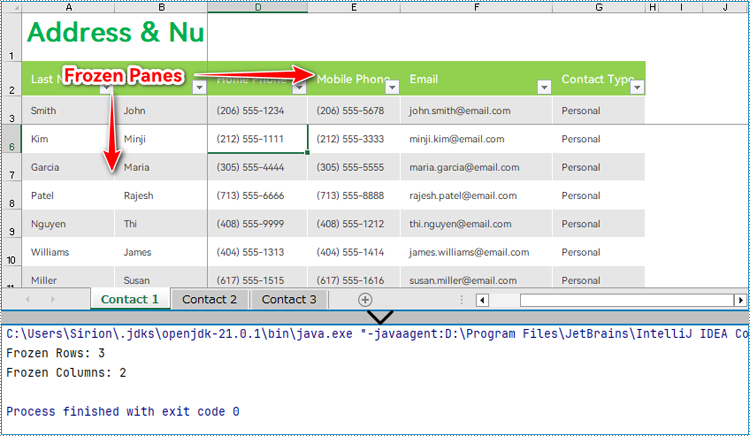
Spire.XLS for Java provides the Worksheet.getFreezePanes() method to get the row and column indexes of the frozen panes, which allows developers to conveniently extract, remove, or format the content of the frozen panes. The parameters obtained are in the format of an int list: [int rowIndex, int columnIndex]. For example, [1, 0] indicates that the first row is frozen.
The detailed steps for obtaining the row and column parameters of the frozen panes are as follows:
- Create an object of Workbook class.
- Load an Excel workbook using Workbook.loadFromFile() method.
- Get the first worksheet using Workbook.getWorksheets().get() method.
- Get the indexes of the frozen rows and columns using Worksheet.getFreezePanes() method.
- Output the result.
- Java
import com.spire.xls.Workbook;
import com.spire.xls.Worksheet;

public class GetFrozenCellRange {
    public static void main(String[] args) {
        // Create an object of Document clas
        Workbook wb = new Workbook();

        // Load an Excel file
        wb.loadFromFile("Sample.xlsx");

        // Get the first worksheet
        Worksheet ws = wb.getWorksheets().get(0);

        // Get the indexes of the frozen rows and columns
        int[] index = ws.getFreezePanes();

        // Output the result
        System.out.println("Frozen Rows: " + index[0] + "\r\nFrozen Columns: " + index[1]);
        wb.dispose();
    }
}
Apply for a Temporary License
If you'd like to remove the evaluation message from the generated documents, or to get rid of the function limitations, please request a 30-day trial license for yourself.
