
Knowledgebase (2417)
Children categories
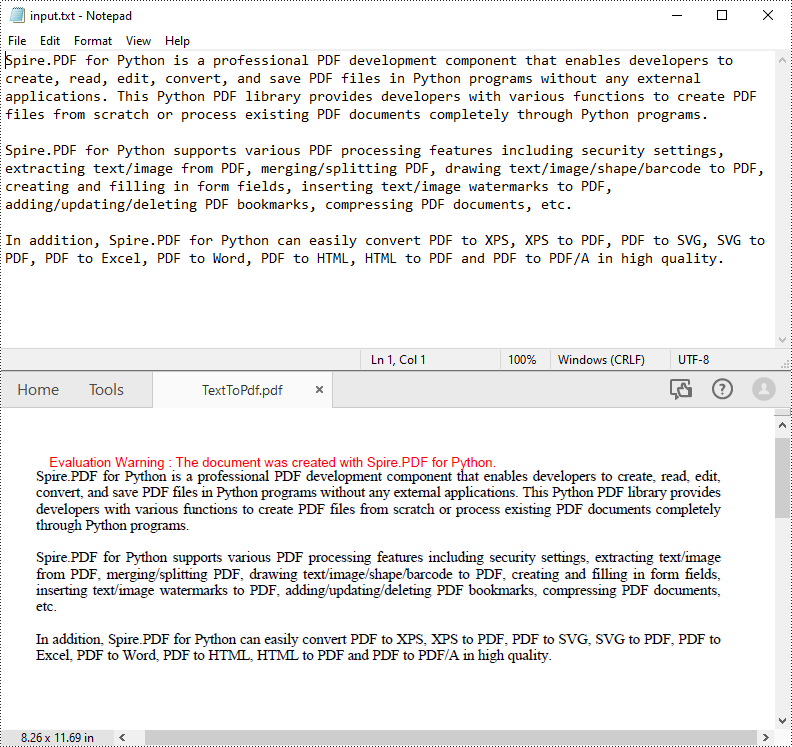
PDF is an ideal file format for sharing and archiving. If you are working with text files, you may find it beneficial to convert them to PDF files for enhanced portability, security and format preservation. In this article, you will learn how to convert TXT files to PDF in Python using Spire.PDF for Python.
Install Spire.PDF for Python
This scenario requires Spire.PDF for Python and plum-dispatch v1.7.4. They can be easily installed in your Windows through the following pip command.
pip install Spire.PDF
If you are unsure how to install, please refer to this tutorial: How to Install Spire.PDF for Python on Windows
Convert TXT to PDF with Python
Spire.PDF for Python allows to convert text files to PDF by reading the text content from the input TXT file, and then drawing it onto the pages of a PDF document. Some of the core classes and methods used are listed below:
- PdfDocument class: Represents a PDF document model.
- PdfTextWidget class: Represents the text area with the ability to span several pages.
- File.ReadAllText() method: Reads the text in the text file into a string object.
- PdfDocument.Pages.Add() method: Adds a page to a PDF document.
- PdfTextWidget.Draw() method: Draws the text widget at a specified location on the page.
The following are the detailed steps to convert TXT to PDF in Python:
- Read text from the TXT file using File.ReadAllText() method.
- Create a PdfDocument instance and add a page to the PDF file.
- Create a PDF font and brush objects.
- Set the text format and layout.
- Create a PdfTextWidget object to hold the text content.
- Draw the text widget at a specified location on the PDF page using PdfTextWidget.Draw() method.
- Save the PDF file using PdfDocument.SaveToFile() method.
- Python
from spire.pdf.common import *
from spire.pdf import *

def ReadFromTxt(fname: str) -> str:
    with open(fname, 'r') as f:
        text = f.read()
    return text

inputFile = "input.txt"
outputFile = "TextToPdf.pdf"

# Get text from the txt file
text = ReadFromTxt(inputFile)

# Create a PdfDocument instance
pdf = PdfDocument()

# Add a page
page = pdf.Pages.Add()

# Create a PDF font and PDF brush
font = PdfFont(PdfFontFamily.TimesRoman, 11.0)
brush = PdfBrushes.get_Black()

# Set the text alignment and line spacing
strformat = PdfStringFormat()
strformat.LineSpacing = 10.0
strformat.Alignment = PdfTextAlignment.Justify

# Set the text layout
textLayout = PdfTextLayout()
textLayout.Break = PdfLayoutBreakType.FitPage
textLayout.Layout = PdfLayoutType.Paginate

# Create a PdfTextWidget instance to hold the text content
textWidget = PdfTextWidget(text, font, brush)

# Set the text format
textWidget.StringFormat = strformat

# Draw the text at the specified location on the page
bounds = RectangleF(PointF(0.0, 20.0), page.Canvas.ClientSize)
textWidget.Draw(page, bounds, textLayout)

# Save the result file
pdf.SaveToFile(outputFile, FileFormat.PDF)
pdf.Close()
Apply for a Temporary License
If you'd like to remove the evaluation message from the generated documents, or to get rid of the function limitations, please request a 30-day trial license for yourself.
If you have additional pieces of information to include in your spreadsheet, inserting rows or columns can provide room for these new fields. In addition,
adding blank rows or columns between data sets can also help to effectively separate different categories of information, making them easier to read and analyze. This article will demonstrate how to insert rows and columns in Excel in Python using Spire.XLS for Python.
Install Spire.XLS for Python
This scenario requires Spire.XLS for Python and plum-dispatch v1.7.4. They can be easily installed in your Windows through the following pip command.
pip install Spire.XLS
If you are unsure how to install, please refer to this tutorial: How to Install Spire.XLS for Python on Windows
Insert a Row and a Column in Excel in Python
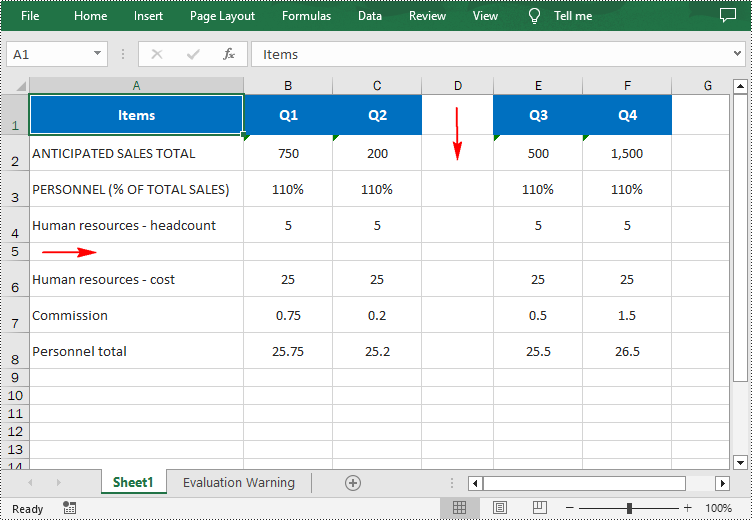
Spire.XLS for Python provides the Worksheet.InsertRow(rowIndex: int) and Worksheet.InsertColumn(columnIndex: int) methods for inserting a blank row and a blank column in an Excel worksheet. The following are the detailed steps:
- Create a Workbook instance.
- Load a sample Excel file using Workbook.LoadFromFile() method.
- Get a specified worksheet using Workbook.Worksheets[sheetIndex] property.
- Insert a row into the worksheet using Worksheet.InsertRow(rowIndex: int) method.
- Insert a column into the worksheet using Worksheet.InsertColumn(columnIndex: int) method.
- Save the result file using Workbook.SaveToFile() method.
- Python
from spire.xls import *
from spire.xls.common import *

inputFile = "input.xlsx"
outputFile = "InsertRowAndColumn.xlsx"

# Create a Workbook instance
workbook = Workbook()

# Load an Excel document
workbook.LoadFromFile(inputFile)

# Get a specified worksheet
worksheet = workbook.Worksheets[0]

# Insert a blank row as the 5th row in the worksheet
worksheet.InsertRow(5)

# Insert a blank column as the 4th column in the worksheet
worksheet.InsertColumn(4)

# Save the result file
workbook.SaveToFile(outputFile, ExcelVersion.Version2016)
workbook.Dispose()
Insert Multiple Rows and Columns in Excel in Python
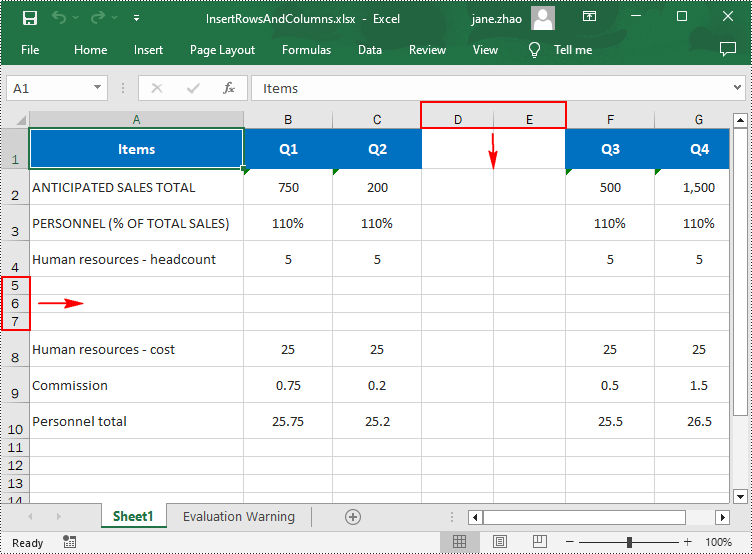
To insert multiple rows and columns into a worksheet, you can use the Worksheet.InsertRow(rowIndex: int, rowCount: int) and Worksheet.InsertColumn(columnIndex: int, columnCount: int) methods. The following are detailed steps.
- Create a Workbook instance.
- Load a sample Excel file using Workbook.LoadFromFile() method.
- Get a specified worksheet using Workbook.Worksheets[sheetIndex] property.
- Insert multiple rows into the worksheet using Worksheet.InsertRow(rowIndex: int, rowCount: int) method.
- Insert multiple columns into the worksheet using Worksheet.InsertColumn(columnIndex: int, columnCount: int) method.
- Save the result file using Workbook.SaveToFile() method.
- Python
from spire.xls import *
from spire.xls.common import *

inputFile = "input.xlsx"
outputFile = "InsertRowsAndColumns.xlsx"

# Create a Workbook instance
workbook = Workbook()

# Load an Excel document
workbook.LoadFromFile(inputFile)

# Get a specified worksheet
worksheet = workbook.Worksheets[0]

# Insert three blank rows into the worksheet
worksheet.InsertRow(5, 3)

#Insert two blank columns into the worksheet
worksheet.InsertColumn(4, 2)

# Save the result file
workbook.SaveToFile(outputFile, ExcelVersion.Version2016)
workbook.Dispose()
Apply for a Temporary License
If you'd like to remove the evaluation message from the generated documents, or to get rid of the function limitations, please request a 30-day trial license for yourself.
Incorporating audio and videos in slides has become a common practice for creating interactive and dynamic PowerPoint presentations, which helps the presenter in sharing information, engaging the audience, and delivering impactful messages. However, as content requirements change, there arises a need to replace or update these multimedia elements. This article will show how to use Spire.Presentation for Python to replace audio and videos in PowerPoint presentations for content updating needs such as updating outdated videos, enhancing audio quality, or simply swapping in new content.
- Replace a Video in a PowerPoint Presentation with Python
- Replace an Audio in a PowerPoint Presentation with Python
Install Spire.Presentation for Python
This scenario requires Spire.Presentation for Python and plum-dispatch v1.7.4. They can be easily installed in your Windows through the following pip command.
pip install Spire.Presentation
If you are unsure how to install, please refer to: How to Install Spire.Presentation for Python on Windows
Replace a Video in a PowerPoint Presentation with Python
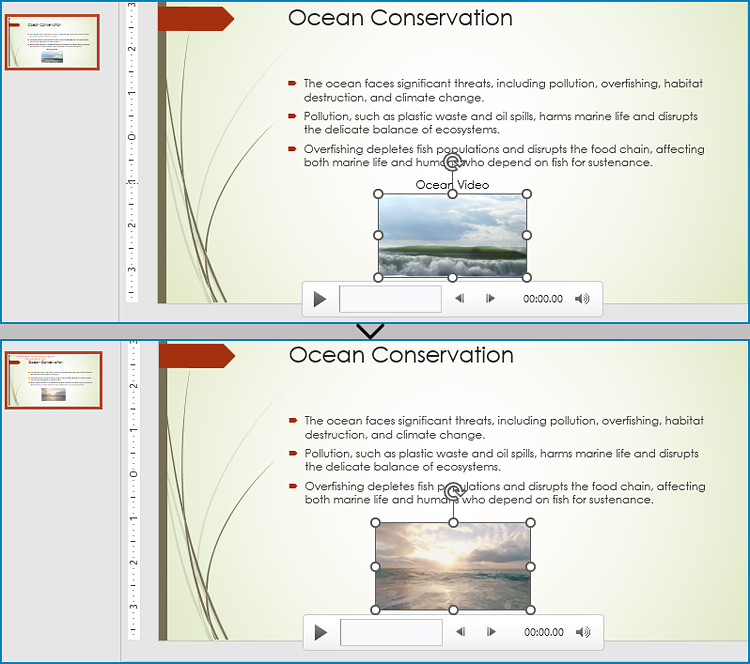
With Spire.Presentation for Python, developers can find the video shapes in slides and replace the video data through IVideo.EmbeddedVideoData property. It is important to note that, after replacing the video, the preview of the video should also be updated with the IVideo.PictureFill.Picture property. The detailed steps are as follows:
- Create an object of Presentation class and load a PowerPoint presentation file using Presentation.LoadFromFile() method.
- Get the collection of the videos embedded in the presentation through Presentation.Videos property.
- Get the slide that contains the video to be replaced through Presentation.Slides[] property.
- Iterate through the shapes in the slide and determine if a shape is an instance of IVideo class. If it is, append the new video to the video collection using VideoCollection.AppendByStream() method and replace the original video with the new video through IVideo.EmbeddedVideoData property.
- Embed a new image to the presentation using Presentation.Images.AppendStream() method and set it as the preview of the video through IVideo.PictureFill.Picture.EmbedImage property. You can also set an online image as the preview through IVideo.PictureFill.Picture.Url property.
- Save the presentation using Presentation.SaveToFile() method.
- Python
from spire.presentation import *
from spire.presentation.common import *

# Create an object of the Presentation class
pres = Presentation()

# Load a PowerPoint presentation
pres.LoadFromFile("Sample.pptx")

# Get the second slide
slide = pres.Slides[1]

# Get the videos in the presentation
videos = pres.Videos

# Iterate through the shapes on the slide
for shape in slide.Shapes:
    # Check if the shape is a video
    if isinstance(shape, IVideo):
        video = shape if isinstance(shape, IVideo) else None
        # Append a new video to the video collection
        videoData = videos.AppendByStream(Stream("Ocean2.mp4"))
        # Replace the video in the shape with the new video
        video.EmbeddedVideoData = videoData
        # Embed a picture in the presentation
        imageData = pres.Images.AppendStream(Stream("Ocean2.png"))
        # Set the new picture as the preview of the video
        video.PictureFill.Picture.EmbedImage = imageData

# Save the presentation
pres.SaveToFile("output/ReplaceVideo.pptx", FileFormat.Pptx2016)
pres.Dispose()
Replace an Audio in a PowerPoint Presentation with Python
Similarly, developers can also use Spire.Presentation for Python to find specific audio in a presentation slide and replace the audio data. The detailed steps are as follows:
- Create an object of Presentation class and load a PowerPoint presentation file using Presentation.LoadFromFile() method.
- Get the collection of the audio embedded in the presentation through Presentation.WavAudios property.
- Get the slide that contains audio to be replaced through Presentation.Slides[] property.
- Iterate through each shape in the slide and check if a shape is an instance of IAudio class. If it is, append the new audio to the audio collection using WavAudioCollection.Append() method and replace the original audio with the new audio through IAudio.Data property.
- Save the presentation using Presentation.SaveToFile() method.
- Python
from spire.presentation import *
from spire.presentation.common import *

# Create an object of the Presentation class
pres = Presentation()

# Load a PowerPoint presentation file
pres.LoadFromFile("Sample.pptx")

# Get the audio collection from the presentation
audios = pres.WavAudios

# Get the slide that contains the audio
slide = pres.Slides[0]

# Iterate through each shape in the slide
for shape in slide.Shapes:
    # Check if the shape is an audio shape
    if isinstance(shape, IAudio):
        audio = shape if isinstance(shape, IAudio) else None
        # Load an audio file
        stream = Stream("Wave.wav")
        # Replace the audio in the shape
        audioData = audios.Append(stream)
        audio.Data = audioData

# Save the presentation
pres.SaveToFile("output/ReplaceAudio.pptx", FileFormat.Pptx2016)
pres.Dispose()
Apply for a Temporary License
If you'd like to remove the evaluation message from the generated documents, or to get rid of the function limitations, please request a 30-day trial license for yourself.
