Выделение дубликатов в Excel: 4 простых метода
Содержание
- Метод 1. Условное форматирование (встроенный — самый простой способ)
- Метод 2. Использование формулы с условным форматированием
- Метод 3. Использование вспомогательного столбца с функцией СЧЁТЕСЛИ
- Метод 4. Использование Python со Spire.XLS для автоматизации
- Сравнение различных методов
- Заключительные мысли
- Часто задаваемые вопросы о выделении дубликатов в Excel
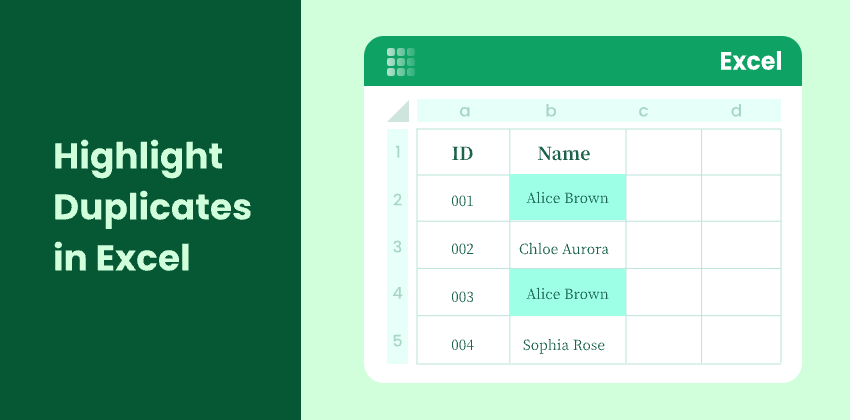
Повторяющиеся значения — распространенная проблема в электронных таблицах Excel. Независимо от того, работаете ли вы со списками клиентов, товарными запасами, счетами-фактурами или результатами опросов, дублирующиеся данные могут привести к ошибкам, неточным отчетам и неверным решениям.
К счастью, Excel предоставляет несколько простых и эффективных способов выделить дубликаты, чтобы вы могли легко их обнаружить и управлять ими. В этой статье вы узнаете четыре простых метода поиска и выделения повторяющихся значений в Excel — от встроенных инструментов до автоматизированных решений с использованием Python.
Обзор методов:
- Метод 1. Условное форматирование (встроенный — самый простой способ)
- Метод 2. Использование формулы с условным форматированием
- Метод 3. Использование вспомогательного столбца с функцией СЧЁТЕСЛИ
- Метод 4. Использование Python со Spire.XLS для автоматизации
Метод 1: Условное форматирование (встроенный — самый простой способ)
Это самый быстрый и удобный для новичков способ выделить дубликаты в Excel. Он использует встроенные визуальные правила Excel, поэтому не требует формул или технических навыков. Всего за несколько кликов Excel автоматически сканирует выбранный диапазон и помечает повторяющиеся значения. Этот метод идеально подходит для быстрой проверки и наборов данных малого и среднего размера.
Шаги
-
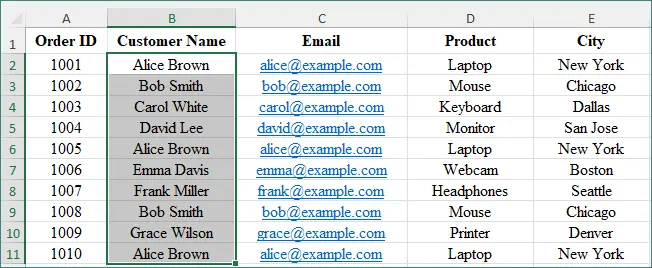
Выберите диапазон ячеек, который вы хотите проверить (например, B2:B11).
-
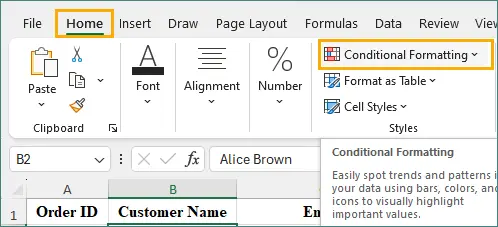
Перейдите в Главная → Условное форматирование.
-
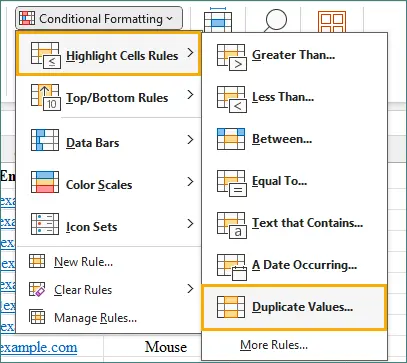
Нажмите Правила выделения ячеек → Повторяющиеся значения.
-
Выберите стиль форматирования (цвет заливки, цвет текста).
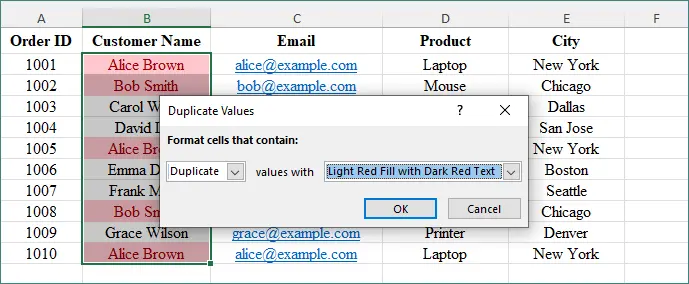
-
Нажмите OK.
Excel мгновенно выделит все повторяющиеся значения в выбранном диапазоне.
Ключевые преимущества
- Лучше всего подходит для быстрой визуальной проверки
- Формулы не требуются
Метод 2: Использование формулы с условным форматированием
Этот метод позволяет вам точно определить, как Excel идентифицирует дубликаты, например, выделяя только повторяющиеся значения или исключая первое вхождение. Он требует базового понимания формул, но дает гораздо большую гибкость, чем встроенные правила. Этот подход особенно хорошо работает для структурированных или сложных наборов данных.
Пример формулы
Чтобы выделить все повторяющиеся значения (включая первое вхождение):
=СЧЁТЕСЛИ($B$2:$B$11,B2)>1
Что означает эта формула:
- СЧЁТЕСЛИ($B$2:$B$11, B2) подсчитывает, сколько раз значение в ячейке B2 появляется в диапазоне B2:B11.
- Если счетчик больше 1, Excel рассматривает значение как дубликат.
Проще говоря, эта формула указывает Excel выделить любую ячейку, значение которой появляется в выбранном диапазоне более одного раза. Знаки доллара ($) фиксируют диапазон поиска, чтобы он оставался неизменным при применении правила к другим ячейкам.
Для получения дополнительных примеров использования СЧЁТЕСЛИ см. официальную документацию Microsoft.
Шаги
-
Выберите ваш диапазон данных.
-
Перейдите в Условное форматирование → Новое правило.
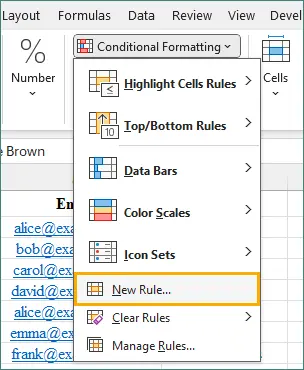
-
Выберите Использовать формулу для определения форматируемых ячеек.
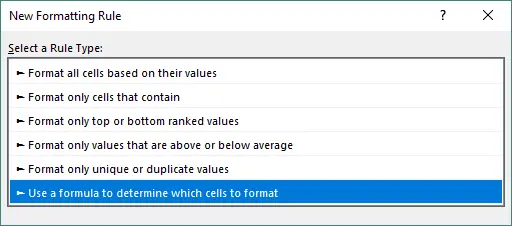
-
Введите формулу выше.
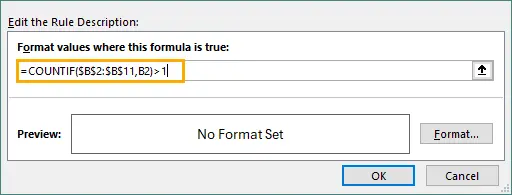
-
Выберите формат и нажмите OK.

Этот метод полезен, когда вы хотите настроить, как Excel обрабатывает дубликаты.
Ключевые преимущества
- Больше гибкости
- Хорошо работает со сложными наборами данных
Метод 3: Использование вспомогательного столбца с функцией СЧЁТЕСЛИ
Этот метод основан на использовании вспомогательного столбца для подсчета количества появлений каждого значения в вашем наборе данных. Он обеспечивает ясное, прозрачное представление дубликатов, которое легко проверять и подтверждать. Поскольку результаты обновляются автоматически, он идеально подходит для динамических листов, которые часто меняются. Этот подход хорошо работает, когда важны точность и отслеживаемость.
Шаги
-
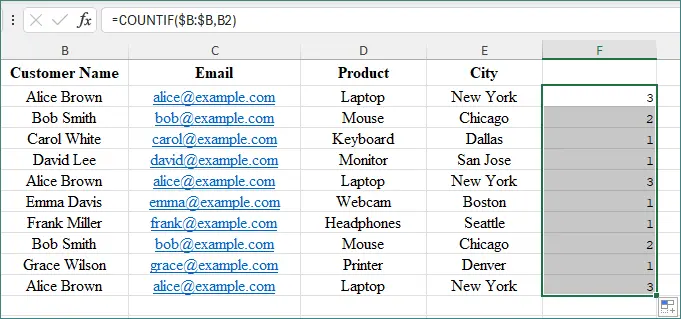
В пустом столбце (например, F2) введите:
=СЧЁТЕСЛИ($B:$B,B2)
-
Затем перетащите формулу вниз.
Как это работает
- Результат 1 означает, что значение уникально.
- Результат больше 1 означает, что это дубликат.
Затем вы можете применить условное форматирование к вспомогательному столбцу, чтобы визуально выделить дубликаты.
Ключевые преимущества
- Отлично подходит для динамических, обновляемых отчетов
- Легко проверять и отслеживать дубликаты
Метод 4: Использование Python со Spire.XLS для автоматизации
Если вы часто работаете с большими файлами Excel или повторяющимися задачами, вы можете использовать Python со Spire.XLS для автоматизации. Этот метод позволяет программно сканировать и выделять дубликаты без ручного вмешательства. Это помогает сэкономить время, уменьшить количество человеческих ошибок и обрабатывать файлы в пакетном режиме. Этот подход идеален для разработчиков или команд, которым нужны масштабируемые решения для Excel.
Что такое Spire.XLS для Python?
Spire.XLS для Python — это мощная библиотека, которая позволяет вам читать, записывать, форматировать и манипулировать файлами Excel с помощью Python — установка Microsoft Excel не требуется.
Установка
pip install spire.xls
Пример кода для выделения дубликатов
from spire.xls import *
from spire.xls.common import *

# Загрузить файл Excel
workbook = Workbook()
workbook.LoadFromFile("C:/Users/Administrator/Desktop/input.xlsx")

# Получить первый рабочий лист
sheet = workbook.Worksheets[0]

# Использовать условное форматирование для выделения повторяющихся значений в указанном диапазоне ячеек
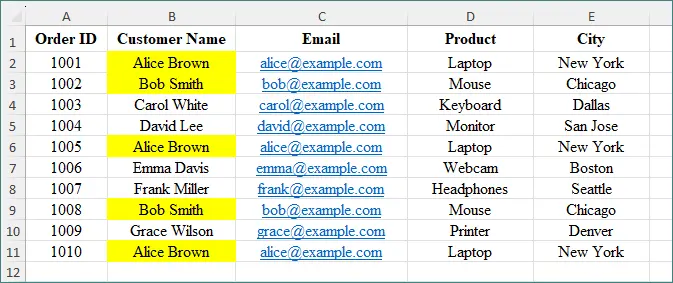
conditional_format = sheet.Range["B2:B11"].ConditionalFormats.AddCondition()
conditional_format.FormatType = ConditionalFormatType.DuplicateValues
conditional_format.BackColor = Color.get_Yellow()

# Сохранить файл
workbook.SaveToFile("HighlightDuplicates.xlsx", ExcelVersion.Version2013)
workbook.Dispose()
вывод:
Ключевые преимущества
- Идеально для пакетной обработки
- Идеально подходит для рабочих процессов автоматизации на предприятии
Условное форматирование может делать гораздо больше, чем просто выделять дубликаты в Excel. Оно также позволяет применять чередующиеся цвета строк и выделять верхние или нижние ранжированные значения. Чтобы узнать больше, см. это руководство: Применение условного форматирования в Excel на Python.
Сравнение методов
| Метод | Простота использования | Лучше всего для | Автоматизация |
|---|---|---|---|
| Условное форматирование | ⭐⭐⭐⭐⭐ | Быстрых визуальных проверок | x |
| Формула + Условное форматирование | ⭐⭐⭐⭐ | Пользовательской логики | x |
| Вспомогательный столбец (СЧЁТЕСЛИ) | ⭐⭐⭐⭐⭐ | Динамических отчетов | x |
| Python + Spire.XLS | ⭐⭐ | Больших файлов, пакетной работы | √ |
Заключительные мысли
Выделение дубликатов в Excel помогает повысить точность данных и уменьшить количество дорогостоящих ошибок. Если вам нужен только быстрый визуальный просмотр, встроенное условное форматирование — самый быстрый вариант. Для более продвинутого контроля хорошо работают формулы и вспомогательные столбцы.
Если вы часто работаете с большими файлами, использование Python со Spire.XLS может значительно повысить эффективность за счет автоматизации.
Лучший метод зависит от вашей рабочей нагрузки, размера файла и уровня технического комфорта.
Часто задаваемые вопросы о выделении дубликатов в Excel
В1. Может ли Excel автоматически выделять дубликаты?
Да. Встроенная функция условного форматирования мгновенно выделяет дубликаты.
В2. Могу ли я выделить дубликаты в нескольких столбцах?
Да. Вы можете выбрать несколько столбцов перед применением условного форматирования или использовать пользовательскую формулу.
В3. Удаляет ли выделение дубликатов данные?
Нет. Выделение изменяет только форматирование ячеек и не влияет на исходные данные.
В4. Какой метод лучше всего подходит для больших файлов Excel?
Для больших наборов данных или повторяющихся задач автоматизация с использованием Python и Spire.XLS является наиболее эффективным подходом.
Вам также может быть интересно
Converter PDF para PDF/A: 4 Maneiras Fáceis
Índice
- O que é PDF/A
- Por que converter PDF para PDF/A
- Método 1: Converter PDF para PDF/A usando o Adobe Acrobat Pro DC
- Método 2: Converter PDF para PDF/A usando conversores online gratuitos
- Método 3: Converter PDF para PDF/A usando o Ghostscript
- Método 4: Converter arquivos PDF para PDF/A em lote usando Python
- Solução de problemas comuns na conversão de PDF para PDF/A
- Conclusão: Como escolher o método certo
A conversão de PDF para PDF/A garante que seus documentos sejam preservados a longo prazo, atendam à conformidade regulatória e permaneçam acessíveis em todos os sistemas. Esteja você trabalhando com documentos legais, governamentais ou empresariais, o PDF/A garante legibilidade e consistência. Este guia explora quatro abordagens comuns: usar o Adobe Acrobat Pro DC, conversores online gratuitos, Ghostscript e programação em Python.
Navegação Rápida
- O que é PDF/A
- Por que converter PDF para PDF/A
- Método 1: Converter PDF para PDF/A usando o Adobe Acrobat Pro DC
- Método 2: Converter PDF para PDF/A usando conversores online gratuitos
- Método 3: Converter PDF para PDF/A usando o Ghostscript
- Método 4: Converter arquivos PDF para PDF/A em lote usando Python
- Solução de problemas comuns na conversão de PDF para PDF/A
- Conclusão: Como escolher o método certo
O que é PDF/A?
PDF/A é uma versão padronizada pela ISO do PDF, projetada especificamente para arquivamento de longo prazo. Ao contrário dos PDFs comuns, o PDF/A restringe o uso de recursos que podem comprometer a estabilidade do documento no futuro.
Principais características do PDF/A
O PDF/A impõe regras rígidas para garantir longevidade e consistência, incluindo:
- Todas as fontes devem ser incorporadas (sem dependências de fontes externas)
- Sem elementos de áudio, vídeo ou multimídia
- Sem criptografia ou proteção por senha
- Perfis de cores padronizados para renderização consistente
- Sem referências externas, garantindo que o documento seja totalmente autocontido
Versões do PDF/A
O PDF/A vem em várias versões, cada uma projetada para atender a necessidades específicas de arquivamento e preservação de documentos. A tabela abaixo resume as principais versões do PDF/A e seus casos de uso ideais:
| Versão do PDF/A | Principais Recursos | Melhor Caso de Uso |
|---|---|---|
| PDF/A-1 (ISO 19005-1) | O padrão original e mais restritivo; garante máxima estabilidade e ampla compatibilidade | Preservação a longo prazo de documentos legais, governamentais e relacionados à conformidade |
| PDF/A-2 (ISO 19005-2) | Adiciona suporte para transparência, camadas e imagens JPEG2000, oferecendo maior flexibilidade | Documentos modernos que incluem gráficos, conteúdo em camadas ou layouts complexos |
| PDF/A-3 (ISO 19005-3) | Permite incorporar arquivos que não são PDF/A, como XML, CSV e Excel | Faturas eletrônicas, relatórios de negócios e fluxos de trabalho que exigem o anexo de arquivos de origem |
Por que converter PDF para PDF/A?
Existem várias razões pelas quais a conversão de um PDF para PDF/A pode ser necessária:
- Preservação a Longo Prazo : O PDF/A garante que os documentos permanecerão acessíveis e utilizáveis por muitos anos, tornando-o ideal para fins legais, governamentais e de arquivamento.
- Conformidade com Regulamentos : Certas indústrias, incluindo direito e saúde, exigem que os documentos sejam armazenados no formato PDF/A para conformidade com regulamentos como a ISO 19005.
- Consistência na Visualização : Como o PDF/A incorpora todas as fontes, imagens e outros recursos, o documento será exibido de forma consistente em diferentes sistemas, sem dependências de arquivos externos.
Método 1: Converter PDF para PDF/A usando o Adobe Acrobat Pro DC
O Adobe Acrobat Pro DC continua sendo o padrão da indústria para manipulação de PDF. Ele fornece a maneira mais estável e precisa de converter PDF para PDF/A com ferramentas de validação integradas.
Passos:
-
Abra o PDF que você deseja converter no Adobe Acrobat Pro DC.
-
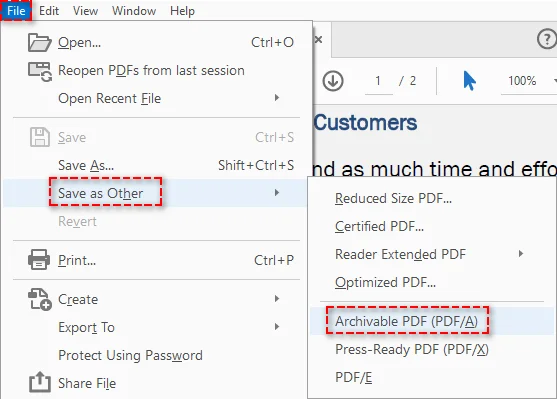
Vá para Arquivo > Salvar como outro > PDF arquivável (PDF/A) .
-
Selecione o padrão PDF/A desejado (como PDF/A-1a, PDF/A-1b, PDF/A-2a ou PDF/A-2b).
-
Salve o arquivo PDF/A.
Prós:
- Fácil de usar com uma ferramenta de nível profissional.
- Suporta diferentes padrões de PDF/A.
- Garante a conformidade com os requisitos do PDF/A.
Contras:
- Requer o Adobe Acrobat Pro DC, que é um software pago.
Método 2: Converter PDF para PDF/A usando conversores online gratuitos
Se você precisa apenas de conversões ocasionais e prefere não instalar software, conversores online gratuitos como PDF2GO e AvePDF fornecem uma solução rápida e acessível. Essas ferramentas funcionam inteiramente no seu navegador, tornando-as ideais para documentos não sensíveis.
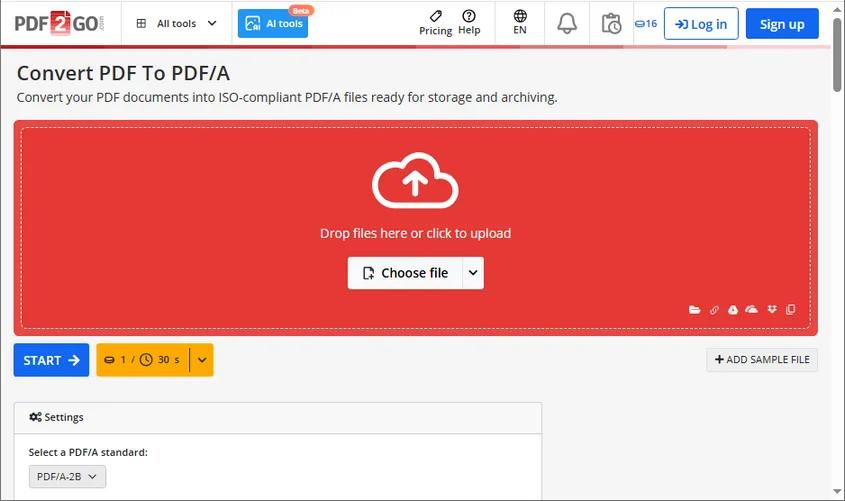
Passos (usando PDF2GO como exemplo):
- Visite o conversor online gratuito de PDF para PDF/A do PDF2GO.
- Clique em Escolher arquivo para enviar seu PDF ou arraste e solte o arquivo na área designada.
- Escolha o padrão PDF/A desejado como formato de saída.
- Clique em Iniciar para começar o processo de conversão.
- Baixe a versão PDF/A do seu documento.
Prós:
- Gratuito.
- Nenhuma instalação de software necessária.
- Rápido e fácil para conversões ocasionais.
Contras:
- As ferramentas online podem ter limitações de tamanho de arquivo.
- Não é ideal para documentos sensíveis ou confidenciais devido a potenciais riscos de segurança.
Método 3: Converter PDF para PDF/A usando o Ghostscript
O Ghostscript é uma ferramenta de linha de comando robusta e de código aberto, amplamente utilizada para o processamento automatizado de PDF. Ele oferece uma maneira flexível e gratuita de converter PDFs para documentos compatíveis com PDF/A.
Passos:
-
Baixe e instale o Ghostscript em seu site oficial.
-
Abra um prompt de comando ou janela de terminal.
-
Execute o seguinte comando para converter seu arquivo PDF para PDF/A (exemplo para PDF/A-1b):
D:\Applications\Ghostscript\gs10.06.0\bin\gswin64.exe -dPDFA=1 -dBATCH -dNOPAUSE -sProcessColorModel=DeviceRGB -sDEVICE=pdfwrite -sPDFACompatibilityPolicy=1 -sColorConversionStrategy=UseDeviceIndependentColor -sOutputFile="C:/Users/Administrator/Documents/output.pdf" "C:/Users/Administrator/Documents/input.pdf"Importante:
- Substitua
"D:\Applications\Ghostscript\gs10.06.0\bin\gswin64.exe"pelo caminho real para o seu executável do Ghostscript (gswin64.exe). - Substitua
C:/Users/Administrator/Documents/input.pdfpelo caminho para o seu arquivo PDF de origem eC:/Users/Administrator/Documents/output.pdfpelo nome e local desejados para o seu arquivo convertido.
- Substitua
Prós:
- Gratuito e de código aberto.
- Altamente personalizável.
- Ideal para automação.
Contras:
- Requer conhecimento de linha de comando.
- Configuração mais complexa em comparação com ferramentas gráficas.
Método 4: Converter arquivos PDF para PDF/A em lote usando Python
Para usuários que preferem uma abordagem mais programática, o Python é uma ótima escolha, especialmente para processamento em lote ou integração da conversão de PDF para PDF/A em aplicativos ou serviços de backend. Com bibliotecas como o Spire.PDF para Python, você pode converter vários arquivos PDF para PDF/A em lote sem esforço. Além disso, a biblioteca também suporta a conversão de PDFs para Word e outros formatos, tornando-a uma ferramenta versátil para a conversão de documentos.
Passos:
-
Instale o Spire.PDF do PyPI usando o seguinte comando:
pip install spire-pdf -
Escreva um script Python para converter vários arquivos PDF para o formato PDF/A-1b em lote:
import os
from spire.pdf import *

# Define input and output folder paths
inputFolder = "path/to/your/input/folder/"
outputFolder = "path/to/your/output/folder/"

# Get a list of all PDF files in the input folder
pdfFiles = [f for f in os.listdir(inputFolder) if f.endswith('.pdf')]

# Iterate through each PDF file and convert
for pdfFile in pdfFiles:
    # Construct the full input and output file paths
    inputFile = os.path.join(inputFolder, pdfFile)
    outputFile = os.path.join(outputFolder, f"ToPdfA1B_{pdfFile}")

    # Create a PdfStandardsConverter object
    converter = PdfStandardsConverter(inputFile)

    # Perform the PDF to PDF/A-1b conversion
    converter.ToPdfA1B(outputFile)
    print(f"Converted: {inputFile} to {outputFile}")

print("Batch conversion completed.")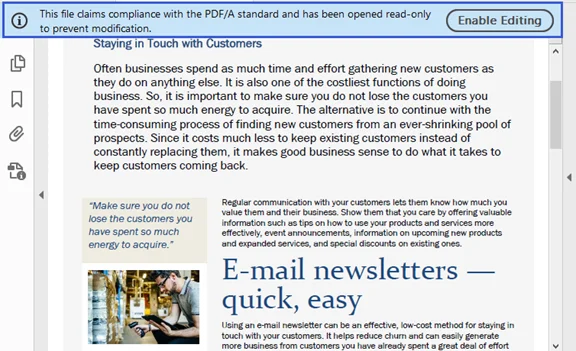
Prós:
- Ideal para processamento em lote e automação.
- Pode ser integrado em fluxos de trabalho ou aplicativos existentes.
Contras:
- Requer conhecimento de programação em Python.
- É necessário instalar a biblioteca Spire.PDF.
Para configurações mais avançadas sobre esta conversão, visite o guia oficial do Spire.PDF: Python: Converter PDF para PDF/A e vice-versa.
Solução de problemas comuns na conversão de PDF para PDF/A
Ao converter um PDF para PDF/A, você pode encontrar erros de validação ou exportações com falha. Abaixo estão os problemas mais comuns e as soluções rápidas:
- Fontes ausentes ou não incorporadas
- Sintomas: Erro "Fonte não incorporada" ou exibição de texto incorreta.
- Solução: Incorpore todas as fontes ou substitua as fontes não suportadas por fontes padrão (por exemplo, Arial, Times New Roman).
- Problemas de transparência ou camada
- Sintomas: A conversão falha devido à transparência ou camadas (especialmente para PDF/A-1).
- Solução: Use PDF/A-2b ou PDF/A-3b, ou achate a transparência antes da conversão.
- Links externos, anexos ou multimídia
- Sintomas: Conversão bloqueada devido a conteúdo externo (anexos, JavaScript, multimídia).
- Solução: Remova os anexos ou converta-os em conteúdo estático e elimine scripts ou elementos multimídia.
- Perfis de cores incorretos
- Sintomas: Erros de validação relacionados a perfis de cores.
- Solução: Aplique um perfil de cor padrão (por exemplo, sRGB) e garanta que as imagens usem espaços de cores suportados.
- Validação falhou após a exportação
- Sintomas: A conversão é concluída, mas o arquivo falha na conformidade com o PDF/A.
- Solução: Valide usando ferramentas como veraPDF, Adobe Acrobat Preflight ou validadores de PDF/A online para identificar e corrigir erros.
- PDFs criptografados ou protegidos por senha
- Sintomas: Conversão não permitida devido à proteção por senha.
- Solução: Remova as configurações de segurança ou senhas antes de converter.
Conclusão: Como escolher o método certo
A conversão de PDF para PDF/A é crucial para garantir a longevidade, acessibilidade e conformidade do documento. O melhor método para converter PDF para PDF/A depende de suas necessidades específicas:
- Para conversões ocasionais : as ferramentas online gratuitas são uma opção rápida e fácil.
- Para conversões profissionais e compatíveis : o Adobe Acrobat Pro DC é a escolha mais confiável.
- Para aqueles que preferem ferramentas de código aberto : o Ghostscript oferece uma solução robusta, embora intensiva em linha de comando.
- Para automação ou processamento em lote : o Python é ideal para integração em sistemas maiores.
Dica : Independentemente do método escolhido, sempre valide os arquivos convertidos para conformidade com o PDF/A e mantenha backups dos documentos originais.
FAQs: PDF para PDF/A
P1: O que é PDF/A?
R1: PDF/A é um PDF padronizado pela ISO, projetado para arquivamento de longo prazo. Ele incorpora todas as fontes, metadados e perfis de cores para garantir que os documentos sejam renderizados da mesma forma no futuro.
P2: Posso converter PDF para PDF/A gratuitamente?
R2: Sim, ferramentas gratuitas como PDF2GO e Ghostscript permitem a conversão para PDF/A sem nenhum custo.
P3: O PDF/A é compatível com todos os leitores de PDF?
R3: A maioria dos leitores de PDF modernos suporta PDF/A, mas alguns recursos avançados podem não ser exibidos em softwares mais antigos.
P4: Qual versão do PDF/A devo usar?
R4: Para arquivamento simples, o PDF/A-1b é suficiente. Para recursos modernos como camadas e anexos, o PDF/A-2 ou PDF/A-3 é recomendado.
P5: Posso automatizar a conversão para PDF/A para vários arquivos?
R5: Sim, usando ferramentas programáticas como Spire.PDF ou scripts do Ghostscript, a conversão em lote é possível.
Veja também
PDF를 PDF/A로 변환: 4가지 쉬운 방법
PDF를 PDF/A로 변환하면 문서를 장기간 보존하고 규제 준수를 충족하며 시스템 전반에서 접근성을 유지할 수 있습니다. 법률, 정부 또는 기업 문서로 작업하든 PDF/A는 가독성과 일관성을 보장합니다. 이 가이드에서는 Adobe Acrobat Pro DC, 무료 온라인 변환기, Ghostscript 및 Python 프로그래밍을 사용하는 네 가지 일반적인 접근 방식을 살펴봅니다.
빠른 탐색
- PDF/A란 무엇인가
- PDF를 PDF/A로 변환해야 하는 이유
- 방법 1: Adobe Acrobat Pro DC를 사용하여 PDF를 PDF/A로 변환
- 방법 2: 무료 온라인 변환기를 사용하여 PDF를 PDF/A로 변환
- 방법 3: Ghostscript를 사용하여 PDF를 PDF/A로 변환
- 방법 4: Python을 사용하여 PDF 파일을 PDF/A로 일괄 변환
- PDF에서 PDF/A로 변환 시 일반적인 문제 해결
- 결론: 올바른 방법 선택하기
PDF/A란 무엇인가?
PDF/A는 장기 보관을 위해 특별히 설계된 ISO 표준 PDF 버전입니다. 일반 PDF와 달리 PDF/A는 향후 문서 안정성을 저해할 수 있는 기능의 사용을 제한합니다.
PDF/A의 주요 특징
PDF/A는 수명과 일관성을 보장하기 위해 다음과 같은 엄격한 규칙을 적용합니다.
- 모든 글꼴은 포함되어야 합니다 (외부 글꼴 종속성 없음)
- 오디오, 비디오 또는 멀티미디어 요소 없음
- 암호화 또는 비밀번호 보호 없음
- 일관된 렌더링을 위한 표준화된 색상 프로필
- 외부 참조가 없어 문서가 완전히 독립적임을 보장
PDF/A 버전
PDF/A는 특정 보관 및 문서 보존 요구 사항을 충족하도록 설계된 여러 버전으로 제공됩니다. 아래 표는 주요 PDF/A 버전과 이상적인 사용 사례를 요약한 것입니다.
| PDF/A 버전 | 주요 기능 | 최적 사용 사례 |
|---|---|---|
| PDF/A-1 (ISO 19005-1) | 가장 제한적인 원본 표준으로, 최대의 안정성과 광범위한 호환성을 보장합니다. | 법률, 정부 및 규정 준수 관련 문서의 장기 보존 |
| PDF/A-2 (ISO 19005-2) | 투명도, 레이어 및 JPEG2000 이미지 지원을 추가하여 유연성을 높입니다. | 그래픽, 레이어드 콘텐츠 또는 복잡한 레이아웃을 포함하는 최신 문서 |
| PDF/A-3 (ISO 19005-3) | XML, CSV 및 Excel과 같은 비 PDF/A 파일 포함을 허용합니다. | 전자 인보이스, 비즈니스 보고서 및 소스 파일 첨부가 필요한 워크플로 |
PDF를 PDF/A로 변환해야 하는 이유?
PDF를 PDF/A로 변환해야 하는 몇 가지 이유가 있습니다.
- 장기 보존 : PDF/A는 문서가 수년 동안 접근 가능하고 사용 가능하도록 보장하여 법률, 정부 및 보관 목적에 이상적입니다.
- 규정 준수 : 법률 및 의료를 포함한 특정 산업에서는 ISO 19005와 같은 규정을 준수하기 위해 문서를 PDF/A 형식으로 저장해야 합니다.
- 보기의 일관성 : PDF/A는 모든 글꼴, 이미지 및 기타 리소스를 포함하므로 문서는 외부 파일에 대한 종속성 없이 다른 시스템에서 일관되게 표시됩니다.
방법 1: Adobe Acrobat Pro DC를 사용하여 PDF를 PDF/A로 변환
Adobe Acrobat Pro DC는 PDF 조작의 업계 표준입니다. 내장된 유효성 검사 도구를 사용하여 PDF를 PDF/A로 변환하는 가장 안정적이고 정확한 방법을 제공합니다.
단계:
-
Adobe Acrobat Pro DC에서 변환하려는 PDF를 엽니다.
-
파일 > 다른 이름으로 저장 > 보관용 PDF(PDF/A)로 이동합니다.
-
원하는 PDF/A 표준(예: PDF/A-1a, PDF/A-1b, PDF/A-2a 또는 PDF/A-2b)을 선택합니다.
-
PDF/A 파일을 저장합니다.
장점:
- 전문가 수준의 도구로 사용하기 쉽습니다.
- 다양한 PDF/A 표준을 지원합니다.
- PDF/A 요구 사항 준수를 보장합니다.
단점:
- 유료 소프트웨어인 Adobe Acrobat Pro DC가 필요합니다.
방법 2: 무료 온라인 변환기를 사용하여 PDF를 PDF/A로 변환
가끔 변환이 필요하고 소프트웨어를 설치하고 싶지 않다면 PDF2GO 및 AvePDF와 같은 무료 온라인 변환기가 빠르고 접근 가능한 솔루션을 제공합니다. 이러한 도구는 브라우저에서 완전히 실행되므로 민감하지 않은 문서에 이상적입니다.
단계 (PDF2GO를 예로 사용):
- PDF2GO의 무료 온라인 PDF에서 PDF/A로 변환기를 방문하십시오.
- 파일 선택을 클릭하여 PDF를 업로드하거나 지정된 영역으로 파일을 드래그 앤 드롭합니다.
- 출력 형식으로 원하는 PDF/A 표준을 선택합니다.
- 시작을 클릭하여 변환 프로세스를 시작합니다.
- 문서의 PDF/A 버전을 다운로드합니다.
장점:
- 무료로 사용할 수 있습니다.
- 소프트웨어 설치가 필요 없습니다.
- 가끔 변환할 때 빠르고 쉽습니다.
단점:
- 온라인 도구에는 파일 크기 제한이 있을 수 있습니다.
- 잠재적인 보안 위험으로 인해 민감하거나 기밀 문서에는 이상적이지 않습니다.
방법 3: Ghostscript를 사용하여 PDF를 PDF/A로 변환
Ghostscript는 자동화된 PDF 처리에 널리 사용되는 강력한 오픈 소스 명령줄 도구입니다. PDF를 PDF/A 호환 문서로 변환하는 유연하고 비용 없는 방법을 제공합니다.
단계:
-
공식 웹사이트에서 Ghostscript를 다운로드하여 설치합니다.
-
명령 프롬프트 또는 터미널 창을 엽니다.
-
다음 명령을 실행하여 PDF 파일을 PDF/A로 변환합니다(PDF/A-1b 예시):
D:\Applications\Ghostscript\gs10.06.0\bin\gswin64.exe -dPDFA=1 -dBATCH -dNOPAUSE -sProcessColorModel=DeviceRGB -sDEVICE=pdfwrite -sPDFACompatibilityPolicy=1 -sColorConversionStrategy=UseDeviceIndependentColor -sOutputFile="C:/Users/Administrator/Documents/output.pdf" "C:/Users/Administrator/Documents/input.pdf"중요:
"D:\Applications\Ghostscript\gs10.06.0\bin\gswin64.exe"를 Ghostscript 실행 파일(gswin64.exe)의 실제 경로로 바꾸십시오.C:/Users/Administrator/Documents/input.pdf를 소스 PDF 파일의 경로로,C:/Users/Administrator/Documents/output.pdf를 변환된 파일의 원하는 이름과 위치로 바꾸십시오.
장점:
- 무료이며 오픈 소스입니다.
- 고도로 사용자 정의할 수 있습니다.
- 자동화에 이상적입니다.
단점:
- 명령줄 지식이 필요합니다.
- 그래픽 도구에 비해 설정이 더 복잡합니다.
방법 4: Python을 사용하여 PDF 파일을 PDF/A로 일괄 변환
보다 프로그래밍적인 접근 방식을 선호하는 사용자의 경우, 특히 일괄 처리 또는 PDF에서 PDF/A로의 변환을 응용 프로그램이나 백엔드 서비스에 통합하는 데 Python이 훌륭한 선택입니다. Spire.PDF for Python과 같은 라이브러리를 사용하면 여러 PDF 파일을 PDF/A로 손쉽게 일괄 변환할 수 있습니다. 또한 이 라이브러리는 PDF를 Word로 변환 및 기타 형식으로 변환하는 것도 지원하므로 문서 변환을 위한 다목적 도구입니다.
단계:
-
다음 명령을 사용하여 PyPI에서 Spire.PDF를 설치합니다.
pip install spire-pdf -
여러 PDF 파일을 PDF/A-1b 형식으로 일괄 변환하는 Python 스크립트를 작성합니다.
import os
from spire.pdf import *

# 입력 및 출력 폴더 경로 정의
inputFolder = "path/to/your/input/folder/"
outputFolder = "path/to/your/output/folder/"

# 입력 폴더의 모든 PDF 파일 목록 가져오기
pdfFiles = [f for f in os.listdir(inputFolder) if f.endswith('.pdf')]

# 각 PDF 파일을 반복하고 변환
for pdfFile in pdfFiles:
    # 전체 입력 및 출력 파일 경로 구성
    inputFile = os.path.join(inputFolder, pdfFile)
    outputFile = os.path.join(outputFolder, f"ToPdfA1B_{pdfFile}")

    # PdfStandardsConverter 객체 생성
    converter = PdfStandardsConverter(inputFile)

    # PDF에서 PDF/A-1b로 변환 수행
    converter.ToPdfA1B(outputFile)
    print(f"변환됨: {inputFile}에서 {outputFile}로")

print("일괄 변환이 완료되었습니다.")
장점:
- 일괄 처리 및 자동화에 이상적입니다.
- 기존 워크플로 또는 응용 프로그램에 통합할 수 있습니다.
단점:
- Python 프로그래밍 지식이 필요합니다.
- Spire.PDF 라이브러리를 설치해야 합니다.
이 변환에 대한 고급 설정에 대해서는 Spire.PDF의 공식 가이드인 Python: PDF를 PDF/A로 변환 및 그 반대를 방문하십시오.
PDF에서 PDF/A로 변환 시 일반적인 문제 해결
PDF를 PDF/A로 변환할 때 유효성 검사 오류나 내보내기 실패가 발생할 수 있습니다. 다음은 가장 일반적인 문제와 빠른 해결 방법입니다.
- 누락되거나 포함되지 않은 글꼴
- 증상: "글꼴이 포함되지 않음" 오류 또는 잘못된 텍스트 표시.
- 해결책: 모든 글꼴을 포함하거나 지원되지 않는 글꼴을 표준 글꼴(예: Arial, Times New Roman)로 교체합니다.
- 투명도 또는 레이어 문제
- 증상: 투명도 또는 레이어로 인해 변환 실패(특히 PDF/A-1의 경우).
- 해결책: PDF/A-2b 또는 PDF/A-3b를 사용하거나 변환 전에 투명도를 병합합니다.
- 외부 링크, 첨부 파일 또는 멀티미디어
- 증상: 외부 콘텐츠(첨부 파일, JavaScript, 멀티미디어)로 인해 변환이 차단됨.
- 해결책: 첨부 파일을 제거하거나 정적 콘텐츠로 변환하고 스크립트 또는 멀티미디어 요소를 제거합니다.
- 잘못된 색상 프로필
- 증상: 색상 프로필과 관련된 유효성 검사 오류.
- 해결책: 표준 색상 프로필(예: sRGB)을 적용하고 이미지가 지원되는 색 공간을 사용하는지 확인합니다.
- 내보내기 후 유효성 검사 실패
- 증상: 변환이 완료되었지만 파일이 PDF/A 규정을 준수하지 않음.
- 해결책: veraPDF, Adobe Acrobat Preflight 또는 온라인 PDF/A 유효성 검사기와 같은 도구를 사용하여 오류를 식별하고 수정합니다.
- 암호화되거나 비밀번호로 보호된 PDF
- 증상: 비밀번호 보호로 인해 변환이 허용되지 않음.
- 해결책: 변환하기 전에 보안 설정이나 비밀번호를 제거합니다.
결론: 올바른 방법 선택하기
PDF를 PDF/A로 변환하는 것은 문서의 수명, 접근성 및 규정 준수를 보장하는 데 중요합니다. PDF를 PDF/A로 변환하는 최상의 방법은 특정 요구 사항에 따라 다릅니다.
- 가끔 변환하는 경우 : 무료 온라인 도구는 빠르고 쉬운 옵션입니다.
- 전문적이고 규정을 준수하는 변환의 경우 : Adobe Acrobat Pro DC가 가장 신뢰할 수 있는 선택입니다.
- 오픈 소스 도구를 선호하는 경우 : Ghostscript는 강력하지만 명령줄 중심의 솔루션을 제공합니다.
- 자동화 또는 일괄 처리의 경우 : Python은 대규모 시스템에 통합하는 데 이상적입니다.
팁 : 선택한 방법에 관계없이 항상 변환된 파일의 PDF/A 규정 준수를 확인하고 원본 문서의 백업을 보관하십시오.
자주 묻는 질문: PDF에서 PDF/A로
Q1: PDF/A란 무엇인가요?
A1: PDF/A는 장기 보관을 위해 설계된 ISO 표준 PDF입니다. 모든 글꼴, 메타데이터 및 색상 프로필을 포함하여 문서가 미래에도 동일하게 렌더링되도록 보장합니다.
Q2: PDF를 PDF/A로 무료로 변환할 수 있나요?
A2: 예, PDF2GO 및 Ghostscript와 같은 무료 도구를 사용하면 비용 없이 PDF/A로 변환할 수 있습니다.
Q3: PDF/A는 모든 PDF 리더와 호환되나요?
A3: 대부분의 최신 PDF 리더는 PDF/A를 지원하지만 일부 고급 기능은 이전 소프트웨어에서 표시되지 않을 수 있습니다.
Q4: 어떤 PDF/A 버전을 사용해야 하나요?
A4: 간단한 보관의 경우 PDF/A-1b로 충분합니다. 레이어 및 첨부 파일과 같은 최신 기능의 경우 PDF/A-2 또는 PDF/A-3이 권장됩니다.
Q5: 여러 파일에 대해 PDF/A 변환을 자동화할 수 있나요?
A5: 예, Spire.PDF 또는 Ghostscript 스크립트와 같은 프로그래밍 도구를 사용하여 일괄 변환이 가능합니다.
참고 항목
Converti PDF in PDF/A: 4 modi semplici
Indice
- Cos'è il PDF/A
- Perché convertire PDF in PDF/A
- Metodo 1: Convertire PDF in PDF/A usando Adobe Acrobat Pro DC
- Metodo 2: Convertire PDF in PDF/A usando convertitori online gratuiti
- Metodo 3: Convertire PDF in PDF/A usando Ghostscript
- Metodo 4: Convertire in batch file PDF in PDF/A usando Python
- Risoluzione dei problemi comuni nella conversione da PDF a PDF/A
- Conclusione: Come scegliere il metodo giusto
La conversione da PDF a PDF/A garantisce che i tuoi documenti vengano conservati a lungo termine, soddisfino la conformità normativa e rimangano accessibili su tutti i sistemi. Che tu stia lavorando con documenti legali, governativi o aziendali, il formato PDF/A garantisce leggibilità e coerenza. Questa guida esplora quattro approcci comuni: l'uso di Adobe Acrobat Pro DC, convertitori online gratuiti, Ghostscript e la programmazione in Python.
Navigazione Rapida
- Cos'è il PDF/A
- Perché convertire PDF in PDF/A
- Metodo 1: Convertire PDF in PDF/A usando Adobe Acrobat Pro DC
- Metodo 2: Convertire PDF in PDF/A usando convertitori online gratuiti
- Metodo 3: Convertire PDF in PDF/A usando Ghostscript
- Metodo 4: Convertire in batch file PDF in PDF/A usando Python
- Risoluzione dei problemi comuni nella conversione da PDF a PDF/A
- Conclusione: Come scegliere il metodo giusto
Cos'è il PDF/A?
PDF/A è una versione standardizzata ISO del PDF progettata specificamente per l'archiviazione a lungo termine. A differenza dei normali PDF, il PDF/A limita l'uso di funzionalità che potrebbero compromettere la stabilità del documento in futuro.
Caratteristiche principali del PDF/A
Il PDF/A impone regole rigide per garantire longevità e coerenza, tra cui:
- Tutti i caratteri devono essere incorporati (nessuna dipendenza da caratteri esterni)
- Nessun elemento audio, video o multimediale
- Nessuna crittografia o protezione con password
- Profili colore standardizzati per un rendering coerente
- Nessun riferimento esterno, garantendo che il documento sia completamente autonomo
Versioni di PDF/A
Il PDF/A è disponibile in diverse versioni, ognuna progettata per soddisfare specifiche esigenze di archiviazione e conservazione dei documenti. La tabella seguente riassume le principali versioni di PDF/A e i loro casi d'uso ideali:
| Versione PDF/A | Caratteristiche Principali | Miglior Caso d'Uso |
|---|---|---|
| PDF/A-1 (ISO 19005-1) | Lo standard originale e più restrittivo; garantisce la massima stabilità e un'ampia compatibilità | Conservazione a lungo termine di documenti legali, governativi e relativi alla conformità |
| PDF/A-2 (ISO 19005-2) | Aggiunge il supporto per trasparenza, livelli e immagini JPEG2000, offrendo maggiore flessibilità | Documenti moderni che includono grafica, contenuti a più livelli o layout complessi |
| PDF/A-3 (ISO 19005-3) | Consente di incorporare file non PDF/A come XML, CSV ed Excel | Fatture elettroniche, report aziendali e flussi di lavoro che richiedono l'allegato di file sorgente |
Perché convertire PDF in PDF/A?
Ci sono diverse ragioni per cui potrebbe essere necessario convertire un PDF in PDF/A:
- Conservazione a lungo termine: Il PDF/A garantisce che i documenti rimangano accessibili e utilizzabili per molti anni, rendendolo ideale per scopi legali, governativi e di archiviazione.
- Conformità alle normative: Alcuni settori, tra cui quello legale e sanitario, richiedono che i documenti siano archiviati in formato PDF/A per conformarsi a normative come la ISO 19005.
- Coerenza nella visualizzazione: Poiché il PDF/A incorpora tutti i caratteri, le immagini e le altre risorse, il documento verrà visualizzato in modo coerente su sistemi diversi senza dipendere da file esterni.
Metodo 1: Convertire PDF in PDF/A usando Adobe Acrobat Pro DC
Adobe Acrobat Pro DC rimane lo standard del settore per la manipolazione dei PDF. Fornisce il modo più stabile e accurato per convertire PDF in PDF/A con strumenti di convalida integrati.
Passaggi:
-
Apri il PDF che desideri convertire in Adobe Acrobat Pro DC.
-
Vai su File > Salva come altro > PDF archiviabile (PDF/A).
-
Seleziona lo standard PDF/A desiderato (come PDF/A-1a, PDF/A-1b, PDF/A-2a o PDF/A-2b).
-
Salva il file PDF/A.
Vantaggi:
- Facile da usare con uno strumento di livello professionale.
- Supporta diversi standard PDF/A.
- Garantisce la conformità ai requisiti PDF/A.
Svantaggi:
- Richiede Adobe Acrobat Pro DC, che è un software a pagamento.
Metodo 2: Convertire PDF in PDF/A usando convertitori online gratuiti
Se hai solo bisogno di conversioni occasionali e preferisci non installare software, i convertitori online gratuiti come PDF2GO e AvePDF offrono una soluzione rapida e accessibile. Questi strumenti funzionano interamente nel tuo browser, rendendoli ideali per documenti non sensibili.
Passaggi (usando PDF2GO come esempio):
- Visita il convertitore online gratuito da PDF a PDF/A di PDF2GO.
- Fai clic su Scegli file per caricare il tuo PDF o trascina e rilascia il file nell'area designata.
- Scegli lo standard PDF/A desiderato come formato di output.
- Fai clic su Avvia per iniziare il processo di conversione.
- Scarica la versione PDF/A del tuo documento.
Vantaggi:
- Gratuito da usare.
- Nessuna installazione di software richiesta.
- Veloce e facile per conversioni occasionali.
Svantaggi:
- Gli strumenti online possono avere limitazioni sulla dimensione dei file.
- Non ideale per documenti sensibili o confidenziali a causa di potenziali rischi per la sicurezza.
Metodo 3: Convertire PDF in PDF/A usando Ghostscript
Ghostscript è un robusto strumento a riga di comando open source ampiamente utilizzato per l'elaborazione automatizzata dei PDF. Offre un modo flessibile e gratuito per convertire i PDF in documenti conformi a PDF/A.
Passaggi:
-
Scarica e installa Ghostscript dal suo sito ufficiale.
-
Apri un prompt dei comandi o una finestra di terminale.
-
Esegui il seguente comando per convertire il tuo file PDF in PDF/A (esempio per PDF/A-1b):
D:\Applications\Ghostscript\gs10.06.0\bin\gswin64.exe -dPDFA=1 -dBATCH -dNOPAUSE -sProcessColorModel=DeviceRGB -sDEVICE=pdfwrite -sPDFACompatibilityPolicy=1 -sColorConversionStrategy=UseDeviceIndependentColor -sOutputFile="C:/Users/Administrator/Documents/output.pdf" "C:/Users/Administrator/Documents/input.pdf"Importante:
- Sostituisci
"D:\Applications\Ghostscript\gs10.06.0\bin\gswin64.exe"con il percorso effettivo del tuo eseguibile Ghostscript (gswin64.exe). - Sostituisci
C:/Users/Administrator/Documents/input.pdfcon il percorso del tuo file PDF di origine, eC:/Users/Administrator/Documents/output.pdfcon il nome e la posizione desiderati per il file convertito.
- Sostituisci
Vantaggi:
- Gratuito e open-source.
- Altamente personalizzabile.
- Ideale per l'automazione.
Svantaggi:
- Richiede conoscenza della riga di comando.
- Configurazione più complessa rispetto agli strumenti grafici.
Metodo 4: Convertire in batch file PDF in PDF/A usando Python
Per gli utenti che preferiscono un approccio più programmatico, Python è un'ottima scelta, specialmente per l'elaborazione in batch o l'integrazione della conversione da PDF a PDF/A in applicazioni o servizi di backend. Con librerie come Spire.PDF per Python, puoi convertire in batch più file PDF in PDF/A senza sforzo. Inoltre, la libreria supporta anche la conversione di PDF in Word e altri formati, rendendola uno strumento versatile per la conversione di documenti.
Passaggi:
-
Installa Spire.PDF da PyPI usando il seguente comando:
pip install spire-pdf -
Scrivi uno script Python per convertire in batch più file PDF nel formato PDF/A-1b:
import os
from spire.pdf import *

# Definisci i percorsi delle cartelle di input e output
inputFolder = "percorso/della/tua/cartella/input/"
outputFolder = "percorso/della/tua/cartella/output/"

# Ottieni un elenco di tutti i file PDF nella cartella di input
pdfFiles = [f for f in os.listdir(inputFolder) if f.endswith('.pdf')]

# Itera attraverso ogni file PDF e converti
for pdfFile in pdfFiles:
    # Costruisci i percorsi completi dei file di input e output
    inputFile = os.path.join(inputFolder, pdfFile)
    outputFile = os.path.join(outputFolder, f"ToPdfA1B_{pdfFile}")

    # Crea un oggetto PdfStandardsConverter
    converter = PdfStandardsConverter(inputFile)

    # Esegui la conversione da PDF a PDF/A-1b
    converter.ToPdfA1B(outputFile)
    print(f"Convertito: {inputFile} in {outputFile}")

print("Conversione batch completata.")
Vantaggi:
- Ideale per l'elaborazione in batch e l'automazione.
- Può essere integrato in flussi di lavoro o applicazioni esistenti.
Svantaggi:
- Richiede conoscenza della programmazione Python.
- È necessario installare la libreria Spire.PDF.
Per impostazioni più avanzate relative a questa conversione, visita la guida ufficiale di Spire.PDF: Python: Convertire PDF in PDF/A e viceversa.
Risoluzione dei problemi comuni nella conversione da PDF a PDF/A
Durante la conversione di un PDF in PDF/A, potresti riscontrare errori di convalida o esportazioni non riuscite. Di seguito sono riportati i problemi più comuni e le soluzioni rapide:
- Caratteri mancanti o non incorporati
- Sintomi: errore "Carattere non incorporato" o visualizzazione errata del testo.
- Soluzione: incorpora tutti i caratteri o sostituisci i caratteri non supportati con quelli standard (ad es. Arial, Times New Roman).
- Problemi di trasparenza o di livelli
- Sintomi: la conversione non riesce a causa di trasparenza o livelli (specialmente per PDF/A-1).
- Soluzione: utilizza PDF/A-2b o PDF/A-3b, oppure appiattisci la trasparenza prima della conversione.
- Collegamenti esterni, allegati o multimedia
- Sintomi: conversione bloccata a causa di contenuti esterni (allegati, JavaScript, multimedia).
- Soluzione: rimuovi gli allegati o convertili in contenuto statico ed elimina script o elementi multimediali.
- Profili colore non corretti
- Sintomi: errori di convalida relativi ai profili colore.
- Soluzione: applica un profilo colore standard (ad es. sRGB) e assicurati che le immagini utilizzino spazi colore supportati.
- Convalida non riuscita dopo l'esportazione
- Sintomi: la conversione viene completata, ma il file non è conforme a PDF/A.
- Soluzione: convalida utilizzando strumenti come veraPDF, Adobe Acrobat Preflight o validatori PDF/A online per identificare e correggere gli errori.
- PDF crittografati o protetti da password
- Sintomi: conversione non consentita a causa della protezione con password.
- Soluzione: rimuovi le impostazioni di sicurezza o le password prima della conversione.
Conclusione: Come scegliere il metodo giusto
La conversione da PDF a PDF/A è fondamentale per garantire la longevità, l'accessibilità e la conformità dei documenti. Il metodo migliore per convertire PDF in PDF/A dipende dalle tue esigenze specifiche:
- Per conversioni occasionali: gli strumenti online gratuiti sono un'opzione rapida e semplice.
- Per conversioni professionali e conformi: Adobe Acrobat Pro DC è la scelta più affidabile.
- Per coloro che preferiscono strumenti open-source: Ghostscript offre una soluzione robusta, sebbene intensiva da riga di comando.
- Per l'automazione o l'elaborazione in batch: Python è ideale per l'integrazione in sistemi più grandi.
Suggerimento: indipendentemente dal metodo scelto, convalida sempre i file convertiti per la conformità PDF/A e conserva i backup dei documenti originali.
Domande frequenti: da PDF a PDF/A
D1: Cos'è il PDF/A?
R1: PDF/A è un PDF standardizzato ISO progettato per l'archiviazione a lungo termine. Incorpora tutti i caratteri, i metadati e i profili colore per garantire che i documenti vengano visualizzati allo stesso modo in futuro.
D2: Posso convertire PDF in PDF/A gratuitamente?
R2: Sì, strumenti gratuiti come PDF2GO e Ghostscript consentono la conversione in PDF/A senza alcun costo.
D3: Il PDF/A è compatibile con tutti i lettori PDF?
R3: La maggior parte dei lettori PDF moderni supporta il PDF/A, ma alcune funzionalità avanzate potrebbero non essere visualizzate nei software più vecchi.
D4: Quale versione di PDF/A dovrei usare?
R4: Per l'archiviazione semplice, PDF/A-1b è sufficiente. Per funzionalità moderne come livelli e allegati, si consiglia PDF/A-2 o PDF/A-3.
D5: Posso automatizzare la conversione in PDF/A per più file?
R5: Sì, utilizzando strumenti programmatici come Spire.PDF o script Ghostscript, è possibile la conversione in batch.
Vedi anche
Convertir PDF en PDF/A : 4 méthodes faciles
Table des matières
- Qu'est-ce que le PDF/A
- Pourquoi convertir un PDF en PDF/A
- Méthode 1 : Convertir un PDF en PDF/A avec Adobe Acrobat Pro DC
- Méthode 2 : Convertir un PDF en PDF/A avec des convertisseurs en ligne gratuits
- Méthode 3 : Convertir un PDF en PDF/A avec Ghostscript
- Méthode 4 : Convertir par lots des fichiers PDF en PDF/A avec Python
- Dépannage des problèmes courants lors de la conversion de PDF en PDF/A
- Conclusion : Comment choisir la bonne méthode
La conversion de PDF en PDF/A garantit que vos documents sont conservés à long terme, respectent la conformité réglementaire et restent accessibles sur tous les systèmes. Que vous travailliez avec des documents juridiques, gouvernementaux ou d'entreprise, le format PDF/A garantit la lisibilité et la cohérence. Ce guide explore quatre approches courantes : l'utilisation d'Adobe Acrobat Pro DC, les convertisseurs en ligne gratuits, Ghostscript et la programmation en Python.
Navigation rapide
- Qu'est-ce que le PDF/A
- Pourquoi convertir un PDF en PDF/A
- Méthode 1 : Convertir un PDF en PDF/A avec Adobe Acrobat Pro DC
- Méthode 2 : Convertir un PDF en PDF/A avec des convertisseurs en ligne gratuits
- Méthode 3 : Convertir un PDF en PDF/A avec Ghostscript
- Méthode 4 : Convertir par lots des fichiers PDF en PDF/A avec Python
- Dépannage des problèmes courants lors de la conversion de PDF en PDF/A
- Conclusion : Comment choisir la bonne méthode
Qu'est-ce que le PDF/A ?
Le PDF/A est une version normalisée ISO du PDF conçue spécifiquement pour l'archivage à long terme. Contrairement aux PDF ordinaires, le PDF/A restreint l'utilisation de fonctionnalités susceptibles de compromettre la stabilité du document à l'avenir.
Caractéristiques clés du PDF/A
Le PDF/A impose des règles strictes pour garantir la longévité et la cohérence, notamment :
- Toutes les polices doivent être incorporées (pas de dépendances de polices externes)
- Aucun élément audio, vidéo ou multimédia
- Aucun cryptage ni protection par mot de passe
- Profils de couleur standardisés pour un rendu cohérent
- Aucune référence externe, garantissant que le document est entièrement autonome
Versions de PDF/A
Le PDF/A existe en plusieurs versions, chacune conçue pour répondre à des besoins spécifiques d'archivage et de préservation de documents. Le tableau ci-dessous résume les principales versions de PDF/A et leurs cas d'utilisation idéaux :
| Version PDF/A | Caractéristiques clés | Meilleur cas d'utilisation |
|---|---|---|
| PDF/A-1 (ISO 19005-1) | La norme originale et la plus restrictive ; assure une stabilité maximale et une large compatibilité | Préservation à long terme de documents juridiques, gouvernementaux et liés à la conformité |
| PDF/A-2 (ISO 19005-2) | Ajoute la prise en charge de la transparence, des calques et des images JPEG2000, offrant une plus grande flexibilité | Documents modernes incluant des graphiques, du contenu en couches ou des mises en page complexes |
| PDF/A-3 (ISO 19005-3) | Permet d'incorporer des fichiers non-PDF/A tels que XML, CSV et Excel | Factures électroniques, rapports d'activité et flux de travail nécessitant de joindre des fichiers sources |
Pourquoi convertir un PDF en PDF/A ?
Il y a plusieurs raisons pour lesquelles la conversion d'un PDF en PDF/A peut être nécessaire :
- Préservation à long terme : Le PDF/A garantit que les documents resteront accessibles et utilisables pendant de nombreuses années, ce qui le rend idéal à des fins juridiques, gouvernementales et d'archivage.
- Conformité aux réglementations : Certaines industries, notamment le droit et la santé, exigent que les documents soient stockés au format PDF/A pour se conformer à des réglementations telles que la norme ISO 19005.
- Cohérence de l'affichage : Étant donné que le PDF/A incorpore toutes les polices, images et autres ressources, le document s'affichera de manière cohérente sur différents systèmes sans dépendre de fichiers externes.
Méthode 1 : Convertir un PDF en PDF/A avec Adobe Acrobat Pro DC
Adobe Acrobat Pro DC reste la norme de l'industrie pour la manipulation de PDF. Il offre le moyen le plus stable et le plus précis de convertir un PDF en PDF/A avec des outils de validation intégrés.
Étapes :
-
Ouvrez le PDF que vous souhaitez convertir dans Adobe Acrobat Pro DC.
-
Allez dans Fichier > Enregistrer sous un autre format > PDF archivable (PDF/A) .
-
Sélectionnez la norme PDF/A souhaitée (telle que PDF/A-1a, PDF/A-1b, PDF/A-2a ou PDF/A-2b).
-
Enregistrez le fichier PDF/A.
Avantages :
- Facile à utiliser avec un outil de qualité professionnelle.
- Prend en charge différentes normes PDF/A.
- Garantit la conformité avec les exigences PDF/A.
Inconvénients :
- Nécessite Adobe Acrobat Pro DC, qui est un logiciel payant.
Méthode 2 : Convertir un PDF en PDF/A avec des convertisseurs en ligne gratuits
Si vous n'avez besoin que de conversions occasionnelles et préférez ne pas installer de logiciel, les convertisseurs en ligne gratuits comme PDF2GO et AvePDF offrent une solution rapide et accessible. Ces outils fonctionnent entièrement dans votre navigateur, ce qui les rend idéaux pour les documents non sensibles.
Étapes (en utilisant PDF2GO comme exemple) :
- Visitez le convertisseur PDF en PDF/A en ligne gratuit de PDF2GO.
- Cliquez sur Choisir un fichier pour télécharger votre PDF ou glissez-déposez le fichier dans la zone désignée.
- Choisissez la norme PDF/A souhaitée comme format de sortie.
- Cliquez sur Démarrer pour commencer le processus de conversion.
- Téléchargez la version PDF/A de votre document.
Avantages :
- Utilisation gratuite.
- Aucune installation de logiciel requise.
- Rapide et facile pour les conversions occasionnelles.
Inconvénients :
- Les outils en ligne peuvent avoir des limitations de taille de fichier.
- Non idéal pour les documents sensibles ou confidentiels en raison des risques de sécurité potentiels.
Méthode 3 : Convertir un PDF en PDF/A avec Ghostscript
Ghostscript est un outil en ligne de commande open-source robuste, largement utilisé pour le traitement automatisé des PDF. Il offre un moyen flexible et gratuit de convertir des PDF en documents conformes à la norme PDF/A.
Étapes :
-
Téléchargez et installez Ghostscript depuis son site officiel.
-
Ouvrez une invite de commande ou une fenêtre de terminal.
-
Exécutez la commande suivante pour convertir votre fichier PDF en PDF/A (exemple pour PDF/A-1b) :
D:\Applications\Ghostscript\gs10.06.0\bin\gswin64.exe -dPDFA=1 -dBATCH -dNOPAUSE -sProcessColorModel=DeviceRGB -sDEVICE=pdfwrite -sPDFACompatibilityPolicy=1 -sColorConversionStrategy=UseDeviceIndependentColor -sOutputFile="C:/Users/Administrator/Documents/output.pdf" "C:/Users/Administrator/Documents/input.pdf"Important :
- Remplacez
"D:\Applications\Ghostscript\gs10.06.0\bin\gswin64.exe"par le chemin d'accès réel à votre exécutable Ghostscript (gswin64.exe). - Remplacez
C:/Users/Administrator/Documents/input.pdfpar le chemin d'accès à votre fichier PDF source, etC:/Users/Administrator/Documents/output.pdfpar le nom et l'emplacement souhaités pour votre fichier converti.
- Remplacez
Avantages :
- Gratuit et open-source.
- Hautement personnalisable.
- Idéal pour l'automatisation.
Inconvénients :
- Nécessite des connaissances en ligne de commande.
- Configuration plus complexe par rapport aux outils graphiques.
Méthode 4 : Convertir par lots des fichiers PDF en PDF/A avec Python
Pour les utilisateurs qui préfèrent une approche plus programmatique, Python est un excellent choix, en particulier pour le traitement par lots ou l'intégration de la conversion PDF en PDF/A dans des applications ou des services backend. Avec des bibliothèques comme Spire.PDF pour Python, vous pouvez convertir par lots plusieurs fichiers PDF en PDF/A sans effort. De plus, la bibliothèque prend également en charge la conversion de PDF en Word et d'autres formats, ce qui en fait un outil polyvalent pour la conversion de documents.
Étapes :
-
Installez Spire.PDF depuis PyPI en utilisant la commande suivante :
pip install spire-pdf -
Écrivez un script Python pour convertir par lots plusieurs fichiers PDF au format PDF/A-1b :
import os
from spire.pdf import *

# Define input and output folder paths
inputFolder = "path/to/your/input/folder/"
outputFolder = "path/to/your/output/folder/"

# Get a list of all PDF files in the input folder
pdfFiles = [f for f in os.listdir(inputFolder) if f.endswith('.pdf')]

# Iterate through each PDF file and convert
for pdfFile in pdfFiles:
    # Construct the full input and output file paths
    inputFile = os.path.join(inputFolder, pdfFile)
    outputFile = os.path.join(outputFolder, f"ToPdfA1B_{pdfFile}")

    # Create a PdfStandardsConverter object
    converter = PdfStandardsConverter(inputFile)

    # Perform the PDF to PDF/A-1b conversion
    converter.ToPdfA1B(outputFile)
    print(f"Converted: {inputFile} to {outputFile}")

print("Batch conversion completed.")
Avantages :
- Idéal pour le traitement par lots et l'automatisation.
- Peut être intégré dans des flux de travail ou des applications existants.
Inconvénients :
- Nécessite des connaissances en programmation Python.
- Nécessite d'installer la bibliothèque Spire.PDF.
Pour des paramètres plus avancés concernant cette conversion, veuillez consulter le guide officiel de Spire.PDF : Python : Convertir un PDF en PDF/A et vice versa.
Dépannage des problèmes courants lors de la conversion de PDF en PDF/A
Lors de la conversion d'un PDF en PDF/A, vous pouvez rencontrer des erreurs de validation ou des exportations échouées. Voici les problèmes les plus courants et leurs solutions rapides :
- Polices manquantes ou non incorporées
- Symptômes : Erreur "Police non incorporée" ou affichage incorrect du texte.
- Solution : Incorporez toutes les polices ou remplacez les polices non prises en charge par des polices standard (par exemple, Arial, Times New Roman).
- Problèmes de transparence ou de calques
- Symptômes : La conversion échoue en raison de la transparence ou des calques (en particulier pour le PDF/A-1).
- Solution : Utilisez PDF/A-2b ou PDF/A-3b, ou aplatissez la transparence avant la conversion.
- Liens externes, pièces jointes ou multimédia
- Symptômes : Conversion bloquée en raison de contenu externe (pièces jointes, JavaScript, multimédia).
- Solution : Supprimez les pièces jointes ou convertissez-les en contenu statique, et éliminez les scripts ou les éléments multimédias.
- Profils de couleur incorrects
- Symptômes : Erreurs de validation liées aux profils de couleur.
- Solution : Appliquez un profil de couleur standard (par exemple, sRGB) et assurez-vous que les images utilisent des espaces colorimétriques pris en charge.
- Échec de la validation après l'exportation
- Symptômes : La conversion se termine, mais le fichier n'est pas conforme à la norme PDF/A.
- Solution : Validez à l'aide d'outils comme veraPDF, Adobe Acrobat Preflight ou des validateurs PDF/A en ligne pour identifier et corriger les erreurs.
- PDF cryptés ou protégés par mot de passe
- Symptômes : Conversion non autorisée en raison de la protection par mot de passe.
- Solution : Supprimez les paramètres de sécurité ou les mots de passe avant la conversion.
Conclusion : Comment choisir la bonne méthode
La conversion de PDF en PDF/A est cruciale pour garantir la longévité, l'accessibilité et la conformité des documents. La meilleure méthode pour convertir un PDF en PDF/A dépend de vos besoins spécifiques :
- Pour les conversions occasionnelles : les outils en ligne gratuits sont une option rapide et facile.
- Pour les conversions professionnelles et conformes : Adobe Acrobat Pro DC est le choix le plus fiable.
- Pour ceux qui préfèrent les outils open-source : Ghostscript offre une solution robuste, bien qu'intensive en ligne de commande.
- Pour l'automatisation ou le traitement par lots : Python est idéal pour l'intégration dans des systèmes plus vastes.
Conseil : Quelle que soit la méthode choisie, validez toujours les fichiers convertis pour la conformité PDF/A et conservez des sauvegardes des documents originaux.
FAQ : PDF vers PDF/A
Q1 : Qu'est-ce que le PDF/A ?
R1 : Le PDF/A est un PDF normalisé ISO conçu pour l'archivage à long terme. Il incorpore toutes les polices, métadonnées et profils de couleur pour garantir que les documents s'affichent de la même manière à l'avenir.
Q2 : Puis-je convertir un PDF en PDF/A gratuitement ?
R2 : Oui, des outils gratuits comme PDF2GO et Ghostscript permettent la conversion en PDF/A sans aucun coût.
Q3 : Le PDF/A est-il compatible avec tous les lecteurs PDF ?
R3 : La plupart des lecteurs PDF modernes prennent en charge le PDF/A, mais certaines fonctionnalités avancées peuvent ne pas s'afficher dans les logiciels plus anciens.
Q4 : Quelle version de PDF/A dois-je utiliser ?
R4 : Pour un archivage simple, le PDF/A-1b est suffisant. Pour les fonctionnalités modernes comme les calques et les pièces jointes, le PDF/A-2 ou le PDF/A-3 est recommandé.
Q5 : Puis-je automatiser la conversion en PDF/A pour plusieurs fichiers ?
R5 : Oui, en utilisant des outils programmatiques comme Spire.PDF ou des scripts Ghostscript, la conversion par lots est possible.
Voir aussi
Convertir PDF a PDF/A: 4 formas sencillas
Tabla de Contenidos
- ¿Qué es PDF/A?
- ¿Por qué convertir PDF a PDF/A?
- Método 1: Convertir PDF a PDF/A usando Adobe Acrobat Pro DC
- Método 2: Convertir PDF a PDF/A usando convertidores en línea gratuitos
- Método 3: Convertir PDF a PDF/A usando Ghostscript
- Método 4: Convertir archivos PDF a PDF/A por lotes usando Python
- Solución de problemas comunes en la conversión de PDF a PDF/A
- Conclusión: Cómo elegir el método correcto
Convertir PDF a PDF/A asegura que sus documentos se conserven a largo plazo, cumplan con las normativas y sigan siendo accesibles en todos los sistemas. Ya sea que trabaje con documentos legales, gubernamentales o empresariales, PDF/A garantiza la legibilidad y la coherencia. Esta guía explora cuatro enfoques comunes: el uso de Adobe Acrobat Pro DC, convertidores en línea gratuitos, Ghostscript y la programación en Python.
Navegación Rápida
- ¿Qué es PDF/A?
- ¿Por qué convertir PDF a PDF/A?
- Método 1: Convertir PDF a PDF/A usando Adobe Acrobat Pro DC
- Método 2: Convertir PDF a PDF/A usando convertidores en línea gratuitos
- Método 3: Convertir PDF a PDF/A usando Ghostscript
- Método 4: Convertir archivos PDF a PDF/A por lotes usando Python
- Solución de problemas comunes en la conversión de PDF a PDF/A
- Conclusión: Cómo elegir el método correcto
¿Qué es PDF/A?
PDF/A es una versión estandarizada por ISO de PDF diseñada específicamente para el archivado a largo plazo. A diferencia de los PDF normales, PDF/A restringe el uso de características que pueden comprometer la estabilidad del documento en el futuro.
Características clave de PDF/A
PDF/A impone reglas estrictas para garantizar la longevidad y la coherencia, que incluyen:
- Todas las fuentes deben estar incrustadas (sin dependencias de fuentes externas)
- Sin elementos de audio, video o multimedia
- Sin cifrado ni protección por contraseña
- Perfiles de color estandarizados para una representación coherente
- Sin referencias externas, asegurando que el documento sea totalmente autónomo
Versiones de PDF/A
PDF/A viene en varias versiones, cada una diseñada para satisfacer necesidades específicas de archivado y preservación de documentos. La siguiente tabla resume las principales versiones de PDF/A y sus casos de uso ideales:
| Versión de PDF/A | Características Clave | Mejor Caso de Uso |
|---|---|---|
| PDF/A-1 (ISO 19005-1) | El estándar original y más restrictivo; asegura la máxima estabilidad y una amplia compatibilidad | Preservación a largo plazo de documentos legales, gubernamentales y relacionados con el cumplimiento |
| PDF/A-2 (ISO 19005-2) | Añade soporte para transparencia, capas e imágenes JPEG2000, ofreciendo una mayor flexibilidad | Documentos modernos que incluyen gráficos, contenido en capas o diseños complejos |
| PDF/A-3 (ISO 19005-3) | Permite incrustar archivos que no son PDF/A, como XML, CSV y Excel | Facturas electrónicas, informes comerciales y flujos de trabajo que requieren adjuntar archivos de origen |
¿Por qué convertir PDF a PDF/A?
Hay varias razones por las que podría ser necesario convertir un PDF a PDF/A:
- Preservación a largo plazo: PDF/A asegura que los documentos seguirán siendo accesibles y utilizables durante muchos años, lo que lo hace ideal para fines legales, gubernamentales y de archivo.
- Cumplimiento de normativas: Ciertas industrias, como la legal y la sanitaria, exigen que los documentos se almacenen en formato PDF/A para cumplir con normativas como la ISO 19005.
- Coherencia en la visualización: Dado que PDF/A incrusta todas las fuentes, imágenes y otros recursos, el documento se mostrará de manera coherente en diferentes sistemas sin depender de archivos externos.
Método 1: Convertir PDF a PDF/A usando Adobe Acrobat Pro DC
Adobe Acrobat Pro DC sigue siendo el estándar de la industria para la manipulación de PDF. Proporciona la forma más estable y precisa de convertir PDF a PDF/A con herramientas de validación integradas.
Pasos:
-
Abra el PDF que desea convertir en Adobe Acrobat Pro DC.
-
Vaya a Archivo > Guardar como otro > PDF archivable (PDF/A).
-
Seleccione el estándar PDF/A deseado (como PDF/A-1a, PDF/A-1b, PDF/A-2a o PDF/A-2b).
-
Guarde el archivo PDF/A.
Ventajas:
- Fácil de usar con una herramienta de nivel profesional.
- Admite diferentes estándares de PDF/A.
- Asegura el cumplimiento de los requisitos de PDF/A.
Desventajas:
- Requiere Adobe Acrobat Pro DC, que es un software de pago.
Método 2: Convertir PDF a PDF/A usando convertidores en línea gratuitos
Si solo necesita conversiones ocasionales y prefiere no instalar software, los convertidores en línea gratuitos como PDF2GO y AvePDF brindan una solución rápida y accesible. Estas herramientas se ejecutan completamente en su navegador, lo que las hace ideales para documentos no sensibles.
Pasos (usando PDF2GO como ejemplo):
- Visite el convertidor gratuito en línea de PDF a PDF/A de PDF2GO.
- Haga clic en Elegir archivo para cargar su PDF o arrastre y suelte el archivo en el área designada.
- Elija el estándar PDF/A deseado como formato de salida.
- Haga clic en Iniciar para comenzar el proceso de conversión.
- Descargue la versión PDF/A de su documento.
Ventajas:
- Gratis de usar.
- No requiere instalación de software.
- Rápido y fácil para conversiones ocasionales.
Desventajas:
- Las herramientas en línea pueden tener limitaciones de tamaño de archivo.
- No es ideal para documentos sensibles o confidenciales debido a posibles riesgos de seguridad.
Método 3: Convertir PDF a PDF/A usando Ghostscript
Ghostscript es una robusta herramienta de línea de comandos de código abierto ampliamente utilizada para el procesamiento automatizado de PDF. Ofrece una forma flexible y gratuita de convertir archivos PDF a documentos compatibles con PDF/A.
Pasos:
-
Descargue e instale Ghostscript desde su sitio web oficial.
-
Abra una ventana de símbolo del sistema o terminal.
-
Ejecute el siguiente comando para convertir su archivo PDF a PDF/A (ejemplo para PDF/A-1b):
D:\Applications\Ghostscript\gs10.06.0\bin\gswin64.exe -dPDFA=1 -dBATCH -dNOPAUSE -sProcessColorModel=DeviceRGB -sDEVICE=pdfwrite -sPDFACompatibilityPolicy=1 -sColorConversionStrategy=UseDeviceIndependentColor -sOutputFile="C:/Users/Administrator/Documents/output.pdf" "C:/Users/Administrator/Documents/input.pdf"Importante:
- Reemplace
"D:\Applications\Ghostscript\gs10.06.0\bin\gswin64.exe"con la ruta real a su ejecutable de Ghostscript (gswin64.exe). - Reemplace
C:/Users/Administrator/Documents/input.pdfcon la ruta a su archivo PDF de origen, yC:/Users/Administrator/Documents/output.pdfcon el nombre y la ubicación deseados para su archivo convertido.
- Reemplace
Ventajas:
- Gratuito y de código abierto.
- Altamente personalizable.
- Ideal para la automatización.
Desventajas:
- Requiere conocimientos de la línea de comandos.
- Configuración más compleja en comparación con las herramientas gráficas.
Método 4: Convertir archivos PDF a PDF/A por lotes usando Python
Para los usuarios que prefieren un enfoque más programático, Python es una excelente opción, especialmente para el procesamiento por lotes o la integración de la conversión de PDF a PDF/A en aplicaciones o servicios de backend. Con bibliotecas como Spire.PDF para Python, puede convertir por lotes múltiples archivos PDF a PDF/A sin esfuerzo. Además, la biblioteca también admite la conversión de PDF a Word y otros formatos, lo que la convierte en una herramienta versátil para la conversión de documentos.
Pasos:
-
Instale Spire.PDF desde PyPI usando el siguiente comando:
pip install spire-pdf -
Escriba un script de Python para convertir por lotes múltiples archivos PDF al formato PDF/A-1b:
import os
from spire.pdf import *

# Define las rutas de las carpetas de entrada y salida
inputFolder = "ruta/a/su/carpeta/de/entrada/"
outputFolder = "ruta/a/su/carpeta/de/salida/"

# Obtiene una lista de todos los archivos PDF en la carpeta de entrada
pdfFiles = [f for f in os.listdir(inputFolder) if f.endswith('.pdf')]

# Itera a través de cada archivo PDF y lo convierte
for pdfFile in pdfFiles:
    # Construye las rutas completas de los archivos de entrada y salida
    inputFile = os.path.join(inputFolder, pdfFile)
    outputFile = os.path.join(outputFolder, f"ToPdfA1B_{pdfFile}")

    # Crea un objeto PdfStandardsConverter
    converter = PdfStandardsConverter(inputFile)

    # Realiza la conversión de PDF a PDF/A-1b
    converter.ToPdfA1B(outputFile)
    print(f"Convertido: {inputFile} a {outputFile}")

print("Conversión por lotes completada.")
Ventajas:
- Ideal para el procesamiento por lotes y la automatización.
- Se puede integrar en flujos de trabajo o aplicaciones existentes.
Desventajas:
- Requiere conocimientos de programación en Python.
- Es necesario instalar la biblioteca Spire.PDF.
Para configuraciones más avanzadas sobre esta conversión, visite la guía oficial de Spire.PDF: Python: Convertir PDF a PDF/A y viceversa.
Solución de problemas comunes en la conversión de PDF a PDF/A
Al convertir un PDF a PDF/A, puede encontrar errores de validación o exportaciones fallidas. A continuación se presentan los problemas más comunes y las soluciones rápidas:
- Fuentes faltantes o no incrustadas
- Síntomas: error "Fuente no incrustada" o visualización incorrecta del texto.
- Solución: Incruste todas las fuentes o reemplace las fuentes no compatibles con otras estándar (por ejemplo, Arial, Times New Roman).
- Problemas de transparencia o capas
- Síntomas: la conversión falla debido a la transparencia o las capas (especialmente para PDF/A-1).
- Solución: use PDF/A-2b o PDF/A-3b, o acople la transparencia antes de la conversión.
- Enlaces externos, archivos adjuntos o multimedia
- Síntomas: conversión bloqueada debido a contenido externo (archivos adjuntos, JavaScript, multimedia).
- Solución: elimine los archivos adjuntos o conviértalos en contenido estático y elimine los scripts o elementos multimedia.
- Perfiles de color incorrectos
- Síntomas: errores de validación relacionados con los perfiles de color.
- Solución: aplique un perfil de color estándar (por ejemplo, sRGB) y asegúrese de que las imágenes utilicen espacios de color compatibles.
- La validación falló después de la exportación
- Síntomas: la conversión se completa, pero el archivo no cumple con PDF/A.
- Solución: valide utilizando herramientas como veraPDF, Adobe Acrobat Preflight o validadores de PDF/A en línea para identificar y corregir errores.
- PDF cifrados o protegidos con contraseña
- Síntomas: conversión no permitida debido a la protección con contraseña.
- Solución: elimine la configuración de seguridad o las contraseñas antes de convertir.
Conclusión: Cómo elegir el método correcto
Convertir PDF a PDF/A es crucial para garantizar la longevidad, accesibilidad y cumplimiento de los documentos. El mejor método para convertir PDF a PDF/A depende de sus necesidades específicas:
- Para conversiones ocasionales: las herramientas gratuitas en línea son una opción rápida y fácil.
- Para conversiones profesionales y compatibles: Adobe Acrobat Pro DC es la opción más confiable.
- Para aquellos que prefieren herramientas de código abierto: Ghostscript ofrece una solución robusta, aunque intensiva en la línea de comandos.
- Para la automatización o el procesamiento por lotes: Python es ideal para la integración en sistemas más grandes.
Consejo: Independientemente del método elegido, siempre valide los archivos convertidos para verificar el cumplimiento de PDF/A y guarde copias de seguridad de los documentos originales.
Preguntas frecuentes: PDF a PDF/A
P1: ¿Qué es PDF/A?
R1: PDF/A es un PDF estandarizado por ISO diseñado para el archivado a largo plazo. Incrusta todas las fuentes, metadatos y perfiles de color para garantizar que los documentos se representen de la misma manera en el futuro.
P2: ¿Puedo convertir PDF a PDF/A de forma gratuita?
R2: Sí, herramientas gratuitas como PDF2GO y Ghostscript permiten la conversión a PDF/A sin costo alguno.
P3: ¿Es PDF/A compatible con todos los lectores de PDF?
R3: La mayoría de los lectores de PDF modernos admiten PDF/A, pero es posible que algunas funciones avanzadas no se muestren en software más antiguo.
P4: ¿Qué versión de PDF/A debo usar?
R4: Para un archivo simple, PDF/A-1b es suficiente. Para funciones modernas como capas y archivos adjuntos, se recomienda PDF/A-2 o PDF/A-3.
P5: ¿Puedo automatizar la conversión a PDF/A para múltiples archivos?
R5: Sí, utilizando herramientas programáticas como Spire.PDF o scripts de Ghostscript, es posible la conversión por lotes.
Ver También
PDF in PDF/A konvertieren: 4 einfache Wege
Inhaltsverzeichnis
- Was ist PDF/A
- Warum PDF in PDF/A konvertieren
- Methode 1: PDF in PDF/A mit Adobe Acrobat Pro DC konvertieren
- Methode 2: PDF in PDF/A mit kostenlosen Online-Konvertern konvertieren
- Methode 3: PDF in PDF/A mit Ghostscript konvertieren
- Methode 4: PDF-Dateien stapelweise mit Python in PDF/A konvertieren
- Fehlerbehebung bei häufigen Problemen bei der Konvertierung von PDF in PDF/A
- Fazit: Wie man die richtige Methode wählt
Die Konvertierung von PDF in PDF/A stellt sicher, dass Ihre Dokumente langfristig erhalten bleiben, gesetzliche Vorschriften erfüllen und systemübergreifend zugänglich bleiben. Ob Sie mit juristischen, behördlichen oder unternehmerischen Dokumenten arbeiten, PDF/A garantiert Lesbarkeit und Konsistenz. Dieser Leitfaden untersucht vier gängige Ansätze: die Verwendung von Adobe Acrobat Pro DC, kostenlosen Online-Konvertern, Ghostscript und Python-Programmierung.
Schnellnavigation
- Was ist PDF/A
- Warum PDF in PDF/A konvertieren
- Methode 1: PDF in PDF/A mit Adobe Acrobat Pro DC konvertieren
- Methode 2: PDF in PDF/A mit kostenlosen Online-Konvertern konvertieren
- Methode 3: PDF in PDF/A mit Ghostscript konvertieren
- Methode 4: PDF-Dateien stapelweise mit Python in PDF/A konvertieren
- Fehlerbehebung bei häufigen Problemen bei der Konvertierung von PDF in PDF/A
- Fazit: Wie man die richtige Methode wählt
Was ist PDF/A?
PDF/A ist eine ISO-standardisierte Version von PDF, die speziell für die Langzeitarchivierung entwickelt wurde. Im Gegensatz zu normalen PDFs schränkt PDF/A die Verwendung von Funktionen ein, die die Stabilität des Dokuments in Zukunft beeinträchtigen könnten.
Hauptmerkmale von PDF/A
PDF/A erzwingt strenge Regeln, um Langlebigkeit und Konsistenz zu gewährleisten, einschließlich:
- Alle Schriftarten müssen eingebettet sein (keine externen Schriftartabhängigkeiten)
- Keine Audio-, Video- oder Multimedia-Elemente
- Keine Verschlüsselung oder Passwortschutz
- Standardisierte Farbprofile für eine konsistente Wiedergabe
- Keine externen Referenzen, um sicherzustellen, dass das Dokument vollständig eigenständig ist
PDF/A-Versionen
PDF/A gibt es in mehreren Versionen, die jeweils auf spezifische Archivierungs- und Dokumentenerhaltungsanforderungen zugeschnitten sind. Die folgende Tabelle fasst die wichtigsten PDF/A-Versionen und ihre idealen Anwendungsfälle zusammen:
| PDF/A-Version | Hauptmerkmale | Bester Anwendungsfall |
|---|---|---|
| PDF/A-1 (ISO 19005-1) | Der ursprüngliche und restriktivste Standard; gewährleistet maximale Stabilität und breite Kompatibilität | Langzeitarchivierung von juristischen, behördlichen und konformitätsbezogenen Dokumenten |
| PDF/A-2 (ISO 19005-2) | Fügt Unterstützung für Transparenz, Ebenen und JPEG2000-Bilder hinzu und bietet so mehr Flexibilität | Moderne Dokumente, die Grafiken, mehrschichtige Inhalte oder komplexe Layouts enthalten |
| PDF/A-3 (ISO 19005-3) | Ermöglicht das Einbetten von Nicht-PDF/A-Dateien wie XML, CSV und Excel | E-Rechnungen, Geschäftsberichte und Workflows, die das Anhängen von Quelldateien erfordern |
Warum PDF in PDF/A konvertieren?
Es gibt mehrere Gründe, warum die Konvertierung eines PDFs in PDF/A erforderlich sein könnte:
- Langzeitarchivierung : PDF/A stellt sicher, dass Dokumente über viele Jahre hinweg zugänglich und nutzbar bleiben, was es ideal für juristische, behördliche und archivarische Zwecke macht.
- Einhaltung von Vorschriften : Bestimmte Branchen, einschließlich Recht und Gesundheitswesen, verlangen, dass Dokumente im PDF/A-Format gespeichert werden, um Vorschriften wie ISO 19005 zu erfüllen.
- Konsistenz bei der Anzeige : Da PDF/A alle Schriftarten, Bilder und andere Ressourcen einbettet, wird das Dokument auf verschiedenen Systemen konsistent angezeigt, ohne von externen Dateien abhängig zu sein.
Methode 1: PDF in PDF/A mit Adobe Acrobat Pro DC konvertieren
Adobe Acrobat Pro DC ist nach wie vor der Industriestandard für die PDF-Bearbeitung. Es bietet die stabilste und genaueste Möglichkeit, PDF in PDF/A zu konvertieren, mit integrierten Validierungswerkzeugen.
Schritte:
-
Öffnen Sie das PDF, das Sie konvertieren möchten, in Adobe Acrobat Pro DC.
-
Gehen Sie zu Datei > Speichern unter > Archivierbares PDF (PDF/A) .
-
Wählen Sie den gewünschten PDF/A-Standard (z. B. PDF/A-1a, PDF/A-1b, PDF/A-2a oder PDF/A-2b).
-
Speichern Sie die PDF/A-Datei.
Vorteile:
- Einfach zu bedienen mit einem professionellen Werkzeug.
- Unterstützt verschiedene PDF/A-Standards.
- Stellt die Einhaltung der PDF/A-Anforderungen sicher.
Nachteile:
- Erfordert Adobe Acrobat Pro DC, eine kostenpflichtige Software.
Methode 2: PDF in PDF/A mit kostenlosen Online-Konvertern konvertieren
Wenn Sie nur gelegentliche Konvertierungen benötigen und keine Software installieren möchten, bieten kostenlose Online-Konverter wie PDF2GO und AvePDF eine schnelle und zugängliche Lösung. Diese Tools laufen vollständig in Ihrem Browser und sind daher ideal für nicht vertrauliche Dokumente.
Schritte (am Beispiel von PDF2GO):
- Besuchen Sie den kostenlosen Online-PDF-zu-PDF/A-Konverter von PDF2GO.
- Klicken Sie auf Datei auswählen, um Ihr PDF hochzuladen, oder ziehen Sie die Datei per Drag & Drop in den dafür vorgesehenen Bereich.
- Wählen Sie den gewünschten PDF/A-Standard als Ausgabeformat.
- Klicken Sie auf Start, um den Konvertierungsprozess zu beginnen.
- Laden Sie die PDF/A-Version Ihres Dokuments herunter.
Vorteile:
- Kostenlos zu verwenden.
- Keine Softwareinstallation erforderlich.
- Schnell und einfach für gelegentliche Konvertierungen.
Nachteile:
- Online-Tools können Dateigrößenbeschränkungen haben.
- Nicht ideal für sensible oder vertrauliche Dokumente aufgrund potenzieller Sicherheitsrisiken.
Methode 3: PDF in PDF/A mit Ghostscript konvertieren
Ghostscript ist ein robustes, Open-Source-Befehlszeilentool, das häufig für die automatisierte PDF-Verarbeitung verwendet wird. Es bietet eine flexible und kostenlose Möglichkeit, PDFs in PDF/A-konforme Dokumente zu konvertieren.
Schritte:
-
Laden Sie Ghostscript von der offiziellen Website herunter und installieren Sie es.
-
Öffnen Sie eine Eingabeaufforderung oder ein Terminalfenster.
-
Führen Sie den folgenden Befehl aus, um Ihre PDF-Datei in PDF/A zu konvertieren (Beispiel für PDF/A-1b):
D:\Applications\Ghostscript\gs10.06.0\bin\gswin64.exe -dPDFA=1 -dBATCH -dNOPAUSE -sProcessColorModel=DeviceRGB -sDEVICE=pdfwrite -sPDFACompatibilityPolicy=1 -sColorConversionStrategy=UseDeviceIndependentColor -sOutputFile="C:/Users/Administrator/Documents/output.pdf" "C:/Users/Administrator/Documents/input.pdf"Wichtig:
- Ersetzen Sie
"D:\Applications\Ghostscript\gs10.06.0\bin\gswin64.exe"durch den tatsächlichen Pfad zu Ihrer Ghostscript-Programmdatei (gswin64.exe). - Ersetzen Sie
C:/Users/Administrator/Documents/input.pdfdurch den Pfad zu Ihrer Quell-PDF-Datei undC:/Users/Administrator/Documents/output.pdfdurch den gewünschten Namen und Speicherort für Ihre konvertierte Datei.
- Ersetzen Sie
Vorteile:
- Kostenlos und Open-Source.
- Hochgradig anpassbar.
- Ideal für die Automatisierung.
Nachteile:
- Erfordert Kenntnisse der Befehlszeile.
- Komplexere Einrichtung im Vergleich zu grafischen Werkzeugen.
Methode 4: PDF-Dateien stapelweise mit Python in PDF/A konvertieren
Für Benutzer, die einen programmatischen Ansatz bevorzugen, ist Python eine gute Wahl, insbesondere für die Stapelverarbeitung oder die Integration der PDF-zu-PDF/A-Konvertierung in Anwendungen oder Backend-Dienste. Mit Bibliotheken wie Spire.PDF für Python können Sie mühelos mehrere PDF-Dateien stapelweise in PDF/A konvertieren. Darüber hinaus unterstützt die Bibliothek auch die Konvertierung von PDFs in Word und andere Formate, was sie zu einem vielseitigen Werkzeug für die Dokumentenkonvertierung macht.
Schritte:
-
Installieren Sie Spire.PDF von PyPI mit dem folgenden Befehl:
pip install spire-pdf -
Schreiben Sie ein Python-Skript, um mehrere PDF-Dateien stapelweise in das PDF/A-1b-Format zu konvertieren:
import os
from spire.pdf import *

# Define input and output folder paths
inputFolder = "pfad/zu/ihrem/eingabeordner/"
outputFolder = "pfad/zu/ihrem/ausgabeordner/"

# Get a list of all PDF files in the input folder
pdfFiles = [f for f in os.listdir(inputFolder) if f.endswith('.pdf')]

# Iterate through each PDF file and convert
for pdfFile in pdfFiles:
    # Construct the full input and output file paths
    inputFile = os.path.join(inputFolder, pdfFile)
    outputFile = os.path.join(outputFolder, f"ToPdfA1B_{pdfFile}")

    # Create a PdfStandardsConverter object
    converter = PdfStandardsConverter(inputFile)

    # Perform the PDF to PDF/A-1b conversion
    converter.ToPdfA1B(outputFile)
    print(f"Konvertiert: {inputFile} zu {outputFile}")

print("Stapelkonvertierung abgeschlossen.")
Vorteile:
- Ideal für Stapelverarbeitung und Automatisierung.
- Kann in bestehende Arbeitsabläufe oder Anwendungen integriert werden.
Nachteile:
- Erfordert Python-Programmierkenntnisse.
- Die Spire.PDF-Bibliothek muss installiert werden.
Für erweiterte Einstellungen zu dieser Konvertierung besuchen Sie bitte den offiziellen Leitfaden von Spire.PDF: Python: PDF in PDF/A konvertieren und umgekehrt.
Fehlerbehebung bei häufigen Problemen bei der Konvertierung von PDF in PDF/A
Bei der Konvertierung eines PDFs in PDF/A können Validierungsfehler oder fehlgeschlagene Exporte auftreten. Nachfolgend finden Sie die häufigsten Probleme und die schnellen Lösungen:
- Fehlende oder nicht eingebettete Schriftarten
- Symptome: Fehler "Schriftart nicht eingebettet" oder falsche Textanzeige.
- Lösung: Betten Sie alle Schriftarten ein oder ersetzen Sie nicht unterstützte Schriftarten durch Standardschriftarten (z. B. Arial, Times New Roman).
- Transparenz- oder Ebenenprobleme
- Symptome: Die Konvertierung schlägt aufgrund von Transparenz oder Ebenen fehl (insbesondere bei PDF/A-1).
- Lösung: Verwenden Sie PDF/A-2b oder PDF/A-3b oder reduzieren Sie die Transparenz vor der Konvertierung.
- Externe Links, Anhänge oder Multimedia
- Symptome: Konvertierung aufgrund externer Inhalte (Anhänge, JavaScript, Multimedia) blockiert.
- Lösung: Entfernen Sie Anhänge oder konvertieren Sie sie in statische Inhalte und eliminieren Sie Skripte oder Multimedia-Elemente.
- Falsche Farbprofile
- Symptome: Validierungsfehler im Zusammenhang mit Farbprofilen.
- Lösung: Wenden Sie ein Standardfarbprofil (z. B. sRGB) an und stellen Sie sicher, dass Bilder unterstützte Farbräume verwenden.
- Validierung nach dem Export fehlgeschlagen
- Symptome: Die Konvertierung wird abgeschlossen, aber die Datei entspricht nicht der PDF/A-Konformität.
- Lösung: Validieren Sie mit Tools wie veraPDF, Adobe Acrobat Preflight oder Online-PDF/A-Validatoren, um Fehler zu identifizieren und zu beheben.
- Verschlüsselte oder passwortgeschützte PDFs
- Symptome: Konvertierung aufgrund von Passwortschutz nicht zulässig.
- Lösung: Entfernen Sie Sicherheitseinstellungen oder Passwörter vor der Konvertierung.
Fazit: Wie man die richtige Methode wählt
Die Konvertierung von PDF in PDF/A ist entscheidend für die Gewährleistung der Langlebigkeit, Zugänglichkeit und Konformität von Dokumenten. Die beste Methode zur Konvertierung von PDF in PDF/A hängt von Ihren spezifischen Anforderungen ab:
- Für gelegentliche Konvertierungen : Kostenlose Online-Tools sind eine schnelle und einfache Option.
- Für professionelle und konforme Konvertierungen : Adobe Acrobat Pro DC ist die zuverlässigste Wahl.
- Für diejenigen, die Open-Source-Tools bevorzugen : Ghostscript bietet eine robuste, wenn auch befehlszeilenintensive Lösung.
- Für die Automatisierung oder Stapelverarbeitung : Python ist ideal für die Integration in größere Systeme.
Tipp : Unabhängig von der gewählten Methode sollten Sie konvertierte Dateien immer auf PDF/A-Konformität validieren und Sicherungskopien der Originaldokumente aufbewahren.
FAQs: PDF zu PDF/A
F1: Was ist PDF/A?
A1: PDF/A ist ein ISO-standardisiertes PDF, das für die Langzeitarchivierung entwickelt wurde. Es bettet alle Schriftarten, Metadaten und Farbprofile ein, um sicherzustellen, dass Dokumente in Zukunft auf die gleiche Weise gerendert werden.
F2: Kann ich PDF kostenlos in PDF/A konvertieren?
A2: Ja, kostenlose Tools wie PDF2GO und Ghostscript ermöglichen die PDF/A-Konvertierung ohne Kosten.
F3: Ist PDF/A mit allen PDF-Readern kompatibel?
A3: Die meisten modernen PDF-Reader unterstützen PDF/A, aber einige erweiterte Funktionen werden in älterer Software möglicherweise nicht angezeigt.
F4: Welche PDF/A-Version sollte ich verwenden?
A4: Für die einfache Archivierung ist PDF/A-1b ausreichend. Für moderne Funktionen wie Ebenen und Anhänge wird PDF/A-2 oder PDF/A-3 empfohlen.
F5: Kann ich die PDF/A-Konvertierung für mehrere Dateien automatisieren?
A5: Ja, mit programmatischen Werkzeugen wie Spire.PDF oder Ghostscript-Skripten ist eine Stapelkonvertierung möglich.
Siehe auch
Преобразование PDF в PDF/A: 4 простых способа
Содержание
- Что такое PDF/A
- Зачем конвертировать PDF в PDF/A
- Способ 1: Конвертация PDF в PDF/A с помощью Adobe Acrobat Pro DC
- Способ 2: Конвертация PDF в PDF/A с помощью бесплатных онлайн-конвертеров
- Способ 3: Конвертация PDF в PDF/A с помощью Ghostscript
- Способ 4: Пакетная конвертация файлов PDF в PDF/A с использованием Python
- Устранение распространенных проблем при конвертации PDF в PDF/A
- Заключение: Как выбрать правильный метод
Конвертация PDF в PDF/A гарантирует, что ваши документы будут сохранены на долгий срок, соответствовать нормативным требованиям и оставаться доступными в различных системах. Независимо от того, работаете ли вы с юридическими, правительственными или корпоративными документами, PDF/A гарантирует читаемость и согласованность. В этом руководстве рассматриваются четыре распространенных подхода: использование Adobe Acrobat Pro DC, бесплатных онлайн-конвертеров, Ghostscript и программирования на Python.
Быстрая навигация
- Что такое PDF/A
- Зачем конвертировать PDF в PDF/A
- Способ 1: Конвертация PDF в PDF/A с помощью Adobe Acrobat Pro DC
- Способ 2: Конвертация PDF в PDF/A с помощью бесплатных онлайн-конвертеров
- Способ 3: Конвертация PDF в PDF/A с помощью Ghostscript
- Способ 4: Пакетная конвертация файлов PDF в PDF/A с использованием Python
- Устранение распространенных проблем при конвертации PDF в PDF/A
- Заключение: Как выбрать правильный метод
Что такое PDF/A?
PDF/A — это стандартизированная по ISO версия PDF, разработанная специально для долгосрочного архивирования. В отличие от обычных PDF, PDF/A ограничивает использование функций, которые могут поставить под угрозу стабильность документа в будущем.
Ключевые характеристики PDF/A
PDF/A устанавливает строгие правила для обеспечения долговечности и согласованности, включая:
- Все шрифты должны быть встроены (нет зависимостей от внешних шрифтов)
- Нет аудио, видео или мультимедийных элементов
- Нет шифрования или защиты паролем
- Стандартизированные цветовые профили для последовательного отображения
- Нет внешних ссылок, что гарантирует полную самодостаточность документа
Версии PDF/A
PDF/A существует в нескольких версиях, каждая из которых предназначена для удовлетворения конкретных потребностей в архивировании и сохранении документов. В таблице ниже приведены основные версии PDF/A и их идеальные варианты использования:
| Версия PDF/A | Ключевые особенности | Лучший вариант использования |
|---|---|---|
| PDF/A-1 (ISO 19005-1) | Оригинальный и самый строгий стандарт; обеспечивает максимальную стабильность и широкую совместимость | Долгосрочное хранение юридических, правительственных и нормативных документов |
| PDF/A-2 (ISO 19005-2) | Добавляет поддержку прозрачности, слоев и изображений JPEG2000, предлагая большую гибкость | Современные документы, включающие графику, многослойное содержимое или сложные макеты |
| PDF/A-3 (ISO 19005-3) | Позволяет встраивать файлы, не являющиеся PDF/A, такие как XML, CSV и Excel | Электронные счета-фактуры, бизнес-отчеты и рабочие процессы, требующие прикрепления исходных файлов |
Зачем конвертировать PDF в PDF/A?
Есть несколько причин, по которым может потребоваться преобразование PDF в PDF/A:
- Долгосрочное хранение: PDF/A гарантирует, что документы останутся доступными и пригодными для использования в течение многих лет, что делает его идеальным для юридических, правительственных и архивных целей.
- Соответствие нормативным требованиям: Некоторые отрасли, включая юриспруденцию и здравоохранение, требуют хранения документов в формате PDF/A для соответствия таким нормам, как ISO 19005.
- Согласованность при просмотре: Поскольку PDF/A встраивает все шрифты, изображения и другие ресурсы, документ будет отображаться одинаково в разных системах без зависимости от внешних файлов.
Способ 1: Конвертация PDF в PDF/A с помощью Adobe Acrobat Pro DC
Adobe Acrobat Pro DC остается отраслевым стандартом для работы с PDF. Он предоставляет наиболее стабильный и точный способ преобразования PDF в PDF/A со встроенными инструментами проверки.
Шаги:
-
Откройте PDF, который вы хотите преобразовать, в Adobe Acrobat Pro DC.
-
Перейдите в Файл > Сохранить как другое > Архивируемый PDF (PDF/A).
-
Выберите желаемый стандарт PDF/A (например, PDF/A-1a, PDF/A-1b, PDF/A-2a или PDF/A-2b).
-
Сохраните файл PDF/A.
Плюсы:
- Простота использования с профессиональным инструментом.
- Поддерживает различные стандарты PDF/A.
- Обеспечивает соответствие требованиям PDF/A.
Минусы:
- Требуется Adobe Acrobat Pro DC, которое является платным программным обеспечением.
Способ 2: Конвертация PDF в PDF/A с помощью бесплатных онлайн-конвертеров
Если вам нужны лишь периодические преобразования и вы предпочитаете не устанавливать программное обеспечение, бесплатные онлайн-конвертеры, такие как PDF2GO и AvePDF, предоставляют быстрое и доступное решение. Эти инструменты работают полностью в вашем браузере, что делает их идеальными для неконфиденциальных документов.
Шаги (на примере PDF2GO):
- Посетите бесплатный онлайн-конвертер PDF в PDF/A от PDF2GO.
- Нажмите Выберите файл, чтобы загрузить ваш PDF, или перетащите файл в указанную область.
- Выберите желаемый стандарт PDF/A в качестве выходного формата.
- Нажмите Начать, чтобы начать процесс преобразования.
- Загрузите версию вашего документа в формате PDF/A.
Плюсы:
- Бесплатно для использования.
- Не требуется установка программного обеспечения.
- Быстро и легко для периодических преобразований.
Минусы:
- Онлайн-инструменты могут иметь ограничения по размеру файла.
- Не идеально для конфиденциальных документов из-за потенциальных рисков безопасности.
Способ 3: Конвертация PDF в PDF/A с помощью Ghostscript
Ghostscript — это мощный инструмент командной строки с открытым исходным кодом, широко используемый для автоматизированной обработки PDF. Он предлагает гибкий и бесплатный способ преобразования PDF в документы, соответствующие стандарту PDF/A.
Шаги:
-
Загрузите и установите Ghostscript с его официального сайта.
-
Откройте окно командной строки или терминала.
-
Выполните следующую команду для преобразования вашего PDF-файла в PDF/A (пример для PDF/A-1b):
D:\Applications\Ghostscript\gs10.06.0\bin\gswin64.exe -dPDFA=1 -dBATCH -dNOPAUSE -sProcessColorModel=DeviceRGB -sDEVICE=pdfwrite -sPDFACompatibilityPolicy=1 -sColorConversionStrategy=UseDeviceIndependentColor -sOutputFile="C:/Users/Administrator/Documents/output.pdf" "C:/Users/Administrator/Documents/input.pdf"Важно:
- Замените
"D:\Applications\Ghostscript\gs10.06.0\bin\gswin64.exe"на фактический путь к вашему исполняемому файлу Ghostscript (gswin64.exe). - Замените
C:/Users/Administrator/Documents/input.pdfна путь к вашему исходному PDF-файлу, аC:/Users/Administrator/Documents/output.pdfна желаемое имя и местоположение для вашего преобразованного файла.
- Замените
Плюсы:
- Бесплатный и с открытым исходным кодом.
- Высокая настраиваемость.
- Идеально подходит для автоматизации.
Минусы:
- Требует знаний командной строки.
- Более сложная настройка по сравнению с графическими инструментами.
Способ 4: Пакетная конвертация файлов PDF в PDF/A с использованием Python
Для пользователей, предпочитающих программный подход, Python является отличным выбором, особенно для пакетной обработки или интеграции преобразования PDF в PDF/A в приложения или серверные службы. С помощью библиотек, таких как Spire.PDF for Python, вы можете легко выполнять пакетное преобразование нескольких PDF-файлов в PDF/A. Кроме того, библиотека также поддерживает преобразование PDF в Word и другие форматы, что делает ее универсальным инструментом для конвертации документов.
Шаги:
-
Установите Spire.PDF из PyPI с помощью следующей команды:
pip install spire-pdf -
Напишите скрипт на Python для пакетного преобразования нескольких PDF-файлов в формат PDF/A-1b:
import os
from spire.pdf import *

# Определите пути к входной и выходной папкам
inputFolder = "path/to/your/input/folder/"
outputFolder = "path/to/your/output/folder/"

# Получите список всех PDF-файлов во входной папке
pdfFiles = [f for f in os.listdir(inputFolder) if f.endswith('.pdf')]

# Пройдитесь по каждому PDF-файлу и преобразуйте его
for pdfFile in pdfFiles:
    # Сконструируйте полные пути к входному и выходному файлам
    inputFile = os.path.join(inputFolder, pdfFile)
    outputFile = os.path.join(outputFolder, f"ToPdfA1B_{pdfFile}")

    # Создайте объект PdfStandardsConverter
    converter = PdfStandardsConverter(inputFile)

    # Выполните преобразование PDF в PDF/A-1b
    converter.ToPdfA1B(outputFile)
    print(f"Преобразовано: {inputFile} в {outputFile}")

print("Пакетное преобразование завершено.")
Плюсы:
- Идеально подходит для пакетной обработки и автоматизации.
- Может быть интегрирован в существующие рабочие процессы или приложения.
Минусы:
- Требует знаний программирования на Python.
- Необходимо установить библиотеку Spire.PDF.
Для получения более подробных настроек по этому преобразованию, пожалуйста, посетите официальное руководство Spire.PDF: Python: Преобразование PDF в PDF/A и наоборот.
Устранение распространенных проблем при конвертации PDF в PDF/A
При преобразовании PDF в PDF/A вы можете столкнуться с ошибками проверки или неудачным экспортом. Ниже приведены наиболее распространенные проблемы и их быстрые решения:
- Отсутствующие или невстроенные шрифты
- Симптомы: Ошибка "Шрифт не встроен" или неправильное отображение текста.
- Решение: Встройте все шрифты или замените неподдерживаемые шрифты стандартными (например, Arial, Times New Roman).
- Проблемы с прозрачностью или слоями
- Симптомы: Сбой преобразования из-за прозрачности или слоев (особенно для PDF/A-1).
- Решение: Используйте PDF/A-2b или PDF/A-3b, или сведите прозрачность перед преобразованием.
- Внешние ссылки, вложения или мультимедиа
- Симптомы: Преобразование заблокировано из-за внешнего содержимого (вложения, JavaScript, мультимедиа).
- Решение: Удалите вложения или преобразуйте их в статическое содержимое, а также удалите скрипты или мультимедийные элементы.
- Неправильные цветовые профили
- Симптомы: Ошибки проверки, связанные с цветовыми профилями.
- Решение: Примените стандартный цветовой профиль (например, sRGB) и убедитесь, что изображения используют поддерживаемые цветовые пространства.
- Сбой проверки после экспорта
- Симптомы: Преобразование завершается, но файл не соответствует стандарту PDF/A.
- Решение: Проверьте с помощью таких инструментов, как veraPDF, Adobe Acrobat Preflight или онлайн-валидаторов PDF/A, чтобы выявить и исправить ошибки.
- Зашифрованные или защищенные паролем PDF-файлы
- Симптомы: Преобразование не разрешено из-за защиты паролем.
- Решение: Удалите настройки безопасности или пароли перед преобразованием.
Заключение: Как выбрать правильный метод
Преобразование PDF в PDF/A имеет решающее значение для обеспечения долговечности, доступности и соответствия документов. Лучший метод преобразования PDF в PDF/A зависит от ваших конкретных потребностей:
- Для периодических преобразований: бесплатные онлайн-инструменты — это быстрый и простой вариант.
- Для профессиональных и соответствующих требованиям преобразований: Adobe Acrobat Pro DC — самый надежный выбор.
- Для тех, кто предпочитает инструменты с открытым исходным кодом: Ghostscript предлагает надежное, хотя и требующее работы в командной строке, решение.
- Для автоматизации или пакетной обработки: Python идеально подходит для интеграции в более крупные системы.
Совет: Независимо от выбранного вами метода, всегда проверяйте преобразованные файлы на соответствие стандарту PDF/A и храните резервные копии оригинальных документов.
Часто задаваемые вопросы: PDF в PDF/A
В1: Что такое PDF/A?
О1: PDF/A — это стандартизированный по ISO формат PDF, предназначенный для долгосрочного архивирования. Он встраивает все шрифты, метаданные и цветовые профили, чтобы обеспечить одинаковое отображение документов в будущем.
В2: Могу ли я бесплатно преобразовать PDF в PDF/A?
О2: Да, бесплатные инструменты, такие как PDF2GO и Ghostscript, позволяют бесплатно преобразовывать в PDF/A.
В3: Совместим ли PDF/A со всеми программами для чтения PDF?
О3: Большинство современных программ для чтения PDF поддерживают PDF/A, но некоторые расширенные функции могут не отображаться в старом программном обеспечении.
В4: Какую версию PDF/A мне следует использовать?
О4: Для простого архивирования достаточно PDF/A-1b. Для современных функций, таких как слои и вложения, рекомендуется PDF/A-2 или PDF/A-3.
В5: Могу ли я автоматизировать преобразование в PDF/A для нескольких файлов?
О5: Да, с помощью программных инструментов, таких как Spire.PDF или скрипты Ghostscript, возможна пакетная обработка.
Смотрите также
Converter Tabela de PDF para Word – Métodos Precisos e Confiáveis

Converter uma tabela de PDF para Word parece simples, mas quem já tentou sabe que o processo pode ser surpreendentemente inconsistente. Arquivos PDF são projetados principalmente para exibição, não para edição estruturada, o que muitas vezes leva a layouts de tabela corrompidos ao converter ou copiar. Os usuários frequentemente encontram linhas quebradas, colunas mescladas, bordas perdidas, espaçamento de célula inconsistente ou tabelas sendo exportadas como imagens em vez de tabelas editáveis do Word.
Este guia completo explica métodos confiáveis para converter tabelas de PDF em tabelas do Word. Você aprenderá sobre ferramentas online, abordagens manuais e soluções programáticas de alta precisão. Se você precisa converter tabelas de PDF para Word, extrair dados estruturados de PDF ou produzir tabelas do Word totalmente editáveis para fluxos de trabalho profissionais ou automatizados, este artigo fornece o conhecimento prático e as informações técnicas de que você precisa.
1. Por que Converter Tabelas de PDF para Word é Difícil
Antes de explorar os métodos de conversão, é importante entender por que as tabelas em PDFs são difíceis de interpretar. Isso ajuda você a selecionar a ferramenta certa, dependendo da complexidade do layout.
1.1 PDFs Não Contêm Tabelas Reais
Diferente do Word ou HTML, os arquivos PDF não armazenam estruturas de tabela. Em vez disso, eles armazenam:
- texto usando posições absolutas
- linhas e bordas como caminhos de desenho
- linhas/colunas apenas como alinhamento visual, não como dados de grade estruturados
Como resultado:
- Linhas e colunas não são reconhecidas como células
- Elementos de linha podem não corresponder aos limites reais da tabela
- Selecionar texto ou copiar frequentemente interrompe o layout
É por isso que o simples copiar e colar quase sempre falha.
1.2 O Word Requer Elementos de Tabela Estruturados
O Microsoft Word espera:
- um elemento
<table>definido - contagens consistentes de linhas/colunas
- limites de célula verdadeiros
- larguras de coluna ajustáveis
Se o conteúdo do PDF não puder ser interpretado nesta estrutura, o Word cria resultados imprevisíveis — ou exporta a tabela como uma imagem.
Compreender essas limitações esclarece por que a extração confiável de tabelas de PDF requer uma análise inteligente além da simples detecção visual.
2. Visão Geral dos Métodos Confiáveis
Este guia aborda três maneiras práticas de converter tabelas de PDF em tabelas do Word:
- Conversores online de PDF para Word – mais rápido, controle mínimo
- Software de desktop – mais estável, melhor precisão
- Extração programática e reconstrução de tabelas – maior precisão e resultados totalmente editáveis
Dica: a maioria das soluções não programáticas converte o PDF inteiro em um arquivo do Word. Se você precisar apenas das tabelas, pode ser necessário remover manualmente o conteúdo ao redor depois.
O método mais preciso é extrair os dados da tabela programaticamente e reconstruir a tabela do Word — isso evita perdas de formatação e garante uma saída de tabela limpa e totalmente editável.
3. Método 1: Converter Tabela de PDF para Word Usando Ferramentas Online (Mais Rápido e Fácil)
Conversores online de PDF para Word são convenientes para conversões rápidas. Essas ferramentas tentam detectar estruturas de tabela automaticamente e exportá-las para um documento do Word.
Fluxo de Trabalho Típico
-
Abra um conversor online (por exemplo, Free PDF Converter).
-
Carregue seu PDF.
-
Aguarde a conversão automática.
-
Baixe o arquivo do Word.
-
Ajuste a formatação da tabela manualmente, se necessário.
Prós
- Sem instalação
- Funciona em qualquer dispositivo
- Muito rápido
Contras
- Baixa precisão para tabelas complexas
- Preocupações com privacidade (upload na nuvem)
- Pode gerar tabelas como imagens
- Personalização limitada
As ferramentas online são melhores para conversões simples e únicas.
4. Método 2: Converter Tabelas de PDF Usando Software de Desktop (Mais Estável e Seguro)
Aplicações de desktop processam arquivos localmente, oferecendo melhor precisão e privacidade. O Microsoft Word, o Acrobat e softwares de PDF dedicados geralmente fornecem extração de tabela aceitável para layouts padrão.
Fluxo de Trabalho Geral
-
Instale o software (por exemplo, Microsoft Word).
-
Abra o arquivo PDF no aplicativo.
-
Confirme a conversão clicando em .
-
Aguarde o processamento.
-
Edite e salve o resultado como um arquivo .docx.
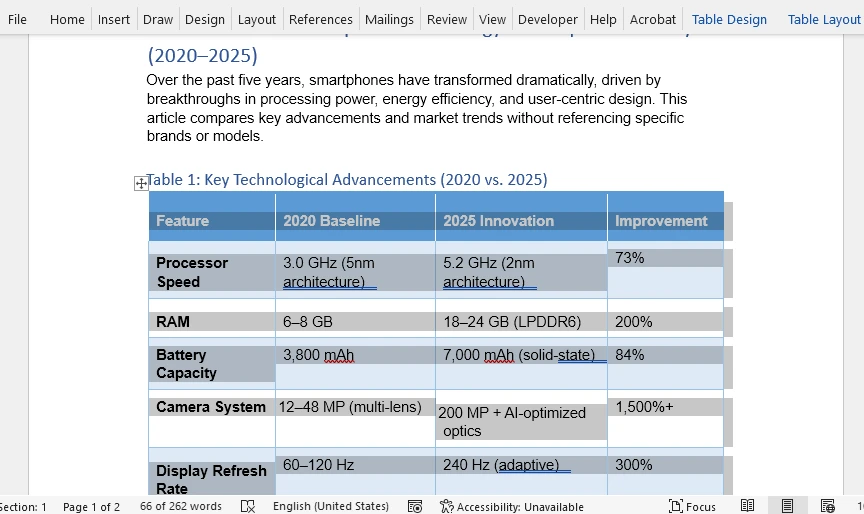
Prós
- Maior precisão de detecção
- Suporta arquivos grandes e de várias páginas
- Sem riscos relacionados a upload
Contras
- Alguns softwares são pagos
- Ainda não confiável para tabelas irregulares
- Os recursos diferem entre as ferramentas
As ferramentas de desktop funcionam bem para complexidade moderada — mas não para dados estruturados que devem permanecer perfeitamente editáveis.
5. Método 3: Extrair e Converter Tabelas de PDF Programaticamente (Método Mais Preciso)
Para usuários que precisam de reconstrução de tabela consistente, automatizada e de alta fidelidade, a abordagem programática é a mais confiável. Ela permite:
- extração precisa do conteúdo da tabela
- controle total sobre a construção da tabela do Word
- processamento em lote
- formatação consistente
Este método pode converter com sucesso até mesmo tabelas de PDF complexas ou não padronizadas em tabelas do Word perfeitamente editáveis.
5.1 Opção A: Converter o PDF Inteiro para Word Automaticamente
Usando o Free Spire.PDF for Python, você pode converter um PDF diretamente em um documento do Word. A biblioteca tenta inferir estruturas de tabela analisando elementos de linha, posicionamento de texto e alinhamento de colunas.
Instale o Free Spire.PDF for Python usando pip:
pip install spire.pdf.free
Exemplo de Código Python para Conversão de PDF para Word
from spire.pdf import PdfDocument, FileFormat

input_pdf = "sample.pdf"
output_docx = "output/pdf_to_docx.docx"

# Open a PDF document
pdf = PdfDocument()
pdf.LoadFromFile(input_pdf)

# Save the PDF to a Word document
pdf.SaveToFile(output_docx, FileFormat.DOCX)
Abaixo está uma prévia do resultado da conversão de PDF para Word:
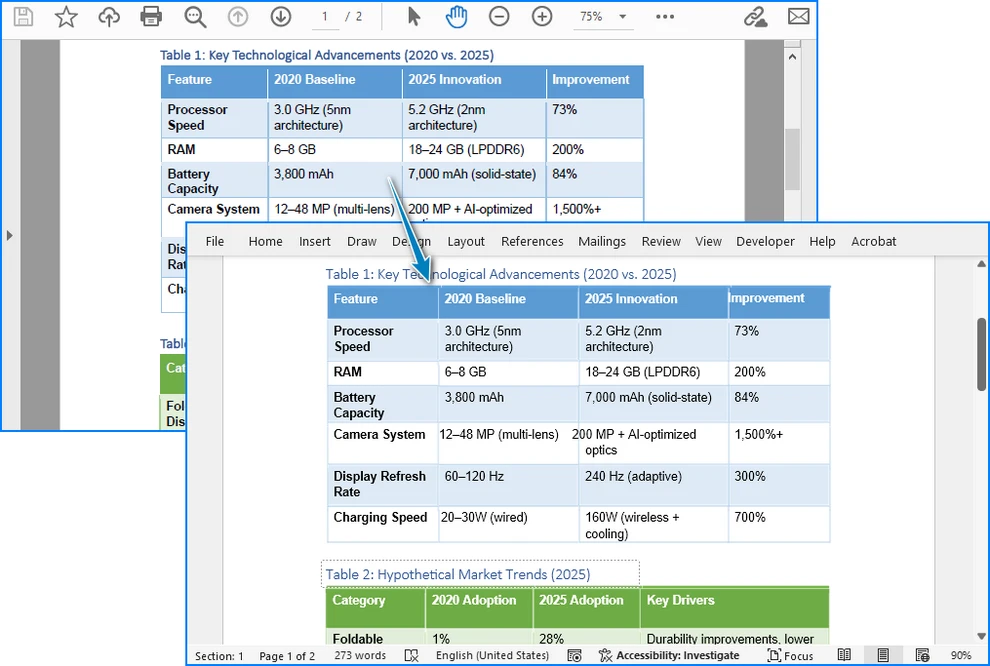
Quando Usar
- Tabelas com linhas de grade claras
- Layouts simples a moderadamente complexos
- Quando a fidelidade da tabela não precisa ser 100% perfeita
Limitações
- Células complexas ou mescladas podem não ser renderizadas com precisão
- Tabelas sem bordas podem ser mal interpretadas
- Para opções de conversão mais avançadas, consulte Como Converter PDF para Doc/Docx com Python.
5.2 Opção B: Extrair Dados da Tabela e Reconstruir Tabelas do Word Manualmente (Melhor Precisão)
Você também pode extrair dados de tabelas de PDFs usando o Free Spire.PDF for Python e construir tabelas do Word usando o Free Spire.Doc for Python. Este método é o mais confiável e preciso para converter tabelas de PDF em documentos do Word. Ele fornece:
- Editabilidade total da tabela
- Estrutura previsível
- Controle completo de formatação
- Automação confiável
Instale o Free Spire.Doc for Python:
pip install spire.doc.free
O fluxo de trabalho:
- Extrair dados da tabela do PDF
- Criar um documento do Word programaticamente
- Inserir uma tabela usando os dados extraídos
- Aplicar formatação
Exemplo de Código Python para Extrair Tabelas de PDF e Construir Tabelas do Word
from spire.pdf import PdfDocument, PdfTableExtractor
from spire.doc import Document, FileFormat, DefaultTableStyle, AutoFitBehaviorType, BreakType

input_pdf = "sample.pdf"
output_docx = "output/pdf_table_to_docx.docx"

# Open a PDF document
pdf = PdfDocument()
pdf.LoadFromFile(input_pdf)

# Create a Word document
doc = Document()
section = doc.AddSection()

# Extract table data from the PDF
table_extractor = PdfTableExtractor(pdf)
for i in range(pdf.Pages.Count):
    tables = table_extractor.ExtractTable(i)
    if tables is not None and len(tables) > 0:
        for i in range(len(tables)):
            table = tables[i]
            # Create a table in the Word document
            word_table = section.AddTable()
            word_table.ApplyStyle(DefaultTableStyle.ColorfulGridAccent4)
            word_table.ResetCells(table.GetRowCount(), table.GetColumnCount())
            for j in range(table.GetRowCount()):
                for k in range(table.GetColumnCount()):
                    cell_text = table.GetText(j, k).replace("\n", " ")
                    # Write the cell text to the corresponding cell in the Word table
                    tr = word_table.Rows[j].Cells[k].AddParagraph().AppendText(cell_text)
                    tr.CharacterFormat.FontName = "Arial"
                    tr.CharacterFormat.FontSize = 11
            # Auto-fit the table
            word_table.AutoFit(AutoFitBehaviorType.AutoFitToContents)
            section.AddParagraph().AppendBreak(BreakType.LineBreak)

# Save the Word document
doc.SaveToFile(output_docx, FileFormat.Docx)
Abaixo está uma prévia das tabelas do Word reconstruídas:

Por que Este Método é Superior
- As tabelas de saída são sempre editáveis
- Ideal para automação e processamento em lote
- Funciona mesmo sem linhas de tabela visíveis
- Permite formatação personalizada, fontes, bordas e estilos
Esta é a solução recomendada para casos de uso profissionais.
Se você precisar exportar tabelas de PDF em outros formatos, confira Como Extrair Tabelas de PDF Usando Python.
6. Comparação de Precisão de Todos os Métodos
| Método | Precisão | Editável | Controle de Formatação | Ideal Para |
|---|---|---|---|---|
| Conversores online | ★★★★☆ | Sim | Baixo | Uso rápido e único |
| Software de desktop | ★★★★☆ | Sim | Médio | Documentos profissionais padrão |
| Extração programática + reconstrução | ★★★★★ | Sim | Total | Automação, fluxos de trabalho de negócios |
| Conversão completa de PDF → Word (auto) | ★★★★☆ | Sim | Médio | PDFs limpos e bem estruturados |
7. Melhores Práticas para Conversão de Alta Qualidade
Para garantir os melhores resultados, siga estas melhores práticas:
Preparação do Arquivo
- Prefira PDFs originais baseados em texto (não digitalizados)
- Execute o OCR antes da extração da tabela se o PDF for digitalizado
Dicas de Design de Tabela
- Mantenha o alinhamento da coluna consistente
- Evite células mescladas desnecessárias
- Mantenha um espaçamento claro entre as colunas
Recomendações Técnicas
- Use a extração programática para fluxos de trabalho em lote
- Reconstrua tabelas do Word para formatação exata
- Sempre valide os dados extraídos para garantir a precisão
8. Perguntas Frequentes
1. Como converto uma tabela de PDF para uma tabela editável do Word sem perder a formatação?
Use conversores de desktop de alta qualidade ou uma biblioteca programática como Spire.PDF + Spire.Doc. A extração programática fornece os resultados mais consistentes.
2. Posso extrair apenas a tabela (não o PDF inteiro) para o Word?
Sim. Extraia apenas os dados da tabela e reconstrua a tabela programaticamente. Isso produz tabelas do Word totalmente editáveis.
3. Por que minha tabela de PDF apareceu como uma imagem no Word?
O conversor não conseguiu interpretar a estrutura e exportou o conteúdo como uma imagem. Use uma ferramenta que suporte a reconstrução de tabelas.
4. Qual é o método mais preciso para tabelas complexas ou irregulares?
Extração programática combinada com a construção manual de tabelas no Word.
9. Conclusão
A conversão de tabelas de PDF para tabelas do Word varia de simples a altamente complexa, dependendo da estrutura do PDF original. Ferramentas online rápidas e aplicativos de desktop funcionam bem para layouts simples, mas muitas vezes têm dificuldades com células mescladas, espaçamento irregular ou estruturas de várias linhas.
Para usuários que exigem saídas precisas, editáveis e confiáveis, especialmente em automação de negócios e processamento de documentos em larga escala, a abordagem programática oferece precisão incomparável. Ela permite a verdadeira reconstrução de tabelas no Word com controle total sobre formatação, estilo e estrutura celular.
Se você precisa de uma conversão online rápida ou de um pipeline automatizado profundamente preciso, os métodos neste guia garantem que você possa converter de forma confiável tabelas de PDF em tabelas do Word totalmente editáveis em todos os níveis de complexidade.
Veja Também
PDF 테이블을 Word로 변환 – 정확하고 신뢰할 수 있는 방법
PDF 표를 Word로 변환하는 것은 간단하게 들릴 수 있지만, 시도해 본 사람이라면 누구나 그 과정이 놀라울 정도로 일관성이 없을 수 있다는 것을 압니다. PDF 파일은 구조화된 편집이 아닌 표시를 위해 주로 설계되었기 때문에 변환하거나 복사할 때 표 레이아웃이 손상되는 경우가 많습니다. 사용자는 깨진 행, 병합된 열, 사라진 테두리, 일관성 없는 셀 간격 또는 표가 편집 가능한 Word 표가 아닌 이미지로 내보내지는 문제에 자주 직면합니다.
이 완전한 가이드는 PDF 표를 Word 표로 변환하는 신뢰할 수 있는 방법을 설명합니다. 온라인 도구, 수동 접근 방식 및 매우 정확한 프로그래밍 방식 솔루션을 배우게 됩니다. PDF 표를 Word로 변환하거나, PDF에서 구조화된 데이터를 추출하거나, 전문적이거나 자동화된 워크플로우를 위해 완전히 편집 가능한 Word 표를 생성해야 하는 경우, 이 문서는 필요한 실용적인 지식과 기술적 통찰력을 제공합니다.
1. PDF 표를 Word로 변환하기 어려운 이유
변환 방법을 살펴보기 전에 PDF의 표를 해석하기 어려운 이유를 이해하는 것이 중요합니다. 이는 레이아웃 복잡성에 따라 올바른 도구를 선택하는 데 도움이 됩니다.
1.1 PDF에는 실제 표가 포함되어 있지 않습니다
Word나 HTML과 달리 PDF 파일은 표 구조를 저장하지 않습니다. 대신 다음을 저장합니다.
- 절대 위치를 사용하는 텍스트
- 그리기 경로로서의 선과 테두리
- 구조화된 그리드 데이터가 아닌 시각적 정렬로서의 행/열
결과적으로:
- 행과 열은 셀로 인식되지 않습니다
- 선 요소가 실제 표 경계와 일치하지 않을 수 있습니다
- 텍스트를 선택하거나 복사하면 종종 레이아웃이 깨집니다
이것이 간단한 복사-붙여넣기가 거의 항상 실패하는 이유입니다.
1.2 Word에는 구조화된 표 요소가 필요합니다
Microsoft Word는 다음을 예상합니다.
- 정의된
<table>요소 - 일관된 행/열 수
- 실제 셀 경계
- 조정 가능한 열 너비
PDF 콘텐츠를 이 구조로 해석할 수 없는 경우 Word는 예측할 수 없는 결과를 생성하거나 표를 이미지로 내보냅니다.
이러한 한계를 이해하면 신뢰할 수 있는 PDF 표 추출에 단순한 시각적 감지를 넘어서는 지능적인 구문 분석이 필요한 이유가 명확해집니다.
2. 신뢰할 수 있는 방법 개요
이 가이드는 PDF 표를 Word 표로 변환하는 세 가지 실용적인 방법을 다룹니다.
- 온라인 PDF-Word 변환기 – 가장 빠르지만 제어는 최소화됨
- 데스크톱 소프트웨어 – 더 안정적이고 정확도 높음
- 프로그래밍 방식 추출 및 표 재구성 – 최고의 정밀도와 완전히 편집 가능한 결과
팁: 대부분의 비프로그래밍 방식 솔루션은 전체 PDF를 Word 파일로 변환합니다. 표만 필요한 경우 나중에 주변 콘텐츠를 수동으로 제거해야 할 수 있습니다.
가장 정확한 방법은 프로그래밍 방식으로 표 데이터를 추출하고 Word 표를 다시 만드는 것입니다. 이렇게 하면 서식 손실을 방지하고 완전히 편집 가능하며 깨끗한 표 출력을 보장할 수 있습니다.
3. 방법 1: 온라인 도구를 사용하여 PDF 표를 Word로 변환 (가장 빠르고 쉬움)
온라인 PDF-Word 변환기는 빠른 변환에 편리합니다. 이러한 도구는 표 구조를 자동으로 감지하여 Word 문서로 내보내려고 시도합니다.
일반적인 워크플로우
-
온라인 변환기(예: Free PDF Converter)를 엽니다.
-
PDF를 업로드합니다.
-
자동 변환을 기다립니다.
-
Word 파일을 다운로드합니다.
-
필요한 경우 표 서식을 수동으로 조정합니다.
장점
- 설치 필요 없음
- 모든 장치에서 작동
- 매우 빠름
단점
- 복잡한 표에 대한 정확도 낮음
- 개인 정보 보호 문제 (클라우드 업로드)
- 표를 이미지로 출력할 수 있음
- 제한된 사용자 정의
온라인 도구는 간단한 일회성 변환에 가장 적합합니다.
4. 방법 2: 데스크톱 소프트웨어를 사용하여 PDF 표 변환 (더 안정적이고 안전함)
데스크톱 응용 프로그램은 파일을 로컬에서 처리하여 더 나은 정확성과 개인 정보 보호를 제공합니다. Microsoft Word, Acrobat 및 전용 PDF 소프트웨어는 종종 표준 레이아웃에 대해 수용 가능한 표 추출을 제공합니다.
일반적인 워크플로우
-
소프트웨어(예: Microsoft Word)를 설치합니다.
-
응용 프로그램에서 PDF 파일을 엽니다.
-
를 클릭하여 변환을 확인합니다.
-
처리를 기다립니다.
-
결과를 편집하고 .docx 파일로 저장합니다.
장점
- 더 높은 감지 정확도
- 대용량 및 다중 페이지 파일 지원
- 업로드 관련 위험 없음
단점
- 일부 소프트웨어는 유료
- 불규칙한 표에 대해서는 여전히 신뢰할 수 없음
- 도구마다 기능이 다름
데스크톱 도구는 중간 정도의 복잡성에는 잘 작동하지만 완벽하게 편집 가능해야 하는 구조화된 데이터에는 적합하지 않습니다.
5. 방법 3: 프로그래밍 방식으로 PDF 표 추출 및 변환 (가장 정확한 방법)
일관되고 자동화된 고품질 표 재구성이 필요한 사용자에게는 프로그래밍 방식 접근이 가장 신뢰할 수 있습니다. 이를 통해 다음이 가능합니다.
- 표 내용의 정확한 추출
- Word 표 구성에 대한 완전한 제어
- 일괄 처리
- 일관된 서식
이 방법은 복잡하거나 비표준적인 PDF 표도 완벽하게 편집 가능한 Word 표로 성공적으로 변환할 수 있습니다.
5.1 옵션 A: 전체 PDF를 Word로 자동 변환
Free Spire.PDF for Python을 사용하면 PDF를 Word 문서로 직접 변환할 수 있습니다. 이 라이브러리는 선 요소, 텍스트 위치 및 열 정렬을 분석하여 표 구조를 추론하려고 시도합니다.
pip를 사용하여 Free Spire.PDF for Python 설치:
pip install spire.pdf.free
PDF를 Word로 변환하는 Python 코드 예제
from spire.pdf import PdfDocument, FileFormat

input_pdf = "sample.pdf"
output_docx = "output/pdf_to_docx.docx"

# Open a PDF document
pdf = PdfDocument()
pdf.LoadFromFile(input_pdf)

# Save the PDF to a Word document
pdf.SaveToFile(output_docx, FileFormat.DOCX)
아래는 PDF를 Word로 변환한 결과 미리보기입니다.
사용 시기
- 명확한 그리드 라인이 있는 표
- 단순하거나 중간 정도의 복잡한 레이아웃
- 표의 충실도가 100% 완벽할 필요가 없을 때
제한 사항
- 복잡하거나 병합된 셀이 정확하게 렌더링되지 않을 수 있습니다
- 테두리가 없는 표는 잘못 해석될 수 있습니다
- 더 고급 변환 옵션은 Python으로 PDF를 Doc/Docx로 변환하는 방법을 참조하십시오.
5.2 옵션 B: 표 데이터 추출 및 Word 표 수동 재구성 (최고 정확도)
Free Spire.PDF for Python을 사용하여 PDF에서 표 데이터를 추출하고 Free Spire.Doc for Python을 사용하여 Word 표를 만들 수도 있습니다. 이 방법은 PDF 표를 Word 문서로 변환하는 가장 신뢰할 수 있고 정확한 방법입니다. 다음을 제공합니다.
- 완전한 표 편집 기능
- 예측 가능한 구조
- 완벽한 서식 제어
- 신뢰할 수 있는 자동화
Free Spire.Doc for Python 설치:
pip install spire.doc.free
워크플로우:
- PDF에서 표 데이터 추출
- 프로그래밍 방식으로 Word 문서 만들기
- 추출된 데이터를 사용하여 표 삽입
- 서식 적용
PDF 표 추출 및 Word 표 생성을 위한 Python 코드 예제
from spire.pdf import PdfDocument, PdfTableExtractor
from spire.doc import Document, FileFormat, DefaultTableStyle, AutoFitBehaviorType, BreakType

input_pdf = "sample.pdf"
output_docx = "output/pdf_table_to_docx.docx"

# Open a PDF document
pdf = PdfDocument()
pdf.LoadFromFile(input_pdf)

# Create a Word document
doc = Document()
section = doc.AddSection()

# Extract table data from the PDF
table_extractor = PdfTableExtractor(pdf)
for i in range(pdf.Pages.Count):
    tables = table_extractor.ExtractTable(i)
    if tables is not None and len(tables) > 0:
        for i in range(len(tables)):
            table = tables[i]
            # Create a table in the Word document
            word_table = section.AddTable()
            word_table.ApplyStyle(DefaultTableStyle.ColorfulGridAccent4)
            word_table.ResetCells(table.GetRowCount(), table.GetColumnCount())
            for j in range(table.GetRowCount()):
                for k in range(table.GetColumnCount()):
                    cell_text = table.GetText(j, k).replace("\n", " ")
                    # Write the cell text to the corresponding cell in the Word table
                    tr = word_table.Rows[j].Cells[k].AddParagraph().AppendText(cell_text)
                    tr.CharacterFormat.FontName = "Arial"
                    tr.CharacterFormat.FontSize = 11
            # Auto-fit the table
            word_table.AutoFit(AutoFitBehaviorType.AutoFitToContents)
            section.AddParagraph().AppendBreak(BreakType.LineBreak)

# Save the Word document
doc.SaveToFile(output_docx, FileFormat.Docx)
아래는 재구성된 Word 표의 미리보기입니다.
이 방법이 우수한 이유
- 출력 표는 항상 편집 가능
- 자동화 및 일괄 처리에 이상적
- 보이는 표 선 없이도 작동
- 사용자 정의 서식, 글꼴, 테두리 및 스타일 허용
이는 전문적인 사용 사례에 권장되는 솔루션입니다.
PDF 표를 다른 형식으로 내보내야 하는 경우 Python을 사용하여 PDF에서 표를 추출하는 방법을 확인하십시오.
6. 모든 방법의 정확도 비교
| 방법 | 정확도 | 편집 가능 | 서식 제어 | 최적 대상 |
|---|---|---|---|---|
| 온라인 변환기 | ★★★★☆ | 예 | 낮음 | 빠른 일회성 사용 |
| 데스크톱 소프트웨어 | ★★★★☆ | 예 | 중간 | 표준 전문 문서 |
| 프로그래밍 방식 추출 + 재구성 | ★★★★★ | 예 | 전체 | 자동화, 비즈니스 워크플로우 |
| 전체 PDF → Word 변환 (자동) | ★★★★☆ | 예 | 중간 | 깨끗하고 잘 구조화된 PDF |
7. 고품질 변환을 위한 모범 사례
최상의 결과를 얻으려면 다음 모범 사례를 따르십시오.
파일 준비
- 스캔되지 않은 원본 텍스트 기반 PDF 선호
- PDF가 스캔된 경우 표 추출 전에 OCR 실행
표 디자인 팁
- 열 정렬을 일관되게 유지
- 불필요한 셀 병합 방지
- 열 사이에 명확한 간격 유지
기술 권장 사항
- 일괄 워크플로우에 프로그래ミング 방식 추출 사용
- 정확한 서식을 위해 Word 표 재구성
- 추출된 데이터의 정확성을 항상 확인
8. 자주 묻는 질문
1. 서식 손실 없이 PDF 표를 편집 가능한 Word 표로 변환하려면 어떻게 해야 합니까?
고품질 데스크톱 변환기나 Spire.PDF + Spire.Doc와 같은 프로그래밍 라이브러리를 사용하십시오. 프로그래밍 방식 추출은 가장 일관된 결과를 제공합니다.
2. 전체 PDF가 아닌 표만 Word로 추출할 수 있습니까?
예. 표 데이터만 추출하고 프로그래밍 방식으로 표를 다시 만드십시오. 이렇게 하면 완전히 편집 가능한 Word 표가 생성됩니다.
3. PDF 표가 Word에서 이미지로 나타나는 이유는 무엇입b니까?
변환기가 구조를 해석할 수 없어 콘텐츠를 이미지로 내보냈습니다. 표 재구성을 지원하는 도구를 사용하십시오.
4. 복잡하거나 불규칙한 표에 가장 정확한 방법은 무엇입니까?
프로그래밍 방식 추출과 Word에서의 수동 표 구성을 결abs하는 것입니다.
9. 결론
PDF 표를 Word 표로 변환하는 작업은 원본 PDF의 구조에 따라 단순한 것부터 매우 복잡한 것까지 다양합니다. 빠른 온라인 도구와 데스크톱 응용 프로그램은 간단한 레이아웃에는 잘 작동하지만 병합된 셀, 불규칙한 간격 또는 다중 행 구조에는 어려움을 겪는 경우가 많습니다.
특히 비즈니스 자동화 및 대규모 문서 처리에서 정확하고 편집 가능하며 신뢰할 수 있는 출력이 필요한 사용자에게 프로그래밍 방식 접근은 타의 추종을 불허하는 정확성을 제공합니다. 이를 통해 서식, 스타일 및 셀 구조를 완벽하게 제어하여 Word에서 진정한 표 재구성이 가능합니다.
빠른 온라인 변환이 필요하든, 매우 정확한 자동화 파이p라인이 필요하든, 이 가이드의 방법은 모든 복잡성 수준에서 PDF 표를 완전히 편집 가능한 Word 표로 안정적으로 변환할 수 있도록 보장합니다.