Convertir Excel en ODS : 4 méthodes faciles (local, en ligne et automatisation)
Table des matières
- Qu'est-ce que l'ODS
- Pourquoi convertir Excel en ODS
- Méthode 1 : Convertir Excel en ODS avec Microsoft Excel
- Méthode 2 : Convertir Excel en ODS avec LibreOffice
- Méthode 3 : Convertir Excel en ODS en ligne
- Méthode 4 : Conversion par lots d'Excel en ODS avec Python
- Conseils pour la conversion d'Excel en ODS
La conversion de fichiers Excel (XLS/XLSX) au format ODS (OpenDocument Spreadsheet) est souvent nécessaire lorsque vous travaillez avec LibreOffice, OpenOffice ou d'autres plateformes qui s'appuient sur la norme OpenDocument. De nombreuses organisations, en particulier celles qui utilisent des flux de travail open source ou multiplateformes, préfèrent l'ODS pour une meilleure compatibilité, une accessibilité à long terme et une dépendance réduite vis-à-vis des fournisseurs.
Ce guide explique 4 méthodes pratiques pour convertir Excel en ODS, y compris les logiciels locaux, les convertisseurs en ligne et les solutions de programmation automatisées. Que vous ayez besoin d'une conversion unique ou d'un flux de travail reproductible pour de grands ensembles de données, vous trouverez ici la bonne approche.
Ce que vous apprendrez
- Qu'est-ce que l'ODS
- Pourquoi convertir Excel en ODS
- Méthode 1 : Convertir Excel en ODS avec Microsoft Excel
- Méthode 2 : Convertir Excel en ODS avec LibreOffice
- Méthode 3 : Convertir Excel en ODS en ligne
- Méthode 4 : Conversion par lots d'Excel en ODS avec Python
- Conseils pour la conversion d'Excel en ODS
Qu'est-ce que l'ODS ?
ODS (OpenDocument Spreadsheet) est un format de feuille de calcul ouvert, basé sur XML, principalement utilisé par LibreOffice Calc et OpenOffice Calc. Faisant partie de la norme ODF (Open Document Format), l'ODS est largement adopté pour :
- Environnements open source et multiplateformes
- Préservation des données à long terme
- Interopérabilité avec plusieurs suites bureautiques
Contrairement aux formats propriétaires d'Excel, l'ODS est standardisé et neutre vis-à-vis des fournisseurs, ce qui le rend idéal pour les flux de travail collaboratifs et multiplateformes.
Pour en savoir plus sur les différences techniques, vous pouvez consulter le guide officiel de Microsoft sur le format ODS par rapport au format Excel (.xlsx).
Pourquoi convertir Excel en ODS ?
La conversion de XLS ou XLSX en ODS offre plusieurs avantages :
- Compatibilité totale avec LibreOffice Calc et OpenOffice Calc
- Format de fichier ouvert et normalisé ISO pour l'archivage à long terme
- Flux de travail amélioré dans les environnements Linux et open source
- Dépendance réduite vis-à-vis des fournisseurs entre les différentes suites bureautiques
- Conformité avec les organisations utilisant les normes ODF
- Meilleure interopérabilité lors de la collaboration entre systèmes
Si votre flux de travail implique des outils open source ou des environnements logiciels mixtes, l'ODS garantit que les données restent accessibles, sécurisées et compatibles.
Méthode 1 : Convertir Excel en ODS avec Microsoft Excel
Microsoft Excel peut enregistrer des feuilles de calcul directement au format ODS, offrant une solution rapide aux utilisateurs qui utilisent déjà Excel. Cette méthode est la mieux adaptée aux conversions de fichiers uniques et ne nécessite aucun logiciel supplémentaire.
Étapes pour enregistrer Excel en ODS avec Excel :
-
Ouvrez votre fichier Excel (.xlsx ou .xls) dans Microsoft Excel.
-
Cliquez sur Fichier > Enregistrer sous dans le menu supérieur.
-
Choisissez le dossier où vous souhaitez enregistrer le fichier.
-
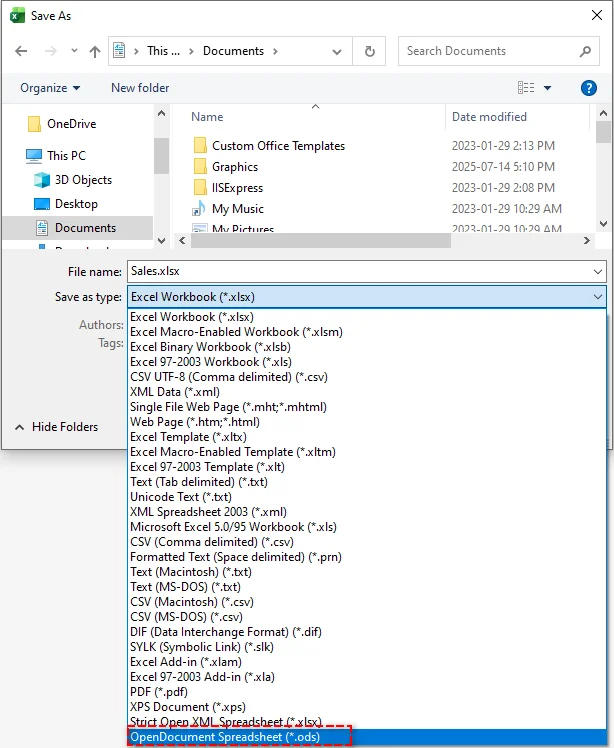
Dans la liste déroulante Type de fichier, sélectionnez Feuille de calcul OpenDocument (*.ods).
-
Cliquez sur Enregistrer. Excel peut afficher un avertissement de compatibilité - examinez-le et cliquez sur Oui pour continuer.
Avantages :
- Rapide et simple
- Conserve la plupart des données, formules et mises en forme
- Aucun logiciel supplémentaire requis
Inconvénients :
- Les fonctionnalités avancées comme les macros ou les formules complexes peuvent ne pas être entièrement transférées
- Pas idéal pour le traitement par lots de plusieurs fichiers
Méthode 2 : Convertir Excel en ODS avec LibreOffice
LibreOffice Calc est une alternative gratuite et open source à Excel et offre un excellent support natif pour l'ODS. C'est l'outil recommandé pour les utilisateurs qui souhaitent des conversions Excel vers ODS de haute fidélité dans des environnements open source.
Étapes pour exporter XLSX en ODS avec LibreOffice :
-
Ouvrez LibreOffice Calc.
-
Allez dans Fichier > Ouvrir et sélectionnez votre fichier Excel.
-
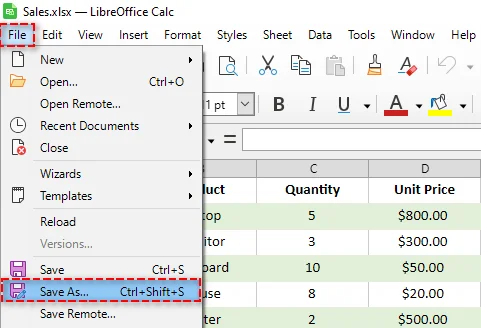
Une fois le fichier ouvert, allez dans Fichier > Enregistrer sous.
-
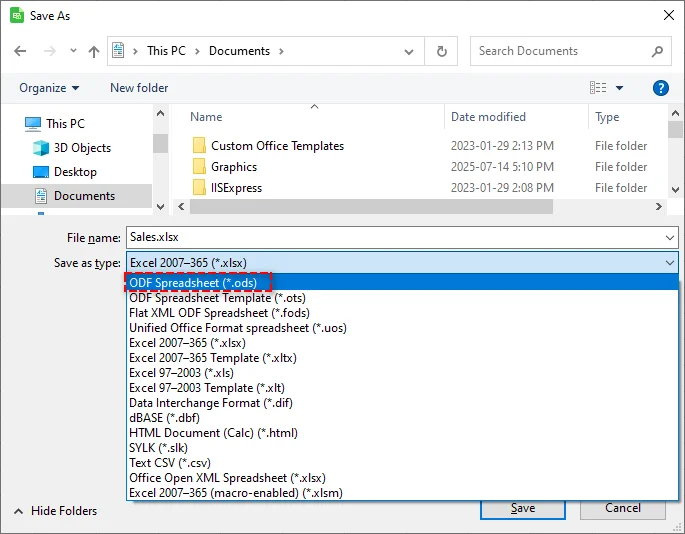
Dans la boîte de dialogue, choisissez Feuille de calcul ODF (.ods) dans la liste déroulante Type de fichier.
-
Cliquez sur Enregistrer.
Avantages :
- Gratuit et open source
- Conversion haute fidélité pour la mise en forme, les formules et les graphiques
- Fonctionne bien sur toutes les plateformes (Windows, macOS, Linux)
Inconvénients :
- Nécessite une installation
- L'interface peut différer d'Excel, ce qui peut nécessiter une courte courbe d'apprentissage
- Les macros Excel avancées peuvent ne pas être entièrement prises en charge
Conseil : LibreOffice prend également en charge la conversion par lots via la ligne de commande, ce qui peut faire gagner du temps lors de la conversion de plusieurs fichiers Excel en ODS.
Méthode 3 : Convertir Excel en ODS en ligne
Les convertisseurs en ligne offrent une solution gratuite, rapide et sans installation pour convertir Excel en ODS. Ils sont particulièrement pratiques pour les petits fichiers ou une utilisation occasionnelle. Les convertisseurs populaires incluent Zamzar et CloudConvert.
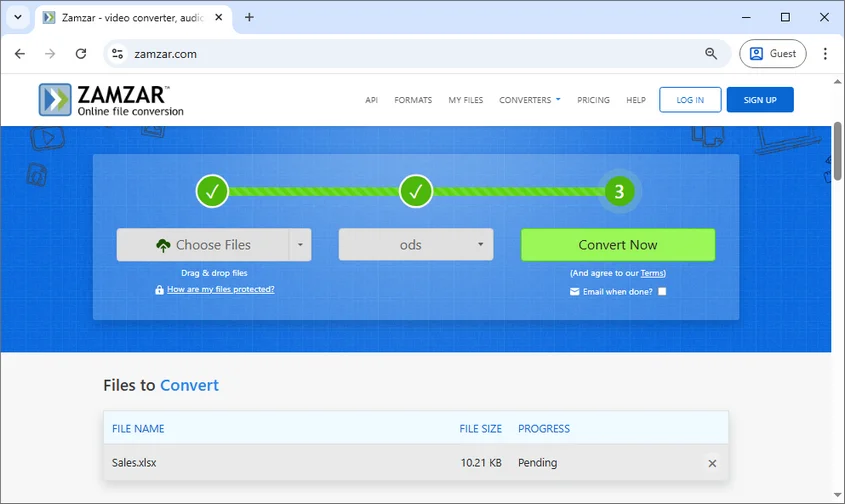
Étapes pour convertir des fichiers Excel en ODS en ligne (en utilisant Zamzar comme exemple) :
- Allez sur Zamzar.
- Cliquez sur Choisir des fichiers pour télécharger votre fichier Excel ou faites glisser et déposez le fichier dans la zone désignée.
- Sélectionnez ODS comme format de sortie.
- Cliquez sur Convertir maintenant pour convertir instantanément le fichier au format ODS.
- Téléchargez le fichier ODS converti.
Avantages :
- Aucune installation de logiciel requise
- Rapide et facile pour les fichiers uniques
- Accessible depuis n'importe quel appareil avec Internet
Inconvénients :
- Taille de fichier limitée pour les utilisateurs gratuits
- Problèmes de confidentialité potentiels pour les données sensibles
- Ne peut pas gérer efficacement le traitement par lots
Conseil : Pour les fichiers sensibles ou volumineux, les logiciels locaux comme Excel ou LibreOffice sont plus sûrs et plus efficaces.
Méthode 4 : Conversion par lots d'Excel en ODS avec Python
Pour les développeurs ou les utilisateurs qui manipulent plusieurs fichiers Excel, l'automatisation du processus de conversion avec Python est la méthode la plus puissante. Des bibliothèques comme Spire.XLS for Python vous permettent de convertir par lots des fichiers Excel en ODS rapidement et en toute sécurité, sans avoir besoin de Microsoft Excel.
Étapes pour convertir par lots plusieurs fichiers Excel :
-
Installez la bibliothèque Spire.XLS depuis PyPI en exécutant la commande suivante :
pip install spire-xls -
Écrivez un script Python pour parcourir chaque fichier Excel dans un dossier et l'enregistrer en ODS :
from spire.xls import * import os # Dossier contenant les fichiers Excel input_folder = "input_excels" output_folder = "output_ods" # Créez le dossier de sortie s'il n'existe pas if not os.path.exists(output_folder): os.makedirs(output_folder) # Parcourir tous les fichiers Excel (.xls, .xlsx) for file_name in os.listdir(input_folder): if file_name.lower().endswith((".xls", ".xlsx")): input_path = os.path.join(input_folder, file_name) # Charger le classeur workbook = Workbook() workbook.LoadFromFile(input_path) # Nom du fichier ODS de sortie base_name = os.path.splitext(file_name)[0] output_path = os.path.join(output_folder, base_name + ".ods") # Enregistrer en tant qu'ODS workbook.SaveToFile(output_path, FileFormat.ODS) print(f"Converti : {file_name} → {base_name}.ods") -
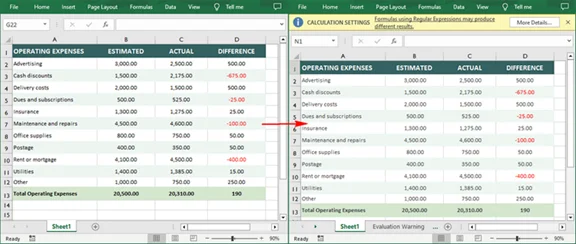
Exécutez le script pour traiter tous les fichiers automatiquement et afficher les résultats.
Avantages
- Parfait pour automatiser la conversion par lots de centaines ou de milliers de fichiers.
- Hautement personnalisable et intégrable dans des pipelines de données plus importants.
- S'exécute localement, garantissant la confidentialité des données.
Inconvénients
- Nécessite des connaissances de base en programmation Python.
Conseil : En plus de la conversion de fichiers Excel au format ODS, Spire.XLS prend également en charge diverses autres conversions de formats de fichiers, y compris Excel en PDF et XLX ou XLSX en CSV.
Conseils pour la conversion d'Excel en ODS
- Testez d'abord : convertissez toujours un fichier d'exemple en premier pour vérifier la mise en forme et la compatibilité des formules avant de traiter des documents importants.
- Sauvegardez vos données : conservez une sauvegarde de vos fichiers Excel d'origine avant de commencer tout processus de conversion.
- Vérifiez les formules : après la conversion, vérifiez que toutes les formules fonctionnent correctement dans le fichier ODS, en particulier si vous utilisez des fonctions spécifiques à Excel.
- Examinez la mise en forme : les graphiques complexes, la mise en forme conditionnelle et les tableaux croisés dynamiques peuvent nécessiter un ajustement après la conversion.
- Tenez compte de la taille du fichier : pour les fichiers Excel volumineux, les méthodes locales (Excel, LibreOffice, Python) sont plus fiables que les convertisseurs en ligne.
- Validez les fichiers ODS : ouvrez les fichiers convertis dans LibreOffice ou OpenOffice pour vous assurer qu'ils fonctionnent comme prévu dans leur environnement natif.
Recommandations finales
- Pour une conversion unique ou occasionnelle : utilisez Microsoft Excel ou LibreOffice - tous deux fournissent des résultats fiables avec une configuration minimale.
- Pour les petits fichiers ou les besoins rapides sans installation : les convertisseurs en ligne offrent une commodité lorsque la confidentialité n'est pas un problème.
- Pour les grands ensembles de données ou les conversions récurrentes : l'automatisation Python garantit l'efficacité, la cohérence et la sécurité des données.
- Pour les environnements mixtes : LibreOffice est le choix idéal si vous travaillez fréquemment sur différents systèmes d'exploitation et suites bureautiques.
La conversion d'Excel en ODS n'a pas à être compliquée. Avec ces quatre méthodes, vous pouvez vous assurer que vos feuilles de calcul sont accessibles à tous, quel que soit leur logiciel préféré. Que vous soyez un utilisateur individuel, membre d'une organisation en transition vers des outils open source ou un développeur créant des flux de travail automatisés, il existe une solution qui répond à vos besoins.
Vous avez des questions ou vos propres conseils pour des conversions fluides ? Partagez-les sur notre forum - nous serions ravis de vous lire !
FAQ : XLSX vers ODS
Q1 : Comment puis-je convertir Excel en ODS gratuitement ?
R1 : Utilisez LibreOffice ou un convertisseur en ligne de confiance. Les deux sont gratuits et gèrent bien la plupart des conversions.
Q2 : Puis-je convertir par lots des fichiers Excel en ODS ?
R2 : Oui. Utilisez Python avec la bibliothèque Spire.XLS pour traiter efficacement plusieurs fichiers à la fois.
Q3 : Les formules Excel fonctionnent-elles dans les fichiers ODS ?
R3 : Les formules standard se convertissent bien, mais les fonctions avancées ou spécifiques à Excel peuvent nécessiter un ajustement.
Q4 : Quelle est la meilleure façon de convertir XLSX en ODS ?
R4 : Pour de meilleurs résultats, utilisez LibreOffice Calc. Il préserve au mieux la mise en forme et la compatibilité pour le format ODS.
Voir aussi
Convertir Excel a ODS: 4 formas sencillas (local, en línea y automatización)
Tabla de Contenidos
Convertir archivos de Excel (XLS/XLSX) al formato ODS (OpenDocument Spreadsheet) es a menudo necesario cuando se trabaja con LibreOffice, OpenOffice u otras plataformas que dependen del estándar OpenDocument. Muchas organizaciones, especialmente aquellas que utilizan flujos de trabajo de código abierto o multiplataforma, prefieren ODS por su mejor compatibilidad, accesibilidad a largo plazo y menor dependencia de un proveedor.
Esta guía explica 4 métodos prácticos para convertir Excel a ODS, incluyendo software local, convertidores en línea y soluciones de programación automatizadas. Ya sea que necesite una conversión única o un flujo de trabajo repetible para grandes conjuntos de datos, aquí encontrará el enfoque adecuado.
Lo que aprenderá
- ¿Qué es ODS?
- ¿Por qué convertir Excel a ODS?
- Método 1: Convertir Excel a ODS usando Microsoft Excel
- Método 2: Convertir Excel a ODS con LibreOffice
- Método 3: Convertir Excel a ODS en línea
- Método 4: Convertir por lotes Excel a ODS con Python
- Consejos para convertir Excel a ODS
¿Qué es ODS?
ODS (OpenDocument Spreadsheet) es un formato de hoja de cálculo abierto basado en XML utilizado principalmente por LibreOffice Calc y OpenOffice Calc. Como parte del estándar ODF (Open Document Format), ODS es ampliamente adoptado para:
- Entornos de código abierto y multiplataforma
- Preservación de datos a largo plazo
- Interoperabilidad con múltiples suites de oficina
A diferencia de los formatos propietarios de Excel, ODS es estandarizado y neutral en cuanto a proveedores, lo que lo hace ideal para flujos de trabajo colaborativos y multiplataforma.
Para obtener más información sobre las diferencias técnicas, puede consultar la guía oficial de Microsoft sobre las diferencias entre el formato de hoja de cálculo OpenDocument (.ods) y el formato de Excel para Windows (.xlsx).
¿Por qué convertir Excel a ODS?
Convertir XLS o XLSX a ODS ofrece varias ventajas:
- Compatibilidad total con LibreOffice Calc y OpenOffice Calc
- Formato de archivo abierto y estandarizado por ISO para archivado a largo plazo
- Flujo de trabajo mejorado en entornos Linux y de código abierto
- Menor dependencia de un proveedor en diferentes suites de oficina
- Cumplimiento con organizaciones que utilizan estándares ODF
- Mejor interoperabilidad al colaborar entre sistemas
Si su flujo de trabajo involucra herramientas de código abierto o entornos de software mixtos, ODS garantiza que los datos permanezcan accesibles, seguros y compatibles.
Método 1: Convertir Excel a ODS usando Microsoft Excel
Microsoft Excel puede guardar hojas de cálculo directamente en formato ODS, proporcionando una solución rápida para los usuarios que ya utilizan Excel. Este método es más adecuado para conversiones de un solo archivo y no requiere software adicional.
Pasos para guardar de Excel a ODS con Excel:
-
Abra su archivo de Excel (.xlsx o .xls) en Microsoft Excel.
-
Haga clic en Archivo > Guardar como en el menú superior.
-
Elija la carpeta donde desea guardar el archivo.
-
En el menú desplegable Guardar como tipo, seleccione Hoja de cálculo OpenDocument (*.ods).
-
Haga clic en Guardar. Excel puede mostrar una advertencia de compatibilidad; revísela y haga clic en Sí para continuar.
Ventajas:
- Rápido y sencillo
- Mantiene la mayoría de los datos, fórmulas y formato
- No se requiere software adicional
Desventajas:
- Las características avanzadas como macros o fórmulas complejas pueden no transferirse completamente
- No es ideal para procesar múltiples archivos por lotes
Método 2: Convertir Excel a ODS con LibreOffice
LibreOffice Calc es una alternativa gratuita y de código abierto a Excel que ofrece un excelente soporte nativo para ODS. Es la herramienta recomendada para usuarios que desean conversiones de alta fidelidad de Excel a ODS en entornos de código abierto.
Pasos para exportar de XLSX a ODS con LibreOffice:
-
Abra LibreOffice Calc.
-
Vaya a Archivo > Abrir y seleccione su archivo de Excel.
-
Una vez que el archivo esté abierto, vaya a Archivo > Guardar como.
-
En el cuadro de diálogo, elija Hoja de cálculo ODF (.ods) en el menú desplegable Tipo de archivo.
-
Haga clic en Guardar.
Ventajas:
- Gratuito y de código abierto
- Conversión de alta fidelidad para formato, fórmulas y gráficos
- Funciona bien en todas las plataformas (Windows, macOS, Linux)
Desventajas:
- Requiere instalación
- La interfaz puede diferir de la de Excel, lo que puede requerir una breve curva de aprendizaje
- Las macros avanzadas de Excel pueden no ser totalmente compatibles
Consejo: LibreOffice también admite la conversión por lotes a través de la línea de comandos, lo que puede ahorrar tiempo al convertir múltiples archivos de Excel a ODS.
Método 3: Convertir Excel a ODS en línea
Los convertidores en línea proporcionan una solución gratuita, rápida y sin instalación para convertir Excel a ODS. Son especialmente convenientes para archivos pequeños o uso ocasional. Convertidores populares incluyen Zamzar y CloudConvert.
Pasos para convertir archivos de Excel a ODS en línea (usando Zamzar como ejemplo):
- Vaya a Zamzar.
- Haga clic en Elegir archivos para cargar su archivo de Excel o arrastre y suelte el archivo en el área designada.
- Seleccione ODS como formato de salida.
- Haga clic en Convertir ahora para convertir el archivo al formato ODS al instante.
- Descargue el archivo ODS convertido.
Ventajas:
- No se requiere instalación de software
- Rápido y fácil para archivos individuales
- Accesible desde cualquier dispositivo con internet
Desventajas:
- Tamaño de archivo limitado para usuarios gratuitos
- Posibles preocupaciones de privacidad para datos sensibles
- No puede manejar el procesamiento por lotes de manera eficiente
Consejo: Para archivos sensibles o grandes, el software local como Excel o LibreOffice es más seguro y eficiente.
Método 4: Convertir por lotes Excel a ODS con Python
Para desarrolladores o usuarios que manejan múltiples archivos de Excel, automatizar el proceso de conversión con Python es el método más poderoso. Bibliotecas como Spire.XLS for Python le permiten convertir por lotes archivos de Excel a ODS de forma rápida y segura, sin necesidad de Microsoft Excel.
Pasos para convertir por lotes múltiples archivos de Excel:
-
Instale la biblioteca Spire.XLS desde PyPI ejecutando el siguiente comando:
pip install spire-xls -
Escriba un script de Python para recorrer cada archivo de Excel en una carpeta y guardarlo como ODS:
from spire.xls import * import os # Carpeta que contiene los archivos de Excel input_folder = "input_excels" output_folder = "output_ods" # Crear la carpeta de salida si no existe if not os.path.exists(output_folder): os.makedirs(output_folder) # Recorrer todos los archivos de Excel (.xls, .xlsx) for file_name in os.listdir(input_folder): if file_name.lower().endswith((".xls", ".xlsx")): input_path = os.path.join(input_folder, file_name) # Cargar el libro de trabajo workbook = Workbook() workbook.LoadFromFile(input_path) # Nombre del archivo ODS de salida base_name = os.path.splitext(file_name)[0] output_path = os.path.join(output_folder, base_name + ".ods") # Guardar como ODS workbook.SaveToFile(output_path, FileFormat.ODS) print(f"Convertido: {file_name} → {base_name}.ods") -
Ejecute el script para procesar todos los archivos automáticamente y ver los resultados.
Ventajas
- Perfecto para automatizar la conversión por lotes de cientos o miles de archivos.
- Altamente personalizable e integrable en flujos de datos más grandes.
- Se ejecuta localmente, garantizando la privacidad de los datos.
Desventajas
- Requiere conocimientos básicos de programación en Python.
Consejo: Además de convertir archivos de Excel al formato ODS, Spire.XLS también admite varias otras conversiones de formato de archivo, incluyendo Excel a PDF y XLX o XLSX a CSV.
Consejos para convertir Excel a ODS
- Pruebe primero: Siempre convierta un archivo de muestra primero para verificar la compatibilidad del formato y las fórmulas antes de procesar documentos importantes.
- Haga una copia de seguridad de sus datos: Mantenga una copia de seguridad de sus archivos originales de Excel antes de iniciar cualquier proceso de conversión.
- Verifique las fórmulas: Después de la conversión, verifique que todas las fórmulas funcionen correctamente en el archivo ODS, especialmente si utiliza funciones específicas de Excel.
- Revise el formato: Los gráficos complejos, el formato condicional y las tablas dinámicas pueden necesitar ajustes después de la conversión.
- Considere el tamaño del archivo: Para archivos de Excel grandes, los métodos locales (Excel, LibreOffice, Python) son más confiables que los convertidores en línea.
- Valide los archivos ODS: Abra los archivos convertidos en LibreOffice u OpenOffice para asegurarse de que funcionen como se espera en su entorno nativo.
Recomendaciones finales
- Para conversiones únicas u ocasionales: Use Microsoft Excel o LibreOffice; ambos proporcionan resultados confiables con una configuración mínima.
- Para archivos pequeños o necesidades rápidas sin instalación: Los convertidores en línea ofrecen comodidad cuando la privacidad no es una preocupación.
- Para grandes conjuntos de datos o conversiones recurrentes: La automatización con Python garantiza eficiencia, consistencia y seguridad de los datos.
- Para entornos mixtos: LibreOffice es la opción ideal si trabaja frecuentemente en diferentes sistemas operativos y suites de oficina.
Convertir Excel a ODS no tiene por qué ser complicado. Con estos cuatro métodos, puede asegurarse de que sus hojas de cálculo sean accesibles para todos, independientemente de su software preferido. Ya sea que sea un usuario individual, parte de una organización en transición a herramientas de código abierto o un desarrollador que crea flujos de trabajo automatizados, hay una solución que se adapta a sus necesidades.
¿Tiene preguntas o sus propios consejos para conversiones fluidas? ¡Compártalos en nuestro foro, nos encantaría saber de usted!
Preguntas frecuentes: XLSX a ODS
P1: ¿Cómo convierto Excel a ODS de forma gratuita?
R1: Use LibreOffice o un convertidor en línea de confianza. Ambos son gratuitos y manejan bien la mayoría de las conversiones.
P2: ¿Puedo convertir archivos de Excel a ODS por lotes?
R2: Sí. Use Python junto con la biblioteca Spire.XLS para procesar eficientemente múltiples archivos a la vez.
P3: ¿Funcionan las fórmulas de Excel en archivos ODS?
R3: Las fórmulas estándar se convierten bien, pero las funciones avanzadas o específicas de Excel pueden necesitar ajustes.
P4: ¿Cuál es la mejor manera de convertir XLSX a ODS?
R4: Para obtener los mejores resultados, use LibreOffice Calc. Preserva mejor el formato y la compatibilidad para el formato ODS.
Ver también
Excel in ODS konvertieren: 4 einfache Wege (lokal, online & Automatisierung)
Inhaltsverzeichnis
Das Konvertieren von Excel-Dateien (XLS/XLSX) in das ODS-Format (OpenDocument Spreadsheet) ist häufig erforderlich, wenn mit LibreOffice, OpenOffice oder anderen Plattformen gearbeitet wird, die auf dem OpenDocument-Standard basieren. Viele Organisationen, insbesondere solche, die Open-Source- oder plattformübergreifende Arbeitsabläufe verwenden, bevorzugen ODS für eine bessere Kompatibilität, langfristige Zugänglichkeit und eine geringere Anbieterabhängigkeit.
Diese Anleitung erklärt 4 praktische Methoden zur Konvertierung von Excel in ODS, einschließlich lokaler Software, Online-Konvertern und automatisierten Programmierlösungen. Egal, ob Sie eine einmalige Konvertierung oder einen wiederholbaren Arbeitsablauf für große Datenmengen benötigen, hier finden Sie den richtigen Ansatz.
Was Sie lernen werden
- Was ist ODS
- Warum Excel in ODS konvertieren
- Methode 1: Excel in ODS mit Microsoft Excel konvertieren
- Methode 2: Excel in ODS mit LibreOffice konvertieren
- Methode 3: Excel online in ODS konvertieren
- Methode 4: Stapelkonvertierung von Excel in ODS mit Python
- Tipps zum Konvertieren von Excel in ODS
Was ist ODS?
ODS (OpenDocument Spreadsheet) ist ein offenes, XML-basiertes Tabellenkalkulationsformat, das hauptsächlich von LibreOffice Calc und OpenOffice Calc verwendet wird. Als Teil des ODF (Open Document Format)-Standards ist ODS weit verbreitet für:
- Open-Source- und plattformübergreifende Umgebungen
- Langfristige Datenarchivierung
- Interoperabilität mit mehreren Office-Suiten
Im Gegensatz zu proprietären Excel-Formaten ist ODS standardisiert und herstellerneutral, was es ideal für kollaborative und plattformübergreifende Arbeitsabläufe macht.
Um mehr über die technischen Unterschiede zu erfahren, können Sie sich an die offizielle Anleitung von Microsoft zu den Unterschieden zwischen dem OpenDocument-Tabellenformat (.ods) und dem Excel für Windows (.xlsx)-Format wenden.
Warum Excel in ODS konvertieren?
Die Konvertierung von XLS oder XLSX in ODS bietet mehrere Vorteile:
- Volle Kompatibilität mit LibreOffice Calc und OpenOffice Calc
- Offenes, ISO-standardisiertes Dateiformat für die Langzeitarchivierung
- Verbesserter Arbeitsablauf in Linux- und Open-Source-Umgebungen
- Geringere Anbieterabhängigkeit über verschiedene Office-Suiten hinweg
- Konformität mit Organisationen, die ODF-Standards verwenden
- Bessere Interoperabilität bei der Zusammenarbeit über Systeme hinweg
Wenn Ihr Arbeitsablauf Open-Source-Tools oder gemischte Softwareumgebungen umfasst, stellt ODS sicher, dass die Daten zugänglich, sicher und kompatibel bleiben.
Methode 1: Excel in ODS mit Microsoft Excel konvertieren
Microsoft Excel kann Tabellenkalkulationen direkt im ODS-Format speichern und bietet so eine schnelle Lösung für Benutzer, die bereits Excel verwenden. Diese Methode eignet sich am besten für die Konvertierung einzelner Dateien und erfordert keine zusätzliche Software.
Schritte zum Speichern von Excel als ODS mit Excel:
-
Öffnen Sie Ihre Excel-Datei (.xlsx oder .xls) in Microsoft Excel.
-
Klicken Sie im oberen Menü auf Datei > Speichern unter.
-
Wählen Sie den Ordner, in dem Sie die Datei speichern möchten.
-
Wählen Sie im Dropdown-Menü Dateityp die Option OpenDocument-Tabelle (*.ods) aus.
-
Klicken Sie auf Speichern. Excel zeigt möglicherweise eine Kompatibilitätswarnung an – überprüfen Sie diese und klicken Sie auf Ja, um fortzufahren.
Vorteile:
- Schnell und unkompliziert
- Behält die meisten Daten, Formeln und Formatierungen bei
- Keine zusätzliche Software erforderlich
Nachteile:
- Erweiterte Funktionen wie Makros oder komplexe Formeln werden möglicherweise nicht vollständig übertragen
- Nicht ideal für die Stapelverarbeitung mehrerer Dateien
Methode 2: Excel in ODS mit LibreOffice konvertieren
LibreOffice Calc ist eine kostenlose Open-Source-Alternative zu Excel und bietet eine hervorragende native Unterstützung für ODS. Es ist das empfohlene Werkzeug für Benutzer, die qualitativ hochwertige Konvertierungen von Excel in ODS in Open-Source-Umgebungen wünschen.
Schritte zum Exportieren von XLSX nach ODS mit LibreOffice:
-
Öffnen Sie LibreOffice Calc.
-
Gehen Sie zu Datei > Öffnen und wählen Sie Ihre Excel-Datei aus.
-
Sobald die Datei geöffnet ist, gehen Sie zu Datei > Speichern unter.
-
Wählen Sie im Dialogfeld im Dropdown-Menü Dateityp die Option ODF-Tabelle (.ods) aus.
-
Klicken Sie auf Speichern.
Vorteile:
- Kostenlos und Open-Source
- Hohe Konvertierungstreue für Formatierungen, Formeln und Diagramme
- Funktioniert gut auf allen Plattformen (Windows, macOS, Linux)
Nachteile:
- Erfordert Installation
- Die Benutzeroberfläche kann sich von Excel unterscheiden, was eine kurze Einarbeitungszeit erfordern kann
- Erweiterte Excel-Makros werden möglicherweise nicht vollständig unterstützt
Tipp: LibreOffice unterstützt auch die Stapelkonvertierung über die Befehlszeile, was Zeit sparen kann, wenn mehrere Excel-Dateien in ODS konvertiert werden.
Methode 3: Excel online in ODS konvertieren
Online-Konverter bieten eine kostenlose, schnelle und installationsfreie Lösung zur Konvertierung von Excel in ODS. Sie sind besonders praktisch für kleine Dateien oder den gelegentlichen Gebrauch. Beliebte Konverter sind Zamzar und CloudConvert.
Schritte zum Online-Konvertieren von Excel-Dateien in ODS (am Beispiel von Zamzar):
- Gehen Sie zu Zamzar.
- Klicken Sie auf Dateien auswählen, um Ihre Excel-Datei hochzuladen, oder ziehen Sie die Datei per Drag & Drop in den dafür vorgesehenen Bereich.
- Wählen Sie ODS als Ausgabeformat.
- Klicken Sie auf Jetzt konvertieren, um die Datei sofort in das ODS-Format zu konvertieren.
- Laden Sie die konvertierte ODS-Datei herunter.
Vorteile:
- Keine Softwareinstallation erforderlich
- Schnell und einfach für einzelne Dateien
- Von jedem Gerät mit Internet zugänglich
Nachteile:
- Begrenzte Dateigröße für kostenlose Benutzer
- Mögliche Datenschutzbedenken bei sensiblen Daten
- Kann die Stapelverarbeitung nicht effizient handhaben
Tipp: Für sensible oder große Dateien ist lokale Software wie Excel oder LibreOffice sicherer und effizienter.
Methode 4: Stapelkonvertierung von Excel in ODS mit Python
Für Entwickler oder Benutzer, die mehrere Excel-Dateien verarbeiten, ist die Automatisierung des Konvertierungsprozesses mit Python die leistungsstärkste Methode. Bibliotheken wie Spire.XLS for Python ermöglichen es Ihnen, Excel-Dateien schnell und sicher stapelweise in ODS zu konvertieren, ohne dass Microsoft Excel erforderlich ist.
Schritte zur Stapelkonvertierung mehrerer Excel-Dateien:
-
Installieren Sie die Spire.XLS-Bibliothek von PyPI, indem Sie den folgenden Befehl ausführen:
pip install spire-xls -
Schreiben Sie ein Python-Skript, das jede Excel-Datei in einem Ordner durchläuft und sie als ODS speichert:
from spire.xls import * import os # Folder containing Excel files input_folder = "input_excels" output_folder = "output_ods" # Create the output folder if it doesn't exist if not os.path.exists(output_folder): os.makedirs(output_folder) # Loop through all Excel files (.xls, .xlsx) for file_name in os.listdir(input_folder): if file_name.lower().endswith((".xls", ".xlsx")): input_path = os.path.join(input_folder, file_name) # Load workbook workbook = Workbook() workbook.LoadFromFile(input_path) # Output ODS file name base_name = os.path.splitext(file_name)[0] output_path = os.path.join(output_folder, base_name + ".ods") # Save as ODS workbook.SaveToFile(output_path, FileFormat.ODS) print(f"Converted: {file_name} → {base_name}.ods") -
Führen Sie das Skript aus, um alle Dateien automatisch zu verarbeiten und die Ergebnisse anzuzeigen.
Vorteile
- Perfekt für die Automatisierung der Stapelkonvertierung von Hunderten oder Tausenden von Dateien.
- Hochgradig anpassbar und in größere Datenpipelines integrierbar.
- Läuft lokal und gewährleistet den Datenschutz.
Nachteile
- Erfordert grundlegende Python-Programmierkenntnisse.
Tipp: Neben der Konvertierung von Excel-Dateien in das ODS-Format unterstützt Spire.XLS auch verschiedene andere Dateiformatkonvertierungen, einschließlich Excel in PDF und XLX oder XLSX in CSV.
Tipps zum Konvertieren von Excel in ODS
- Zuerst testen: Konvertieren Sie immer zuerst eine Beispieldatei, um die Formatierungs- und Formelkompatibilität zu überprüfen, bevor Sie wichtige Dokumente verarbeiten.
- Sichern Sie Ihre Daten: Bewahren Sie eine Sicherungskopie Ihrer ursprünglichen Excel-Dateien auf, bevor Sie einen Konvertierungsprozess starten.
- Formeln überprüfen: Überprüfen Sie nach der Konvertierung, ob alle Formeln in der ODS-Datei korrekt funktionieren, insbesondere wenn Excel-spezifische Funktionen verwendet werden.
- Formatierung überprüfen: Komplexe Diagramme, bedingte Formatierungen und Pivot-Tabellen müssen möglicherweise nach der Konvertierung angepasst werden.
- Dateigröße berücksichtigen: Bei großen Excel-Dateien sind lokale Methoden (Excel, LibreOffice, Python) zuverlässiger als Online-Konverter.
- ODS-Dateien validieren: Öffnen Sie konvertierte Dateien in LibreOffice oder OpenOffice, um sicherzustellen, dass sie in ihrer nativen Umgebung wie erwartet funktionieren.
Abschließende Empfehlungen
- Für einmalige oder gelegentliche Konvertierungen: Verwenden Sie Microsoft Excel oder LibreOffice – beide liefern zuverlässige Ergebnisse mit minimalem Einrichtungsaufwand.
- Für kleine Dateien oder schnelle Anforderungen ohne Installation: Online-Konverter bieten Komfort, wenn der Datenschutz kein Anliegen ist.
- Für große Datenmengen oder wiederkehrende Konvertierungen: Die Python-Automatisierung gewährleistet Effizienz, Konsistenz und Datensicherheit.
- Für gemischte Umgebungen: LibreOffice ist die ideale Wahl, wenn Sie häufig mit verschiedenen Betriebssystemen und Office-Suiten arbeiten.
Die Konvertierung von Excel in ODS muss nicht kompliziert sein. Mit diesen vier Methoden können Sie sicherstellen, dass Ihre Tabellenkalkulationen für jeden zugänglich sind, unabhängig von der bevorzugten Software. Ob Sie ein einzelner Benutzer, Teil einer Organisation sind, die auf Open-Source-Tools umsteigt, oder ein Entwickler, der automatisierte Arbeitsabläufe erstellt – es gibt eine Lösung, die Ihren Anforderungen entspricht.
Haben Sie Fragen oder eigene Tipps für reibungslose Konvertierungen? Teilen Sie sie in unserem Forum – wir würden uns freuen, von Ihnen zu hören!
FAQs: XLSX zu ODS
F1: Wie konvertiere ich Excel kostenlos in ODS?
A1: Verwenden Sie LibreOffice oder einen vertrauenswürdigen Online-Konverter. Beide sind kostenlos und bewältigen die meisten Konvertierungen gut.
F2: Kann ich Excel-Dateien stapelweise in ODS konvertieren?
A2: Ja. Verwenden Sie Python zusammen mit der Spire.XLS-Bibliothek, um mehrere Dateien effizient auf einmal zu verarbeiten.
F3: Funktionieren Excel-Formeln in ODS-Dateien?
A3: Standardformeln werden gut konvertiert, aber erweiterte oder Excel-spezifische Funktionen müssen möglicherweise angepasst werden.
F4: Was ist der beste Weg, um XLSX in ODS zu konvertieren?
A4: Für beste Ergebnisse verwenden Sie LibreOffice Calc. Es bewahrt die Formatierung und Kompatibilität für das ODS-Format am besten.
Siehe auch
Преобразование Excel в ODS: 4 простых способа (локальный, онлайн и автоматизация)
Содержание
- Что такое ODS
- Зачем конвертировать Excel в ODS
- Способ 1: Конвертировать Excel в ODS с помощью Microsoft Excel
- Способ 2: Конвертировать Excel в ODS с помощью LibreOffice
- Способ 3: Конвертировать Excel в ODS онлайн
- Способ 4: Пакетное конвертирование Excel в ODS с помощью Python
- Советы по конвертированию Excel в ODS
Конвертация файлов Excel (XLS/XLSX) в формат ODS (OpenDocument Spreadsheet) часто требуется при работе с LibreOffice, OpenOffice или другими платформами, использующими стандарт OpenDocument. Многие организации, особенно те, которые используют рабочие процессы с открытым исходным кодом или кроссплатформенные решения, предпочитают ODS для лучшей совместимости, долгосрочной доступности и уменьшения зависимости от конкретного поставщика.
В этом руководстве объясняются 4 практических способа конвертировать Excel в ODS, включая локальное программное обеспечение, онлайн-конвертеры и автоматизированные программные решения. Независимо от того, нужна ли вам одноразовая конвертация или повторяемый рабочий процесс для больших наборов данных, вы найдете здесь подходящий подход.
Что вы узнаете
- Что такое ODS
- Зачем конвертировать Excel в ODS
- Способ 1: Конвертировать Excel в ODS с помощью Microsoft Excel
- Способ 2: Конвертировать Excel в ODS с помощью LibreOffice
- Способ 3: Конвертировать Excel в ODS онлайн
- Способ 4: Пакетное конвертирование Excel в ODS с помощью Python
- Советы по конвертированию Excel в ODS
Что такое ODS?
ODS (OpenDocument Spreadsheet) — это открытый, основанный на XML формат электронных таблиц, в основном используемый LibreOffice Calc и OpenOffice Calc. Являясь частью стандарта ODF (Open Document Format), ODS широко применяется для:
- Сред с открытым исходным кодом и кроссплатформенных сред
- Долгосрочного сохранения данных
- Совместимости с несколькими офисными пакетами
В отличие от проприетарных форматов Excel, ODS является стандартизированным и независимым от поставщика, что делает его идеальным для совместной работы и многоплатформенных рабочих процессов.
Чтобы узнать больше о технических различиях, вы можете обратиться к официальному руководству Microsoft о различиях между форматом ODS и форматом Excel (.xlsx).
Зачем конвертировать Excel в ODS?
Конвертация XLS или XLSX в ODS предлагает несколько преимуществ:
- Полная совместимость с LibreOffice Calc и OpenOffice Calc
- Открытый, стандартизированный по ISO формат файлов для долгосрочного архивирования
- Улучшенный рабочий процесс в Linux и средах с открытым исходным кодом
- Снижение зависимости от поставщика при работе с различными офисными пакетами
- Соответствие требованиям организаций, использующих стандарты ODF
- Лучшая совместимость при совместной работе в разных системах
Если ваш рабочий процесс включает инструменты с открытым исходным кодом или смешанные программные среды, ODS гарантирует, что данные останутся доступными, безопасными и совместимыми.
Способ 1: Конвертировать Excel в ODS с помощью Microsoft Excel
Microsoft Excel может сохранять электронные таблицы непосредственно в формате ODS, что является быстрым решением для пользователей, которые уже используют Excel. Этот метод лучше всего подходит для конвертации отдельных файлов и не требует дополнительного программного обеспечения.
Шаги по сохранению Excel в ODS с помощью Excel:
-
Откройте ваш файл Excel (.xlsx или .xls) в Microsoft Excel.
-
Нажмите Файл > Сохранить как в верхнем меню.
-
Выберите папку, в которую вы хотите сохранить файл.
-
В выпадающем списке Тип файла выберите Электронная таблица OpenDocument (*.ods).
-
Нажмите Сохранить. Excel может показать предупреждение о совместимости — просмотрите его и нажмите Да, чтобы продолжить.
Плюсы:
- Быстро и просто
- Сохраняет большинство данных, формул и форматирования
- Не требуется дополнительное программное обеспечение
Минусы:
- Расширенные функции, такие как макросы или сложные формулы, могут не перенестись полностью
- Не идеально для пакетной обработки нескольких файлов
Способ 2: Конвертировать Excel в ODS с помощью LibreOffice
LibreOffice Calc — это бесплатная альтернатива Excel с открытым исходным кодом, которая предлагает отличную встроенную поддержку ODS. Это рекомендуемый инструмент для пользователей, которым нужны высококачественные конвертации Excel в ODS в средах с открытым исходным кодом.
Шаги по экспорту XLSX в ODS с помощью LibreOffice:
-
Откройте LibreOffice Calc.
-
Перейдите в Файл > Открыть и выберите ваш файл Excel.
-
После открытия файла перейдите в Файл > Сохранить как.
-
В диалоговом окне выберите Электронная таблица ODF (.ods) из выпадающего списка Тип файла.
-
Нажмите Сохранить.
Плюсы:
- Бесплатно и с открытым исходным кодом
- Высокое качество конвертации форматирования, формул и диаграмм
- Хорошо работает на разных платформах (Windows, macOS, Linux)
Минусы:
- Требуется установка
- Интерфейс может отличаться от Excel, что может потребовать небольшого времени на обучение
- Расширенные макросы Excel могут поддерживаться не полностью
Совет: LibreOffice также поддерживает пакетную конвертацию через командную строку, что может сэкономить время при конвертации нескольких файлов Excel в ODS.
Способ 3: Конвертировать Excel в ODS онлайн
Онлайн-конвертеры предоставляют бесплатное, быстрое и не требующее установки решение для конвертации Excel в ODS. Они особенно удобны для небольших файлов или редкого использования. Популярные конвертеры включают Zamzar и CloudConvert.
Шаги по конвертации файлов Excel в ODS онлайн (на примере Zamzar):
- Перейдите на Zamzar.
- Нажмите Выбрать файлы, чтобы загрузить ваш файл Excel, или перетащите файл в указанную область.
- Выберите ODS в качестве выходного формата.
- Нажмите Конвертировать сейчас, чтобы мгновенно конвертировать файл в формат ODS.
- Скачайте сконвертированный файл ODS.
Плюсы:
- Не требуется установка программного обеспечения
- Быстро и легко для отдельных файлов
- Доступно с любого устройства с доступом в интернет
Минусы:
- Ограниченный размер файла для бесплатных пользователей
- Потенциальные проблемы с конфиденциальностью для чувствительных данных
- Невозможно эффективно обрабатывать пакетную конвертацию
Совет: Для чувствительных или больших файлов локальное программное обеспечение, такое как Excel или LibreOffice, является более безопасным и эффективным.
Способ 4: Пакетное конвертирование Excel в ODS с помощью Python
Для разработчиков или пользователей, работающих с несколькими файлами Excel, автоматизация процесса конвертации с помощью Python является самым мощным методом. Библиотеки, такие как Spire.XLS for Python, позволяют быстро и безопасно выполнять пакетную конвертацию файлов Excel в ODS без необходимости установки Microsoft Excel.
Шаги по пакетной конвертации нескольких файлов Excel:
-
Установите библиотеку Spire.XLS из PyPI, выполнив следующую команду:
pip install spire-xls -
Напишите скрипт на Python для перебора каждого файла Excel в папке и сохранения его в ODS:
from spire.xls import * import os # Папка с файлами Excel input_folder = "input_excels" output_folder = "output_ods" # Создать выходную папку, если она не существует if not os.path.exists(output_folder): os.makedirs(output_folder) # Перебрать все файлы Excel (.xls, .xlsx) for file_name in os.listdir(input_folder): if file_name.lower().endswith((".xls", ".xlsx")): input_path = os.path.join(input_folder, file_name) # Загрузить рабочую книгу workbook = Workbook() workbook.LoadFromFile(input_path) # Имя выходного файла ODS base_name = os.path.splitext(file_name)[0] output_path = os.path.join(output_folder, base_name + ".ods") # Сохранить как ODS workbook.SaveToFile(output_path, FileFormat.ODS) print(f"Сконвертировано: {file_name} → {base_name}.ods") -
Запустите скрипт для автоматической обработки всех файлов и просмотра результатов.
Плюсы
- Идеально подходит для автоматизации пакетной конвертации сотен или тысяч файлов.
- Высокая настраиваемость и возможность интеграции в более крупные конвейеры данных.
- Работает локально, обеспечивая конфиденциальность данных.
Минусы
- Требуются базовые знания программирования на Python.
Совет: Помимо конвертации файлов Excel в формат ODS, Spire.XLS также поддерживает различные другие преобразования форматов файлов, включая Excel в PDF и XLX или XLSX в CSV.
Советы по конвертированию Excel в ODS
- Сначала протестируйте: Всегда сначала конвертируйте образец файла, чтобы проверить совместимость форматирования и формул перед обработкой важных документов.
- Сделайте резервную копию данных: Сохраняйте резервную копию ваших оригинальных файлов Excel перед началом любого процесса конвертации.
- Проверьте формулы: После конвертации убедитесь, что все формулы работают правильно в файле ODS, особенно если используются специфичные для Excel функции.
- Проверьте форматирование: Сложные диаграммы, условное форматирование и сводные таблицы могут потребовать корректировки после конвертации.
- Учитывайте размер файла: Для больших файлов Excel локальные методы (Excel, LibreOffice, Python) более надежны, чем онлайн-конвертеры.
- Проверьте файлы ODS: Откройте сконвертированные файлы в LibreOffice или OpenOffice, чтобы убедиться, что они работают так, как ожидалось, в их родной среде.
Итоговые рекомендации
- Для одноразовой или редкой конвертации: Используйте Microsoft Excel или LibreOffice — оба обеспечивают надежные результаты с минимальной настройкой.
- Для небольших файлов или быстрых нужд без установки: Онлайн-конвертеры предлагают удобство, когда конфиденциальность не является проблемой.
- Для больших наборов данных или повторяющихся конвертаций: Автоматизация на Python обеспечивает эффективность, последовательность и безопасность данных.
- Для смешанных сред: LibreOffice — идеальный выбор, если вы часто работаете с разными операционными системами и офисными пакетами.
Конвертация Excel в ODS не должна быть сложной. С помощью этих четырех методов вы можете обеспечить доступность ваших электронных таблиц для всех, независимо от предпочитаемого программного обеспечения. Независимо от того, являетесь ли вы индивидуальным пользователем, частью организации, переходящей на инструменты с открытым исходным кодом, или разработчиком, создающим автоматизированные рабочие процессы, существует решение, которое соответствует вашим потребностям.
Есть вопросы или свои советы для гладкой конвертации? Поделитесь ими на нашем форуме — мы будем рады вас услышать!
Часто задаваемые вопросы: XLSX в ODS
В1: Как бесплатно конвертировать Excel в ODS?
О1: Используйте LibreOffice или надежный онлайн-конвертер. Оба варианта бесплатны и хорошо справляются с большинством конвертаций.
В2: Можно ли пакетно конвертировать файлы Excel в ODS?
О2: Да. Используйте Python вместе с библиотекой Spire.XLS для эффективной обработки нескольких файлов одновременно.
В3: Работают ли формулы Excel в файлах ODS?
О3: Стандартные формулы конвертируются хорошо, но расширенные или специфичные для Excel функции могут потребовать корректировки.
В4: Какой лучший способ конвертировать XLSX в ODS?
О4: Для достижения наилучших результатов используйте LibreOffice Calc. Он лучше всего сохраняет форматирование и совместимость для формата ODS.
Смотрите также
Como Converter PowerPoint para PDF com 4 Métodos [Grátis]
Se você deseja compartilhar seus slides com outras pessoas, preservar a formatação ou facilitar a visualização da sua apresentação em diferentes dispositivos, converter seu PowerPoint para PDF é uma ótima escolha. Felizmente, existem várias maneiras de salvar o PowerPoint como PDF, desde o uso de recursos integrados do Office até ferramentas online e software especializado. Neste guia, vamos orientá-lo por todas as 4 opções, incluindo como salvar o PowerPoint como PDF no Windows, Mac ou até mesmo no Apresentações Google.
- Salvar como PDF diretamente no Microsoft PowerPoint
- Converter PowerPoint para PDF usando ferramentas online
- Converter PowerPoint para PDF em lote com código
- Converter Apresentações Google para PDF
- A Conclusão
1. Salvar como PDF diretamente no Microsoft PowerPoint
A maneira mais fácil e rápida de converter um arquivo do PowerPoint para PDF é usando o recurso "Salvar como" integrado fornecido pelo Microsoft PowerPoint. Este método não requer nenhum software adicional e funciona perfeitamente para apresentações únicas.
Passos para salvar uma apresentação do PowerPoint como PDF no Microsoft PowerPoint:
- Abra seu arquivo do PowerPoint.
- Vá para Arquivo → Salvar como.
- Escolha PDF como o formato do arquivo.
- Opcionalmente, selecione se deseja incluir anotações do orador ou slides ocultos.
- Clique em Salvar e seu PDF estará pronto.
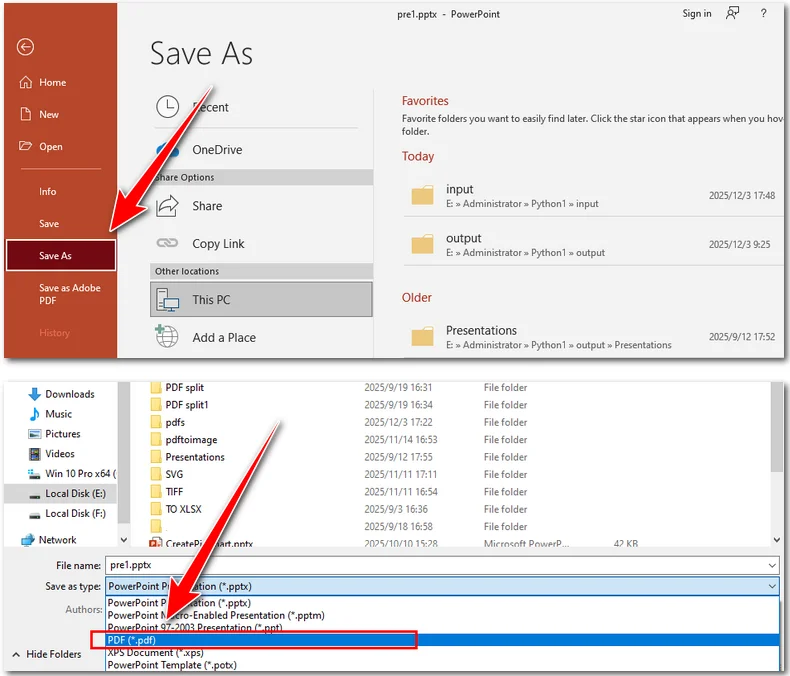
Este método é ideal se você deseja uma solução rápida e não precisa processar vários arquivos em lote. Funciona tanto no Windows quanto no Mac, cobrindo necessidades básicas como salvar um slide do PowerPoint como PDF ou preservar sua apresentação com anotações.
2. Converter PowerPoint para PDF usando ferramentas online
Se você não tem o PowerPoint instalado, as ferramentas online são uma alternativa conveniente. Sites como iLovePDF ou CLOUDXDOCS permitem que você converta seus arquivos PPT ou PPTX para PDF rapidamente, sem instalar nenhum software. Nas instruções a seguir, usamos o CLOUDXDOCS para demonstrar como as ferramentas online funcionam.
Passos para salvar uma apresentação do PowerPoint como PDF com o CLOUDXDOCS:
- Navegue até o conversor de PowerPoint para PDF.
- Carregue seu arquivo do PowerPoint e a ferramenta o converterá automaticamente para PDF.
- Clique em Visualizar para conferir o documento PDF convertido ou clique em Baixar para salvar o PDF no seu dispositivo.
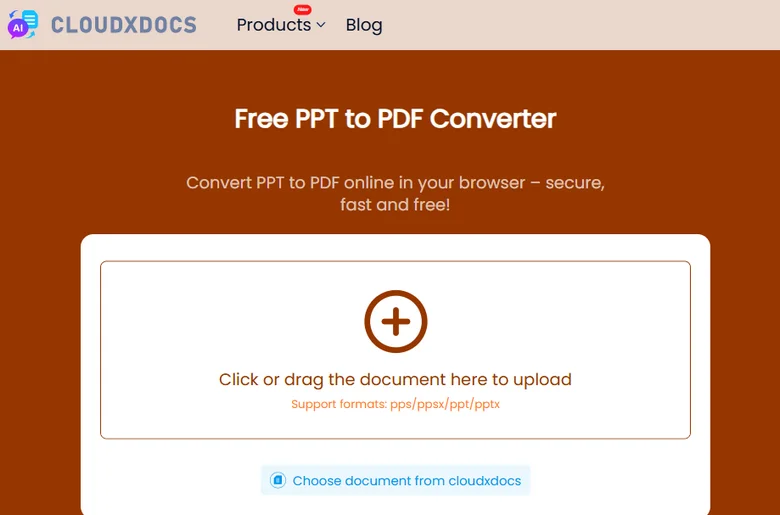
As ferramentas online são especialmente úteis quando você precisa converter um arquivo em trânsito ou ao usar um dispositivo sem o Office instalado, como um Mac, um smartphone ou outros dispositivos que não possuem o Microsoft PowerPoint.
3. Converter PowerPoint para PDF em lote com o Free Spire.Presentation
Para projetos maiores ou quando você precisa converter várias apresentações de uma só vez, o Free Spire.Presentation é uma escolha confiável. Ele preserva a formatação original de seus slides, incluindo fontes, gráficos e layouts, ao mesmo tempo que permite a conversão em lote automatizada. Ele também permite que você converta um slide específico do PowerPoint para PDF, dando-lhe mais controle sobre o resultado.
Por que usar o Free Spire.Presentation:
- Suporta os formatos PPT e PPTX.
- Mantém o design e a formatação originais.
- Lida com conversões em lote, economizando tempo em grandes projetos.
- Gratuito e fácil de instalar.
Para converter arquivos do PowerPoint para PDF usando o Free Spire.Presentation, você pode escolher sua linguagem de programação preferida, como Python, Java ou C#. Abaixo está um exemplo usando Python.
Passos para converter apresentações do PowerPoint para PDF usando Python:
- Baixe e instale o Free Spire.Presentation.
- Importe os módulos necessários em seu editor de código.
- Crie um objeto Presentation e carregue seu arquivo do PowerPoint.
- Use o método SaveToFile() para salvar o arquivo do PowerPoint como PDF.
Abaixo está um exemplo de código completo:
import os
from spire.presentation import *

# Specify the directory containing the PPT/PPTX files
input_dir = r"/input/pptx"

# Get all files in the directory (since there are only the PPT/PPTX files)
ppt_files = os.listdir(input_dir)

# Loop through each file and convert to PDF
for ppt_file in ppt_files:
    ppt_path = os.path.join(input_dir, ppt_file)

    # Create a Presentation object
    presentation = Presentation()

    # Load the PowerPoint file
    presentation.LoadFromFile(ppt_path)

    # Generate output PDF file name based on input file name
    output_pdf = os.path.join("/output/pdfs", os.path.splitext(ppt_file)[0] + ".pdf")

    # Save as PDF
    presentation.SaveToFile(output_pdf, FileFormat.PDF)

    # Release resources
    presentation.Dispose()
Este método é perfeito para profissionais que gerenciam várias apresentações ou precisam de PDFs consistentes e de alta qualidade para compartilhamento ou arquivamento.
Dica: Este componente é capaz de exportar PowerPoint para imagens, documentos do Word e muito mais.
4. Dica extra: Converter Apresentações Google para PDF
Além de usar aplicativos como o Microsoft PowerPoint, muitas pessoas também usam o Apresentações Google para criar e gerenciar apresentações. Isso levanta uma questão comum: como você pode salvar uma apresentação do Apresentações Google como PDF? Felizmente, é bastante simples. Você pode fazer isso facilmente seguindo os passos abaixo.
Passos para salvar uma apresentação do Apresentações Google como PDF:
- Abra seu arquivo do Apresentações Google.
- Clique em Arquivo → Baixar → Documento PDF (.pdf).
- Salve o PDF no seu computador.
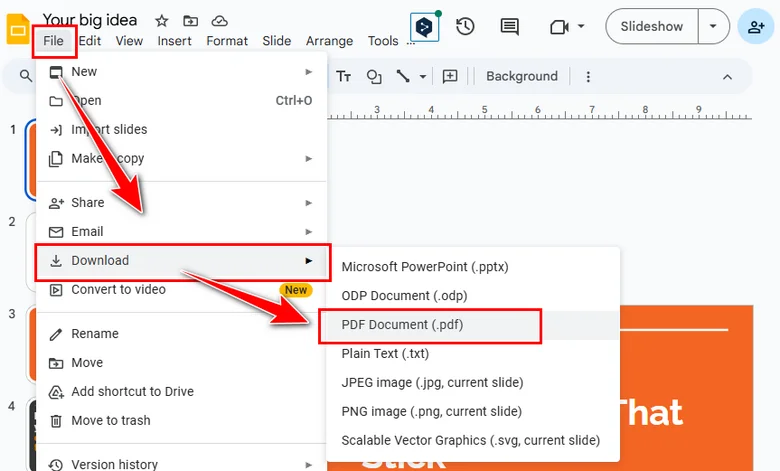
Este método é especialmente útil para colaboração remota ou quando você está tentando salvar um PowerPoint como PDF no Mac — sem o Microsoft PowerPoint instalado.
A Conclusão
Converter PowerPoint para PDF é mais simples do que você imagina. Quer você prefira o método integrado do Office, conversores online ou o Free Spire.Presentation para projetos em lote, há uma solução para cada necessidade. Até mesmo o Apresentações Google pode ser facilmente exportado para PDF. Com esses métodos, você pode compartilhar, arquivar e preservar facilmente suas apresentações sem se preocupar com problemas de formatação ou compatibilidade.
Leia também
4가지 방법으로 PowerPoint를 PDF로 변환하는 방법 [무료]
슬라이드를 다른 사람과 공유하거나, 서식을 보존하거나, 다른 장치에서 프레젠테이션을 더 쉽게 보려면 PowerPoint를 PDF로 변환하는 것이 좋습니다. 다행히 기본 제공 Office 기능부터 온라인 도구 및 특수 소프트웨어에 이르기까지 PowerPoint를 PDF로 저장하는 몇 가지 방법이 있습니다. 이 가이드에서는 Windows, Mac 또는 Google 슬라이드에서 PowerPoint를 PDF로 저장하는 방법을 포함하여 4가지 옵션을 모두 안내합니다.
- Microsoft PowerPoint에서 직접 PDF로 저장
- 온라인 도구를 사용하여 PowerPoint를 PDF로 변환
- 코드로 PowerPoint를 PDF로 일괄 변환
- Google 슬라이드를 PDF로 변환
- 결론
1. Microsoft PowerPoint에서 직접 PDF로 저장
PowerPoint 파일을 PDF로 변환하는 가장 쉽고 빠른 방법은 Microsoft PowerPoint에서 제공하는 기본 제공 "다른 이름으로 저장" 기능을 사용하는 것입니다. 이 방법은 추가 소프트웨어가 필요하지 않으며 단일 프레젠테이션에 완벽하게 작동합니다.
Microsoft PowerPoint에서 PowerPoint 프레젠테이션을 PDF로 저장하는 단계:
- PowerPoint 파일을 엽니다.
- 파일 → 다른 이름으로 저장으로 이동합니다.
- 파일 형식으로 PDF를 선택합니다.
- 선택적으로 발표자 노트나 숨겨진 슬라이드를 포함할지 여부를 선택합니다.
- 저장을 클릭하면 PDF가 준비됩니다.
이 방법은 빠른 해결책을 원하고 여러 파일을 일괄 처리할 필요가 없는 경우에 이상적입니다. Windows와 Mac 모두에서 작동하며 PowerPoint 슬라이드를 PDF로 저장하거나 노트와 함께 프레젠테이션을 보존하는 것과 같은 기본 요구 사항을 다룹니다.
2. 온라인 도구를 사용하여 PowerPoint를 PDF로 변환
PowerPoint가 설치되어 있지 않은 경우 온라인 도구가 편리한 대안입니다. iLovePDF 또는 CLOUDXDOCS와 같은 웹사이트를 사용하면 소프트웨어를 설치하지 않고도 PPT 또는 PPTX 파일을 PDF로 빠르게 변환할 수 있습니다. 다음 지침에서는 CLOUDXDOCS를 사용하여 온라인 도구의 작동 방식을 보여줍니다.
CLOUDXDOCS를 사용하여 PowerPoint 프레젠테이션을 PDF로 저장하는 단계:
- Powerpoint-to-PDF 변환기로 이동합니다.
- PowerPoint 파일을 업로드하면 도구가 자동으로 PDF로 변환합니다.
- 보기를 클릭하여 변환된 PDF 문서를 확인하거나 다운로드를 클릭하여 PDF를 장치에 저장합니다.
온라인 도구는 이동 중에 파일을 변환해야 하거나 Mac, 스마트폰 또는 Microsoft PowerPoint가 없는 기타 장치와 같이 Office가 설치되지 않은 장치를 사용할 때 특히 유용합니다.
3. Free Spire.Presentation으로 PowerPoint를 PDF로 일괄 변환
더 큰 프로젝트나 여러 프레젠테이션을 한 번에 변환해야 하는 경우 Free Spire.Presentation은 신뢰할 수 있는 선택입니다. 글꼴, 차트 및 레이아웃을 포함하여 슬라이드의 원래 서식을 유지하면서 자동 일괄 변환을 허용합니다. 또한 지정된 PowerPoint 슬라이드를 PDF로 변환하여 출력물을 더 잘 제어할 수 있습니다.
Free Spire.Presentation을 사용하는 이유:
- PPT 및 PPTX 형식을 지원합니다.
- 원래 디자인과 서식을 유지합니다.
- 일괄 변환을 처리하여 대규모 프로젝트의 시간을 절약합니다.
- 무료이며 설치가 쉽습니다.
Free Spire.Presentation을 사용하여 PowerPoint 파일을 PDF로 변환하려면 Python, Java 또는 C#과 같은 원하는 프로그래밍 언어를 선택할 수 있습니다. 다음은 Python을 사용한 예입니다.
Python을 사용하여 PowerPoint 프레젠테이션을 PDF로 변환하는 단계:
- Free Spire.Presentation을 다운로드하여 설치합니다.
- 코드 편집기에서 필요한 모듈을 가져옵니다.
- Presentation 개체를 만들고 PowerPoint 파일을 로드합니다.
- SaveToFile() 메서드를 사용하여 PowerPoint 파일을 PDF로 저장합니다.
다음은 전체 코드 예제입니다.
import os
from spire.presentation import *

# Specify the directory containing the PPT/PPTX files
input_dir = r"/input/pptx"

# Get all files in the directory (since there are only the PPT/PPTX files)
ppt_files = os.listdir(input_dir)

# Loop through each file and convert to PDF
for ppt_file in ppt_files:
    ppt_path = os.path.join(input_dir, ppt_file)

    # Create a Presentation object
    presentation = Presentation()

    # Load the PowerPoint file
    presentation.LoadFromFile(ppt_path)

    # Generate output PDF file name based on input file name
    output_pdf = os.path.join("/output/pdfs", os.path.splitext(ppt_file)[0] + ".pdf")

    # Save as PDF
    presentation.SaveToFile(output_pdf, FileFormat.PDF)

    # Release resources
    presentation.Dispose()
이 방법은 여러 프레젠테이션을 관리하거나 공유 또는 보관을 위해 일관된 고품질 PDF가 필요한 전문가에게 적합합니다.
팁: 이 구성 요소는 PowerPoint를 이미지, Word 문서 등으로 내보낼 수 있습니다.
4. 추가 팁: Google 슬라이드를 PDF로 변환
Microsoft PowerPoint와 같은 응용 프로그램을 사용하는 것 외에도 많은 사람들이 Google 슬라이드를 사용하여 프레젠테이션을 만들고 관리합니다. 이것은 일반적인 질문을 제기합니다. Google 슬라이드 프레젠테이션을 PDF로 어떻게 저장할 수 있습니까? 다행히도 매우 간단합니다. 아래 단계에 따라 쉽게 할 수 있습니다.
Google 슬라이드에서 프레젠테이션을 PDF로 저장하는 단계:
- Google 슬라이드 파일을 엽니다.
- 파일 → 다운로드 → PDF 문서(.pdf)를 클릭합니다.
- PDF를 컴퓨터에 저장합니다.
이 방법은 원격 공동 작업이나 Microsoft PowerPoint가 설치되지 않은 Mac에서 PowerPoint를 PDF로 저장하려는 경우에 특히 유용합니다.
결론
PowerPoint를 PDF로 변환하는 것은 생각보다 간단합니다. 기본 제공 Office 방법, 온라인 변환기 또는 일괄 프로젝트용 Free Spire.Presentation 중 무엇을 선호하든 모든 요구에 맞는 솔루션이 있습니다. Google 슬라이드도 PDF로 쉽게 내보낼 수 있습니다. 이러한 방법을 사용하면 서식이나 호환성 문제에 대해 걱정하지 않고 프레젠테이션을 쉽게 공유, 보관 및 보존할 수 있습니다.
또한 읽기
Come convertire PowerPoint in PDF con 4 metodi [Gratuito]
Se desideri condividere le tue diapositive con altri, preservare la formattazione o rendere la tua presentazione più facile da visualizzare su dispositivi diversi, convertire il tuo PowerPoint in PDF è un'ottima scelta. Fortunatamente, ci sono diversi modi per salvare PowerPoint come PDF, dall'utilizzo delle funzionalità integrate di Office agli strumenti online e al software specializzato. In questa guida, ti illustreremo tutte e 4 le opzioni, incluso come salvare PowerPoint come PDF su Windows, Mac o persino Presentazioni Google.
- Salva come PDF direttamente in Microsoft PowerPoint
- Converti PowerPoint in PDF utilizzando strumenti online
- Converti in blocco PowerPoint in PDF con codice
- Converti Presentazioni Google in PDF
- La conclusione
1. Salva come PDF direttamente in Microsoft PowerPoint
Il modo più semplice e veloce per convertire un file PowerPoint in PDF è utilizzare la funzione "Salva con nome" integrata fornita da Microsoft PowerPoint. Questo metodo non richiede alcun software aggiuntivo e funziona perfettamente per presentazioni singole.
Passaggi per salvare una presentazione di PowerPoint come PDF in Microsoft PowerPoint:
- Apri il tuo file PowerPoint.
- Vai su File → Salva con nome.
- Scegli PDF come formato del file.
- Facoltativamente, seleziona se desideri includere le note del relatore o le diapositive nascoste.
- Fai clic su Salva e il tuo PDF è pronto.
Questo metodo è ideale se desideri una soluzione rapida e non hai bisogno di elaborare più file in blocco. Funziona sia su Windows che su Mac, coprendo le esigenze di base come salvare una diapositiva di PowerPoint come PDF o preservare la presentazione con le note.
2. Converti PowerPoint in PDF utilizzando strumenti online
Se non hai PowerPoint installato, gli strumenti online sono un'alternativa conveniente. Siti web come iLovePDF o CLOUDXDOCS ti consentono di convertire rapidamente i tuoi file PPT o PPTX in PDF, senza installare alcun software. Nelle seguenti istruzioni, utilizziamo CLOUDXDOCS per dimostrare come funzionano gli strumenti online.
Passaggi per salvare una presentazione di PowerPoint come PDF con CLOUDXDOCS:
- Vai al convertitore da PowerPoint a PDF.
- Carica il tuo file PowerPoint e lo strumento lo convertirà automaticamente in PDF.
- Fai clic su Visualizza per controllare il documento PDF convertito, o fai clic su Scarica per salvare il PDF sul tuo dispositivo.
Gli strumenti online sono particolarmente utili quando è necessario convertire un file in movimento o quando si utilizza un dispositivo senza Office installato, come un Mac, uno smartphone o altri dispositivi che non dispongono di Microsoft PowerPoint.
3. Converti in blocco PowerPoint in PDF con Free Spire.Presentation
Per progetti più grandi o quando è necessario convertire più presentazioni contemporaneamente, Free Spire.Presentation è una scelta affidabile. Conserva la formattazione originale delle diapositive, inclusi caratteri, grafici e layout, consentendo al contempo la conversione batch automatizzata. Ti consente anche di convertire una diapositiva PowerPoint specifica in PDF, offrendoti un maggiore controllo sull'output.
Perché usare Free Spire.Presentation:
- Supporta i formati PPT e PPTX.
- Mantiene il design e la formattazione originali.
- Gestisce le conversioni in blocco, risparmiando tempo su progetti di grandi dimensioni.
- Gratuito e facile da installare.
Per convertire file PowerPoint in PDF utilizzando Free Spire.Presentation, puoi scegliere il tuo linguaggio di programmazione preferito, come Python, Java o C#. Di seguito è riportato un esempio utilizzando Python.
Passaggi per convertire le presentazioni di PowerPoint in PDF utilizzando Python:
- Scarica e installa Free Spire.Presentation.
- Importa i moduli necessari nel tuo editor di codice.
- Crea un oggetto Presentation e carica il tuo file PowerPoint.
- Utilizza il metodo SaveToFile() per salvare il file PowerPoint come PDF.
Di seguito è riportato un esempio di codice completo:
import os
from spire.presentation import *

# Specify the directory containing the PPT/PPTX files
input_dir = r"/input/pptx"

# Get all files in the directory (since there are only the PPT/PPTX files)
ppt_files = os.listdir(input_dir)

# Loop through each file and convert to PDF
for ppt_file in ppt_files:
    ppt_path = os.path.join(input_dir, ppt_file)

    # Create a Presentation object
    presentation = Presentation()

    # Load the PowerPoint file
    presentation.LoadFromFile(ppt_path)

    # Generate output PDF file name based on input file name
    output_pdf = os.path.join("/output/pdfs", os.path.splitext(ppt_file)[0] + ".pdf")

    # Save as PDF
    presentation.SaveToFile(output_pdf, FileFormat.PDF)

    # Release resources
    presentation.Dispose()
Questo metodo è perfetto per i professionisti che gestiscono più presentazioni o che necessitano di PDF coerenti e di alta qualità per la condivisione o l'archiviazione.
Suggerimento: Questo componente è in grado di esportare PowerPoint in immagini, documenti Word e altro.
4. Suggerimento extra: converti Presentazioni Google in PDF
Oltre a utilizzare applicazioni come Microsoft PowerPoint, molte persone utilizzano anche Presentazioni Google per creare e gestire presentazioni. Ciò solleva una domanda comune: come è possibile salvare una presentazione di Presentazioni Google come PDF? Fortunatamente, è abbastanza semplice. Puoi farlo facilmente seguendo i passaggi seguenti.
Passaggi per salvare una presentazione da Presentazioni Google come PDF:
- Apri il tuo file di Presentazioni Google.
- Fai clic su File → Scarica → Documento PDF (.pdf).
- Salva il PDF sul tuo computer.
Questo metodo è particolarmente utile per la collaborazione remota o quando si tenta di salvare un PowerPoint come PDF su Mac, senza Microsoft PowerPoint installato.
La conclusione
Convertire PowerPoint in PDF è più semplice di quanto si possa pensare. Che tu preferisca il metodo integrato di Office, i convertitori online o Free Spire.Presentation per progetti in blocco, c'è una soluzione per ogni esigenza. Anche Presentazioni Google può essere facilmente esportato in PDF. Con questi metodi, puoi facilmente condividere, archiviare e conservare le tue presentazioni senza preoccuparti di problemi di formattazione o compatibilità.
Leggi anche
Comment convertir PowerPoint en PDF avec 4 méthodes [Gratuit]
Table des matières
Si vous souhaitez partager vos diapositives avec d'autres, préserver la mise en forme ou faciliter la visualisation de votre présentation sur différents appareils, la conversion de votre PowerPoint en PDF est un excellent choix. Heureusement, il existe plusieurs façons d'enregistrer PowerPoint au format PDF, des fonctionnalités Office intégrées aux outils en ligne et aux logiciels spécialisés. Dans ce guide, nous vous présenterons les 4 options, y compris comment enregistrer PowerPoint au format PDF sur Windows, Mac ou même Google Slides.
- Enregistrer en PDF directement dans Microsoft PowerPoint
- Convertir PowerPoint en PDF à l'aide d'outils en ligne
- Convertir par lots PowerPoint en PDF avec du code
- Convertir Google Slides en PDF
- La conclusion
1. Enregistrer en PDF directement dans Microsoft PowerPoint
Le moyen le plus simple et le plus rapide de convertir un fichier PowerPoint en PDF consiste à utiliser la fonction intégrée "Enregistrer sous" fournie par Microsoft PowerPoint. Cette méthode ne nécessite aucun logiciel supplémentaire et fonctionne parfaitement pour les présentations uniques.
Étapes pour enregistrer une présentation PowerPoint au format PDF dans Microsoft PowerPoint :
- Ouvrez votre fichier PowerPoint.
- Allez dans Fichier → Enregistrer sous.
- Choisissez PDF comme format de fichier.
- Facultativement, sélectionnez si vous souhaitez inclure les notes du présentateur ou les diapositives masquées.
- Cliquez sur Enregistrer, et votre PDF est prêt.
Cette méthode est idéale si vous souhaitez une solution rapide et n'avez pas besoin de traiter plusieurs fichiers par lots. Elle fonctionne sur Windows et Mac, couvrant les besoins de base comme l'enregistrement d'une diapositive PowerPoint au format PDF ou la conservation de votre présentation avec des notes.
2. Convertir PowerPoint en PDF à l'aide d'outils en ligne
Si vous n'avez pas installé PowerPoint, les outils en ligne sont une alternative pratique. Des sites Web comme iLovePDF ou CLOUDXDOCS vous permettent de convertir rapidement vos fichiers PPT ou PPTX en PDF, sans installer de logiciel. Dans les instructions suivantes, nous utilisons CLOUDXDOCS pour démontrer le fonctionnement des outils en ligne.
Étapes pour enregistrer une présentation PowerPoint au format PDF avec CLOUDXDOCS :
- Accédez au convertisseur Powerpoint en PDF.
- Téléchargez votre fichier PowerPoint, et l'outil le convertira automatiquement en PDF.
- Cliquez sur Afficher pour consulter le document PDF converti, ou cliquez sur Télécharger pour enregistrer le PDF sur votre appareil.
Les outils en ligne sont particulièrement utiles lorsque vous devez convertir un fichier en déplacement ou lorsque vous utilisez un appareil sans Office installé, comme un Mac, un smartphone ou d'autres appareils qui n'ont pas Microsoft PowerPoint.
3. Convertir par lots PowerPoint en PDF avec Free Spire.Presentation
Pour les projets plus importants ou lorsque vous devez convertir plusieurs présentations en même temps, Free Spire.Presentation est un choix fiable. Il préserve la mise en forme originale de vos diapositives, y compris les polices, les graphiques et les mises en page, tout en permettant une conversion par lots automatisée. Il vous permet également de convertir une diapositive PowerPoint spécifique en PDF, vous donnant plus de contrôle sur le résultat.
Pourquoi utiliser Free Spire.Presentation :
- Prend en charge les formats PPT et PPTX.
- Conserve la conception et la mise en forme d'origine.
- Gère les conversions par lots, ce qui permet de gagner du temps sur les grands projets.
- Gratuit et facile à installer.
Pour convertir des fichiers PowerPoint en PDF à l'aide de Free Spire.Presentation, vous pouvez choisir votre langage de programmation préféré, tel que Python, Java ou C#. Vous trouverez ci-dessous un exemple utilisant Python.
Étapes pour convertir des présentations PowerPoint en PDF à l'aide de Python :
- Téléchargez et installez Free Spire.Presentation.
- Importez les modules nécessaires dans votre éditeur de code.
- Créez un objet Presentation et chargez votre fichier PowerPoint.
- Utilisez la méthode SaveToFile() pour enregistrer le fichier PowerPoint au format PDF.
Voici un exemple de code complet :
import os
from spire.presentation import *

# Specify the directory containing the PPT/PPTX files
input_dir = r"/input/pptx"

# Get all files in the directory (since there are only the PPT/PPTX files)
ppt_files = os.listdir(input_dir)

# Loop through each file and convert to PDF
for ppt_file in ppt_files:
    ppt_path = os.path.join(input_dir, ppt_file)

    # Create a Presentation object
    presentation = Presentation()

    # Load the PowerPoint file
    presentation.LoadFromFile(ppt_path)

    # Generate output PDF file name based on input file name
    output_pdf = os.path.join("/output/pdfs", os.path.splitext(ppt_file)[0] + ".pdf")

    # Save as PDF
    presentation.SaveToFile(output_pdf, FileFormat.PDF)

    # Release resources
    presentation.Dispose()
Cette méthode est parfaite pour les professionnels qui gèrent plusieurs présentations ou qui ont besoin de PDF cohérents et de haute qualité pour le partage ou l'archivage.
Astuce : Ce composant est capable d'exporter PowerPoint vers des images, des documents Word, et plus encore.
4. Astuce supplémentaire : Convertir Google Slides en PDF
Outre l'utilisation d'applications comme Microsoft PowerPoint, de nombreuses personnes utilisent également Google Slides pour créer et gérer des présentations. Cela soulève une question courante : comment pouvez-vous enregistrer une présentation Google Slides au format PDF ? Heureusement, c'est assez simple. Vous pouvez facilement le faire en suivant les étapes ci-dessous.
Étapes pour enregistrer une présentation de Google Slides au format PDF :
- Ouvrez votre fichier Google Slides.
- Cliquez sur Fichier → Télécharger → Document PDF (.pdf).
- Enregistrez le PDF sur votre ordinateur.
Cette méthode est particulièrement utile pour la collaboration à distance ou lorsque vous essayez d'enregistrer un PowerPoint au format PDF sur Mac, sans que Microsoft PowerPoint soit installé.
La conclusion
La conversion de PowerPoint en PDF est plus simple que vous ne le pensez. Que vous préfériez la méthode Office intégrée, les convertisseurs en ligne ou Free Spire.Presentation pour les projets par lots, il existe une solution pour chaque besoin. Même Google Slides peut être facilement exporté au format PDF. Avec ces méthodes, vous pouvez facilement partager, archiver et préserver vos présentations sans vous soucier des problèmes de mise en forme ou de compatibilité.
À lire également
Cómo convertir PowerPoint a PDF con 4 métodos [Gratis]
Si quieres compartir tus diapositivas con otros, preservar el formato o hacer que tu presentación sea más fácil de ver en diferentes dispositivos, convertir tu PowerPoint a PDF es una excelente opción. Afortunadamente, hay varias formas de guardar PowerPoint como PDF, desde usar las funciones integradas de Office hasta herramientas en línea y software especializado. En esta guía, te guiaremos a través de las 4 opciones, incluyendo cómo guardar PowerPoint como PDF en Windows, Mac o incluso en Google Slides.
- Guardar como PDF directamente en Microsoft PowerPoint
- Convertir PowerPoint a PDF usando herramientas en línea
- Convertir por lotes PowerPoint a PDF con código
- Convertir Google Slides a PDF
- La Conclusión
1. Guardar como PDF directamente en Microsoft PowerPoint
La forma más fácil y rápida de convertir un archivo de PowerPoint a PDF es usando la función integrada "Guardar como" que ofrece Microsoft PowerPoint. Este método no requiere ningún software adicional y funciona perfectamente para presentaciones individuales.
Pasos para guardar una presentación de PowerPoint como PDF en Microsoft PowerPoint:
- Abre tu archivo de PowerPoint.
- Ve a Archivo → Guardar como.
- Elige PDF como formato de archivo.
- Opcionalmente, selecciona si quieres incluir notas del orador o diapositivas ocultas.
- Haz clic en Guardar, y tu PDF estará listo.
Este método es ideal si quieres una solución rápida y no necesitas procesar varios archivos por lotes. Funciona tanto en Windows como en Mac, cubriendo necesidades básicas como guardar una diapositiva de PowerPoint como PDF o preservar tu presentación con notas.
2. Convertir PowerPoint a PDF usando herramientas en línea
Si no tienes PowerPoint instalado, las herramientas en línea son una alternativa conveniente. Sitios web como iLovePDF o CLOUDXDOCS te permiten convertir tus archivos PPT o PPTX a PDF rápidamente, sin instalar ningún software. En las siguientes instrucciones, usamos CLOUDXDOCS para demostrar cómo funcionan las herramientas en línea.
Pasos para guardar una presentación de PowerPoint como PDF con CLOUDXDOCS:
- Navega al convertidor de PowerPoint a PDF.
- Sube tu archivo de PowerPoint y la herramienta lo convertirá automáticamente a PDF.
- Haz clic en Ver para revisar el documento PDF convertido, o haz clic en Descargar para guardar el PDF en tu dispositivo.
Las herramientas en línea son especialmente útiles cuando necesitas convertir un archivo sobre la marcha o cuando usas un dispositivo sin Office instalado, como un Mac, un teléfono inteligente u otros dispositivos que no tienen Microsoft PowerPoint.
3. Convertir por lotes PowerPoint a PDF con Free Spire.Presentation
Para proyectos más grandes o cuando necesitas convertir múltiples presentaciones a la vez, Free Spire.Presentation es una opción confiable. Preserva el formato original de tus diapositivas, incluyendo fuentes, gráficos y diseños, mientras permite la conversión por lotes automatizada. También te permite convertir una diapositiva específica de PowerPoint a PDF, dándote más control sobre el resultado.
Por qué usar Free Spire.Presentation:
- Soporta los formatos PPT y PPTX.
- Mantiene el diseño y formato original.
- Maneja conversiones por lotes, ahorrando tiempo en proyectos grandes.
- Gratis y fácil de instalar.
Para convertir archivos de PowerPoint a PDF usando Free Spire.Presentation, puedes elegir tu lenguaje de programación preferido, como Python, Java o C#. A continuación se muestra un ejemplo usando Python.
Pasos para convertir presentaciones de PowerPoint a PDF usando Python:
- Descarga e instala Free Spire.Presentation.
- Importa los módulos necesarios en tu editor de código.
- Crea un objeto Presentation y carga tu archivo de PowerPoint.
- Usa el método SaveToFile() para guardar el archivo de PowerPoint como PDF.
A continuación se muestra un ejemplo de código completo:
import os
from spire.presentation import *

# Especifica el directorio que contiene los archivos PPT/PPTX
input_dir = r"/input/pptx"

# Obtén todos los archivos en el directorio (ya que solo hay archivos PPT/PPTX)
ppt_files = os.listdir(input_dir)

# Recorre cada archivo y conviértelo a PDF
for ppt_file in ppt_files:
    ppt_path = os.path.join(input_dir, ppt_file)

    # Crea un objeto Presentation
    presentation = Presentation()

    # Carga el archivo de PowerPoint
    presentation.LoadFromFile(ppt_path)

    # Genera el nombre del archivo PDF de salida basado en el nombre del archivo de entrada
    output_pdf = os.path.join("/output/pdfs", os.path.splitext(ppt_file)[0] + ".pdf")

    # Guardar como PDF
    presentation.SaveToFile(output_pdf, FileFormat.PDF)

    # Libera los recursos
    presentation.Dispose()
Este método es perfecto para profesionales que gestionan múltiples presentaciones o que necesitan PDFs consistentes y de alta calidad para compartir o archivar.
Consejo: Este componente es capaz de exportar PowerPoint a imágenes, documentos de Word y más.
4. Consejo extra: Convertir Google Slides a PDF
Además de usar aplicaciones como Microsoft PowerPoint, muchas personas también usan Google Slides para crear y gestionar presentaciones. Esto plantea una pregunta común: ¿cómo puedes guardar una presentación de Google Slides como PDF? Afortunadamente, es bastante simple. Puedes hacerlo fácilmente siguiendo los pasos a continuación.
Pasos para guardar una presentación de Google Slides como PDF:
- Abre tu archivo de Google Slides.
- Haz clic en Archivo → Descargar → Documento PDF (.pdf).
- Guarda el PDF en tu computadora.
Este método es especialmente útil para la colaboración remota o cuando intentas guardar un PowerPoint como PDF en Mac, sin tener Microsoft PowerPoint instalado.
La Conclusión
Convertir PowerPoint a PDF es más simple de lo que podrías pensar. Ya sea que prefieras el método integrado de Office, los convertidores en línea o Free Spire.Presentation para proyectos por lotes, hay una solución para cada necesidad. Incluso Google Slides se puede exportar fácilmente a PDF. Con estos métodos, puedes compartir, archivar y preservar fácilmente tus presentaciones sin preocuparte por problemas de formato o compatibilidad.
También Leer
So konvertieren Sie PowerPoint mit 4 Methoden in PDF [Kostenlos]
Wenn Sie Ihre Folien mit anderen teilen, die Formatierung beibehalten oder Ihre Präsentation auf verschiedenen Geräten einfacher anzeigen möchten, ist die Umwandlung Ihres PowerPoint in PDF eine gute Wahl. Glücklicherweise gibt es mehrere Möglichkeiten, PowerPoint als PDF zu speichern, von der Verwendung integrierter Office-Funktionen bis hin zu Online-Tools und spezieller Software. In dieser Anleitung führen wir Sie durch alle 4 Optionen, einschließlich der Speicherung von PowerPoint als PDF unter Windows, Mac oder sogar in Google Slides.
- Direkt in Microsoft PowerPoint als PDF speichern
- PowerPoint mit Online-Tools in PDF umwandeln
- Stapelkonvertierung von PowerPoint in PDF mit Code
- Google Slides in PDF umwandeln
- Fazit
1. Direkt in Microsoft PowerPoint als PDF speichern
Der einfachste und schnellste Weg, eine PowerPoint-Datei in PDF zu konvertieren, ist die Verwendung der integrierten "Speichern unter"-Funktion von Microsoft PowerPoint. Diese Methode erfordert keine zusätzliche Software und funktioniert perfekt für einzelne Präsentationen.
Schritte zum Speichern einer PowerPoint-Präsentation als PDF in Microsoft PowerPoint:
- Öffnen Sie Ihre PowerPoint-Datei.
- Gehen Sie zu Datei → Speichern unter.
- Wählen Sie PDF als Dateiformat.
- Wählen Sie optional aus, ob Sie Sprechernotizen oder ausgeblendete Folien einbeziehen möchten.
- Klicken Sie auf Speichern, und Ihr PDF ist fertig.
Diese Methode ist ideal, wenn Sie eine schnelle Lösung wünschen und nicht mehrere Dateien stapelweise verarbeiten müssen. Sie funktioniert sowohl unter Windows als auch auf dem Mac und deckt grundlegende Anforderungen wie das Speichern einer PowerPoint-Folie als PDF oder das Beibehalten Ihrer Präsentation mit Notizen ab.
2. PowerPoint mit Online-Tools in PDF umwandeln
Wenn Sie PowerPoint nicht installiert haben, sind Online-Tools eine bequeme Alternative. Websites wie iLovePDF oder CLOUDXDOCS ermöglichen es Ihnen, Ihre PPT- oder PPTX-Dateien schnell in PDF zu konvertieren, ohne Software installieren zu müssen. In den folgenden Anweisungen verwenden wir CLOUDXDOCS, um zu demonstrieren, wie Online-Tools funktionieren.
Schritte zum Speichern einer PowerPoint-Präsentation als PDF mit CLOUDXDOCS:
- Navigieren Sie zum Powerpoint-zu-PDF-Konverter.
- Laden Sie Ihre PowerPoint-Datei hoch, und das Tool konvertiert sie automatisch in PDF.
- Klicken Sie auf Anzeigen, um das konvertierte PDF-Dokument zu überprüfen, oder klicken Sie auf Herunterladen, um das PDF auf Ihrem Gerät zu speichern.
Online-Tools sind besonders nützlich, wenn Sie eine Datei unterwegs konvertieren müssen oder ein Gerät ohne installiertes Office verwenden, wie z. B. einen Mac, ein Smartphone oder andere Geräte, auf denen Microsoft PowerPoint nicht installiert ist.
3. Stapelkonvertierung von PowerPoint in PDF mit Free Spire.Presentation
Für größere Projekte oder wenn Sie mehrere Präsentationen auf einmal konvertieren müssen, ist Free Spire.Presentation eine zuverlässige Wahl. Es behält die ursprüngliche Formatierung Ihrer Folien bei, einschließlich Schriftarten, Diagrammen und Layouts, und ermöglicht gleichzeitig eine automatisierte Stapelkonvertierung. Es ermöglicht Ihnen auch, eine bestimmte PowerPoint-Folie in PDF zu konvertieren, was Ihnen mehr Kontrolle über die Ausgabe gibt.
Warum Free Spire.Presentation verwenden:
- Unterstützt die Formate PPT und PPTX.
- Behält das ursprüngliche Design und die Formatierung bei.
- Verarbeitet Stapelkonvertierungen und spart Zeit bei großen Projekten.
- Kostenlos und einfach zu installieren.
Um PowerPoint-Dateien mit Free Spire.Presentation in PDF zu konvertieren, können Sie Ihre bevorzugte Programmiersprache wie Python, Java oder C# wählen. Unten finden Sie ein Beispiel mit Python.
Schritte zum Konvertieren von PowerPoint-Präsentationen in PDF mit Python:
- Laden Sie Free Spire.Presentation herunter und installieren Sie es.
- Importieren Sie die erforderlichen Module in Ihrem Code-Editor.
- Erstellen Sie ein Presentation-Objekt und laden Sie Ihre PowerPoint-Datei.
- Verwenden Sie die SaveToFile()-Methode, um die PowerPoint-Datei als PDF zu speichern.
Unten finden Sie ein vollständiges Codebeispiel:
import os
from spire.presentation import *

# Specify the directory containing the PPT/PPTX files
input_dir = r"/input/pptx"

# Get all files in the directory (since there are only the PPT/PPTX files)
ppt_files = os.listdir(input_dir)

# Loop through each file and convert to PDF
for ppt_file in ppt_files:
    ppt_path = os.path.join(input_dir, ppt_file)

    # Create a Presentation object
    presentation = Presentation()

    # Load the PowerPoint file
    presentation.LoadFromFile(ppt_path)

    # Generate output PDF file name based on input file name
    output_pdf = os.path.join("/output/pdfs", os.path.splitext(ppt_file)[0] + ".pdf")

    # Save as PDF
    presentation.SaveToFile(output_pdf, FileFormat.PDF)

    # Release resources
    presentation.Dispose()
Diese Methode ist perfekt für Fachleute, die mehrere Präsentationen verwalten oder konsistente, hochwertige PDFs zum Teilen oder Archivieren benötigen.
Tipp: Diese Komponente kann PowerPoint in Bilder, Word-Dokumente und mehr exportieren.
4. Extra-Tipp: Google Slides in PDF umwandeln
Neben Anwendungen wie Microsoft PowerPoint verwenden viele Menschen auch Google Slides, um Präsentationen zu erstellen und zu verwalten. Dies wirft eine häufige Frage auf: Wie können Sie eine Google Slides-Präsentation als PDF speichern? Glücklicherweise ist es ganz einfach. Sie können dies ganz einfach tun, indem Sie die folgenden Schritte ausführen.
Schritte zum Speichern einer Präsentation aus Google Slides als PDF:
- Öffnen Sie Ihre Google Slides-Datei.
- Klicken Sie auf Datei → Herunterladen → PDF-Dokument (.pdf).
- Speichern Sie das PDF auf Ihrem Computer.
Diese Methode ist besonders nützlich für die Remote-Zusammenarbeit oder wenn Sie versuchen, ein PowerPoint auf dem Mac als PDF zu speichern – ohne installiertes Microsoft PowerPoint.
Fazit
Die Konvertierung von PowerPoint in PDF ist einfacher, als Sie vielleicht denken. Ob Sie die integrierte Office-Methode, Online-Konverter oder Free Spire.Presentation für Stapelprojekte bevorzugen, es gibt für jeden Bedarf eine Lösung. Sogar Google Slides können einfach in PDF exportiert werden. Mit diesen Methoden können Sie Ihre Präsentationen einfach teilen, archivieren und aufbewahren, ohne sich um Formatierungs- oder Kompatibilitätsprobleme kümmern zu müssen.