Converti tabella PDF in Word – Metodi accurati e affidabili

La conversione di una tabella da PDF a Word sembra semplice, ma chiunque ci abbia provato sa che il processo può essere sorprendentemente incoerente. I file PDF sono progettati principalmente per la visualizzazione, non per la modifica strutturata, il che porta spesso a layout di tabella danneggiati durante la conversione o la copia. Gli utenti riscontrano frequentemente righe interrotte, colonne unite, bordi persi, spaziatura delle celle incoerente o tabelle esportate come immagini anziché come tabelle Word modificabili.
Questa guida completa spiega metodi affidabili per convertire tabelle PDF in tabelle Word. Imparerai a conoscere strumenti online, approcci manuali e soluzioni programmatiche estremamente accurate. Se hai bisogno di convertire tabelle da PDF a Word, estrarre dati strutturati da PDF o produrre tabelle Word completamente modificabili per flussi di lavoro professionali o automatizzati, questo articolo fornisce le conoscenze pratiche e le intuizioni tecniche di cui hai bisogno.
1. Perché è difficile convertire le tabelle da PDF a Word
Prima di esplorare i metodi di conversione, è importante capire perché le tabelle nei PDF sono difficili da interpretare. Questo ti aiuta a selezionare lo strumento giusto a seconda della complessità del layout.
1.1 I PDF non contengono tabelle reali
A differenza di Word o HTML, i file PDF non memorizzano le strutture delle tabelle. Invece, memorizzano:
- testo utilizzando posizioni assolute
- linee e bordi come percorsi di disegno
- righe/colonne solo come allineamento visivo, non dati di griglia strutturati
Di conseguenza:
- Righe e colonne non vengono riconosciute come celle
- Gli elementi linea potrebbero non corrispondere ai confini effettivi della tabella
- La selezione del testo o la copia spesso interrompe il layout
Questo è il motivo per cui il semplice copia-incolla fallisce quasi sempre.
1.2 Word richiede elementi di tabella strutturati
Microsoft Word si aspetta:
- un elemento
<table>definito - conteggi coerenti di righe/colonne
- confini di cella reali
- larghezze di colonna regolabili
Se il contenuto del PDF non può essere interpretato in questa struttura, Word crea risultati imprevedibili o esporta la tabella come immagine.
Comprendere queste limitazioni chiarisce perché un'estrazione affidabile delle tabelle PDF richiede un'analisi intelligente che vada oltre il semplice rilevamento visivo.
2. Panoramica dei metodi affidabili
Questa guida illustra tre modi pratici per convertire le tabelle PDF in tabelle Word:
- Convertitori da PDF a Word online – più veloci, controllo minimo
- Software desktop – più stabile, maggiore precisione
- Estrazione programmatica e ricostruzione della tabella – massima precisione e risultati completamente modificabili
Suggerimento: la maggior parte delle soluzioni non programmatiche converte l'intero PDF in un file Word. Se hai bisogno solo delle tabelle, potrebbe essere necessario rimuovere manualmente il contenuto circostante in seguito.
Il metodo più accurato consiste nell'estrarre i dati della tabella in modo programmatico e ricostruire la tabella di Word: ciò evita perdite di formattazione e garantisce un output di tabella pulito e completamente modificabile.
3. Metodo 1: convertire una tabella PDF in Word utilizzando strumenti online (il più veloce e semplice)
I convertitori online da PDF a Word sono comodi per conversioni rapide. Questi strumenti tentano di rilevare automaticamente le strutture delle tabelle e di esportarle in un documento Word.
Flusso di lavoro tipico
-
Apri un convertitore online (ad es. Free PDF Converter).

-
Carica il tuo PDF.
-
Attendi la conversione automatica.
-
Scarica il file Word.
-
Se necessario, regola manualmente la formattazione della tabella.
Vantaggi
- Nessuna installazione
- Funziona su qualsiasi dispositivo
- Molto veloce
Svantaggi
- Scarsa precisione per tabelle complesse
- Problemi di privacy (caricamento su cloud)
- Può esportare le tabelle come immagini
- Personalizzazione limitata
Gli strumenti online sono i migliori per conversioni semplici e una tantum.
4. Metodo 2: convertire tabelle PDF utilizzando software desktop (più stabile e sicuro)
Le applicazioni desktop elaborano i file localmente, offrendo maggiore precisione e privacy. Microsoft Word, Acrobat e software PDF dedicati forniscono spesso un'estrazione di tabelle accettabile per layout standard.
Flusso di lavoro generale
-
Installa il software (ad es. Microsoft Word).
-
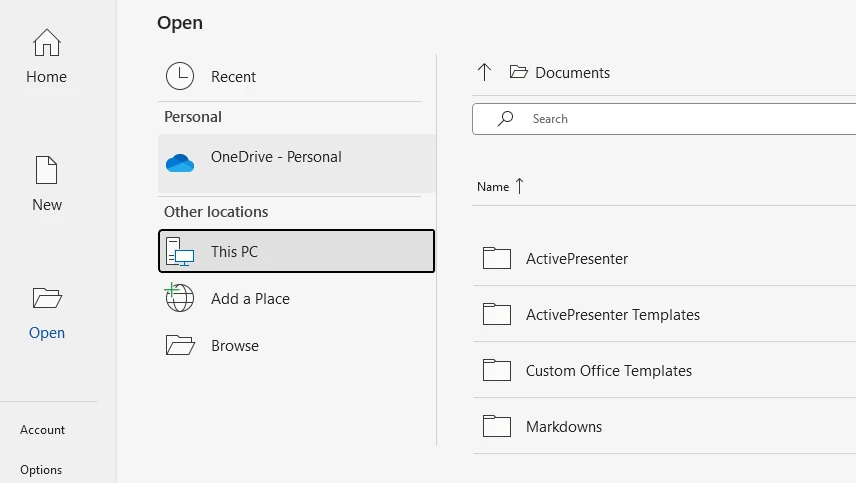
Apri il file PDF nell'applicazione.
-
Conferma la conversione facendo clic su .
-
Attendi l'elaborazione.
-
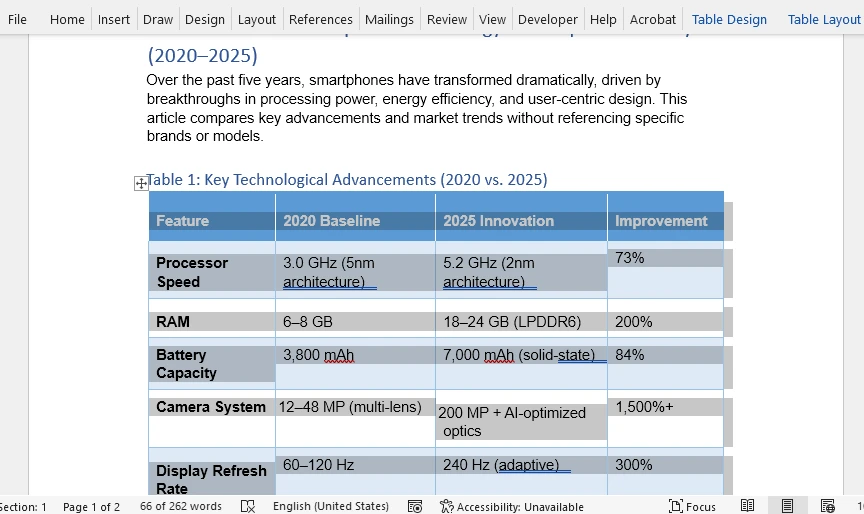
Modifica e salva il risultato come file .docx.
Vantaggi
- Maggiore precisione di rilevamento
- Supporta file di grandi dimensioni e multipagina
- Nessun rischio legato al caricamento
Svantaggi
- Alcuni software sono a pagamento
- Ancora inaffidabile per tabelle irregolari
- Le funzionalità differiscono tra gli strumenti
Gli strumenti desktop funzionano bene per una complessità moderata, ma non per dati strutturati che devono rimanere perfettamente modificabili.
5. Metodo 3: estrarre e convertire tabelle PDF in modo programmatico (metodo più accurato)
Per gli utenti che necessitano di una ricostruzione di tabelle coerente, automatizzata e ad alta fedeltà, l'approccio programmatico è il più affidabile. Permette:
- estrazione precisa del contenuto della tabella
- pieno controllo sulla costruzione della tabella di Word
- elaborazione in lotti
- formattazione coerente
Questo metodo può convertire con successo anche tabelle PDF complesse o non standard in tabelle Word perfettamente modificabili.
5.1 Opzione A: convertire automaticamente l'intero PDF in Word
Utilizzando Free Spire.PDF for Python, è possibile convertire un PDF direttamente in un documento Word. La libreria tenta di dedurre le strutture delle tabelle analizzando gli elementi linea, il posizionamento del testo e l'allineamento delle colonne.
Installa Free Spire.PDF for Python usando pip:
pip install spire.pdf.free
Esempio di codice Python per la conversione da PDF a Word
from spire.pdf import PdfDocument, FileFormat

input_pdf = "sample.pdf"
output_docx = "output/pdf_to_docx.docx"

# Open a PDF document
pdf = PdfDocument()
pdf.LoadFromFile(input_pdf)

# Save the PDF to a Word document
pdf.SaveToFile(output_docx, FileFormat.DOCX)
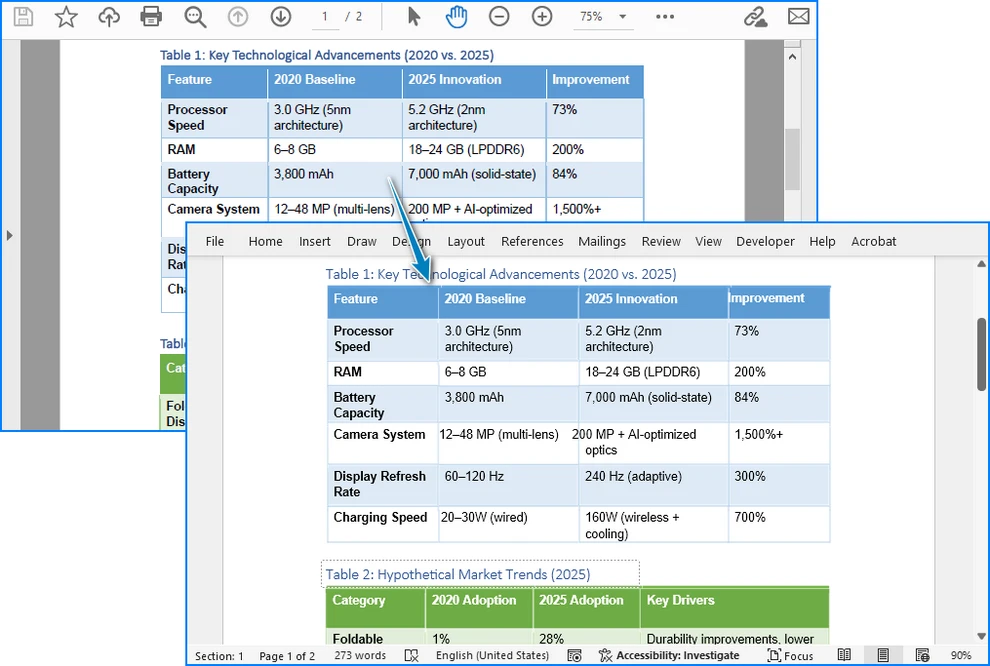
Di seguito è riportata un'anteprima del risultato della conversione da PDF a Word:
Quando usarlo
- Tabelle con linee della griglia chiare
- Layout da semplici a moderatamente complessi
- Quando la fedeltà della tabella non deve essere perfetta al 100%
Limitazioni
- Celle complesse o unite potrebbero non essere visualizzate correttamente
- Le tabelle senza bordi potrebbero essere interpretate erroneamente
- Per opzioni di conversione più avanzate, fare riferimento a Come convertire PDF in Doc/Docx con Python.
5.2 Opzione B: estrarre i dati della tabella e ricostruire manualmente le tabelle di Word (massima precisione)
È inoltre possibile estrarre i dati delle tabelle dai PDF utilizzando Free Spire.PDF for Python e creare tabelle di Word utilizzando Free Spire.Doc for Python. Questo metodo è il più affidabile e preciso per convertire le tabelle PDF in documenti Word. Fornisce:
- Completa modificabilità della tabella
- Struttura prevedibile
- Controllo completo della formattazione
- Automazione affidabile
Installa Free Spire.Doc for Python:
pip install spire.doc.free
Il flusso di lavoro:
- Estrai i dati della tabella dal PDF
- Crea un documento Word in modo programmatico
- Inserisci una tabella utilizzando i dati estratti
- Applica la formattazione
Esempio di codice Python per estrarre tabelle PDF e creare tabelle Word
from spire.pdf import PdfDocument, PdfTableExtractor
from spire.doc import Document, FileFormat, DefaultTableStyle, AutoFitBehaviorType, BreakType

input_pdf = "sample.pdf"
output_docx = "output/pdf_table_to_docx.docx"

# Open a PDF document
pdf = PdfDocument()
pdf.LoadFromFile(input_pdf)

# Create a Word document
doc = Document()
section = doc.AddSection()

# Extract table data from the PDF
table_extractor = PdfTableExtractor(pdf)
for i in range(pdf.Pages.Count):
    tables = table_extractor.ExtractTable(i)
    if tables is not None and len(tables) > 0:
        for i in range(len(tables)):
            table = tables[i]
            # Create a table in the Word document
            word_table = section.AddTable()
            word_table.ApplyStyle(DefaultTableStyle.ColorfulGridAccent4)
            word_table.ResetCells(table.GetRowCount(), table.GetColumnCount())
            for j in range(table.GetRowCount()):
                for k in range(table.GetColumnCount()):
                    cell_text = table.GetText(j, k).replace("\n", " ")
                    # Write the cell text to the corresponding cell in the Word table
                    tr = word_table.Rows[j].Cells[k].AddParagraph().AppendText(cell_text)
                    tr.CharacterFormat.FontName = "Arial"
                    tr.CharacterFormat.FontSize = 11
            # Auto-fit the table
            word_table.AutoFit(AutoFitBehaviorType.AutoFitToContents)
            section.AddParagraph().AppendBreak(BreakType.LineBreak)

# Save the Word document
doc.SaveToFile(output_docx, FileFormat.Docx)
Di seguito è riportata un'anteprima delle tabelle di Word ricostruite:

Perché questo metodo è superiore
- Le tabelle di output sono sempre modificabili
- Ideale per l'automazione e l'elaborazione in lotti
- Funziona anche senza linee di tabella visibili
- Consente formattazione, caratteri, bordi e stili personalizzati
Questa è la soluzione consigliata per i casi d'uso professionali.
Se hai bisogno di esportare tabelle PDF in altri formati, consulta Come estrarre tabelle da PDF usando Python.
6. Confronto della precisione di tutti i metodi
| Metodo | Precisione | Modificabile | Controllo formattazione | Ideale per |
|---|---|---|---|---|
| Convertitori online | ★★★★☆ | Sì | Basso | Uso rapido una tantum |
| Software desktop | ★★★★☆ | Sì | Medio | Documenti professionali standard |
| Estrazione programmatica + ricostruzione | ★★★★★ | Sì | Completo | Automazione, flussi di lavoro aziendali |
| Conversione completa PDF → Word (automatica) | ★★★★☆ | Sì | Medio | PDF puliti e ben strutturati |
7. Migliori pratiche per una conversione di alta qualità
Per garantire i migliori risultati, segui queste migliori pratiche:
Preparazione del file
- Preferire PDF originali basati su testo (non scansionati)
- Eseguire l'OCR prima dell'estrazione della tabella se il PDF è scansionato
Suggerimenti per la progettazione di tabelle
- Mantenere coerente l'allineamento delle colonne
- Evitare celle unite non necessarie
- Mantenere una spaziatura chiara tra le colonne
Raccomandazioni tecniche
- Utilizzare l'estrazione programmatica per i flussi di lavoro in lotti
- Ricostruire le tabelle di Word per una formattazione esatta
- Convalidare sempre l'accuratezza dei dati estratti
8. Domande frequenti
1. Come posso convertire una tabella PDF in una tabella Word modificabile senza perdere la formattazione?
Utilizza convertitori desktop di alta qualità o una libreria programmatica come Spire.PDF + Spire.Doc. L'estrazione programmatica fornisce i risultati più coerenti.
2. Posso estrarre solo la tabella (non l'intero PDF) in Word?
Sì. Estrai solo i dati della tabella e ricostruisci la tabella in modo programmatico. Questo produce tabelle Word completamente modificabili.
3. Perché la mia tabella PDF è apparsa come un'immagine in Word?
Il convertitore non è riuscito a interpretare la struttura e ha esportato il contenuto come immagine. Utilizza uno strumento che supporti la ricostruzione della tabella.
4. Qual è il metodo più accurato per tabelle complesse o irregolari?
Estrazione programmatica combinata con la costruzione manuale della tabella in Word.
9. Conclusione
La conversione di tabelle PDF in tabelle Word varia da semplice a molto complessa a seconda della struttura del PDF originale. Strumenti online veloci e applicazioni desktop funzionano bene per layout semplici, ma spesso hanno difficoltà con celle unite, spaziatura irregolare o strutture a più righe.
Per gli utenti che richiedono un output preciso, modificabile e affidabile, specialmente nell'automazione aziendale e nell'elaborazione di documenti su larga scala, l'approccio programmatico fornisce una precisione senza pari. Consente una vera ricostruzione della tabella in Word con pieno controllo su formattazione, stile e struttura delle celle.
Sia che tu abbia bisogno di una conversione online veloce o di una pipeline automatizzata estremamente accurata, i metodi in questa guida ti assicurano di poter convertire in modo affidabile tabelle PDF in tabelle Word completamente modificabili a tutti i livelli di complessità.
Vedi anche
Convertir un tableau PDF en Word – Méthodes précises et fiables
La conversion d'un tableau PDF en Word semble simple, mais quiconque l'a essayé sait que le processus peut être étonnamment incohérent. Les fichiers PDF sont conçus principalement pour l'affichage, et non pour l'édition structurée, ce qui entraîne souvent des mises en page de tableau corrompues lors de la conversion ou de la copie. Les utilisateurs rencontrent fréquemment des lignes brisées, des colonnes fusionnées, des bordures perdues, un espacement de cellule incohérent ou des tableaux exportés sous forme d'images plutôt que de tableaux Word modifiables.
Ce guide complet explique des méthodes fiables pour convertir des tableaux PDF en tableaux Word. Vous découvrirez des outils en ligne, des approches manuelles et des solutions programmatiques très précises. Si vous avez besoin de convertir des tableaux PDF en Word, d'extraire des données structurées d'un PDF ou de produire des tableaux Word entièrement modifiables pour des flux de travail professionnels ou automatisés, cet article fournit les connaissances pratiques et les informations techniques dont vous avez besoin.
1. Pourquoi la conversion de tableaux PDF en Word est-elle difficile
Avant d'explorer les méthodes de conversion, il est important de comprendre pourquoi les tableaux dans les PDF sont difficiles à interpréter. Cela vous aide à choisir le bon outil en fonction de la complexité de la mise en page.
1.1 Les PDF ne contiennent pas de vrais tableaux
Contrairement à Word ou HTML, les fichiers PDF ne stockent pas les structures de tableau. Au lieu de cela, ils stockent :
- du texte en utilisant des positions absolues
- des lignes et des bordures comme des chemins de dessin
- des lignes/colonnes uniquement comme un alignement visuel, pas des données de grille structurées
En conséquence :
- Les lignes et les colonnes ne sont pas reconnues comme des cellules
- Les éléments de ligne peuvent ne pas correspondre aux limites réelles du tableau
- La sélection de texte ou la copie perturbe souvent la mise en page
C'est pourquoi le simple copier-coller échoue presque toujours.
1.2 Word nécessite des éléments de tableau structurés
Microsoft Word s'attend à :
- un élément
<table>défini - des nombres de lignes/colonnes cohérents
- de vraies limites de cellule
- des largeurs de colonne ajustables
Si le contenu du PDF ne peut pas être interprété dans cette structure, Word crée des résultats imprévisibles ou exporte le tableau sous forme d'image.
Comprendre ces limitations explique pourquoi une extraction fiable des tableaux PDF nécessite une analyse intelligente allant au-delà de la simple détection visuelle.
2. Aperçu des méthodes fiables
Ce guide couvre trois manières pratiques de convertir des tableaux PDF en tableaux Word :
- Convertisseurs PDF vers Word en ligne – le plus rapide, contrôle minimal
- Logiciels de bureau – plus stables, meilleure précision
- Extraction programmatique et reconstruction de tableau – la plus haute précision et des résultats entièrement modifiables
Conseil : La plupart des solutions non programmatiques convertissent l'intégralité du PDF en fichier Word. Si vous n'avez besoin que des tableaux, vous devrez peut-être supprimer manuellement le contenu environnant par la suite.
La méthode la plus précise consiste à extraire les données du tableau par programmation et à reconstruire le tableau Word, ce qui évite les pertes de formatage et garantit une sortie de tableau propre et entièrement modifiable.
3. Méthode 1 : Convertir un tableau PDF en Word à l'aide d'outils en ligne (la plus rapide et la plus simple)
Les convertisseurs PDF vers Word en ligne sont pratiques pour des conversions rapides. Ces outils tentent de détecter automatiquement les structures de tableau et de les exporter dans un document Word.
Flux de travail typique
-
Ouvrez un convertisseur en ligne (par exemple, Free PDF Converter).
-
Téléchargez votre PDF.
-
Attendez la conversion automatique.
-
Téléchargez le fichier Word.
-
Ajustez manuellement la mise en forme du tableau si nécessaire.
Avantages
- Aucune installation
- Fonctionne sur n'importe quel appareil
- Très rapide
Inconvénients
- Faible précision pour les tableaux complexes
- Problèmes de confidentialité (téléchargement dans le cloud)
- Peut produire des tableaux sous forme d'images
- Personnalisation limitée
Les outils en ligne sont les meilleurs pour les conversions simples et uniques.
4. Méthode 2 : Convertir des tableaux PDF à l'aide d'un logiciel de bureau (plus stable et sécurisé)
Les applications de bureau traitent les fichiers localement, offrant une meilleure précision et confidentialité. Microsoft Word, Acrobat et les logiciels PDF dédiés fournissent souvent une extraction de tableau acceptable pour les mises en page standard.
Flux de travail général
-
Installez le logiciel (par exemple, Microsoft Word).
-
Ouvrez le fichier PDF dans l'application.
-
Confirmez la conversion en cliquant sur .
-
Attendez le traitement.
-
Modifiez et enregistrez le résultat sous forme de fichier .docx.
Avantages
- Précision de détection plus élevée
- Prend en charge les fichiers volumineux et multi-pages
- Aucun risque lié au téléchargement
Inconvénients
- Certains logiciels sont payants
- Toujours peu fiable pour les tableaux irréguliers
- Les fonctionnalités diffèrent selon les outils
Les outils de bureau fonctionnent bien pour une complexité modérée, mais pas pour les données structurées qui doivent rester perfectly modifiables.
5. Méthode 3 : Extraire et convertir les tableaux PDF par programmation (méthode la plus précise)
Pour les utilisateurs ayant besoin d'une reconstruction de tableau cohérente, automatisée et de haute fidélité, l'approche programmatique est la plus fiable. Elle permet :
- une extraction précise du contenu du tableau
- un contrôle total sur la construction du tableau Word
- un traitement par lots
- un formatage cohérent
Cette méthode peut convertir avec succès même les tableaux PDF complexes ou non standard en tableaux Word parfaitement modifiables.
5.1 Option A : Convertir l'intégralité du PDF en Word automatiquement
En utilisant Free Spire.PDF for Python, vous pouvez convertir un PDF directement en document Word. La bibliothèque tente d'inférer les structures de tableau en analysant les éléments de ligne, le positionnement du texte et l'alignement des colonnes.
Installez Free Spire.PDF for Python à l'aide de pip :
pip install spire.pdf.free
Exemple de code Python pour la conversion de PDF en Word
from spire.pdf import PdfDocument, FileFormat

input_pdf = "sample.pdf"
output_docx = "output/pdf_to_docx.docx"

# Open a PDF document
pdf = PdfDocument()
pdf.LoadFromFile(input_pdf)

# Save the PDF to a Word document
pdf.SaveToFile(output_docx, FileFormat.DOCX)
Voici un aperçu du résultat de la conversion PDF en Word :
Quand l'utiliser
- Tableaux avec des lignes de grille claires
- Mises en page simples à modérément complexes
- Lorsque la fidélité du tableau n'a pas besoin d'être parfaite à 100 %
Limites
- Les cellules complexes ou fusionnées peuvent ne pas être rendues avec précision
- Les tableaux sans bordures peuvent être mal interprétés
- Pour des options de conversion plus avancées, veuillez vous référer à Comment convertir un PDF en Doc/Docx avec Python.
5.2 Option B : Extraire les données du tableau et reconstruire manuellement les tableaux Word (meilleure précision)
Vous pouvez également extraire les données de tableau des PDF à l'aide de Free Spire.PDF for Python et créer des tableaux Word à l'aide de Free Spire.Doc for Python. Cette méthode est la plus fiable et la plus précise pour convertir des tableaux PDF en documents Word. Elle fournit :
- Modifiabilité complète du tableau
- Structure prévisible
- Contrôle complet du formatage
- Automatisation fiable
Installez Free Spire.Doc for Python :
pip install spire.doc.free
Le flux de travail :
- Extraire les données du tableau du PDF
- Créer un document Word par programmation
- Insérer un tableau à l'aide des données extraites
- Appliquer le formatage
Exemple de code Python pour extraire des tableaux PDF et créer des tableaux Word
from spire.pdf import PdfDocument, PdfTableExtractor
from spire.doc import Document, FileFormat, DefaultTableStyle, AutoFitBehaviorType, BreakType

input_pdf = "sample.pdf"
output_docx = "output/pdf_table_to_docx.docx"

# Open a PDF document
pdf = PdfDocument()
pdf.LoadFromFile(input_pdf)

# Create a Word document
doc = Document()
section = doc.AddSection()

# Extract table data from the PDF
table_extractor = PdfTableExtractor(pdf)
for i in range(pdf.Pages.Count):
    tables = table_extractor.ExtractTable(i)
    if tables is not None and len(tables) > 0:
        for i in range(len(tables)):
            table = tables[i]
            # Create a table in the Word document
            word_table = section.AddTable()
            word_table.ApplyStyle(DefaultTableStyle.ColorfulGridAccent4)
            word_table.ResetCells(table.GetRowCount(), table.GetColumnCount())
            for j in range(table.GetRowCount()):
                for k in range(table.GetColumnCount()):
                    cell_text = table.GetText(j, k).replace("\n", " ")
                    # Write the cell text to the corresponding cell in the Word table
                    tr = word_table.Rows[j].Cells[k].AddParagraph().AppendText(cell_text)
                    tr.CharacterFormat.FontName = "Arial"
                    tr.CharacterFormat.FontSize = 11
            # Auto-fit the table
            word_table.AutoFit(AutoFitBehaviorType.AutoFitToContents)
            section.AddParagraph().AppendBreak(BreakType.LineBreak)

# Save the Word document
doc.SaveToFile(output_docx, FileFormat.Docx)
Voici un aperçu des tableaux Word reconstruits :
Pourquoi cette méthode est supérieure
- Les tableaux de sortie sont toujours modifiables
- Idéal pour l'automatisation et le traitement par lots
- Fonctionne même sans lignes de tableau visibles
- Permet un formatage, des polices, des bordures et des styles personnalisés
C'est la solution recommandée pour les cas d'utilisation professionnels.
Si vous avez besoin d'exporter des tableaux PDF dans d'autres formats, consultez Comment extraire des tableaux d'un PDF à l'aide de Python.
6. Comparaison de la précision de toutes les méthodes
| Méthode | Précision | Modifiable | Contrôle du formatage | Idéal pour |
|---|---|---|---|---|
| Convertisseurs en ligne | ★★★★☆ | Oui | Faible | Utilisation rapide et unique |
| Logiciel de bureau | ★★★★☆ | Oui | Moyen | Documents professionnels standard |
| Extraction programmatique + reconstruction | ★★★★★ | Oui | Complet | Automatisation, flux de travail métier |
| Conversion complète PDF → Word (auto) | ★★★★☆ | Oui | Moyen | PDF propres et bien structurés |
7. Meilleures pratiques pour une conversion de haute qualité
Pour garantir les meilleurs résultats, suivez ces meilleures pratiques :
Préparation des fichiers
- Préférez les PDF originaux basés sur du texte (non numérisés)
- Exécutez l'OCR avant l'extraction du tableau si le PDF est numérisé
Conseils de conception de tableau
- Maintenez un alignement de colonne cohérent
- Évitez les cellules fusionnées inutiles
- Maintenez un espacement clair entre les colonnes
Recommandations techniques
- Utilisez l'extraction programmatique pour les flux de travail par lots
- Reconstruisez les tableaux Word pour un formatage exact
- Validez toujours l'exactitude des données extraites
8. Foire aux questions
1. Comment puis-je convertir un tableau PDF en tableau Word modifiable sans perdre le formatage ?
Utilisez soit des convertisseurs de bureau de haute qualité, soit une bibliothèque programmatique comme Spire.PDF + Spire.Doc. L'extraction programmatique fournit les résultats les plus cohérents.
2. Puis-je extraire uniquement le tableau (pas l'intégralité du PDF) vers Word ?
Oui. Extrayez uniquement les données du tableau et reconstruisez le tableau par programmation. Cela produit des tableaux Word entièrement modifiables.
3. Pourquoi mon tableau PDF est-il apparu comme une image dans Word ?
Le convertisseur n'a pas pu interpréter la structure et a exporté le contenu sous forme d'image. Utilisez un outil qui prend en charge la reconstruction de tableau.
4. Quelle est la méthode la plus précise pour les tableaux complexes ou irréguliers ?
Extraction programmatique combinée à la construction manuelle de tableaux dans Word.
9. Conclusion
La conversion de tableaux PDF en tableaux Word va du simple au très complexe en fonction de la structure du PDF d'origine. Les outils en ligne rapides et les applications de bureau fonctionnent bien pour les mises en page simples, mais ils ont souvent du mal avec les cellules fusionnées, l'espacement irrégulier ou les structures à plusieurs lignes.
Pour les utilisateurs nécessitant une sortie précise, modifiable et fiable, en particulier dans l'automatisation des processus métier et le traitement de documents à grande échelle, l'approche programmatique offre une précision inégalée. Elle permet une véritable reconstruction de tableau dans Word avec un contrôle total sur le formatage, le style et la structure des cellules.
Que vous ayez besoin d'une conversion en ligne rapide ou d'un pipeline automatisé très précis, les méthodes de ce guide vous garantissent de pouvoir convertir de manière fiable des tableaux PDF en tableaux Word entièrement modifiables à tous les niveaux de complexité.
Voir aussi
Convertir tabla PDF a Word – Métodos precisos y fiables
Tabla de Contenidos
Convertir una tabla de PDF a Word parece simple, pero cualquiera que lo haya intentado sabe que el proceso puede ser sorprendentemente inconsistente. Los archivos PDF están diseñados principalmente para su visualización, no para la edición estructurada, lo que a menudo conduce a diseños de tabla corruptos al convertir o copiar. Los usuarios frecuentemente encuentran filas rotas, columnas combinadas, bordes perdidos, espaciado de celdas inconsistente o tablas que se exportan como imágenes en lugar de tablas de Word editables.
Esta guía completa explica métodos fiables para convertir tablas de PDF a tablas de Word. Aprenderá sobre herramientas en línea, enfoques manuales y soluciones programáticas de alta precisión. Si necesita convertir tablas de PDF a Word, extraer datos estructurados de un PDF o producir tablas de Word totalmente editables para flujos de trabajo profesionales o automatizados, este artículo le proporciona el conocimiento práctico y los conocimientos técnicos que necesita.
1. Por qué es difícil convertir tablas de PDF a Word
Antes de explorar los métodos de conversión, es importante entender por qué las tablas en los PDF son difíciles de interpretar. Esto le ayudará a seleccionar la herramienta adecuada según la complejidad del diseño.
1.1 Los PDF no contienen tablas reales
A diferencia de Word o HTML, los archivos PDF no almacenan estructuras de tabla. En su lugar, almacenan:
- texto usando posiciones absolutas
- líneas y bordes como trazados de dibujo
- filas/columnas solo como alineación visual, no como datos de cuadrícula estructurados
Como resultado:
- Las filas y columnas no se reconocen como celdas
- Los elementos de línea pueden no corresponder a los límites reales de la tabla
- Seleccionar texto o copiar a menudo interrumpe el diseño
Es por eso que el simple copiar y pegar casi siempre falla.
1.2 Word requiere elementos de tabla estructurados
Microsoft Word espera:
- un elemento
<table>definido - recuentos consistentes de filas/columnas
- límites de celda verdaderos
- anchos de columna ajustables
Si el contenido del PDF no se puede interpretar en esta estructura, Word crea resultados impredecibles o exporta la tabla como una imagen.
Comprender estas limitaciones aclara por qué la extracción fiable de tablas de PDF requiere un análisis inteligente que va más allá de la simple detección visual.
2. Resumen de Métodos Fiables
Esta guía cubre tres formas prácticas de convertir tablas de PDF en tablas de Word:
- Convertidores de PDF a Word en línea – los más rápidos, con control mínimo
- Software de escritorio – más estable, con mejor precisión
- Extracción programática y reconstrucción de tablas – la más alta precisión y resultados totalmente editables
Consejo: La mayoría de las soluciones no programáticas convierten todo el PDF en un archivo de Word. Si solo necesita las tablas, es posible que deba eliminar manualmente el contenido circundante después.
El método más preciso es extraer los datos de la tabla mediante programación y reconstruir la tabla de Word; esto evita pérdidas de formato y garantiza una salida de tabla limpia y totalmente editable.
3. Método 1: Convertir tabla de PDF a Word usando herramientas en línea (el más rápido y fácil)
Los convertidores de PDF a Word en línea son convenientes para conversiones rápidas. Estas herramientas intentan detectar estructuras de tabla automáticamente y exportarlas a un documento de Word.
Flujo de trabajo típico
-
Abra un convertidor en línea (por ejemplo, Free PDF Converter).
-
Suba su PDF.
-
Espere la conversión automática.
-
Descargue el archivo de Word.
-
Ajuste el formato de la tabla manualmente si es necesario.
Ventajas
- Sin instalación
- Funciona en cualquier dispositivo
- Muy rápido
Desventajas
- Precisión deficiente para tablas complejas
- Preocupaciones de privacidad (subida a la nube)
- Puede generar tablas como imágenes
- Personalización limitada
Las herramientas en línea son las mejores para conversiones simples y únicas.
4. Método 2: Convertir tablas de PDF usando software de escritorio (más estable y seguro)
Las aplicaciones de escritorio procesan archivos localmente, ofreciendo mayor precisión y privacidad. Microsoft Word, Acrobat y el software de PDF dedicado a menudo proporcionan una extracción de tablas aceptable para diseños estándar.
Flujo de trabajo general
-
Instale el software (por ejemplo, Microsoft Word).
-
Abra el archivo PDF en la aplicación.
-
Confirme la conversión haciendo clic en .
-
Espere el procesamiento.
-
Edite y guarde el resultado como un archivo .docx.
Ventajas
- Mayor precisión de detección
- Admite archivos grandes y de varias páginas
- Sin riesgos relacionados con la carga
Desventajas
- Algunos programas son de pago
- Todavía poco fiable para tablas irregulares
- Las características difieren entre herramientas
Las herramientas de escritorio funcionan bien para una complejidad moderada, pero no para datos estructurados que deben permanecer perfectamente editables.
5. Método 3: Extraer y convertir tablas de PDF mediante programación (el método más preciso)
Para los usuarios que necesitan una reconstrucción de tablas consistente, automatizada y de alta fidelidad, el enfoque programático es el más fiable. Permite:
- extracción precisa del contenido de la tabla
- control total sobre la construcción de la tabla de Word
- procesamiento por lotes
- formato consistente
Este método puede convertir con éxito incluso tablas de PDF complejas o no estándar en tablas de Word perfectamente editables.
5.1 Opción A: Convertir todo el PDF a Word automáticamente
Usando Free Spire.PDF for Python, puede convertir un PDF directamente en un documento de Word. La biblioteca intenta inferir las estructuras de las tablas analizando los elementos de línea, la posición del texto y la alineación de las columnas.
Instale Free Spire.PDF for Python usando pip:
pip install spire.pdf.free
Ejemplo de código Python para la conversión de PDF a Word
from spire.pdf import PdfDocument, FileFormat

input_pdf = "sample.pdf"
output_docx = "output/pdf_to_docx.docx"

# Open a PDF document
pdf = PdfDocument()
pdf.LoadFromFile(input_pdf)

# Save the PDF to a Word document
pdf.SaveToFile(output_docx, FileFormat.DOCX)
A continuación se muestra una vista previa del resultado de la conversión de PDF a Word:
Cuándo usar
- Tablas con líneas de cuadrícula claras
- Diseños de simples a moderadamente complejos
- Cuando la fidelidad de la tabla no necesita ser 100% perfecta
Limitaciones
- Las celdas complejas o combinadas pueden no representarse con precisión
- Las tablas sin bordes pueden malinterpretarse
- Para opciones de conversión más avanzadas, consulte Cómo convertir PDF a Doc/Docx con Python.
5.2 Opción B: Extraer datos de la tabla y reconstruir las tablas de Word manualmente (la mejor precisión)
También puede extraer datos de tablas de PDF usando Free Spire.PDF for Python y construir tablas de Word usando Free Spire.Doc for Python. Este método es el más fiable y preciso para convertir tablas de PDF en documentos de Word. Proporciona:
- Editabilidad completa de la tabla
- Estructura predecible
- Control de formato completo
- Automatización fiable
Instale Free Spire.Doc for Python:
pip install spire.doc.free
El flujo de trabajo:
- Extraer datos de la tabla del PDF
- Crear un documento de Word mediante programación
- Insertar una tabla usando los datos extraídos
- Aplicar formato
Ejemplo de código Python para extraer tablas de PDF y construir tablas de Word
from spire.pdf import PdfDocument, PdfTableExtractor
from spire.doc import Document, FileFormat, DefaultTableStyle, AutoFitBehaviorType, BreakType

input_pdf = "sample.pdf"
output_docx = "output/pdf_table_to_docx.docx"

# Open a PDF document
pdf = PdfDocument()
pdf.LoadFromFile(input_pdf)

# Create a Word document
doc = Document()
section = doc.AddSection()

# Extract table data from the PDF
table_extractor = PdfTableExtractor(pdf)
for i in range(pdf.Pages.Count):
    tables = table_extractor.ExtractTable(i)
    if tables is not None and len(tables) > 0:
        for i in range(len(tables)):
            table = tables[i]
            # Create a table in the Word document
            word_table = section.AddTable()
            word_table.ApplyStyle(DefaultTableStyle.ColorfulGridAccent4)
            word_table.ResetCells(table.GetRowCount(), table.GetColumnCount())
            for j in range(table.GetRowCount()):
                for k in range(table.GetColumnCount()):
                    cell_text = table.GetText(j, k).replace("\n", " ")
                    # Write the cell text to the corresponding cell in the Word table
                    tr = word_table.Rows[j].Cells[k].AddParagraph().AppendText(cell_text)
                    tr.CharacterFormat.FontName = "Arial"
                    tr.CharacterFormat.FontSize = 11
            # Auto-fit the table
            word_table.AutoFit(AutoFitBehaviorType.AutoFitToContents)
            section.AddParagraph().AppendBreak(BreakType.LineBreak)

# Save the Word document
doc.SaveToFile(output_docx, FileFormat.Docx)
A continuación se muestra una vista previa de las tablas de Word reconstruidas:
Por qué este método es superior
- Las tablas de salida son siempre editables
- Ideal para automatización y procesamiento por lotes
- Funciona incluso sin líneas de tabla visibles
- Permite formato, fuentes, bordes y estilos personalizados
Esta es la solución recomendada para casos de uso profesional.
Si necesita exportar tablas de PDF en otros formatos, consulte Cómo extraer tablas de PDF usando Python.
6. Comparación de precisión de todos los métodos
| Método | Precisión | Editable | Control de formato | Ideal para |
|---|---|---|---|---|
| Convertidores en línea | ★★★★☆ | Sí | Bajo | Uso rápido y único |
| Software de escritorio | ★★★★☆ | Sí | Medio | Documentos profesionales estándar |
| Extracción programática + reconstrucción | ★★★★★ | Sí | Completo | Automatización, flujos de trabajo empresariales |
| Conversión completa de PDF a Word (automática) | ★★★★☆ | Sí | Medio | PDF limpios y bien estructurados |
7. Mejores prácticas para una conversión de alta calidad
Para garantizar los mejores resultados, siga estas mejores prácticas:
Preparación de archivos
- Prefiera los PDF originales basados en texto (no escaneados)
- Ejecute OCR antes de la extracción de la tabla si el PDF está escaneado
Consejos de diseño de tablas
- Mantenga la alineación de las columnas de forma consistente
- Evite las celdas combinadas innecesarias
- Mantenga un espaciado claro entre las columnas
Recomendaciones técnicas
- Use la extracción programática para flujos de trabajo por lotes
- Reconstruya las tablas de Word para un formato exacto
- Valide siempre la precisión de los datos extraídos
8. Preguntas frecuentes
1. ¿Cómo convierto una tabla de PDF a una tabla de Word editable sin perder el formato?
Use convertidores de escritorio de alta calidad o una biblioteca programática como Spire.PDF + Spire.Doc. La extracción programática proporciona los resultados más consistentes.
2. ¿Puedo extraer solo la tabla (no todo el PDF) a Word?
Sí. Extraiga solo los datos de la tabla y reconstruya la tabla mediante programación. Esto produce tablas de Word totalmente editables.
3. ¿Por qué mi tabla de PDF apareció como una imagen en Word?
El convertidor no pudo interpretar la estructura y exportó el contenido como una imagen. Use una herramienta que admita la reconstrucción de tablas.
4. ¿Cuál es el método más preciso para tablas complejas o irregulares?
Extracción programática combinada con la construcción manual de tablas en Word.
9. Conclusión
La conversión de tablas de PDF a tablas de Word varía de simple a muy compleja según la estructura del PDF original. Las herramientas rápidas en línea y las aplicaciones de escritorio funcionan bien para diseños simples, pero a menudo tienen dificultades con celdas combinadas, espaciado irregular o estructuras de varias filas.
Para los usuarios que requieren una salida precisa, editable y fiable, especialmente en la automatización empresarial y el procesamiento de documentos a gran escala, el enfoque programático proporciona una precisión inigualable. Permite la verdadera reconstrucción de tablas en Word con control total sobre el formato, el estilo y la estructura de las celdas.
Ya sea que necesite una conversión rápida en línea o un proceso automatizado profundamente preciso, los métodos de esta guía le aseguran que puede convertir de manera fiable tablas de PDF a tablas de Word totalmente editables en todos los niveles de complejidad.
Ver también
PDF-Tabelle in Word konvertieren – Genaue und zuverlässige Methoden
Inhaltsverzeichnis
Das Konvertieren einer PDF-Tabelle in Word klingt einfach, aber jeder, der es versucht hat, weiß, dass der Prozess überraschend inkonsistent sein kann. PDF-Dateien sind in erster Linie für die Anzeige konzipiert, nicht für die strukturierte Bearbeitung, was beim Konvertieren oder Kopieren häufig zu beschädigten Tabellenlayouts führt. Benutzer stoßen häufig auf unterbrochene Zeilen, zusammengeführte Spalten, verlorene Rahmen, inkonsistente Zellenabstände oder Tabellen, die als Bilder anstelle von bearbeitbaren Word-Tabellen exportiert werden.
Diese vollständige Anleitung erklärt zuverlässige Methoden zum Konvertieren von PDF-Tabellen in Word-Tabellen. Sie lernen Online-Tools, manuelle Ansätze und hochpräzise programmatische Lösungen kennen. Wenn Sie PDF-Tabellen in Word konvertieren, strukturierte Daten aus PDF extrahieren oder vollständig bearbeitbare Word-Tabellen für professionelle oder automatisierte Arbeitsabläufe erstellen müssen, bietet dieser Artikel das praktische Wissen und die technischen Einblicke, die Sie benötigen.
1. Warum die Konvertierung von PDF-Tabellen in Word schwierig ist
Bevor wir uns mit den Konvertierungsmethoden befassen, ist es wichtig zu verstehen, warum Tabellen in PDFs schwer zu interpretieren sind. Dies hilft Ihnen, das richtige Werkzeug je nach Komplexität des Layouts auszuwählen.
1.1 PDFs enthalten keine echten Tabellen
Im Gegensatz zu Word oder HTML speichern PDF-Dateien keine Tabellenstrukturen. Stattdessen speichern sie:
- Text unter Verwendung absoluter Positionen
- Linien und Ränder als Zeichenpfade
- Zeilen/Spalten nur als visuelle Ausrichtung, nicht als strukturierte Rasterdaten
Als Ergebnis:
- Zeilen und Spalten werden nicht als Zellen erkannt
- Linienelemente entsprechen möglicherweise nicht den tatsächlichen Tabellengrenzen
- Das Auswählen von Text oder das Kopieren stört oft das Layout
Deshalb schlägt einfaches Kopieren und Einfügen fast immer fehl.
1.2 Word erfordert strukturierte Tabellenelemente
Microsoft Word erwartet:
- ein definiertes
<table>-Element - konsistente Zeilen-/Spaltenanzahlen
- echte Zellgrenzen
- anpassbare Spaltenbreiten
Wenn der PDF-Inhalt nicht in diese Struktur interpretiert werden kann, erzeugt Word unvorhersehbare Ergebnisse – oder exportiert die Tabelle als Bild.
Das Verständnis dieser Einschränkungen verdeutlicht, warum eine zuverlässige PDF-Tabellenextraktion eine intelligente Analyse erfordert, die über die einfache visuelle Erkennung hinausgeht.
2. Übersicht über zuverlässige Methoden
Diese Anleitung behandelt drei praktische Möglichkeiten, PDF-Tabellen in Word-Tabellen zu konvertieren:
- Online-PDF-zu-Word-Konverter – am schnellsten, minimale Kontrolle
- Desktop-Software – stabiler, bessere Genauigkeit
- Programmatische Extraktion und Tabellenrekonstruktion – höchste Präzision und vollständig bearbeitbare Ergebnisse
Tipp: Die meisten nicht-programmatischen Lösungen konvertieren die gesamte PDF-Datei in eine Word-Datei. Wenn Sie nur die Tabellen benötigen, müssen Sie den umgebenden Inhalt möglicherweise anschließend manuell entfernen.
Die genaueste Methode ist das programmgesteuerte Extrahieren von Tabellendaten und das anschließende Neuerstellen der Word-Tabelle – dies vermeidet Formatierungsverluste und gewährleistet eine vollständig bearbeitbare, saubere Tabellenausgabe.
3. Methode 1: PDF-Tabelle mit Online-Tools in Word konvertieren (am schnellsten & einfachsten)
Online-PDF-zu-Word-Konverter sind praktisch für schnelle Konvertierungen. Diese Tools versuchen, Tabellenstrukturen automatisch zu erkennen und sie in ein Word-Dokument zu exportieren.
Typischer Arbeitsablauf
-
Öffnen Sie einen Online-Konverter (z. B. Free PDF Converter).
-
Laden Sie Ihre PDF-Datei hoch.
-
Warten Sie auf die automatische Konvertierung.
-
Laden Sie die Word-Datei herunter.
-
Passen Sie die Tabellenformatierung bei Bedarf manuell an.
Vorteile
- Keine Installation
- Funktioniert auf jedem Gerät
- Sehr schnell
Nachteile
- Geringe Genauigkeit bei komplexen Tabellen
- Datenschutzbedenken (Cloud-Upload)
- Kann Tabellen als Bilder ausgeben
- Begrenzte Anpassungsmöglichkeiten
Online-Tools eignen sich am besten für einfache, einmalige Konvertierungen.
4. Methode 2: PDF-Tabellen mit Desktop-Software konvertieren (stabiler & sicherer)
Desktop-Anwendungen verarbeiten Dateien lokal und bieten eine bessere Genauigkeit und mehr Datenschutz. Microsoft Word, Acrobat und spezielle PDF-Software liefern oft akzeptable Tabellenextraktionen für Standardlayouts.
Allgemeiner Arbeitsablauf
-
Installieren Sie die Software (z. B. Microsoft Word).
-
Öffnen Sie die PDF-Datei in der Anwendung.
-
Bestätigen Sie die Konvertierung durch Klicken.
-
Warten Sie auf die Verarbeitung.
-
Bearbeiten und speichern Sie das Ergebnis als .docx-Datei.
Vorteile
- Höhere Erkennungsgenauigkeit
- Unterstützt große und mehrseitige Dateien
- Keine Risiken im Zusammenhang mit dem Hochladen
Nachteile
- Einige Software ist kostenpflichtig
- Immer noch unzuverlässig bei unregelmäßigen Tabellen
- Funktionen unterscheiden sich je nach Tool
Desktop-Tools funktionieren gut bei mittlerer Komplexität – aber nicht für strukturierte Daten, die perfekt bearbeitbar bleiben müssen.
5. Methode 3: PDF-Tabellen programmatisch extrahieren und konvertieren (genaueste Methode)
Für Benutzer, die eine konsistente, automatisierte und hochpräzise Tabellenrekonstruktion benötigen, ist der programmatische Ansatz der zuverlässigste. Er ermöglicht:
- präzise Extraktion von Tabelleninhalten
- volle Kontrolle über die Erstellung von Word-Tabellen
- Stapelverarbeitung
- konsistente Formatierung
Diese Methode kann selbst komplexe oder nicht standardmäßige PDF-Tabellen erfolgreich in perfekt bearbeitbare Word-Tabellen umwandeln.
5.1 Option A: Die gesamte PDF-Datei automatisch in Word konvertieren
Mit Free Spire.PDF for Python können Sie eine PDF-Datei direkt in ein Word-Dokument konvertieren. Die Bibliothek versucht, Tabellenstrukturen durch Analyse von Linienelementen, Textpositionierung und Spaltenausrichtung abzuleiten.
Installieren Sie Free Spire.PDF for Python mit pip:
pip install spire.pdf.free
Python-Codebeispiel für die Konvertierung von PDF in Word
from spire.pdf import PdfDocument, FileFormat

input_pdf = "sample.pdf"
output_docx = "output/pdf_to_docx.docx"

# Öffnen Sie ein PDF-Dokument
pdf = PdfDocument()
pdf.LoadFromFile(input_pdf)

# Speichern Sie die PDF-Datei in einem Word-Dokument
pdf.SaveToFile(output_docx, FileFormat.DOCX)
Unten sehen Sie eine Vorschau des Konvertierungsergebnisses von PDF zu Word:
Wann zu verwenden
- Tabellen mit klaren Gitterlinien
- Einfache bis mäßig komplexe Layouts
- Wenn die Tabellentreue nicht zu 100 % perfekt sein muss
Einschränkungen
- Komplexe oder verbundene Zellen werden möglicherweise nicht genau wiedergegeben
- Tabellen ohne Ränder können falsch interpretiert werden
- Für erweiterte Konvertierungsoptionen lesen Sie bitte Wie man PDF in Doc/Docx mit Python konvertiert.
5.2 Option B: Tabellendaten extrahieren und Word-Tabellen manuell neu erstellen (beste Genauigkeit)
Sie können auch Tabellendaten aus PDFs mit Free Spire.PDF for Python extrahieren und Word-Tabellen mit Free Spire.Doc for Python erstellen. Diese Methode ist die zuverlässigste und präziseste Methode zum Konvertieren von PDF-Tabellen in Word-Dokumente. Sie bietet:
- Volle Bearbeitbarkeit der Tabelle
- Vorhersehbare Struktur
- Vollständige Formatierungskontrolle
- Zuverlässige Automatisierung
Installieren Sie Free Spire.Doc for Python:
pip install spire.doc.free
Der Arbeitsablauf:
- Tabellendaten aus PDF extrahieren
- Ein Word-Dokument programmatisch erstellen
- Eine Tabelle mit den extrahierten Daten einfügen
- Formatierung anwenden
Python-Codebeispiel zum Extrahieren von PDF-Tabellen und Erstellen von Word-Tabellen
from spire.pdf import PdfDocument, PdfTableExtractor
from spire.doc import Document, FileFormat, DefaultTableStyle, AutoFitBehaviorType, BreakType

input_pdf = "sample.pdf"
output_docx = "output/pdf_table_to_docx.docx"

# Öffnen Sie ein PDF-Dokument
pdf = PdfDocument()
pdf.LoadFromFile(input_pdf)

# Erstellen Sie ein Word-Dokument
doc = Document()
section = doc.AddSection()

# Extrahieren Sie Tabellendaten aus der PDF-Datei
table_extractor = PdfTableExtractor(pdf)
for i in range(pdf.Pages.Count):
    tables = table_extractor.ExtractTable(i)
    if tables is not None and len(tables) > 0:
        for i in range(len(tables)):
            table = tables[i]
            # Erstellen Sie eine Tabelle im Word-Dokument
            word_table = section.AddTable()
            word_table.ApplyStyle(DefaultTableStyle.ColorfulGridAccent4)
            word_table.ResetCells(table.GetRowCount(), table.GetColumnCount())
            for j in range(table.GetRowCount()):
                for k in range(table.GetColumnCount()):
                    cell_text = table.GetText(j, k).replace("\n", " ")
                    # Schreiben Sie den Zellentext in die entsprechende Zelle der Word-Tabelle
                    tr = word_table.Rows[j].Cells[k].AddParagraph().AppendText(cell_text)
                    tr.CharacterFormat.FontName = "Arial"
                    tr.CharacterFormat.FontSize = 11
            # Passen Sie die Tabelle automatisch an
            word_table.AutoFit(AutoFitBehaviorType.AutoFitToContents)
            section.AddParagraph().AppendBreak(BreakType.LineBreak)

# Speichern Sie das Word-Dokument
doc.SaveToFile(output_docx, FileFormat.Docx)
Unten sehen Sie eine Vorschau der neu erstellten Word-Tabellen:
Warum diese Methode überlegen ist
- Ausgabetabellen sind immer bearbeitbar
- Ideal für Automatisierung und Stapelverarbeitung
- Funktioniert auch ohne sichtbare Tabellenlinien
- Ermöglicht benutzerdefinierte Formatierungen, Schriftarten, Ränder und Stile
Dies ist die empfohlene Lösung für professionelle Anwendungsfälle.
Wenn Sie PDF-Tabellen in anderen Formaten exportieren müssen, lesen Sie Wie man Tabellen aus PDF mit Python extrahiert.
6. Genauigkeitsvergleich aller Methoden
| Methode | Genauigkeit | Bearbeitbar | Formatierungskontrolle | Am besten für |
|---|---|---|---|---|
| Online-Konverter | ★★★★☆ | Ja | Niedrig | Schnelle einmalige Nutzung |
| Desktop-Software | ★★★★☆ | Ja | Mittel | Standardmäßige professionelle Dokumente |
| Programmatische Extraktion + Rekonstruktion | ★★★★★ | Ja | Vollständig | Automatisierung, Geschäftsprozesse |
| Vollständige PDF → Word-Konvertierung (auto) | ★★★★☆ | Ja | Mittel | Saubere, gut strukturierte PDFs |
7. Bewährte Praktiken für eine qualitativ hochwertige Konvertierung
Um die besten Ergebnisse zu gewährleisten, befolgen Sie diese bewährten Praktiken:
Dateivorbereitung
- Bevorzugen Sie original textbasierte PDFs (nicht gescannt)
- Führen Sie OCR vor der Tabellenextraktion aus, wenn die PDF gescannt ist
Tipps zum Tabellendesign
- Halten Sie die Spaltenausrichtung konsistent
- Vermeiden Sie unnötig verbundene Zellen
- Sorgen Sie für einen klaren Abstand zwischen den Spalten
Technische Empfehlungen
- Verwenden Sie programmatische Extraktion für Stapelverarbeitungs-Workflows
- Rekonstruieren Sie Word-Tabellen für eine exakte Formatierung
- Überprüfen Sie immer die extrahierten Daten auf Genauigkeit
8. Häufig gestellte Fragen
1. Wie konvertiere ich eine PDF-Tabelle in eine bearbeitbare Word-Tabelle, ohne die Formatierung zu verlieren?
Verwenden Sie entweder hochwertige Desktop-Konverter oder eine programmatische Bibliothek wie Spire.PDF + Spire.Doc. Die programmatische Extraktion liefert die konsistentesten Ergebnisse.
2. Kann ich nur die Tabelle (nicht die gesamte PDF) nach Word extrahieren?
Ja. Extrahieren Sie nur die Tabellendaten und erstellen Sie die Tabelle programmatisch neu. Dies erzeugt vollständig bearbeitbare Word-Tabellen.
3. Warum wurde meine PDF-Tabelle in Word als Bild angezeigt?
Der Konverter konnte die Struktur nicht interpretieren und hat den Inhalt als Bild exportiert. Verwenden Sie ein Werkzeug, das die Tabellenrekonstruktion unterstützt.
4. Was ist die genaueste Methode für komplexe oder unregelmäßige Tabellen?
Programmatische Extraktion in Kombination mit manueller Tabellenerstellung in Word.
9. Fazit
Das Konvertieren von PDF-Tabellen in Word-Tabellen reicht von einfach bis hochkomplex, abhängig von der Struktur der ursprünglichen PDF. Schnelle Online-Tools und Desktop-Anwendungen funktionieren gut für einfache Layouts, haben aber oft Schwierigkeiten mit verbundenen Zellen, unregelmäßigen Abständen oder mehrzeiligen Strukturen.
Für Benutzer, die eine präzise, bearbeitbare und zuverlässige Ausgabe benötigen, insbesondere bei der Geschäftsautomatisierung und der Verarbeitung großer Dokumentenmengen, bietet der programmatische Ansatz eine unübertroffene Genauigkeit. Er ermöglicht eine echte Tabellenrekonstruktion in Word mit voller Kontrolle über Formatierung, Stil und Zellstruktur.
Ob Sie eine schnelle Online-Konvertierung oder eine hochpräzise automatisierte Pipeline benötigen, die Methoden in dieser Anleitung stellen sicher, dass Sie PDF-Tabellen zuverlässig in vollständig bearbeitbare Word-Tabellen über alle Komplexitätsstufen hinweg konvertieren können.
Siehe auch
Преобразование таблицы PDF в Word – Точные и надежные методы
Преобразование таблицы PDF в Word звучит просто, но любой, кто пробовал это сделать, знает, что процесс может быть на удивление нестабильным. Файлы PDF предназначены в первую очередь для отображения, а не для структурированного редактирования, что часто приводит к повреждению макетов таблиц при конвертации или копировании. Пользователи часто сталкиваются с разорванными строками, объединенными столбцами, потерянными границами, непоследовательными интервалами между ячейками или экспортом таблиц в виде изображений, а не редактируемых таблиц Word.
Это полное руководство объясняет надежные методы преобразования таблиц PDF в таблицы Word. Вы узнаете об онлайн-инструментах, ручных подходах и высокоточных программных решениях. Если вам нужно преобразовать таблицы PDF в Word, извлечь структурированные данные из PDF или создать полностью редактируемые таблицы Word для профессиональных или автоматизированных рабочих процессов, эта статья предоставит вам необходимые практические знания и технические сведения.
1. Почему преобразование таблиц PDF в Word является сложной задачей
Прежде чем изучать методы преобразования, важно понять, почему таблицы в PDF-файлах трудно интерпретировать. Это поможет вам выбрать правильный инструмент в зависимости от сложности макета.
1.1 PDF-файлы не содержат настоящих таблиц
В отличие от Word или HTML, файлы PDF не хранят структуру таблиц. Вместо этого они хранят:
- текст с использованием абсолютных позиций
- линии и границы как пути рисования
- строки/столбцы только как визуальное выравнивание, а не структурированные данные сетки
В результате:
- Строки и столбцы не распознаются как ячейки
- Элементы линий могут не соответствовать фактическим границам таблицы
- Выбор текста или копирование часто нарушает макет
Вот почему простое копирование и вставка почти всегда не удается.
1.2 Word требует структурированных элементов таблицы
Microsoft Word ожидает:
- определенный элемент
<table> - постоянное количество строк/столбцов
- истинные границы ячеек
- регулируемую ширину столбцов
Если содержимое PDF не может быть интерпретировано в эту структуру, Word создает непредсказуемые результаты или экспортирует таблицу как изображение.
Понимание этих ограничений объясняет, почему надежное извлечение таблиц из PDF требует интеллектуального анализа, выходящего за рамки простого визуального обнаружения.
2. Обзор надежных методов
Это руководство охватывает три практических способа преобразования таблиц PDF в таблицы Word:
- Онлайн-конвертеры PDF в Word – самый быстрый, минимальный контроль
- Настольное программное обеспечение – более стабильное, лучшая точность
- Программное извлечение и восстановление таблиц – высочайшая точность и полностью редактируемые результаты
Совет: Большинство непрограммных решений преобразуют весь PDF-файл в файл Word. Если вам нужны только таблицы, возможно, вам придется вручную удалить окружающее содержимое после этого.
Самый точный метод — это программное извлечение данных таблицы и восстановление таблицы Word — это позволяет избежать потерь форматирования и обеспечивает полностью редактируемый, чистый вывод таблицы.
3. Метод 1: Преобразование таблицы PDF в Word с помощью онлайн-инструментов (самый быстрый и простой)
Онлайн-конвертеры PDF в Word удобны для быстрых преобразований. Эти инструменты пытаются автоматически определять структуру таблиц и экспортировать их в документ Word.
Типичный рабочий процесс
-
Откройте онлайн-конвертер (например, Free PDF Converter).
-
Загрузите ваш PDF.
-
Дождитесь автоматического преобразования.
-
Скачайте файл Word.
-
При необходимости вручную настройте форматирование таблицы.
Плюсы
- Не требует установки
- Работает на любом устройстве
- Очень быстро
Минусы
- Низкая точность для сложных таблиц
- Проблемы с конфиденциальностью (загрузка в облако)
- Может выводить таблицы в виде изображений
- Ограниченная настройка
Онлайн-инструменты лучше всего подходят для простых, одноразовых преобразований.
4. Метод 2: Преобразование таблиц PDF с помощью настольного программного обеспечения (более стабильно и безопасно)
Настольные приложения обрабатывают файлы локально, обеспечивая лучшую точность и конфиденциальность. Microsoft Word, Acrobat и специализированное программное обеспечение для PDF часто обеспечивают приемлемое извлечение таблиц для стандартных макетов.
Общий рабочий процесс
-
Установите программное обеспечение (например, Microsoft Word).
-
Откройте PDF-файл в приложении.
-
Подтвердите преобразование, нажав .
-
Дождитесь обработки.
-
Отредактируйте и сохраните результат как файл .docx.
Плюсы
- Более высокая точность обнаружения
- Поддерживает большие и многостраничные файлы
- Нет рисков, связанных с загрузкой
Минусы
- Некоторое программное обеспечение платное
- Все еще ненадежно для нестандартных таблиц
- Функции различаются в разных инструментах
Настольные инструменты хорошо работают для средней сложности, но не для структурированных данных, которые должны оставаться идеально редактируемыми.
5. Метод 3: Программное извлечение и преобразование таблиц PDF (самый точный метод)
Для пользователей, нуждающихся в постоянном, автоматизированном и высококачественном восстановлении таблиц, программный подход является наиболее надежным. Он позволяет:
- точное извлечение содержимого таблицы
- полный контроль над созданием таблицы Word
- пакетная обработка
- постоянное форматирование
Этот метод может успешно преобразовывать даже сложные или нестандартные таблицы PDF в идеально редактируемые таблицы Word.
5.1 Вариант А: Автоматическое преобразование всего PDF в Word
Используя Free Spire.PDF for Python, вы можете напрямую преобразовать PDF в документ Word. Библиотека пытается определить структуру таблиц, анализируя элементы линий, позиционирование текста и выравнивание столбцов.
Установите Free Spire.PDF for Python с помощью pip:
pip install spire.pdf.free
Пример кода Python для преобразования PDF в Word
from spire.pdf import PdfDocument, FileFormat

input_pdf = "sample.pdf"
output_docx = "output/pdf_to_docx.docx"

# Открыть документ PDF
pdf = PdfDocument()
pdf.LoadFromFile(input_pdf)

# Сохранить PDF в документ Word
pdf.SaveToFile(output_docx, FileFormat.DOCX)
Ниже приведен предварительный просмотр результата преобразования PDF в Word:
Когда использовать
- Таблицы с четкими линиями сетки
- Простые и умеренно сложные макеты
- Когда точность таблицы не должна быть 100% идеальной
Ограничения
- Сложные или объединенные ячейки могут отображаться неточно
- Таблицы без границ могут быть неверно истолкованы
- Для более продвинутых вариантов преобразования, пожалуйста, обратитесь к Как преобразовать PDF в Doc/Docx с помощью Python.
5.2 Вариант Б: Извлечение данных таблицы и ручное восстановление таблиц Word (наилучшая точность)
Вы также можете извлекать данные таблиц из PDF с помощью Free Spire.PDF for Python и создавать таблицы Word с помощью Free Spire.Doc for Python. Этот метод является самым надежным и точным для преобразования таблиц PDF в документы Word. Он обеспечивает:
- Полную редактируемость таблицы
- Предсказуемую структуру
- Полный контроль над форматированием
- Надежную автоматизацию
Установите Free Spire.Doc for Python:
pip install spire.doc.free
Рабочий процесс:
- Извлечь данные таблицы из PDF
- Создать документ Word программно
- Вставить таблицу, используя извлеченные данные
- Применить форматирование
Пример кода Python для извлечения таблиц PDF и создания таблиц Word
from spire.pdf import PdfDocument, PdfTableExtractor
from spire.doc import Document, FileFormat, DefaultTableStyle, AutoFitBehaviorType, BreakType

input_pdf = "sample.pdf"
output_docx = "output/pdf_table_to_docx.docx"

# Открыть документ PDF
pdf = PdfDocument()
pdf.LoadFromFile(input_pdf)

# Создать документ Word
doc = Document()
section = doc.AddSection()

# Извлечь данные таблицы из PDF
table_extractor = PdfTableExtractor(pdf)
for i in range(pdf.Pages.Count):
    tables = table_extractor.ExtractTable(i)
    if tables is not None and len(tables) > 0:
        for i in range(len(tables)):
            table = tables[i]
            # Создать таблицу в документе Word
            word_table = section.AddTable()
            word_table.ApplyStyle(DefaultTableStyle.ColorfulGridAccent4)
            word_table.ResetCells(table.GetRowCount(), table.GetColumnCount())
            for j in range(table.GetRowCount()):
                for k in range(table.GetColumnCount()):
                    cell_text = table.GetText(j, k).replace("\n", " ")
                    # Записать текст ячейки в соответствующую ячейку таблицы Word
                    tr = word_table.Rows[j].Cells[k].AddParagraph().AppendText(cell_text)
                    tr.CharacterFormat.FontName = "Arial"
                    tr.CharacterFormat.FontSize = 11
            # Автоподбор ширины таблицы
            word_table.AutoFit(AutoFitBehaviorType.AutoFitToContents)
            section.AddParagraph().AppendBreak(BreakType.LineBreak)

# Сохранить документ Word
doc.SaveToFile(output_docx, FileFormat.Docx)
Ниже приведен предварительный просмотр восстановленных таблиц Word:
Почему этот метод превосходит другие
- Выходные таблицы всегда редактируемы
- Идеально подходит для автоматизации и пакетной обработки
- Работает даже без видимых линий таблицы
- Позволяет настраивать форматирование, шрифты, границы и стили
Это рекомендуемое решение для профессионального использования.
Если вам нужно экспортировать таблицы PDF в другие форматы, ознакомьтесь с Как извлечь таблицы из PDF с помощью Python.
6. Сравнение точности всех методов
| Метод | Точность | Редактируемый | Контроль форматирования | Лучше всего для |
|---|---|---|---|---|
| Онлайн-конвертеры | ★★★★☆ | Да | Низкий | Быстрое одноразовое использование |
| Настольное ПО | ★★★★☆ | Да | Средний | Стандартные профессиональные документы |
| Программное извлечение + восстановление | ★★★★★ | Да | Полный | Автоматизация, бизнес-процессы |
| Полное преобразование PDF → Word (авто) | ★★★★☆ | Да | Средний | Чистые, хорошо структурированные PDF |
7. Лучшие практики для высококачественного преобразования
Чтобы обеспечить наилучшие результаты, следуйте этим лучшим практикам:
Подготовка файла
- Предпочитайте оригинальные текстовые PDF (не отсканированные)
- Запустите OCR перед извлечением таблицы, если PDF отсканирован
Советы по дизайну таблиц
- Сохраняйте постоянное выравнивание столбцов
- Избегайте ненужных объединенных ячеек
- Поддерживайте четкое расстояние между столбцами
Технические рекомендации
- Используйте программное извлечение для пакетных рабочих процессов
- Восстанавливайте таблицы Word для точного форматирования
- Всегда проверяйте извлеченные данные на точность
8. Часто задаваемые вопросы
1. Как преобразовать таблицу PDF в редактируемую таблицу Word без потери форматирования?
Используйте либо высококачественные настольные конвертеры, либо программную библиотеку, такую как Spire.PDF + Spire.Doc. Программное извлечение обеспечивает наиболее стабильные результаты.
2. Могу ли я извлечь только таблицу (а не весь PDF) в Word?
Да. Извлеките только данные таблицы и восстановите таблицу программно. Это создает полностью редактируемые таблицы Word.
3. Почему моя таблица PDF появилась как изображение в Word?
Конвертер не смог интерпретировать структуру и экспортировал содержимое как изображение. Используйте инструмент, который поддерживает восстановление таблиц.
4. Какой метод является наиболее точным для сложных или нестандартных таблиц?
Программное извлечение в сочетании с ручным созданием таблицы в Word.
9. Заключение
Преобразование таблиц PDF в таблицы Word варьируется от простого до очень сложного в зависимости от структуры исходного PDF. Быстрые онлайн-инструменты и настольные приложения хорошо работают для простых макетов, но они часто испытывают трудности с объединенными ячейками, нестандартными интервалами или многострочными структурами.
Для пользователей, которым требуется точный, редактируемый и надежный вывод, особенно в автоматизации бизнеса и крупномасштабной обработке документов, программный подход обеспечивает непревзойденную точность. Он позволяет истинное восстановление таблиц в Word с полным контролем над форматированием, стилем и структурой ячеек.
Независимо от того, нужна ли вам быстрая онлайн-конвертация или глубоко точный автоматизированный конвейер, методы, описанные в этом руководстве, гарантируют, что вы сможете надежно преобразовывать таблицы PDF в полностью редактируемые таблицы Word на всех уровнях сложности.
Смотрите также
Como Inserir Fórmulas no Excel: Seis Métodos Fáceis
Índice
- Por que é importante aprender várias maneiras
- Método 1. Digite as fórmulas diretamente em uma célula
- Método 2. Insira fórmulas usando a barra de fórmulas
- Método 3. Use o botão Inserir Função (fx)
- Método 4. Use a AutoSoma e as Funções Rápidas
- Método 5. Insira fórmulas usando a alça de preenchimento
- Método 6. Insira fórmulas programaticamente
- Comparação: Qual método você deve escolher?
- Resumo
- Perguntas frequentes sobre como inserir fórmulas no Excel
As fórmulas são um dos recursos mais poderosos do Excel. Elas permitem que você execute cálculos, analise tendências, automatize trabalhos repetitivos e crie relatórios dinâmicos. Esteja você fazendo uma soma rápida, construindo uma lógica condicional aninhada ou automatizando a geração de planilhas em massa, o Excel oferece várias maneiras de inserir fórmulas — cada uma adequada a diferentes níveis de habilidade e tarefas.
Neste artigo, vamos percorrer várias maneiras fáceis e eficientes de inserir fórmulas no Excel, desde métodos de interface do usuário integrados até a automação usando Python (Spire.XLS). Também incluiremos exemplos de casos de uso, instruções passo a passo e uma tabela de comparação para ajudá-lo a decidir qual método funciona melhor para o seu fluxo de trabalho.
Visão geral do método:
- Método 1: Digite as fórmulas diretamente em uma célula (mais rápido para uso simples)
- Método 2: Insira fórmulas usando a barra de fórmulas (melhor para fórmulas longas ou complexas)
- Método 3: Use o botão Inserir Função (fx) (mais amigável para iniciantes)
- Método 4: Use a AutoSoma e as Funções Rápidas (extremamente eficiente)
- Método 5: Insira fórmulas usando a alça de preenchimento (melhor para repetição)
- Método 6: Insira fórmulas programaticamente (Python – Spire.XLS)
Por que é importante aprender várias maneiras
Muitos usuários do Excel só sabem como digitar equações diretamente em uma célula. Embora isso funcione para cálculos simples, nem sempre é o método mais rápido ou confiável, especialmente ao lidar com grandes conjuntos de dados ou fórmulas complexas. O Excel oferece uma variedade de ferramentas e atalhos projetados para acelerar a criação de fórmulas, melhorar a precisão e evitar erros manuais.
Além disso, desenvolvedores e analistas de dados geralmente precisam de soluções de automação para gerar ou atualizar arquivos do Excel em massa — algo que o script com Python pode lidar com mais eficiência do que a entrada manual.
Ao aprender várias maneiras de inserir fórmulas, você pode:
- Trabalhar com mais eficiência com planilhas do dia a dia
- Reduzir erros causados pela digitação manual
- Aproveitar a inteligência integrada do Excel
- Automatizar tarefas repetitivas ou processamento de Excel em grande escala
Abaixo estão os seis métodos mais eficientes para inserir fórmulas no Excel, com orientação prática para que você possa aplicá-los imediatamente.
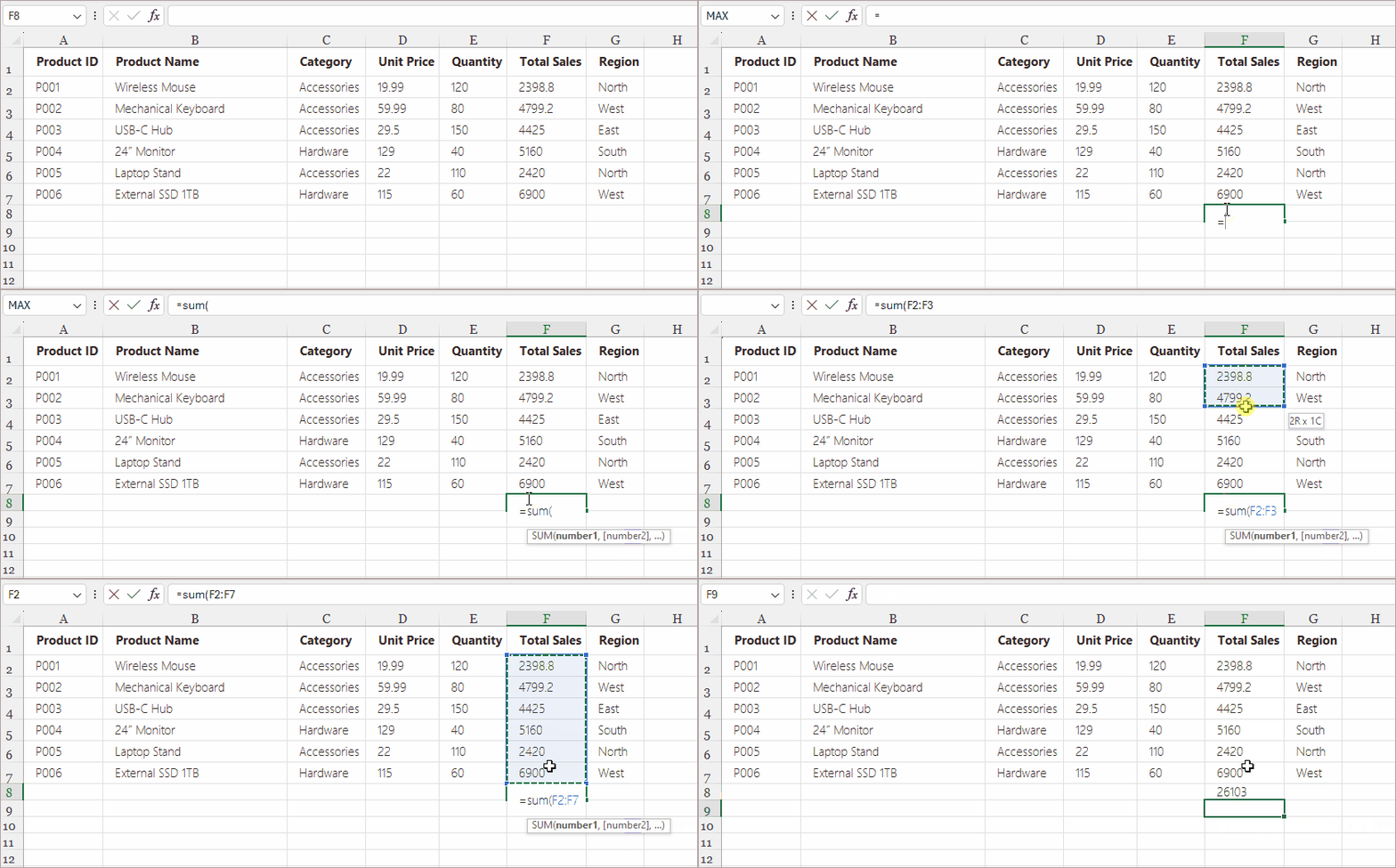
Método 1. Digite as fórmulas diretamente em uma célula (mais rápido para uso simples)
Digitar diretamente em uma célula é a maneira mais comum e direta de inserir fórmulas. É rápido, intuitivo e funciona perfeitamente para cálculos rápidos.
Passos:
- Clique na célula onde deseja que o resultado da fórmula apareça.
- Digite um sinal de igual = para iniciar a fórmula.
- Insira a fórmula—por exemplo:
- =A1+B1
- =SOMA(A1:A10)
- =A1*B1
- Pressione Enter para aplicar a fórmula.
Exemplos de casos de uso:
- Adicionar ou subtrair valores
- Calcular totais
- Realizar operações matemáticas básicas
- Usar funções simples (SOMA, MÉDIA, MÁXIMO, MÍNIMO)
Por que este método é útil:
- Extremamente rápido para tarefas simples
- Ótimo para planilhas pequenas
- Nenhuma ferramenta ou caixa de diálogo adicional necessária
No entanto, este método se torna ineficiente quando você precisa inserir fórmulas longas ou complexas que exigem uma edição mais cuidadosa.
Método 2. Insira fórmulas usando a barra de fórmulas (melhor para fórmulas longas ou complexas)
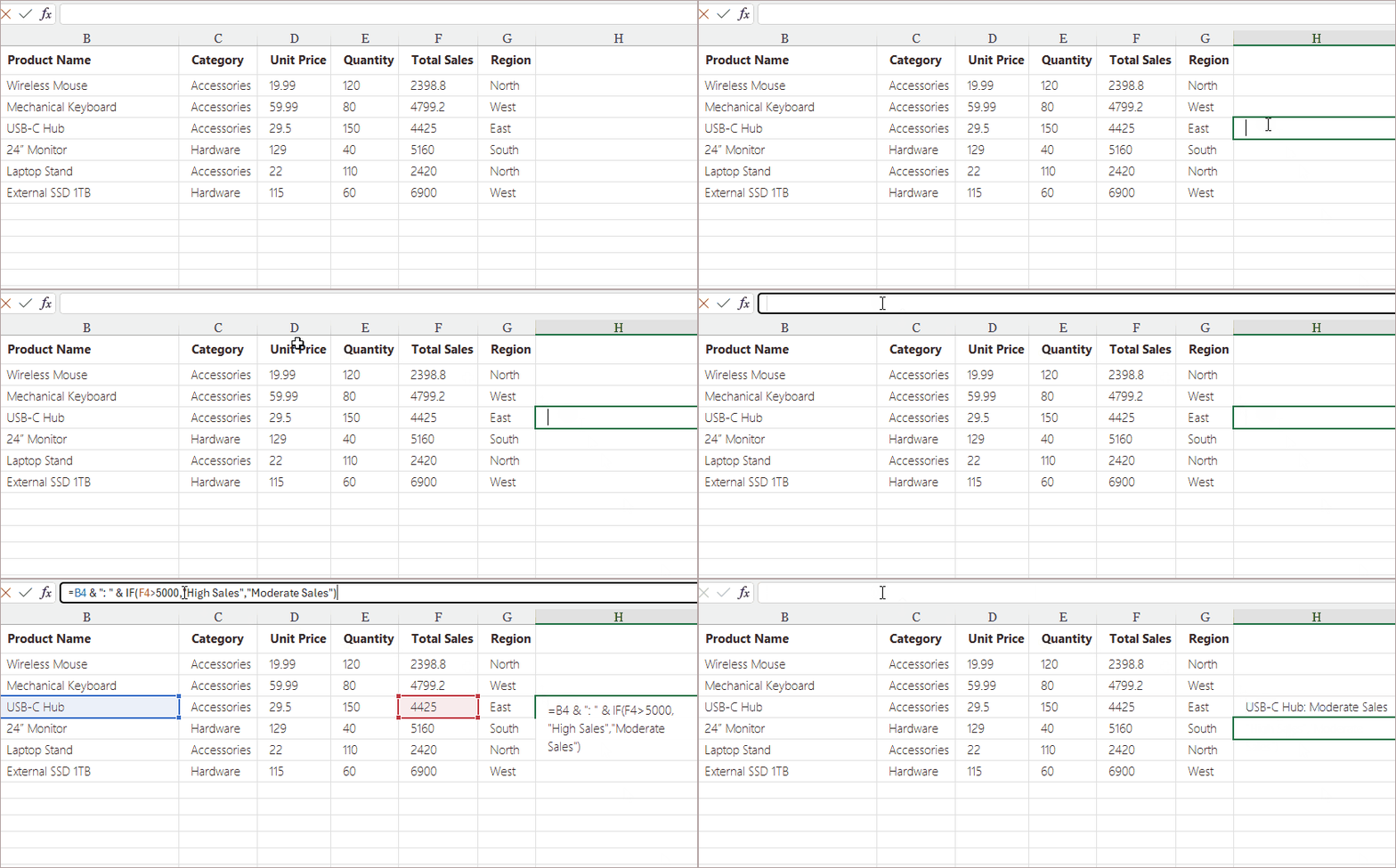
A Barra de Fórmulas oferece mais espaço e clareza, tornando-a ideal para editar fórmulas longas ou complicadas sem modificar acidentalmente o conteúdo da própria célula.
Passos:
- Selecione a célula onde sua fórmula pertence.
- Clique na Barra de Fórmulas na parte superior do Excel.
- Digite ou edite sua fórmula.
- Pressione Enter.
Exemplos de casos de uso:
- Instruções SE aninhadas
- PROCV , ÍNDICE + CORRESP, PROCX
- Fórmulas de concatenação com vários segmentos de texto
- Fórmulas lógicas de várias condições
Por que este método é útil:
- Permite a edição confortável de fórmulas longas ou de várias linhas
- Reduz alterações acidentais de células
- Ajuda a manter uma visão limpa da planilha
A Barra de Fórmulas também exibe avisos de erro de fórmula, facilitando a depuração.
Método 3. Use o botão Inserir Função (fx) (mais amigável para iniciantes)
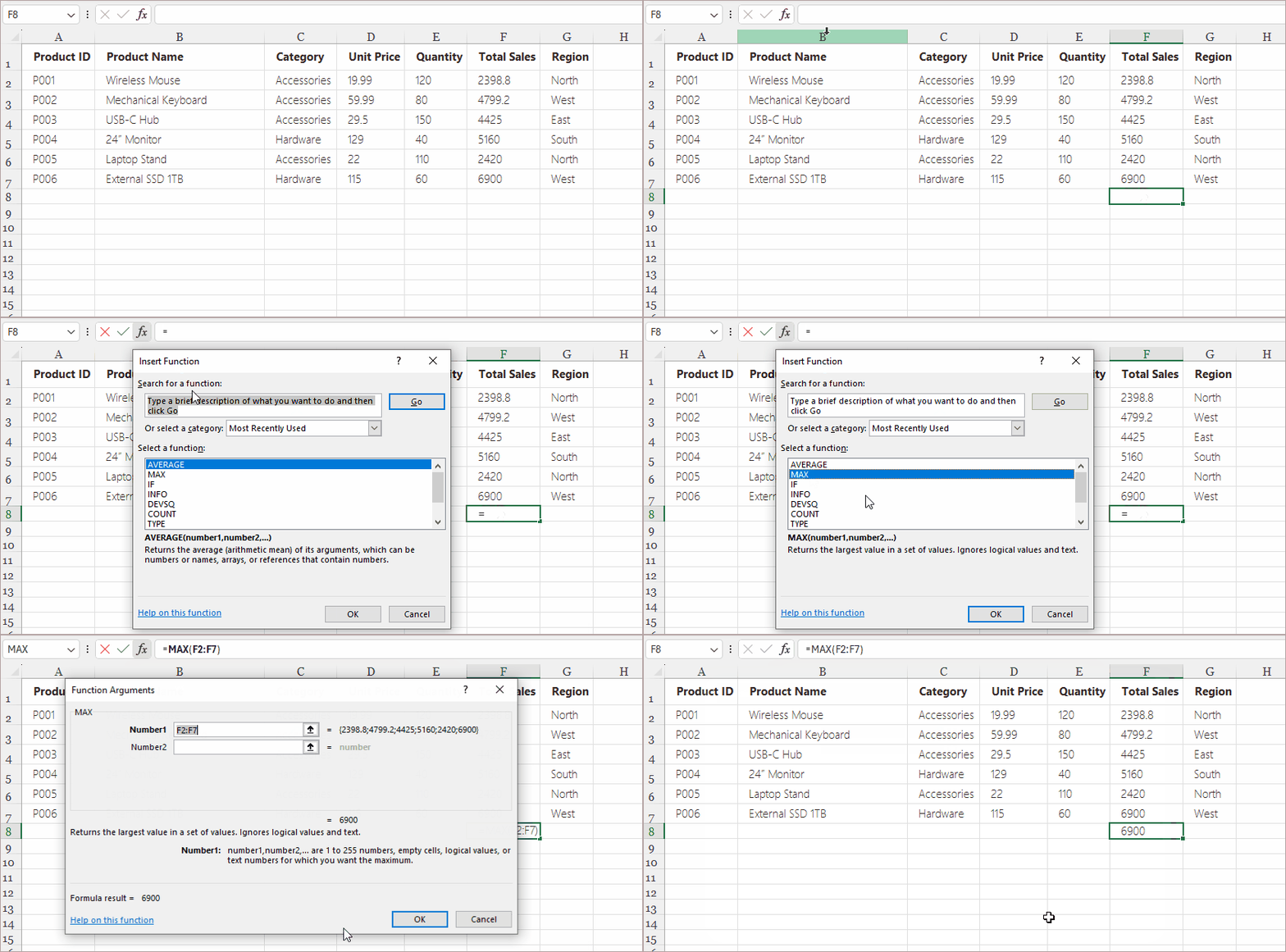
A ferramenta Inserir Função (fx) do Excel foi projetada especificamente para usuários que ainda estão aprendendo fórmulas ou preferem etapas guiadas ao construir funções mais complexas.
Passos:
- Clique na célula onde deseja o resultado da fórmula.
- Clique no botão fx à esquerda da Barra de Fórmulas.
- Escolha uma categoria de função (Matemática, Texto, Data e Hora, Lógica, Pesquisa, etc.).
- Selecione a função desejada (por exemplo, SOMASES, SE, ESQUERDA, PROCV).
- Preencha os campos de argumento na caixa de diálogo pop-up.
- Clique em OK.
Exemplos de casos de uso:
- Aprender como as funções do Excel funcionam
- Fórmulas com vários argumentos
- Cálculos financeiros, de data e estatísticos
- Qualquer coisa em que você queira que o Excel ajude a orientar a configuração da fórmula
Por que este método é útil:
- Ajuda os iniciantes a evitar erros de sintaxe
- Mostra uma descrição de cada função e exemplo de uso
- Fornece campos estruturados para inserir argumentos
Este método é mais lento do que a entrada direta, mas muito mais preciso ao trabalhar com fórmulas desconhecidas.
Método 4. Use a AutoSoma e as Funções Rápidas (extremamente eficiente)
A ferramenta AutoSoma fornece atalhos de um clique para funções comumente usadas, como:
- SOMA
- MÉDIA
- CONT.NÚM
- MÁXIMO
- MÍNIMO
Passos:
- Selecione uma célula abaixo ou ao lado de seus dados numéricos.
- Vá para Página Inicial > Edição > AutoSoma (ou escolha outra função no menu suspenso).
- O Excel destaca um intervalo sugerido automaticamente.
- Pressione Enter para aceitar.
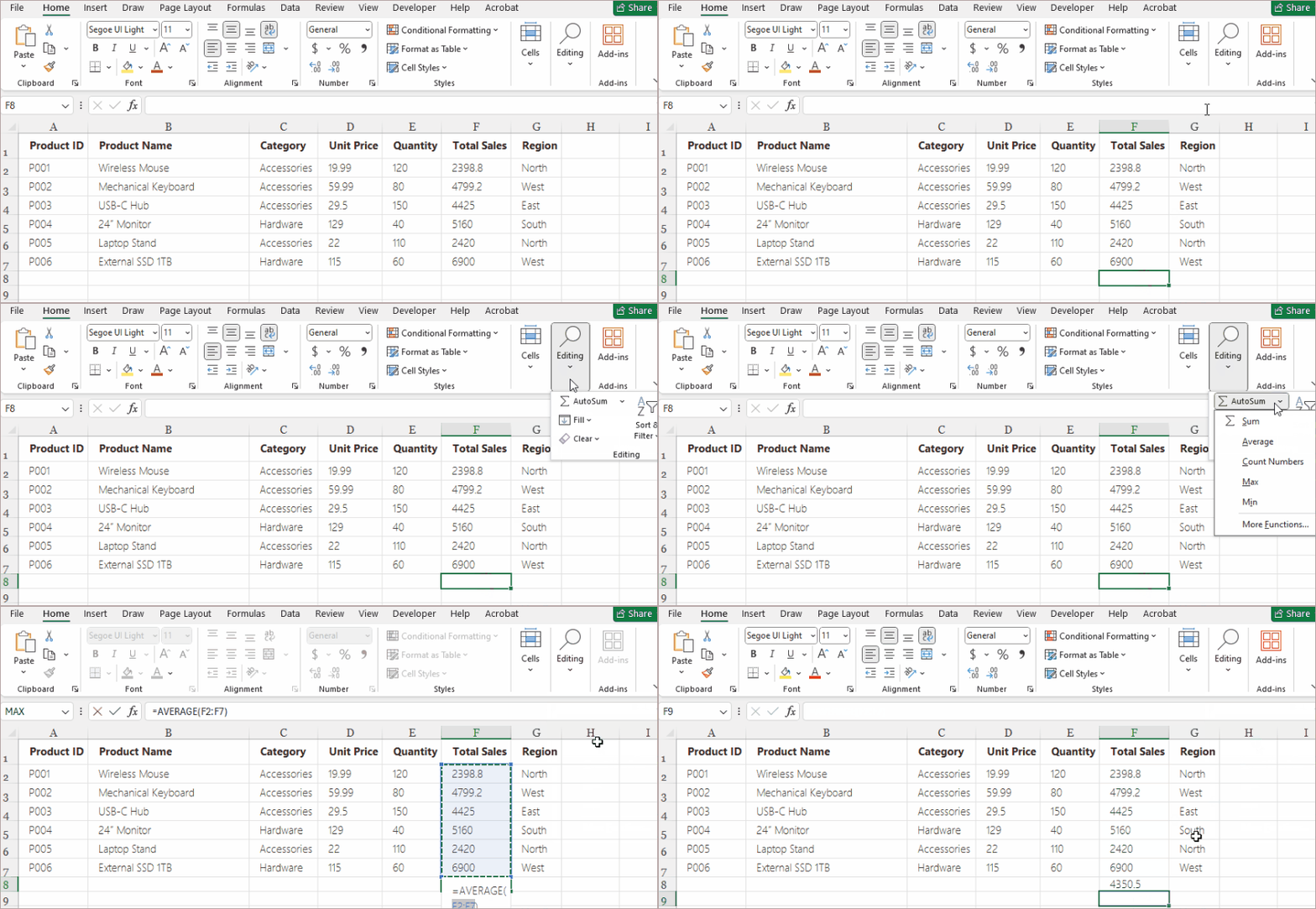
Exemplos de casos de uso:
- Somar uma coluna de dados de vendas
- Encontrar o valor mais alto ou mais baixo em um intervalo
- Calcular uma pontuação média
- Contar quantos valores numéricos aparecem em um conjunto de dados
Por que este método é útil:
- Economiza tempo — não é necessário digitar
- Perfeito para relatórios de resumo
- O Excel detecta automaticamente os intervalos de células relevantes
- Reduz erros na seleção de intervalo
Se você trabalha frequentemente com relatórios numéricos, tabelas de resumo ou arquivos de contabilidade, a AutoSoma pode acelerar drasticamente seu fluxo de trabalho.
Método 5. Insira fórmulas usando a alça de preenchimento (melhor para repetição)
Depois que uma fórmula é inserida, a Alça de Preenchimento do Excel pode copiar essa fórmula por várias linhas ou colunas, ajustando automaticamente as referências de célula.
Passos:
- Insira uma fórmula na primeira célula (por exemplo, =D2*E2).
- Passe o mouse sobre o canto inferior direito até que o cursor se transforme em uma pequena cruz preta.
- Arraste para baixo ou para os lados para preencher as células adjacentes.
- Solte o botão do mouse.
O Excel atualiza as referências automaticamente:
- D2 se torna D3
- E2 se torna E3
- E assim por diante
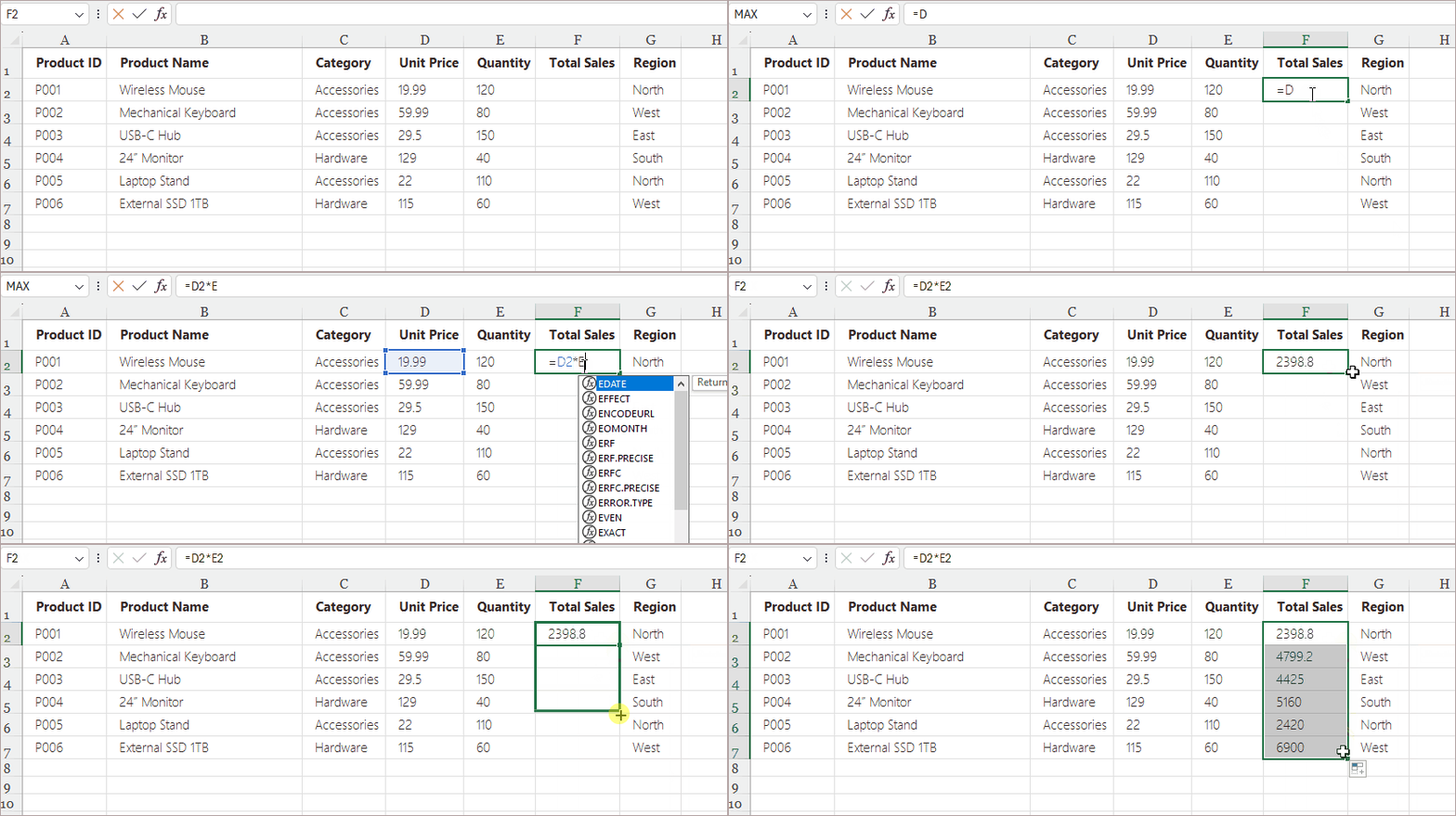
Exemplos de casos de uso:
- Calcular totais para centenas de linhas
- Aplicar a mesma lógica a um conjunto de dados inteiro
- Gerar sequências (por exemplo, =LIN(), =A1+10)
- Copiar cálculos de tempo ou data entre células
Por que este método é útil:
- Extremamente rápido para cálculos repetitivos
- Ajusta automaticamente as fórmulas com base na posição
- Reduz a necessidade de digitar manualmente as fórmulas em cada linha
Este método é essencial para entrada de dados, modelagem financeira, orçamento e qualquer planilha que envolva grandes conjuntos de dados.
Método 6. Insira fórmulas programaticamente (Python – Spire.XLS)
Para automação, processamento em lote ou geração dinâmica de arquivos do Excel, a inserção de fórmulas programaticamente é a abordagem mais escalável. Usando Python com Spire.XLS, você pode criar arquivos do Excel, inserir fórmulas e realizar cálculos automaticamente — sem abrir o Excel.
Passos:
-
Instale o Spire.XLS para Python usando pip.
pip install spire.xls -
Importe o módulo necessário para o seu script.
-
Carregue um arquivo Excel existente em um objeto Workbook.
-
Acesse a planilha onde você deseja inserir a fórmula.
-
Escreva a fórmula na célula de destino usando a propriedade Formula.
-
Salve o arquivo atualizado em uma nova pasta de trabalho do Excel.
Exemplo:
from spire.xls import *

# Create workbook and load an Excel file
workbook = Workbook()
workbook.LoadFromFile("input.xlsx")

# Get the first worksheet
sheet = workbook.Worksheets[0]

# Insert a formula
sheet.Range["F8"].Formula = "=SUM(F2:F7)"

# Save the Excel file
workbook.SaveToFile("output.xlsx", ExcelVersion.Version2016)
workbook.Dispose()
Leia mais: Adicionar ou ler fórmulas no Excel usando Python
Exemplos de casos de uso:
- Relatórios automatizados
- Fluxos de trabalho de transformação de dados
- Gerar relatórios financeiros ou de vendas para aplicativos
- Processamento em lote de milhares de arquivos do Excel
Por que este método é útil:
- Elimina o trabalho manual
- Garante consistência entre os arquivos gerados
- Integra a lógica do Excel em sistemas de software maiores
Esta é a opção mais poderosa para desenvolvedores e analistas, pois o Spire.XLS para Python não apenas insere fórmulas programaticamente, mas também cria e edita pastas de trabalho, aplica formatação, gera gráficos, converte Excel para PDF e automatiza tarefas de dados complexas.
Comparação: Qual método você deve escolher?
| Método | Melhor para | Facilidade de uso | Velocidade | Notas |
|---|---|---|---|---|
| Digitar na célula | Fórmulas rápidas/básicas | Fácil | Muito rápido | Ideal para tarefas pequenas |
| Barra de Fórmulas | Fórmulas longas ou complexas | Fácil | Médio | Oferece mais espaço de edição |
| Inserir Função (fx) | Iniciantes/funções complexas | Muito fácil | Médio | Criação de fórmula guiada |
| AutoSoma | Resumos e funções comuns | Muito fácil | Muito rápido | Totais com um clique |
| Alça de Preenchimento | Fórmulas repetidas | Fácil | Extremamente rápido | Ajusta automaticamente as referências de célula |
| Python (Spire.XLS) | Automação e tarefas em lote | Médio | Mais rápido em escala | Melhor para desenvolvedores |
Resumo
A inserção de fórmulas no Excel pode ser feita de várias maneiras simples e eficientes, dependendo do seu fluxo de trabalho. Este artigo abordou seis métodos práticos — incluindo o uso da AutoSoma, a inserção de fórmulas pela Barra de Fórmulas, a seleção de funções da Biblioteca de Funções, o uso da Alça de Preenchimento para copiar fórmulas, a digitação de fórmulas manuais e a automação da inserção de fórmulas com o Spire.XLS para Python. Cada método oferece vantagens únicas, desde cálculos rápidos até automação escalável. Ao escolher a abordagem que melhor se adapta às suas necessidades, você pode melhorar a precisão, otimizar o processamento de dados e tornar suas tarefas no Excel mais eficientes.
Perguntas frequentes sobre como inserir fórmulas no Excel
P1. Minha fórmula não está calculando e é exibida como texto. Por quê?
A célula está formatada como Texto. Altere para Geral e insira a fórmula novamente.
P2. Qual é a maneira mais rápida de aplicar uma fórmula a centenas de linhas?
Use a Alça de Preenchimento ou a automação via Python (Spire.XLS).
P3. As fórmulas do Excel podem fazer referência a outras planilhas?
Sim. Exemplo: =Planilha2!A1 + Planilha3!B5
P4. As fórmulas podem ser geradas automaticamente?
Sim. Ferramentas como o Spire.XLS para Python podem inserir fórmulas programaticamente.
Você também pode se interessar por
Excel에 수식을 삽입하는 방법: 여섯 가지 쉬운 방법
수식은 Excel의 가장 강력한 기능 중 하나입니다. 계산을 실행하고, 추세를 분석하고, 반복적인 작업을 자동화하고, 동적 보고서를 작성할 수 있습니다. 간단한 합계를 구하든, 중첩된 조건부 논리를 구축하든, 대량 스프레드시트 생성을 자동화하든, Excel은 기술 수준과 작업에 따라 각각 다른 여러 가지 방법으로 수식을 삽입할 수 있도록 지원합니다.
이 기사에서는 내장된 UI 방법부터 Python(Spire.XLS)을 사용한 자동화에 이르기까지 Excel에 수식을 삽입하는 몇 가지 쉽고 효율적인 방법을 살펴보겠습니다. 또한 사용 사례 예시, 단계별 지침 및 워크플로에 가장 적합한 방법을 결정하는 데 도움이 되는 비교표도 포함합니다.
방법 개요:
- 방법 1: 셀에 직접 수식 입력하기 (간단한 사용에 가장 빠름)
- 방법 2: 수식 입력줄을 사용하여 수식 삽입하기 (길거나 복잡한 수식에 가장 적합)
- 방법 3: 함수 삽입(fx) 버튼 사용하기 (가장 초보자 친화적)
- 방법 4: 자동 합계 및 빠른 함수 사용하기 (매우 효율적)
- 방법 5: 채우기 핸들을 사용하여 수식 삽입하기 (반복에 가장 적합)
- 방법 6: 프로그래밍 방식으로 수식 삽입하기 (Python – Spire.XLS)
다양한 방법을 배워야 하는 이유
많은 Excel 사용자는 셀에 직접 수식을 입력하는 방법만 알고 있습니다. 이 방법은 간단한 계산에는 효과적이지만, 특히 대용량 데이터 세트나 복잡한 수식을 다룰 때는 항상 가장 빠르거나 신뢰할 수 있는 방법은 아닙니다. Excel은 수식 작성을 가속화하고 정확도를 높이며 수동 오류를 방지하도록 설계된 다양한 도구와 바로 가기를 제공합니다.
또한 개발자와 데이터 분석가는 대량으로 Excel 파일을 생성하거나 업데이트하기 위한 자동화 솔루션이 필요한 경우가 많으며, 이는 Python을 사용한 스크립팅이 수동 입력보다 더 효율적으로 처리할 수 있는 작업입니다.
수식을 삽입하는 여러 가지 방법을 배우면 다음을 수행할 수 있습니다.
- 일상적인 스프레드시트를 더 효율적으로 작업
- 수동 입력으로 인한 오류 감소
- Excel의 내장 인텔리전스 활용
- 반복적인 작업 또는 대규모 Excel 처리 자동화
다음은 Excel에 수식을 삽입하는 가장 효율적인 여섯 가지 방법이며, 즉시 적용할 수 있도록 실용적인 지침을 제공합니다.
방법 1. 셀에 직접 수식 입력하기 (간단한 사용에 가장 빠름)
셀에 직접 입력하는 것은 수식을 삽입하는 가장 일반적이고 간단한 방법입니다. 빠르고 직관적이며 빠른 계산에 완벽하게 작동합니다.
단계:
- 수식 결과를 표시할 셀을 클릭합니다.
- 등호 =를 입력하여 수식을 시작합니다.
- 수식을 입력합니다—예:
- =A1+B1
- =SUM(A1:A10)
- =A1*B1
- Enter 키를 눌러 수식을 적용합니다.
사용 사례 예시:
- 값 더하기 또는 빼기
- 합계 계산
- 기본 수학 연산 수행
- 간단한 함수 사용 (SUM, AVERAGE, MAX, MIN)
이 방법이 유용한 이유:
- 간단한 작업에 매우 빠름
- 작은 스프레드시트에 적합
- 추가 도구나 대화 상자 필요 없음
그러나 더 신중한 편집이 필요한 길거나 복잡한 수식을 삽입해야 할 때 이 방법은 비효율적이 됩니다.
방법 2. 수식 입력줄을 사용하여 수식 삽입하기 (길거나 복잡한 수식에 가장 적합)
수식 입력줄은 더 많은 공간과 명확성을 제공하여 셀 내용 자체를 실수로 수정하지 않고 길거나 복잡한 수식을 편집하는 데 이상적입니다.
단계:
- 수식이 속한 셀을 선택합니다.
- Excel 상단의 수식 입력줄을 클릭합니다.
- 수식을 입력하거나 편집합니다.
- Enter 키를 누릅니다.
사용 사례 예시:
- 중첩된 IF 문
- VLOOKUP , INDEX + MATCH, XLOOKUP
- 여러 텍스트 세그먼트가 있는 연결 수식
- 다중 조건 논리 수식
이 방법이 유용한 이유:
- 길거나 여러 줄로 된 수식을 편안하게 편집할 수 있음
- 실수로 인한 셀 변경 감소
- 워크시트의 깔끔한 보기 유지에 도움
수식 입력줄에는 수식 오류 경고도 표시되어 디버깅이 더 쉬워집니다.
방법 3. 함수 삽입(fx) 버튼 사용하기 (가장 초보자 친화적)
Excel의 함수 삽입(fx) 도구는 아직 수식을 배우고 있거나 더 복잡한 함수를 만들 때 안내 단계를 선호하는 사용자를 위해 특별히 설계되었습니다.
단계:
- 수식 결과를 원하는 셀을 클릭합니다.
- 수식 입력줄 왼쪽에 있는 fx 버튼을 클릭합니다.
- 함수 범주(수학, 텍스트, 날짜 및 시간, 논리, 조회 등)를 선택합니다.
- 원하는 함수(예: SUMIFS, IF, LEFT, VLOOKUP)를 선택합니다.
- 팝업 대화 상자에서 인수 필드를 채웁니다.
- 확인을 클릭합니다.
사용 사례 예시:
- Excel 함수 작동 방식 배우기
- 여러 인수가 있는 수식
- 재무, 날짜 및 통계 계산
- Excel이 수식 설정을 안내하도록 하려는 모든 경우
이 방법이 유용한 이유:
- 초보자가 구문 오류를 피하는 데 도움
- 각 함수에 대한 설명과 사용 예시 표시
- 인수 입력을 위한 구조화된 필드 제공
이 방법은 직접 입력보다 느리지만 익숙하지 않은 수식으로 작업할 때 훨씬 더 정확합니다.
방법 4. 자동 합계 및 빠른 함수 사용하기 (매우 효율적)
자동 합계 도구는 다음과 같은 일반적으로 사용되는 함수에 대한 원클릭 바로 가기를 제공합니다.
- SUM
- AVERAGE
- COUNT
- MAX
- MIN
단계:
- 숫자 데이터 아래 또는 옆에 있는 셀을 선택합니다.
- 홈 > 편집 > 자동 합계로 이동하거나 드롭다운에서 다른 함수를 선택합니다.
- Excel이 제안된 범위를 자동으로 강조 표시합니다.
- Enter 키를 눌러 수락합니다.
사용 사례 예시:
- 판매 데이터 열 합산
- 범위에서 가장 높거나 낮은 값 찾기
- 평균 점수 계산
- 데이터 세트에 나타나는 숫자 값 수 계산
이 방법이 유용한 이유:
- 시간 절약—입력 필요 없음
- 요약 보고서에 적합
- Excel이 관련 셀 범위를 자동으로 감지
- 범위 선택 오류 감소
숫자 보고서, 요약 테이블 또는 회계 파일을 자주 사용하는 경우 자동 합계를 사용하면 워크플로 속도를 크게 높일 수 있습니다.
방법 5. 채우기 핸들을 사용하여 수식 삽입하기 (반복에 가장 적합)
수식이 입력되면 Excel의 채우기 핸들은 해당 수식을 여러 행이나 열에 복사하여 셀 참조를 자동으로 조정할 수 있습니다.
단계:
- 첫 번째 셀에 수식을 입력합니다(예: =D2*E2).
- 커서가 작은 검은색 십자 모양으로 바뀔 때까지 오른쪽 하단 모서리에 마우스를 올립니다.
- 아래 또는 옆으로 드래그하여 인접한 셀을 채웁니다.
- 마우스 버튼을 놓습니다.
Excel은 참조를 자동으로 업데이트합니다.
- D2는 D3가 됩니다
- E2는 E3가 됩니다
- 이런 식으로
사용 사례 예시:
- 수백 개 행의 합계 계산
- 전체 데이터 세트에 동일한 논리 적용
- 시퀀스 생성(예: =ROW(), =A1+10)
- 셀 간에 시간 또는 날짜 계산 복사
이 방법이 유용한 이유:
- 반복 계산에 매우 빠름
- 위치에 따라 수식을 자동으로 조정
- 각 행에 수식을 수동으로 입력할 필요성 감소
이 방법은 데이터 입력, 재무 모델링, 예산 책정 및 대용량 데이터 세트가 포함된 모든 스프레드시트에 필수적입니다.
방법 6. 프로그래밍 방식으로 수식 삽입하기 (Python – Spire.XLS)
자동화, 일괄 처리 또는 동적으로 Excel 파일을 생성하는 경우 프로그래밍 방식으로 수식을 삽입하는 것이 가장 확장 가능한 접근 방식입니다. Python과 Spire.XLS를 사용하면 Excel을 열지 않고도 Excel 파일을 만들고, 수식을 삽입하고, 계산을 자동으로 수행할 수 있습니다.
단계:
-
pip를 사용하여 Python용 Spire.XLS를 설치합니다.
pip install spire.xls -
필요한 모듈을 스크립트로 가져옵니다.
-
기존 Excel 파일을 Workbook 개체로 로드합니다.
-
수식을 삽입할 워크시트에 액세스합니다.
-
Formula 속성을 사용하여 대상 셀에 수식을 씁니다.
-
업데이트된 파일을 새 Excel 통합 문서에 저장합니다.
예시:
from spire.xls import *

# Create workbook and load an Excel file
workbook = Workbook()
workbook.LoadFromFile("input.xlsx")

# Get the first worksheet
sheet = workbook.Worksheets[0]

# Insert a formula
sheet.Range["F8"].Formula = "=SUM(F2:F7)"

# Save the Excel file
workbook.SaveToFile("output.xlsx", ExcelVersion.Version2016)
workbook.Dispose()
더 읽어보기: Python을 사용하여 Excel에서 수식 추가 또는 읽기
사용 사례 예시:
- 자동화된 보고
- 데이터 변환 워크플로
- 앱용 재무 또는 판매 보고서 생성
- 수천 개의 Excel 파일 일괄 처리
이 방법이 유용한 이유:
- 수동 작업 제거
- 생성된 파일 간의 일관성 보장
- Excel 논리를 더 큰 소프트웨어 시스템에 통합
Python용 Spire.XLS는 프로그래밍 방식으로 수식을 삽입할 뿐만 아니라 통합 문서를 만들고 편집하고, 서식을 적용하고, 차트를 생성하고, Excel을 PDF로 변환하고, 복잡한 데이터 작업을 자동화하므로 개발자와 분석가에게 가장 강력한 옵션입니다.
비교: 어떤 방법을 선택해야 할까요?
| 방법 | 최적 대상 | 사용 용이성 | 속도 | 참고 |
|---|---|---|---|---|
| 셀에 입력 | 빠른/기본 수식 | 쉬움 | 매우 빠름 | 작은 작업에 이상적 |
| 수식 입력줄 | 길거나 복잡한 수식 | 쉬움 | 중간 | 더 많은 편집 공간 제공 |
| 함수 삽입(fx) | 초보자/복잡한 함수 | 매우 쉬움 | 중간 | 안내에 따른 수식 생성 |
| 자동 합계 | 요약 및 일반 함수 | 매우 쉬움 | 매우 빠름 | 원클릭 합계 |
| 채우기 핸들 | 반복 수식 | 쉬움 | 매우 빠름 | 셀 참조 자동 조정 |
| Python (Spire.XLS) | 자동화 및 일괄 작업 | 중간 | 대규모에서 가장 빠름 | 개발자에게 최적 |
요약
Excel에 수식을 삽입하는 것은 워크플로에 따라 여러 가지 간단하고 효율적인 방법으로 수행할 수 있습니다. 이 기사에서는 자동 합계 사용, 수식 입력줄을 통한 수식 입력, 함수 라이브러리에서 함수 선택, 채우기 핸들을 사용하여 수식 복사, 수동 수식 입력, Python용 Spire.XLS를 사용한 수식 삽입 자동화 등 여섯 가지 실용적인 방법을 다루었습니다. 각 방법은 빠른 계산에서 확장 가능한 자동화에 이르기까지 고유한 이점을 제공합니다. 필요에 가장 적합한 접근 방식을 선택하면 정확도를 높이고 데이터 처리를 간소화하며 Excel 작업을 더 효율적으로 만들 수 있습니다.
Excel에 수식 삽입에 대한 FAQ
Q1. 수식이 계산되지 않고 텍스트로 표시됩니다. 왜 그런가요?
셀 서식이 텍스트로 지정되어 있습니다. 일반으로 변경하고 수식을 다시 입력하세요.
Q2. 수백 개의 행에 수식을 적용하는 가장 빠른 방법은 무엇인가요?
채우기 핸들을 사용하거나 Python(Spire.XLS)을 통해 자동화하세요.
Q3. Excel 수식이 다른 워크시트를 참조할 수 있나요?
예. 예시: =Sheet2!A1 + Sheet3!B5
Q4. 수식을 자동으로 생성할 수 있나요?
예. Python용 Spire.XLS와 같은 도구는 프로그래밍 방식으로 수식을 삽입할 수 있습니다.
관심 있을 만한 다른 문서
Come inserire formule in Excel: sei metodi semplici
Indice
- Perché è importante imparare più metodi
- Metodo 1. Digitare le formule direttamente in una cella
- Metodo 2. Inserire le formule utilizzando la barra della formula
- Metodo 3. Utilizzare il pulsante Inserisci funzione (fx)
- Metodo 4. Utilizzare la Somma automatica e le funzioni rapide
- Metodo 5. Inserire le formule utilizzando il quadratino di riempimento
- Metodo 6. Inserire le formule a livello di codice
- Confronto: quale metodo scegliere?
- Riepilogo
- Domande frequenti sull'inserimento di formule in Excel
Le formule sono una delle funzionalità più potenti di Excel. Consentono di eseguire calcoli, analizzare tendenze, automatizzare lavori ripetitivi e creare report dinamici. Che si tratti di una somma rapida, della creazione di una logica condizionale nidificata o dell'automazione della generazione di fogli di calcolo di massa, Excel offre più modi per inserire le formule — ognuno adatto a diversi livelli di abilità e compiti.
In questo articolo, esamineremo diversi modi semplici ed efficienti per inserire formule in Excel, che vanno dai metodi dell'interfaccia utente integrata all'automazione tramite Python (Spire.XLS). Includeremo anche casi d'uso di esempio, istruzioni dettagliate e una tabella di confronto per aiutarti a decidere quale metodo funziona meglio per il tuo flusso di lavoro.
Panoramica dei metodi:
- Metodo 1: Digitare le formule direttamente in una cella (il più veloce per un uso semplice)
- Metodo 2: Inserire le formule utilizzando la barra della formula (ideale per formule lunghe o complesse)
- Metodo 3: Utilizzare il pulsante Inserisci funzione (fx) (il più adatto ai principianti)
- Metodo 4: Utilizzare la Somma automatica e le funzioni rapide (estremamente efficiente)
- Metodo 5: Inserire le formule utilizzando il quadratino di riempimento (ideale per le ripetizioni)
- Metodo 6: Inserire le formule a livello di codice (Python – Spire.XLS)
Perché è importante imparare più metodi
Molti utenti di Excel sanno solo come digitare le equazioni direttamente in una cella. Sebbene funzioni per calcoli semplici, non è sempre il metodo più veloce o affidabile, specialmente quando si ha a che fare con grandi set di dati o formule complesse. Excel fornisce una varietà di strumenti e scorciatoie progettati per accelerare la creazione di formule, migliorare la precisione ed evitare errori manuali.
Inoltre, gli sviluppatori e gli analisti di dati hanno spesso bisogno di soluzioni di automazione per generare o aggiornare file Excel in blocco—qualcosa che lo scripting con Python può gestire in modo più efficiente rispetto all'inserimento manuale.
Imparando più modi per inserire le formule, puoi:
- Lavorare in modo più efficiente con i fogli di calcolo di tutti i giorni
- Ridurre gli errori causati dalla digitazione manuale
- Sfruttare l'intelligenza integrata di Excel
- Automatizzare attività ripetitive o l'elaborazione di Excel su larga scala
Di seguito sono riportati i sei metodi più efficienti per inserire formule in Excel, con una guida pratica per poterli applicare immediatamente.
Metodo 1. Digitare le formule direttamente in una cella (il più veloce per un uso semplice)
Digitare direttamente in una cella è il modo più comune e diretto per inserire le formule. È veloce, intuitivo e funziona perfettamente per calcoli rapidi.
Passaggi:
- Fai clic sulla cella in cui desideri che appaia il risultato della formula.
- Digita un segno di uguale = per iniziare la formula.
- Inserisci la formula—ad esempio:
- =A1+B1
- =SOMMA(A1:A10)
- =A1*B1
- Premi Invio per applicare la formula.
Casi d'uso di esempio:
- Aggiungere o sottrarre valori
- Calcolare i totali
- Eseguire operazioni matematiche di base
- Utilizzare funzioni semplici (SOMMA, MEDIA, MAX, MIN)
Perché questo metodo è utile:
- Estremamente veloce per compiti semplici
- Ottimo per piccoli fogli di calcolo
- Nessun strumento o finestra di dialogo aggiuntiva necessaria
Tuttavia, questo metodo diventa inefficiente quando è necessario inserire formule lunghe o complesse che richiedono una modifica più attenta.
Metodo 2. Inserire le formule utilizzando la barra della formula (ideale per formule lunghe o complesse)
La barra della formula offre più spazio e chiarezza, rendendola ideale per la modifica di formule lunghe o complicate senza modificare accidentalmente il contenuto della cella stessa.
Passaggi:
- Seleziona la cella a cui appartiene la tua formula.
- Fai clic sulla barra della formula nella parte superiore di Excel.
- Digita o modifica la tua formula.
- Premi Invio.
Casi d'uso di esempio:
- Istruzioni SE nidificate
- CERCA.VERT, INDICE + CONFRONTA, CERCA.X
- Formule di concatenazione con più segmenti di testo
- Formule logiche a più condizioni
Perché questo metodo è utile:
- Consente una comoda modifica di formule lunghe o su più righe
- Riduce le modifiche accidentali delle celle
- Aiuta a mantenere una visione pulita del foglio di lavoro
La barra della formula visualizza anche avvisi di errore della formula, semplificando il debug.
Metodo 3. Utilizzare il pulsante Inserisci funzione (fx) (il più adatto ai principianti)
Lo strumento Inserisci funzione (fx) di Excel è progettato specificamente per gli utenti che stanno ancora imparando le formule o preferiscono passaggi guidati durante la creazione di funzioni più complesse.
Passaggi:
- Fai clic sulla cella in cui desideri il risultato della formula.
- Fai clic sul pulsante fx a sinistra della barra della formula.
- Scegli una categoria di funzioni (Matematica, Testo, Data e ora, Logica, Ricerca, ecc.).
- Seleziona la funzione desiderata (ad es. SOMMA.PIÙ.SE, SE, SINISTRA, CERCA.VERT).
- Compila i campi degli argomenti nella finestra di dialogo a comparsa.
- Fai clic su OK.
Casi d'uso di esempio:
- Imparare come funzionano le funzioni di Excel
- Formule con più argomenti
- Calcoli finanziari, di data e statistici
- Qualsiasi cosa in cui desideri che Excel ti aiuti a guidare l'impostazione della formula
Perché questo metodo è utile:
- Aiuta i principianti a evitare errori di sintassi
- Mostra una descrizione di ogni funzione e un esempio di utilizzo
- Fornisce campi strutturati per l'inserimento di argomenti
Questo metodo è più lento dell'inserimento diretto ma molto più preciso quando si lavora con formule non familiari.
Metodo 4. Utilizzare la Somma automatica e le funzioni rapide (estremamente efficiente)
Lo strumento Somma automatica fornisce scorciatoie con un clic per le funzioni di uso comune come:
- SOMMA
- MEDIA
- CONTA.NUMERI
- MAX
- MIN
Passaggi:
- Seleziona una cella sotto o accanto ai tuoi dati numerici.
- Vai a Home > Modifica > Somma automatica (o scegli un'altra funzione dal menu a discesa).
- Excel evidenzia automaticamente un intervallo suggerito.
- Premi Invio per accettare.
Casi d'uso di esempio:
- Sommare una colonna di dati di vendita
- Trovare il valore più alto o più basso in un intervallo
- Calcolare un punteggio medio
- Contare quanti valori numerici compaiono in un set di dati
Perché questo metodo è utile:
- Risparmia tempo—non è necessaria alcuna digitazione
- Perfetto per i report di riepilogo
- Excel rileva automaticamente gli intervalli di celle pertinenti
- Riduce gli errori nella selezione dell'intervallo
Se lavori spesso con report numerici, tabelle di riepilogo o file di contabilità, Somma automatica può accelerare notevolmente il tuo flusso di lavoro.
Metodo 5. Inserire le formule utilizzando il quadratino di riempimento (ideale per le ripetizioni)
Una volta inserita una formula, il quadratino di riempimento di Excel può copiare quella formula su più righe o colonne, regolando automaticamente i riferimenti di cella.
Passaggi:
- Inserisci una formula nella prima cella (ad es. =D2*E2).
- Passa il mouse sopra l'angolo in basso a destra finché il cursore non si trasforma in una piccola croce nera.
- Trascina verso il basso o di lato per riempire le celle adiacenti.
- Rilascia il pulsante del mouse.
Excel aggiorna automaticamente i riferimenti:
- D2 diventa D3
- E2 diventa E3
- E così via
Casi d'uso di esempio:
- Calcolare i totali per centinaia di righe
- Applicare la stessa logica a un intero set di dati
- Generare sequenze (ad es. =RIGA(), =A1+10)
- Copiare i calcoli di ora o data tra le celle
Perché questo metodo è utile:
- Estremamente veloce per calcoli ripetitivi
- Regola automaticamente le formule in base alla posizione
- Riduce la necessità di digitare manualmente le formule in ogni riga
Questo metodo è essenziale per l'immissione di dati, la modellazione finanziaria, il budget e qualsiasi foglio di calcolo che coinvolga grandi set di dati.
Metodo 6. Inserire le formule a livello di codice (Python – Spire.XLS)
Per l'automazione, l'elaborazione batch o la generazione dinamica di file Excel, l'inserimento di formule a livello di codice è l'approccio più scalabile. Utilizzando Python con Spire.XLS, è possibile creare file Excel, inserire formule ed eseguire calcoli automaticamente—senza aprire Excel.
Passaggi:
-
Installa Spire.XLS per Python usando pip.
pip install spire.xls -
Importa il modulo richiesto nel tuo script.
-
Carica un file Excel esistente in un oggetto Workbook.
-
Accedi al foglio di lavoro in cui desideri inserire la formula.
-
Scrivi la formula nella cella di destinazione utilizzando la proprietà Formula.
-
Salva il file aggiornato in una nuova cartella di lavoro di Excel.
Esempio:
from spire.xls import *

# Create workbook and load an Excel file
workbook = Workbook()
workbook.LoadFromFile("input.xlsx")

# Get the first worksheet
sheet = workbook.Worksheets[0]

# Insert a formula
sheet.Range["F8"].Formula = "=SUM(F2:F7)"

# Save the Excel file
workbook.SaveToFile("output.xlsx", ExcelVersion.Version2016)
workbook.Dispose()
Leggi oltre: Aggiungere o leggere formule in Excel utilizzando Python
Casi d'uso di esempio:
- Reporting automatizzato
- Flussi di lavoro di trasformazione dei dati
- Generazione di report finanziari o di vendita per le app
- Elaborazione batch di migliaia di file Excel
Perché questo metodo è utile:
- Elimina il lavoro manuale
- Garantisce la coerenza tra i file generati
- Integra la logica di Excel in sistemi software più grandi
Questa è l'opzione più potente per sviluppatori e analisti, poiché Spire.XLS per Python non solo inserisce formule a livello di codice, ma crea e modifica anche cartelle di lavoro, applica la formattazione, genera grafici, converte Excel in PDF e automatizza attività complesse sui dati.
Confronto: quale metodo scegliere?
| Metodo | Ideale per | Facilità d'uso | Velocità | Note |
|---|---|---|---|---|
| Digitazione nella cella | Formule rapide/di base | Facile | Molto veloce | Ideale per piccoli compiti |
| Barra della formula | Formule lunghe o complesse | Facile | Medio | Offre più spazio di modifica |
| Inserisci funzione (fx) | Principianti/funzioni complesse | Molto facile | Medio | Creazione guidata di formule |
| Somma automatica | Riepiloghi & funzioni comuni | Molto facile | Molto veloce | Totali con un clic |
| Quadratino di riempimento | Formule ripetute | Facile | Estremamente veloce | Regola automaticamente i riferimenti di cella |
| Python (Spire.XLS) | Automazione & attività batch | Medio | Il più veloce su larga scala | Ideale per gli sviluppatori |
Riepilogo
L'inserimento di formule in Excel può essere eseguito in più modi semplici ed efficienti, a seconda del flusso di lavoro. Questo articolo ha trattato sei metodi pratici — tra cui l'utilizzo della Somma automatica, l'inserimento di formule tramite la barra della formula, la selezione di funzioni dalla libreria delle funzioni, l'utilizzo del quadratino di riempimento per copiare le formule, la digitazione di formule manuali e l'automazione dell'inserimento di formule con Spire.XLS per Python. Ogni metodo offre vantaggi unici, dai calcoli rapidi all'automazione scalabile. Scegliendo l'approccio che meglio si adatta alle tue esigenze, puoi migliorare la precisione, semplificare l'elaborazione dei dati e rendere più efficienti le tue attività in Excel.
Domande frequenti sull'inserimento di formule in Excel
D1. La mia formula non viene calcolata e viene visualizzata come testo. Perché?
La cella è formattata come Testo. Cambiala in Generale e reinserisci la formula.
D2. Qual è il modo più veloce per applicare una formula a centinaia di righe?
Utilizza il quadratino di riempimento o l'automazione tramite Python (Spire.XLS).
D3. Le formule di Excel possono fare riferimento ad altri fogli di lavoro?
Sì. Esempio: =Foglio2!A1 + Foglio3!B5
D4. Le formule possono essere generate automaticamente?
Sì. Strumenti come Spire.XLS per Python possono inserire formule a livello di codice.
Potrebbe interessarti anche
Comment insérer des formules dans Excel : Six méthodes simples
Table des matières
- Pourquoi il est important d'apprendre plusieurs méthodes
- Méthode 1. Saisir les formules directement dans une cellule
- Méthode 2. Insérer des formules à l'aide de la barre de formule
- Méthode 3. Utiliser le bouton Insérer une fonction (fx)
- Méthode 4. Utiliser la somme automatique et les fonctions rapides
- Méthode 5. Insérer des formules à l'aide de la poignée de recopie
- Méthode 6. Insérer des formules par programmation
- Comparaison : Quelle méthode choisir ?
- Résumé
- FAQ sur l'insertion de formules dans Excel
Les formules sont l'une des fonctionnalités les plus puissantes d'Excel. Elles vous permettent d'effectuer des calculs, d'analyser des tendances, d'automatiser des tâches répétitives et de créer des rapports dynamiques. Que vous fassiez une somme rapide, construisiez une logique conditionnelle imbriquée ou automatisiez la génération de feuilles de calcul en masse, Excel vous offre plusieurs façons d'insérer des formules — chacune adaptée à différents niveaux de compétence et de tâches.
Dans cet article, nous passerons en revue plusieurs méthodes simples et efficaces pour insérer des formules dans Excel, allant des méthodes d'interface utilisateur intégrées à l'automatisation à l'aide de Python (Spire.XLS). Nous inclurons également des exemples de cas d'utilisation, des instructions étape par étape et un tableau comparatif pour vous aider à décider quelle méthode convient le mieux à votre flux de travail.
Aperçu des méthodes :
- Méthode 1 : Saisir les formules directement dans une cellule (la plus rapide pour une utilisation simple)
- Méthode 2 : Insérer des formules à l'aide de la barre de formule (idéale pour les formules longues ou complexes)
- Méthode 3 : Utiliser le bouton Insérer une fonction (fx) (la plus conviviale pour les débutants)
- Méthode 4 : Utiliser la somme automatique et les fonctions rapides (extrêmement efficace)
- Méthode 5 : Insérer des formules à l'aide de la poignée de recopie (idéale pour la répétition)
- Méthode 6 : Insérer des formules par programmation (Python – Spire.XLS)
Pourquoi il est important d'apprendre plusieurs méthodes
De nombreux utilisateurs d'Excel ne savent que saisir des équations directement dans une cellule. Bien que cela fonctionne pour des calculs simples, ce n'est pas toujours la méthode la plus rapide ou la plus fiable, surtout lorsqu'il s'agit de grands ensembles de données ou de formules complexes. Excel fournit une variété d'outils et de raccourcis conçus pour accélérer la création de formules, améliorer la précision et éviter les erreurs manuelles.
De plus, les développeurs et les analystes de données ont souvent besoin de solutions d'automatisation pour générer ou mettre à jour des fichiers Excel en masse, ce que les scripts avec Python peuvent gérer plus efficacement que la saisie manuelle.
En apprenant plusieurs façons d'insérer des formules, vous pouvez :
- Travailler plus efficacement avec les feuilles de calcul quotidiennes
- Réduire les erreurs causées par la saisie manuelle
- Profiter de l'intelligence intégrée d'Excel
- Automatiser les tâches répétitives ou le traitement Excel à grande échelle
Vous trouverez ci-dessous les six méthodes les plus efficaces pour insérer des formules dans Excel, avec des conseils pratiques pour que vous puissiez les appliquer immédiatement.
Méthode 1. Saisir les formules directement dans une cellule (la plus rapide pour une utilisation simple)
La saisie directe dans une cellule est la manière la plus courante et la plus simple d'insérer des formules. C'est rapide, intuitif et fonctionne parfaitement pour les calculs rapides.
Étapes :
- Cliquez sur la cellule où vous souhaitez que le résultat de la formule apparaisse.
- Tapez un signe égal = pour commencer la formule.
- Saisissez la formule—par exemple :
- =A1+B1
- =SOMME(A1:A10)
- =A1*B1
- Appuyez sur Entrée pour appliquer la formule.
Exemples de cas d'utilisation :
- Additionner ou soustraire des valeurs
- Calculer des totaux
- Effectuer des opérations mathématiques de base
- Utiliser des fonctions simples (SOMME, MOYENNE, MAX, MIN)
Pourquoi cette méthode est utile :
- Extrêmement rapide pour les tâches simples
- Idéale pour les petites feuilles de calcul
- Aucun outil ou dialogue supplémentaire n'est nécessaire
Cependant, cette méthode devient inefficace lorsque vous devez insérer des formules longues ou complexes qui nécessitent une édition plus minutieuse.
Méthode 2. Insérer des formules à l'aide de la barre de formule (idéale pour les formules longues ou complexes)
La barre de formule offre plus d'espace et de clarté, ce qui la rend idéale pour modifier des formules longues ou compliquées sans modifier accidentellement le contenu de la cellule elle-même.
Étapes :
- Sélectionnez la cellule où votre formule doit être placée.
- Cliquez sur la barre de formule en haut d'Excel.
- Saisissez ou modifiez votre formule.
- Appuyez sur Entrée.
Exemples de cas d'utilisation :
- Instructions SI imbriquées
- RECHERCHEV , INDEX + EQUIV, RECHERCHEX
- Formules de concaténation avec plusieurs segments de texte
- Formules logiques à plusieurs conditions
Pourquoi cette méthode est utile :
- Permet une édition confortable des formules longues ou sur plusieurs lignes
- Réduit les modifications accidentelles de cellules
- Aide à maintenir une vue claire de la feuille de calcul
La barre de formule affiche également des avertissements d'erreur de formule, ce qui facilite le débogage.
Méthode 3. Utiliser le bouton Insérer une fonction (fx) (la plus conviviale pour les débutants)
L'outil Insérer une Fonction (fx) d'Excel est spécialement conçu pour les utilisateurs qui apprennent encore les formules ou qui préfèrent des étapes guidées pour créer des fonctions plus complexes.
Étapes :
- Cliquez sur la cellule où vous souhaitez le résultat de la formule.
- Cliquez sur le bouton fx à gauche de la barre de formule.
- Choisissez une catégorie de fonction (Math, Texte, Date & Heure, Logique, Recherche, etc.).
- Sélectionnez la fonction souhaitée (par ex., SOMME.SI.ENS, SI, GAUCHE, RECHERCHEV).
- Remplissez les champs d'arguments dans la boîte de dialogue contextuelle.
- Cliquez sur OK.
Exemples de cas d'utilisation :
- Apprendre le fonctionnement des fonctions Excel
- Formules avec plusieurs arguments
- Calculs financiers, de date et statistiques
- Tout ce pour quoi vous voulez qu'Excel vous aide à configurer la formule
Pourquoi cette méthode est utile :
- Aide les débutants à éviter les erreurs de syntaxe
- Affiche une description de chaque fonction et un exemple d'utilisation
- Fournit des champs structurés pour la saisie des arguments
Cette méthode est plus lente que la saisie directe mais beaucoup plus précise lorsque vous travaillez avec des formules inconnues.
Méthode 4. Utiliser la somme automatique et les fonctions rapides (extrêmement efficace)
L'outil Somme automatique fournit des raccourcis en un clic pour les fonctions couramment utilisées telles que :
- SOMME
- MOYENNE
- NB
- MAX
- MIN
Étapes :
- Sélectionnez une cellule en dessous ou à côté de vos données numériques.
- Allez dans Accueil > Édition > Somme automatique (ou choisissez une autre fonction dans le menu déroulant).
- Excel surligne automatiquement une plage suggérée.
- Appuyez sur Entrée pour accepter.
Exemples de cas d'utilisation :
- Sommer une colonne de données de ventes
- Trouver la valeur la plus élevée ou la plus basse dans une plage
- Calculer un score moyen
- Compter le nombre de valeurs numériques dans un ensemble de données
Pourquoi cette méthode est utile :
- Gain de temps — aucune saisie nécessaire
- Parfait pour les rapports de synthèse
- Excel détecte automatiquement les plages de cellules pertinentes
- Réduit les erreurs de sélection de plage
Si vous travaillez fréquemment avec des rapports numériques, des tableaux récapitulatifs ou des fichiers comptables, la Somme automatique peut accélérer considérablement votre flux de travail.
Méthode 5. Insérer des formules à l'aide de la poignée de recopie (idéale pour la répétition)
Une fois qu'une formule est saisie, la poignée de recopie d'Excel peut copier cette formule sur plusieurs lignes ou colonnes, en ajustant automatiquement les références de cellule.
Étapes :
- Saisissez une formule dans la première cellule (par ex., =D2*E2).
- Passez la souris sur le coin inférieur droit jusqu'à ce que le curseur se transforme en une petite croix noire.
- Faites glisser vers le bas ou sur le côté pour remplir les cellules adjacentes.
- Relâchez le bouton de la souris.
Excel met à jour les références automatiquement :
- D2 devient D3
- E2 devient E3
- Et ainsi de suite
Exemples de cas d'utilisation :
- Calculer des totaux pour des centaines de lignes
- Appliquer la même logique à un ensemble de données entier
- Générer des séquences (par ex., =LIGNE(), =A1+10)
- Copier des calculs de temps ou de date sur plusieurs cellules
Pourquoi cette méthode est utile :
- Extrêmement rapide pour les calculs répétitifs
- Ajuste automatiquement les formules en fonction de la position
- Réduit le besoin de saisir manuellement les formules dans chaque ligne
Cette méthode est essentielle pour la saisie de données, la modélisation financière, la budgétisation et toute feuille de calcul impliquant de grands ensembles de données.
Méthode 6. Insérer des formules par programmation (Python – Spire.XLS)
Pour l'automatisation, le traitement par lots ou la génération dynamique de fichiers Excel, l'insertion de formules par programmation est l'approche la plus évolutive. En utilisant Python avec Spire.XLS, vous pouvez créer des fichiers Excel, insérer des formules et effectuer des calculs automatiquement, sans ouvrir Excel.
Étapes :
-
Installez Spire.XLS for Python à l'aide de pip.
pip install spire.xls -
Importez le module requis dans votre script.
-
Chargez un fichier Excel existant dans un objet Workbook.
-
Accédez à la feuille de calcul où vous souhaitez insérer la formule.
-
Écrivez la formule dans la cellule cible à l'aide de la propriété Formula.
-
Enregistrez le fichier mis à jour dans un nouveau classeur Excel.
Exemple :
from spire.xls import *

# Create workbook and load an Excel file
workbook = Workbook()
workbook.LoadFromFile("input.xlsx")

# Get the first worksheet
sheet = workbook.Worksheets[0]

# Insert a formula
sheet.Range["F8"].Formula = "=SUM(F2:F7)"

# Save the Excel file
workbook.SaveToFile("output.xlsx", ExcelVersion.Version2016)
workbook.Dispose()
Lire la suite : Ajouter ou lire des formules dans Excel en utilisant Python
Exemples de cas d'utilisation :
- Rapports automatisés
- Flux de travail de transformation de données
- Génération de rapports financiers ou de ventes pour les applications
- Traitement par lots de milliers de fichiers Excel
Pourquoi cette méthode est utile :
- Élimine le travail manuel
- Assure la cohérence entre les fichiers générés
- Intègre la logique Excel dans des systèmes logiciels plus vastes
C'est l'option la plus puissante pour les développeurs et les analystes, car Spire.XLS for Python non seulement insère des formules par programmation, mais crée et modifie également des classeurs, applique une mise en forme, génère des graphiques, convertit Excel en PDF et automatise des tâches de données complexes.
Comparaison : Quelle méthode choisir ?
| Méthode | Idéal pour | Facilité d'utilisation | Vitesse | Remarques |
|---|---|---|---|---|
| Saisie dans la cellule | Formules rapides/de base | Facile | Très rapide | Idéal pour les petites tâches |
| Barre de formule | Formules longues ou complexes | Facile | Moyenne | Offre plus d'espace d'édition |
| Insérer une fonction (fx) | Débutants/fonctions complexes | Très facile | Moyenne | Création de formule guidée |
| Somme automatique | Résumés & fonctions courantes | Très facile | Très rapide | Totaux en un clic |
| Poignée de recopie | Formules répétées | Facile | Extrêmement rapide | Ajuste automatiquement les références de cellule |
| Python (Spire.XLS) | Automatisation & tâches par lots | Moyenne | Le plus rapide à grande échelle | Idéal pour les développeurs |
Résumé
L'insertion de formules dans Excel peut se faire de plusieurs manières simples et efficaces, en fonction de votre flux de travail. Cet article a couvert six méthodes pratiques, notamment l'utilisation de la Somme automatique, la saisie de formules via la barre de formule, la sélection de fonctions dans la bibliothèque de fonctions, l'utilisation de la poignée de recopie pour copier des formules, la saisie manuelle de formules, et l'automatisation de l'insertion de formules avec Spire.XLS for Python. Chaque méthode offre des avantages uniques, des calculs rapides à l'automatisation évolutive. En choisissant l'approche qui correspond le mieux à vos besoins, vous pouvez améliorer la précision, rationaliser le traitement des données et rendre vos tâches Excel plus efficaces.
FAQ sur l'insertion de formules dans Excel
Q1. Ma formule ne se calcule pas et s'affiche sous forme de texte. Pourquoi ?
La cellule est formatée en tant que Texte. Changez-la en Général et saisissez à nouveau la formule.
Q2. Quelle est la manière la plus rapide d'appliquer une formule à des centaines de lignes ?
Utilisez la poignée de recopie ou l'automatisation via Python (Spire.XLS).
Q3. Les formules Excel peuvent-elles faire référence à d'autres feuilles de calcul ?
Oui. Exemple : =Feuil2!A1 + Feuil3!B5
Q4. Les formules peuvent-elles être générées automatiquement ?
Oui. Des outils comme Spire.XLS for Python peuvent insérer des formules par programmation.
Vous pourriez également être intéressé par
Cómo insertar fórmulas en Excel: seis métodos sencillos
Tabla de Contenidos
- Por Qué Es Importante Aprender Múltiples Métodos
- Método 1. Escribir Fórmulas Directamente en una Celda
- Método 2. Insertar Fórmulas Usando la Barra de Fórmulas
- Método 3. Usar el Botón Insertar Función (fx)
- Método 4. Usar Autosuma y Funciones Rápidas
- Método 5. Insertar Fórmulas Usando el Controlador de Relleno
- Método 6. Insertar Fórmulas Programáticamente
- Comparación: ¿Qué Método Deberías Elegir?
- Resumen
- Preguntas Frecuentes Sobre la Inserción de Fórmulas en Excel
Las fórmulas son una de las características más potentes de Excel. Te permiten realizar cálculos, analizar tendencias, automatizar trabajos repetitivos y crear informes dinámicos. Ya sea que estés haciendo una suma rápida, construyendo una lógica condicional anidada o automatizando la generación masiva de hojas de cálculo, Excel te ofrece múltiples formas de insertar fórmulas, cada una adaptada a diferentes niveles de habilidad y tareas.
En este artículo, recorreremos varias formas fáciles y eficientes de insertar fórmulas en Excel, desde métodos de interfaz de usuario integrados hasta la automatización usando Python (Spire.XLS). También incluiremos casos de uso de ejemplo, instrucciones paso a paso y una tabla comparativa para ayudarte a decidir qué método funciona mejor para tu flujo de trabajo.
Resumen de métodos:
- Método 1: Escribir Fórmulas Directamente en una Celda (El más rápido para uso simple)
- Método 2: Insertar Fórmulas Usando la Barra de Fórmulas (El mejor para fórmulas largas o complejas)
- Método 3: Usar el Botón Insertar Función (fx) (El más amigable para principiantes)
- Método 4: Usar Autosuma y Funciones Rápidas (Extremadamente eficiente)
- Método 5: Insertar Fórmulas Usando el Controlador de Relleno (El mejor para repetición)
- Método 6: Insertar Fórmulas Programáticamente (Python – Spire.XLS)
Por Qué Es Importante Aprender Múltiples Métodos
Muchos usuarios de Excel solo saben cómo escribir ecuaciones directamente en una celda. Aunque eso funciona para cálculos simples, no siempre es el método más rápido o fiable, especialmente cuando se trata de grandes conjuntos de datos o fórmulas complejas. Excel proporciona una variedad de herramientas y atajos diseñados para acelerar la creación de fórmulas, mejorar la precisión y evitar errores manuales.
Además, los desarrolladores y analistas de datos a menudo necesitan soluciones de automatización para generar o actualizar archivos de Excel en masa, algo que los scripts con Python pueden manejar de manera más eficiente que la entrada manual.
Al aprender múltiples formas de insertar fórmulas, puedes:
- Trabajar de manera más eficiente con las hojas de cálculo del día a día
- Reducir los errores causados por la escritura manual
- Aprovechar la inteligencia integrada de Excel
- Automatizar tareas repetitivas o el procesamiento de Excel a gran escala
A continuación se presentan los seis métodos más eficientes para insertar fórmulas en Excel, con orientación práctica para que puedas aplicarlos de inmediato.
Método 1. Escribir Fórmulas Directamente en una Celda (El más rápido para uso simple)
Escribir directamente en una celda es la forma más común y directa de insertar fórmulas. Es rápido, intuitivo y funciona perfectamente para cálculos rápidos.
Pasos:
- Haz clic en la celda donde quieres que aparezca el resultado de la fórmula.
- Escribe un signo de igual = para comenzar la fórmula.
- Introduce la fórmula—por ejemplo:
- =A1+B1
- =SUMA(A1:A10)
- =A1*B1
- Presiona Enter para aplicar la fórmula.
Casos de Uso de Ejemplo:
- Sumar o restar valores
- Calcular totales
- Realizar operaciones matemáticas básicas
- Usar funciones simples (SUMA, PROMEDIO, MAX, MIN)
Por qué este método es útil:
- Extremadamente rápido para tareas simples
- Ideal para hojas de cálculo pequeñas
- No se necesitan herramientas ni diálogos adicionales
Sin embargo, este método se vuelve ineficiente cuando necesitas insertar fórmulas largas o complejas que requieren una edición más cuidadosa.
Método 2. Insertar Fórmulas Usando la Barra de Fórmulas (El mejor para fórmulas largas o complejas)
La Barra de Fórmulas proporciona más espacio y claridad, lo que la hace ideal para editar fórmulas largas o complicadas sin modificar accidentalmente el contenido de la celda.
Pasos:
- Selecciona la celda donde pertenece tu fórmula.
- Haz clic en la Barra de Fórmulas en la parte superior de Excel.
- Escribe o edita tu fórmula.
- Presiona Enter .
Casos de Uso de Ejemplo:
- Declaraciones SI anidadas
- BUSCARV , INDICE + COINCIDIR, BUSCARX
- Fórmulas de concatenación con múltiples segmentos de texto
- Fórmulas lógicas de múltiples condiciones
Por qué este método es útil:
- Permite la edición cómoda de fórmulas largas o de varias líneas
- Reduce los cambios accidentales en las celdas
- Ayuda a mantener una vista limpia de la hoja de trabajo
La Barra de Fórmulas también muestra advertencias de error de fórmula, facilitando la depuración.
Método 3. Usar el Botón Insertar Función (fx) (El más amigable para principiantes)
La herramienta Insertar Función (fx) de Excel está diseñada específicamente para usuarios que todavía están aprendiendo fórmulas o prefieren pasos guiados al construir funciones más complejas.
Pasos:
- Haz clic en la celda donde quieres el resultado de la fórmula.
- Haz clic en el botón fx a la izquierda de la Barra de Fórmulas.
- Elige una categoría de función (Matemáticas, Texto, Fecha y Hora, Lógica, Búsqueda, etc.).
- Selecciona la función deseada (p. ej., SUMAR.SI.CONJUNTO , SI , IZQUIERDA , BUSCARV ).
- Rellena los campos de argumentos en el diálogo emergente.
- Haz clic en Aceptar .
Casos de Uso de Ejemplo:
- Aprender cómo funcionan las funciones de Excel
- Fórmulas con múltiples argumentos
- Cálculos financieros, de fecha y estadísticos
- Cualquier cosa donde quieras que Excel te ayude a guiar la configuración de la fórmula
Por qué este método es útil:
- Ayuda a los principiantes a evitar errores de sintaxis
- Muestra una descripción de cada función y un ejemplo de uso
- Proporciona campos estructurados para introducir argumentos
Este método es más lento que la entrada directa pero mucho más preciso cuando se trabaja con fórmulas desconocidas.
Método 4. Usar Autosuma y Funciones Rápidas (Extremadamente eficiente)
La herramienta Autosuma proporciona atajos de un solo clic para funciones de uso común como:
- SUMA
- PROMEDIO
- CONTAR
- MAX
- MIN
Pasos:
- Selecciona una celda debajo o al lado de tus datos numéricos.
- Ve a Inicio > Edición > Autosuma (o elige otra función del menú desplegable).
- Excel resalta un rango sugerido automáticamente.
- Presiona Enter para aceptar.
Casos de Uso de Ejemplo:
- Sumar una columna de datos de ventas
- Encontrar el valor más alto o más bajo en un rango
- Calcular una puntuación promedio
- Contar cuántos valores numéricos aparecen en un conjunto de datos
Por qué este método es útil:
- Ahorra tiempo, no es necesario escribir
- Perfecto para informes de resumen
- Excel detecta automáticamente los rangos de celdas relevantes
- Reduce errores en la selección del rango
Si trabajas frecuentemente con informes numéricos, tablas de resumen o archivos de contabilidad, Autosuma puede acelerar tu flujo de trabajo drásticamente.
Método 5. Insertar Fórmulas Usando el Controlador de Relleno (El mejor para repetición)
Una vez que se introduce una fórmula, el Controlador de Relleno de Excel puede copiar esa fórmula a través de múltiples filas o columnas, ajustando automáticamente las referencias de celda.
Pasos:
- Introduce una fórmula en la primera celda (p. ej., =D2*E2).
- Pasa el cursor sobre la esquina inferior derecha hasta que se convierta en una pequeña cruz negra.
- Arrastra hacia abajo o hacia los lados para rellenar las celdas adyacentes.
- Suelta el botón del ratón.
Excel actualiza las referencias automáticamente:
- D2 se convierte en D3
- E2 se convierte en E3
- Y así sucesivamente
Casos de Uso de Ejemplo:
- Calcular totales para cientos de filas
- Aplicar la misma lógica a todo un conjunto de datos
- Generar secuencias (p. ej., =FILA(), =A1+10)
- Copiar cálculos de tiempo o fecha a través de las celdas
Por qué este método es útil:
- Extremadamente rápido para cálculos repetitivos
- Ajusta automáticamente las fórmulas según la posición
- Reduce la necesidad de escribir fórmulas manualmente en cada fila
Este método es esencial para la entrada de datos, el modelado financiero, la presupuestación y cualquier hoja de cálculo que involucre grandes conjuntos de datos.
Método 6. Insertar Fórmulas Programáticamente (Python – Spire.XLS)
Para la automatización, el procesamiento por lotes o la generación dinámica de archivos de Excel, insertar fórmulas programáticamente es el enfoque más escalable. Usando Python con Spire.XLS , puedes crear archivos de Excel, insertar fórmulas y realizar cálculos automáticamente—sin abrir Excel.
Pasos:
-
Instala Spire.XLS para Python usando pip.
pip install spire.xls -
Importa el módulo requerido en tu script.
-
Carga un archivo de Excel existente en un objeto Workbook.
-
Accede a la hoja de trabajo donde quieres insertar la fórmula.
-
Escribe la fórmula en la celda de destino usando la propiedad Formula.
-
Guarda el archivo actualizado en un nuevo libro de Excel.
Ejemplo:
from spire.xls import *

# Create workbook and load an Excel file
workbook = Workbook()
workbook.LoadFromFile("input.xlsx")

# Get the first worksheet
sheet = workbook.Worksheets[0]

# Insert a formula
sheet.Range["F8"].Formula = "=SUM(F2:F7)"

# Save the Excel file
workbook.SaveToFile("output.xlsx", ExcelVersion.Version2016)
workbook.Dispose()
Leer más: Añadir o Leer Fórmulas en Excel Usando Python
Casos de Uso de Ejemplo:
- Informes automatizados
- Flujos de trabajo de transformación de datos
- Generación de informes financieros o de ventas para aplicaciones
- Procesamiento por lotes de miles de archivos de Excel
Por qué este método es útil:
- Elimina el trabajo manual
- Asegura la consistencia en los archivos generados
- Integra la lógica de Excel en sistemas de software más grandes
Esta es la opción más potente para desarrolladores y analistas, ya que Spire.XLS para Python no solo inserta fórmulas programáticamente, sino que también crea y edita libros de trabajo, aplica formato, genera gráficos, convierte Excel a PDF, y automatiza tareas de datos complejas.
Comparación: ¿Qué Método Deberías Elegir?
| Método | Ideal para | Facilidad de Uso | Velocidad | Notas |
|---|---|---|---|---|
| Escribir en Celda | Fórmulas rápidas/básicas | Fácil | Muy rápido | Ideal para tareas pequeñas |
| Barra de Fórmulas | Fórmulas largas o complejas | Fácil | Medio | Ofrece más espacio de edición |
| Insertar Función (fx) | Principiantes/funciones complejas | Muy fácil | Medio | Creación de fórmulas guiada |
| Autosuma | Resúmenes y funciones comunes | Muy fácil | Muy rápido | Totales con un solo clic |
| Controlador de Relleno | Fórmulas repetidas | Fácil | Extremadamente rápido | Ajusta automáticamente las referencias de celda |
| Python (Spire.XLS) | Automatización y tareas por lotes | Medio | El más rápido a escala | Ideal para desarrolladores |
Resumen
La inserción de fórmulas en Excel se puede hacer de múltiples maneras simples y eficientes, dependiendo de tu flujo de trabajo. Este artículo cubrió seis métodos prácticos, incluyendo el uso de Autosuma, la introducción de fórmulas a través de la Barra de Fórmulas, la selección de funciones de la Biblioteca de Funciones, el uso del Controlador de Relleno para copiar fórmulas, la escritura manual de fórmulas y la automatización de la inserción de fórmulas con Spire.XLS para Python . Cada método ofrece ventajas únicas, desde cálculos rápidos hasta automatización escalable. Al elegir el enfoque que mejor se adapte a tus necesidades, puedes mejorar la precisión, agilizar el procesamiento de datos y hacer que tus tareas de Excel sean más eficientes.
Preguntas Frecuentes Sobre la Inserción de Fórmulas en Excel
P1. Mi fórmula no se calcula y se muestra como texto. ¿Por qué?
La celda está formateada como Texto. Cámbiala a General y vuelve a introducir la fórmula.
P2. ¿Cuál es la forma más rápida de aplicar una fórmula a cientos de filas?
Usa el Controlador de Relleno o la automatización a través de Python (Spire.XLS) .
P3. ¿Pueden las fórmulas de Excel hacer referencia a otras hojas de trabajo?
Sí. Ejemplo: =Hoja2!A1 + Hoja3!B5
P4. ¿Se pueden generar fórmulas automáticamente?
Sí. Herramientas como Spire.XLS para Python pueden insertar fórmulas programáticamente.