4 bewährte Methoden zur Konvertierung von CSV in Excel (kostenlos und automatisiert)
Inhaltsverzeichnis
- CSV- und Excel-Formate verstehen
- Methode 1: CSV mit Microsoft Excel in Excel konvertieren
- Methode 2: CSV mit Google Sheets in Excel konvertieren
- Methode 3: Kostenlose Online-Konverter für CSV in Excel verwenden
- Methode 4: CSV-zu-Excel-Konvertierung mit Python automatisieren
- Methodenvergleich: Wählen Sie das richtige Werkzeug
Wenn Sie jemals Daten von einem Kontoauszug, einem Online-Tool oder einer Datenbank heruntergeladen haben, sind Sie wahrscheinlich auf eine CSV-Datei gestoßen. Obwohl sie für die Speicherung von Rohdaten unglaublich nützlich sind, fehlen CSVs die leistungsstarken Funktionen, die für Analyse, Formatierung und Visualisierung erforderlich sind. Die Konvertierung Ihrer CSV in Excel eröffnet eine Welt voller Möglichkeiten und verwandelt statische Daten in eine dynamische und aufschlussreiche Arbeitsmappe.
Dieser umfassende Leitfaden führt Sie durch die einfachsten und effektivsten Methoden zum Konvertieren von CSV-Dateien in Excel, von einfachen manuellen Methoden bis hin zu automatisierten Python-Skripten.
- CSV- und Excel-Formate verstehen
- Methode 1: CSV mit Microsoft Excel in Excel konvertieren
- Methode 2: CSV mit Google Sheets in Excel konvertieren
- Methode 3: Kostenlose Online-Konverter für CSV in Excel verwenden
- Methode 4: CSV-zu-Excel-Konvertierung mit Python automatisieren
- Methodenvergleich: Wählen Sie das richtige Werkzeug
CSV- und Excel-Formate verstehen
Was ist der wirkliche Unterschied zwischen einer CSV- und einer Excel-Datei? Insbesondere:
-
CSV (Comma-Separated Values): Dies ist eine reine Textdatei. Es ist wie ein digitaler Notizblock, bei dem Daten durch Kommas (oder manchmal andere Trennzeichen wie Semikolons) getrennt sind. Seine Einfachheit ist seine Stärke – es ist universell kompatibel. Es kann jedoch keine Formeln, Diagramme, Formatierungen (wie Farben oder Schriftarten) oder mehrere Blätter speichern.
-
Excel (XLS/XLSX): Dies ist ein proprietäres, binäres Dateiformat. Stellen Sie es sich als ein voll ausgestattetes digitales Hauptbuch vor. Es kann Daten sowie Formeln, Pivot-Tabellen, Diagramme, mehrere Blätter, Zellformatierungen und vieles mehr speichern.
Sie sollten CSV in Excel konvertieren, wenn Sie Folgendes tun müssen:
- Formeln (SUMME, SVERWEIS usw.) auf Ihre Daten anwenden.
- Diagramme oder Grafiken zur Visualisierung erstellen.
- Filterung, Sortierung oder bedingte Formatierung anwenden.
- Daten über mehrere Registerkarten organisieren.
- Ihren Bericht mit Farben und Schriftarten professionell aussehen lassen.
Methode 1: CSV mit Microsoft Excel in Excel konvertieren
Wenn Sie bereits Microsoft Excel (2016, 2019, 365 oder 2021) installiert haben, ist dies die einfachste und zuverlässigste Methode.
Die einfache „Öffnen mit“-Methode (am besten für die meisten Benutzer)
Dies ist der schnellste und einfachste Weg, eine einzelne CSV-Datei zu konvertieren. Im Wesentlichen wird Excel verwendet, um als neues Format zu „speichern unter“.
- Suchen Sie Ihre CSV-Datei im Windows Datei-Explorer oder Mac Finder.
- Klicken Sie mit der rechten Maustaste auf die Datei.
- Fahren Sie mit der Maus über „Öffnen mit“ und wählen Sie Microsoft Excel.
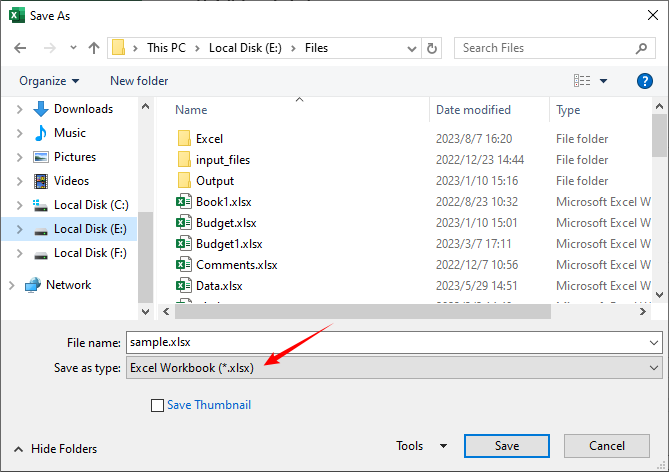
- Sobald die Datei in Excel geöffnet ist, gehen Sie zu Datei > Speichern unter.
- Wählen Sie den Speicherort für die neue Datei.
- Wählen Sie im „Dateityp“ Dropdown-Menü die Option Excel-Arbeitsmappe (*.xlsx) oder Excel 97-2003-Arbeitsmappe (*.xls).
- Klicken Sie auf Speichern.
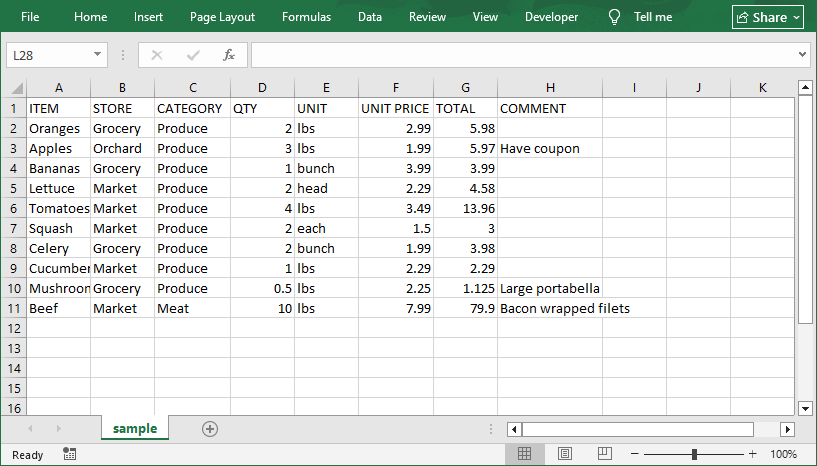
Die konvertierte Excel-Datei:
Daten über die Registerkarte „Daten“ von Excel importieren (mehr Kontrolle)
Diese Methode bietet Ihnen Präzision, da Sie während des Imports Datentypen definieren können, um Formatierungsfehler zu vermeiden.
Schritt 1: CSV-Datei in Excel öffnen
- Starten Sie Excel und gehen Sie zur Registerkarte Daten.
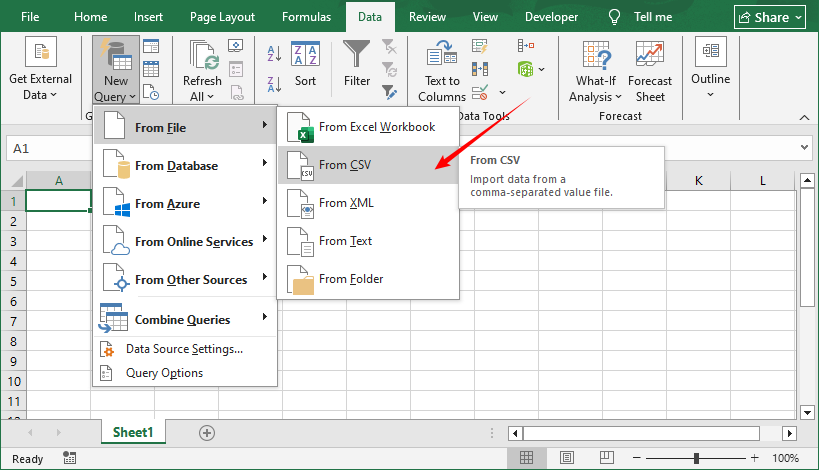
- Klicken Sie auf Neue Abfrage > Aus Datei > Aus CSV.
- Navigieren Sie zu Ihrer CSV-Datei, wählen Sie sie aus und klicken Sie auf Öffnen.
Schritt 2: Importeinstellungen anpassen
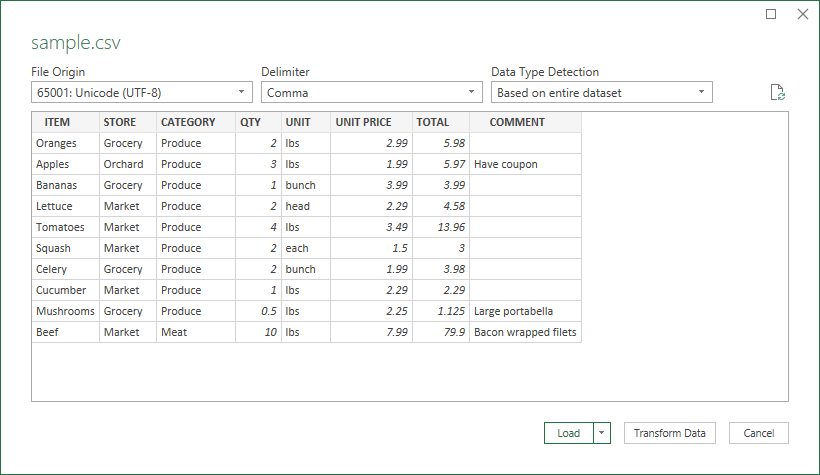
Excel öffnet ein Vorschaufenster, in dem Sie die Einstellungen anpassen können, um die Datengenauigkeit sicherzustellen:
- Trennzeichen: Bestätigen Sie, dass „Komma“ ausgewählt ist. Wenn Ihre Datei Tabstopps oder Semikolons verwendet, wählen Sie die richtige Option.
- Datentyperkennung: Wählen Sie „Basierend auf dem gesamten Dataset“ für die automatische Erkennung oder „Text“ für sensible Felder (z. B. Postleitzahlen mit führenden Nullen).
- Codierung: Wenn Ihre CSV-Datei Sonderzeichen enthält, wählen Sie UTF-8 aus dem Dropdown-Menü, um verstümmelten Text zu vermeiden.
Klicken Sie auf Laden, wenn Sie fertig sind.
Schritt 3: Als Excel-Datei speichern
Die CSV-Daten werden nun in Excel geöffnet. So speichern Sie sie als native Excel-Datei:
- Gehen Sie zu Datei > Speichern unter.
- Wählen Sie einen Speicherort für die Datei.
- Wählen Sie im „Dateityp“ Dropdown-Menü die Option Excel-Arbeitsmappe (*.xlsx) oder Excel 97-2003-Arbeitsmappe (*.xls).
- Klicken Sie auf Speichern. Ihre CSV-Datei ist jetzt eine Excel-Tabelle mit der vollen Funktionalität von Excel.
Methode 2: CSV mit Google Sheets in Excel konvertieren
Wenn Sie kein Excel haben, ist Google Sheets (das kostenlose Tabellenkalkulationstool von Google) eine fantastische Alternative. Es funktioniert in jedem Browser, synchronisiert sich mit Ihrem Google Drive und unterstützt die nahtlose Konvertierung von CSV in Excel. So geht's:
Schritt 1: CSV-Datei in Google Sheets importieren
- Gehen Sie zu Google Sheets und erstellen Sie eine neue leere Tabelle.
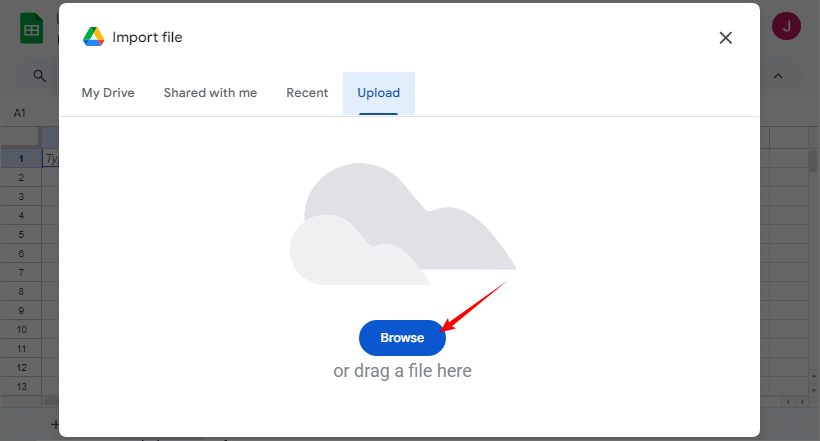
- Klicken Sie auf Datei > Importieren > Hochladen.
- Klicken Sie auf Durchsuchen, um Ihre CSV-Datei auszuwählen, oder ziehen Sie sie per Drag & Drop.
Schritt 2: Importoptionen konfigurieren
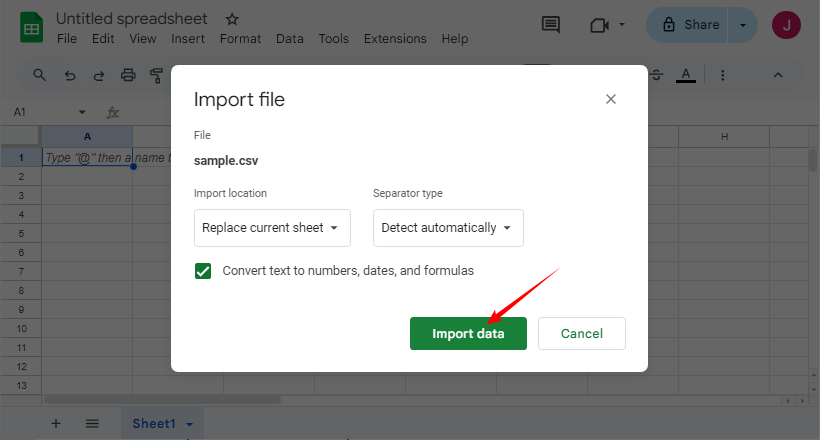
Im Importfenster:
- Wählen Sie Ihren bevorzugten Importort und Trennzeichen-Typ.
- Klicken Sie auf Daten importieren.
Schritt 3: Als Excel-Datei exportieren
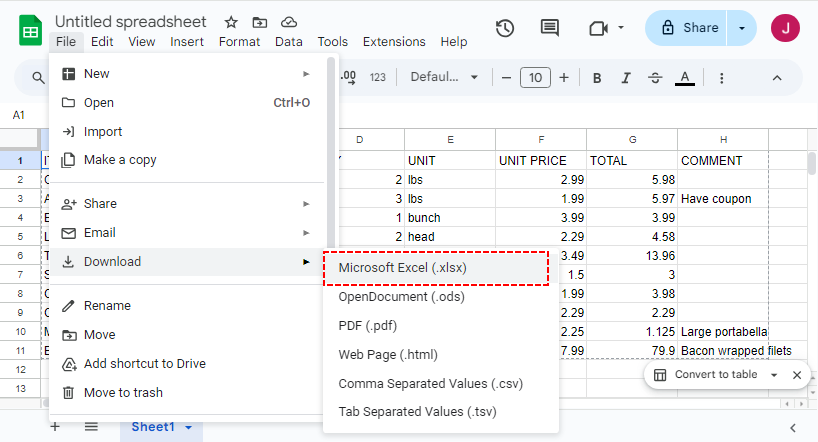
Sobald Ihre Daten in Google Sheets sind, gehen Sie zu Datei > Herunterladen > Microsoft Excel (.xlsx). Die Excel-Datei wird automatisch auf Ihr Gerät heruntergeladen. Öffnen Sie sie in Excel oder einem anderen Tabellenkalkulationstool, um die Daten zu überprüfen.
LESEN SIE AUCH: CSV in PDF konvertieren: 4 effiziente Methoden
Methode 3: Kostenlose Online-Konverter für CSV in Excel verwenden
Für einmalige Konvertierungen sind kostenlose Online-Tools eine schnelle Lösung. Suchen Sie nach Tools, die den Datenschutz priorisieren und große Dateien unterstützen. Unsere Top-Auswahl:
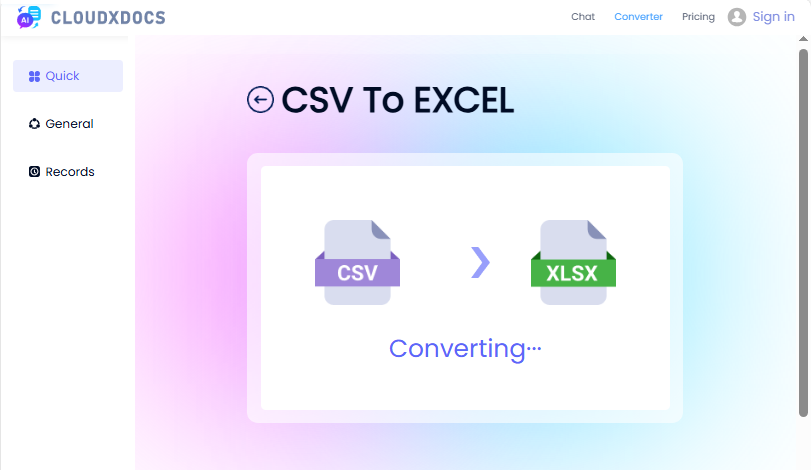
CSV-zu-XLSX-Konverter von CLOUDXDOCS
CLOUDXDOCS ist ein vertrauenswürdiges Dateikonvertierungstool, das die Konvertierung von CSV in XLSX unterstützt. So verwenden Sie es:
- Gehen Sie zur CLOUDXDOCS CSV-zu-Excel-Seite.
- Laden Sie Ihre CSV-Datei hoch oder ziehen Sie sie per Drag & Drop.
- Warten Sie, bis die Konvertierung abgeschlossen ist, und laden Sie dann die Excel-Datei herunter.
Convertio (unterstützt Stapelkonvertierungen)
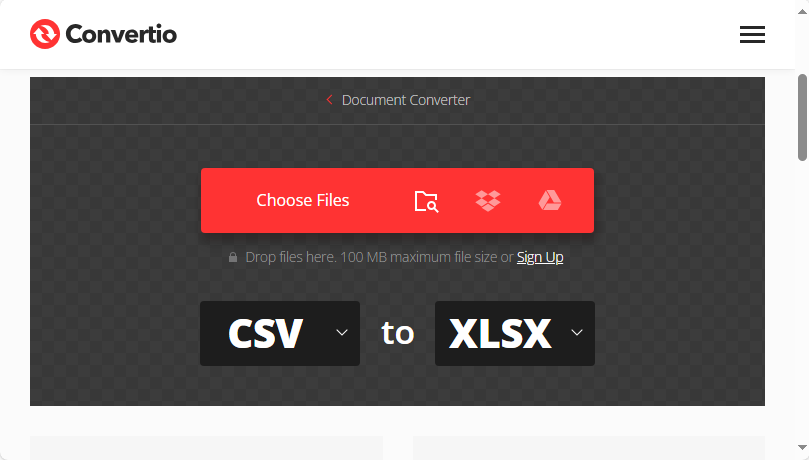
Convertio ist ideal, wenn Sie mehrere CSV-Dateien gleichzeitig konvertieren müssen. Schritte:
- Besuchen Sie den CSV-zu-XLSX-Konverter von Convertio.
- Ziehen Sie mehrere CSV-Dateien per Drag & Drop oder laden Sie sie von Google Drive/Dropbox hoch.
- Stellen Sie sicher, dass das Ausgabeformat auf XLSX eingestellt ist.
- Klicken Sie auf Konvertieren und laden Sie die ZIP-Datei mit Ihren Excel-Dateien herunter.
Methode 4: CSV-zu-Excel-Konvertierung mit Python automatisieren
Für Entwickler, die Massen-CSV-Dateien konvertieren oder CSV-zu-Excel in Python-Workflows integrieren müssen, ist Spire.XLS for Python das perfekte Werkzeug. Es ist eine leistungsstarke Tabellenkalkulationsbibliothek, die Excel/CSV-Operationen programmgesteuert verarbeitet.
Schritt 1: Installieren Sie die Python-Bibliothek
Öffnen Sie Ihr Terminal/Ihre Eingabeaufforderung und führen Sie den folgenden Pip-Befehl aus:
pip install spire-xls
Schritt 2: Python-Code zum Konvertieren von CSV in Excel (Einzeldatei)
Dieser Code konvertiert eine einzelne CSV-Datei in das XLS- oder XLSX-Format.
from spire.xls import *
from spire.xls.common import *

# Create a workbook
workbook = Workbook()

# Load a CSV file
workbook.LoadFromFile("sample csv.csv", ",", 1, 1)

# Save to xls format
workbook.SaveToFile("CSVToXLS.xls", ExcelVersion.Version97to2003)

# Save to xlsx format
workbook.SaveToFile("CSVToXLSX.xlsx", ExcelVersion.Version2016)
Schritt 3: Python-Code zur Stapelkonvertierung von CSV-Dateien (mehrere Dateien)
Wenn Sie einen Ordner voller CSV-Dateien haben, verwenden Sie diesen Code, um CSV-Dateien in einem Rutsch in Excel zu konvertieren:
import os
from spire.xls import *

input_folder = r"F:\CSVs"
output_folder = r"F:\Output"

# Loop through each CSV file
for csv_file in os.listdir(input_folder):
    if csv_file.endswith(".csv"):
        input_path = os.path.join(input_folder, csv_file)
        output_name = os.path.splitext(csv_file)[0] + ".xlsx"
        output_path = os.path.join(output_folder, output_name)

        # Create a Workbook instance and load CSV files
        workbook = Workbook()
        workbook.LoadFromFile(input_path, ",", 1, 1)

        # Save each CSV file as an Excel file
        workbook.SaveToFile(output_path, ExcelVersion.Version2016)
Code-Erklärung
- Workbook: Die Kernklasse von Spire.XLS for Python – verarbeitet alle Excel/CSV-Operationen.
- LoadFromFile: Importiert CSV-Daten in die Arbeitsmappe. Sie können das Trennzeichen anpassen (z. B. „;“ für europäische CSVs).
- SaveToFile: Exportiert die Arbeitsmappe in eine Excel-Datei (unterstützt die Formate Excel 2003-2019).
- Stapelkonvertierung: Verwendet os.listdir, um durch CSV-Dateien zu iterieren.
Profi-Tipp: Spire.XLS for Python unterstützt auch die Konvertierung von CSV in XML und CSV in JSON.
Methodenvergleich: Wählen Sie das richtige Werkzeug
| Methode | Automatisierung | Sicherheit | Am besten für |
|---|---|---|---|
| Manuelles Excel | Keine | Hoch | Einzelne Dateien, nicht-technische Benutzer |
| Google Sheets | Keine | Mittel | Schnelle Konvertierungen, kollaborative Projekte, Benutzer ohne Excel. |
| Online-Tools | Keine | Niedrig | Einmalige Verwendung, kleine nicht vertrauliche Dateien, höchster Komfort. |
| Python + Spire.XLS | Vollständig | Hoch | Stapelverarbeitung, Automatisierung, Integration in Arbeitsabläufe. |
Abschließende Gedanken
Die Konvertierung einer CSV-Datei in Excel ist eine einfache, aber leistungsstarke Fähigkeit, die das volle Analyse- und Präsentationspotenzial Ihrer Daten freisetzt. Für schnelle, einfache Anforderungen verwenden Sie die „Öffnen mit“-Funktion von Excel oder Google Sheets. Bei unordentlichen/komplexen CSVs sorgt die Registerkarte „Daten“ von Excel für Präzision. Online-Tools eignen sich für einmalige kleine Dateien, während Python + Spire.XLS Stapel-/automatisierte Aufgaben für Power-User erledigt.
Wählen Sie die Methode, die zu Ihrer Dateigröße und Ihren Fähigkeiten passt, und nutzen Sie dann die Berechnungen, Visualisierungen und die Organisation von Excel, um Rohdaten in aussagekräftige, umsetzbare Ergebnisse zu verwandeln.
Siehe auch
4 проверенных способа конвертировать CSV в Excel (бесплатно и автоматически)
Оглавление
- Общие сведения о форматах CSV и Excel
- Метод 1: Преобразование CSV в Excel с помощью Microsoft Excel
- Метод 2: Преобразование CSV в Excel с помощью Google Sheets
- Метод 3: Использование бесплатных онлайн-конвертеров CSV в Excel
- Метод 4: Автоматизация преобразования CSV в Excel с помощью Python
- Сравнение методов: выберите подходящий инструмент
Если вы когда-либо загружали данные из банковской выписки, онлайн-инструмента или базы данных, вы, вероятно, сталкивались с файлом CSV. Хотя CSV-файлы невероятно полезны для хранения необработанных данных, им не хватает мощных функций, необходимых для анализа, форматирования и визуализации. Преобразование вашего CSV в Excel открывает мир возможностей, превращая статические данные в динамическую и содержательную рабочую книгу.
Это подробное руководство проведет вас через самые простые и эффективные методы преобразования файлов CSV в Excel, от простых ручных методов до автоматизированных скриптов на Python.
- Общие сведения о форматах CSV и Excel
- Метод 1: Преобразование CSV в Excel с помощью Microsoft Excel
- Метод 2: Преобразование CSV в Excel с помощью Google Sheets
- Метод 3: Использование бесплатных онлайн-конвертеров CSV в Excel
- Метод 4: Автоматизация преобразования CSV в Excel с помощью Python
- Сравнение методов: выберите подходящий инструмент
Общие сведения о форматах CSV и Excel
В чем реальная разница между файлом CSV и файлом Excel? В частности:
-
CSV (значения, разделенные запятыми): это простой текстовый файл. Это как цифровой блокнот, где данные разделены запятыми (или иногда другими разделителями, такими как точки с запятой). Его простота — его сила: он универсально совместим. Однако он не может хранить формулы, диаграммы, форматирование (например, цвета или шрифты) или несколько листов.
-
Excel (XLS/XLSX): это проприетарный двоичный формат файла. Думайте о нем как о полнофункциональной цифровой книге. Он может хранить данные, а также формулы, сводные таблицы, диаграммы, несколько листов, форматирование ячеек и многое другое.
Вам следует преобразовать CSV в Excel, когда вам нужно:
- Использовать формулы (SUM, VLOOKUP и т. д.) для ваших данных.
- Создавать диаграммы или графики для визуализации.
- Применять фильтрацию, сортировку или условное форматирование.
- Организовывать данные на нескольких вкладках.
- Придать вашему отчету профессиональный вид с помощью цветов и шрифтов.
Метод 1: Преобразование CSV в Excel с помощью Microsoft Excel
Если у вас уже установлен Microsoft Excel (2016, 2019, 365 или 2021), это самый простой и надежный метод.
Простой метод "Открыть с помощью" (лучше всего подходит для большинства пользователей)
Это самый быстрый и простой способ преобразовать один файл CSV. По сути, это использование Excel для "сохранения как" в новом формате.
- Найдите ваш CSV-файл в проводнике Windows или Finder на Mac.
- Щелкните правой кнопкой мыши по файлу.
- Наведите курсор на "Открыть с помощью" и выберите Microsoft Excel.
- После открытия в Excel перейдите в Файл > Сохранить как.
- Выберите место, где вы хотите сохранить новый файл.
- В выпадающем меню "Тип файла" выберите Книга Excel (*.xlsx) или Книга Excel 97-2003 (*.xls).
- Нажмите Сохранить.
Преобразованный файл Excel:
Импорт данных через вкладку "Данные" в Excel (больше контроля)
Этот метод дает вам точность, позволяя определять типы данных во время импорта, чтобы предотвратить ошибки форматирования.
Шаг 1: Откройте CSV-файл в Excel
- Запустите Excel и перейдите на вкладку Данные.
- Нажмите Новый запрос > Из файла > Из CSV.
- Перейдите к вашему CSV-файлу, выберите его и нажмите Открыть.
Шаг 2: Настройте параметры импорта
Excel откроет окно предварительного просмотра, где вы можете настроить параметры для обеспечения точности данных:
- Разделитель: Убедитесь, что выбрана «Запятая». Если ваш файл использует табуляцию или точки с запятой, выберите правильный вариант.
- Определение типа данных: Выберите «На основе всего набора данных» для автоматического определения или «Текст» для чувствительных полей (например, почтовые индексы с ведущими нулями).
- Кодировка: Если ваш CSV-файл содержит специальные символы, выберите UTF-8 из выпадающего списка, чтобы избежать искаженного текста.
Нажмите Загрузить, когда будете готовы.
Шаг 3: Сохраните как файл Excel
Данные CSV теперь откроются в Excel. Чтобы сохранить их как собственный файл Excel:
- Перейдите в Файл > Сохранить как.
- Выберите место для сохранения файла.
- Выберите Книга Excel (*.xlsx) или Книга Excel 97-2003 (*.xls) из выпадающего списка «Тип файла».
- Нажмите Сохранить. Ваш CSV-файл теперь является электронной таблицей Excel со всей функциональностью Excel.
Метод 2: Преобразование CSV в Excel с помощью Google Sheets
Если у вас нет Excel, Google Sheets (бесплатный инструмент для работы с электронными таблицами от Google) — фантастическая альтернатива. Он работает в любом браузере, синхронизируется с вашим Google Диском и поддерживает плавное преобразование CSV в Excel. Вот как это сделать:
Шаг 1: Импортируйте CSV-файл в Google Sheets
- Перейдите в Google Sheets и создайте новую пустую таблицу.
- Нажмите Файл > Импорт > Загрузить.
- Нажмите Обзор, чтобы выбрать ваш CSV-файл, или перетащите его.
Шаг 2: Настройте параметры импорта
В окне импорта:
- Выберите предпочтительное Место импорта и Тип разделителя.
- Нажмите Импортировать данные.
Шаг 3: Экспортируйте как файл Excel
Как только ваши данные окажутся в Google Sheets, перейдите в Файл > Скачать > Microsoft Excel (.xlsx). Файл Excel автоматически загрузится на ваше устройство. Откройте его в Excel или другом инструменте для работы с электронными таблицами, чтобы проверить данные.
ТАКЖЕ ЧИТАЙТЕ: Преобразование CSV в PDF: 4 эффективных метода
Метод 3: Использование бесплатных онлайн-конвертеров CSV в Excel
Для разовых преобразований бесплатные онлайн-инструменты — это быстрое решение. Ищите инструменты, которые отдают приоритет конфиденциальности данных и поддерживают большие файлы. Наши лучшие выборы:
Конвертер CSV в XLSX от CLOUDXDOCS
CLOUDXDOCS — это надежный инструмент для преобразования файлов, который поддерживает преобразование CSV в XLSX. Вот как его использовать:
- Перейдите на страницу CLOUDXDOCS CSV в Excel.
- Загрузите ваш CSV-файл или перетащите его.
- Дождитесь завершения преобразования, а затем загрузите файл Excel.
Convertio (поддерживает пакетное преобразование)
Convertio идеально подходит, если вам нужно преобразовать несколько файлов CSV одновременно. Шаги:
- Посетите конвертер Convertio CSV в XLSX.
- Перетащите несколько файлов CSV или загрузите их из Google Drive/Dropbox.
- Убедитесь, что выходной формат установлен на XLSX.
- Нажмите Преобразовать и загрузите zip-файл с вашими файлами Excel.
Метод 4: Автоматизация преобразования CSV в Excel с помощью Python
Для разработчиков, которым необходимо преобразовывать большие объемы CSV-файлов или интегрировать преобразование CSV в Excel в рабочие процессы Python, Spire.XLS for Python — идеальный инструмент. Это мощная библиотека для работы с электронными таблицами, которая программно обрабатывает операции с Excel/CSV.
Шаг 1: Установите библиотеку Python
Откройте ваш терминал/командную строку и выполните следующую команду pip:
pip install spire-xls
Шаг 2: Код Python для преобразования CSV в Excel (один файл)
Этот код преобразует один CSV-файл в формат XLS или XLSX.
from spire.xls import *
from spire.xls.common import *

# Create a workbook
workbook = Workbook()

# Load a CSV file
workbook.LoadFromFile("sample csv.csv", ",", 1, 1)

# Save to xls format
workbook.SaveToFile("CSVToXLS.xls", ExcelVersion.Version97to2003)

# Save to xlsx format
workbook.SaveToFile("CSVToXLSX.xlsx", ExcelVersion.Version2016)
Шаг 3: Код Python для пакетного преобразования CSV-файлов (несколько файлов)
Если у вас есть папка, полная CSV-файлов, используйте этот код для пакетного преобразования CSV в Excel за один раз:
import os
from spire.xls import *

input_folder = r"F:\CSVs"
output_folder = r"F:\Output"

# Loop through each CSV file
for csv_file in os.listdir(input_folder):
    if csv_file.endswith(".csv"):
        input_path = os.path.join(input_folder, csv_file)
        output_name = os.path.splitext(csv_file)[0] + ".xlsx"
        output_path = os.path.join(output_folder, output_name)

        # Create a Workbook instance and load CSV files
        workbook = Workbook()
        workbook.LoadFromFile(input_path, ",", 1, 1)

        # Save each CSV file as an Excel file
        workbook.SaveToFile(output_path, ExcelVersion.Version2016)
Объяснение кода
- Workbook: основной класс Spire.XLS for Python — обрабатывает все операции с Excel/CSV.
- LoadFromFile: импортирует данные CSV в рабочую книгу. Вы можете настроить разделитель (например, «;» для европейских CSV).
- SaveToFile: экспортирует рабочую книгу в файл Excel (поддерживает форматы Excel 2003-2019).
- Пакетное преобразование: использует os.listdir для перебора CSV-файлов.
Совет профессионала: Spire.XLS for Python также поддерживает преобразование CSV в XML и CSV в JSON.
Сравнение методов: выберите подходящий инструмент
| Метод | Автоматизация | Безопасность | Лучше всего подходит для |
|---|---|---|---|
| Ручной Excel | Нет | Высокая | Одиночные файлы, нетехнические пользователи |
| Google Sheets | Нет | Средняя | Быстрые преобразования, совместные проекты, пользователи без Excel. |
| Онлайн-инструменты | Нет | Низкая | Одноразовое использование, небольшие неконфиденциальные файлы, максимальное удобство. |
| Python + Spire.XLS | Полная | Высокая | Пакетная обработка, автоматизация, интеграция в рабочие процессы. |
Заключительные мысли
Преобразование файла CSV в Excel — это простой, но мощный навык, который раскрывает весь аналитический и презентационный потенциал ваших данных. Для быстрых и простых задач используйте «Открыть с помощью» в Excel или Google Sheets. Для сложных/неоднозначных CSV-файлов вкладка «Данные» в Excel обеспечивает точность. Онлайн-инструменты подходят для разовых небольших файлов, в то время как Python + Spire.XLS справляется с пакетными/автоматизированными задачами для опытных пользователей.
Выберите метод, который соответствует размеру вашего файла и вашим навыкам, а затем используйте вычисления, визуализации и организацию Excel, чтобы превратить необработанные данные в значимые, действенные результаты.
Смотрите также
Converter Python para PDF: Guia Completo para Exportação de Arquivos .py
Scripts Python são comumente compartilhados em fluxos de trabalho de desenvolvimento, pipelines de documentação, cursos de treinamento e ambientes acadêmicos. Converter arquivos Python (.py) para PDF garante uma formatação consistente, melhora a legibilidade durante a distribuição e fornece uma versão não editável do seu código, adequada para arquivamento, impressão ou publicação.
Este guia explica todos os métodos práticos para converter código Python para PDF, incluindo ferramentas online, fluxos de trabalho de impressão para PDF de IDEs, conversões automatizadas com Python com ou sem destaque de sintaxe e soluções de processamento em lote. Cada método inclui passos detalhados, notas técnicas e orientação de instalação quando necessário.
Visão Geral:
- Conversores Online de Python para PDF
- Fluxos de Trabalho de Impressão para PDF de IDEs
- Conversão Automatizada de Python para PDF com Python
- Comparação de Métodos
- Perguntas Frequentes
1. Conversores Online de Python para PDF
Ferramentas online oferecem a maneira mais rápida de converter um arquivo .py em PDF sem a necessidade de configurar software. Elas são convenientes para usuários que simplesmente precisam de uma versão legível em PDF de seu código.
Como Funcionam os Conversores Online
Após o upload de um arquivo .py, o serviço processa o conteúdo e gera um PDF que preserva a indentação do código e a formatação básica. Algumas plataformas oferecem configurações opcionais, como tamanho da fonte, margens da página e numeração de linhas.
Exemplo: Converter Código Python para PDF com CodeConvert AI
Passos
-
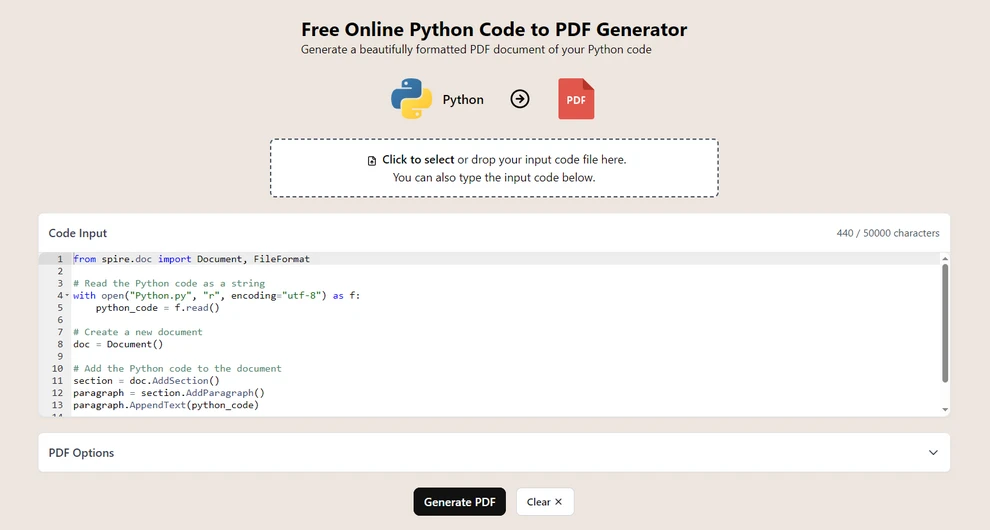
Navegue até CodeConvert AI (uma plataforma de conversão de código baseada em navegador).
-
Faça o upload do seu arquivo .py ou cole o código no editor.
-
Escolha Gerar PDF para gerar o documento PDF.
-
Imprima o documento como um arquivo PDF no menu pop-up.
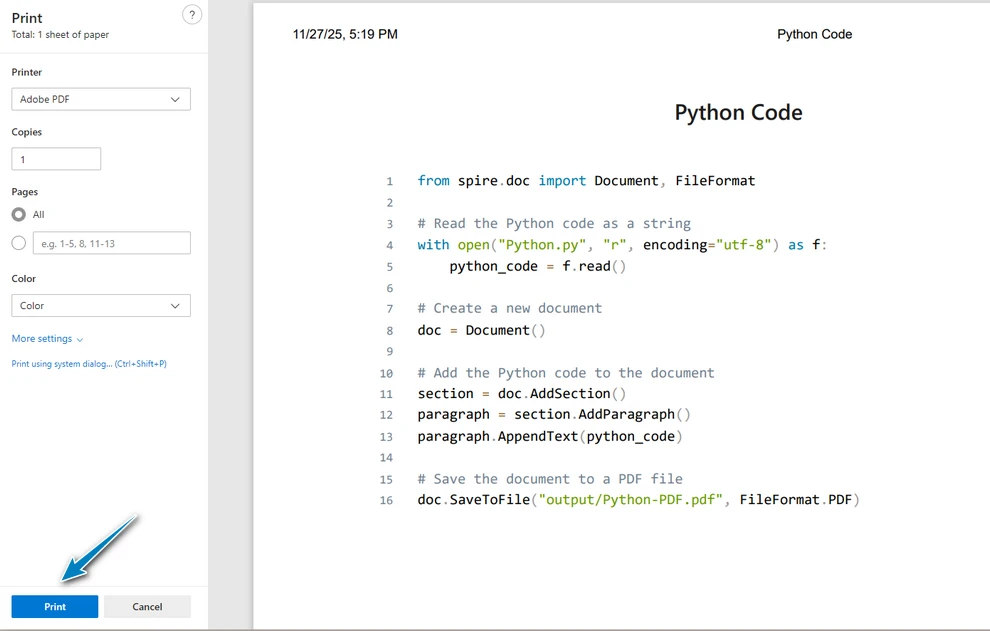
Vantagens
- Nenhuma instalação ou configuração necessária.
- Funciona em todos os sistemas operacionais e dispositivos.
- Adequado para conversões rápidas e necessidades leves.
Limitações
- Evite fazer upload de scripts confidenciais ou proprietários.
- As opções de formatação dependem do serviço.
- A qualidade do destaque de sintaxe varia entre as plataformas.
2. Converter Python para PDF via “Imprimir para PDF” do IDE
A maioria dos editores de desenvolvimento — incluindo VS Code, PyCharm, Sublime Text e Notepad++ — suporta a exportação de arquivos para PDF através do subsistema de impressão do sistema operacional.
Como Funciona
Ao imprimir, o IDE renderiza o código usando seu motor de destaque de sintaxe interno e passa a saída estilizada para o SO, que então gera um PDF.
Passos (Exemplo com PyCharm)
-
Abra seu arquivo Python.
-
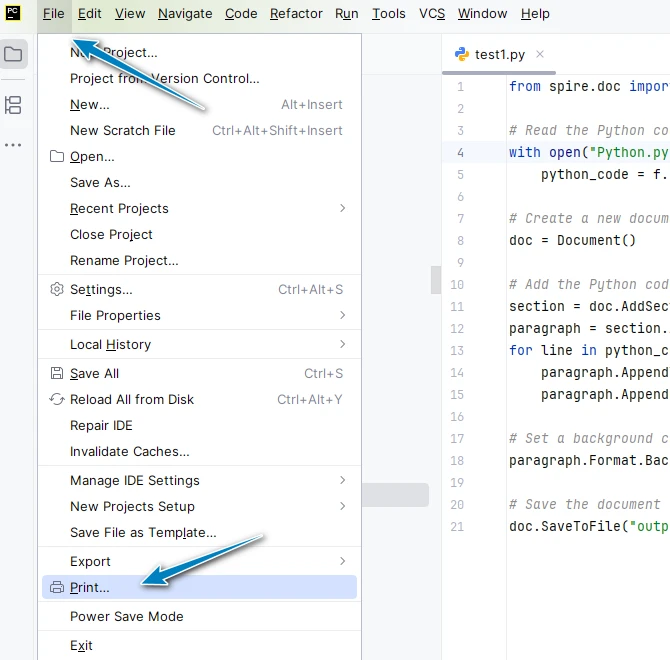
Vá para Arquivo → Imprimir.
-
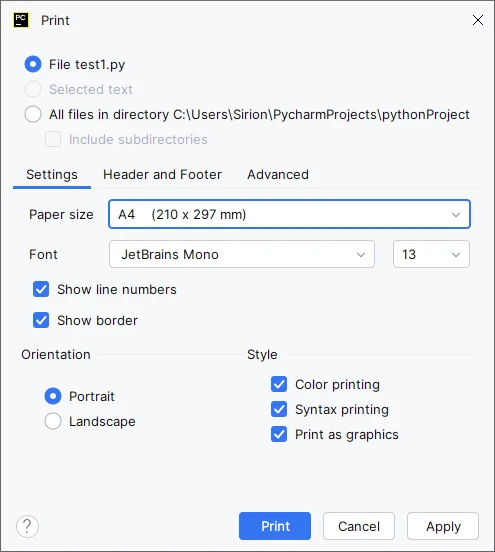
Opcionalmente, ajuste a configuração da página (margens, orientação, escala).
-
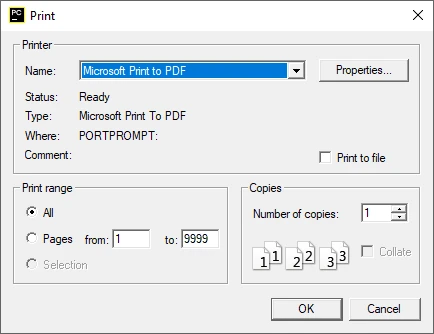
Escolha Microsoft Print to PDF como a impressora e salve o documento PDF.
Vantagens
- Formatação limpa e legível.
- Destaque de sintaxe geralmente preservado.
- Nenhuma biblioteca adicional necessária.
Limitações
- Controle mínimo sobre quebra de linha ou layout.
- Não projetado para fluxos de trabalho em lote.
- A qualidade da saída varia de acordo com o tema do IDE.
3. Conversão de PY para PDF Baseada em Script Python (Automatizada e Personalizável)
Ferramentas baseadas em Python fornecem maneiras flexíveis de converter arquivos .py para PDF, suportando pipelines automatizados, formatação consistente e destaque de sintaxe opcional.
Antes de usar os métodos a seguir, instale os componentes necessários.
Pacotes Necessários
Free Spire.Doc for Python – lida com a exportação para PDF
pip install spire.doc.free
Pygments – gera HTML com destaque de sintaxe
pip install pygments
3.1 Método A: Texto Direto para PDF (Sem Destaque de Sintaxe)
Este método lê o arquivo .py como texto simples e o escreve em um PDF. É adequado para exportações simples, snapshots de documentação e arquivamento interno, que podem não exigir destaque de sintaxe.
Código de Exemplo
from spire.doc import Document, FileFormat, BreakType, Color, LineSpacingRule, LineNumberingRestartMode, TextRange

# Read the Python code as a string
with open("Python.py", "r", encoding="utf-8") as f:
    python_code = f.read()

# Create a new document
doc = Document()

# Add the Python code to the document
section = doc.AddSection()
paragraph = section.AddParagraph()
for line_number, line in enumerate(python_code.split("\n")):
    tr = paragraph.AppendText(line)
    # Set the character format
    tr.CharacterFormat.FontName = "Consolas"
    tr.CharacterFormat.FontSize = 10.0
    if line_number < len(python_code.split("\n")) - 1:
        paragraph.AppendBreak(BreakType.LineBreak)

# Optional settings
# Set the background color and line spacing
paragraph.Format.BackColor = Color.get_LightGray()
paragraph.Format.LineSpacingRule = LineSpacingRule.Multiple
paragraph.Format.LineSpacing = 12.0 # 12pt meaning single spacing
# Set the line numbering
section.PageSetup.LineNumberingStartValue = 1
section.PageSetup.LineNumberingStep = 1
section.PageSetup.LineNumberingRestartMode = LineNumberingRestartMode.RestartPage
section.PageSetup.LineNumberingDistanceFromText = 10.0

# Save the document to a PDF file
doc.SaveToFile("output/Python-PDF.docx", FileFormat.Docx)
doc.SaveToFile("output/Python-PDF.pdf", FileFormat.PDF)
Como Funciona
Este método insere o código Python linha por linha usando AppendText(), adiciona quebras de linha com AppendBreak() e exporta o documento final através de SaveToFile().
Abaixo está o efeito de saída após a aplicação deste método:
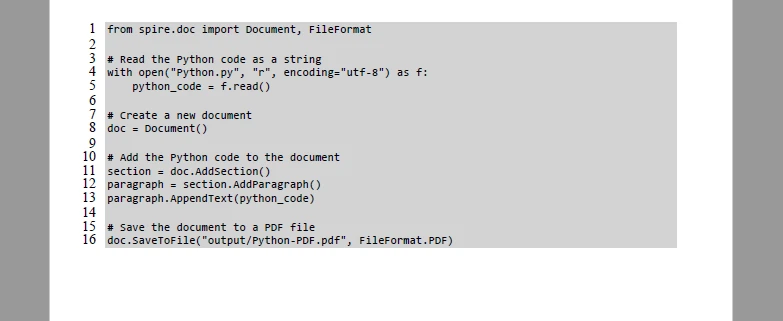
Para mais detalhes sobre como personalizar e inserir texto em um documento PDF, consulte nosso guia em Anexando Texto a Documentos PDF com Python.
3.2 Método B: PDF com Destaque de Sintaxe (HTML → PDF)
Ao produzir tutoriais ou documentação legível, o destaque de sintaxe ajuda a distinguir palavras-chave e melhora a clareza geral. Este método usa Pygments para gerar HTML com estilo embutido e, em seguida, insere o HTML em um documento.
Código de Exemplo
from spire.doc import Document, FileFormat, ParagraphStyle, IParagraphStyle
from pygments import highlight
from pygments.lexers import PythonLexer
from pygments.formatters import HtmlFormatter

def py_to_inline_html(py_file_path):
    with open(py_file_path, "r", encoding="utf-8") as f:
        code = f.read()

    formatter = HtmlFormatter(noclasses=True, linenostart=1, linenos='inline') # Line numbers are optional
    inline_html = highlight(code, PythonLexer(), formatter)
    return inline_html

html_result = py_to_inline_html("Python.py")

doc = Document()
section = doc.AddSection()
paragraph = section.AddParagraph()

# Insert formatted HTML
paragraph.AppendHTML(html_result)

doc.SaveToFile("output/Python-PDF-Highlighted.pdf", FileFormat.PDF)
Como Funciona
O Pygments primeiro formata o código como HTML baseado em CSS embutido. O HTML é adicionado através de AppendHTML(), e o documento concluído é exportado usando SaveToFile().
Abaixo está o resultado visual gerado por este método de HTML estilizado:
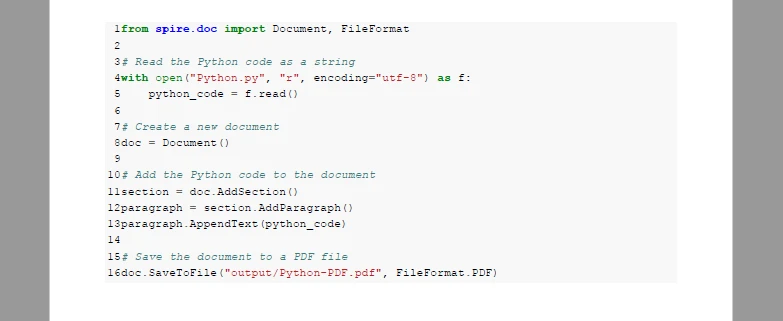
3.3 Conversão em Lote (Fluxos de Trabalho de Pasta para PDF)
Para converter vários arquivos .py de uma vez, você só precisa de um loop curto para processar todos os arquivos em um diretório e salvá-los como PDFs.
Código de Exemplo (Processamento Mínimo em Lote)
import os

input_folder = "scripts"
output_folder = "pdf-output"
os.makedirs(output_folder, exist_ok=True)

for file in os.listdir(input_folder):
    if file.endswith(".py"):
        py_path = os.path.join(input_folder, file)
        pdf_path = os.path.join(output_folder, file.replace(".py", ".pdf"))

        # Call your chosen conversion function here
        convert_py_to_pdf(py_path, pdf_path)
Notas
- Reutiliza a função de conversão definida anteriormente.
- Salva automaticamente cada arquivo .py como um PDF com o mesmo nome de arquivo.
- Funciona para métodos de texto simples e com destaque de sintaxe.
Você também pode consultar nosso guia "Converter Diretamente HTML para PDF em Python" para saber mais.
4. Tabela de Comparação: Escolhendo o Método de Conversão Certo
| Método | Vantagens | Desvantagens | Melhor Caso de Uso |
|---|---|---|---|
| Conversores Online | Rápido, sem instalação | Preocupações com privacidade, formatação limitada | Arquivos pequenos e não sensíveis |
| Imprimir para PDF do IDE | Fácil, preserva a sintaxe (geralmente) | Sem automação | Conversão de arquivo único |
| Script Python (Direto/HTML) | Automação, processamento em lote, personalização | Requer conhecimento de scripting | Documentação, tutoriais, pipelines |
5. Melhores Práticas para Gerar Código PDF Claro e Legível
Siga estas práticas para garantir que seus PDFs de código Python sejam fáceis de ler, bem formatados e com aparência profissional.
Use uma Fonte Monoespaçada
Fontes monoespaçadas preservam a indentação e o alinhamento, tornando o código mais fácil de ler e depurar.
Gerencie Linhas Longas e Quebras
Habilite a quebra de linha ou ajuste as margens da página para evitar a rolagem horizontal e linhas de código cortadas.
Mantenha a Formatação Consistente
Mantenha tamanhos de fonte, cores, espaçamento e layout de página consistentes em vários PDFs, especialmente no processamento em lote.
Preserve Blocos Lógicos de Código
Evite dividir funções, loops ou declarações de várias linhas entre páginas para manter a legibilidade e a estrutura.
Organize a Nomenclatura de Arquivos e a Estrutura de Pastas
Use nomes de arquivos e organização de pastas sistemáticos para exportações em lote, documentação automatizada ou arquivos de projeto.
6. Conclusão
Converter arquivos Python (.py) para PDF fornece uma maneira confiável de preservar a formatação do código, melhorar a legibilidade e criar documentos compartilháveis ou de arquivo. Seja para documentação, tutoriais, fins educacionais ou uso pessoal, esses métodos permitem que desenvolvedores, equipes e usuários individuais gerem arquivos PDF consistentes e com aparência profissional a partir de seu código-fonte Python.
7. Perguntas Frequentes Sobre a Conversão de Arquivos Python para PDF
Abaixo estão algumas perguntas comuns que desenvolvedores, educadores e estudantes fazem sobre a conversão de arquivos Python para PDF. Estas respostas são baseadas nos métodos abordados neste guia.
Como transformo um arquivo de código Python (.py) em um PDF?
Você pode converter um arquivo Python .py em um PDF usando conversores online como CodeConvert AI, funções de impressão para PDF do IDE ou scripts baseados em Python com Spire.Doc para processamento automatizado e em lote. Escolha o método com base no seu fluxo de trabalho, necessidades de formatação e se o destaque de sintaxe é necessário.
Como posso converter um notebook Jupyter do Python para PDF?
Para notebooks Jupyter (.ipynb), você pode usar a opção embutida Arquivo → Baixar Como → PDF se o LaTeX estiver instalado, ou primeiro exportar o notebook para um script .py e depois aplicar os métodos de Python para PDF descritos neste guia.
Como garanto que o destaque de sintaxe seja preservado no PDF?
Para manter as cores e a formatação da sintaxe, converta o código para HTML com estilos CSS embutidos usando Pygments e, em seguida, anexe-o a um documento PDF usando AppendHTML(). Isso preserva palavras-chave, comentários e indentação para uma saída mais clara e com aparência profissional.
Como converto um arquivo de texto para PDF usando Python no Windows?
No Windows, você pode usar bibliotecas Python gratuitas como o Spire.Doc para ler o arquivo .txt ou .py, gravá-lo em um PDF e, opcionalmente, estilizá-lo. A impressão para PDF do IDE é outra opção para conversão de arquivo único sem codificação. Scripts em lote podem automatizar vários arquivos, mantendo uma formatação consistente.
Veja Também
Python을 PDF로 변환: .py 파일 내보내기에 대한 완벽 가이드
Python 스크립트는 개발 워크플로우, 문서화 파이프라인, 교육 과정 및 학술 환경에서 일반적으로 공유됩니다. Python(.py) 파일을 PDF로 변환하면 일관된 서식을 보장하고, 배포 중 가독성을 향상시키며, 보관, 인쇄 또는 출판에 적합한 편집 불가능한 버전의 코드를 제공합니다.
이 가이드는 온라인 도구, IDE PDF로 인쇄 워크플로우, 구문 강조 기능이 있거나 없는 Python 자동 변환, 배치 처리 솔루션을 포함하여 Python 코드를 PDF로 변환하는 모든 실용적인 방법을 설명합니다. 각 방법에는 상세한 단계, 기술 노트 및 필요한 경우 설치 지침이 포함되어 있습니다.
개요:
1. 온라인 Python-PDF 변환기
온라인 도구는 소프트웨어를 구성하지 않고 .py 파일을 PDF로 변환하는 가장 빠른 방법을 제공합니다. 단순히 코드의 읽기 가능한 PDF 버전이 필요한 사용자에게 편리합니다.
온라인 변환기 작동 방식
.py 파일을 업로드하면 서비스가 콘텐츠를 처리하고 코드 들여쓰기 및 기본 서식을 유지하는 PDF를 출력합니다. 일부 플랫폼은 글꼴 크기, 페이지 여백 및 줄 번호와 같은 선택적 설정을 제공합니다.
예: CodeConvert AI로 Python 코드를 PDF로 변환
단계
-
CodeConvert AI(브라우저 기반 코드 변환 플랫폼)로 이동합니다.
-
.py 파일을 업로드하거나 편집기에 코드를 붙여넣습니다.
-
PDF 생성을 선택하여 PDF 문서를 생성합니다.
-
팝업 메뉴에서 문서를 PDF 파일로 인쇄합니다.
장점
- 설치나 설정이 필요 없습니다.
- 운영 체제와 장치 전반에서 작동합니다.
- 빠른 변환 및 가벼운 요구 사항에 적합합니다.
제한 사항
- 기밀 또는 독점 스크립트를 업로드하지 마십시오.
- 서식 옵션은 서비스에 따라 다릅니다.
- 구문 강조 품질은 플랫폼마다 다릅니다.
2. IDE "PDF로 인쇄"를 통해 Python을 PDF로 변환
VS Code, PyCharm, Sublime Text 및 Notepad++를 포함한 대부분의 개발 편집기는 운영 체제의 인쇄 하위 시스템을 통해 파일을 PDF로 내보내는 것을 지원합니다.
작동 방식
인쇄할 때 IDE는 내부 구문 강조 엔진을 사용하여 코드를 렌더링하고 스타일이 지정된 출력을 OS로 전달하여 PDF를 생성합니다.
단계 (PyCharm 예)
-
Python 파일을 엽니다.
-
파일 → 인쇄로 이동합니다.
-
선택적으로 페이지 설정(여백, 방향, 크기 조정)을 조정합니다.
-
프린터로 Microsoft Print to PDF를 선택하고 PDF 문서를 저장합니다.
장점
- 깨끗하고 읽기 쉬운 서식.
- 구문 강조가 일반적으로 유지됩니다.
- 추가 라이브러리가 필요 없습니다.
제한 사항
- 줄 바꿈이나 레이아웃에 대한 제어가 최소화됩니다.
- 배치 워크플로우용으로 설계되지 않았습니다.
- 출력 품질은 IDE 테마에 따라 다릅니다.
3. Python 스크립트 기반 PY-PDF 변환 (자동화 및 사용자 정의 가능)
Python 기반 도구는 .py 파일을 PDF로 변환하는 유연한 방법을 제공하며, 자동화된 파이프라인, 일관된 서식 및 선택적 구문 강조를 지원합니다.
다음 방법을 사용하기 전에 필요한 구성 요소를 설치하십시오.
필수 패키지
Free Spire.Doc for Python – PDF 내보내기 처리
pip install spire.doc.free
Pygments – 구문 강조된 HTML 생성
pip install pygments
3.1 방법 A: 직접 텍스트-PDF (구문 강조 없음)
이 방법은 .py 파일을 일반 텍스트로 읽고 PDF에 씁니다. 구문 강조가 필요하지 않을 수 있는 간단한 내보내기, 문서 스냅샷 및 내부 보관에 적합합니다.
예제 코드
from spire.doc import Document, FileFormat, BreakType, Color, LineSpacingRule, LineNumberingRestartMode, TextRange

# Read the Python code as a string
with open("Python.py", "r", encoding="utf-8") as f:
    python_code = f.read()

# Create a new document
doc = Document()

# Add the Python code to the document
section = doc.AddSection()
paragraph = section.AddParagraph()
for line_number, line in enumerate(python_code.split("\n")):
    tr = paragraph.AppendText(line)
    # Set the character format
    tr.CharacterFormat.FontName = "Consolas"
    tr.CharacterFormat.FontSize = 10.0
    if line_number < len(python_code.split("\n")) - 1:
        paragraph.AppendBreak(BreakType.LineBreak)

# Optional settings
# Set the background color and line spacing
paragraph.Format.BackColor = Color.get_LightGray()
paragraph.Format.LineSpacingRule = LineSpacingRule.Multiple
paragraph.Format.LineSpacing = 12.0 # 12pt meaning single spacing
# Set the line numbering
section.PageSetup.LineNumberingStartValue = 1
section.PageSetup.LineNumberingStep = 1
section.PageSetup.LineNumberingRestartMode = LineNumberingRestartMode.RestartPage
section.PageSetup.LineNumberingDistanceFromText = 10.0

# Save the document to a PDF file
doc.SaveToFile("output/Python-PDF.docx", FileFormat.Docx)
doc.SaveToFile("output/Python-PDF.pdf", FileFormat.PDF)
작동 방식
이 방법은 AppendText()를 사용하여 Python 코드를 줄 단위로 삽입하고, AppendBreak()로 줄 바꿈을 추가하며, SaveToFile()을 통해 최종 문서를 내보냅니다.
아래는 이 방법을 적용한 후의 출력 효과입니다:
PDF 문서에 텍스트를 사용자 정의하고 삽입하는 방법에 대한 자세한 내용은 Python으로 PDF 문서에 텍스트 추가하기 가이드를 참조하십시오.
3.2 방법 B: 구문 강조된 PDF (HTML → PDF)
튜토리얼이나 읽기 쉬운 문서를 제작할 때 구문 강조는 키워드를 구별하고 전반적인 명확성을 향상시키는 데 도움이 됩니다. 이 방법은 Pygments를 사용하여 인라인 스타일 HTML을 생성한 다음 문에 HTML을 삽입합니다.
예제 코드
from spire.doc import Document, FileFormat, ParagraphStyle, IParagraphStyle
from pygments import highlight
from pygments.lexers import PythonLexer
from pygments.formatters import HtmlFormatter

def py_to_inline_html(py_file_path):
    with open(py_file_path, "r", encoding="utf-8") as f:
        code = f.read()

    formatter = HtmlFormatter(noclasses=True, linenostart=1, linenos='inline') # Line numbers are optional
    inline_html = highlight(code, PythonLexer(), formatter)
    return inline_html

html_result = py_to_inline_html("Python.py")

doc = Document()
section = doc.AddSection()
paragraph = section.AddParagraph()

# Insert formatted HTML
paragraph.AppendHTML(html_result)

doc.SaveToFile("output/Python-PDF-Highlighted.pdf", FileFormat.PDF)
작동 방식
Pygments는 먼저 코드를 인라인 CSS 기반 HTML로 서식 지정합니다. HTML은 AppendHTML()을 통해 추가되고, 완성된 문서는 SaveToFile()을 사용하여 내보내집니다.
아래는 이 스타일링된 HTML 방법으로 생성된 시각적 결과입니다:
3.3 배치 변환 (폴더-PDF 워크플로우)
한 번에 여러 .py 파일을 변환하려면 디렉토리의 모든 파일을 처리하고 PDF로 저장하는 짧은 루프만 필요합니다.
예제 코드 (최소 배치 처리)
import os

input_folder = "scripts"
output_folder = "pdf-output"
os.makedirs(output_folder, exist_ok=True)

for file in os.listdir(input_folder):
    if file.endswith(".py"):
        py_path = os.path.join(input_folder, file)
        pdf_path = os.path.join(output_folder, file.replace(".py", ".pdf"))

        # Call your chosen conversion function here
        convert_py_to_pdf(py_path, pdf_path)
참고
- 이전에 정의된 변환 함수를 재사용합니다.
- 각 .py 파일을 동일한 파일 이름의 PDF로 자동 저장합니다.
- 일반 텍스트 및 구문 강조 방법 모두에 작동합니다.
자세한 내용은 "Python에서 HTML을 PDF로 직접 변환" 가이드를 참조할 수도 있습니다.
4. 비교표: 올바른 변환 방법 선택
| 방법 | 장점 | 단점 | 최적 사용 사례 |
|---|---|---|---|
| 온라인 변환기 | 빠름, 설치 불필요 | 개인 정보 보호 문제, 제한된 서식 | 작고 민감하지 않은 파일 |
| IDE PDF로 인쇄 | 쉬움, 구문 유지(종종) | 자동화 없음 | 단일 파일 변환 |
| Python 스크립트 (직접/HTML) | 자동화, 배치 처리, 사용자 정의 | 스크립팅 지식 필요 | 문서, 튜토리얼, 파이프라인 |
5. 명확하고 읽기 쉬운 PDF 코드 생성을 위한 모범 사례
Python 코드 PDF가 읽기 쉽고, 잘 서식 지정되었으며, 전문적으로 보이도록 다음 사례를 따르십시오.
고정 폭 글꼴 사용
고정 폭 글꼴은 들여쓰기와 정렬을 유지하여 코드를 더 쉽게 읽고 디버깅할 수 있도록 합니다.
긴 줄 및 줄 바꿈 관리
가로 스크롤 및 잘린 코드 줄을 방지하기 위해 줄 바꿈을 활성화하거나 페이지 여백을 조정하십시오.
일관된 서식 유지
특히 배치 처리에서 여러 PDF에 걸쳐 글꼴 크기, 색상, 간격 및 페이지 레이아웃을 일관되게 유지하십시오.
논리적 코드 블록 유지
가독성과 구조를 유지하기 위해 함수, 루프 또는 여러 줄 문장이 페이지에 걸쳐 분할되지 않도록 하십시오.
파일 이름 및 폴더 구조 정리
배치 내보내기, 자동화된 문서 또는 프로젝트 아카이브에 대해 체계적인 파일 이름과 폴더 구성을 사용하십시오.
6. 결론
Python(.py) 파일을 PDF로 변환하면 코드 서식을 유지하고 가독성을 향상시키며 공유 또는 보관용 문서를 만드는 신뢰할 수 있는 방법을 제공합니다. 문서, 튜토리얼, 교육 목적 또는 개인적인 용도로 사용하든, 이러한 방법을 통해 개발자, 팀 및 개인 사용자는 Python 소스 코드에서 일관되고 전문적인 PDF 파일을 생성할 수 있습니다.
7. Python 파일을 PDF로 변환하는 것에 대한 자주 묻는 질문
아래는 개발자, 교육자 및 학생들이 Python 파일을 PDF로 변환하는 것에 대해 묻는 일반적인 질문입니다. 이 답변은 이 가이드에서 다룬 방법을 기반으로 합니다.
Python 코드 파일(.py)을 PDF로 어떻게 바꾸나요?
CodeConvert AI와 같은 온라인 변환기, IDE PDF로 인쇄 기능 또는 Spire.Doc를 사용한 Python 기반 스크립트를 사용하여 Python .py 파일을 PDF로 변환할 수 있습니다. 워크플로우, 서식 요구 사항 및 구문 강조 필요 여부에 따라 방법을 선택하십시오.
Python Jupyter 노트북을 PDF로 어떻게 변환하나요?
Jupyter 노트북(.ipynb)의 경우 LaTeX가 설치되어 있으면 내장된 파일 → 다른 이름으로 다운로드 → PDF 옵션을 사용하거나, 먼저 노트북을 .py 스크립트로 내보낸 다음 이 가이드에 설명된 Python-PDF 변환 방법을 적용할 수 있습니다.
PDF에서 구문 강조가 유지되도록 하려면 어떻게 해야 하나요?
구문 색상과 서식을 유지하려면 Pygments를 사용하여 코드를 인라인 CSS 스타일이 있는 HTML로 변환한 다음 AppendHTML()을 사용하여 PDF 문서에 추가하십시오. 이렇게 하면 키워드, 주석 및 들여쓰기가 유지되어 더 명확하고 전문적인 출력이 가능합니다.
Windows에서 Python을 사용하여 텍스트 파일을 PDF로 어떻게 변환하나요?
Windows에서는 Spire.Doc와 같은 무료 Python 라이브러리를 사용하여 .txt 또는 .py 파일을 읽고 PDF에 쓴 다음 선택적으로 스타일을 지정할 수 있습니다. IDE PDF로 인쇄는 코딩 없이 단일 파일을 변환하는 또 다른 옵션입니다. 배치 스크립트는 일관된 서식을 유지하면서 여러 파일을 자동화할 수 있습니다.
참고 항목
Convertire Python in PDF: Guida completa per l'esportazione di file .py
Indice
Gli script Python sono comunemente condivisi nei flussi di lavoro di sviluppo, nelle pipeline di documentazione, nei corsi di formazione e negli ambienti accademici. La conversione di file Python (.py) in PDF garantisce una formattazione coerente, migliora la leggibilità durante la distribuzione e fornisce una versione non modificabile del codice adatta per l'archiviazione, la stampa o la pubblicazione.
Questa guida spiega ogni metodo pratico per convertire il codice Python in PDF, inclusi strumenti online, flussi di lavoro di stampa su PDF da IDE, conversioni automatizzate con Python con o senza evidenziazione della sintassi e soluzioni di elaborazione batch. Ogni metodo include passaggi dettagliati, note tecniche e guida all'installazione dove richiesto.
Panoramica:
- Convertitori online da Python a PDF
- Flussi di lavoro di stampa su PDF da IDE
- Conversione automatizzata da Python a PDF con Python
- Confronto dei metodi
- Domande frequenti
1. Convertitori online da Python a PDF
Gli strumenti online offrono il modo più rapido per convertire un file .py in PDF senza configurare software. Sono convenienti per gli utenti che necessitano semplicemente di una versione PDF leggibile del loro codice.
Come funzionano i convertitori online
Dopo aver caricato un file .py, il servizio elabora il contenuto e produce un PDF che preserva l'indentazione del codice e la formattazione di base. Alcune piattaforme forniscono impostazioni opzionali come la dimensione del carattere, i margini della pagina e la numerazione delle righe.
Esempio: convertire codice Python in PDF con CodeConvert AI
Passaggi
-
Vai a CodeConvert AI (una piattaforma di conversione di codice basata su browser).
-
Carica il tuo file .py o incolla il codice nell'editor.
-
Scegli Genera PDF per generare il documento PDF.
-
Stampa il documento come file PDF nel menu a comparsa.
Vantaggi
- Nessuna installazione o configurazione richiesta.
- Funziona su tutti i sistemi operativi e dispositivi.
- Adatto per conversioni rapide ed esigenze leggere.
Limitazioni
- Evita di caricare script confidenziali o proprietari.
- Le opzioni di formattazione dipendono dal servizio.
- La qualità dell'evidenziazione della sintassi varia a seconda delle piattaforme.
2. Convertire Python in PDF tramite la funzione "Stampa su PDF" dell'IDE
La maggior parte degli editor di sviluppo, inclusi VS Code, PyCharm, Sublime Text e Notepad++, supporta l'esportazione di file in PDF tramite il sottosistema di stampa del sistema operativo.
Come funziona
Durante la stampa, l'IDE esegue il rendering del codice utilizzando il proprio motore di evidenziazione della sintassi interno e passa l'output stilizzato al sistema operativo, che quindi genera un PDF.
Passaggi (esempio con PyCharm)
-
Apri il tuo file Python.
-
Vai su File → Stampa.
-
Regola facoltativamente l'impostazione della pagina (margini, orientamento, scala).
-
Scegli Microsoft Print to PDF come stampante e salva il documento PDF.
Vantaggi
- Formattazione pulita e leggibile.
- Evidenziazione della sintassi solitamente preservata.
- Nessuna libreria aggiuntiva richiesta.
Limitazioni
- Controllo minimo sull'a capo automatico o sul layout.
- Non progettato per flussi di lavoro batch.
- La qualità dell'output varia in base al tema dell'IDE.
3. Conversione da PY a PDF basata su script Python (automatizzata e personalizzabile)
Gli strumenti basati su Python forniscono modi flessibili per convertire file .py in PDF, supportando pipeline automatizzate, formattazione coerente ed evidenziazione della sintassi opzionale.
Prima di utilizzare i seguenti metodi, installare i componenti richiesti.
Pacchetti richiesti
Free Spire.Doc for Python – gestisce l'esportazione in PDF
pip install spire.doc.free
Pygments – genera HTML con evidenziazione della sintassi
pip install pygments
3.1 Metodo A: da testo a PDF diretto (senza evidenziazione della sintassi)
Questo metodo legge il file .py come testo semplice e lo scrive in un PDF. È adatto per esportazioni semplici, istantanee di documentazione e archiviazione interna, che potrebbero non richiedere l'evidenziazione della sintassi.
Codice di esempio
from spire.doc import Document, FileFormat, BreakType, Color, LineSpacingRule, LineNumberingRestartMode, TextRange

# Read the Python code as a string
with open("Python.py", "r", encoding="utf-8") as f:
    python_code = f.read()

# Create a new document
doc = Document()

# Add the Python code to the document
section = doc.AddSection()
paragraph = section.AddParagraph()
for line_number, line in enumerate(python_code.split("\n")):
    tr = paragraph.AppendText(line)
    # Set the character format
    tr.CharacterFormat.FontName = "Consolas"
    tr.CharacterFormat.FontSize = 10.0
    if line_number < len(python_code.split("\n")) - 1:
        paragraph.AppendBreak(BreakType.LineBreak)

# Optional settings
# Set the background color and line spacing
paragraph.Format.BackColor = Color.get_LightGray()
paragraph.Format.LineSpacingRule = LineSpacingRule.Multiple
paragraph.Format.LineSpacing = 12.0 # 12pt meaning single spacing
# Set the line numbering
section.PageSetup.LineNumberingStartValue = 1
section.PageSetup.LineNumberingStep = 1
section.PageSetup.LineNumberingRestartMode = LineNumberingRestartMode.RestartPage
section.PageSetup.LineNumberingDistanceFromText = 10.0

# Save the document to a PDF file
doc.SaveToFile("output/Python-PDF.docx", FileFormat.Docx)
doc.SaveToFile("output/Python-PDF.pdf", FileFormat.PDF)
Come funziona
Questo metodo inserisce il codice Python riga per riga utilizzando AppendText(), aggiunge interruzioni di riga con AppendBreak() ed esporta il documento finale tramite SaveToFile().
Di seguito è riportato l'effetto di output dopo l'applicazione di questo metodo:
Per maggiori dettagli sulla personalizzazione e l'inserimento di testo in un documento PDF, consulta la nostra guida su Aggiungere testo a documenti PDF con Python.
3.2 Metodo B: PDF con evidenziazione della sintassi (HTML → PDF)
Quando si producono tutorial o documentazione leggibile, l'evidenziazione della sintassi aiuta a distinguere le parole chiave e migliora la chiarezza generale. Questo metodo utilizza Pygments per generare HTML con stili in linea, quindi inserisce l'HTML in un documento.
Codice di esempio
from spire.doc import Document, FileFormat, ParagraphStyle, IParagraphStyle
from pygments import highlight
from pygments.lexers import PythonLexer
from pygments.formatters import HtmlFormatter

def py_to_inline_html(py_file_path):
    with open(py_file_path, "r", encoding="utf-8") as f:
        code = f.read()

    formatter = HtmlFormatter(noclasses=True, linenostart=1, linenos='inline') # Line numbers are optional
    inline_html = highlight(code, PythonLexer(), formatter)
    return inline_html

html_result = py_to_inline_html("Python.py")

doc = Document()
section = doc.AddSection()
paragraph = section.AddParagraph()

# Insert formatted HTML
paragraph.AppendHTML(html_result)

doc.SaveToFile("output/Python-PDF-Highlighted.pdf", FileFormat.PDF)
Come funziona
Pygments formatta prima il codice come HTML basato su CSS in linea. L'HTML viene aggiunto tramite AppendHTML() e il documento completato viene esportato utilizzando SaveToFile().
Di seguito è riportato il risultato visivo generato da questo metodo HTML stilizzato:
3.3 Conversione batch (flussi di lavoro da cartella a PDF)
Per convertire più file .py contemporaneamente, è sufficiente un breve ciclo per elaborare tutti i file in una directory e salvarli come PDF.
Codice di esempio (elaborazione batch minima)
import os

input_folder = "scripts"
output_folder = "pdf-output"
os.makedirs(output_folder, exist_ok=True)

for file in os.listdir(input_folder):
    if file.endswith(".py"):
        py_path = os.path.join(input_folder, file)
        pdf_path = os.path.join(output_folder, file.replace(".py", ".pdf"))

        # Call your chosen conversion function here
        convert_py_to_pdf(py_path, pdf_path)
Note
- Riutilizza la funzione di conversione definita in precedenza.
- Salva automaticamente ogni file .py come PDF con lo stesso nome file.
- Funziona sia per i metodi a testo semplice che per quelli con evidenziazione della sintassi.
Puoi anche fare riferimento alla nostra guida "Converti direttamente HTML in PDF in Python" per saperne di più.
4. Tabella di confronto: scegliere il metodo di conversione giusto
| Metodo | Vantaggi | Svantaggi | Miglior caso d'uso |
|---|---|---|---|
| Convertitori online | Veloce, nessuna installazione | Problemi di privacy, formattazione limitata | File piccoli e non sensibili |
| Stampa su PDF da IDE | Facile, preserva la sintassi (spesso) | Nessuna automazione | Conversione di file singolo |
| Script Python (Diretto/HTML) | Automazione, elaborazione batch, personalizzazione | Richiede conoscenze di scripting | Documentazione, tutorial, pipeline |
5. Migliori pratiche per la generazione di codice PDF chiaro e leggibile
Segui queste pratiche per assicurarti che i tuoi PDF di codice Python siano facili da leggere, ben formattati e dall'aspetto professionale.
Usa un carattere monospazio
I caratteri monospazio preservano l'indentazione e l'allineamento, rendendo il codice più facile da leggere e da eseguire il debug.
Gestisci righe lunghe e a capo automatico
Abilita l'a capo automatico o regola i margini della pagina per evitare lo scorrimento orizzontale e le righe di codice tagliate.
Mantieni una formattazione coerente
Mantieni coerenti dimensioni dei caratteri, colori, spaziatura e layout di pagina su più PDF, specialmente nell'elaborazione batch.
Conserva i blocchi di codice logici
Evita di dividere funzioni, cicli o istruzioni su più righe tra le pagine per mantenere la leggibilità e la struttura.
Organizza la denominazione dei file e la struttura delle cartelle
Usa nomi di file e organizzazione delle cartelle sistematici per esportazioni batch, documentazione automatizzata o archivi di progetto.
6. Conclusione
La conversione di file Python (.py) in PDF fornisce un modo affidabile per preservare la formattazione del codice, migliorare la leggibilità e creare documenti condivisibili o archiviabili. Che si tratti di documentazione, tutorial, scopi educativi o uso personale, questi metodi consentono a sviluppatori, team e singoli utenti di generare file PDF coerenti e dall'aspetto professionale dal loro codice sorgente Python.
7. Domande frequenti sulla conversione di file Python in PDF
Di seguito sono riportate alcune domande comuni che sviluppatori, educatori e studenti pongono sulla conversione di file Python in PDF. Queste risposte si basano sui metodi trattati in questa guida.
Come trasformo un file di codice Python (.py) in un PDF?
Puoi convertire un file Python .py in un PDF utilizzando convertitori online come CodeConvert AI, funzioni di stampa su PDF dell'IDE o script basati su Python con Spire.Doc for per l'elaborazione automatizzata e batch. Scegli il metodo in base al tuo flusso di lavoro, alle esigenze di formattazione e se è richiesta l'evidenziazione della sintassi.
Come posso convertire un notebook Jupyter di Python in PDF?
Per i notebook Jupyter (.ipynb), puoi utilizzare l'opzione integrata File → Scarica come → PDF se è installato LaTeX, oppure esportare prima il notebook in uno script .py e quindi applicare i metodi da Python a PDF descritti in questa guida.
Come mi assicuro che l'evidenziazione della sintassi venga preservata nel PDF?
Per mantenere i colori e la formattazione della sintassi, converti il codice in HTML con stili CSS in linea utilizzando Pygments, quindi aggiungilo a un documento PDF utilizzando AppendHTML(). Ciò preserva parole chiave, commenti e indentazione per un output più chiaro e dall'aspetto professionale.
Come converto un file di testo in un PDF usando Python su Windows?
Su Windows, puoi utilizzare librerie Python gratuite come Spire.Doc per leggere il file .txt o .py, scriverlo in un PDF e facoltativamente applicare uno stile. La stampa su PDF dall'IDE è un'altra opzione per la conversione di un singolo file senza codifica. Gli script batch possono automatizzare più file mantenendo una formattazione coerente.
Vedi anche
Convertir Python en PDF : Guide complet de l'exportation de fichiers .py
Table des matières
Les scripts Python sont couramment partagés dans les flux de travail de développement, les pipelines de documentation, les cours de formation et les environnements académiques. La conversion des fichiers Python (.py) en PDF garantit un formatage cohérent, améliore la lisibilité lors de la distribution et fournit une version non modifiable de votre code adaptée à l'archivage, à l'impression ou à la publication.
Ce guide explique toutes les méthodes pratiques pour convertir du code Python en PDF, y compris les outils en ligne, les flux de travail d'impression en PDF depuis un IDE, les conversions automatisées avec Python avec ou sans coloration syntaxique, et les solutions de traitement par lots. Chaque méthode comprend des étapes détaillées, des notes techniques et des instructions d'installation si nécessaire.
Aperçu :
- Convertisseurs Python vers PDF en ligne
- Flux de travail d'impression en PDF depuis l'IDE
- Conversion automatisée de Python en PDF avec Python
- Comparaison des méthodes
- Questions fréquemment posées
1. Convertisseurs Python vers PDF en ligne
Les outils en ligne offrent le moyen le plus rapide de convertir un fichier .py en PDF sans configurer de logiciel. Ils sont pratiques pour les utilisateurs qui ont simplement besoin d'une version PDF lisible de leur code.
Comment fonctionnent les convertisseurs en ligne
Après avoir téléchargé un fichier .py, le service traite le contenu et génère un PDF qui préserve l'indentation du code et le formatage de base. Certaines plateformes offrent des paramètres optionnels tels que la taille de la police, les marges de la page et la numérotation des lignes.
Exemple : Convertir du code Python en PDF avec CodeConvert AI
Étapes
-
Accédez à CodeConvert AI (une plateforme de conversion de code basée sur un navigateur).
-
Téléchargez votre fichier .py ou collez le code dans l'éditeur.
-
Choisissez Générer PDF pour générer le document PDF.
-
Imprimez le document en tant que fichier PDF dans le menu contextuel.
Avantages
- Aucune installation ou configuration requise.
- Fonctionne sur tous les systèmes d'exploitation et appareils.
- Convient pour les conversions rapides et les besoins légers.
Limites
- Évitez de télécharger des scripts confidentiels ou propriétaires.
- Les options de formatage dépendent du service.
- La qualité de la coloration syntaxique varie selon les plateformes.
2. Convertir Python en PDF via l'option "Imprimer en PDF" de l'IDE
La plupart des éditeurs de développement, y compris VS Code, PyCharm, Sublime Text et Notepad++, prennent en charge l'exportation de fichiers au format PDF via le sous-système d'impression du système d'exploitation.
Comment ça marche
Lors de l'impression, l'IDE rend le code à l'aide de son moteur de coloration syntaxique interne et transmet la sortie stylisée au système d'exploitation, qui génère alors un PDF.
Étapes (Exemple avec PyCharm)
-
Ouvrez votre fichier Python.
-
Allez dans Fichier → Imprimer.
-
Ajustez éventuellement la mise en page (marges, orientation, échelle).
-
Choisissez Microsoft Print to PDF comme imprimante et enregistrez le document PDF.
Avantages
- Formatage propre et lisible.
- Coloration syntaxique généralement préservée.
- Aucune bibliothèque supplémentaire requise.
Limites
- Contrôle minimal sur le retour à la ligne ou la mise en page.
- Non conçu pour les flux de travail par lots.
- La qualité de la sortie varie en fonction du thème de l'IDE.
3. Conversion de PY en PDF basée sur un script Python (automatisée et personnalisable)
Les outils basés sur Python offrent des moyens flexibles de convertir les fichiers .py en PDF, prenant en charge les pipelines automatisés, un formatage cohérent et une coloration syntaxique optionnelle.
Avant d'utiliser les méthodes suivantes, installez les composants requis.
Paquets requis
Free Spire.Doc for Python – gère l'exportation PDF
pip install spire.doc.free
Pygments – génère du HTML avec coloration syntaxique
pip install pygments
3.1 Méthode A : Texte direct vers PDF (sans coloration syntaxique)
Cette méthode lit le fichier .py en tant que texte brut et l'écrit dans un PDF. Elle convient aux exportations simples, aux instantanés de documentation et à l'archivage interne, qui peuvent ne pas nécessiter de coloration syntaxique.
Exemple de code
from spire.doc import Document, FileFormat, BreakType, Color, LineSpacingRule, LineNumberingRestartMode, TextRange

# Lire le code Python en tant que chaîne de caractères
with open("Python.py", "r", encoding="utf-8") as f:
    python_code = f.read()

# Créer un nouveau document
doc = Document()

# Ajouter le code Python au document
section = doc.AddSection()
paragraph = section.AddParagraph()
for line_number, line in enumerate(python_code.split("\n")):
    tr = paragraph.AppendText(line)
    # Définir le format des caractères
    tr.CharacterFormat.FontName = "Consolas"
    tr.CharacterFormat.FontSize = 10.0
    if line_number < len(python_code.split("\n")) - 1:
        paragraph.AppendBreak(BreakType.LineBreak)

# Paramètres optionnels
# Définir la couleur d'arrière-plan et l'interligne
paragraph.Format.BackColor = Color.get_LightGray()
paragraph.Format.LineSpacingRule = LineSpacingRule.Multiple
paragraph.Format.LineSpacing = 12.0 # 12pt signifie interligne simple
# Définir la numérotation des lignes
section.PageSetup.LineNumberingStartValue = 1
section.PageSetup.LineNumberingStep = 1
section.PageSetup.LineNumberingRestartMode = LineNumberingRestartMode.RestartPage
section.PageSetup.LineNumberingDistanceFromText = 10.0

# Enregistrer le document dans un fichier PDF
doc.SaveToFile("output/Python-PDF.docx", FileFormat.Docx)
doc.SaveToFile("output/Python-PDF.pdf", FileFormat.PDF)
Comment ça marche
Cette méthode insère le code Python ligne par ligne à l'aide de AppendText(), ajoute des sauts de ligne avec AppendBreak() et exporte le document final via SaveToFile().
Voici l'effet de sortie après application de cette méthode :
Pour plus de détails sur la personnalisation et l'insertion de texte dans un document PDF, consultez notre guide sur l'ajout de texte à des documents PDF avec Python.
3.2 Méthode B : PDF avec coloration syntaxique (HTML → PDF)
Lors de la production de tutoriels ou de documentation lisible, la coloration syntaxique aide à distinguer les mots-clés et améliore la clarté globale. Cette méthode utilise Pygments pour générer du HTML avec des styles en ligne, puis insère le HTML dans un document.
Exemple de code
from spire.doc import Document, FileFormat, ParagraphStyle, IParagraphStyle
from pygments import highlight
from pygments.lexers import PythonLexer
from pygments.formatters import HtmlFormatter

def py_to_inline_html(py_file_path):
    with open(py_file_path, "r", encoding="utf-8") as f:
        code = f.read()

    formatter = HtmlFormatter(noclasses=True, linenostart=1, linenos='inline') # Les numéros de ligne sont optionnels
    inline_html = highlight(code, PythonLexer(), formatter)
    return inline_html

html_result = py_to_inline_html("Python.py")

doc = Document()
section = doc.AddSection()
paragraph = section.AddParagraph()

# Insérer du HTML formaté
paragraph.AppendHTML(html_result)

doc.SaveToFile("output/Python-PDF-Highlighted.pdf", FileFormat.PDF)
Comment ça marche
Pygments formate d'abord le code en HTML basé sur du CSS en ligne. Le HTML est ajouté via AppendHTML(), et le document terminé est exporté à l'aide de SaveToFile().
Voici le résultat visuel généré par cette méthode HTML stylisée :
3.3 Conversion par lots (flux de travail de dossier à PDF)
Pour convertir plusieurs fichiers .py à la fois, il vous suffit d'une courte boucle pour traiter tous les fichiers d'un répertoire et les enregistrer en tant que PDF.
Exemple de code (traitement par lots minimal)
import os

input_folder = "scripts"
output_folder = "pdf-output"
os.makedirs(output_folder, exist_ok=True)

for file in os.listdir(input_folder):
    if file.endswith(".py"):
        py_path = os.path.join(input_folder, file)
        pdf_path = os.path.join(output_folder, file.replace(".py", ".pdf"))

        # Appelez votre fonction de conversion choisie ici
        convert_py_to_pdf(py_path, pdf_path)
Remarques
- Réutilise la fonction de conversion définie précédemment.
- Enregistre automatiquement chaque fichier .py en tant que PDF avec le même nom de fichier.
- Fonctionne pour les méthodes de texte brut et de coloration syntaxique.
Vous pouvez également consulter notre guide "Convertir directement du HTML en PDF en Python" pour en savoir plus.
4. Tableau comparatif : Choisir la bonne méthode de conversion
| Méthode | Avantages | Inconvénients | Meilleur cas d'utilisation |
|---|---|---|---|
| Convertisseurs en ligne | Rapide, sans installation | Problèmes de confidentialité, formatage limité | Fichiers petits et non sensibles |
| Impression en PDF depuis l'IDE | Facile, préserve la syntaxe (souvent) | Pas d'automatisation | Conversion d'un seul fichier |
| Script Python (Direct/HTML) | Automatisation, traitement par lots, personnalisation | Nécessite des connaissances en script | Documentation, tutoriels, pipelines |
5. Meilleures pratiques pour générer un code PDF clair et lisible
Suivez ces pratiques pour vous assurer que vos PDF de code Python sont faciles à lire, bien formatés et d'aspect professionnel.
Utiliser une police à espacement fixe
Les polices à espacement fixe préservent l'indentation et l'alignement, ce qui rend le code plus facile à lire et à déboguer.
Gérer les lignes longues et le retour à la ligne
Activez le retour à la ligne ou ajustez les marges de la page pour éviter le défilement horizontal et les lignes de code coupées.
Maintenir un formatage cohérent
Gardez des tailles de police, des couleurs, un espacement et une mise en page cohérents sur plusieurs PDF, en particulier lors du traitement par lots.
Préserver les blocs de code logiques
Évitez de diviser les fonctions, les boucles ou les instructions sur plusieurs lignes sur plusieurs pages pour maintenir la lisibilité et la structure.
Organiser la dénomination des fichiers et la structure des dossiers
Utilisez des noms de fichiers et une organisation de dossiers systématiques pour les exportations par lots, la documentation automatisée ou les archives de projet.
6. Conclusion
La conversion de fichiers Python (.py) en PDF offre un moyen fiable de préserver le formatage du code, d'améliorer la lisibilité et de créer des documents partageables ou archivables. Que ce soit pour la documentation, les tutoriels, à des fins éducatives ou pour un usage personnel, ces méthodes permettent aux développeurs, aux équipes et aux utilisateurs individuels de générer des fichiers PDF cohérents et d'aspect professionnel à partir de leur code source Python.
7. Questions fréquemment posées sur la conversion de fichiers Python en PDF
Vous trouverez ci-dessous quelques questions courantes que les développeurs, les éducateurs et les étudiants se posent sur la conversion de fichiers Python en PDF. Ces réponses sont basées sur les méthodes décrites dans ce guide.
Comment transformer un fichier de code Python (.py) en PDF ?
Vous pouvez convertir un fichier Python .py en PDF à l'aide de convertisseurs en ligne comme CodeConvert AI, des fonctions d'impression en PDF de l'IDE, ou des scripts basés sur Python avec Spire.Doc pour un traitement automatisé et par lots. Choisissez la méthode en fonction de votre flux de travail, de vos besoins de formatage et de la nécessité ou non de la coloration syntaxique.
Comment puis-je convertir un notebook Jupyter Python en PDF ?
Pour les notebooks Jupyter (.ipynb), vous pouvez utiliser l'option intégrée Fichier → Télécharger sous → PDF si LaTeX est installé, ou exporter d'abord le notebook en script .py, puis appliquer les méthodes de conversion Python vers PDF décrites dans ce guide.
Comment m'assurer que la coloration syntaxique est préservée dans le PDF ?
Pour conserver les couleurs et le formatage de la syntaxe, convertissez le code en HTML avec des styles CSS en ligne à l'aide de Pygments, puis ajoutez-le à un document PDF à l'aide de AppendHTML(). Cela préserve les mots-clés, les commentaires et l'indentation pour une sortie plus claire et d'aspect professionnel.
Comment convertir un fichier texte en PDF en utilisant Python sous Windows ?
Sous Windows, vous pouvez utiliser des bibliothèques Python gratuites comme Spire.Doc pour lire le fichier .txt ou .py, l'écrire dans un PDF et éventuellement le styliser. L'impression en PDF depuis l'IDE est une autre option pour la conversion d'un seul fichier sans codage. Les scripts par lots peuvent automatiser plusieurs fichiers tout en maintenant un formatage cohérent.
Voir aussi
Convertir Python a PDF: Guía completa para la exportación de archivos .py
Tabla de Contenidos
Los scripts de Python se comparten comúnmente en flujos de trabajo de desarrollo, procesos de documentación, cursos de formación y entornos académicos. Convertir archivos de Python (.py) a PDF asegura un formato consistente, mejora la legibilidad durante la distribución y proporciona una versión no editable de tu código adecuada para archivar, imprimir o publicar.
Esta guía explica todos los métodos prácticos para convertir código de Python a PDF, incluyendo herramientas en línea, flujos de trabajo de impresión a PDF desde IDE, conversiones automatizadas con Python con o sin resaltado de sintaxis, y soluciones de procesamiento por lotes. Cada método incluye pasos detallados, notas técnicas y guías de instalación cuando es necesario.
Resumen:
- Conversores de Python a PDF en Línea
- Flujos de Trabajo de Impresión a PDF desde IDE
- Conversión Automatizada de Python a PDF con Python
- Comparación de Métodos
- Preguntas Frecuentes
1. Conversores de Python a PDF en Línea
Las herramientas en línea ofrecen la forma más rápida de convertir un archivo .py a PDF sin necesidad de configurar software. Son convenientes para usuarios que simplemente necesitan una versión legible en PDF de su código.
Cómo Funcionan los Conversores en Línea
Después de subir un archivo .py, el servicio procesa el contenido y genera un PDF que conserva la sangría del código y el formato básico. Algunas plataformas ofrecen configuraciones opcionales como el tamaño de fuente, los márgenes de página y la numeración de líneas.
Ejemplo: Convertir Código de Python a PDF con CodeConvert AI
Pasos
-
Navega a CodeConvert AI (una plataforma de conversión de código basada en navegador).
-
Sube tu archivo .py o pega el código en el editor.
-
Elige Generar PDF para generar el documento PDF.
-
Imprime el documento como un archivo PDF en el menú emergente.
Ventajas
- No se requiere instalación ni configuración.
- Funciona en todos los sistemas operativos y dispositivos.
- Adecuado para conversiones rápidas y necesidades ligeras.
Limitaciones
- Evita subir scripts confidenciales o propietarios.
- Las opciones de formato dependen del servicio.
- La calidad del resaltado de sintaxis varía entre plataformas.
2. Convertir Python a PDF mediante “Imprimir a PDF” del IDE
La mayoría de los editores de desarrollo, incluidos VS Code, PyCharm, Sublime Text y Notepad++, admiten la exportación de archivos a PDF a través del subsistema de impresión del sistema operativo.
Cómo Funciona
Al imprimir, el IDE renderiza el código utilizando su motor interno de resaltado de sintaxis y pasa la salida con estilo al sistema operativo, que luego genera un PDF.
Pasos (Ejemplo con PyCharm)
-
Abre tu archivo de Python.
-
Ve a Archivo → Imprimir.
-
Opcionalmente, ajusta la configuración de la página (márgenes, orientación, escala).
-
Elige Microsoft Print to PDF como impresora y guarda el documento PDF.
Ventajas
- Formato limpio y legible.
- El resaltado de sintaxis generalmente se conserva.
- No se requieren bibliotecas adicionales.
Limitaciones
- Control mínimo sobre el ajuste de línea o el diseño.
- No está diseñado para flujos de trabajo por lotes.
- La calidad de la salida varía según el tema del IDE.
3. Conversión de PY a PDF Basada en Scripts de Python (Automatizada y Personalizable)
Las herramientas basadas en Python proporcionan formas flexibles de convertir archivos .py a PDF, admitiendo procesos automatizados, formato consistente y resaltado de sintaxis opcional.
Antes de usar los siguientes métodos, instala los componentes requeridos.
Paquetes Requeridos
Free Spire.Doc for Python – gestiona la exportación a PDF
pip install spire.doc.free
Pygments – genera HTML con resaltado de sintaxis
pip install pygments
3.1 Método A: Texto Directo a PDF (Sin Resaltado de Sintaxis)
Este método lee el archivo .py como texto plano y lo escribe en un PDF. Es adecuado para exportaciones simples, instantáneas de documentación y archivado interno, que pueden no requerir resaltado de sintaxis.
Código de Ejemplo
from spire.doc import Document, FileFormat, BreakType, Color, LineSpacingRule, LineNumberingRestartMode, TextRange

# Lee el código de Python como una cadena
with open("Python.py", "r", encoding="utf-8") as f:
    python_code = f.read()

# Crea un nuevo documento
doc = Document()

# Agrega el código de Python al documento
section = doc.AddSection()
paragraph = section.AddParagraph()
for line_number, line in enumerate(python_code.split("\n")):
    tr = paragraph.AppendText(line)
    # Establece el formato de los caracteres
    tr.CharacterFormat.FontName = "Consolas"
    tr.CharacterFormat.FontSize = 10.0
    if line_number < len(python_code.split("\n")) - 1:
        paragraph.AppendBreak(BreakType.LineBreak)

# Configuraciones opcionales
# Establece el color de fondo y el interlineado
paragraph.Format.BackColor = Color.get_LightGray()
paragraph.Format.LineSpacingRule = LineSpacingRule.Multiple
paragraph.Format.LineSpacing = 12.0 # 12pt significa interlineado sencillo
# Establece la numeración de líneas
section.PageSetup.LineNumberingStartValue = 1
section.PageSetup.LineNumberingStep = 1
section.PageSetup.LineNumberingRestartMode = LineNumberingRestartMode.RestartPage
section.PageSetup.LineNumberingDistanceFromText = 10.0

# Guarda el documento en un archivo PDF
doc.SaveToFile("output/Python-PDF.docx", FileFormat.Docx)
doc.SaveToFile("output/Python-PDF.pdf", FileFormat.PDF)
Cómo Funciona
Este método inserta el código de Python línea por línea usando AppendText(), agrega saltos de línea con AppendBreak() y exporta el documento final a través de SaveToFile().
A continuación se muestra el efecto de salida después de aplicar este método:
Para obtener más detalles sobre cómo personalizar e insertar texto en un documento PDF, consulta nuestra guía sobre Anexar Texto a Documentos PDF con Python.
3.2 Método B: PDF con Resaltado de Sintaxis (HTML → PDF)
Al producir tutoriales o documentación legible, el resaltado de sintaxis ayuda a distinguir palabras clave y mejora la claridad general. Este método utiliza Pygments para generar HTML con estilos en línea, y luego inserta el HTML en un documento.
Código de Ejemplo
from spire.doc import Document, FileFormat, ParagraphStyle, IParagraphStyle
from pygments import highlight
from pygments.lexers import PythonLexer
from pygments.formatters import HtmlFormatter

def py_to_inline_html(py_file_path):
    with open(py_file_path, "r", encoding="utf-8") as f:
        code = f.read()

    formatter = HtmlFormatter(noclasses=True, linenostart=1, linenos='inline') # Los números de línea son opcionales
    inline_html = highlight(code, PythonLexer(), formatter)
    return inline_html

html_result = py_to_inline_html("Python.py")

doc = Document()
section = doc.AddSection()
paragraph = section.AddParagraph()

# Insertar HTML formateado
paragraph.AppendHTML(html_result)

doc.SaveToFile("output/Python-PDF-Highlighted.pdf", FileFormat.PDF)
Cómo Funciona
Pygments primero formatea el código como HTML basado en CSS en línea. El HTML se agrega a través de AppendHTML() y el documento completado se exporta usando SaveToFile().
A continuación se muestra el resultado visual generado por este método de HTML con estilo:
3.3 Conversión por Lotes (Flujos de Trabajo de Carpeta a PDF)
Para convertir múltiples archivos .py a la vez, solo necesitas un bucle corto para procesar todos los archivos en un directorio y guardarlos como PDFs.
Código de Ejemplo (Procesamiento por Lotes Mínimo)
import os

input_folder = "scripts"
output_folder = "pdf-output"
os.makedirs(output_folder, exist_ok=True)

for file in os.listdir(input_folder):
    if file.endswith(".py"):
        py_path = os.path.join(input_folder, file)
        pdf_path = os.path.join(output_folder, file.replace(".py", ".pdf"))

        # Llama a tu función de conversión elegida aquí
        convert_py_to_pdf(py_path, pdf_path)
Notas
- Reutiliza la función de conversión definida anteriormente.
- Guarda automáticamente cada archivo .py como un PDF con el mismo nombre de archivo.
- Funciona tanto para métodos de texto plano como con resaltado de sintaxis.
También puedes consultar nuestra guía "Convertir Directamente HTML a PDF en Python" para obtener más información.
4. Tabla Comparativa: Eligiendo el Método de Conversión Correcto
| Método | Ventajas | Desventajas | Mejor Caso de Uso |
|---|---|---|---|
| Conversores en Línea | Rápido, sin instalación | Preocupaciones de privacidad, formato limitado | Archivos pequeños y no sensibles |
| Imprimir a PDF desde IDE | Fácil, conserva la sintaxis (a menudo) | Sin automatización | Conversión de un solo archivo |
| Script de Python (Directo/HTML) | Automatización, procesamiento por lotes, personalización | Requiere conocimientos de scripting | Documentación, tutoriales, procesos automatizados |
5. Mejores Prácticas para Generar Código PDF Claro y Legible
Sigue estas prácticas para asegurar que tus PDFs de código Python sean fáciles de leer, estén bien formateados y tengan un aspecto profesional.
Usa una Fuente Monoespaciada
Las fuentes monoespaciadas conservan la sangría y la alineación, lo que facilita la lectura y depuración del código.
Gestiona Líneas Largas y Ajuste de Texto
Habilita el ajuste de línea o ajusta los márgenes de la página para evitar el desplazamiento horizontal y las líneas de código cortadas.
Mantén un Formato Consistente
Mantén consistentes los tamaños de fuente, colores, espaciado y diseño de página en múltiples PDFs, especialmente en el procesamiento por lotes.
Conserva Bloques de Código Lógicos
Evita dividir funciones, bucles o declaraciones de varias líneas entre páginas para mantener la legibilidad y la estructura.
Organiza la Nomenclatura de Archivos y la Estructura de Carpetas
Usa nombres de archivo sistemáticos y una organización de carpetas para exportaciones por lotes, documentación automatizada o archivos de proyecto.
6. Conclusión
Convertir archivos de Python (.py) a PDF proporciona una forma fiable de preservar el formato del código, mejorar la legibilidad y crear documentos compartibles o de archivo. Ya sea para documentación, tutoriales, fines educativos o uso personal, estos métodos permiten a los desarrolladores, equipos y usuarios individuales generar archivos PDF consistentes y de aspecto profesional a partir de su código fuente de Python.
7. Preguntas Frecuentes Sobre la Conversión de Archivos de Python a PDF
A continuación se presentan algunas preguntas comunes que desarrolladores, educadores y estudiantes hacen sobre la conversión de archivos de Python a PDF. Estas respuestas se basan en los métodos cubiertos en esta guía.
¿Cómo convierto un archivo de código de Python (.py) en un PDF?
Puedes convertir un archivo .py de Python en un PDF usando conversores en línea como CodeConvert AI, funciones de impresión a PDF del IDE, o scripts basados en Python con Spire.Doc para procesamiento automatizado y por lotes. Elige el método según tu flujo de trabajo, necesidades de formato y si se requiere resaltado de sintaxis.
¿Cómo puedo convertir un cuaderno de Jupyter de Python a PDF?
Para los cuadernos de Jupyter (.ipynb), puedes usar la opción integrada Archivo → Descargar como → PDF si LaTeX está instalado, o primero exportar el cuaderno a un script .py y luego aplicar los métodos de Python a PDF descritos en esta guía.
¿Cómo me aseguro de que el resaltado de sintaxis se conserve en el PDF?
Para conservar los colores y el formato de la sintaxis, convierte el código a HTML con estilos CSS en línea usando Pygments, y luego anéxalo a un documento PDF usando AppendHTML(). Esto preserva las palabras clave, los comentarios y la sangría para una salida más clara y de aspecto profesional.
¿Cómo convierto un archivo de texto a PDF usando Python en Windows?
En Windows, puedes usar bibliotecas gratuitas de Python como Spire.Doc para leer el archivo .txt o .py, escribirlo en un PDF y opcionalmente darle estilo. La impresión a PDF desde el IDE es otra opción para la conversión de un solo archivo sin necesidad de codificar. Los scripts por lotes pueden automatizar múltiples archivos manteniendo un formato consistente.
Ver También
Python in PDF konvertieren: Vollständige Anleitung zum Export von .py-Dateien
Inhaltsverzeichnis
Python-Skripte werden häufig in Entwicklungsworkflows, Dokumentationspipelines, Schulungen und akademischen Umgebungen geteilt. Die Konvertierung von Python (.py)-Dateien in PDF gewährleistet eine konsistente Formatierung, verbessert die Lesbarkeit bei der Verteilung und bietet eine nicht bearbeitbare Version Ihres Codes, die zum Archivieren, Drucken oder Veröffentlichen geeignet ist.
Dieser Leitfaden erklärt jede praktische Methode zur Konvertierung von Python-Code in PDF, einschließlich Online-Tools, IDE-Druck-in-PDF-Workflows, Python-automatisierter Konvertierungen mit oder ohne Syntaxhervorhebung und Stapelverarbeitungslösungen. Jede Methode enthält detaillierte Schritte, technische Hinweise und bei Bedarf Installationsanleitungen.
Überblick:
- Online Python-zu-PDF-Konverter
- IDE Druck-in-PDF-Workflows
- Automatisierte Python-zu-PDF-Konvertierung mit Python
- Methodenvergleich
- Häufig gestellte Fragen
1. Online Python-zu-PDF-Konverter
Online-Tools bieten die schnellste Möglichkeit, eine .py-Datei in ein PDF zu konvertieren, ohne Software konfigurieren zu müssen. Sie sind praktisch für Benutzer, die einfach eine lesbare PDF-Version ihres Codes benötigen.
Wie Online-Konverter funktionieren
Nach dem Hochladen einer .py-Datei verarbeitet der Dienst den Inhalt und gibt ein PDF aus, das die Code-Einrückung und die grundlegende Formatierung beibehält. Einige Plattformen bieten optionale Einstellungen wie Schriftgröße, Seitenränder und Zeilennummerierung.
Beispiel: Python-Code mit CodeConvert AI in PDF konvertieren
Schritte
-
Navigieren Sie zu CodeConvert AI (einer browserbasierten Code-Konvertierungsplattform).
-
Laden Sie Ihre .py-Datei hoch oder fügen Sie den Code in den Editor ein.
-
Wählen Sie PDF generieren, um das PDF-Dokument zu erstellen.
-
Drucken Sie das Dokument als PDF-Datei im Popup-Menü.
Vorteile
- Keine Installation oder Einrichtung erforderlich.
- Funktioniert auf allen Betriebssystemen und Geräten.
- Geeignet für schnelle Konvertierungen und einfache Anforderungen.
Einschränkungen
- Vermeiden Sie das Hochladen vertraulicher oder proprietärer Skripte.
- Formatierungsoptionen hängen vom Dienst ab.
- Die Qualität der Syntaxhervorhebung variiert je nach Plattform.
2. Python über IDE „Drucken in PDF“ in PDF konvertieren
Die meisten Entwicklungsumgebungen – einschließlich VS Code, PyCharm, Sublime Text und Notepad++ – unterstützen den Export von Dateien in PDF über das Drucksubsystem des Betriebssystems.
Wie es funktioniert
Beim Drucken rendert die IDE den Code mit ihrer internen Syntaxhervorhebungs-Engine und übergibt die formatierte Ausgabe an das Betriebssystem, das dann ein PDF generiert.
Schritte (PyCharm-Beispiel)
-
Öffnen Sie Ihre Python-Datei.
-
Gehen Sie zu Datei → Drucken.
-
Passen Sie optional die Seiteneinrichtung an (Ränder, Ausrichtung, Skalierung).
-
Wählen Sie Microsoft Print to PDF als Drucker und speichern Sie das PDF-Dokument.
Vorteile
- Saubere, lesbare Formatierung.
- Syntaxhervorhebung bleibt in der Regel erhalten.
- Keine zusätzlichen Bibliotheken erforderlich.
Einschränkungen
- Minimale Kontrolle über Zeilenumbruch oder Layout.
- Nicht für Stapelverarbeitungsworkflows ausgelegt.
- Die Ausgabequalität variiert je nach IDE-Thema.
3. Python-Skript-basierte PY-zu-PDF-Konvertierung (automatisiert und anpassbar)
Python-basierte Tools bieten flexible Möglichkeiten, .py-Dateien in PDF zu konvertieren, und unterstützen automatisierte Pipelines, konsistente Formatierung und optionale Syntaxhervorhebung.
Bevor Sie die folgenden Methoden verwenden, installieren Sie die erforderlichen Komponenten.
Erforderliche Pakete
Free Spire.Doc for Python – übernimmt den PDF-Export
pip install spire.doc.free
Pygments – generiert HTML mit Syntaxhervorhebung
pip install pygments
3.1 Methode A: Direkte Text-zu-PDF-Konvertierung (ohne Syntaxhervorhebung)
Diese Methode liest die .py-Datei als reinen Text und schreibt ihn in ein PDF. Sie eignet sich für einfache Exporte, Dokumentations-Snapshots und interne Archivierung, die möglicherweise keine Syntaxhervorhebung erfordern.
Beispielcode
from spire.doc import Document, FileFormat, BreakType, Color, LineSpacingRule, LineNumberingRestartMode, TextRange

# Read the Python code as a string
with open("Python.py", "r", encoding="utf-8") as f:
    python_code = f.read()

# Create a new document
doc = Document()

# Add the Python code to the document
section = doc.AddSection()
paragraph = section.AddParagraph()
for line_number, line in enumerate(python_code.split("\n")):
    tr = paragraph.AppendText(line)
    # Set the character format
    tr.CharacterFormat.FontName = "Consolas"
    tr.CharacterFormat.FontSize = 10.0
    if line_number < len(python_code.split("\n")) - 1:
        paragraph.AppendBreak(BreakType.LineBreak)

# Optional settings
# Set the background color and line spacing
paragraph.Format.BackColor = Color.get_LightGray()
paragraph.Format.LineSpacingRule = LineSpacingRule.Multiple
paragraph.Format.LineSpacing = 12.0 # 12pt meaning single spacing
# Set the line numbering
section.PageSetup.LineNumberingStartValue = 1
section.PageSetup.LineNumberingStep = 1
section.PageSetup.LineNumberingRestartMode = LineNumberingRestartMode.RestartPage
section.PageSetup.LineNumberingDistanceFromText = 10.0

# Save the document to a PDF file
doc.SaveToFile("output/Python-PDF.docx", FileFormat.Docx)
doc.SaveToFile("output/Python-PDF.pdf", FileFormat.PDF)
Wie es funktioniert
Diese Methode fügt den Python-Code Zeile für Zeile mit AppendText() ein, fügt Zeilenumbrüche mit AppendBreak() hinzu und exportiert das endgültige Dokument mit SaveToFile().
Unten sehen Sie den Ausgabeeffekt nach Anwendung dieser Methode:
Weitere Details zum Anpassen und Einfügen von Text in ein PDF-Dokument finden Sie in unserem Leitfaden zum Anhängen von Text an PDF-Dokumente mit Python.
3.2 Methode B: PDF mit Syntaxhervorhebung (HTML → PDF)
Bei der Erstellung von Tutorials oder lesbarer Dokumentation hilft die Syntaxhervorhebung, Schlüsselwörter zu unterscheiden und die allgemeine Klarheit zu verbessern. Diese Methode verwendet Pygments, um inline-gestyltes HTML zu generieren, und fügt das HTML dann in ein Dokument ein.
Beispielcode
from spire.doc import Document, FileFormat, ParagraphStyle, IParagraphStyle
from pygments import highlight
from pygments.lexers import PythonLexer
from pygments.formatters import HtmlFormatter

def py_to_inline_html(py_file_path):
    with open(py_file_path, "r", encoding="utf-8") as f:
        code = f.read()

    formatter = HtmlFormatter(noclasses=True, linenostart=1, linenos='inline') # Line numbers are optional
    inline_html = highlight(code, PythonLexer(), formatter)
    return inline_html

html_result = py_to_inline_html("Python.py")

doc = Document()
section = doc.AddSection()
paragraph = section.AddParagraph()

# Insert formatted HTML
paragraph.AppendHTML(html_result)

doc.SaveToFile("output/Python-PDF-Highlighted.pdf", FileFormat.PDF)
Wie es funktioniert
Pygments formatiert den Code zuerst als inline CSS-basiertes HTML. Das HTML wird über AppendHTML() hinzugefügt, und das fertige Dokument wird mit SaveToFile() exportiert.
Unten sehen Sie das visuelle Ergebnis, das mit dieser gestylten HTML-Methode erzielt wird:
3.3 Stapelkonvertierung (Ordner-zu-PDF-Workflows)
Um mehrere .py-Dateien auf einmal zu konvertieren, benötigen Sie nur eine kurze Schleife, um alle Dateien in einem Verzeichnis zu verarbeiten und sie als PDFs zu speichern.
Beispielcode (Minimale Stapelverarbeitung)
import os

input_folder = "scripts"
output_folder = "pdf-output"
os.makedirs(output_folder, exist_ok=True)

for file in os.listdir(input_folder):
    if file.endswith(".py"):
        py_path = os.path.join(input_folder, file)
        pdf_path = os.path.join(output_folder, file.replace(".py", ".pdf"))

        # Call your chosen conversion function here
        convert_py_to_pdf(py_path, pdf_path)
Anmerkungen
- Verwendet die zuvor definierte Konvertierungsfunktion wieder.
- Speichert jede .py-Datei automatisch als PDF mit demselben Dateinamen.
- Funktioniert sowohl für reine Text- als auch für syntaxhervorgehobene Methoden.
Sie können auch unseren Leitfaden "HTML direkt in PDF in Python konvertieren" lesen, um mehr zu erfahren.
4. Vergleichstabelle: Die richtige Konvertierungsmethode wählen
| Methode | Vorteile | Nachteile | Bester Anwendungsfall |
|---|---|---|---|
| Online-Konverter | Schnell, keine Installation | Datenschutzbedenken, begrenzte Formatierung | Kleine, nicht vertrauliche Dateien |
| IDE Drucken-in-PDF | Einfach, erhält die Syntax (oft) | Keine Automatisierung | Einzeldateikonvertierung |
| Python-Skript (Direkt/HTML) | Automatisierung, Stapelverarbeitung, Anpassung | Erfordert Skripting-Kenntnisse | Dokumentation, Tutorials, Pipelines |
5. Beste Praktiken zum Erstellen von klarem und lesbarem PDF-Code
Befolgen Sie diese Praktiken, um sicherzustellen, dass Ihre Python-Code-PDFs leicht zu lesen, gut formatiert und professionell aussehen.
Verwenden Sie eine Monospace-Schriftart
Monospace-Schriftarten erhalten die Einrückung und Ausrichtung, was das Lesen und Debuggen von Code erleichtert.
Lange Zeilen und Umbrüche verwalten
Aktivieren Sie den Zeilenumbruch oder passen Sie die Seitenränder an, um horizontales Scrollen und abgeschnittene Codezeilen zu vermeiden.
Konsistente Formatierung beibehalten
Halten Sie Schriftgrößen, Farben, Abstände und Seitenlayout über mehrere PDFs hinweg konsistent, insbesondere bei der Stapelverarbeitung.
Logische Codeblöcke beibehalten
Vermeiden Sie das Aufteilen von Funktionen, Schleifen oder mehrzeiligen Anweisungen auf mehrere Seiten, um die Lesbarkeit und Struktur zu erhalten.
Dateibenennung und Ordnerstruktur organisieren
Verwenden Sie systematische Dateinamen und eine Ordnerorganisation für Stapel-Exporte, automatisierte Dokumentation oder Projektarchive.
6. Fazit
Die Konvertierung von Python (.py)-Dateien in PDF bietet eine zuverlässige Möglichkeit, die Codeformatierung beizubehalten, die Lesbarkeit zu verbessern und gemeinsam nutzbare oder archivierbare Dokumente zu erstellen. Ob für Dokumentation, Tutorials, Bildungszwecke oder den persönlichen Gebrauch, diese Methoden ermöglichen es Entwicklern, Teams und einzelnen Benutzern, konsistente und professionell aussehende PDF-Dateien aus ihrem Python-Quellcode zu generieren.
7. Häufig gestellte Fragen zur Konvertierung von Python-Dateien in PDF
Nachfolgend finden Sie einige häufige Fragen, die Entwickler, Pädagogen und Studenten zur Konvertierung von Python-Dateien in PDF stellen. Diese Antworten basieren auf den in diesem Leitfaden behandelten Methoden.
Wie wandle ich eine Python-Codedatei (.py) in ein PDF um?
Sie können eine Python .py-Datei mit Online-Konvertern wie CodeConvert AI, IDE-Druck-in-PDF-Funktionen oder Python-basierten Skripten mit Spire.Doc für die automatisierte und Stapelverarbeitung in ein PDF konvertieren. Wählen Sie die Methode basierend auf Ihrem Workflow, Ihren Formatierungsanforderungen und ob eine Syntaxhervorhebung erforderlich ist.
Wie kann ich ein Python Jupyter Notebook in PDF konvertieren?
Für Jupyter-Notebooks (.ipynb) können Sie die integrierte Option Datei → Herunterladen als → PDF verwenden, wenn LaTeX installiert ist, oder das Notebook zuerst in ein .py-Skript exportieren und dann die in diesem Handbuch beschriebenen Python-zu-PDF-Methoden anwenden.
Wie stelle ich sicher, dass die Syntaxhervorhebung im PDF erhalten bleibt?
Um Syntaxfarben und -formatierungen beizubehalten, konvertieren Sie den Code mit Pygments in HTML mit Inline-CSS-Stilen und fügen Sie ihn dann mit AppendHTML() an ein PDF-Dokument an. Dies bewahrt Schlüsselwörter, Kommentare und Einrückungen für eine klarere, professioneller aussehende Ausgabe.
Wie konvertiere ich eine Textdatei mit Python unter Windows in ein PDF?
Unter Windows können Sie kostenlose Python-Bibliotheken wie Spire.Doc verwenden, um die .txt- oder .py-Datei zu lesen, sie in ein PDF zu schreiben und optional zu formatieren. Das Drucken in PDF über die IDE ist eine weitere Option für die Konvertierung einzelner Dateien ohne Programmierung. Stapelskripte können mehrere Dateien automatisieren und dabei eine konsistente Formatierung beibehalten.
Siehe auch
Конвертировать Python в PDF: Полное руководство по экспорту файлов .py
Скрипты Python обычно используются в рабочих процессах разработки, конвейерах документации, учебных курсах и академической среде. Преобразование файлов Python (.py) в PDF обеспечивает единообразное форматирование, улучшает читаемость при распространении и предоставляет нередактируемую версию вашего кода, подходящую для архивирования, печати или публикации.
В этом руководстве объясняется каждый практический метод преобразования кода Python в PDF, включая онлайн-инструменты, рабочие процессы печати в PDF в IDE, автоматизированные преобразования с помощью Python с подсветкой синтаксиса или без нее, а также решения для пакетной обработки. Каждый метод включает подробные шаги, технические примечания и руководство по установке, где это необходимо.
Обзор:
- Онлайн-конвертеры Python в PDF
- Рабочие процессы печати в PDF в IDE
- Автоматизированное преобразование Python в PDF с помощью Python
- Сравнение методов
- Часто задаваемые вопросы
1. Онлайн-конвертеры Python в PDF
Онлайн-инструменты предлагают самый быстрый способ преобразовать файл .py в PDF без настройки программного обеспечения. Они удобны для пользователей, которым просто нужна читаемая PDF-версия своего кода.
Как работают онлайн-конвертеры
После загрузки файла .py сервис обрабатывает содержимое и выводит PDF-файл, сохраняющий отступы кода и базовое форматирование. Некоторые платформы предоставляют дополнительные настройки, такие как размер шрифта, поля страницы и нумерация строк.
Пример: Преобразование кода Python в PDF с помощью CodeConvert AI
Шаги
-
Перейдите на CodeConvert AI (платформа для преобразования кода в браузере).
-
Загрузите свой файл .py или вставьте код в редактор.
-
Выберите Создать PDF, чтобы сгенерировать PDF-документ.
-
Распечатайте документ как PDF-файл во всплывающем меню.
Преимущества
- Не требуется установка или настройка.
- Работает на разных операционных системах и устройствах.
- Подходит для быстрых преобразований и небольших потребностей.
Ограничения
- Избегайте загрузки конфиденциальных или проприетарных скриптов.
- Параметры форматирования зависят от сервиса.
- Качество подсветки синтаксиса варьируется на разных платформах.
2. Преобразование Python в PDF через «Печать в PDF» в IDE
Большинство редакторов для разработки, включая VS Code, PyCharm, Sublime Text и Notepad++, поддерживают экспорт файлов в PDF через подсистему печати операционной системы.
Как это работает
При печати IDE отображает код, используя свой внутренний движок подсветки синтаксиса, и передает стилизованный вывод в ОС, которая затем генерирует PDF.
Шаги (пример для PyCharm)
-
Откройте свой файл Python.
-
Перейдите в Файл → Печать.
-
При необходимости настройте параметры страницы (поля, ориентация, масштабирование).
-
Выберите Microsoft Print to PDF в качестве принтера и сохраните PDF-документ.
Преимущества
- Чистое, читаемое форматирование.
- Подсветка синтаксиса обычно сохраняется.
- Не требуются дополнительные библиотеки.
Ограничения
- Минимальный контроль над переносом строк или макетом.
- Не предназначено для пакетных рабочих процессов.
- Качество вывода зависит от темы IDE.
3. Преобразование PY в PDF на основе скриптов Python (автоматизированное и настраиваемое)
Инструменты на основе Python предоставляют гибкие способы преобразования файлов .py в PDF, поддерживая автоматизированные конвейеры, единообразное форматирование и дополнительную подсветку синтаксиса.
Перед использованием следующих методов установите необходимые компоненты.
Необходимые пакеты
Free Spire.Doc for Python – обрабатывает экспорт в PDF
pip install spire.doc.free
Pygments – генерирует HTML с подсветкой синтаксиса
pip install pygments
3.1 Метод А: Прямое преобразование текста в PDF (без подсветки синтаксиса)
Этот метод считывает файл .py как обычный текст и записывает его в PDF. Он подходит для простого экспорта, снимков документации и внутреннего архивирования, которые могут не требовать подсветки синтаксиса.
Пример кода
from spire.doc import Document, FileFormat, BreakType, Color, LineSpacingRule, LineNumberingRestartMode, TextRange

# Прочитать код Python как строку
with open("Python.py", "r", encoding="utf-8") as f:
    python_code = f.read()

# Создать новый документ
doc = Document()

# Добавить код Python в документ
section = doc.AddSection()
paragraph = section.AddParagraph()
for line_number, line in enumerate(python_code.split("\n")):
    tr = paragraph.AppendText(line)
    # Установить формат символов
    tr.CharacterFormat.FontName = "Consolas"
    tr.CharacterFormat.FontSize = 10.0
    if line_number < len(python_code.split("\n")) - 1:
        paragraph.AppendBreak(BreakType.LineBreak)

# Дополнительные настройки
# Установить цвет фона и межстрочный интервал
paragraph.Format.BackColor = Color.get_LightGray()
paragraph.Format.LineSpacingRule = LineSpacingRule.Multiple
paragraph.Format.LineSpacing = 12.0 # 12pt означает одинарный интервал
# Установить нумерацию строк
section.PageSetup.LineNumberingStartValue = 1
section.PageSetup.LineNumberingStep = 1
section.PageSetup.LineNumberingRestartMode = LineNumberingRestartMode.RestartPage
section.PageSetup.LineNumberingDistanceFromText = 10.0

# Сохранить документ в файл PDF
doc.SaveToFile("output/Python-PDF.docx", FileFormat.Docx)
doc.SaveToFile("output/Python-PDF.pdf", FileFormat.PDF)
Как это работает
Этот метод вставляет код Python построчно с помощью AppendText(), добавляет разрывы строк с помощью AppendBreak() и экспортирует окончательный документ через SaveToFile().
Ниже показан результат применения этого метода:
Для получения более подробной информации о настройке и вставке текста в PDF-документ см. наше руководство по добавлению текста в PDF-документы с помощью Python.
3.2 Метод Б: PDF с подсветкой синтаксиса (HTML → PDF)
При создании учебных пособий или читаемой документации подсветка синтаксиса помогает различать ключевые слова и улучшает общую ясность. Этот метод использует Pygments для генерации HTML со встроенными стилями, а затем вставляет HTML в документ.
Пример кода
from spire.doc import Document, FileFormat, ParagraphStyle, IParagraphStyle
from pygments import highlight
from pygments.lexers import PythonLexer
from pygments.formatters import HtmlFormatter

def py_to_inline_html(py_file_path):
    with open(py_file_path, "r", encoding="utf-8") as f:
        code = f.read()

    formatter = HtmlFormatter(noclasses=True, linenostart=1, linenos='inline') # Номера строк необязательны
    inline_html = highlight(code, PythonLexer(), formatter)
    return inline_html

html_result = py_to_inline_html("Python.py")

doc = Document()
section = doc.AddSection()
paragraph = section.AddParagraph()

# Вставить отформатированный HTML
paragraph.AppendHTML(html_result)

doc.SaveToFile("output/Python-PDF-Highlighted.pdf", FileFormat.PDF)
Как это работает
Pygments сначала форматирует код как HTML на основе встроенного CSS. HTML добавляется через AppendHTML(), а готовый документ экспортируется с помощью SaveToFile().
Ниже приведен визуальный результат, сгенерированный этим методом стилизованного HTML:
3.3 Пакетное преобразование (рабочие процессы «Папка в PDF»)
Для одновременного преобразования нескольких файлов .py вам понадобится всего лишь короткий цикл для обработки всех файлов в каталоге и сохранения их в формате PDF.
Пример кода (минимальная пакетная обработка)
import os

input_folder = "scripts"
output_folder = "pdf-output"
os.makedirs(output_folder, exist_ok=True)

for file in os.listdir(input_folder):
    if file.endswith(".py"):
        py_path = os.path.join(input_folder, file)
        pdf_path = os.path.join(output_folder, file.replace(".py", ".pdf"))

        # Вызовите здесь выбранную вами функцию преобразования
        convert_py_to_pdf(py_path, pdf_path)
Примечания
- Повторно использует функцию преобразования, определенную ранее.
- Автоматически сохраняет каждый файл .py как PDF с тем же именем файла.
- Работает как для методов с обычным текстом, так и с подсветкой синтаксиса.
Вы также можете обратиться к нашему руководству «Прямое преобразование HTML в PDF на Python», чтобы узнать больше.
4. Сравнительная таблица: выбор правильного метода преобразования
| Метод | Преимущества | Недостатки | Лучший вариант использования |
|---|---|---|---|
| Онлайн-конвертеры | Быстро, без установки | Проблемы с конфиденциальностью, ограниченное форматирование | Небольшие, неконфиденциальные файлы |
| Печать в PDF в IDE | Просто, сохраняет синтаксис (часто) | Нет автоматизации | Преобразование одного файла |
| Скрипт Python (прямой/HTML) | Автоматизация, пакетная обработка, настройка | Требуются знания в области написания скриптов | Документация, учебные пособия, конвейеры |
5. Лучшие практики для создания четкого и читаемого PDF-кода
Следуйте этим практикам, чтобы ваши PDF-файлы с кодом Python были легко читаемыми, хорошо отформатированными и выглядели профессионально.
Используйте моноширинный шрифт
Моноширинные шрифты сохраняют отступы и выравнивание, что облегчает чтение и отладку кода.
Управляйте длинными строками и переносом
Включите перенос строк или настройте поля страницы, чтобы предотвратить горизонтальную прокрутку и обрезку строк кода.
Поддерживайте единообразное форматирование
Сохраняйте единообразие размеров шрифтов, цветов, интервалов и макета страниц в нескольких PDF-файлах, особенно при пакетной обработке.
Сохраняйте логические блоки кода
Избегайте разделения функций, циклов или многострочных операторов между страницами, чтобы сохранить читаемость и структуру.
Организуйте именование файлов и структуру папок
Используйте систематические имена файлов и организацию папок для пакетного экспорта, автоматизированной документации или архивов проектов.
6. Заключение
Преобразование файлов Python (.py) в PDF обеспечивает надежный способ сохранения форматирования кода, улучшения читаемости и создания документов для совместного использования или архивирования. Будь то для документации, учебных пособий, образовательных целей или личного использования, эти методы позволяют разработчикам, командам и отдельным пользователям создавать единообразные и профессионально выглядящие PDF-файлы из своего исходного кода Python.
7. Часто задаваемые вопросы о преобразовании файлов Python в PDF
Ниже приведены некоторые распространенные вопросы, которые задают разработчики, преподаватели и студенты о преобразовании файлов Python в PDF. Эти ответы основаны на методах, описанных в этом руководстве.
Как превратить файл с кодом Python (.py) в PDF?
Вы можете преобразовать файл Python .py в PDF с помощью онлайн-конвертеров, таких как CodeConvert AI, функций печати в PDF в IDE или скриптов на основе Python с Spire.Doc для автоматизированной и пакетной обработки. Выберите метод в зависимости от вашего рабочего процесса, потребностей в форматировании и необходимости подсветки синтаксиса.
Как я могу преобразовать блокнот Python Jupyter в PDF?
Для блокнотов Jupyter (.ipynb) вы можете использовать встроенную опцию Файл → Скачать как → PDF, если установлен LaTeX, или сначала экспортировать блокнот в скрипт .py, а затем применить методы преобразования Python в PDF, описанные в этом руководстве.
Как убедиться, что подсветка синтаксиса сохранена в PDF?
Чтобы сохранить цвета и форматирование синтаксиса, преобразуйте код в HTML со встроенными стилями CSS с помощью Pygments, а затем добавьте его в PDF-документ с помощью AppendHTML(). Это сохраняет ключевые слова, комментарии и отступы для более четкого и профессионально выглядящего вывода.
Как преобразовать текстовый файл в PDF с помощью Python в Windows?
В Windows вы можете использовать бесплатные библиотеки Python, такие как Spire.Doc, чтобы прочитать файл .txt или .py, записать его в PDF и при необходимости стилизовать. Печать в PDF в IDE — это еще один вариант для преобразования одного файла без написания кода. Пакетные скрипты могут автоматизировать обработку нескольких файлов при сохранении единообразного форматирования.
Смотрите также
Como desfazer a mesclagem de células no Excel (Manual, VBA e Python)
Índice

Desfazer a mesclagem de células no Excel é uma tarefa simples que pode melhorar significativamente a usabilidade da sua planilha. Seja para limpar um documento, preparar dados para análise ou garantir a compatibilidade com fórmulas, desfazer a mesclagem de células é um passo crucial. Este guia apresentará vários métodos para desfazer a mesclagem de células no Excel - desde técnicas manuais simples até automação avançada com VBA e Python - ajudando você a dominar o layout do Excel e a melhorar o gerenciamento de dados.
O Que Você Aprenderá
- Por que Desfazer a Mesclagem de Células no Excel
- Como Desfazer a Mesclagem de Células no Excel
- Desfazer a Mesclagem de Células Usando o Botão Mesclar e Centralizar
- Desfazer a Mesclagem de Células Usando a Caixa de Diálogo Formatar Células
- Desfazer a Mesclagem de Células Usando um Atalho de Teclado
- Encontrar e Desfazer a Mesclagem de Todas as Células Mescladas no Excel
- Desfazer a Mesclagem de Células Usando VBA
- Desfazer a Mesclagem de Células Usando Python
Por que Desfazer a Mesclagem de Células no Excel?
A mesclagem de células pode ajudar na formatação e na criação de cabeçalhos, mas frequentemente cria problemas ao classificar, filtrar ou aplicar fórmulas. Desfazer a mesclagem restaura a funcionalidade individual das células, tornando seus dados mais gerenciáveis. Aqui estão algumas razões pelas quais você pode precisar desfazer a mesclagem de células:
- Classificação e Filtragem: Células mescladas podem interferir nas operações de classificação e filtragem.
- Aplicação de Fórmulas: Fórmulas frequentemente não funcionam corretamente com células mescladas.
- Layout Consistente: Desfazer a mesclagem de células garante tamanhos uniformes de linha e coluna, especialmente para impressão.
Como Desfazer a Mesclagem de Células no Excel?
Desfazer a mesclagem de células no Excel pode ser feito de várias maneiras, dependendo das suas necessidades. Abaixo, guiaremos você por cada método passo a passo e ajudaremos a encontrar o método que melhor se adapta às suas necessidades.
Desfazer a Mesclagem de Células Usando o Botão Mesclar e Centralizar
A maneira mais rápida e direta de desfazer a mesclagem de células no Excel é através do botão Mesclar e Centralizar na guia Página Inicial. Este método é ideal para tarefas ocasionais onde você precisa desfazer a mesclagem de algumas células rapidamente. Siga estes passos para desfazer a mesclagem de suas células:
-
Selecione a Célula Mesclada: Clique na célula mesclada ou no intervalo de células cuja mesclagem você deseja desfazer.
-
Vá para a Guia Página Inicial: Navegue até a guia Página Inicial na faixa de opções do Excel.
-
Clique em Mesclar e Centralizar: No grupo Alinhamento, clique na pequena seta suspensa ao lado do botão Mesclar e Centralizar.
-
Escolha Desfazer Mesclagem de Células: Selecione Desfazer Mesclagem de Células no menu suspenso.
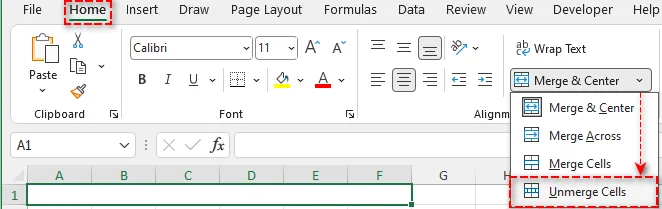
Dica Profissional: Após desfazer a mesclagem, o Excel preserva o conteúdo da célula superior esquerda, deixando as outras células vazias. Se necessário, você pode copiar o conteúdo para as outras células para manter a consistência.
Desfazer a Mesclagem de Células Usando a Caixa de Diálogo Formatar Células
Para situações em que você deseja mais controle sobre a formatação da célula - como o alinhamento do texto - a caixa de diálogo Formatar Células do Excel oferece outro método para desfazer a mesclagem de células. Veja como fazer isso passo a passo:
-
Selecione as Células Mescladas: Clique na(s) célula(s) mesclada(s) cuja mesclagem você deseja desfazer.
-
Abra o Menu Formatar Células: Clique com o botão direito na célula selecionada e escolha Formatar Células.
-
Vá para a Guia Alinhamento: Na caixa de diálogo, clique na guia Alinhamento.
-
Desmarque Mesclar Células: Em Controle de Texto, desmarque a caixa de seleção Mesclar células.
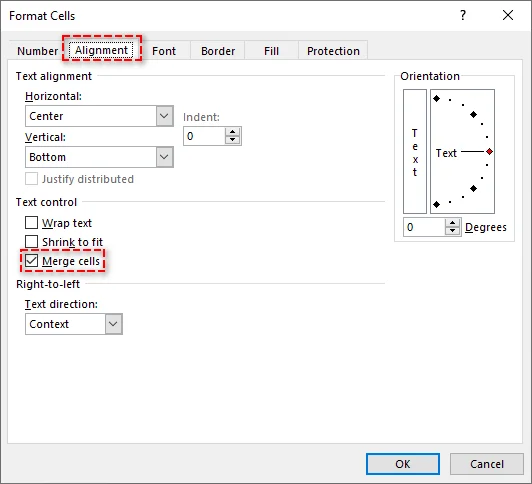
-
Clique em OK: As células selecionadas agora serão desfeitas.
Este método é útil se você deseja manter ou ajustar outras configurações de formatação ao desfazer a mesclagem.
Desfazer a Mesclagem de Células Usando um Atalho de Teclado
Atalhos de teclado são a maneira mais rápida de desfazer a mesclagem de células, especialmente quando a velocidade e a eficiência são importantes. Aqui está a sequência de atalhos para desfazer rapidamente a mesclagem de células no Excel:
-
Selecione as Células Mescladas: Destaque as células mescladas cuja mesclagem você deseja desfazer usando o mouse ou o teclado.
-
Use o Atalho: Pressione Alt + C, depois C e, finalmente, D. A mesclagem das células selecionadas será desfeita instantaneamente.

Este método elimina a necessidade de navegar pelos menus, tornando-o ideal para usuários avançados que trabalham frequentemente com células mescladas.
Encontrar e Desfazer a Mesclagem de Todas as Células Mescladas no Excel
Ao trabalhar com planilhas grandes, encontrar células mescladas manualmente pode ser lento. A ferramenta Localizar e Selecionar do Excel ajuda a localizar e limpar rapidamente células mescladas em massa. Siga estes passos para agilizar o processo:
-
Selecione a Planilha Inteira: Clique no pequeno triângulo no canto superior esquerdo da planilha para selecionar a planilha inteira.
-
Abra a Caixa de Diálogo Localizar e Substituir:
- Vá para a guia Página Inicial, clique em Localizar e Selecionar no grupo Edição e escolha Localizar…
- Ou pressione Ctrl + L para abrir a caixa de diálogo diretamente.
-
Encontrar Todas as Células Mescladas:
-
Na caixa de diálogo Localizar, clique em Opções para expandir as opções de pesquisa. Em seguida, clique em Formatar.
-
Na janela Localizar Formato, vá para a guia Alinhamento e marque a caixa de seleção Mesclar células em Controle de Texto.
-
Clique em OK e, em seguida, clique em Localizar Tudo. O Excel exibirá todas as células mescladas no intervalo selecionado.
-
-
Selecione Todas as Células Mescladas: Pressione Ctrl + T para selecionar todos os resultados da lista e, em seguida, feche a caixa de diálogo Localizar.
-
Desfaça a Mesclagem das Células: Use qualquer um dos métodos descritos anteriormente para desfazer a mesclagem de todas as células selecionadas simultaneamente.
Esta abordagem é altamente eficiente para limpar grandes conjuntos de dados ou preparar arquivos do Excel para análise.
Desfazer a Mesclagem de Células Usando VBA
O VBA (Visual Basic for Applications) permite que os usuários automatizem o processo de desfazer a mesclagem, especialmente para tarefas repetitivas ou ao lidar com várias planilhas. Se você precisa frequentemente desfazer a mesclagem de células em diferentes planilhas, o VBA é uma excelente escolha.
Aqui está um script VBA simples para desfazer a mesclagem de todas as células em uma planilha específica:
Sub UnmergeAllCells()
    Dim ws As Worksheet
    Set ws = ThisWorkbook.Sheets("Sheet1")  ' Substitua pelo nome da sua planilha

    ' Percorre todas as células mescladas e desfaz a mesclagem
    Dim cell As Range
    For Each cell In ws.UsedRange
        If cell.MergeCells Then
            cell.UnMerge
        End If
    Next cell
End Sub
Passos para Usar o Script VBA:
- Abra a pasta de trabalho do Excel e pressione Alt + F11 para abrir o editor do Visual Basic for Applications.
- Insira um novo módulo clicando em Inserir > Módulo.
- Cole o script acima na janela do módulo.
- Pressione F5 para executar a macro e desfazer a mesclagem de todas as células na planilha.
Para mais detalhes sobre o método UnMerge usado neste script VBA, consulte a documentação oficial da Microsoft: Método Range.UnMerge (Excel).
Desfazer a Mesclagem de Células Usando Python
Se você prefere não usar Excel ou VBA, o Python oferece uma solução flexível para desfazer a mesclagem de células programaticamente. Utilizando bibliotecas como Spire.XLS for Python, você pode facilmente criar, editar e manipular arquivos do Excel - incluindo mesclar e dividir células - sem a necessidade do Microsoft Excel.
Aqui está um exemplo de como você pode desfazer a mesclagem de células no Excel usando Python:
-
Instale o Spire.XLS:
Primeiro, instale a biblioteca Spire.XLS for Python do PyPI executando o seguinte comando:
pip install spire-xls -
Escreva o Script Python para desfazer a mesclagem de células:
Depois de instalar a biblioteca, você pode escrever um script Python para desfazer a mesclagem de todas as células em uma planilha do Excel. Aqui está um exemplo simples:
from spire.xls import * # Carregue o arquivo Excel workbook = Workbook() workbook.LoadFromFile("seu_arquivo.xlsx") # Substitua pelo caminho do seu arquivo # Obtenha a primeira planilha sheet = workbook.Worksheets[0] # Obtenha todas as células mescladas ranges = sheet.MergedCells # Percorra cada intervalo mesclado e desfaça a mesclagem for cell in ranges: cell.UnMerge() # Salve a pasta de trabalho modificada workbook.SaveToFile("arquivo_desmesclado.xlsx", ExcelVersion.Version2013) # Salve em um novo arquivo workbook.Dispose() # Limpe os recursos -
Execute o Script:
Depois de escrever o script, simplesmente execute-o. O script irá desfazer a mesclagem de todas as células mescladas na primeira planilha e salvar as alterações em um novo arquivo do Excel.
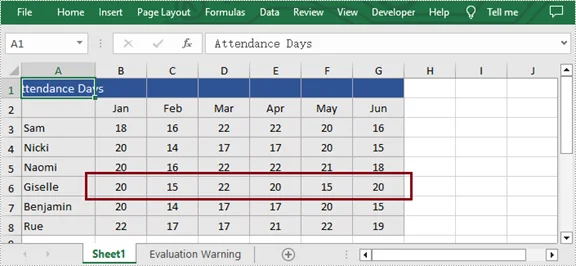
Para técnicas adicionais, como desfazer a mesclagem de células em uma linha, coluna ou intervalo específico, consulte o guia completo de Python: Python: Mesclar ou Desfazer a Mesclagem de Células no Excel.
Conclusão: Escolha o Método Certo para Desfazer a Mesclagem de Células no Excel
Desfazer a mesclagem de células é uma tarefa crucial no Excel para manter seus dados organizados e funcionais. Aqui está um guia rápido para ajudá-lo a escolher o melhor método com base em suas necessidades:
- Solução Rápida para Tarefas Pequenas: Use o botão Mesclar e Centralizar ou a caixa de diálogo Formatar Células para desfazer a mesclagem de algumas células rapidamente.
- Desfazer a Mesclagem de Todas as Células Mescladas: Use a ferramenta Localizar e Selecionar para localizar e desfazer a mesclagem de todas as células mescladas em sua planilha com apenas alguns cliques.
- Automatizar para Várias Planilhas: Use o VBA para automatizar o desfazimento da mesclagem em várias planilhas, economizando tempo ao lidar com tarefas repetitivas.
- Processamento em Lote com Python: Para lidar com vários arquivos do Excel ou desfazer a mesclagem de células em grandes conjuntos de dados, o Python oferece uma solução confiável sem a necessidade de ter o Excel instalado.
Selecione o método que melhor se adapta ao seu fluxo de trabalho e otimize suas tarefas de gerenciamento de dados hoje mesmo.
Perguntas Frequentes
P1: Por que devo desfazer a mesclagem de células no Excel?
R1: Desfazer a mesclagem de células ajuda a garantir que os dados possam ser classificados, filtrados e funcionem com fórmulas, evitando problemas em cálculos e análises de dados.
P2: Qual é a maneira mais rápida de desfazer a mesclagem de células no Excel?
R2: Use o atalho de teclado: pressione Alt + C, depois C, seguido por D para desfazer instantaneamente a mesclagem das células selecionadas.
P3: Como desfazer a mesclagem de todas as células no Excel?
R3: Use Localizar e Selecionar para localizar e desfazer a mesclagem de todas as células mescladas na planilha de uma só vez.
P4: Como desfazer a mesclagem de células em várias planilhas no Excel?
R4: Use o VBA para desfazer a mesclagem de células em várias planilhas executando um script simples que percorre todas as planilhas e desfaz a mesclagem das células.
P5: Posso desfazer a mesclagem de células automaticamente sem ter o Excel instalado?
R5: Sim. Use Python junto com a biblioteca Spire.XLS para desfazer automaticamente a mesclagem de células em um ou mais arquivos do Excel, tudo sem a necessidade de instalar o Microsoft Excel.
Veja Também
- Como Copiar uma Planilha no Excel (Manual, VBA e Python)
- Como Remover Linhas Duplicadas do Excel - 6 Maneiras Fáceis
- Como Converter Números em Texto no Excel (5 Maneiras Fáceis)
- Converter Excel para XML: Ferramentas Gratuitas + Automação com Python
- 5 Métodos Fáceis para Congelar Linhas e Colunas no Excel