Converter CSV para TXT: 4 Métodos Fáceis para Todos os Usuários
Índice
- 1. Usando Editores de Texto: Conversão Manual Rápida
- 2. Conversor Online de CSV para TXT: Conversão com Um Clique
- 3. Programação: Conversão em Lote para Desenvolvedores
- 4. Software de Escritório: Excel/Google Sheets para Usuários Diários
- 5. Considerações de Formatação ao Converter CSV para Texto
- 6. Perguntas Frequentes Sobre a Conversão de CSV para TXT
Arquivos CSV (Valores Separados por Vírguas) são amplamente utilizados em planilhas, bancos de dados e análise de dados, mas muitas vezes não são exibidos corretamente em editores de texto básicos ou softwares simples. Converter CSV para TXT resolve esse problema de compatibilidade, tornando os dados mais fáceis de ler e compartilhar em qualquer dispositivo.
Seja você um usuário não técnico precisando de uma conversão rápida, um desenvolvedor automatizando fluxos de trabalho ou um profissional lidando com dados sensíveis, este guia detalha métodos confiáveis de conversão de CSV para Texto, adaptados a diferentes níveis de habilidade e requisitos.
- 1. Usando Editores de Texto: Conversão Manual Rápida
- 2. Conversor Online de CSV para TXT: Conversão com Um Clique
- 3. Programação: Conversão em Lote para Desenvolvedores
- 4. Software de Escritório: Excel/Google Sheets para Usuários Diários
- 5. Considerações de Formatação ao Converter CSV para Texto
- 6. Perguntas Frequentes Sobre a Conversão de CSV para TXT
1. Usando Editores de Texto: Conversão Manual Rápida
O método mais simples envolve abrir seu arquivo CSV em qualquer editor de texto como Bloco de Notas, TextEdit ou VS Code e salvá-lo com a extensão .txt. Isso mantém a estrutura separada por vírgulas, mas a armazena como texto simples.
Passos:
- Abra o arquivo CSV em seu editor de texto preferido.
- Revise o conteúdo para garantir a formatação adequada.
- Vá para Arquivo → Salvar Como.
- Altere a extensão do arquivo de .csv para .txt.
- Salve no local desejado.
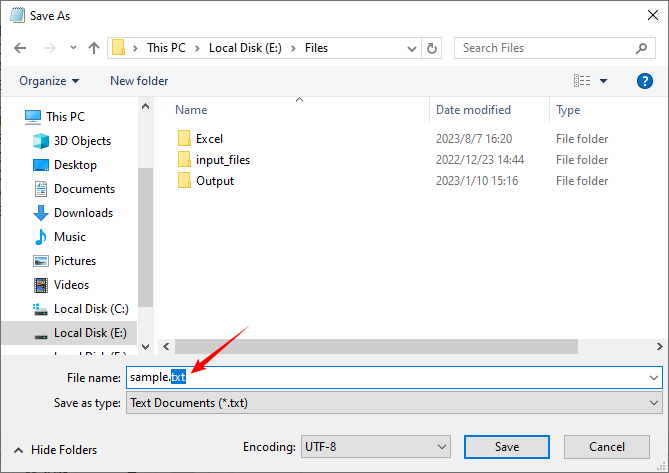
Nota: Este método não altera os dados; ele apenas muda a extensão do arquivo. Alguns sistemas ainda podem tratar o arquivo como CSV com base em seu conteúdo.
Você também pode se interessar por: 4 Maneiras Comprovadas de Converter CSV para Excel (Grátis e Automatizado)
2. Conversor Online de CSV para TXT: Conversão com Um Clique
Para usuários que preferem uma interface gráfica sem a necessidade de baixar software, as ferramentas online oferecem uma solução conveniente de um clique. Elas são especialmente úteis para conversões rápidas em qualquer dispositivo (computador, tablet, celular).
Ferramenta de Exemplo: Convertio
Passo a Passo:
- Visite a página do Conversor de CSV para TXT do Convertio. A interface clara garante que você não se perca.
- Clique em “Escolher Arquivos” para enviar seu arquivo CSV. Ele suporta arquivos locais e armazenamento em nuvem (Google Drive, Dropbox).
- Confirme se o formato de saída é “TXT” (geralmente selecionado por padrão).
- Clique em “Converter” e aguarde de 1 a 3 segundos. Clique em “Baixar” para salvar o arquivo TXT.
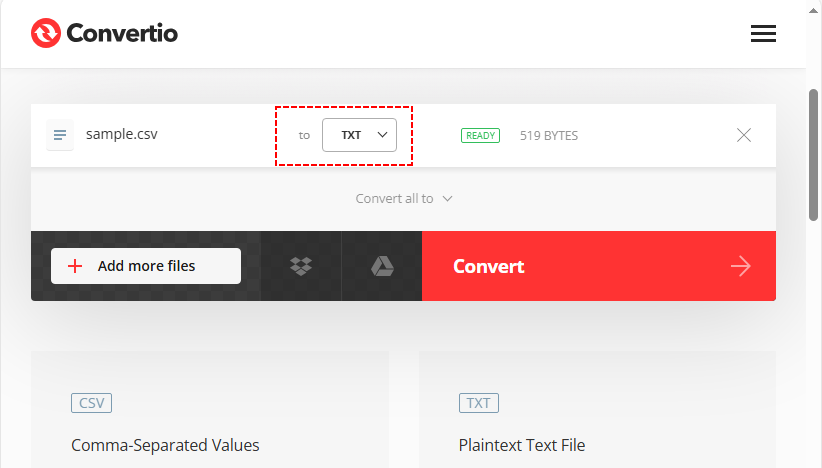
✔ Vantagens: Rápido, gratuito para arquivos pequenos, multiplataforma e compatível com dispositivos móveis.
Nota de Segurança: Evite enviar dados sensíveis ou confidenciais para ferramentas online públicas. Use métodos offline para informações financeiras, pessoais ou proprietárias.
3. Programação: Conversão em Lote para Desenvolvedores
Se você precisa converter centenas de arquivos CSV ou integrar a conversão em fluxos de trabalho, a programação é a solução mais eficiente. Com a biblioteca Free Spire.XLS, você pode converter CSV para TXT em Python com código mínimo, mantendo controle total sobre delimitadores, codificação e estrutura.
Código Passo a Passo para Conversão em Massa:
O código abaixo converte pastas inteiras de arquivos CSV em arquivos de texto automaticamente:
from spire.xls import *
from spire.xls.common import *
import os

def batch_csv_to_txt(input_dir: str, output_dir: str, delimiter: str = "\t"):
    # Create output directory if it doesn't exist
    if not os.path.exists(output_dir):
        os.makedirs(output_dir)

    # Get all files in input directory
    for filename in os.listdir(input_dir):
        # Only process CSV files (case-insensitive: .csv or .CSV)
        if filename.lower().endswith(".csv"):
            # Construct full input file path
            input_csv_path = os.path.join(input_dir, filename)
            # Generate output TXT filename (replace .csv with .txt)
            txt_filename = os.path.splitext(filename)[0] + ".txt"
            output_txt_path = os.path.join(output_dir, txt_filename)

            try:
                # Create workbook instance for each CSV (critical to avoid resource leaks)
                workbook = Workbook()

                # Load CSV file (matches your original load logic: delimiter ",", start at row 1, column 1)
                workbook.LoadFromFile(input_csv_path, ",", 1, 1)

                # Get the first worksheet (CSV is loaded as a single worksheet)
                sheet = workbook.Worksheets[0]

                # Save as tab-delimited TXT (use specified delimiter)
                sheet.SaveToFile(output_txt_path, delimiter, Encoding.get_UTF8())

                print(f"Success: {filename} → {txt_filename}")

            except Exception as e:
                print(f"Failed to process {filename}: {str(e)}")

            finally:
                # Dispose workbook to release memory (mandatory for batch processing)
                workbook.Dispose()

# --------------------------
# Usage Example
# --------------------------
if __name__ == "__main__":
    # Configure your input/output directories here
    INPUT_DIRECTORY = "./input_csvs"
    OUTPUT_DIRECTORY = "./output_txts"

    # Run batch conversion (delimiter = "\t" for tab, or use "," for comma-separated TXT)
    batch_csv_to_txt(INPUT_DIRECTORY, OUTPUT_DIRECTORY, delimiter="\t")
Principais Características:
- Delimitador personalizável (tabulação, vírgula, pipe, etc.)
- Codificação UTF-8 garantida
- Tratamento de erros para processamento em lote robusto
Resultado da conversão em lote de arquivos CSV para arquivos de texto:
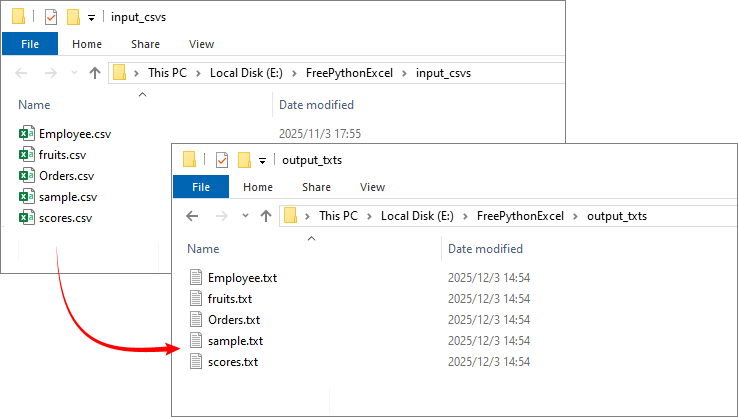
Dica Profissional: A biblioteca Python gratuita também é capaz de converter o arquivo TXT de volta para um arquivo CSV.
4. Software de Escritório: Excel/Google Sheets para Usuários Diários
Para usuários já familiarizados com software de planilha, este método integra a conversão em um fluxo de trabalho existente sem novas ferramentas.
Tome o Excel como Exemplo:
- Abra seu arquivo CSV com o Excel. Os dados serão organizados automaticamente em colunas.
- Clique em “Arquivo → Salvar Como”. No menu suspenso “Salvar como tipo”, selecione “Texto (delimitado por tabulações) (*.txt)”.
- Escolha um local para salvar, nomeie o arquivo e clique em “Salvar” para alterar de CSV para TXT.
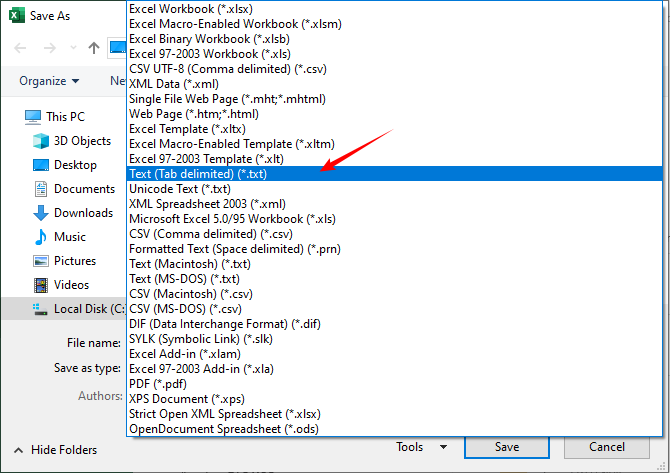
Operação no Google Sheets: Abra o arquivo CSV, vá para “Arquivo → Fazer download → Texto simples (.txt)”.
Notas: O Excel pode adicionar formatação extra — visualize o arquivo TXT para garantir a integridade dos dados.
Considerações de Formatação ao Converter CSV para Texto
Seleção de Delimitador
Ao converter CSV para texto, você pode alterar os delimitadores para melhor legibilidade:
- Valores separados por tabulação: Ideal para alinhamento em editores de texto
- Valores separados por pipe (|): Útil quando os dados contêm vírgulas
- Delimitadores personalizados: Podem ser especificados com base em suas necessidades
Preservando a Estrutura dos Dados
Mantenha a integridade dos dados:
- Lidando com caracteres especiais e quebras de linha dentro dos campos
- Mantendo uma codificação consistente (UTF-8 recomendado para texto multilíngue)
- Teste as conversões com um arquivo de amostra antes do processamento em lote.
Conclusão
Converter CSV para TXT é uma habilidade versátil que preenche a lacuna entre dados estruturados e acessibilidade universal. Desde métodos manuais em editores de texto até scripts automatizados em Python, a abordagem correta depende do seu volume, conforto técnico e necessidade de personalização.
Ao entender as várias abordagens descritas neste guia, você pode selecionar o método mais eficiente para sua situação, garantindo que seus dados permaneçam intactos enquanto se tornam mais acessíveis em diferentes plataformas e aplicativos.
Perguntas Frequentes Sobre a Conversão de CSV para TXT
P: Converter CSV para TXT alterará meus dados?
R: Os dados em si permanecem inalterados, mas a formatação pode ser diferente. Por exemplo:
- As vírgulas podem ser substituídas por tabulações ou outro delimitador.
- Todos os valores se tornam texto simples.
- Caracteres especiais e quebras de linha dentro dos campos devem ser preservados se a conversão for feita corretamente.
P: Posso converter vários arquivos CSV para TXT de uma vez?
R: Sim. Usar um script de programação (como o exemplo em Python fornecido) ou ferramentas de conversão em lote permite processar pastas inteiras de arquivos CSV automaticamente. Softwares de planilha e a maioria dos conversores online geralmente lidam com apenas um arquivo por vez.
P: Por que meu arquivo TXT ainda parece um CSV após a conversão?
R: Se você apenas alterou a extensão do arquivo (por exemplo, de .csv para .txt) sem alterar o conteúdo, os dados ainda estarão separados por vírgulas. Para separar visualmente as colunas, use um conversor que altere o delimitador para tabulações ou espaços.
P: O que devo fazer se meu CSV tiver várias planilhas?
R: Arquivos CSV não suportam múltiplas planilhas. Se sua fonte for um arquivo Excel com várias planilhas, salve cada planilha como um CSV separado primeiro e, em seguida, converta cada um para TXT. A biblioteca Free Spire.XLS for Python pode lidar diretamente com arquivos Excel de várias planilhas, se necessário.
Veja Também
CSV를 TXT로 변환: 모든 사용자를 위한 4가지 쉬운 방법
CSV (쉼표로 구분된 값) 파일은 스프레드시트, 데이터베이스 및 데이터 분석에 널리 사용되지만 기본 텍스트 편집기나 간단한 소프트웨어에서는 제대로 표시되지 않는 경우가 많습니다. CSV를 TXT로 변환하면 이 호환성 문제가 해결되어 모든 장치에서 데이터를 더 쉽게 읽고 공유할 수 있습니다.
빠른 변환이 필요한 비기술 사용자, 워크플로를 자동화하는 개발자, 또는 민감한 데이터를 처리하는 전문가 등 누구에게나 이 가이드는 다양한 기술 수준과 요구 사항에 맞춰 신뢰할 수 있는 CSV to Text 변환 방법을 자세히 설명합니다.
- 1. 텍스트 편집기 사용: 빠른 수동 변환
- 2. 온라인 CSV to TXT 변환기: 원클릭 변환
- 3. 프로그래밍: 개발자를 위한 일괄 변환
- 4. 오피스 소프트웨어: 일반 사용자를 위한 Excel/Google Sheets
- CSV를 텍스트로 변환할 때의 서식 고려 사항
- CSV to TXT 변환에 대한 자주 묻는 질문
1. 텍스트 편집기 사용: 빠른 수동 변환
가장 간단한 방법은 메모장, TextEdit 또는 VS Code와 같은 텍스트 편집기에서 CSV 파일을 열고 .txt 확장자로 저장하는 것입니다. 이렇게 하면 쉼표로 구분된 구조는 유지되지만 일반 텍스트로 저장됩니다.
단계:
- 선호하는 텍스트 편집기에서 CSV 파일을 엽니다.
- 내용의 서식이 올바른지 검토합니다.
- 파일 → 다른 이름으로 저장으로 이동합니다.
- 파일 확장자를 .csv에서 .txt로 변경합니다.
- 원하는 위치에 저장합니다.
참고: 이 방법은 데이터를 변경하지 않고 파일 확장자만 변경합니다. 일부 시스템에서는 내용에 따라 파일을 여전히 CSV로 처리할 수 있습니다.
관심 있을 만한 다른 내용: CSV를 Excel로 변환하는 4가지 입증된 방법 (무료 및 자동화)
2. 온라인 CSV to TXT 변환기: 원클릭 변환
소프트웨어를 다운로드하지 않고 그래픽 인터페이스를 선호하는 사용자를 위해 온라인 도구는 편리한 원클릭 솔루션을 제공합니다. 컴퓨터, 태블릿, 휴대폰 등 모든 장치에서 빠른 변환에 특히 유용합니다.
예시 도구: Convertio
단계별 안내:
- Convertio의 CSV to TXT 변환기 페이지를 방문하세요. 명확한 인터페이스 덕분에 길을 잃지 않을 것입니다.
- "파일 선택"을 클릭하여 CSV 파일을 업로드합니다. 로컬 파일 및 클라우드 저장소(Google Drive, Dropbox)를 지원합니다.
- 출력 형식이 "TXT"인지 확인합니다(일반적으로 기본으로 선택됨).
- "변환"을 누르고 1-3초 기다립니다. "다운로드"를 클릭하여 TXT 파일을 저장합니다.
✔ 장점: 빠르고, 작은 파일은 무료이며, 크로스 플랫폼 및 모바일 친화적입니다.
보안 참고: 민감하거나 기밀인 데이터를 공용 온라인 도구에 업로드하지 마십시오. 금융, 개인 또는 독점 정보는 오프라인 방법을 사용하십시오.
3. 프로그래밍: 개발자를 위한 일괄 변환
수백 개의 CSV 파일을 변환하거나 변환을 워크플로에 통합해야 하는 경우 프로그래밍이 가장 효율적인 솔루션입니다. Free Spire.XLS 라이브러리를 사용하면 최소한의 코드로 Python에서 CSV를 TXT로 변환하면서 구분 기호, 인코딩 및 구조에 대한 완전한 제어를 유지할 수 있습니다.
대량 변환을 위한 단계별 코드:
아래 코드는 CSV 파일이 있는 전체 폴더를 텍스트 파일로 자동 변환합니다:
from spire.xls import *
from spire.xls.common import *
import os

def batch_csv_to_txt(input_dir: str, output_dir: str, delimiter: str = "\t"):
    # 출력 디렉토리가 없으면 생성
    if not os.path.exists(output_dir):
        os.makedirs(output_dir)

    # 입력 디렉토리의 모든 파일 가져오기
    for filename in os.listdir(input_dir):
        # CSV 파일만 처리 (대소문자 구분 없음: .csv 또는 .CSV)
        if filename.lower().endswith(".csv"):
            # 전체 입력 파일 경로 구성
            input_csv_path = os.path.join(input_dir, filename)
            # 출력 TXT 파일 이름 생성 (.csv를 .txt로 대체)
            txt_filename = os.path.splitext(filename)[0] + ".txt"
            output_txt_path = os.path.join(output_dir, txt_filename)

            try:
                # 각 CSV에 대한 워크북 인스턴스 생성 (리소스 누수를 방지하는 데 중요)
                workbook = Workbook()

                # CSV 파일 로드 (원본 로드 로직과 일치: 구분 기호 ",", 1행, 1열에서 시작)
                workbook.LoadFromFile(input_csv_path, ",", 1, 1)

                # 첫 번째 워크시트 가져오기 (CSV는 단일 워크시트로 로드됨)
                sheet = workbook.Worksheets[0]

                # 탭으로 구분된 TXT로 저장 (지정된 구분 기호 사용)
                sheet.SaveToFile(output_txt_path, delimiter, Encoding.get_UTF8())

                print(f"Success: {filename} → {txt_filename}")

            except Exception as e:
                print(f"Failed to process {filename}: {str(e)}")

            finally:
                # 메모리 해제를 위해 워크북 폐기 (일괄 처리에 필수)
                workbook.Dispose()

# --------------------------
# 사용 예시
# --------------------------
if __name__ == "__main__":
    # 여기에 입력/출력 디렉토리 구성
    INPUT_DIRECTORY = "./input_csvs"
    OUTPUT_DIRECTORY = "./output_txts"

    # 일괄 변환 실행 (탭의 경우 구분 기호 = "\t", 쉼표로 구분된 TXT의 경우 "," 사용)
    batch_csv_to_txt(INPUT_DIRECTORY, OUTPUT_DIRECTORY, delimiter="\t")
주요 특징:
- 사용자 정의 가능한 구분 기호 (탭, 쉼표, 파이프 등)
- UTF-8 인코딩 보장
- 안정적인 일괄 처리를 위한 오류 처리
CSV 파일을 텍스트 파일로 일괄 변환한 결과:
전문가 팁: 무료 Python 라이브러리는 TXT 파일을 다시 CSV 파일로 변환할 수도 있습니다.
4. 오피스 소프트웨어: 일반 사용자를 위한 Excel/Google Sheets
스프레드시트 소프트웨어에 이미 익숙한 사용자에게 이 방법은 새로운 도구 없이 기존 워크플로에 변환을 통합합니다.
Excel을 예로 들어 보겠습니다:
- Excel로 CSV 파일을 엽니다. 데이터가 자동으로 열에 정렬됩니다.
- "파일 → 다른 이름으로 저장"을 클릭합니다. "파일 형식" 드롭다운에서 "텍스트 (탭으로 분리) (*.txt)"를 선택합니다.
- 저장 위치를 선택하고 파일 이름을 지정한 다음 "저장"을 클릭하여 CSV를 TXT로 변경합니다.
Google Sheets 작업: CSV 파일을 열고 "파일 → 다운로드 → 일반 텍스트 (.txt)"로 이동합니다.
참고: Excel에서 추가 서식을 추가할 수 있으므로 TXT 파일을 미리 보고 데이터 무결성을 확인하십시오.
CSV를 텍스트로 변환할 때의 서식 고려 사항
구분 기호 선택
CSV를 텍스트로 변환할 때 가독성을 높이기 위해 구분 기호를 변경할 수 있습니다:
- 탭으로 구분된 값: 텍스트 편집기에서 정렬에 이상적입니다
- 파이프로 구분된 값 (|): 데이터에 쉼표가 포함된 경우 유용합니다
- 사용자 정의 구분 기호: 필요에 따라 지정할 수 있습니다
데이터 구조 보존
다음을 통해 데이터 무결성을 유지하십시오:
- 필드 내 특수 문자 및 줄 바꿈 처리
- 일관된 인코딩 유지 (다국어 텍스트에 UTF-8 권장)
- 일괄 처리 전에 샘플 파일로 변환을 테스트하십시오.
결론
CSV를 TXT로 변환하는 것은 구조화된 데이터와 보편적인 접근성 사이의 격차를 해소하는 다재다능한 기술입니다. 수동 텍스트 편집기 방법부터 자동화된 Python 스크립트에 이르기까지 올바른 접근 방식은 처리량, 기술적 편안함 및 사용자 정의 필요성에 따라 달라집니다.
이 가이드에 설명된 다양한 접근 방식을 이해함으로써 상황에 가장 효율적인 방법을 선택하여 데이터가 손상되지 않으면서 다양한 플랫폼과 애플리케이션에서 더 쉽게 접근할 수 있도록 할 수 있습니다.
CSV to TXT 변환에 대한 자주 묻는 질문
Q: CSV를 TXT로 변환하면 데이터가 변경됩니까?
A: 데이터 자체는 변경되지 않지만 서식이 다를 수 있습니다. 예를 들어:
- 쉼표가 탭이나 다른 구분 기호로 대체될 수 있습니다.
- 모든 값이 일반 텍스트가 됩니다.
- 변환이 올바르게 수행되면 필드 내의 특수 문자 및 줄 바꿈이 보존되어야 합니다.
Q: 여러 CSV 파일을 한 번에 TXT로 변환할 수 있습니까?
A: 예. 프로그래밍 스크립트(제공된 Python 예제와 같은)나 일괄 변환 도구를 사용하면 CSV 파일이 있는 전체 폴더를 자동으로 처리할 수 있습니다. 스프레드시트 소프트웨어와 대부분의 온라인 변환기는 일반적으로 한 번에 하나의 파일만 처리합니다.
Q: 변환 후에도 TXT 파일이 여전히 CSV처럼 보이는 이유는 무엇입니까?
A: 내용을 변경하지 않고 파일 확장자만(예: .csv에서 .txt로) 변경한 경우 데이터는 여전히 쉼표로 구분됩니다. 열을 시각적으로 분리하려면 구분 기호를 탭이나 공백으로 변경하는 변환기를 사용하십시오.
Q: CSV에 여러 시트가 있는 경우 어떻게 해야 합니까?
A: CSV 파일은 여러 시트를 지원하지 않습니다. 원본이 여러 시트가 있는 Excel 파일인 경우 각 시트를 먼저 별도의 CSV로 저장한 다음 각 시트를 TXT로 변환하십시오. Free Spire.XLS for Python 라이브러리는 필요한 경우 여러 시트가 있는 Excel 파일을 직접 처리할 수 있습니다.
참고 항목
Converti CSV in TXT: 4 metodi semplici per tutti gli utenti
Indice
- 1. Utilizzo degli editor di testo: conversione manuale rapida
- 2. Convertitore online da CSV a TXT: conversione con un clic
- 3. Programmazione: conversione batch per sviluppatori
- 4. Software per ufficio: Excel/Google Sheets per utenti giornalieri
- Considerazioni sulla formattazione durante la conversione di CSV in testo
- Domande frequenti sulla conversione da CSV a TXT
I file CSV (Comma-Separated Values) sono ampiamente utilizzati in fogli di calcolo, database e analisi dei dati, ma spesso non vengono visualizzati correttamente negli editor di testo di base o nei software semplici. La conversione da CSV a TXT risolve questo problema di compatibilità, rendendo i dati più facili da leggere e condividere su qualsiasi dispositivo.
Che tu sia un utente non tecnico che necessita di una conversione rapida, uno sviluppatore che automatizza i flussi di lavoro o un professionista che gestisce dati sensibili, questa guida descrive in dettaglio metodi affidabili di conversione da CSV a testo su misura per diversi livelli di competenza e requisiti.
- 1. Utilizzo degli editor di testo: conversione manuale rapida
- 2. Convertitore online da CSV a TXT: conversione con un clic
- 3. Programmazione: conversione batch per sviluppatori
- 4. Software per ufficio: Excel/Google Sheets per utenti giornalieri
- Considerazioni sulla formattazione durante la conversione di CSV in testo
- Domande frequenti sulla conversione da CSV a TXT
1. Utilizzo degli editor di testo: conversione manuale rapida
Il metodo più semplice consiste nell'aprire il file CSV in un qualsiasi editor di testo come Blocco note, TextEdit o VS Code e salvarlo con estensione .txt. Ciò mantiene la struttura separata da virgole ma la memorizza come testo semplice.
Passaggi:
- Apri il file CSV nel tuo editor di testo preferito.
- Rivedi il contenuto per la formattazione corretta.
- Vai su File → Salva con nome.
- Cambia l'estensione del file da .csv a .txt.
- Salva nella posizione desiderata.
Nota: questo metodo non altera i dati; cambia semplicemente l'estensione del file. Alcuni sistemi potrebbero comunque trattare il file come CSV in base al suo contenuto.
Potrebbe interessarti anche: 4 modi comprovati per convertire CSV in Excel (gratuiti e automatizzati)
2. Convertitore online da CSV a TXT: conversione con un clic
Per gli utenti che preferiscono un'interfaccia grafica senza scaricare software, gli strumenti online offrono una comoda soluzione con un clic. Sono particolarmente utili per conversioni rapide su qualsiasi dispositivo (computer, tablet, telefono).
Strumento di esempio: Convertio
Passo dopo passo:
- Visita la pagina del Convertitore da CSV a TXT di Convertio. L'interfaccia chiara ti assicura di non perderti.
- Fai clic su “Scegli file” per caricare il tuo file CSV. Supporta file locali e archiviazione cloud (Google Drive, Dropbox).
- Conferma che il formato di output sia “TXT” (solitamente selezionato per impostazione predefinita).
- Premi “Converti” e attendi 1–3 secondi. Fai clic su “Scarica” per salvare il file TXT.
✔ Vantaggi: veloce, gratuito per file di piccole dimensioni, multipiattaforma e ottimizzato per i dispositivi mobili.
Nota sulla sicurezza: evita di caricare dati sensibili o riservati su strumenti online pubblici. Utilizza metodi offline per informazioni finanziarie, personali o proprietarie.
3. Programmazione: conversione batch per sviluppatori
Se devi convertire centinaia di file CSV o integrare la conversione nei flussi di lavoro, la programmazione è la soluzione più efficiente. Con la libreria gratuita Spire.XLS, puoi convertire CSV in TXT in Python con un codice minimo, pur mantenendo il pieno controllo su delimitatori, codifica e struttura.
Codice passo passo per la conversione in blocco:
Il codice seguente converte automaticamente intere cartelle di file CSV in file di testo:
from spire.xls import *
from spire.xls.common import *
import os

def batch_csv_to_txt(input_dir: str, output_dir: str, delimiter: str = "\t"):
    # Create output directory if it doesn't exist
    if not os.path.exists(output_dir):
        os.makedirs(output_dir)

    # Get all files in input directory
    for filename in os.listdir(input_dir):
        # Only process CSV files (case-insensitive: .csv or .CSV)
        if filename.lower().endswith(".csv"):
            # Construct full input file path
            input_csv_path = os.path.join(input_dir, filename)
            # Generate output TXT filename (replace .csv with .txt)
            txt_filename = os.path.splitext(filename)[0] + ".txt"
            output_txt_path = os.path.join(output_dir, txt_filename)

            try:
                # Create workbook instance for each CSV (critical to avoid resource leaks)
                workbook = Workbook()

                # Load CSV file (matches your original load logic: delimiter ",", start at row 1, column 1)
                workbook.LoadFromFile(input_csv_path, ",", 1, 1)

                # Get the first worksheet (CSV is loaded as a single worksheet)
                sheet = workbook.Worksheets[0]

                # Save as tab-delimited TXT (use specified delimiter)
                sheet.SaveToFile(output_txt_path, delimiter, Encoding.get_UTF8())

                print(f"Success: {filename} → {txt_filename}")

            except Exception as e:
                print(f"Failed to process {filename}: {str(e)}")

            finally:
                # Dispose workbook to release memory (mandatory for batch processing)
                workbook.Dispose()

# --------------------------
# Usage Example
# --------------------------
if __name__ == "__main__":
    # Configure your input/output directories here
    INPUT_DIRECTORY = "./input_csvs"
    OUTPUT_DIRECTORY = "./output_txts"

    # Run batch conversion (delimiter = "\t" for tab, or use "," for comma-separated TXT)
    batch_csv_to_txt(INPUT_DIRECTORY, OUTPUT_DIRECTORY, delimiter="\t")
Caratteristiche principali:
- Delimitatore personalizzabile (tabulazione, virgola, pipe, ecc.)
- Codifica UTF-8 garantita
- Gestione degli errori per un'elaborazione batch affidabile
Risultato della conversione batch di file CSV in file di testo:
Suggerimento professionale: la libreria Python gratuita è anche in grado di riconvertire il file TXT in file CSV.
4. Software per ufficio: Excel/Google Sheets per utenti giornalieri
Per gli utenti che hanno già familiarità con i software per fogli di calcolo, questo metodo integra la conversione in un flusso di lavoro esistente senza nuovi strumenti.
Prendi Excel come esempio:
- Apri il tuo file CSV con Excel. I dati verranno disposti automaticamente in colonne.
- Fai clic su “File → Salva con nome”. Nel menu a discesa “Salva come”, seleziona “Testo (delimitato da tabulazioni) (*.txt)”.
- Scegli una posizione di salvataggio, assegna un nome al file e fai clic su “Salva” per cambiare da CSV a TXT.
Operazione con Fogli Google: apri il file CSV, vai su “File → Scarica → Testo normale (.txt)”.
Note: Excel potrebbe aggiungere formattazione aggiuntiva: visualizza l'anteprima del file TXT per garantire l'integrità dei dati.
Considerazioni sulla formattazione durante la conversione di CSV in testo
Selezione del delimitatore
Durante la conversione di CSV in testo, è possibile modificare i delimitatori per una migliore leggibilità:
- Valori separati da tabulazione: ideali per l'allineamento negli editor di testo
- Valori separati da pipe (|): utili quando i dati contengono virgole
- Delimitatori personalizzati: possono essere specificati in base alle proprie esigenze
Conservazione della struttura dei dati
Mantieni l'integrità dei dati:
- Gestendo caratteri speciali e interruzioni di riga all'interno dei campi
- Mantenendo una codifica coerente (UTF-8 consigliato per testo multilingue)
- Testando le conversioni con un file di esempio prima dell'elaborazione batch.
Conclusione
La conversione da CSV a TXT è un'abilità versatile che colma il divario tra dati strutturati e accessibilità universale. Dai metodi manuali con editor di testo agli script Python automatizzati, l'approccio giusto dipende dal volume, dalla dimestichezza tecnica e dalla necessità di personalizzazione.
Comprendendo i vari approcci descritti in questa guida, puoi selezionare il metodo più efficiente per la tua situazione, assicurandoti che i tuoi dati rimangano intatti e diventino più accessibili su diverse piattaforme e applicazioni.
Domande frequenti sulla conversione da CSV a TXT
D: La conversione da CSV a TXT modificherà i miei dati?
R: I dati stessi rimangono invariati, ma la formattazione potrebbe differire. Per esempio:
- Le virgole possono essere sostituite da tabulazioni o da un altro delimitatore.
- Tutti i valori diventano testo semplice.
- I caratteri speciali e le interruzioni di riga all'interno dei campi devono essere preservati se la conversione viene eseguita correttamente.
D: Posso convertire più file CSV in TXT contemporaneamente?
R: Sì. L'utilizzo di uno script di programmazione (come l'esempio Python fornito) o di strumenti di conversione batch consente di elaborare automaticamente intere cartelle di file CSV. I software per fogli di calcolo e la maggior parte dei convertitori online in genere gestiscono un solo file alla volta.
D: Perché il mio file TXT assomiglia ancora a un CSV dopo la conversione?
R: Se hai solo cambiato l'estensione del file (ad esempio, da .csv a .txt) senza alterarne il contenuto, i dati saranno ancora separati da virgole. Per separare visivamente le colonne, utilizza un convertitore che cambi il delimitatore in tabulazioni o spazi.
D: Cosa devo fare se il mio CSV ha più fogli?
R: I file CSV non supportano più fogli. Se la tua fonte è un file Excel con più fogli, salva prima ogni foglio come un CSV separato, quindi converti ciascuno in TXT. La libreria Free Spire.XLS per Python può gestire direttamente i file Excel con più fogli se necessario.
Vedi anche
Convertir CSV en TXT : 4 méthodes faciles pour tous les utilisateurs
Table des matières
- 1. Utiliser des éditeurs de texte : Conversion manuelle rapide
- 2. Convertisseur CSV en TXT en ligne : Conversion en un clic
- 3. Programmation : Conversion par lots pour les développeurs
- 4. Logiciels de bureautique : Excel/Google Sheets pour les utilisateurs quotidiens
- 5. Considérations sur le formatage lors de la conversion de CSV en texte
- 6. FAQ sur la conversion de CSV en TXT
Les fichiers CSV (Comma-Separated Values) sont largement utilisés dans les feuilles de calcul, les bases de données et l'analyse de données, mais ils ne s'affichent souvent pas correctement dans les éditeurs de texte de base ou les logiciels simples. La conversion de CSV en TXT résout ce problème de compatibilité, rendant les données plus faciles à lire et à partager sur n'importe quel appareil.
Que vous soyez un utilisateur non technique ayant besoin d'une conversion rapide, un développeur automatisant des flux de travail ou un professionnel manipulant des données sensibles, ce guide détaille des méthodes fiables de conversion de CSV en texte adaptées à différents niveaux de compétence et exigences.
- 1. Utiliser des éditeurs de texte : Conversion manuelle rapide
- 2. Convertisseur CSV en TXT en ligne : Conversion en un clic
- 3. Programmation : Conversion par lots pour les développeurs
- 4. Logiciels de bureautique : Excel/Google Sheets pour les utilisateurs quotidiens
- 5. Considérations sur le formatage lors de la conversion de CSV en texte
- 6. FAQ sur la conversion de CSV en TXT
1. Utiliser des éditeurs de texte : Conversion manuelle rapide
La méthode la plus simple consiste à ouvrir votre fichier CSV dans n'importe quel éditeur de texte comme Notepad, TextEdit ou VS Code et à l'enregistrer avec une extension .txt. Cela conserve la structure séparée par des virgules mais la stocke sous forme de texte brut.
Étapes :
- Ouvrez le fichier CSV dans votre éditeur de texte préféré.
- Vérifiez que le contenu est correctement formaté.
- Allez dans Fichier → Enregistrer sous.
- Changez l'extension du fichier de .csv à .txt.
- Enregistrez à l'emplacement souhaité.
Remarque : Cette méthode ne modifie pas les données ; elle change simplement l'extension du fichier. Certains systèmes peuvent toujours traiter le fichier comme un CSV en fonction de son contenu.
Vous pourriez également être intéressé par : 4 façons éprouvées de convertir un CSV en Excel (gratuit & automatisé)
2. Convertisseur CSV en TXT en ligne : Conversion en un clic
Pour les utilisateurs qui préfèrent une interface graphique sans télécharger de logiciel, les outils en ligne offrent une solution pratique en un clic. Ils sont particulièrement utiles pour des conversions rapides sur n'importe quel appareil (ordinateur, tablette, téléphone).
Outil d'exemple : Convertio
Étape par étape :
- Visitez la page du convertisseur CSV en TXT de Convertio. L'interface claire vous assure de ne pas vous perdre.
- Cliquez sur “Choisir les fichiers” pour télécharger votre fichier CSV. Il prend en charge les fichiers locaux et le stockage en nuage (Google Drive, Dropbox).
- Confirmez que le format de sortie est “TXT” (généralement sélectionné par défaut).
- Appuyez sur “Convertir” et attendez 1–3 secondes. Cliquez sur “Télécharger” pour enregistrer le fichier TXT.
✔ Avantages : Rapide, gratuit pour les petits fichiers, multiplateforme et compatible avec les mobiles.
Note de sécurité : Évitez de télécharger des données sensibles ou confidentielles sur des outils en ligne publics. Utilisez des méthodes hors ligne pour les informations financières, personnelles ou exclusives.
3. Programmation : Conversion par lots pour les développeurs
Si vous devez convertir des centaines de fichiers CSV ou intégrer la conversion dans des flux de travail, la programmation est la solution la plus efficace. Avec la bibliothèque Free Spire.XLS, vous pouvez convertir des CSV en TXT en Python avec un minimum de code, tout en conservant un contrôle total sur les délimiteurs, l'encodage et la structure.
Code étape par étape pour la conversion en masse :
Le code ci-dessous convertit automatiquement des dossiers entiers de fichiers CSV en fichiers texte :
from spire.xls import *
from spire.xls.common import *
import os

def batch_csv_to_txt(input_dir: str, output_dir: str, delimiter: str = "\t"):
    # Create output directory if it doesn't exist
    if not os.path.exists(output_dir):
        os.makedirs(output_dir)

    # Get all files in input directory
    for filename in os.listdir(input_dir):
        # Only process CSV files (case-insensitive: .csv or .CSV)
        if filename.lower().endswith(".csv"):
            # Construct full input file path
            input_csv_path = os.path.join(input_dir, filename)
            # Generate output TXT filename (replace .csv with .txt)
            txt_filename = os.path.splitext(filename)[0] + ".txt"
            output_txt_path = os.path.join(output_dir, txt_filename)

            try:
                # Create workbook instance for each CSV (critical to avoid resource leaks)
                workbook = Workbook()

                # Load CSV file (matches your original load logic: delimiter ",", start at row 1, column 1)
                workbook.LoadFromFile(input_csv_path, ",", 1, 1)

                # Get the first worksheet (CSV is loaded as a single worksheet)
                sheet = workbook.Worksheets[0]

                # Save as tab-delimited TXT (use specified delimiter)
                sheet.SaveToFile(output_txt_path, delimiter, Encoding.get_UTF8())

                print(f"Success: {filename} → {txt_filename}")

            except Exception as e:
                print(f"Failed to process {filename}: {str(e)}")

            finally:
                # Dispose workbook to release memory (mandatory for batch processing)
                workbook.Dispose()

# --------------------------
# Usage Example
# --------------------------
if __name__ == "__main__":
    # Configure your input/output directories here
    INPUT_DIRECTORY = "./input_csvs"
    OUTPUT_DIRECTORY = "./output_txts"

    # Run batch conversion (delimiter = "\t" for tab, or use "," for comma-separated TXT)
    batch_csv_to_txt(INPUT_DIRECTORY, OUTPUT_DIRECTORY, delimiter="\t")
Caractéristiques principales :
- Délimiteur personnalisable (tabulation, virgule, barre verticale, etc.)
- Encodage UTF-8 assuré
- Gestion des erreurs pour un traitement par lots robuste
Résultat de la conversion par lots de fichiers CSV en fichiers texte :
Conseil de pro : La bibliothèque Python gratuite est également capable de reconvertir le fichier TXT en fichier CSV.
4. Logiciels de bureautique : Excel/Google Sheets pour les utilisateurs quotidiens
Pour les utilisateurs déjà familiers avec les logiciels de tableur, cette méthode intègre la conversion dans un flux de travail existant sans nouveaux outils.
Prenons Excel comme exemple :
- Ouvrez votre fichier CSV avec Excel. Les données seront automatiquement organisées en colonnes.
- Cliquez sur “Fichier → Enregistrer sous”. Dans la “Type de fichier” liste déroulante, sélectionnez “Texte (séparateur : tabulation) (*.txt)”.
- Choisissez un emplacement de sauvegarde, nommez le fichier et cliquez sur “Enregistrer” pour changer le CSV en TXT.
Opération Google Sheets : Ouvrez le fichier CSV, allez dans “Fichier → Télécharger → Texte brut (.txt)”.
Remarques : Excel peut ajouter une mise en forme supplémentaire—prévisualisez le fichier TXT pour garantir l'intégrité des données.
Considérations sur le formatage lors de la conversion de CSV en texte
Sélection du délimiteur
Lors de la conversion de CSV en texte, vous pouvez changer les délimiteurs pour une meilleure lisibilité :
- Valeurs séparées par des tabulations : Idéal pour l'alignement dans les éditeurs de texte
- Valeurs séparées par des barres verticales (|) : Utile lorsque les données contiennent des virgules
- Délimiteurs personnalisés : Peuvent être spécifiés en fonction de vos besoins
Préservation de la structure des données
Maintenez l'intégrité des données en :
- Gérant les caractères spéciaux et les sauts de ligne dans les champs
- Maintenant un encodage cohérent (UTF-8 recommandé pour le texte multilingue)
- Testez les conversions avec un fichier d'exemple avant le traitement par lots.
Conclusion
La conversion de CSV en TXT est une compétence polyvalente qui comble le fossé entre les données structurées et l'accessibilité universelle. Des méthodes manuelles avec un éditeur de texte aux scripts Python automatisés, la bonne approche dépend de votre volume, de votre aisance technique et de votre besoin de personnalisation.
En comprenant les différentes approches décrites dans ce guide, vous pouvez sélectionner la méthode la plus efficace pour votre situation, en vous assurant que vos données restent intactes tout en devenant plus accessibles sur différentes plateformes et applications.
FAQ sur la conversion de CSV en TXT
Q : La conversion de CSV en TXT modifiera-t-elle mes données ?
R : Les données elles-mêmes restent inchangées, mais le formatage peut différer. Par exemple :
- Les virgules peuvent être remplacées par des tabulations ou un autre délimiteur.
- Toutes les valeurs deviennent du texte brut.
- Les caractères spéciaux et les sauts de ligne dans les champs doivent être préservés si la conversion est effectuée correctement.
Q : Puis-je convertir plusieurs fichiers CSV en TXT en une seule fois ?
R : Oui. L'utilisation d'un script de programmation (comme l'exemple Python fourni) ou d'outils de conversion par lots vous permet de traiter automatiquement des dossiers entiers de fichiers CSV. Les logiciels de tableur et la plupart des convertisseurs en ligne ne traitent généralement qu'un seul fichier à la fois.
Q : Pourquoi mon fichier TXT ressemble-t-il toujours à un CSV après la conversion ?
R : Si vous avez seulement changé l'extension du fichier (par exemple, de .csv à .txt) sans modifier le contenu, les données seront toujours séparées par des virgules. Pour séparer visuellement les colonnes, utilisez un convertisseur qui change le délimiteur en tabulations ou en espaces.
Q : Que dois-je faire si mon CSV a plusieurs feuilles ?
R : Les fichiers CSV ne prennent pas en charge plusieurs feuilles. Si votre source est un fichier Excel avec plusieurs feuilles, enregistrez d'abord chaque feuille en tant que CSV distinct, puis convertissez chacune en TXT. La bibliothèque Free Spire.XLS pour Python peut gérer directement les fichiers Excel à plusieurs feuilles si nécessaire.
Voir aussi
Convertir CSV a TXT: 4 métodos sencillos para todos los usuarios
Tabla de Contenidos
- 1. Usando Editores de Texto: Conversión Manual Rápida
- 2. Convertidor de CSV a TXT en Línea: Conversión con un Clic
- 3. Programación: Conversión por Lotes para Desarrolladores
- 4. Software de Oficina: Excel/Google Sheets para Usuarios Diarios
- 5. Consideraciones de Formato al Convertir CSV a Texto
- 6. Preguntas Frecuentes Sobre la Conversión de CSV a TXT
Los archivos CSV (Valores Separados por Comas) se utilizan ampliamente en hojas de cálculo, bases de datos y análisis de datos, pero a menudo no se muestran correctamente en editores de texto básicos o software simple. Convertir CSV a TXT resuelve este problema de compatibilidad, facilitando la lectura y el intercambio de datos en cualquier dispositivo.
Ya sea que sea un usuario no técnico que necesita una conversión rápida, un desarrollador que automatiza flujos de trabajo o un profesional que maneja datos confidenciales, esta guía detalla métodos fiables de conversión de CSV a Texto adaptados a diferentes niveles de habilidad y requisitos.
- 1. Usando Editores de Texto: Conversión Manual Rápida
- 2. Convertidor de CSV a TXT en Línea: Conversión con un Clic
- 3. Programación: Conversión por Lotes para Desarrolladores
- 4. Software de Oficina: Excel/Google Sheets para Usuarios Diarios
- 5. Consideraciones de Formato al Convertir CSV a Texto
- 6. Preguntas Frecuentes Sobre la Conversión de CSV a TXT
1. Usando Editores de Texto: Conversión Manual Rápida
El método más simple consiste en abrir su archivo CSV en cualquier editor de texto como Notepad, TextEdit o VS Code y guardarlo con una extensión .txt. Esto mantiene la estructura separada por comas pero la almacena como texto sin formato.
Pasos:
- Abra el archivo CSV en su editor de texto preferido.
- Revise el contenido para asegurarse de que el formato sea correcto.
- Vaya a Archivo → Guardar como.
- Cambie la extensión del archivo de .csv a .txt.
- Guarde en la ubicación deseada.
Nota: Este método no altera los datos; simplemente cambia la extensión del archivo. Algunos sistemas pueden seguir tratando el archivo como si fuera un CSV basándose en su contenido.
También podría interesarle: 4 Formas Comprobadas de Convertir CSV a Excel (Gratis y Automatizado)
2. Convertidor de CSV a TXT en Línea: Conversión con un Clic
Para los usuarios que prefieren una interfaz gráfica sin necesidad de descargar software, las herramientas en línea ofrecen una solución conveniente con un solo clic. Son especialmente útiles para conversiones rápidas en cualquier dispositivo (computadora, tableta, teléfono).
Herramienta de Ejemplo: Convertio
Paso a Paso:
- Visite la página del Convertidor de CSV a TXT de Convertio. La interfaz clara asegura que no se perderá.
- Haga clic en “Elegir Archivos” para cargar su archivo CSV. Admite archivos locales y almacenamiento en la nube (Google Drive, Dropbox).
- Confirme que el formato de salida sea “TXT” (generalmente seleccionado por defecto).
- Presione “Convertir” y espere de 1 a 3 segundos. Haga clic en “Descargar” para guardar el archivo TXT.
✔ Ventajas: Rápido, gratuito para archivos pequeños, multiplataforma y compatible con dispositivos móviles.
Nota de Seguridad: Evite subir datos sensibles o confidenciales a herramientas públicas en línea. Utilice métodos sin conexión para información financiera, personal o propietaria.
3. Programación: Conversión por Lotes para Desarrolladores
Si necesita convertir cientos de archivos CSV o integrar la conversión en flujos de trabajo, la programación es la solución más eficiente. Con la biblioteca gratuita Spire.XLS, puede convertir CSV a TXT en Python con un código mínimo, conservando el control total sobre los delimitadores, la codificación y la estructura.
Código Paso a Paso para la Conversión Masiva:
El siguiente código convierte automáticamente carpetas enteras de archivos CSV en archivos de texto:
from spire.xls import *
from spire.xls.common import *
import os

def batch_csv_to_txt(input_dir: str, output_dir: str, delimiter: str = "\t"):
    # Create output directory if it doesn't exist
    if not os.path.exists(output_dir):
        os.makedirs(output_dir)

    # Get all files in input directory
    for filename in os.listdir(input_dir):
        # Only process CSV files (case-insensitive: .csv or .CSV)
        if filename.lower().endswith(".csv"):
            # Construct full input file path
            input_csv_path = os.path.join(input_dir, filename)
            # Generate output TXT filename (replace .csv with .txt)
            txt_filename = os.path.splitext(filename)[0] + ".txt"
            output_txt_path = os.path.join(output_dir, txt_filename)

            try:
                # Create workbook instance for each CSV (critical to avoid resource leaks)
                workbook = Workbook()

                # Load CSV file (matches your original load logic: delimiter ",", start at row 1, column 1)
                workbook.LoadFromFile(input_csv_path, ",", 1, 1)

                # Get the first worksheet (CSV is loaded as a single worksheet)
                sheet = workbook.Worksheets[0]

                # Save as tab-delimited TXT (use specified delimiter)
                sheet.SaveToFile(output_txt_path, delimiter, Encoding.get_UTF8())

                print(f"Success: {filename} → {txt_filename}")

            except Exception as e:
                print(f"Failed to process {filename}: {str(e)}")

            finally:
                # Dispose workbook to release memory (mandatory for batch processing)
                workbook.Dispose()

# --------------------------
# Usage Example
# --------------------------
if __name__ == "__main__":
    # Configure your input/output directories here
    INPUT_DIRECTORY = "./input_csvs"
    OUTPUT_DIRECTORY = "./output_txts"

    # Run batch conversion (delimiter = "\t" for tab, or use "," for comma-separated TXT)
    batch_csv_to_txt(INPUT_DIRECTORY, OUTPUT_DIRECTORY, delimiter="\t")
Características Clave:
- Delimitador personalizable (tabulador, coma, barra vertical, etc.)
- Codificación UTF-8 asegurada
- Manejo de errores para un procesamiento por lotes robusto
Resultado de la conversión por lotes de archivos CSV a archivos de texto:
Consejo Profesional: La biblioteca gratuita de Python también es capaz de convertir el archivo TXT de nuevo a un archivo CSV.
4. Software de Oficina: Excel/Google Sheets para Usuarios Diarios
Para los usuarios que ya están familiarizados con el software de hojas de cálculo, este método integra la conversión en un flujo de trabajo existente sin necesidad de nuevas herramientas.
Tome Excel como Ejemplo:
- Abra su archivo CSV con Excel. Los datos se organizarán automáticamente en columnas.
- Haga clic en “Archivo → Guardar como”. En el menú desplegable “Guardar como tipo”, seleccione “Texto (delimitado por tabulaciones) (*.txt)”.
- Elija una ubicación para guardar, asigne un nombre al archivo y haga clic en “Guardar” para cambiar de CSV a TXT.
Operación en Google Sheets: Abra el archivo CSV, vaya a “Archivo → Descargar → Texto sin formato (.txt)”.
Notas: Excel puede agregar formato adicional; previsualice el archivo TXT para garantizar la integridad de los datos.
Consideraciones de Formato al Convertir CSV a Texto
Selección del Delimitador
Al convertir CSV a texto, puede cambiar los delimitadores para una mejor legibilidad:
- Valores separados por tabulaciones: Ideal para la alineación en editores de texto
- Valores separados por barras verticales (|): Útil cuando los datos contienen comas
- Delimitadores personalizados: Se pueden especificar según sus necesidades
Preservación de la Estructura de Datos
Mantenga la integridad de los datos mediante:
- El manejo de caracteres especiales y saltos de línea dentro de los campos
- El mantenimiento de una codificación consistente (se recomienda UTF-8 para texto multilingüe)
- Pruebe las conversiones con un archivo de muestra antes del procesamiento por lotes.
Conclusión
Convertir CSV a TXT es una habilidad versátil que cierra la brecha entre los datos estructurados y la accesibilidad universal. Desde métodos manuales con editores de texto hasta scripts automatizados de Python, el enfoque correcto depende de su volumen, comodidad técnica y necesidad de personalización.
Al comprender los diversos enfoques descritos en esta guía, puede seleccionar el método más eficiente para su situación, asegurando que sus datos permanezcan intactos mientras se vuelven más accesibles en diferentes plataformas y aplicaciones.
Preguntas Frecuentes Sobre la Conversión de CSV a TXT
P: ¿Convertir de CSV a TXT cambiará mis datos?
R: Los datos en sí no cambian, pero el formato puede diferir. Por ejemplo:
- Las comas pueden ser reemplazadas por tabulaciones u otro delimitador.
- Todos los valores se convierten en texto sin formato.
- Los caracteres especiales y los saltos de línea dentro de los campos deben preservarse si la conversión se realiza correctamente.
P: ¿Puedo convertir varios archivos CSV a TXT a la vez?
R: Sí. Usar un script de programación (como el ejemplo de Python proporcionado) o herramientas de conversión por lotes le permite procesar carpetas enteras de archivos CSV automáticamente. El software de hojas de cálculo y la mayoría de los convertidores en línea generalmente manejan solo un archivo a la vez.
P: ¿Por qué mi archivo TXT todavía parece un CSV después de la conversión?
R: Si solo cambió la extensión del archivo (por ejemplo, de .csv a .txt) sin alterar el contenido, los datos seguirán estando separados por comas. Para separar visualmente las columnas, use un convertidor que cambie el delimitador a tabulaciones o espacios.
P: ¿Qué debo hacer si mi CSV tiene varias hojas?
R: Los archivos CSV no admiten múltiples hojas. Si su fuente es un archivo de Excel con varias hojas, guarde cada hoja como un CSV separado primero y luego convierta cada uno a TXT. La biblioteca Free Spire.XLS para Python puede manejar archivos de Excel de varias hojas directamente si es necesario.
Ver También
CSV in TXT konvertieren: 4 einfache Methoden für alle Benutzer
Inhaltsverzeichnis
- 1. Verwendung von Texteditoren: Schnelle manuelle Konvertierung
- 2. Online-Konverter von CSV zu TXT: Ein-Klick-Konvertierung
- 3. Programmierung: Stapelkonvertierung für Entwickler
- 4. Office-Software: Excel/Google Sheets für tägliche Benutzer
- 5. Formatierungsüberlegungen bei der Konvertierung von CSV in Text
- 6. FAQs zur Konvertierung von CSV in TXT
CSV-Dateien (Comma-Separated Values) sind in Tabellenkalkulationen, Datenbanken und Datenanalysen weit verbreitet, werden aber oft in einfachen Texteditoren oder simpler Software nicht korrekt angezeigt. Die Konvertierung von CSV in TXT löst dieses Kompatibilitätsproblem und macht die Daten auf jedem Gerät leichter lesbar und teilbar.
Egal, ob Sie ein nicht-technischer Benutzer sind, der eine schnelle Konvertierung benötigt, ein Entwickler, der Arbeitsabläufe automatisiert, oder ein Profi, der mit sensiblen Daten umgeht, dieser Leitfaden beschreibt zuverlässige Methoden zur Konvertierung von CSV in Text, die auf unterschiedliche Kenntnisstände und Anforderungen zugeschnitten sind.
- 1. Verwendung von Texteditoren: Schnelle manuelle Konvertierung
- 2. Online-Konverter von CSV zu TXT: Ein-Klick-Konvertierung
- 3. Programmierung: Stapelkonvertierung für Entwickler
- 4. Office-Software: Excel/Google Sheets für tägliche Benutzer
- 5. Formatierungsüberlegungen bei der Konvertierung von CSV in Text
- 6. FAQs zur Konvertierung von CSV in TXT
1. Verwendung von Texteditoren: Schnelle manuelle Konvertierung
Die einfachste Methode besteht darin, Ihre CSV-Datei in einem beliebigen Texteditor wie Notepad, TextEdit oder VS Code zu öffnen und sie mit der Erweiterung .txt zu speichern. Dadurch bleibt die durch Kommas getrennte Struktur erhalten, wird aber als reiner Text gespeichert.
Schritte:
- Öffnen Sie die CSV-Datei in Ihrem bevorzugten Texteditor.
- Überprüfen Sie den Inhalt auf korrekte Formatierung.
- Gehen Sie zu Datei → Speichern unter.
- Ändern Sie die Dateierweiterung von .csv in .txt.
- Speichern Sie am gewünschten Ort.
Hinweis: Diese Methode ändert die Daten nicht; sie ändert lediglich die Dateierweiterung. Einige Systeme behandeln die Datei möglicherweise weiterhin als CSV-basiert auf ihrem Inhalt.
Das könnte Sie auch interessieren: 4 bewährte Methoden zur Konvertierung von CSV in Excel (kostenlos & automatisiert)
2. Online-Konverter von CSV zu TXT: Ein-Klick-Konvertierung
Für Benutzer, die eine grafische Benutzeroberfläche ohne Software-Download bevorzugen, bieten Online-Tools eine bequeme Ein-Klick-Lösung. Sie sind besonders nützlich für schnelle Konvertierungen auf jedem Gerät (Computer, Tablet, Telefon).
Beispiel-Tool: Convertio
Schritt-für-Schritt:
- Besuchen Sie die Seite des CSV-zu-TXT-Konverters von Convertio. Die übersichtliche Benutzeroberfläche sorgt dafür, dass Sie sich nicht verirren.
- Klicken Sie auf „Dateien auswählen“, um Ihre CSV-Datei hochzuladen. Es werden lokale Dateien und Cloud-Speicher (Google Drive, Dropbox) unterstützt.
- Bestätigen Sie, dass das Ausgabeformat „TXT“ ist (normalerweise standardmäßig ausgewählt).
- Klicken Sie auf „Konvertieren“ und warten Sie 1–3 Sekunden. Klicken Sie auf „Herunterladen“, um die TXT-Datei zu speichern.
✔ Vorteile: Schnell, kostenlos für kleine Dateien, plattformübergreifend und mobilfreundlich.
Sicherheitshinweis: Vermeiden Sie das Hochladen sensibler oder vertraulicher Daten auf öffentliche Online-Tools. Verwenden Sie Offline-Methoden für finanzielle, persönliche oder geschützte Informationen.
3. Programmierung: Stapelkonvertierung für Entwickler
Wenn Sie Hunderte von CSV-Dateien konvertieren oder die Konvertierung in Arbeitsabläufe integrieren müssen, ist die Programmierung die effizienteste Lösung. Mit der kostenlosen Spire.XLS-Bibliothek können Sie CSV in TXT in Python mit minimalem Code konvertieren, während Sie die volle Kontrolle über Trennzeichen, Kodierung und Struktur behalten.
Schritt-für-Schritt-Code für die Massenkonvertierung:
Der folgende Code konvertiert ganze Ordner von CSV-Dateien automatisch in Textdateien:
from spire.xls import *
from spire.xls.common import *
import os

def batch_csv_to_txt(input_dir: str, output_dir: str, delimiter: str = "\t"):
    # Create output directory if it doesn't exist
    if not os.path.exists(output_dir):
        os.makedirs(output_dir)

    # Get all files in input directory
    for filename in os.listdir(input_dir):
        # Only process CSV files (case-insensitive: .csv or .CSV)
        if filename.lower().endswith(".csv"):
            # Construct full input file path
            input_csv_path = os.path.join(input_dir, filename)
            # Generate output TXT filename (replace .csv with .txt)
            txt_filename = os.path.splitext(filename)[0] + ".txt"
            output_txt_path = os.path.join(output_dir, txt_filename)

            try:
                # Create workbook instance for each CSV (critical to avoid resource leaks)
                workbook = Workbook()

                # Load CSV file (matches your original load logic: delimiter ",", start at row 1, column 1)
                workbook.LoadFromFile(input_csv_path, ",", 1, 1)

                # Get the first worksheet (CSV is loaded as a single worksheet)
                sheet = workbook.Worksheets[0]

                # Save as tab-delimited TXT (use specified delimiter)
                sheet.SaveToFile(output_txt_path, delimiter, Encoding.get_UTF8())

                print(f"Success: {filename} → {txt_filename}")

            except Exception as e:
                print(f"Failed to process {filename}: {str(e)}")

            finally:
                # Dispose workbook to release memory (mandatory for batch processing)
                workbook.Dispose()

# --------------------------
# Usage Example
# --------------------------
if __name__ == "__main__":
    # Configure your input/output directories here
    INPUT_DIRECTORY = "./input_csvs"
    OUTPUT_DIRECTORY = "./output_txts"

    # Run batch conversion (delimiter = "\t" for tab, or use "," for comma-separated TXT)
    batch_csv_to_txt(INPUT_DIRECTORY, OUTPUT_DIRECTORY, delimiter="\t")
Hauptmerkmale:
- Anpassbares Trennzeichen (Tabulator, Komma, Pipe usw.)
- UTF-8-Kodierung sichergestellt
- Fehlerbehandlung für robuste Stapelverarbeitung
Ergebnis der Stapelkonvertierung von CSV-Dateien in Textdateien:
Profi-Tipp: Die kostenlose Python-Bibliothek kann auch die TXT-Datei wieder in eine CSV-Datei konvertieren.
4. Office-Software: Excel/Google Sheets für tägliche Benutzer
Für Benutzer, die bereits mit Tabellenkalkulationssoftware vertraut sind, integriert diese Methode die Konvertierung in einen bestehenden Arbeitsablauf ohne neue Tools.
Nehmen wir Excel als Beispiel:
- Öffnen Sie Ihre CSV-Datei mit Excel. Die Daten werden automatisch in Spalten angeordnet.
- Klicken Sie auf „Datei → Speichern unter“. Wählen Sie im Dropdown-Menü „Dateityp“ die Option „Text (Tabstopp-getrennt) (*.txt)“.
- Wählen Sie einen Speicherort, benennen Sie die Datei und klicken Sie auf „Speichern“, um CSV in TXT zu ändern.
Vorgang in Google Sheets: Öffnen Sie die CSV-Datei, gehen Sie zu „Datei → Herunterladen → Reiner Text (.txt)“.
Hinweise: Excel fügt möglicherweise zusätzliche Formatierungen hinzu – sehen Sie sich die TXT-Datei in der Vorschau an, um die Datenintegrität sicherzustellen.
Formatierungsüberlegungen bei der Konvertierung von CSV in Text
Auswahl des Trennzeichens
Bei der Konvertierung von CSV in Text können Sie die Trennzeichen für eine bessere Lesbarkeit ändern:
- Tabulatorgetrennte Werte: Ideal für die Ausrichtung in Texteditoren
- Pipe-getrennte Werte (|): Nützlich, wenn Daten Kommas enthalten
- Benutzerdefinierte Trennzeichen: Können je nach Bedarf angegeben werden
Beibehaltung der Datenstruktur
Stellen Sie die Datenintegrität sicher durch:
- Behandlung von Sonderzeichen und Zeilenumbrüchen innerhalb von Feldern
- Beibehaltung einer konsistenten Kodierung (UTF-8 für mehrsprachigen Text empfohlen)
- Testen Sie Konvertierungen mit einer Beispieldatei vor der Stapelverarbeitung.
Fazit
Die Konvertierung von CSV in TXT ist eine vielseitige Fähigkeit, die die Lücke zwischen strukturierten Daten und universeller Zugänglichkeit schließt. Von manuellen Texteditor-Methoden bis hin zu automatisierten Python-Skripten hängt der richtige Ansatz von Ihrem Volumen, Ihrem technischen Komfort und Ihrem Anpassungsbedarf ab.
Indem Sie die verschiedenen in diesem Leitfaden beschriebenen Ansätze verstehen, können Sie die für Ihre Situation effizienteste Methode auswählen und sicherstellen, dass Ihre Daten intakt bleiben und gleichzeitig auf verschiedenen Plattformen und Anwendungen zugänglicher werden.
FAQs zur Konvertierung von CSV in TXT
F: Ändert die Konvertierung von CSV in TXT meine Daten?
A: Die Daten selbst bleiben unverändert, aber die Formatierung kann sich unterscheiden. Zum Beispiel:
- Kommas können durch Tabulatoren oder ein anderes Trennzeichen ersetzt werden.
- Alle Werte werden zu reinem Text.
- Sonderzeichen und Zeilenumbrüche innerhalb von Feldern sollten bei korrekter Konvertierung erhalten bleiben.
F: Kann ich mehrere CSV-Dateien auf einmal in TXT konvertieren?
A: Ja. Die Verwendung eines Programmierskripts (wie das bereitgestellte Python-Beispiel) oder von Stapelkonvertierungstools ermöglicht es Ihnen, ganze Ordner von CSV-Dateien automatisch zu verarbeiten. Tabellenkalkulationssoftware und die meisten Online-Konverter verarbeiten normalerweise nur eine Datei auf einmal.
F: Warum sieht meine TXT-Datei nach der Konvertierung immer noch wie eine CSV-Datei aus?
A: Wenn Sie nur die Dateierweiterung (z. B. von .csv in .txt) geändert haben, ohne den Inhalt zu verändern, sind die Daten immer noch durch Kommas getrennt. Um Spalten visuell zu trennen, verwenden Sie einen Konverter, der das Trennzeichen in Tabulatoren oder Leerzeichen ändert.
F: Was soll ich tun, wenn meine CSV-Datei mehrere Blätter hat?
A: CSV-Dateien unterstützen keine mehreren Blätter. Wenn Ihre Quelle eine Excel-Datei mit mehreren Blättern ist, speichern Sie jedes Blatt zuerst als separate CSV-Datei und konvertieren Sie dann jede in TXT. Die Bibliothek Free Spire.XLS for Python kann bei Bedarf Excel-Dateien mit mehreren Blättern direkt verarbeiten.
Siehe auch
Преобразование CSV в TXT: 4 простых метода для всех пользователей
Содержание
- 1. Использование текстовых редакторов: быстрое ручное преобразование
- 2. Онлайн-конвертер CSV в TXT: преобразование в один клик
- 3. Программирование: пакетное преобразование для разработчиков
- 4. Офисное ПО: Excel/Google Sheets для обычных пользователей
- Рекомендации по форматированию при преобразовании CSV в текст
- Часто задаваемые вопросы о преобразовании CSV в TXT
Файлы CSV (значения, разделенные запятыми) широко используются в электронных таблицах, базах данных и аналитике данных, но они часто не отображаются должным образом в обычных текстовых редакторах или простом программном обеспечении. Преобразование CSV в TXT решает эту проблему совместимости, делая данные более удобными для чтения и обмена на любом устройстве.
Независимо от того, являетесь ли вы нетехническим пользователем, которому требуется быстрое преобразование, разработчиком, автоматизирующим рабочие процессы, или профессионалом, работающим с конфиденциальными данными, в этом руководстве подробно описаны надежные методы преобразования CSV в текст, адаптированные к различным уровням квалификации и требованиям.
- 1. Использование текстовых редакторов: быстрое ручное преобразование
- 2. Онлайн-конвертер CSV в TXT: преобразование в один клик
- 3. Программирование: пакетное преобразование для разработчиков
- 4. Офисное ПО: Excel/Google Sheets для обычных пользователей
- Рекомендации по форматированию при преобразовании CSV в текст
- Часто задаваемые вопросы о преобразовании CSV в TXT
1. Использование текстовых редакторов: быстрое ручное преобразование
Самый простой метод — открыть CSV-файл в любом текстовом редакторе, таком как Блокнот, TextEdit или VS Code, и сохранить его с расширением .txt. Это сохраняет структуру с разделителями-запятыми, но сохраняет ее в виде обычного текста.
Шаги:
- Откройте CSV-файл в предпочитаемом текстовом редакторе.
- Проверьте содержимое на правильность форматирования.
- Перейдите в Файл → Сохранить как.
- Измените расширение файла с .csv на .txt.
- Сохраните в нужном месте.
Примечание: Этот метод не изменяет данные; он просто меняет расширение файла. Некоторые системы могут по-прежнему рассматривать файл как CSV на основе его содержимого.
Вас также может заинтересовать: 4 проверенных способа конвертировать CSV в Excel (бесплатно и автоматически)
2. Онлайн-конвертер CSV в TXT: преобразование в один клик
Для пользователей, которые предпочитают графический интерфейс без загрузки программного обеспечения, онлайн-инструменты предлагают удобное решение в один клик. Они особенно полезны для быстрых преобразований на любом устройстве (компьютер, планшет, телефон).
Пример инструмента: Convertio
Пошаговая инструкция:
- Посетите страницу конвертера CSV в TXT от Convertio. Понятный интерфейс гарантирует, что вы не запутаетесь.
- Нажмите «Выберите файлы», чтобы загрузить свой CSV-файл. Поддерживаются локальные файлы и облачные хранилища (Google Drive, Dropbox).
- Убедитесь, что выходной формат — «TXT» (обычно выбирается по умолчанию).
- Нажмите «Конвертировать» и подождите 1–3 секунды. Нажмите «Скачать», чтобы сохранить TXT-файл.
✔ Преимущества: Быстро, бесплатно для небольших файлов, кроссплатформенность и удобство для мобильных устройств.
Примечание по безопасности: Избегайте загрузки конфиденциальных данных в общедоступные онлайн-инструменты. Используйте офлайн-методы для финансовой, личной или служебной информации.
3. Программирование: пакетное преобразование для разработчиков
Если вам нужно преобразовать сотни CSV-файлов или интегрировать преобразование в рабочие процессы, программирование — самое эффективное решение. С помощью бесплатной библиотеки Spire.XLS вы можете конвертировать CSV в TXT на Python с минимальным кодом, сохраняя полный контроль над разделителями, кодировкой и структурой.
Пошаговый код для массового преобразования:
Приведенный ниже код автоматически преобразует целые папки с CSV-файлами в текстовые файлы:
from spire.xls import *
from spire.xls.common import *
import os

def batch_csv_to_txt(input_dir: str, output_dir: str, delimiter: str = "\t"):
    # Create output directory if it doesn't exist
    if not os.path.exists(output_dir):
        os.makedirs(output_dir)

    # Get all files in input directory
    for filename in os.listdir(input_dir):
        # Only process CSV files (case-insensitive: .csv or .CSV)
        if filename.lower().endswith(".csv"):
            # Construct full input file path
            input_csv_path = os.path.join(input_dir, filename)
            # Generate output TXT filename (replace .csv with .txt)
            txt_filename = os.path.splitext(filename)[0] + ".txt"
            output_txt_path = os.path.join(output_dir, txt_filename)

            try:
                # Create workbook instance for each CSV (critical to avoid resource leaks)
                workbook = Workbook()

                # Load CSV file (matches your original load logic: delimiter ",", start at row 1, column 1)
                workbook.LoadFromFile(input_csv_path, ",", 1, 1)

                # Get the first worksheet (CSV is loaded as a single worksheet)
                sheet = workbook.Worksheets[0]

                # Save as tab-delimited TXT (use specified delimiter)
                sheet.SaveToFile(output_txt_path, delimiter, Encoding.get_UTF8())

                print(f"Success: {filename} → {txt_filename}")

            except Exception as e:
                print(f"Failed to process {filename}: {str(e)}")

            finally:
                # Dispose workbook to release memory (mandatory for batch processing)
                workbook.Dispose()

# --------------------------
# Usage Example
# --------------------------
if __name__ == "__main__":
    # Configure your input/output directories here
    INPUT_DIRECTORY = "./input_csvs"
    OUTPUT_DIRECTORY = "./output_txts"

    # Run batch conversion (delimiter = "\t" for tab, or use "," for comma-separated TXT)
    batch_csv_to_txt(INPUT_DIRECTORY, OUTPUT_DIRECTORY, delimiter="\t")
Ключевые особенности:
- Настраиваемый разделитель (табуляция, запятая, вертикальная черта и т. д.)
- Обеспечена кодировка UTF-8
- Обработка ошибок для надежной пакетной обработки
Результат пакетного преобразования CSV-файлов в текстовые файлы:
Совет профессионала: бесплатная библиотека Python также способна преобразовывать TXT-файл обратно в CSV-файл.
4. Офисное ПО: Excel/Google Sheets для обычных пользователей
Для пользователей, уже знакомых с программами для работы с электронными таблицами, этот метод интегрирует преобразование в существующий рабочий процесс без новых инструментов.
Возьмем Excel в качестве примера:
- Откройте свой CSV-файл в Excel. Данные будут автоматически распределены по столбцам.
- Нажмите «Файл → Сохранить как». В раскрывающемся списке «Тип файла» выберите «Текст (с разделителями табуляции) (*.txt)».
- Выберите место сохранения, назовите файл и нажмите «Сохранить», чтобы преобразовать CSV в TXT.
Операция в Google Таблицах: Откройте CSV-файл, перейдите в «Файл → Скачать → Обычный текст (.txt)».
Примечания: Excel может добавлять дополнительное форматирование — просмотрите TXT-файл, чтобы убедиться в целостности данных.
Рекомендации по форматированию при преобразовании CSV в текст
Выбор разделителя
При преобразовании CSV в текст вы можете изменить разделители для лучшей читаемости:
- Значения, разделенные табуляцией: Идеально для выравнивания в текстовых редакторах
- Значения, разделенные вертикальной чертой (|): Полезно, когда данные содержат запятые
- Пользовательские разделители: Можно указать в соответствии с вашими потребностями
Сохранение структуры данных
Поддерживайте целостность данных путем:
- Обработки специальных символов и разрывов строк в полях
- Поддержания согласованной кодировки (рекомендуется UTF-8 для многоязычного текста)
- Тестирования преобразований на образце файла перед пакетной обработкой.
Заключение
Преобразование CSV в TXT — это универсальный навык, который устраняет разрыв между структурированными данными и универсальной доступностью. От ручных методов в текстовом редакторе до автоматизированных скриптов на Python — правильный подход зависит от вашего объема данных, технического удобства и потребности в настройке.
Понимая различные подходы, изложенные в этом руководстве, вы можете выбрать наиболее эффективный метод для вашей ситуации, гарантируя, что ваши данные останутся нетронутыми и станут более доступными на разных платформах и в разных приложениях.
Часто задаваемые вопросы о преобразовании CSV в TXT
В: Изменит ли преобразование CSV в TXT мои данные?
О: Сами данные остаются неизменными, но форматирование может отличаться. Например:
- Запятые могут быть заменены табуляцией или другим разделителем.
- Все значения становятся обычным текстом.
- Специальные символы и разрывы строк в полях должны быть сохранены, если преобразование выполнено правильно.
В: Могу ли я преобразовать несколько CSV-файлов в TXT одновременно?
О: Да. Использование программного скрипта (например, предоставленного примера на Python) или инструментов пакетного преобразования позволяет автоматически обрабатывать целые папки с CSV-файлами. Программы для работы с электронными таблицами и большинство онлайн-конвертеров обычно обрабатывают только один файл за раз.
В: Почему мой TXT-файл все еще выглядит как CSV после преобразования?
О: Если вы только изменили расширение файла (например, с .csv на .txt), не изменяя содержимое, данные все равно будут разделены запятыми. Чтобы визуально разделить столбцы, используйте конвертер, который меняет разделитель на табуляцию или пробелы.
В: Что делать, если в моем CSV несколько листов?
О: CSV-файлы не поддерживают несколько листов. Если ваш исходный файл — это файл Excel с несколькими листами, сначала сохраните каждый лист как отдельный CSV, а затем преобразуйте каждый в TXT. Библиотека Free Spire.XLS for Python при необходимости может напрямую обрабатывать многолистовые файлы Excel.
Смотрите также
Converter Excel para ODS: 4 Maneiras Fáceis (Local, Online e Automação)
Índice
A conversão de arquivos Excel (XLS/XLSX) para o formato ODS (OpenDocument Spreadsheet) é frequentemente necessária ao trabalhar com o LibreOffice, OpenOffice ou outras plataformas que dependem do padrão OpenDocument. Muitas organizações, especialmente aquelas que usam fluxos de trabalho de código aberto ou multiplataforma, preferem o ODS para melhor compatibilidade, acessibilidade a longo prazo e redução da dependência de fornecedores.
Este guia explica 4 métodos práticos para converter Excel para ODS, incluindo software local, conversores online e soluções de programação automatizadas. Se você precisa de uma conversão única ou de um fluxo de trabalho repetível para grandes conjuntos de dados, encontrará a abordagem certa aqui.
O que você vai aprender
- O que é ODS
- Por que converter Excel para ODS
- Método 1: Converter Excel para ODS usando o Microsoft Excel
- Método 2: Converter Excel para ODS com o LibreOffice
- Método 3: Converter Excel para ODS Online
- Método 4: Converter Excel para ODS em lote com Python
- Dicas para converter Excel para ODS
O que é ODS?
ODS (OpenDocument Spreadsheet) é um formato de planilha aberto, baseado em XML, usado principalmente pelo LibreOffice Calc e OpenOffice Calc. Como parte do padrão ODF (Open Document Format), o ODS é amplamente adotado para:
- Ambientes de código aberto e multiplataforma
- Preservação de dados a longo prazo
- Interoperabilidade com várias suítes de escritório
Ao contrário dos formatos proprietários do Excel, o ODS é padronizado e neutro em relação ao fornecedor, tornando-o ideal para fluxos de trabalho colaborativos e multiplataforma.
Para saber mais sobre as diferenças técnicas, você pode consultar o guia oficial da Microsoft sobre formato ODS vs. Excel (.xlsx).
Por que converter Excel para ODS?
A conversão de XLS ou XLSX para ODS oferece várias vantagens:
- Compatibilidade total com o LibreOffice Calc e o OpenOffice Calc
- Formato de arquivo aberto e padronizado pela ISO para arquivamento a longo prazo
- Fluxo de trabalho aprimorado em ambientes Linux e de código aberto
- Redução da dependência de fornecedores em diferentes suítes de escritório
- Conformidade com organizações que usam padrões ODF
- Melhor interoperabilidade ao colaborar entre sistemas
Se o seu fluxo de trabalho envolve ferramentas de código aberto ou ambientes de software mistos, o ODS garante que os dados permaneçam acessíveis, seguros e compatíveis.
Método 1: Converter Excel para ODS usando o Microsoft Excel
O Microsoft Excel pode salvar planilhas diretamente no formato ODS, fornecendo uma solução rápida para usuários que já usam o Excel. Este método é mais adequado para conversões de arquivo único e não requer software adicional.
Passos para salvar Excel em ODS com o Excel:
-
Abra seu arquivo Excel (.xlsx ou .xls) no Microsoft Excel.
-
Clique em Arquivo > Salvar como no menu superior.
-
Escolha a pasta onde deseja salvar o arquivo.
-
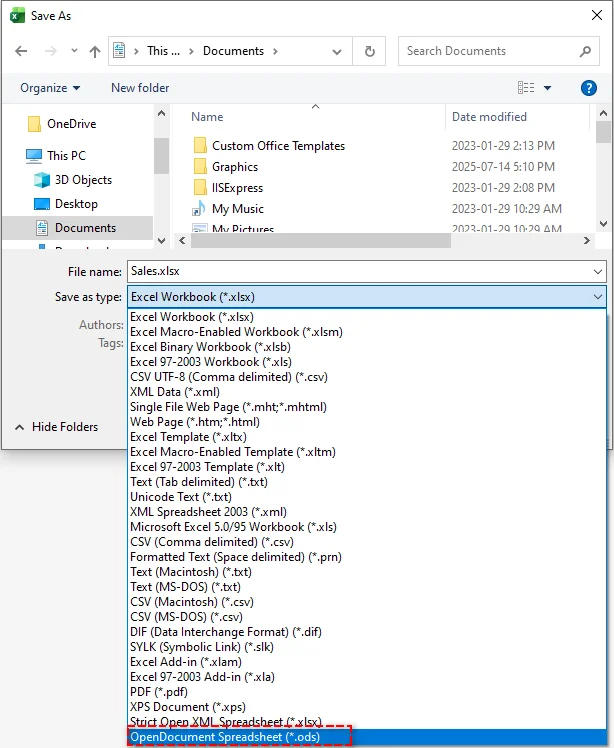
Na lista suspensa Salvar como tipo, selecione Planilha OpenDocument (*.ods).
-
Clique em Salvar. O Excel pode mostrar um aviso de compatibilidade - revise-o e clique em Sim para continuar.
Prós:
- Rápido e direto
- Mantém a maioria dos dados, fórmulas e formatação
- Nenhum software extra necessário
Contras:
- Recursos avançados como macros ou fórmulas complexas podem não ser totalmente transferidos
- Não é ideal para processar vários arquivos em lote
Método 2: Converter Excel para ODS com o LibreOffice
O LibreOffice Calc é uma alternativa gratuita e de código aberto ao Excel e oferece excelente suporte nativo para ODS. É a ferramenta recomendada para usuários que desejam conversões de alta fidelidade de Excel para ODS em ambientes de código aberto.
Passos para exportar XLSX para ODS com o LibreOffice:
-
Abra o LibreOffice Calc.
-
Vá para Arquivo > Abrir e selecione seu arquivo Excel.
-
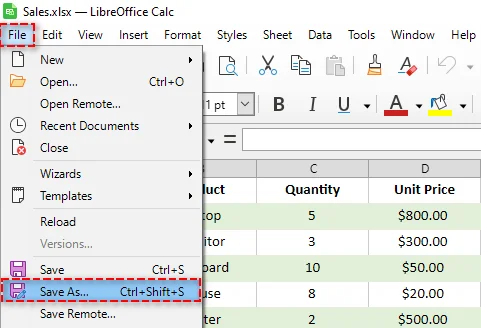
Depois que o arquivo estiver aberto, vá para Arquivo > Salvar como.
-
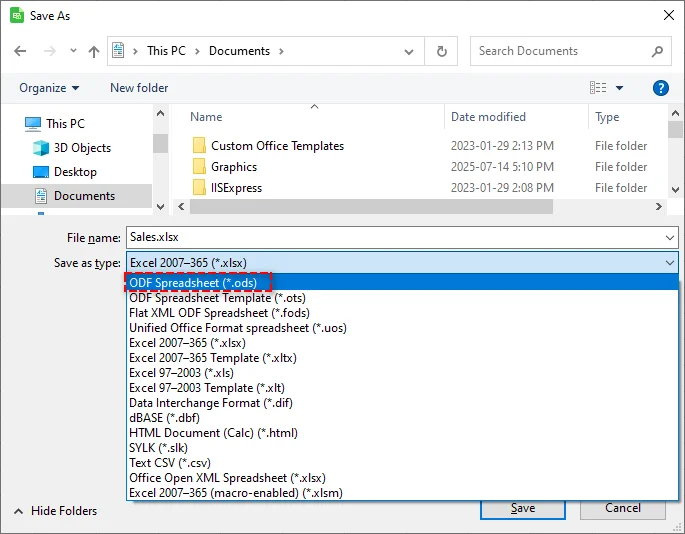
Na caixa de diálogo, escolha Planilha ODF (.ods) na lista suspensa Tipo de arquivo.
-
Clique em Salvar.
Prós:
- Gratuito e de código aberto
- Conversão de alta fidelidade para formatação, fórmulas e gráficos
- Funciona bem em todas as plataformas (Windows, macOS, Linux)
Contras:
- Requer instalação
- A interface pode ser diferente do Excel, o que pode exigir uma curta curva de aprendizado
- Macros avançadas do Excel podem não ser totalmente suportadas
Dica: O LibreOffice também suporta conversão em lote via linha de comando, o que pode economizar tempo ao converter vários arquivos Excel para ODS.
Método 3: Converter Excel para ODS Online
Conversores online fornecem uma solução gratuita, rápida e sem instalação para converter Excel para ODS. Eles são especialmente convenientes para arquivos pequenos ou uso ocasional. Conversores populares incluem Zamzar e CloudConvert.
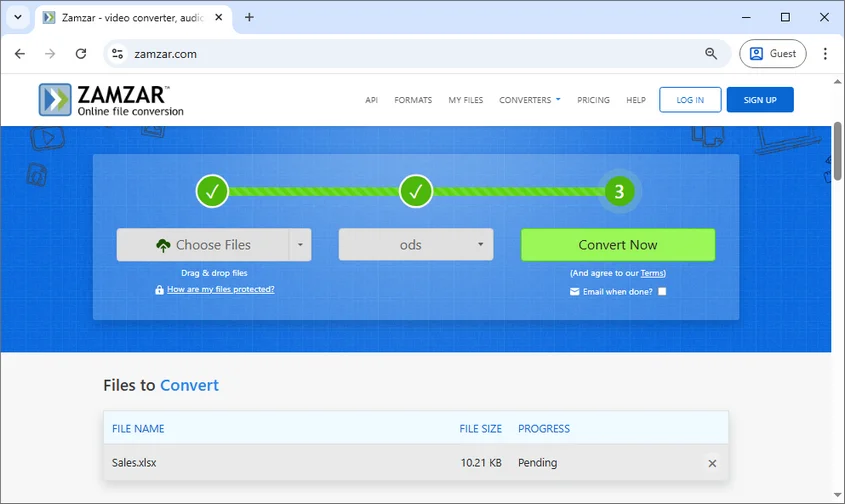
Passos para converter arquivos Excel para ODS online (usando o Zamzar como exemplo):
- Vá para o Zamzar.
- Clique em Escolher arquivos para enviar seu arquivo Excel ou arraste e solte o arquivo na área designada.
- Selecione ODS como o formato de saída.
- Clique em Converter agora para converter o arquivo para o formato ODS instantaneamente.
- Baixe o arquivo ODS convertido.
Prós:
- Nenhuma instalação de software necessária
- Rápido e fácil para arquivos únicos
- Acessível de qualquer dispositivo com internet
Contras:
- Tamanho de arquivo limitado para usuários gratuitos
- Preocupações potenciais com a privacidade de dados confidenciais
- Não consegue lidar com o processamento em lote de forma eficiente
Dica: Para arquivos confidenciais ou grandes, softwares locais como Excel ou LibreOffice são mais seguros e eficientes.
Método 4: Converter Excel para ODS em lote com Python
Para desenvolvedores ou usuários que lidam com vários arquivos Excel, automatizar o processo de conversão com Python é o método mais poderoso. Bibliotecas como Spire.XLS for Python permitem converter arquivos Excel em lote para ODS de forma rápida e segura, sem a necessidade do Microsoft Excel.
Passos para converter vários arquivos Excel em lote:
-
Instale a biblioteca Spire.XLS do PyPI executando o seguinte comando:
pip install spire-xls -
Escreva um script Python para percorrer cada arquivo Excel em uma pasta e salvá-lo em ODS:
from spire.xls import * import os # Pasta contendo arquivos Excel input_folder = "input_excels" output_folder = "output_ods" # Crie a pasta de saída se ela não existir if not os.path.exists(output_folder): os.makedirs(output_folder) # Percorrer todos os arquivos Excel (.xls, .xlsx) for file_name in os.listdir(input_folder): if file_name.lower().endswith((".xls", ".xlsx")): input_path = os.path.join(input_folder, file_name) # Carregar pasta de trabalho workbook = Workbook() workbook.LoadFromFile(input_path) # Nome do arquivo ODS de saída base_name = os.path.splitext(file_name)[0] output_path = os.path.join(output_folder, base_name + ".ods") # Salvar como ODS workbook.SaveToFile(output_path, FileFormat.ODS) print(f"Convertido: {file_name} → {base_name}.ods") -
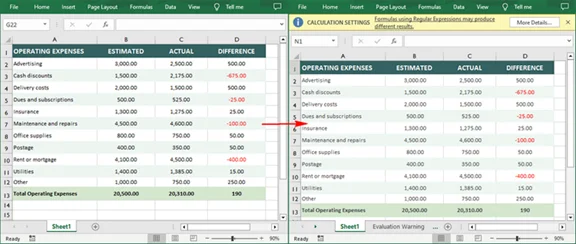
Execute o script para processar todos os arquivos automaticamente e visualizar os resultados.
Prós
- Perfeito para automatizar a conversão em lote de centenas ou milhares de arquivos.
- Altamente personalizável e integrável em pipelines de dados maiores.
- Executa localmente, garantindo a privacidade dos dados.
Contras
- Requer conhecimento básico de programação em Python.
Dica: Além de converter arquivos Excel para o formato ODS, o Spire.XLS também suporta várias outras conversões de formato de arquivo, incluindo Excel para PDF e XLX ou XLSX para CSV.
Dicas para converter Excel para ODS
- Teste primeiro: Sempre converta um arquivo de amostra primeiro para verificar a formatação e a compatibilidade das fórmulas antes de processar documentos importantes.
- Faça backup de seus dados: Mantenha um backup de seus arquivos Excel originais antes de iniciar qualquer processo de conversão.
- Verifique as fórmulas: Após a conversão, verifique se todas as fórmulas funcionam corretamente no arquivo ODS, especialmente se estiver usando funções específicas do Excel.
- Revise a formatação: Gráficos complexos, formatação condicional e tabelas dinâmicas podem precisar de ajustes após a conversão.
- Considere o tamanho do arquivo: Para arquivos Excel grandes, métodos locais (Excel, LibreOffice, Python) são mais confiáveis do que conversores online.
- Valide os arquivos ODS: Abra os arquivos convertidos no LibreOffice ou OpenOffice para garantir que funcionem como esperado em seu ambiente nativo.
Recomendações Finais
- Para conversão única ou ocasional: Use o Microsoft Excel ou o LibreOffice - ambos fornecem resultados confiáveis com configuração mínima.
- Para arquivos pequenos ou necessidades rápidas sem instalação: Conversores online oferecem conveniência quando a privacidade não é uma preocupação.
- Para grandes conjuntos de dados ou conversões recorrentes: A automação com Python garante eficiência, consistência e segurança dos dados.
- Para ambientes mistos: O LibreOffice é a escolha ideal se você trabalha frequentemente em diferentes sistemas operacionais e suítes de escritório.
Converter Excel para ODS não precisa ser complicado. Com esses quatro métodos, você pode garantir que suas planilhas sejam acessíveis a todos, independentemente do software preferido. Seja você um usuário individual, parte de uma organização em transição para ferramentas de código aberto ou um desenvolvedor construindo fluxos de trabalho automatizados, existe uma solução que atende às suas necessidades.
Tem perguntas ou suas próprias dicas para conversões tranquilas? Compartilhe-as em nosso fórum - adoraríamos ouvir de você!
FAQs: XLSX para ODS
P1: Como converto Excel para ODS gratuitamente?
R1: Use o LibreOffice ou um conversor online confiável. Ambos são gratuitos e lidam bem com a maioria das conversões.
P2: Posso converter arquivos Excel para ODS em lote?
R2: Sim. Use Python junto com a biblioteca Spire.XLS para processar eficientemente vários arquivos de uma vez.
P3: As fórmulas do Excel funcionam em arquivos ODS?
R3: Fórmulas padrão são bem convertidas, mas funções avançadas ou específicas do Excel podem precisar de ajuste.
P4: Qual é a melhor maneira de converter XLSX para ODS?
R4: Para obter os melhores resultados, use o LibreOffice Calc. Ele preserva melhor a formatação e a compatibilidade para o formato ODS.
Veja também
Excel을 ODS로 변환: 4가지 쉬운 방법 (로컬, 온라인 및 자동화)
Excel 파일(XLS/XLSX)을 ODS(OpenDocument 스프레드시트) 형식으로 변환하는 것은 LibreOffice, OpenOffice 또는 OpenDocument 표준에 의존하는 기타 플랫폼으로 작업할 때 자주 필요합니다. 많은 조직, 특히 오픈 소스 또는 교차 플랫폼 워크플로를 사용하는 조직은 더 나은 호환성, 장기적인 접근성 및 공급업체 종속성 감소를 위해 ODS를 선호합니다.
이 가이드에서는 로컬 소프트웨어, 온라인 변환기 및 자동화된 프로그래밍 솔루션을 포함하여 Excel을 ODS로 변환하는 4가지 실용적인 방법을 설명합니다. 일회성 변환이 필요하든 대규모 데이터 세트에 대한 반복 가능한 워크플로가 필요하든 여기에서 올바른 접근 방식을 찾을 수 있습니다.
학습할 내용
- ODS란 무엇인가
- Excel을 ODS로 변환하는 이유
- 방법 1: Microsoft Excel을 사용하여 Excel을 ODS로 변환
- 방법 2: LibreOffice로 Excel을 ODS로 변환
- 방법 3: 온라인에서 Excel을 ODS로 변환
- 방법 4: Python으로 Excel을 ODS로 일괄 변환
- Excel을 ODS로 변환하기 위한 팁
ODS란 무엇인가?
ODS(OpenDocument 스프레드시트)는 주로 LibreOffice Calc 및 OpenOffice Calc에서 사용하는 개방형 XML 기반 스프레드시트 형식입니다. ODF(Open Document Format) 표준의 일부인 ODS는 다음에 널리 채택됩니다.
- 오픈 소스 및 교차 플랫폼 환경
- 장기 데이터 보존
- 여러 오피스 제품군과의 상호 운용성
독점적인 Excel 형식과 달리 ODS는 표준화되어 있고 공급업체에 중립적이므로 공동 작업 및 다중 플랫폼 워크플로에 이상적입니다.
기술적인 차이점에 대해 자세히 알아보려면 Microsoft의 공식 가이드 ODS 대 Excel(.xlsx) 형식을 참조할 수 있습니다.
Excel을 ODS로 변환하는 이유는 무엇입니까?
XLS 또는 XLSX를 ODS로 변환하면 몇 가지 이점이 있습니다.
- LibreOffice Calc 및 OpenOffice Calc와 완벽하게 호환
- 장기 보관을 위한 개방형 ISO 표준 파일 형식
- Linux 및 오픈 소스 환경에서 개선된 워크플로
- 여러 오피스 제품군에서 공급업체 종속성 감소
- ODF 표준을 사용하는 조직 준수
- 시스템 간 협업 시 상호 운용성 향상
워크플로에 오픈 소스 도구나 혼합 소프트웨어 환경이 포함된 경우 ODS는 데이터에 대한 접근성, 보안 및 호환성을 보장합니다.
방법 1: Microsoft Excel을 사용하여 Excel을 ODS로 변환
Microsoft Excel은 스프레드시트를 ODS 형식으로 직접 저장할 수 있으므로 이미 Excel을 사용하는 사용자에게 빠른 솔루션을 제공합니다. 이 방법은 단일 파일 변환에 가장 적합하며 추가 소프트웨어가 필요하지 않습니다.
Excel로 Excel을 ODS로 저장하는 단계:
-
Microsoft Excel에서 Excel 파일(.xlsx 또는 .xls)을 엽니다.
-
상단 메뉴에서 파일 > 다른 이름으로 저장을 클릭합니다.
-
파일을 저장할 폴더를 선택합니다.
-
다른 이름으로 저장 유형 드롭다운에서 OpenDocument 스프레드시트(*.ods)를 선택합니다.
-
저장을 클릭합니다. Excel에 호환성 경고가 표시될 수 있습니다. 검토하고 예를 클릭하여 계속 진행합니다.
장점:
- 빠르고 간단함
- 대부분의 데이터, 수식 및 서식 유지
- 추가 소프트웨어 필요 없음
단점:
- 매크로 또는 복잡한 수식과 같은 고급 기능은 완전히 전송되지 않을 수 있습니다.
- 여러 파일을 일괄 처리하는 데 이상적이지 않음
방법 2: LibreOffice로 Excel을 ODS로 변환
LibreOffice Calc는 Excel의 무료 오픈 소스 대안이며 ODS에 대한 뛰어난 기본 지원을 제공합니다. 오픈 소스 환경에서 고품질의 Excel to ODS 변환을 원하는 사용자에게 권장되는 도구입니다.
LibreOffice로 XLSX를 ODS로 내보내는 단계:
-
LibreOffice Calc를 엽니다.
-
파일 > 열기로 이동하여 Excel 파일을 선택합니다.
-
파일이 열리면 파일 > 다른 이름으로 저장으로 이동합니다.
-
대화 상자의 파일 형식 드롭다운에서 ODF 스프레드시트(.ods)를 선택합니다.
-
저장을 클릭합니다.
장점:
- 무료 및 오픈 소스
- 서식, 수식 및 차트에 대한 고품질 변환
- 플랫폼(Windows, macOS, Linux)에서 잘 작동
단점:
- 설치 필요
- 인터페이스가 Excel과 다를 수 있어 짧은 학습 곡선이 필요할 수 있습니다.
- 고급 Excel 매크로는 완전히 지원되지 않을 수 있습니다.
팁: LibreOffice는 명령줄을 통한 일괄 변환도 지원하므로 여러 Excel 파일을 ODS로 변환할 때 시간을 절약할 수 있습니다.
방법 3: 온라인에서 Excel을 ODS로 변환
온라인 변환기는 Excel을 ODS로 변환하는 무료, 빠르고 설치가 필요 없는 솔루션을 제공합니다. 작은 파일이나 가끔 사용하는 경우에 특히 편리합니다. 인기 있는 변환기에는 Zamzar 및 CloudConvert가 있습니다.
온라인에서 Excel 파일을 ODS로 변환하는 단계(Zamzar를 예로 사용):
- Zamzar로 이동합니다.
- 파일 선택을 클릭하여 Excel 파일을 업로드하거나 지정된 영역으로 파일을 끌어다 놓습니다.
- 출력 형식으로 ODS를 선택합니다.
- 지금 변환을 클릭하여 파일을 즉시 ODS 형식으로 변환합니다.
- 변환된 ODS 파일을 다운로드합니다.
장점:
- 소프트웨어 설치 필요 없음
- 단일 파일에 대해 빠르고 쉬움
- 인터넷이 있는 모든 장치에서 액세스 가능
단점:
- 무료 사용자의 경우 파일 크기 제한
- 민감한 데이터에 대한 잠재적인 개인 정보 보호 문제
- 일괄 처리를 효율적으로 처리할 수 없음
팁: 민감하거나 큰 파일의 경우 Excel 또는 LibreOffice와 같은 로컬 소프트웨어가 더 안전하고 효율적입니다.
방법 4: Python으로 Excel을 ODS로 일괄 변환
여러 Excel 파일을 처리하는 개발자나 사용자에게는 Python으로 변환 프로세스를 자동화하는 것이 가장 강력한 방법입니다. Spire.XLS for Python과 같은 라이브러리를 사용하면 Microsoft Excel 없이도 Excel 파일을 ODS로 빠르고 안전하게 일괄 변환할 수 있습니다.
여러 Excel 파일을 일괄 변환하는 단계:
-
다음 명령을 실행하여 PyPI에서 Spire.XLS 라이브러리를 설치합니다.
pip install spire-xls -
폴더의 각 Excel 파일을 반복하고 ODS로 저장하는 Python 스크립트를 작성합니다.
from spire.xls import * import os # Excel 파일이 포함된 폴더 input_folder = "input_excels" output_folder = "output_ods" # 출력 폴더가 없으면 생성 if not os.path.exists(output_folder): os.makedirs(output_folder) # 모든 Excel 파일(.xls, .xlsx) 반복 for file_name in os.listdir(input_folder): if file_name.lower().endswith((".xls", ".xlsx")): input_path = os.path.join(input_folder, file_name) # 통합 문서 로드 workbook = Workbook() workbook.LoadFromFile(input_path) # 출력 ODS 파일 이름 base_name = os.path.splitext(file_name)[0] output_path = os.path.join(output_folder, base_name + ".ods") # ODS로 저장 workbook.SaveToFile(output_path, FileFormat.ODS) print(f"변환됨: {file_name} → {base_name}.ods") -
스크립트를 실행하여 모든 파일을 자동으로 처리하고 결과를 봅니다.
장점
- 수백 또는 수천 개의 파일의 일괄 변환을 자동화하는 데 적합합니다.
- 사용자 정의가 가능하며 더 큰 데이터 파이프라인에 통합할 수 있습니다.
- 로컬에서 실행되어 데이터 개인 정보를 보장합니다.
단점
- 기본적인 Python 프로그래밍 지식이 필요합니다.
팁: Excel 파일을 ODS 형식으로 변환하는 것 외에도 Spire.XLS는 Excel to PDF 및 XLX 또는 XLSX to CSV를 포함한 다양한 다른 파일 형식 변환도 지원합니다.
Excel을 ODS로 변환하기 위한 팁
- 먼저 테스트: 중요한 문서를 처리하기 전에 항상 샘플 파일을 먼저 변환하여 서식 및 수식 호환성을 확인하십시오.
- 데이터 백업: 변환 프로세스를 시작하기 전에 원본 Excel 파일의 백업을 보관하십시오.
- 수식 확인: 변환 후, 특히 Excel 관련 함수를 사용하는 경우 모든 수식이 ODS 파일에서 올바르게 작동하는지 확인하십시오.
- 서식 검토: 복잡한 차트, 조건부 서식 및 피벗 테이블은 변환 후 조정이 필요할 수 있습니다.
- 파일 크기 고려: 대용량 Excel 파일의 경우 로컬 방법(Excel, LibreOffice, Python)이 온라인 변환기보다 더 안정적입니다.
- ODS 파일 유효성 검사: 변환된 파일을 LibreOffice 또는 OpenOffice에서 열어 기본 환경에서 예상대로 작동하는지 확인하십시오.
최종 권장 사항
- 일회성 또는 가끔 변환의 경우: Microsoft Excel 또는 LibreOffice를 사용하십시오. 둘 다 최소한의 설정으로 신뢰할 수 있는 결과를 제공합니다.
- 설치 없이 작은 파일이나 빠른 요구 사항의 경우: 온라인 변환기는 개인 정보 보호가 문제가 되지 않을 때 편의를 제공합니다.
- 대규모 데이터 세트 또는 반복적인 변환의 경우: Python 자동화는 효율성, 일관성 및 데이터 보안을 보장합니다.
- 혼합 환경의 경우: 여러 운영 체제 및 오피스 제품군에서 자주 작업하는 경우 LibreOffice가 이상적인 선택입니다.
Excel을 ODS로 변환하는 것이 복잡할 필요는 없습니다. 이 네 가지 방법을 사용하면 선호하는 소프트웨어에 관계없이 모든 사람이 스프레드시트에 액세스할 수 있도록 할 수 있습니다. 개인 사용자이든, 오픈 소스 도구로 전환하는 조직의 일원이든, 자동화된 워크플로를 구축하는 개발자이든, 필요에 맞는 솔루션이 있습니다.
원활한 전환에 대한 질문이나 자신만의 팁이 있습니까? 저희 포럼에서 공유해 주세요. 여러분의 의견을 듣고 싶습니다!
자주 묻는 질문: XLSX에서 ODS로
Q1: Excel을 ODS로 무료로 변환하려면 어떻게 해야 합니까?
A1: LibreOffice 또는 신뢰할 수 있는 온라인 변환기를 사용하십시오. 둘 다 무료이며 대부분의 변환을 잘 처리합니다.
Q2: Excel 파일을 ODS로 일괄 변환할 수 있습니까?
A2: 예. Spire.XLS 라이브러리와 함께 Python을 사용하여 여러 파일을 한 번에 효율적으로 처리합니다.
Q3: Excel 수식이 ODS 파일에서 작동합니까?
A3: 표준 수식은 잘 변환되지만 고급 또는 Excel 관련 함수는 조정이 필요할 수 있습니다.
Q4: XLSX를 ODS로 변환하는 가장 좋은 방법은 무엇입니까?
A4: 최상의 결과를 얻으려면 LibreOffice Calc를 사용하십시오. ODS 형식에 대한 서식과 호환성을 가장 잘 보존합니다.
참고 항목
Converti Excel in ODS: 4 modi semplici (locale, online e automazione)
Indice dei Contenuti
La conversione di file Excel (XLS/XLSX) nel formato ODS (OpenDocument Spreadsheet) è spesso richiesta quando si lavora con LibreOffice, OpenOffice o altre piattaforme che si basano sullo standard OpenDocument. Molte organizzazioni, in particolare quelle che utilizzano flussi di lavoro open-source o multipiattaforma, preferiscono ODS per una migliore compatibilità, accessibilità a lungo termine e una ridotta dipendenza dal fornitore.
Questa guida spiega 4 metodi pratici per convertire Excel in ODS, inclusi software locali, convertitori online e soluzioni di programmazione automatizzate. Che tu abbia bisogno di una conversione una tantum o di un flusso di lavoro ripetibile per grandi set di dati, qui troverai l'approccio giusto.
Cosa Imparerai
- Cos'è ODS
- Perché Convertire Excel in ODS
- Metodo 1: Convertire Excel in ODS Usando Microsoft Excel
- Metodo 2: Convertire Excel in ODS con LibreOffice
- Metodo 3: Convertire Excel in ODS Online
- Metodo 4: Conversione Batch di Excel in ODS con Python
- Suggerimenti per la Conversione di Excel in ODS
Cos'è ODS?
ODS (OpenDocument Spreadsheet) è un formato di foglio di calcolo aperto, basato su XML, utilizzato principalmente da LibreOffice Calc e OpenOffice Calc. Come parte dello standard ODF (Open Document Format), ODS è ampiamente adottato per:
- Ambienti open-source e multipiattaforma
- Conservazione dei dati a lungo termine
- Interoperabilità con più suite per ufficio
A differenza dei formati proprietari di Excel, ODS è standardizzato e neutrale rispetto al fornitore, rendendolo ideale per flussi di lavoro collaborativi e multipiattaforma.
Per saperne di più sulle differenze tecniche, puoi consultare la guida ufficiale di Microsoft su formato ODS vs. Excel (.xlsx).
Perché Convertire Excel in ODS?
La conversione di XLS o XLSX in ODS offre diversi vantaggi:
- Piena compatibilità con LibreOffice Calc e OpenOffice Calc
- Formato di file aperto e standardizzato ISO per l'archiviazione a lungo termine
- Flusso di lavoro migliorato in ambienti Linux e open-source
- Ridotta dipendenza dal fornitore tra diverse suite per ufficio
- Conformità con le organizzazioni che utilizzano gli standard ODF
- Migliore interoperabilità nella collaborazione tra sistemi
Se il tuo flusso di lavoro coinvolge strumenti open-source o ambienti software misti, ODS garantisce che i dati rimangano accessibili, sicuri e compatibili.
Metodo 1: Convertire Excel in ODS Usando Microsoft Excel
Microsoft Excel può salvare i fogli di calcolo direttamente nel formato ODS, fornendo una soluzione rapida per gli utenti che già utilizzano Excel. Questo metodo è più adatto per conversioni di singoli file e non richiede software aggiuntivo.
Passaggi per Salvare Excel in ODS con Excel:
-
Apri il tuo file Excel (.xlsx o .xls) in Microsoft Excel.
-
Fai clic su File > Salva con nome dal menu in alto.
-
Scegli la cartella in cui desideri salvare il file.
-
Nel menu a discesa Salva come, seleziona Foglio di calcolo OpenDocument (*.ods).
-
Fai clic su Salva. Excel potrebbe mostrare un avviso di compatibilità: esaminalo e fai clic su Sì per procedere.
Vantaggi:
- Veloce e diretto
- Mantiene la maggior parte dei dati, delle formule e della formattazione
- Nessun software aggiuntivo richiesto
Svantaggi:
- Funzionalità avanzate come macro o formule complesse potrebbero non essere trasferite completamente
- Non ideale per l'elaborazione batch di più file
Metodo 2: Convertire Excel in ODS con LibreOffice
LibreOffice Calc è un'alternativa gratuita e open-source a Excel e offre un eccellente supporto nativo per ODS. È lo strumento consigliato per gli utenti che desiderano conversioni da Excel a ODS ad alta fedeltà in ambienti open-source.
Passaggi per Esportare XLSX in ODS con LibreOffice:
-
Apri LibreOffice Calc.
-
Vai a File > Apri e seleziona il tuo file Excel.
-
Una volta aperto il file, vai a File > Salva con nome.
-
Nella finestra di dialogo, scegli Foglio di calcolo ODF (.ods) dal menu a discesa Tipo di file.
-
Fai clic su Salva.
Vantaggi:
- Gratuito e open-source
- Conversione ad alta fedeltà per formattazione, formule e grafici
- Funziona bene su tutte le piattaforme (Windows, macOS, Linux)
Svantaggi:
- Richiede installazione
- L'interfaccia potrebbe differire da Excel, il che potrebbe richiedere una breve curva di apprendimento
- Le macro avanzate di Excel potrebbero non essere completamente supportate
Suggerimento: LibreOffice supporta anche la conversione batch tramite riga di comando, che può far risparmiare tempo durante la conversione di più file Excel in ODS.
Metodo 3: Convertire Excel in ODS Online
I convertitori online forniscono una soluzione gratuita, veloce e senza installazione per convertire Excel in ODS. Sono particolarmente convenienti per file di piccole dimensioni o per un uso occasionale. I convertitori più diffusi includono Zamzar e CloudConvert.
Passaggi per Convertire File Excel in ODS Online (Usando Zamzar come Esempio):
- Vai su Zamzar.
- Fai clic su Scegli file per caricare il tuo file Excel o trascina e rilascia il file nell'area designata.
- Seleziona ODS come formato di output.
- Fai clic su Converti ora per convertire istantaneamente il file in formato ODS.
- Scarica il file ODS convertito.
Vantaggi:
- Nessuna installazione di software richiesta
- Veloce e facile per singoli file
- Accessibile da qualsiasi dispositivo con Internet
Svantaggi:
- Dimensioni file limitate per gli utenti gratuiti
- Potenziali problemi di privacy per i dati sensibili
- Non è in grado di gestire in modo efficiente l'elaborazione batch
Suggerimento: per file sensibili o di grandi dimensioni, un software locale come Excel o LibreOffice è più sicuro ed efficiente.
Metodo 4: Conversione Batch di Excel in ODS con Python
Per gli sviluppatori o gli utenti che gestiscono più file Excel, l'automazione del processo di conversione con Python è il metodo più potente. Librerie come Spire.XLS per Python consentono di convertire in batch i file Excel in ODS in modo rapido e sicuro, senza bisogno di Microsoft Excel.
Passaggi per la Conversione Batch di Più File Excel:
-
Installa la libreria Spire.XLS da PyPI eseguendo il seguente comando:
pip install spire-xls -
Scrivi uno script Python per scorrere ogni file Excel in una cartella e salvarlo in ODS:
from spire.xls import * import os # Cartella contenente i file Excel input_folder = "input_excels" output_folder = "output_ods" # Crea la cartella di output se non esiste if not os.path.exists(output_folder): os.makedirs(output_folder) # Scansiona tutti i file Excel (.xls, .xlsx) for file_name in os.listdir(input_folder): if file_name.lower().endswith((".xls", ".xlsx")): input_path = os.path.join(input_folder, file_name) # Carica la cartella di lavoro workbook = Workbook() workbook.LoadFromFile(input_path) # Nome del file ODS di output base_name = os.path.splitext(file_name)[0] output_path = os.path.join(output_folder, base_name + ".ods") # Salva come ODS workbook.SaveToFile(output_path, FileFormat.ODS) print(f"Convertito: {file_name} → {base_name}.ods") -
Esegui lo script per elaborare automaticamente tutti i file e visualizzare i risultati.
Vantaggi
- Perfetto per automatizzare la conversione batch di centinaia o migliaia di file.
- Altamente personalizzabile e integrabile in pipeline di dati più grandi.
- Funziona localmente, garantendo la privacy dei dati.
Svantaggi
- Richiede una conoscenza di base della programmazione Python.
Suggerimento: oltre alla conversione di file Excel in formato ODS, Spire.XLS supporta anche varie altre conversioni di formati di file, tra cui da Excel a PDF e da XLX o XLSX a CSV.
Suggerimenti per la Conversione di Excel in ODS
- Prova prima: converti sempre prima un file di esempio per verificare la formattazione e la compatibilità delle formule prima di elaborare documenti importanti.
- Esegui il backup dei tuoi dati: conserva un backup dei tuoi file Excel originali prima di avviare qualsiasi processo di conversione.
- Controlla le formule: dopo la conversione, verifica che tutte le formule funzionino correttamente nel file ODS, soprattutto se si utilizzano funzioni specifiche di Excel.
- Rivedi la formattazione: grafici complessi, formattazione condizionale e tabelle pivot potrebbero richiedere aggiustamenti dopo la conversione.
- Considera le dimensioni del file: per file Excel di grandi dimensioni, i metodi locali (Excel, LibreOffice, Python) sono più affidabili dei convertitori online.
- Convalida i file ODS: apri i file convertiti in LibreOffice o OpenOffice per assicurarti che funzionino come previsto nel loro ambiente nativo.
Raccomandazioni Finali
- Per conversioni una tantum o occasionali: utilizza Microsoft Excel o LibreOffice: entrambi forniscono risultati affidabili con una configurazione minima.
- Per file di piccole dimensioni o esigenze rapide senza installazione: i convertitori online offrono praticità quando la privacy non è un problema.
- Per grandi set di dati o conversioni ricorrenti: l'automazione Python garantisce efficienza, coerenza e sicurezza dei dati.
- Per ambienti misti: LibreOffice è la scelta ideale se lavori spesso su diversi sistemi operativi e suite per ufficio.
La conversione da Excel a ODS non deve essere complicata. Con questi quattro metodi, puoi garantire che i tuoi fogli di calcolo siano accessibili a tutti, indipendentemente dal loro software preferito. Che tu sia un singolo utente, parte di un'organizzazione in transizione verso strumenti open-source o uno sviluppatore che crea flussi di lavoro automatizzati, c'è una soluzione che si adatta alle tue esigenze.
Hai domande o i tuoi consigli per conversioni senza problemi? Condividili nel nostro forum: ci piacerebbe sentirti!
Domande Frequenti: da XLSX a ODS
D1: Come posso convertire gratuitamente Excel in ODS?
R1: Usa LibreOffice o un convertitore online affidabile. Entrambi sono gratuiti e gestiscono bene la maggior parte delle conversioni.
D2: Posso convertire in batch i file Excel in ODS?
R2: Sì. Usa Python insieme alla libreria Spire.XLS per elaborare in modo efficiente più file contemporaneamente.
D3: Le formule di Excel funzionano nei file ODS?
R3: Le formule standard si convertono bene, ma le funzioni avanzate o specifiche di Excel potrebbero richiedere aggiustamenti.
D4: Qual è il modo migliore per convertire XLSX in ODS?
R4: Per ottenere i migliori risultati, usa LibreOffice Calc. Conserva al meglio la formattazione e la compatibilità per il formato ODS.