Как преобразовать PowerPoint в PDF с помощью 4 методов [Бесплатно]
Содержание
Если вы хотите поделиться своими слайдами с другими, сохранить форматирование или упростить просмотр презентации на разных устройствах, преобразование PowerPoint в PDF — отличный выбор. К счастью, есть несколько способов сохранить PowerPoint в формате PDF: от использования встроенных функций Office до онлайн-инструментов и специализированного программного обеспечения. В этом руководстве мы рассмотрим все 4 варианта, в том числе как сохранить PowerPoint в формате PDF в Windows, Mac или даже в Google Slides.
- Сохранение в PDF непосредственно в Microsoft PowerPoint
- Преобразование PowerPoint в PDF с помощью онлайн-инструментов
- Пакетное преобразование PowerPoint в PDF с помощью кода
- Преобразование Google Slides в PDF
- Заключение
1. Сохранение в PDF непосредственно в Microsoft PowerPoint
Самый простой и быстрый способ преобразовать файл PowerPoint в PDF — использовать встроенную функцию "Сохранить как", предоставляемую Microsoft PowerPoint. Этот метод не требует дополнительного программного обеспечения и отлично подходит для отдельных презентаций.
Шаги по сохранению презентации PowerPoint в формате PDF в Microsoft PowerPoint:
- Откройте файл PowerPoint.
- Перейдите в Файл → Сохранить как.
- Выберите PDF в качестве формата файла.
- При желании выберите, следует ли включать заметки докладчика или скрытые слайды.
- Нажмите Сохранить, и ваш PDF-файл будет готов.
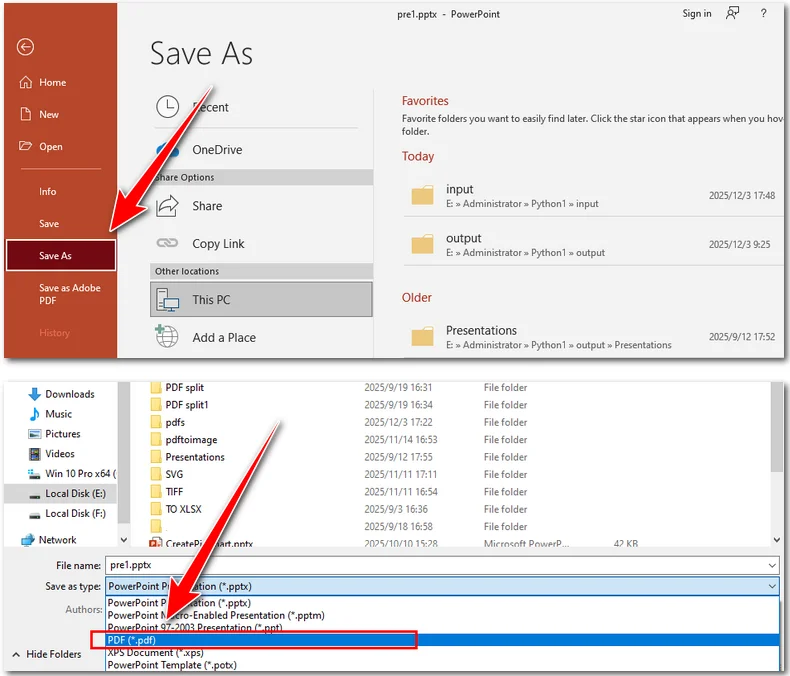
Этот метод идеален, если вам нужно быстрое решение и не требуется пакетная обработка нескольких файлов. Он работает как в Windows, так и в Mac, удовлетворяя основные потребности, такие как сохранение слайда PowerPoint в формате PDF или сохранение презентации с заметками.
2. Преобразование PowerPoint в PDF с помощью онлайн-инструментов
Если у вас не установлен PowerPoint, удобной альтернативой являются онлайн-инструменты. Веб-сайты, такие как iLovePDF или CLOUDXDOCS, позволяют быстро конвертировать файлы PPT или PPTX в PDF без установки какого-либо программного обеспечения. В следующих инструкциях мы используем CLOUDXDOCS, чтобы продемонстрировать, как работают онлайн-инструменты.
Шаги по сохранению презентации PowerPoint в формате PDF с помощью CLOUDXDOCS:
- Перейдите к конвертеру Powerpoint-в-PDF.
- Загрузите свой файл PowerPoint, и инструмент автоматически преобразует его в PDF.
- Нажмите Просмотр, чтобы просмотреть преобразованный PDF-документ, или нажмите Загрузить, чтобы сохранить PDF-файл на свое устройство.
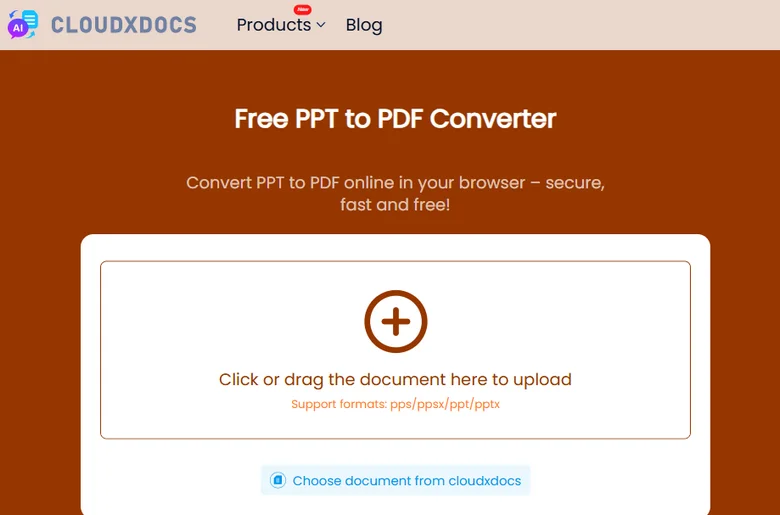
Онлайн-инструменты особенно полезны, когда вам нужно преобразовать файл на ходу или при использовании устройства без установленного Office, например Mac, смартфона или других устройств, на которых нет Microsoft PowerPoint.
3. Пакетное преобразование PowerPoint в PDF с помощью Free Spire.Presentation
Для более крупных проектов или когда вам нужно преобразовать несколько презентаций одновременно, Free Spire.Presentation — надежный выбор. Он сохраняет исходное форматирование ваших слайдов, включая шрифты, диаграммы и макеты, и в то же время позволяет выполнять автоматическое пакетное преобразование. Он также позволяет преобразовать указанный слайд PowerPoint в PDF, что дает вам больше контроля над результатом.
Зачем использовать Free Spire.Presentation:
- Поддерживает форматы PPT и PPTX.
- Сохраняет оригинальный дизайн и форматирование.
- Обрабатывает пакетные преобразования, экономя время на больших проектах.
- Бесплатный и простой в установке.
Чтобы преобразовать файлы PowerPoint в PDF с помощью Free Spire.Presentation, вы можете выбрать предпочитаемый язык программирования, например Python, Java или C#. Ниже приведен пример использования Python.
Шаги по преобразованию презентаций PowerPoint в PDF с помощью Python:
- Загрузите и установите Free Spire.Presentation.
- Импортируйте необходимые модули в свой редактор кода.
- Создайте объект Presentation и загрузите файл PowerPoint.
- Используйте метод SaveToFile() для сохранения файла PowerPoint в формате PDF.
Ниже приведен полный пример кода:
import os
from spire.presentation import *

# Specify the directory containing the PPT/PPTX files
input_dir = r"/input/pptx"

# Get all files in the directory (since there are only the PPT/PPTX files)
ppt_files = os.listdir(input_dir)

# Loop through each file and convert to PDF
for ppt_file in ppt_files:
    ppt_path = os.path.join(input_dir, ppt_file)

    # Create a Presentation object
    presentation = Presentation()

    # Load the PowerPoint file
    presentation.LoadFromFile(ppt_path)

    # Generate output PDF file name based on input file name
    output_pdf = os.path.join("/output/pdfs", os.path.splitext(ppt_file)[0] + ".pdf")

    # Save as PDF
    presentation.SaveToFile(output_pdf, FileFormat.PDF)

    # Release resources
    presentation.Dispose()
Этот метод идеально подходит для профессионалов, управляющих несколькими презентациями или нуждающихся в единообразных высококачественных PDF-файлах для совместного использования или архивирования.
Совет: этот компонент способен экспортировать PowerPoint в изображения, документы Word и многое другое.
4. Дополнительный совет: конвертируйте Google Slides в PDF
Помимо использования таких приложений, как Microsoft PowerPoint, многие люди также используют Google Slides для создания презентаций и управления ими. Это поднимает общий вопрос: как сохранить презентацию Google Slides в формате PDF? К счастью, это довольно просто. Вы можете легко сделать это, выполнив следующие действия.
Шаги по сохранению презентации из Google Slides в формате PDF:
- Откройте файл Google Slides.
- Нажмите Файл → Скачать → Документ PDF (.pdf).
- Сохраните PDF-файл на свой компьютер.
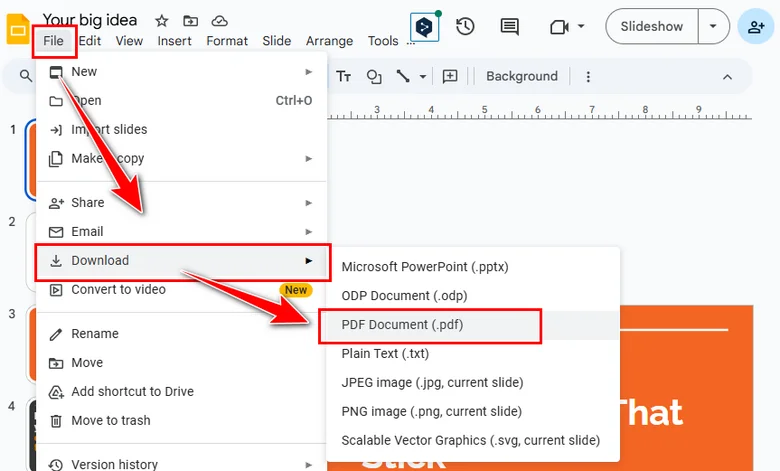
Этот метод особенно полезен для удаленной совместной работы или когда вы пытаетесь сохранить PowerPoint в формате PDF на Mac — без установленного Microsoft PowerPoint.
Заключение
Преобразовать PowerPoint в PDF проще, чем вы думаете. Независимо от того, предпочитаете ли вы встроенный метод Office, онлайн-конвертеры или Free Spire.Presentation для пакетных проектов, для каждой потребности найдется решение. Даже Google Slides можно легко экспортировать в PDF. С помощью этих методов вы можете легко обмениваться, архивировать и сохранять свои презентации, не беспокоясь о проблемах с форматированием или совместимостью.
Читайте также
5 Maneiras Eficientes de Converter PDF para Preto e Branco
Índice
Converter um PDF para preto e branco (escala de cinza) é uma maneira rápida de reduzir o tamanho do arquivo, melhorar a eficiência da impressão e criar um estilo limpo e consistente para os documentos. Esteja você preparando arquivos para impressão profissional, arquivando documentos digitalizados ou otimizando conteúdo para a web, existem várias ferramentas — tanto integradas quanto de terceiros — que podem converter seu PDF em monocromático com apenas alguns cliques.
Este artigo apresenta cinco métodos eficientes usando software de desktop, ferramentas de sistema integradas, conversores online e até mesmo uma abordagem de programação em Python.
Visão Geral dos Métodos:
- Método 1. Usando o Adobe Acrobat Pro
- Método 2. Usando o Microsoft Print to PDF (Windows)
- Método 3. Usando o Preview no macOS
- Método 4. Usando o PDF Candy (Ferramenta Online)
- Método 5. Usando o Spire.PDF para Python
Método 1. Usando o Adobe Acrobat Pro
Adobe Acrobat Pro é um editor de PDF de nível profissional amplamente utilizado para criação, edição e preparação de documentos para impressão. Seu gerenciamento de cores integrado garante uma conversão precisa e consistente para escala de cinza em todas as páginas. Isso o torna uma escolha confiável para usuários que precisam de PDFs em preto e branco de alta qualidade e prontos para impressão.
Passos
-
Abra o PDF no Adobe Acrobat Pro.
-
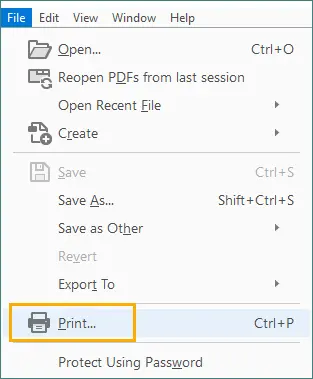
Vá para Arquivo > Imprimir.
-
Selecione Adobe PDF como a impressora.

-
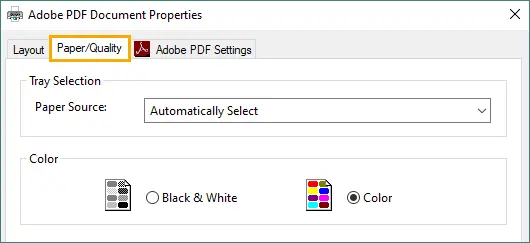
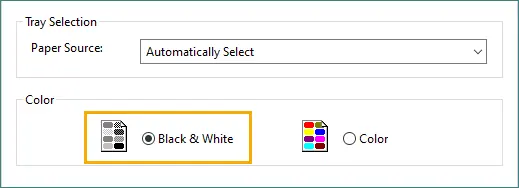
Clique em Propriedades e navegue até a guia Papel/Qualidade.
-
Selecione Preto e Branco na seção Cor, depois clique em OK para aplicar.
-
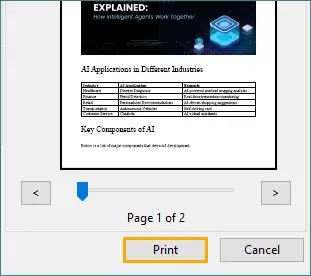
Clique em Imprimir e salve o PDF em escala de cinza recém-gerado.
Por Que Escolher Este Método
- Conversão de alta qualidade
- Saída consistente em escala de cinza
Método 2. Usando o Microsoft Print to PDF (Windows)
Microsoft Print to PDF é um recurso integrado do Windows que permite converter documentos para o formato PDF a partir de qualquer aplicativo que permita impressão. Com seu diálogo de impressão simples e opção de escala de cinza, ele oferece uma maneira fácil de gerar PDFs em preto e branco sem instalar software adicional. É ideal para conversões rápidas e tarefas diárias com documentos.
Passos
-
Abra seu PDF usando o Microsoft Edge, Google Chrome ou qualquer visualizador.
-
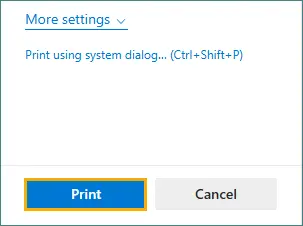
Pressione Ctrl + P para abrir o diálogo de Impressão.
-
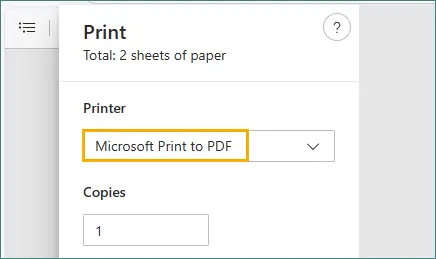
Escolha Microsoft Print to PDF como a impressora.
-
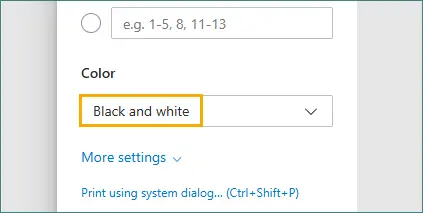
Procure por Cor e selecione a opção Preto e Branco.
-
Clique em Imprimir, depois salve o PDF em escala de cinza gerado.
Por Que Escolher Este Método
- Nenhum software extra necessário
- Rápido e simples
- Funciona para quase todos os PDFs
Método 3. Usando o Preview no macOS
Preview é o visualizador de PDF e imagem padrão no macOS que inclui poderosos recursos integrados de exportação e filtragem de cores. Seus Filtros Quartz permitem que você converta instantaneamente qualquer PDF para preto e branco com sombreamento suave e texto nítido. Isso o torna uma das opções mais rápidas e convenientes para usuários de Mac.
Passos
-
Abra o PDF no Preview.
-
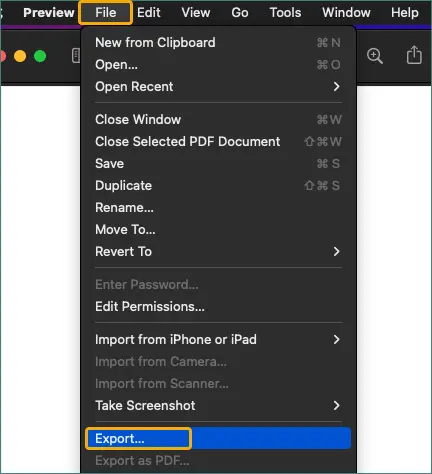
Clique em Arquivo > Exportar.
-
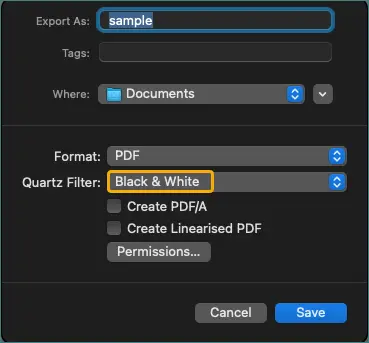
Em Filtro Quartz, escolha Preto e Branco ou Tom de Cinza.
-
Salve o PDF exportado para aplicar o filtro.
Por Que Escolher Este Método
- Integrado em todos os Macs
- Fácil e rápido
- Produz uma saída monocromática limpa
Método 4. Usando o PDF Candy (Ferramenta Online)
PDF Candy é um popular kit de ferramentas de processamento de PDF baseado na web que oferece um recurso dedicado de conversão para escala de cinza, acessível de qualquer navegador. A ferramenta não requer instalação e lida automaticamente com todo o processo de conversão, tornando-a perfeita para tarefas rápidas e pontuais. Graças à sua interface limpa e desempenho rápido, é uma ótima opção para usuários casuais em qualquer dispositivo.
Passos
-
Visite o Conversor de PDF para Escala de Cinza do PDF Candy.
-
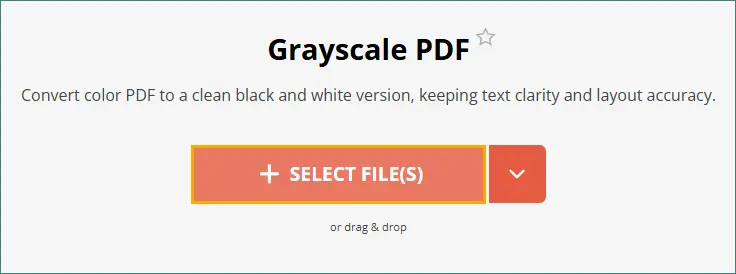
Envie seu arquivo PDF arrastando e soltando-o na área designada ou selecionando-o do seu dispositivo.
-
Clique no botão ESCALA DE CINZA 1 Arquivo(s).

-
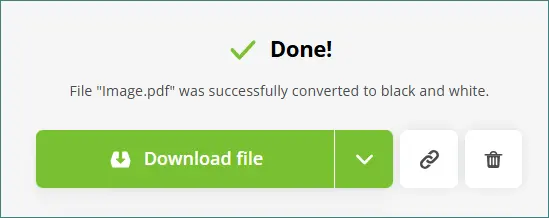
Baixe o PDF recém-convertido em preto e branco.
Por Que Escolher Este Método
- Conveniente e acessível em qualquer lugar
- Nenhuma instalação necessária
- Funciona em todas as plataformas (Windows, macOS, móvel)
Nota: Evite enviar arquivos sensíveis ou confidenciais para ferramentas online.
Método 5. Usando o Spire.PDF para Python
Spire.PDF para Python é uma biblioteca de PDF profissional que permite aos desenvolvedores processar e converter documentos PDF de forma programática. Sua API de conversão para escala de cinza garante uma saída consistente em todas as páginas, tornando-o adequado para fluxos de trabalho de documentos automatizados ou em grande escala. Este método é ideal para aplicações que exigem processamento de PDF repetível, preciso e totalmente roteirizado.
Passos
-
Instale o Spire.PDF para Python.
pip install spire.pdf -
Importe a biblioteca e especifique os caminhos dos arquivos PDF de entrada e saída.
-
Use a classe PdfGrayConverter para carregar o PDF original.
-
Chame o método ToGrayPdf para gerar o PDF em preto e branco.
Exemplo de Código
from spire.pdf.common import *
from spire.pdf import *

# Especifique os caminhos dos arquivos PDF de entrada e saída
inputFile = "input.pdf"
outputFile = "output.pdf"

# Carregue o documento de entrada usando a classe PdfGrayConverter
converter = PdfGrayConverter(inputFile)

# Converta-o para um PDF em preto e branco
converter.ToGrayPdf(outputFile)
Leia Mais: Converter PDF para Escala de Cinza ou Linearizado em Python
Por Que Escolher Este Método
- Ideal para conversão automatizada ou em lote
- Altamente personalizável
- Produz uma saída consistente em escala de cinza em todas as páginas
Além de converter PDFs para preto e branco, o Spire.PDF também suporta recursos avançados como converter PDF para PDF/A, exportar PDF para Word, extrair texto e imagens, mesclar ou dividir PDFs, e mais.
Comparação: Qual Método Você Deve Escolher?
| Método | Melhor Para | Facilidade de Uso | Instalação | Automação | Notas |
|---|---|---|---|---|---|
| Adobe Acrobat Pro | Impressão profissional, alta qualidade | ★★★★★ | Requerido (Pago) | Não | Resultados mais precisos em escala de cinza |
| Microsoft Print to PDF | Conversões rápidas no Windows | ★★★★★ | Integrado | Não | A qualidade depende das opções da impressora |
| macOS Preview | Usuários de Mac | ★★★★★ | Integrado | Não | Filtros de escala de cinza limpos |
| PDF Candy (Online) | Usuários ocasionais | ★★★★★ | Nenhuma | Não | Evitar para arquivos confidenciais |
| Spire.PDF + Python | Desenvolvedores, automação em lote | ★★★☆☆ | Python + Biblioteca | Sim | Totalmente automatizado, personalizável |
Resumo
A conversão de PDFs para preto e branco pode ser feita facilmente usando ferramentas integradas, serviços online ou software profissional.
- Escolha Adobe Acrobat Pro para a mais alta qualidade.
- Use Microsoft Print to PDF ou Preview para soluções rápidas integradas à plataforma.
- Selecione PDF Candy para conversões online instantâneas.
- Escolha Spire.PDF para Python se você precisar de um fluxo de trabalho programável e escalável.
Não importa o seu ambiente, existe um método que atende às suas necessidades.
Perguntas Frequentes
P1. Converter um PDF para preto e branco reduzirá o tamanho do arquivo?
Sim. Arquivos em escala de cinza geralmente são menores porque os dados de cor são removidos.
P2. A escala de cinza reduz a qualidade da imagem?
Não a clareza da página, mas remove as informações de cor. O texto permanece nítido.
P3. É seguro usar ferramentas online?
Para arquivos não sensíveis, sim. Evite enviar documentos confidenciais.
P4. Posso converter vários PDFs em lote?
Sim. O PDF Candy e o Spire.PDF para Python suportam o processamento em lote.
Você Também Pode Se Interessar Por
PDF를 흑백으로 변환하는 5가지 효율적인 방법
PDF를 흑백으로 변환하기(회색조)는 파일 크기를 줄이고, 인쇄 효율성을 개선하며, 문서에 깨끗하고 일관된 스타일을 만드는 빠른 방법입니다. 전문적인 인쇄를 위해 파일을 준비하든, 스캔한 문서를 보관하든, 웹용 콘텐츠를 최적화하든, 몇 번의 클릭만으로 PDF를 흑백으로 변환할 수 있는 내장 및 타사 도구가 여러 가지 있습니다.
이 기사에서는 데스크톱 소프트웨어, 내장 시스템 도구, 온라인 변환기, 그리고 파이썬 프로그래밍 접근 방식까지 다섯 가지 효율적인 방법을 소개합니다.
방법 개요:
- 방법 1. Adobe Acrobat Pro 사용
- 방법 2. Microsoft Print to PDF 사용 (Windows)
- 방법 3. macOS에서 미리보기 사용
- 방법 4. PDF Candy 사용 (온라인 도구)
- 방법 5. Spire.PDF for Python 사용
방법 1. Adobe Acrobat Pro 사용
Adobe Acrobat Pro는 문서 생성, 편집 및 인쇄 준비에 널리 사용되는 전문가용 PDF 편집기입니다. 내장된 색상 관리 기능은 모든 페이지에서 정확하고 일관된 회색조 변환을 보장합니다. 이로 인해 고품질의 인쇄 가능한 흑백 PDF가 필요한 사용자에게 신뢰할 수 있는 선택이 됩니다.
단계
-
Adobe Acrobat Pro에서 PDF를 엽니다.
-
파일 > 인쇄로 이동합니다.
-
Adobe PDF를 프린터로 선택합니다.
-
속성을 클릭하고 용지/품질 탭으로 이동합니다.
-
색상 섹션에서 흑백을 선택한 다음 확인을 클릭하여 적용합니다.
-
인쇄를 클릭하고 새로 생성된 회색조 PDF를 저장합니다.
이 방법을 선택하는 이유
- 고품질 변환
- 일관된 회색조 출력
방법 2. Microsoft Print to PDF 사용 (Windows)
Microsoft Print to PDF는 인쇄 가능한 모든 응용 프로그램에서 문서를 PDF 형식으로 변환할 수 있는 Windows 내장 기능입니다. 간단한 인쇄 대화 상자와 회색조 옵션을 통해 추가 소프트웨어 설치 없이 흑백 PDF를 쉽게 생성할 수 있습니다. 빠른 변환과 일상적인 문서 작업에 이상적입니다.
단계
-
Microsoft Edge, Google Chrome 또는 다른 뷰어를 사용하여 PDF를 엽니다.
-
Ctrl + P를 눌러 인쇄 대화 상자를 엽니다.
-
Microsoft Print to PDF를 프린터로 선택합니다.
-
색상을 찾고 흑백 옵션을 선택합니다.
-
인쇄를 클릭한 다음 생성된 회색조 PDF를 저장합니다.
이 방법을 선택하는 이유
- 추가 소프트웨어 필요 없음
- 빠르고 간단함
- 거의 모든 PDF에서 작동
방법 3. macOS에서 미리보기 사용
미리보기는 macOS의 기본 PDF 및 이미지 뷰어로, 강력한 내장 내보내기 및 색상 필터링 기능이 포함되어 있습니다. Quartz 필터를 사용하면 부드러운 음영과 선명한 텍스트로 모든 PDF를 즉시 흑백으로 변환할 수 있습니다. 이는 Mac 사용자에게 가장 빠르고 편리한 옵션 중 하나입니다.
단계
-
미리보기에서 PDF를 엽니다.
-
파일 > 내보내기를 클릭합니다.
-
Quartz 필터에서 흑백 또는 회색 톤을 선택합니다.
-
필터를 적용하려면 내보낸 PDF를 저장합니다.
이 방법을 선택하는 이유
- 모든 Mac에 내장
- 쉽고 빠름
- 깨끗한 흑백 출력 생성
방법 4. PDF Candy 사용 (온라인 도구)
PDF Candy는 인기 있는 웹 기반 PDF 처리 툴킷으로, 모든 브라우저에서 액세스할 수 있는 전용 회색조 변환 기능을 제공합니다. 이 도구는 설치가 필요 없으며 전체 변환 프로세스를 자동으로 처리하므로 빠르고 일회성 작업에 적합합니다. 깔끔한 인터페이스와 빠른 성능 덕분에 모든 장치의 일반 사용자에게 훌륭한 옵션입니다.
단계
-
PDF Candy의 회색조 PDF 변환기를 방문하세요.
-
PDF 파일을 지정된 영역으로 끌어다 놓거나 장치에서 선택하여 업로드합니다.
-
회색조 1개 파일 버튼을 클릭합니다.
-
새로 변환된 흑백 PDF를 다운로드합니다.
이 방법을 선택하는 이유
- 어디서나 편리하게 액세스 가능
- 설치 필요 없음
- 모든 플랫폼(Windows, macOS, 모바일)에서 작동
참고: 온라인 도구에 민감하거나 기밀인 파일을 업로드하지 마십시오.
방법 5. Spire.PDF for Python 사용
Spire.PDF for Python은 개발자가 프로그래밍 방식으로 PDF 문서를 처리하고 변환할 수 있게 해주는 전문가용 PDF 라이브러리입니다. 회색조 변환 API는 모든 페이지에서 일관된 출력을 보장하므로 자동화되거나 대규모 문서 워크플로에 적합합니다. 이 방법은 반복 가능하고 정확하며 완전히 스크립트화된 PDF 처리가 필요한 응용 프로그램에 이상적입니다.
단계
-
Spire.PDF for Python을 설치합니다.
pip install spire.pdf -
라이브러리를 가져오고 입력 및 출력 PDF 파일 경로를 지정합니다.
-
PdfGrayConverter 클래스를 사용하여 원본 PDF를 로드합니다.
-
ToGrayPdf 메서드를 호출하여 흑백 PDF를 생성합니다.
코드 예제
from spire.pdf.common import *
from spire.pdf import *

# Specify the input and output PDF file paths
inputFile = "input.pdf"
outputFile = "output.pdf"

# Load the input document using the PdfGrayConverter class
converter = PdfGrayConverter(inputFile)

# Convert it to a black and white PDF
converter.ToGrayPdf(outputFile)
더 읽어보기: Python에서 PDF를 회색조 또는 선형화로 변환
이 방법을 선택하는 이유
- 자동화 또는 대량 변환에 이상적
- 고도로 사용자 정의 가능
- 모든 페이지에서 일관된 회색조 출력 생성
PDF를 흑백으로 변환하는 것 외에도 Spire.PDF는 PDF를 PDF/A로 변환, PDF를 Word로 내보내기, 텍스트 및 이미지 추출, 병합 또는 PDF 분할 등과 같은 고급 기능을 지원합니다.
비교: 어떤 방법을 선택해야 할까요?
| 방법 | 최적 대상 | 사용 용이성 | 설치 | 자동화 | 참고 |
|---|---|---|---|---|---|
| Adobe Acrobat Pro | 전문 인쇄, 고품질 | ★★★★★ | 필수 (유료) | 아니요 | 가장 정확한 회색조 결과 |
| Microsoft Print to PDF | 빠른 Windows 변환 | ★★★★★ | 내장 | 아니요 | 품질은 프린터 옵션에 따라 다름 |
| macOS 미리보기 | Mac 사용자 | ★★★★★ | 내장 | 아니요 | 깨끗한 회색조 필터 |
| PDF Candy (온라인) | 가끔 사용하는 사용자 | ★★★★★ | 없음 | 아니요 | 기밀 파일에는 사용하지 말 것 |
| Spire.PDF + Python | 개발자, 배치 자동화 | ★★★☆☆ | Python + 라이브러리 | 예 | 완전 자동화, 사용자 정의 가능 |
요약
PDF를 흑백으로 변환하는 것은 내장 도구, 온라인 서비스 또는 전문 소프트웨어를 사용하여 쉽게 수행할 수 있습니다.
- 최고 품질을 위해서는 Adobe Acrobat Pro를 선택하세요.
- 빠른 플랫폼 내장 솔루션을 위해서는 Microsoft Print to PDF 또는 미리보기를 사용하세요.
- 즉각적인 온라인 변환을 위해서는 PDF Candy를 선택하세요.
- 프로그래밍 가능하고 확장 가능한 워크플로가 필요한 경우 Spire.PDF for Python을 선택하세요.
어떤 환경에 있든 필요에 맞는 방법이 있습니다.
자주 묻는 질문
Q1. PDF를 흑백으로 변환하면 파일 크기가 줄어드나요?
예. 회색조 파일은 색상 데이터가 제거되기 때문에 일반적으로 더 작습니다.
Q2. 회색조로 변환하면 이미지 품질이 저하되나요?
페이지 선명도는 떨어지지 않지만 색상 정보가 제거됩니다. 텍스트는 선명하게 유지됩니다.
Q3. 온라인 도구를 사용해도 안전한가요?
민감하지 않은 파일의 경우 안전합니다. 기밀 문서는 업로드하지 마십시오.
Q4. 여러 PDF를 일괄 변환할 수 있나요?
예. PDF Candy와 Spire.PDF for Python은 일괄 처리를 지원합니다.
관심 있을 만한 다른 문서
5 modi efficienti per convertire PDF in bianco e nero
Indice
La conversione di un PDF in bianco e nero (scala di grigi) è un modo rapido per ridurre le dimensioni del file, migliorare l'efficienza di stampa e creare uno stile pulito e coerente per i documenti. Che tu stia preparando file per la stampa professionale, archiviando documenti scansionati o ottimizzando i contenuti per il web, esistono diversi strumenti, sia integrati che di terze parti, in grado di convertire il tuo PDF in monocromatico in pochi clic.
Questo articolo introduce cinque metodi efficienti che utilizzano software desktop, strumenti di sistema integrati, convertitori online e persino un approccio di programmazione in Python.
Panoramica dei Metodi:
- Metodo 1. Utilizzando Adobe Acrobat Pro
- Metodo 2. Utilizzando Microsoft Print to PDF (Windows)
- Metodo 3. Utilizzando Anteprima su macOS
- Metodo 4. Utilizzando PDF Candy (Strumento Online)
- Metodo 5. Utilizzando Spire.PDF per Python
Metodo 1. Utilizzando Adobe Acrobat Pro
Adobe Acrobat Pro è un editor PDF di livello professionale ampiamente utilizzato per la creazione, la modifica e la preparazione alla stampa di documenti. La sua gestione del colore integrata garantisce una conversione in scala di grigi accurata e coerente su tutte le pagine. Questo lo rende una scelta affidabile per gli utenti che necessitano di PDF in bianco e nero di alta qualità e pronti per la stampa.
Passaggi
-
Apri il PDF in Adobe Acrobat Pro.
-
Vai su File > Stampa.
-
Seleziona Adobe PDF come stampante.
-
Fai clic su Proprietà e vai alla scheda Carta/Qualità.
-
Seleziona Bianco e Nero nella sezione Colore, quindi fai clic su OK per applicare.
-
Fai clic su Stampa e salva il PDF in scala di grigi appena generato.
Perché Scegliere Questo Metodo
- Conversione di alta qualità
- Output in scala di grigi coerente
Metodo 2. Utilizzando Microsoft Print to PDF (Windows)
Microsoft Print to PDF è una funzionalità integrata di Windows che consente di convertire documenti in formato PDF da qualsiasi applicazione stampabile. Con la sua semplice finestra di dialogo di stampa e l'opzione per la scala di grigi, offre un modo semplice per generare PDF in bianco e nero senza installare software aggiuntivo. È ideale per conversioni rapide e attività documentali quotidiane.
Passaggi
-
Apri il tuo PDF utilizzando Microsoft Edge, Google Chrome o qualsiasi altro visualizzatore.
-
Premi Ctrl + P per aprire la finestra di dialogo Stampa.
-
Scegli Microsoft Print to PDF come stampante.
-
Cerca Colore e seleziona l'opzione Bianco e Nero.
-
Fai clic su Stampa, quindi salva il PDF in scala di grigi generato.
Perché Scegliere Questo Metodo
- Nessun software aggiuntivo necessario
- Veloce e semplice
- Funziona con quasi tutti i PDF
Metodo 3. Utilizzando Anteprima su macOS
Anteprima è il visualizzatore di PDF e immagini predefinito su macOS che include potenti funzionalità integrate di esportazione e filtraggio dei colori. I suoi filtri Quartz consentono di convertire istantaneamente qualsiasi PDF in bianco e nero con ombreggiature uniformi e testo chiaro. Questo lo rende una delle opzioni più veloci e convenienti per gli utenti Mac.
Passaggi
-
Apri il PDF in Anteprima.
-
Fai clic su File > Esporta.
-
Sotto Filtro Quartz, scegli Bianco e Nero o Tono di Grigio.
-
Salva il PDF esportato per applicare il filtro.
Perché Scegliere Questo Metodo
- Integrato in ogni Mac
- Facile e veloce
- Produce un output monocromatico pulito
Metodo 4. Utilizzando PDF Candy (Strumento Online)
PDF Candy è un popolare toolkit di elaborazione PDF basato sul web che offre una funzione dedicata alla conversione in scala di grigi accessibile da qualsiasi browser. Lo strumento non richiede installazione e gestisce automaticamente l'intero processo di conversione, rendendolo perfetto per attività rapide e occasionali. Grazie alla sua interfaccia pulita e alle prestazioni veloci, è un'ottima opzione per gli utenti occasionali su qualsiasi dispositivo.
Passaggi
-
Carica il tuo file PDF trascinandolo nell'area designata o selezionandolo dal tuo dispositivo.
-
Fai clic sul pulsante SCALA DI GRIGI 1 File(s).
-
Scarica il PDF in bianco e nero appena convertito.
Perché Scegliere Questo Metodo
- Comodo e accessibile ovunque
- Nessuna installazione richiesta
- Funziona su tutte le piattaforme (Windows, macOS, mobile)
Nota: Evita di caricare file sensibili o confidenziali su strumenti online.
Metodo 5. Utilizzando Spire.PDF per Python
Spire.PDF per Python è una libreria PDF professionale che consente agli sviluppatori di elaborare e convertire programmaticamente documenti PDF. La sua API di conversione in scala di grigi garantisce un output coerente su tutte le pagine, rendendola adatta per flussi di lavoro documentali automatizzati o su larga scala. Questo metodo è ideale per applicazioni che richiedono un'elaborazione PDF ripetibile, accurata e completamente scriptata.
Passaggi
-
Installa Spire.PDF per Python.
pip install spire.pdf -
Importa la libreria e specifica i percorsi dei file PDF di input e output.
-
Usa la classe PdfGrayConverter per caricare il PDF originale.
-
Chiama il metodo ToGrayPdf per generare il PDF in bianco e nero.
Esempio di Codice
from spire.pdf.common import *
from spire.pdf import *

# Specifica i percorsi dei file PDF di input e output
inputFile = "input.pdf"
outputFile = "output.pdf"

# Carica il documento di input usando la classe PdfGrayConverter
converter = PdfGrayConverter(inputFile)

# Convertilo in un PDF in bianco e nero
converter.ToGrayPdf(outputFile)
Leggi Oltre: Convertire PDF in Scala di Grigi o Linearizzato in Python
Perché Scegliere Questo Metodo
- Ideale per conversioni automatizzate o di massa
- Altamente personalizzabile
- Produce un output in scala di grigi coerente su tutte le pagine
Oltre alla conversione di PDF in bianco e nero, Spire.PDF supporta anche funzionalità avanzate come la conversione di PDF in PDF/A, l'esportazione di PDF in Word, l'estrazione di testo e immagini, l'unione o la divisione di PDF, e altro ancora.
Confronto: Quale Metodo Scegliere?
| Metodo | Ideale Per | Facilità d'Uso | Installazione | Automazione | Note |
|---|---|---|---|---|---|
| Adobe Acrobat Pro | Stampa professionale, alta qualità | ★★★★★ | Richiesta (a pagamento) | No | Risultati in scala di grigi più accurati |
| Microsoft Print to PDF | Conversioni rapide su Windows | ★★★★★ | Integrato | No | La qualità dipende dalle opzioni della stampante |
| Anteprima di macOS | Utenti Mac | ★★★★★ | Integrato | No | Filtri per scala di grigi puliti |
| PDF Candy (Online) | Utenti occasionali | ★★★★★ | Nessuna | No | Evitare per file confidenziali |
| Spire.PDF + Python | Sviluppatori, automazione batch | ★★★☆☆ | Python + Libreria | Sì | Completamente automatizzato, personalizzabile |
Riepilogo
La conversione di PDF in bianco e nero può essere eseguita facilmente utilizzando strumenti integrati, servizi online o software professionali.
- Scegli Adobe Acrobat Pro per la massima qualità.
- Usa Microsoft Print to PDF o Anteprima per soluzioni rapide integrate nella piattaforma.
- Seleziona PDF Candy per conversioni online istantanee.
- Scegli Spire.PDF per Python se hai bisogno di un flusso di lavoro programmabile e scalabile.
Indipendentemente dal tuo ambiente, c'è un metodo che si adatta alle tue esigenze.
Domande Frequenti
D1. La conversione di un PDF in bianco e nero ridurrà le dimensioni del file?
Sì. I file in scala di grigi sono solitamente più piccoli perché i dati sul colore vengono rimossi.
D2. La scala di grigi riduce la qualità dell'immagine?
Non la chiarezza della pagina, ma rimuove le informazioni sul colore. Il testo rimane nitido.
D3. È sicuro usare strumenti online?
Per i file non sensibili, sì. Evita di caricare documenti confidenziali.
D4. Posso convertire più PDF in batch?
Sì. PDF Candy e Spire.PDF per Python supportano l'elaborazione batch.
Potrebbe Interessarti Anche
5 méthodes efficaces pour convertir un PDF en noir et blanc
Table des matières
La conversion d'un PDF en noir et blanc (niveaux de gris) est un moyen rapide de réduire la taille des fichiers, d'améliorer l'efficacité de l'impression et de créer un style propre et cohérent pour les documents. Que vous prépariez des fichiers pour une impression professionnelle, archiviez des documents numérisés ou optimisiez du contenu pour le Web, il existe plusieurs outils, intégrés et tiers, qui peuvent convertir votre PDF en monochrome en quelques clics.
Cet article présente cinq méthodes efficaces utilisant des logiciels de bureau, des outils système intégrés, des convertisseurs en ligne et même une approche de programmation en Python.
Aperçu des méthodes :
- Méthode 1. Utilisation d'Adobe Acrobat Pro
- Méthode 2. Utilisation de Microsoft Print to PDF (Windows)
- Méthode 3. Utilisation de l'aperçu sur macOS
- Méthode 4. Utilisation de PDF Candy (Outil en ligne)
- Méthode 5. Utilisation de Spire.PDF pour Python
Méthode 1. Utilisation d'Adobe Acrobat Pro
Adobe Acrobat Pro est un éditeur de PDF de qualité professionnelle largement utilisé pour la création, l'édition et la préparation à l'impression de documents. Sa gestion des couleurs intégrée garantit une conversion précise et cohérente en niveaux de gris sur toutes les pages. Cela en fait un choix fiable pour les utilisateurs qui ont besoin de PDF en noir et blanc de haute qualité, prêts à être imprimés.
Étapes
-
Ouvrez le PDF dans Adobe Acrobat Pro.
-
Allez dans Fichier > Imprimer.
-
Sélectionnez Adobe PDF comme imprimante.
-
Cliquez sur Propriétés et accédez à l'onglet Papier/Qualité.
-
Sélectionnez Noir & Blanc dans la section Couleur, puis cliquez sur OK pour appliquer.
-
Cliquez sur Imprimer et enregistrez le PDF en niveaux de gris nouvellement généré.
Pourquoi choisir cette méthode
- Conversion de haute qualité
- Sortie en niveaux de gris cohérente
Méthode 2. Utilisation de Microsoft Print to PDF (Windows)
Microsoft Print to PDF est une fonctionnalité intégrée de Windows qui vous permet de convertir des documents au format PDF à partir de n'importe quelle application imprimable. Avec sa boîte de dialogue d'impression simple et son option de niveaux de gris, il offre un moyen facile de générer des PDF en noir et blanc sans installer de logiciel supplémentaire. Il est idéal pour les conversions rapides et les tâches documentaires quotidiennes.
Étapes
-
Ouvrez votre PDF avec Microsoft Edge, Google Chrome ou n'importe quel visualiseur.
-
Appuyez sur Ctrl + P pour ouvrir la boîte de dialogue d'impression.
-
Choisissez Microsoft Print to PDF comme imprimante.
-
Recherchez Couleur et sélectionnez l'option Noir et blanc.
-
Cliquez sur Imprimer, puis enregistrez le PDF en niveaux de gris généré.
Pourquoi choisir cette méthode
- Aucun logiciel supplémentaire requis
- Rapide et simple
- Fonctionne pour presque tous les PDF
Méthode 3. Utilisation de l'aperçu sur macOS
Aperçu est le visualiseur de PDF et d'images par défaut sur macOS qui inclut de puissantes fonctionnalités d'exportation et de filtrage des couleurs intégrées. Ses filtres Quartz vous permettent de convertir instantanément n'importe quel PDF en noir et blanc avec un ombrage lisse et un texte clair. Cela en fait l'une des options les plus rapides et les plus pratiques pour les utilisateurs de Mac.
Étapes
-
Ouvrez le PDF dans Aperçu.
-
Cliquez sur Fichier > Exporter.
-
Sous Filtre Quartz, choisissez Noir & Blanc ou Ton de gris.
-
Enregistrez le PDF exporté pour appliquer le filtre.
Pourquoi choisir cette méthode
- Intégré à chaque Mac
- Facile et rapide
- Produit une sortie monochrome propre
Méthode 4. Utilisation de PDF Candy (Outil en ligne)
PDF Candy est une boîte à outils de traitement de PDF populaire basée sur le Web qui offre une fonction de conversion en niveaux de gris dédiée accessible depuis n'importe quel navigateur. L'outil ne nécessite aucune installation et gère automatically l'ensemble du processus de conversion, ce qui le rend parfait pour les tâches rapides et ponctuelles. Grâce à son interface claire et à ses performances rapides, c'est une excellente option pour les utilisateurs occasionnels sur n'importe quel appareil.
Étapes
-
Visitez le convertisseur PDF en niveaux de gris de PDF Candy.
-
Téléchargez votre fichier PDF en le faisant glisser et en le déposant dans la zone désignée ou en le sélectionnant depuis votre appareil.
-
Cliquez sur le bouton NIVEAUX DE GRIS 1 Fichier(s).
-
Téléchargez le PDF en noir et blanc nouvellement converti.
Pourquoi choisir cette méthode
- Pratique et accessible partout
- Aucune installation requise
- Fonctionne sur toutes les plateformes (Windows, macOS, mobile)
Remarque : évitez de télécharger des fichiers sensibles ou confidentiels sur des outils en ligne.
Méthode 5. Utilisation de Spire.PDF pour Python
Spire.PDF pour Python est une bibliothèque PDF professionnelle qui permet aux développeurs de traiter et de convertir par programme des documents PDF. Son API de conversion en niveaux de gris garantit une sortie cohérente sur toutes les pages, ce qui la rend adaptée aux flux de travail de documents automatisés ou à grande échelle. Cette méthode est idéale pour les applications qui nécessitent un traitement PDF reproductible, précis et entièrement scripté.
Étapes
-
Installez Spire.PDF pour Python.
pip install spire.pdf -
Importez la bibliothèque et spécifiez les chemins des fichiers PDF d'entrée et de sortie.
-
Utilisez la classe PdfGrayConverter pour charger le PDF original.
-
Appelez la méthode ToGrayPdf pour générer le PDF en noir et blanc.
Exemple de code
from spire.pdf.common import *
from spire.pdf import *

# Specify the input and output PDF file paths
inputFile = "input.pdf"
outputFile = "output.pdf"

# Load the input document using the PdfGrayConverter class
converter = PdfGrayConverter(inputFile)

# Convert it to a black and white PDF
converter.ToGrayPdf(outputFile)
Lire la suite : Convertir un PDF en niveaux de gris ou linéarisé en Python
Pourquoi choisir cette méthode
- Idéal pour la conversion automatisée ou en masse
- Hautement personnalisable
- Produit une sortie en niveaux de gris cohérente sur toutes les pages
En plus de la conversion de PDF en noir et blanc, Spire.PDF prend également en charge des fonctionnalités avancées telles que la conversion de PDF en PDF/A, l'exportation de PDF vers Word, l'extraction de texte et d'images, la fusion ou la division de PDF, et plus encore.
Comparaison : Quelle méthode choisir ?
| Méthode | Idéal pour | Facilité d'utilisation | Installation | Automatisation | Remarques |
|---|---|---|---|---|---|
| Adobe Acrobat Pro | Impression professionnelle, haute qualité | ★★★★★ | Requis (Payant) | Non | Résultats en niveaux de gris les plus précis |
| Microsoft Print to PDF | Conversions Windows rapides | ★★★★★ | Intégré | Non | La qualité dépend des options de l'imprimante |
| Aperçu macOS | Utilisateurs Mac | ★★★★★ | Intégré | Non | Filtres de niveaux de gris propres |
| PDF Candy (en ligne) | Utilisateurs occasionnels | ★★★★★ | Aucune | Non | Éviter pour les fichiers confidentiels |
| Spire.PDF + Python | Développeurs, automatisation par lots | ★★★☆☆ | Python + Bibliothèque | Oui | Entièrement automatisé, personnalisable |
Résumé
La conversion de PDF en noir et blanc peut être effectuée facilement à l'aide d'outils intégrés, de services en ligne ou de logiciels professionnels.
- Choisissez Adobe Acrobat Pro pour la meilleure qualité.
- Utilisez Microsoft Print to PDF ou Aperçu for des solutions rapides intégrées à la plateforme.
- Sélectionnez PDF Candy pour des conversions en ligne instantanées.
- Choisissez Spire.PDF pour Python si vous avez besoin d'un flux de travail programmable et évolutif.
Quel que soit votre environnement, il existe une méthode qui correspond à vos besoins.
FAQ
Q1. La conversion d'un PDF en noir et blanc réduira-t-elle la taille du fichier ?
Oui. Les fichiers en niveaux de gris sont généralement plus petits car les données de couleur sont supprimées.
Q2. Les niveaux de gris réduisent-ils la qualité de l'image ?
Pas la clarté de la page, mais cela supprime les informations de couleur. Le texte reste net.
Q3. Est-il sûr d'utiliser des outils en ligne ?
Pour les fichiers non sensibles, oui. Évitez de télécharger des documents confidentiels.
Q4. Puis-je convertir plusieurs PDF par lots ?
Oui. PDF Candy et Spire.PDF pour Python prennent en charge le traitement par lots.
Vous pourriez aussi être intéressé par
5 formas eficientes de convertir PDF a blanco y negro
Tabla de Contenidos
Convertir un PDF a blanco y negro (escala de grises) es una forma rápida de reducir el tamaño del archivo, mejorar la eficiencia de la impresión y crear un estilo limpio y consistente para los documentos. Ya sea que estés preparando archivos para impresión profesional, archivando documentos escaneados u optimizando contenido para la web, existen varias herramientas, tanto integradas como de terceros, que pueden convertir tu PDF a monocromo en solo unos pocos clics.
Este artículo presenta cinco métodos eficientes utilizando software de escritorio, herramientas de sistema integradas, convertidores en línea e incluso un enfoque de programación en Python.
Resumen de Métodos:
- Método 1. Usando Adobe Acrobat Pro
- Método 2. Usando Microsoft Print to PDF (Windows)
- Método 3. Usando Vista Previa en macOS
- Método 4. Usando PDF Candy (Herramienta en Línea)
- Método 5. Usando Spire.PDF para Python
Método 1. Usando Adobe Acrobat Pro
Adobe Acrobat Pro es un editor de PDF de nivel profesional ampliamente utilizado para la creación, edición y preparación de documentos para impresión. Su gestión de color integrada garantiza una conversión a escala de grises precisa y consistente en todas las páginas. Esto lo convierte en una opción confiable para usuarios que necesitan archivos PDF en blanco y negro de alta calidad y listos para imprimir.
Pasos
-
Abre el PDF en Adobe Acrobat Pro.
-
Ve a Archivo > Imprimir.
-
Selecciona Adobe PDF como la impresora.
-
Haz clic en Propiedades y navega a la pestaña Papel/Calidad.
-
Selecciona Blanco y Negro en la sección Color, luego haz clic en Aceptar para aplicar.
-
Haz clic en Imprimir y guarda el PDF en escala de grises recién generado.
Por Qué Elegir Este Método
- Conversión de alta calidad
- Salida de escala de grises consistente
Método 2. Usando Microsoft Print to PDF (Windows)
Microsoft Print to PDF es una función integrada de Windows que te permite convertir documentos a formato PDF desde cualquier aplicación imprimible. Con su sencillo diálogo de impresión y la opción de escala de grises, proporciona una manera fácil de generar archivos PDF en blanco y negro sin instalar software adicional. Es ideal para conversiones rápidas y tareas documentales cotidianas.
Pasos
-
Abre tu PDF usando Microsoft Edge, Google Chrome, o cualquier visor.
-
Presiona Ctrl + P para abrir el diálogo de Impresión.
-
Elige Microsoft Print to PDF como la impresora.
-
Busca Color y selecciona la opción Blanco y negro.
-
Haz clic en Imprimir, luego guarda el PDF en escala de grises generado.
Por Qué Elegir Este Método
- No se necesita software adicional
- Rápido y simple
- Funciona para casi todos los PDFs
Método 3. Usando Vista Previa en macOS
Vista Previa es el visor de PDF e imágenes predeterminado en macOS que incluye potentes funciones integradas de exportación y filtrado de color. Sus Filtros Quartz te permiten convertir instantáneamente cualquier PDF a blanco y negro con un sombreado suave y texto nítido. Esto lo convierte en una de las opciones más rápidas y convenientes para los usuarios de Mac.
Pasos
-
Abre el PDF en Vista Previa.
-
Haz clic en Archivo > Exportar.
-
En Filtro Quartz, elige Blanco y Negro o Tono Gris.
-
Guarda el PDF exportado para aplicar el filtro.
Por Qué Elegir Este Método
- Integrado en cada Mac
- Fácil y rápido
- Produce una salida monocromática limpia
Método 4. Usando PDF Candy (Herramienta en Línea)
PDF Candy es un popular conjunto de herramientas de procesamiento de PDF basado en la web que ofrece una función dedicada de conversión a escala de grises accesible desde cualquier navegador. La herramienta no requiere instalación y maneja automáticamente todo el proceso de conversión, lo que la hace perfecta para tareas rápidas y puntuales. Gracias a su interfaz limpia y su rápido rendimiento, es una excelente opción para usuarios ocasionales en cualquier dispositivo.
Pasos
-
Visita el Convertidor de PDF a Escala de Grises de PDF Candy.
-
Sube tu archivo PDF arrastrándolo y soltándolo en el área designada o seleccionándolo desde tu dispositivo.
-
Haz clic en el botón ESCALA DE GRISES 1 Archivo(s).
-
Descarga el PDF recién convertido a blanco y negro.
Por Qué Elegir Este Método
- Conveniente y accesible desde cualquier lugar
- No requiere instalación
- Funciona en todas las plataformas (Windows, macOS, móvil)
Nota: Evita subir archivos sensibles o confidenciales a herramientas en línea.
Método 5. Usando Spire.PDF para Python
Spire.PDF para Python es una biblioteca de PDF profesional que permite a los desarrolladores procesar y convertir documentos PDF de forma programática. Su API de conversión a escala de grises garantiza una salida consistente en todas las páginas, lo que la hace adecuada para flujos de trabajo de documentos automatizados o a gran escala. Este método es ideal para aplicaciones que requieren un procesamiento de PDF repetible, preciso y totalmente programado.
Pasos
-
Instala Spire.PDF para Python.
pip install spire.pdf -
Importa la biblioteca y especifica las rutas de los archivos PDF de entrada y salida.
-
Usa la clase PdfGrayConverter para cargar el PDF original.
-
Llama al método ToGrayPdf para generar el PDF en blanco y negro.
Ejemplo de Código
from spire.pdf.common import *
from spire.pdf import *

# Specify the input and output PDF file paths
inputFile = "input.pdf"
outputFile = "output.pdf"

# Load the input document using the PdfGrayConverter class
converter = PdfGrayConverter(inputFile)

# Convert it to a black and white PDF
converter.ToGrayPdf(outputFile)
Leer Más: Convertir PDF a Escala de Grises o Linealizado en Python
Por Qué Elegir Este Método
- Ideal para conversión automatizada o masiva
- Altamente personalizable
- Produce una salida de escala de grises consistente en todas las páginas
Además de convertir archivos PDF a blanco y negro, Spire.PDF también admite funciones avanzadas como convertir PDF a PDF/A, exportar PDF a Word, extraer texto e imágenes, fusionar o dividir PDFs, y más.
Comparación: ¿Qué Método Deberías Elegir?
| Método | Ideal Para | Facilidad de Uso | Instalación | Automatización | Notas |
|---|---|---|---|---|---|
| Adobe Acrobat Pro | Impresión profesional, alta calidad | ★★★★★ | Requerida (De pago) | No | Resultados de escala de grises más precisos |
| Microsoft Print to PDF | Conversiones rápidas en Windows | ★★★★★ | Integrado | No | La calidad depende de las opciones de la impresora |
| Vista Previa de macOS | Usuarios de Mac | ★★★★★ | Integrado | No | Filtros de escala de grises limpios |
| PDF Candy (En línea) | Usuarios ocasionales | ★★★★★ | Ninguna | No | Evitar para archivos confidenciales |
| Spire.PDF + Python | Desarrolladores, automatización por lotes | ★★★☆☆ | Python + Biblioteca | Sí | Totalmente automatizado, personalizable |
Resumen
Convertir archivos PDF a blanco y negro se puede hacer fácilmente utilizando herramientas integradas, servicios en línea o software profesional.
- Elige Adobe Acrobat Pro para la más alta calidad.
- Usa Microsoft Print to PDF o Vista Previa para soluciones rápidas integradas en la plataforma.
- Selecciona PDF Candy para conversiones instantáneas en línea.
- Elige Spire.PDF para Python si necesitas un flujo de trabajo programable y escalable.
No importa tu entorno, hay un método que se adapta a tus necesidades.
Preguntas Frecuentes
P1. ¿Convertir un PDF a blanco y negro reducirá el tamaño del archivo?
Sí. Los archivos en escala de grises suelen ser más pequeños porque se eliminan los datos de color.
P2. ¿La escala de grises reduce la calidad de la imagen?
No la claridad de la página, pero elimina la información de color. El texto permanece nítido.
P3. ¿Es seguro usar herramientas en línea?
Para archivos no sensibles, sí. Evita subir documentos confidenciales.
P4. ¿Puedo convertir varios archivos PDF por lotes?
Sí. PDF Candy y Spire.PDF para Python admiten el procesamiento por lotes.
También Te Puede Interesar
5 effiziente Möglichkeiten, PDF in Schwarzweiß zu konvertieren
Inhaltsverzeichnis
- Methode 1. Verwendung von Adobe Acrobat Pro
- Methode 2. Verwendung von Microsoft Print to PDF (Windows)
- Methode 3. Verwendung der Vorschau unter macOS
- Methode 4. Verwendung von PDF Candy (Online-Tool)
- Methode 5. Verwendung von Spire.PDF für Python
- Vergleich: Welche Methode sollten Sie wählen?
- Zusammenfassung
- Häufig gestellte Fragen
Das Konvertieren einer PDF-Datei in Schwarzweiß (Graustufen) ist eine schnelle Möglichkeit, die Dateigröße zu reduzieren, die Druckeffizienz zu verbessern und einen sauberen und einheitlichen Stil für Dokumente zu schaffen. Egal, ob Sie Dateien für den professionellen Druck vorbereiten, gescannte Dokumente archivieren oder Inhalte für das Web optimieren, es gibt mehrere Tools – sowohl integrierte als auch von Drittanbietern –, die Ihre PDF-Datei mit nur wenigen Klicks in ein monochromes Format umwandeln können.
Dieser Artikel stellt fünf effiziente Methoden vor, die Desktop-Software, integrierte System-Tools, Online-Konverter und sogar einen Python-Programmieransatz verwenden.
Methodenübersicht:
- Methode 1. Verwendung von Adobe Acrobat Pro
- Methode 2. Verwendung von Microsoft Print to PDF (Windows)
- Methode 3. Verwendung der Vorschau unter macOS
- Methode 4. Verwendung von PDF Candy (Online-Tool)
- Methode 5. Verwendung von Spire.PDF für Python
Methode 1. Verwendung von Adobe Acrobat Pro
Adobe Acrobat Pro ist ein professioneller PDF-Editor, der weithin für die Erstellung, Bearbeitung und Druckvorbereitung von Dokumenten verwendet wird. Sein integriertes Farbmanagement gewährleistet eine genaue und konsistente Graustufenkonvertierung über alle Seiten hinweg. Dies macht es zu einer zuverlässigen Wahl für Benutzer, die hochwertige, druckfertige Schwarzweiß-PDFs benötigen.
Schritte
-
Öffnen Sie die PDF-Datei in Adobe Acrobat Pro.
-
Gehen Sie zu Datei > Drucken.
-
Wählen Sie Adobe PDF als Drucker aus.
-
Klicken Sie auf Eigenschaften und navigieren Sie zum Tab Papier/Qualität.
-
Wählen Sie im Abschnitt Farbe die Option Schwarzweiß aus und klicken Sie dann auf OK, um die Einstellung zu übernehmen.
-
Klicken Sie auf Drucken und speichern Sie die neu erstellte Graustufen-PDF.
Warum diese Methode wählen
- Hochwertige Konvertierung
- Konsistente Graustufenausgabe
Methode 2. Verwendung von Microsoft Print to PDF (Windows)
Microsoft Print to PDF ist eine integrierte Windows-Funktion, mit der Sie Dokumente aus jeder druckbaren Anwendung in das PDF-Format konvertieren können. Mit seinem einfachen Druckdialog und der Graustufenoption bietet es eine einfache Möglichkeit, Schwarzweiß-PDFs zu erstellen, ohne zusätzliche Software installieren zu müssen. Es ist ideal für schnelle Konvertierungen und alltägliche Dokumentenaufgaben.
Schritte
-
Öffnen Sie Ihre PDF-Datei mit Microsoft Edge, Google Chrome oder einem beliebigen Viewer.
-
Drücken Sie Strg + P, um den Druckdialog zu öffnen.
-
Wählen Sie Microsoft Print to PDF als Drucker aus.
-
Suchen Sie nach Farbe und wählen Sie die Option Schwarzweiß.
-
Klicken Sie auf Drucken und speichern Sie dann die erstellte Graustufen-PDF.
Warum diese Methode wählen
- Keine zusätzliche Software erforderlich
- Schnell und einfach
- Funktioniert für fast alle PDFs
Methode 3. Verwendung der Vorschau unter macOS
Vorschau ist der Standard-PDF- und Bildbetrachter unter macOS, der leistungsstarke integrierte Export- und Farbfilterfunktionen enthält. Seine Quartz-Filter ermöglichen es Ihnen, jede PDF-Datei sofort in Schwarzweiß mit weichen Schattierungen und klarem Text umzuwandeln. Dies macht es zu einer der schnellsten und bequemsten Optionen für Mac-Benutzer.
Schritte
-
Öffnen Sie die PDF-Datei in der Vorschau.
-
Klicken Sie auf Ablage > Exportieren.
-
Wählen Sie unter Quartz-Filter die Option Schwarzweiß oder Grauton.
-
Speichern Sie die exportierte PDF-Datei, um den Filter anzuwenden.
Warum diese Methode wählen
- Auf jedem Mac integriert
- Einfach und schnell
- Erzeugt eine saubere monochrome Ausgabe
Methode 4. Verwendung von PDF Candy (Online-Tool)
PDF Candy ist ein beliebtes webbasiertes PDF-Verarbeitungstoolkit, das eine dedizierte Funktion zur Graustufenkonvertierung bietet, die von jedem Browser aus zugänglich ist. Das Tool erfordert keine Installation und übernimmt den gesamten Konvertierungsprozess automatisch, was es perfekt für schnelle, einmalige Aufgaben macht. Dank seiner sauberen Benutzeroberfläche und schnellen Leistung ist es eine großartige Option für Gelegenheitsnutzer auf jedem Gerät.
Schritte
-
Besuchen Sie den Graustufen-PDF-Konverter von PDF Candy.
-
Laden Sie Ihre PDF-Datei hoch, indem Sie sie in den dafür vorgesehenen Bereich ziehen und ablegen oder von Ihrem Gerät auswählen.
-
Klicken Sie auf die Schaltfläche „GRAYSCALE 1 File(s)“.
-
Laden Sie die neu konvertierte Schwarzweiß-PDF herunter.
Warum diese Methode wählen
- Bequem und überall zugänglich
- Keine Installation erforderlich
- Funktioniert auf allen Plattformen (Windows, macOS, mobil)
Hinweis: Vermeiden Sie das Hochladen sensibler oder vertraulicher Dateien auf Online-Tools.
Methode 5. Verwendung von Spire.PDF für Python
Spire.PDF für Python ist eine professionelle PDF-Bibliothek, die es Entwicklern ermöglicht, PDF-Dokumente programmgesteuert zu verarbeiten und zu konvertieren. Seine API zur Graustufenkonvertierung gewährleistet eine konsistente Ausgabe über alle Seiten hinweg und eignet sich daher für automatisierte oder umfangreiche Dokumenten-Workflows. Diese Methode ist ideal für Anwendungen, die eine wiederholbare, genaue und vollständig skriptgesteuerte PDF-Verarbeitung erfordern.
Schritte
-
Installieren Sie Spire.PDF für Python.
pip install spire.pdf -
Importieren Sie die Bibliothek und geben Sie die Pfade für die Eingabe- und Ausgabe-PDF-Dateien an.
-
Verwenden Sie die Klasse PdfGrayConverter, um die ursprüngliche PDF-Datei zu laden.
-
Rufen Sie die Methode ToGrayPdf auf, um die Schwarzweiß-PDF zu erstellen.
Code-Beispiel
from spire.pdf.common import *
from spire.pdf import *

# Specify the input and output PDF file paths
inputFile = "input.pdf"
outputFile = "output.pdf"

# Load the input document using the PdfGrayConverter class
converter = PdfGrayConverter(inputFile)

# Convert it to a black and white PDF
converter.ToGrayPdf(outputFile)
Weiterlesen: PDF in Graustufen oder linearisiert in Python konvertieren
Warum diese Methode wählen
- Ideal für die automatisierte oder Massenkonvertierung
- Hochgradig anpassbar
- Erzeugt eine konsistente Graustufenausgabe über alle Seiten hinweg
Zusätzlich zur Konvertierung von PDFs in Schwarzweiß unterstützt Spire.PDF auch erweiterte Funktionen wie das Konvertieren von PDF in PDF/A, das Exportieren von PDF in Word, das Extrahieren von Text und Bildern, das Zusammenführen oder Teilen von PDFs und mehr.
Vergleich: Welche Methode sollten Sie wählen?
| Methode | Am besten geeignet für | Benutzerfreundlichkeit | Installation | Automatisierung | Anmerkungen |
|---|---|---|---|---|---|
| Adobe Acrobat Pro | Professioneller Druck, hohe Qualität | ★★★★★ | Erforderlich (kostenpflichtig) | Nein | Genaueste Graustufenergebnisse |
| Microsoft Print to PDF | Schnelle Windows-Konvertierungen | ★★★★★ | Integriert | Nein | Qualität hängt von den Druckeroptionen ab |
| macOS Vorschau | Mac-Benutzer | ★★★★★ | Integriert | Nein | Saubere Graustufenfilter |
| PDF Candy (Online) | Gelegentliche Benutzer | ★★★★★ | Keine | Nein | Bei vertraulichen Dateien vermeiden |
| Spire.PDF + Python | Entwickler, Stapelautomatisierung | ★★★☆☆ | Python + Bibliothek | Ja | Vollständig automatisiert, anpassbar |
Zusammenfassung
Das Konvertieren von PDFs in Schwarzweiß kann einfach mit integrierten Tools, Online-Diensten oder professioneller Software durchgeführt werden.
- Wählen Sie Adobe Acrobat Pro für die höchste Qualität.
- Verwenden Sie Microsoft Print to PDF oder Vorschau für schnelle, plattformintegrierte Lösungen.
- Wählen Sie PDF Candy für sofortige Online-Konvertierungen.
- Wählen Sie Spire.PDF für Python, wenn Sie einen programmierbaren, skalierbaren Workflow benötigen.
Unabhängig von Ihrer Umgebung gibt es eine Methode, die Ihren Anforderungen entspricht.
Häufig gestellte Fragen
F1. Verringert die Konvertierung einer PDF-Datei in Schwarzweiß die Dateigröße?
Ja. Graustufendateien sind in der Regel kleiner, da Farbdaten entfernt werden.
F2. Verringert Graustufen die Bildqualität?
Nicht die Seitenschärfe, aber es entfernt Farbinformationen. Der Text bleibt scharf.
F3. Ist die Verwendung von Online-Tools sicher?
Für nicht sensible Dateien, ja. Vermeiden Sie das Hochladen vertraulicher Dokumente.
F4. Kann ich mehrere PDFs im Stapel konvertieren?
Ja. PDF Candy und Spire.PDF für Python unterstützen die Stapelverarbeitung.
Das könnte Sie auch interessieren
5 эффективных способов преобразования PDF в черно-белый
Содержание
- Метод 1. Использование Adobe Acrobat Pro
- Метод 2. Использование Microsoft Print to PDF (Windows)
- Метод 3. Использование Preview в macOS
- Метод 4. Использование PDF Candy (Онлайн-инструмент)
- Метод 5. Использование Spire.PDF для Python
- Сравнение: какой метод выбрать?
- Краткое изложение
- Часто задаваемые вопросы
Преобразование PDF в черно-белый (оттенки серого) — это быстрый способ уменьшить размер файла, повысить эффективность печати и создать чистый и единообразный стиль для документов. Независимо от того, готовите ли вы файлы для профессиональной печати, архивируете отсканированные документы или оптимизируете контент для Интернета, существует несколько инструментов — как встроенных, так и сторонних, — которые могут преобразовать ваш PDF в монохромный всего за несколько кликов.
В этой статье представлены пять эффективных методов с использованием настольного программного обеспечения, встроенных системных инструментов, онлайн-конвертеров и даже подхода с использованием программирования на Python.
Обзор методов:
- Метод 1. Использование Adobe Acrobat Pro
- Метод 2. Использование Microsoft Print to PDF (Windows)
- Метод 3. Использование Preview в macOS
- Метод 4. Использование PDF Candy (Онлайн-инструмент)
- Метод 5. Использование Spire.PDF для Python
Метод 1. Использование Adobe Acrobat Pro
Adobe Acrobat Pro — это профессиональный редактор PDF, широко используемый для создания, редактирования и подготовки документов к печати. Встроенное управление цветом обеспечивает точное и последовательное преобразование в оттенки серого на всех страницах. Это делает его надежным выбором для пользователей, которым нужны высококачественные, готовые к печати черно-белые PDF-файлы.
Шаги
-
Откройте PDF в Adobe Acrobat Pro.
-
Перейдите в Файл > Печать.
-
Выберите Adobe PDF в качестве принтера.
-
Нажмите Свойства и перейдите на вкладку Бумага/Качество.
-
Выберите Черно-белое в разделе Цвет, затем нажмите ОК, чтобы применить.
-
Нажмите Печать и сохраните вновь созданный PDF в оттенках серого.
Почему стоит выбрать этот метод
- Высококачественное преобразование
- Последовательный вывод в оттенках серого
Метод 2. Использование Microsoft Print to PDF (Windows)
Microsoft Print to PDF — это встроенная функция Windows, которая позволяет конвертировать документы в формат PDF из любого приложения с возможностью печати. Благодаря простому диалоговому окну печати и опции оттенков серого, он предоставляет простой способ создавать черно-белые PDF-файлы без установки дополнительного программного обеспечения. Он идеально подходит для быстрых преобразований и повседневных задач с документами.
Шаги
-
Откройте ваш PDF с помощью Microsoft Edge, Google Chrome или любого другого просмотрщика.
-
Нажмите Ctrl + P, чтобы открыть диалоговое окно печати.
-
Выберите Microsoft Print to PDF в качестве принтера.
-
Найдите Цвет и выберите опцию Черно-белое.
-
Нажмите Печать, затем сохраните созданный PDF в оттенках серого.
Почему стоит выбрать этот метод
- Не требуется дополнительное программное обеспечение
- Быстро и просто
- Работает почти со всеми PDF-файлами
Метод 3. Использование Preview в macOS
Preview — это стандартный просмотрщик PDF и изображений в macOS, который включает мощные встроенные функции экспорта и фильтрации цвета. Его фильтры Quartz позволяют мгновенно преобразовывать любой PDF в черно-белый с плавным затенением и четким текстом. Это делает его одним из самых быстрых и удобных вариантов для пользователей Mac.
Шаги
-
Откройте PDF в Preview.
-
Нажмите Файл > Экспорт.
-
В разделе Фильтр Quartz выберите Черно-белый или Оттенки серого.
-
Сохраните экспортированный PDF, чтобы применить фильтр.
Почему стоит выбрать этот метод
- Встроен в каждый Mac
- Легко и быстро
- Создает чистый монохромный вывод
Метод 4. Использование PDF Candy (Онлайн-инструмент)
PDF Candy — это популярный веб-инструментарий для обработки PDF, который предлагает специальную функцию преобразования в оттенки серого, доступную из любого браузера. Инструмент не требует установки и автоматически выполняет весь процесс преобразования, что делает его идеальным для быстрых, разовых задач. Благодаря чистому интерфейсу и высокой производительности, это отличный вариант для обычных пользователей на любом устройстве.
Шаги
-
Загрузите ваш PDF-файл, перетащив его в указанную область или выбрав с вашего устройства.
-
Нажмите на кнопку ОТТЕНКИ СЕРОГО 1 Файл(ы).
-
Загрузите вновь преобразованный черно-белый PDF.
Почему стоит выбрать этот метод
- Удобно и доступно в любом месте
- Установка не требуется
- Работает на всех платформах (Windows, macOS, мобильные)
Примечание: Избегайте загрузки конфиденциальных файлов в онлайн-инструменты.
Метод 5. Использование Spire.PDF для Python
Spire.PDF для Python — это профессиональная библиотека PDF, которая позволяет разработчикам программно обрабатывать и конвертировать PDF-документы. Его API для преобразования в оттенки серого обеспечивает последовательный вывод на всех страницах, что делает его подходящим для автоматизированных или крупномасштабных рабочих процессов с документами. Этот метод идеален для приложений, требующих повторяемой, точной и полностью автоматизированной обработки PDF.
Шаги
-
Установите Spire.PDF для Python.
pip install spire.pdf -
Импортируйте библиотеку и укажите пути к входному и выходному PDF-файлам.
-
Используйте класс PdfGrayConverter для загрузки исходного PDF.
-
Вызовите метод ToGrayPdf для создания черно-белого PDF.
Пример кода
from spire.pdf.common import *
from spire.pdf import *

# Specify the input and output PDF file paths
inputFile = "input.pdf"
outputFile = "output.pdf"

# Load the input document using the PdfGrayConverter class
converter = PdfGrayConverter(inputFile)

# Convert it to a black and white PDF
converter.ToGrayPdf(outputFile)
Читать далее: Преобразование PDF в оттенки серого или линеаризованный PDF в Python
Почему стоит выбрать этот метод
- Идеально для автоматизированного или массового преобразования
- Высокая настраиваемость
- Обеспечивает последовательный вывод в оттенках серого на всех страницах
Помимо преобразования PDF в черно-белый, Spire.PDF также поддерживает расширенные функции, такие как преобразование PDF в PDF/A, экспорт PDF в Word, извлечение текста и изображений, объединение или разделение PDF-файлов и многое другое.
Сравнение: какой метод выбрать?
| Метод | Лучше всего подходит для | Простота использования | Установка | Автоматизация | Примечания |
|---|---|---|---|---|---|
| Adobe Acrobat Pro | Профессиональная печать, высокое качество | ★★★★★ | Требуется (Платно) | Нет | Наиболее точные результаты в оттенках серого |
| Microsoft Print to PDF | Быстрые преобразования в Windows | ★★★★★ | Встроенный | Нет | Качество зависит от настроек принтера |
| macOS Preview | Пользователи Mac | ★★★★★ | Встроенный | Нет | Чистые фильтры оттенков серого |
| PDF Candy (Онлайн) | Нерегулярные пользователи | ★★★★★ | Нет | Нет | Избегайте для конфиденциальных файлов |
| Spire.PDF + Python | Разработчики, пакетная автоматизация | ★★★☆☆ | Python + Библиотека | Да | Полностью автоматизированный, настраиваемый |
Краткое изложение
Преобразование PDF в черно-белый цвет можно легко выполнить с помощью встроенных инструментов, онлайн-сервисов или профессионального программного обеспечения.
- Выбирайте Adobe Acrobat Pro для наивысшего качества.
- Используйте Microsoft Print to PDF или Preview для быстрых решений, встроенных в платформу.
- Выбирайте PDF Candy для мгновенных онлайн-преобразований.
- Выбирайте Spire.PDF для Python, если вам нужен программируемый, масштабируемый рабочий процесс.
Независимо от вашей среды, найдется метод, который соответствует вашим потребностям.
Часто задаваемые вопросы
В1. Уменьшит ли преобразование PDF в черно-белый размер файла?
Да. Файлы в оттенках серого обычно меньше, потому что данные о цвете удаляются.
В2. Снижает ли преобразование в оттенки серого качество изображения?
Не четкость страницы, но удаляется информация о цвете. Текст остается четким.
В3. Безопасно ли использовать онлайн-инструменты?
Для неконфиденциальных файлов — да. Избегайте загрузки конфиденциальных документов.
В4. Могу ли я пакетно конвертировать несколько PDF-файлов?
Да. PDF Candy и Spire.PDF для Python поддерживают пакетную обработку.
Вам также может быть интересно
Como Adicionar um Link a um PDF Gratuitamente [Rápido e Fácil]
Índice
Às vezes, um PDF precisa de mais do que apenas texto. Adicionar hiperlinks facilita o acesso dos leitores a páginas relacionadas, recursos ou detalhes extras — sem sobrecarregar o conteúdo. Neste guia, você aprenderá três maneiras gratuitas de adicionar um link a um PDF, todas simples e práticas para o uso diário.
- Adicionar um Link a um PDF Usando o Google Docs
- Adicionar um Link a um PDF Usando Ferramentas Gratuitas
- Adicionar Hiperlinks a um PDF Usando Código
- Inserir Hiperlink em PDF com Adobe Acrobat (Opção Paga)
- Tabela Comparativa dos 4 Métodos
- A Conclusão
Como Adicionar um Link a um PDF Usando o Google Docs
Frequentemente usamos o Google Docs para trabalhar com documentos do Word, mas ele também pode editar arquivos PDF. Como uma ferramenta online, o Google Docs permite que você adicione um link a um documento PDF rapidamente, sem instalar nenhum software — tudo é feito diretamente no seu navegador. Como é um produto do Google, você também obtém segurança e confiabilidade sólidas, tornando-o uma opção conveniente para tarefas simples de edição de PDF.
Passos para adicionar hiperlinks a um PDF com o Google Docs:
Passo 1. Abra seu PDF no Google Drive
- Faça o upload do seu PDF no Google Drive e escolha Abrir com > Google Docs.
Passo 2. Adicione um hiperlink ao PDF
- Role até a parte do documento onde você deseja inserir um link.
- Selecione o texto que você deseja tornar clicável.
- Clique em Inserir > link na barra de ferramentas, ou pressione Ctrl + K.
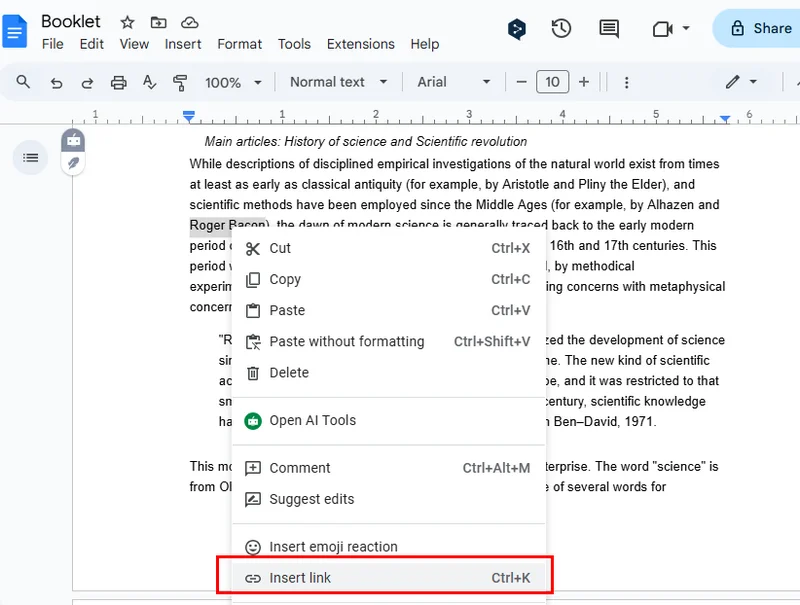
- Cole sua URL (ou escolha um documento do Google ou um cabeçalho dentro do arquivo).
- Clique em Aplicar para adicionar o link.
Passo 3. Exporte o arquivo editado de volta para PDF
- Vá para Arquivo > Fazer download.
- Selecione Documento PDF (.pdf).
- Salve o PDF atualizado com o hiperlink ativo em seu computador.
Como Adicionar um Link a um PDF Usando Ferramentas Gratuitas de Terceiros
Além das ferramentas online, aplicativos de desktop gratuitos de terceiros também são uma escolha popular para editar arquivos PDF. Esses programas geralmente têm uma interface semelhante ao Adobe Acrobat, então são fáceis de navegar. Existem muitas opções disponíveis que você pode encontrar com uma rápida pesquisa no navegador. Nesta seção, usaremos o PDFgear como exemplo para mostrar como inserir um hiperlink em PDFs.

Passos para adicionar um link a um PDF com o PDFgear:
- Instale e abra o PDFgear e carregue seu PDF.
- Vá para Editar > Link > Criar/Editar Link.
- Escolha um estilo de link (visível ou invisível) e personalize se necessário.
- Defina o destino do link: Página, URL ou Arquivo Local, e clique em OK.
- (Opcional) Para adicionar um link de texto clicável, vá para Editar > Editar Texto, cole sua URL e saia do modo de texto.
- Salve o PDF com os hiperlinks ativos.
Como Adicionar um Link a PDFs Usando Código Python
Os dois métodos anteriores são mais adequados para arquivos PDF pequenos ou individuais. Se você precisa processar vários PDFs de uma vez, usar Python ou outras linguagens de programação populares é uma escolha mais eficiente. Com Python, você pode adicionar hiperlinks a PDFs automaticamente, incluindo links de texto, links de arquivo, links de e-mail e muito mais, tudo de uma vez.
Para facilitar ainda mais a adição de hiperlinks, este capítulo usa o Free Spire.PDF for Python. Esta é a versão gratuita do Spire.PDF for Python, ideal para pequenos projetos e testes. Sua API é direta, então até mesmo iniciantes podem começar rapidamente. Com ele, você pode lidar facilmente com tarefas de PDF simples e complexas.
Passos para adicionar um hiperlink a um PDF usando o Free Spire.PDF:
- Instale o Spire.PDF e importe os módulos.
- Crie uma instância PdfDocument e adicione páginas ao documento.
- Adicione texto à página e converta-o em um hiperlink — seja uma URL, endereço de e-mail ou link de arquivo. Você pode aplicar diferentes tipos de hiperlinks usando objetos como PdfTextWebLink ou PdfFileLinkAnnotation.
- Personalize o estilo do link (fonte, cor, sublinhado, retângulo, etc.) se necessário.
- Salve o documento final como um PDF.
Aqui está o exemplo de código completo para adicionar múltiplos hiperlinks ao criar um documento PDF:
from spire.pdf.common import *
from spire.pdf import *

# Create a PdfDocument instance
pdf = PdfDocument()

# Add a page
page = pdf.Pages.Add()

# Initialize x, y coordinates
y = 30.0
x = 10.0

# Create true type fonts
font = PdfTrueTypeFont("Arial", 14.0,PdfFontStyle.Regular,True)
font1 = PdfTrueTypeFont("Arial", 14.0, PdfFontStyle.Underline,True)

# Add a simply link
label = "Simple Text Link: "
format = PdfStringFormat()
format.MeasureTrailingSpaces = True
page.Canvas.DrawString(label, font, PdfBrushes.get_Orange(), 0.0, y, format)
x = font.MeasureString(label, format).Width
url = "http://www.e-iceblue.com"
page.Canvas.DrawString(url, font1, PdfBrushes.get_Blue(), x, y)
y = y + 28

# Add a hypertext link
label = "Hypertext Link: "
page.Canvas.DrawString(label, font, PdfBrushes.get_Orange(), 0.0, y, format)
x = font.MeasureString(label, format).Width
webLink = PdfTextWebLink()
webLink.Text = "Home Page"
webLink.Url = url
webLink.Font = font1
webLink.Brush = PdfBrushes.get_Blue()
webLink.DrawTextWebLink(page.Canvas, PointF(x, y))
y = y + 28

# Add an Email link
label = "Email Link:  "
page.Canvas.DrawString(label, font, PdfBrushes.get_Orange(), 0.0, y, format)
x = font.MeasureString(label, format).Width
link = PdfTextWebLink()
link.Text = "Contact Us"
link.Url = "mailto:support @e-iceblue.com"
link.Font = font1
link.Brush = PdfBrushes.get_Blue()
link.DrawTextWebLink(page.Canvas, PointF(x, y))
y = y + 28

# Add a file link
label = "Document Link: "
page.Canvas.DrawString(label, font, PdfBrushes.get_Orange(), 0.0, y, format)
x = font.MeasureString(label, format).Width
text = "Open File"
location = PointF(x, y)
size = font1.MeasureString(text)
linkBounds = RectangleF(location, size)
fileLink = PdfFileLinkAnnotation(linkBounds,"/Desktop/Report.xlsx")
fileLink.Border = PdfAnnotationBorder(0.0)
page.AnnotationsWidget.Add(fileLink)
page.Canvas.DrawString(text, font1, PdfBrushes.get_Blue(), x, y)

#Save the result pdf file
pdf.SaveToFile("E:/Administrator/Python1/output/AddLinkstoPDF.pdf")
pdf.Close()
Aqui está o arquivo de saída criado pelo código acima: 
Como Inserir Hiperlink em PDF com Adobe Acrobat (Opção Paga)
Embora os métodos gratuitos — Google Docs, PDFgear e Free Spire.PDF for Python — permitam adicionar links a PDFs sem custo, alguns usuários podem precisar de recursos de edição mais avançados ou de uma solução estável de nível empresarial. O Adobe Acrobat é uma escolha comum nesses casos. Lembre-se de que seu recurso de hiperlink está disponível apenas na versão paga. Nesta seção, mostraremos brevemente como adicionar um hiperlink a um documento PDF usando o Adobe Acrobat, fornecendo uma visão completa das opções de edição de PDF disponíveis, juntamente com os métodos gratuitos.
Passos para inserir um hiperlink em um arquivo PDF com o Adobe Acrobat:
- Abra seu PDF no Adobe Acrobat.
- Selecione o texto ou a área onde você deseja adicionar um hiperlink.
- Clique com o botão direito no conteúdo selecionado e escolha Criar Link.

- Na janela pop-up, defina a Aparência do Link e a Ação do Link, escolha abrir uma página da web, ir para uma visualização de página ou abrir um arquivo.
- Clique em OK e salve o PDF para aplicar o hiperlink.
A Tabela Comparativa dos 4 Métodos
Cada um desses quatro métodos para adicionar hiperlinks a PDFs tem suas próprias vantagens e cenários de melhor uso. Nesta seção, preparamos uma tabela comparativa para ajudá-lo a identificar rapidamente a solução que melhor se adapta às suas necessidades, facilitando a escolha à primeira vista.
| Método | Gratuito/Pago | Instalação Necessária | Dificuldade | Melhor Caso de Uso | Vantagens | Desvantagens |
|---|---|---|---|---|---|---|
| Google Docs | Gratuito | Não | Fácil | PDF único, edição leve | Funciona online, sem necessidade de instalação; seguro e estável | Recursos limitados; não adequado para processamento em lote |
| PDFgear | Gratuito | Requer instalação | Fácil | PDF único, projetos pequenos | Interface intuitiva; suporta hiperlinks de retângulo ou texto | Melhor para poucos arquivos; recursos avançados são limitados |
| Free Spire.PDF for Python | Gratuito | Requer ambiente Python | Médio | Processamento em lote, desenvolvedores, automação | Suporta múltiplos tipos de link; pode lidar com vários arquivos de uma vez | Requer conhecimento de programação; versão gratuita melhor para projetos pequenos |
| Adobe Acrobat | Pago | Requer instalação | Fácil | Empresarial, usuários profissionais | Completo em recursos; interface familiar; estável | Requer assinatura paga; relativamente caro |
A Conclusão
Os quatro métodos que apresentamos para adicionar hiperlinks a PDFs têm suas próprias vantagens e cenários de melhor uso. Para edição diária e tarefas de arquivo único, o Google Docs ou o PDFgear geralmente são suficientes. Se você precisa lidar com vários arquivos ou requer automação mais flexível, o Free Spire.PDF for Python oferece uma opção gratuita e fácil de usar.
Leia Também
PDF에 무료로 링크를 추가하는 방법 [빠르고 쉽게]
때로는 PDF에 텍스트만으로는 부족할 때가 있습니다. 하이퍼링크를 추가하면 독자들이 콘텐츠를 복잡하게 만들지 않으면서 관련 페이지, 리소스 또는 추가 세부 정보에 더 쉽게 접근할 수 있습니다. 이 가이드에서는 PDF에 링크를 추가하는 세 가지 무료 방법을 배우게 되며, 모두 간단하고 일상적으로 사용하기에 실용적입니다.
- Google Docs를 사용하여 PDF에 링크 추가하기
- 무료 도구를 사용하여 PDF에 링크 추가하기
- 코드를 사용하여 PDF에 하이퍼링크 추가하기
- Adobe Acrobat으로 PDF에 하이퍼링크 삽입하기 (유료 옵션)
- 4가지 방법 비교표
- 결론
Google Docs를 사용하여 PDF에 링크를 추가하는 방법
우리는 종종 Word 문서 작업을 위해 Google Docs를 사용하지만, PDF 파일도 편집할 수 있습니다. 온라인 도구인 Google Docs를 사용하면 소프트웨어를 설치하지 않고도 PDF 문서에 빠르게 링크를 추가할 수 있으며, 모든 작업이 브라우저에서 바로 이루어집니다. Google 제품이므로 강력한 보안과 안정성을 제공받을 수 있어 간단한 PDF 편집 작업에 편리한 옵션입니다.
Google Docs로 PDF에 하이퍼링크를 추가하는 단계:
1단계. Google Drive에서 PDF 열기
- Google Drive에 PDF를 업로드하고 연결 앱 > Google Docs를 선택합니다.
2단계. PDF에 하이퍼링크 추가하기
- 링크를 삽입하려는 문서 부분으로 스크롤합니다.
- 클릭 가능하게 만들 텍스트를 선택합니다.
- 도구 모음에서 삽입 > 링크를 클릭하거나 Ctrl + K를 누릅니다.
- URL을 붙여넣거나 (또는 파일 내의 Google 문서나 제목을 선택합니다).
- 적용을 클릭하여 링크를 추가합니다.
3단계. 편집된 파일을 다시 PDF로 내보내기
- 파일 > 다운로드로 이동합니다.
- PDF 문서(.pdf)를 선택합니다.
- 활성 하이퍼링크가 포함된 업데이트된 PDF를 컴퓨터에 저장합니다.
무료 타사 도구를 사용하여 PDF에 링크를 추가하는 방법
온라인 도구 외에도 무료 타사 데스크톱 응용 프로그램도 PDF 파일을 편집하는 데 널리 사용됩니다. 이러한 프로그램은 종종 Adobe Acrobat과 유사한 인터페이스를 가지고 있어 일반적으로 탐색하기 쉽습니다. 빠른 브라우저 검색을 통해 많은 옵션을 찾을 수 있습니다. 이 섹션에서는 PDFgear를 예로 들어 PDF에 하이퍼링크를 삽입하는 방법을 보여드리겠습니다.
PDFgear로 PDF에 링크를 추가하는 단계:
- PDFgear를 설치하고 열어 PDF를 로드합니다.
- 편집 > 링크 > 링크 생성/편집으로 이동합니다.
- 링크 스타일(보이거나 보이지 않음)을 선택하고 필요한 경우 사용자 정의합니다.
- 링크 대상(페이지, URL 또는 로컬 파일)을 설정한 다음 확인을 클릭합니다.
- (선택 사항) 클릭 가능한 텍스트 링크를 추가하려면 편집 > 텍스트 편집으로 이동하여 URL을 붙여넣고 텍스트 모드를 종료합니다.
- 활성 하이퍼링크가 있는 PDF를 저장합니다.
Python 코드를 사용하여 PDF에 링크를 추가하는 방법
이전 두 가지 방법은 작거나 개별적인 PDF 파일에 더 적합합니다. 한 번에 여러 PDF를 처리해야 하는 경우 Python이나 다른 인기 있는 프로그래밍 언어를 사용하는 것이 더 효율적인 선택입니다. Python을 사용하면 텍스트 링크, 파일 링크, 이메일 링크 등을 포함한 PDF에 하이퍼링크를 자동으로 추가할 수 있습니다.
하이퍼링크 추가를 더욱 쉽게 하기 위해 이 장에서는 Free Spire.PDF for Python을 사용합니다. 이것은 Spire.PDF for Python의 무료 버전으로, 소규모 프로젝트 및 테스트에 이상적입니다. API가 간단하여 초보자도 빠르게 시작할 수 있습니다. 이를 통해 간단하고 복잡한 PDF 작업을 쉽게 처리할 수 있습니다.
Free Spire.PDF를 사용하여 PDF에 하이퍼링크를 추가하는 단계:
- Spire.PDF 설치 및 모듈 가져오기.
- PdfDocument 인스턴스를 만들고 문서에 페이지를 추가합니다.
- 페이지에 텍스트를 추가하고 URL, 이메일 주소 또는 파일 링크 등 하이퍼링크로 변환합니다. PdfTextWebLink 또는 PdfFileLinkAnnotation과 같은 개체를 사용하여 다양한 하이퍼링크 유형을 적용할 수 있습니다.
- 필요한 경우 링크 스타일(글꼴, 색상, 밑줄, 사각형 등)을 사용자 정의합니다.
- 최종 문서를 PDF로 저장합니다.
다음은 PDF 문서를 생성하면서 여러 하이퍼링크를 추가하는 전체 코드 예제입니다:
from spire.pdf.common import *
from spire.pdf import *

# Create a PdfDocument instance
pdf = PdfDocument()

# Add a page
page = pdf.Pages.Add()

# Initialize x, y coordinates
y = 30.0
x = 10.0

# Create true type fonts
font = PdfTrueTypeFont("Arial", 14.0,PdfFontStyle.Regular,True)
font1 = PdfTrueTypeFont("Arial", 14.0, PdfFontStyle.Underline,True)

# Add a simply link
label = "Simple Text Link: "
format = PdfStringFormat()
format.MeasureTrailingSpaces = True
page.Canvas.DrawString(label, font, PdfBrushes.get_Orange(), 0.0, y, format)
x = font.MeasureString(label, format).Width
url = "http://www.e-iceblue.com"
page.Canvas.DrawString(url, font1, PdfBrushes.get_Blue(), x, y)
y = y + 28

# Add a hypertext link
label = "Hypertext Link: "
page.Canvas.DrawString(label, font, PdfBrushes.get_Orange(), 0.0, y, format)
x = font.MeasureString(label, format).Width
webLink = PdfTextWebLink()
webLink.Text = "Home Page"
webLink.Url = url
webLink.Font = font1
webLink.Brush = PdfBrushes.get_Blue()
webLink.DrawTextWebLink(page.Canvas, PointF(x, y))
y = y + 28

# Add an Email link
label = "Email Link:  "
page.Canvas.DrawString(label, font, PdfBrushes.get_Orange(), 0.0, y, format)
x = font.MeasureString(label, format).Width
link = PdfTextWebLink()
link.Text = "Contact Us"
link.Url = "mailto:support @e-iceblue.com"
link.Font = font1
link.Brush = PdfBrushes.get_Blue()
link.DrawTextWebLink(page.Canvas, PointF(x, y))
y = y + 28

# Add a file link
label = "Document Link: "
page.Canvas.DrawString(label, font, PdfBrushes.get_Orange(), 0.0, y, format)
x = font.MeasureString(label, format).Width
text = "Open File"
location = PointF(x, y)
size = font1.MeasureString(text)
linkBounds = RectangleF(location, size)
fileLink = PdfFileLinkAnnotation(linkBounds,"/Desktop/Report.xlsx")
fileLink.Border = PdfAnnotationBorder(0.0)
page.AnnotationsWidget.Add(fileLink)
page.Canvas.DrawString(text, font1, PdfBrushes.get_Blue(), x, y)

#Save the result pdf file
pdf.SaveToFile("E:/Administrator/Python1/output/AddLinkstoPDF.pdf")
pdf.Close()
위 코드로 생성된 출력 파일은 다음과 같습니다:
Adobe Acrobat으로 PDF에 하이퍼링크 삽입하는 방법 (유료 옵션)
Google Docs, PDFgear, Free Spire.PDF for Python과 같은 무료 방법을 사용하면 비용 없이 PDF에 링크를 추가할 수 있지만, 일부 사용자는 더 고급 편집 기능이나 안정적인 엔터프라이즈급 솔루션이 필요할 수 있습니다. 이러한 경우 Adobe Acrobat이 일반적인 선택입니다. 하이퍼링크 기능은 유료 버전에서만 사용할 수 있다는 점을 명심하십시오. 이 섹션에서는 Adobe Acrobat을 사용하여 PDF 문서에 하이퍼링크를 추가하는 방법을 간략하게 보여줌으로써 무료 방법과 함께 사용 가능한 PDF 편집 옵션에 대한 전체적인 시각을 제공합니다.
Adobe Acrobat으로 PDF 파일에 하이퍼링크를 삽입하는 단계:
- Adobe Acrobat에서 PDF를 엽니다.
- 하이퍼링크를 추가하려는 텍스트나 영역을 선택합니다.
- 선택한 콘텐츠를 마우스 오른쪽 버튼으로 클릭하고 링크 만들기를 선택합니다.
- 팝업 창에서 링크 모양과 링크 동작을 설정하고, 웹 페이지 열기, 페이지 보기로 이동 또는 파일 열기를 선택합니다.
- 확인을 클릭한 다음 PDF를 저장하여 하이퍼링크를 적용합니다.
4가지 방법 비교표
PDF에 하이퍼링크를 추가하는 이 네 가지 방법 각각은 고유한 장점과 최적의 사용 시나리오를 가지고 있습니다. 이 섹션에서는 필요에 가장 적합한 솔루션을 빠르게 식별하는 데 도움이 되는 비교표를 준비하여 한눈에 쉽게 선택할 수 있도록 했습니다.
| 방법 | 무료/유료 | 설치 필요 | 난이도 | 최적 사용 사례 | 장점 | 단점 |
|---|---|---|---|---|---|---|
| Google Docs | 무료 | 아니요 | 쉬움 | 단일 PDF, 가벼운 편집 | 온라인 작동, 설치 불필요; 안전하고 안정적 | 제한된 기능; 일괄 처리에 부적합 |
| PDFgear | 무료 | 설치 필요 | 쉬움 | 단일 PDF, 소규모 프로젝트 | 직관적인 인터페이스; 사각형 또는 텍스트 하이퍼링크 지원 | 소수 파일에 최적; 고급 기능 제한적 |
| Free Spire.PDF for Python | 무료 | Python 환경 필요 | 중간 | 일괄 처리, 개발자, 자동화 | 다양한 링크 유형 지원; 한 번에 여러 파일 처리 가능 | 프로그래밍 지식 필요; 무료 버전은 소규모 프로젝트에 최적 |
| Adobe Acrobat | 유료 | 설치 필요 | 쉬움 | 기업, 전문 사용자 | 모든 기능 제공; 익숙한 인터페이스; 안정적 | 유료 구독 필요; 상대적으로 비쌈 |
결론
PDF에 하이퍼링크를 추가하기 위해 소개한 네 가지 방법은 각각의 장점과 최적의 사용 사례가 있습니다. 일상적인 편집 및 단일 파일 작업의 경우 Google Docs 또는 PDFgear로 충분합니다. 여러 파일을 처리해야 하거나 더 유연한 자동화가 필요한 경우 Free Spire.PDF for Python이 무료이며 사용하기 쉬운 옵션을 제공합니다.
함께 읽기