Come aggiungere un link a un PDF gratuitamente [In modo rapido e semplice]
Indice
- Aggiungere un Link a un PDF Usando Google Docs
- Aggiungere un Link a un PDF Usando Strumenti Gratuiti
- Aggiungere Collegamenti Ipertestuali a un PDF Usando il Codice
- Inserire un Collegamento Ipertestuale in un PDF con Adobe Acrobat (Opzione a Pagamento)
- Tabella di Confronto dei 4 Metodi
- La Conclusione
A volte, un PDF ha bisogno di più del solo testo. L'aggiunta di collegamenti ipertestuali facilita ai lettori l'accesso a pagine correlate, risorse o dettagli extra, senza sovraccaricare il contenuto. In questa guida, imparerai tre modi gratuiti per aggiungere un link a un PDF, tutti semplici e pratici per l'uso quotidiano.
- Aggiungere un Link a un PDF Usando Google Docs
- Aggiungere un Link a un PDF Usando Strumenti Gratuiti
- Aggiungere Collegamenti Ipertestuali a un PDF Usando il Codice
- Inserire un Collegamento Ipertestuale in un PDF con Adobe Acrobat (Opzione a Pagamento)
- Tabella di Confronto dei 4 Metodi
- La Conclusione
Come Aggiungere un Link a un PDF Usando Google Docs
Usiamo spesso Google Docs per lavorare con documenti Word, ma può anche modificare file PDF. Essendo uno strumento online, Google Docs ti permette di aggiungere rapidamente un link a un documento PDF senza installare alcun software: tutto viene fatto direttamente nel tuo browser. Poiché è un prodotto Google, ottieni anche una solida sicurezza e affidabilità, rendendolo un'opzione comoda per semplici attività di modifica dei PDF.
Passaggi per aggiungere collegamenti ipertestuali a un PDF con Google Docs:
Passaggio 1. Apri il tuo PDF in Google Drive
- Carica il tuo PDF in Google Drive e scegli Apri con > Google Docs.
Passaggio 2. Aggiungi un collegamento ipertestuale al PDF
- Scorri fino alla parte del documento in cui desideri inserire un link.
- Seleziona il testo che vuoi rendere cliccabile.
- Fai clic su Inserisci > link nella barra degli strumenti, o premi Ctrl + K.
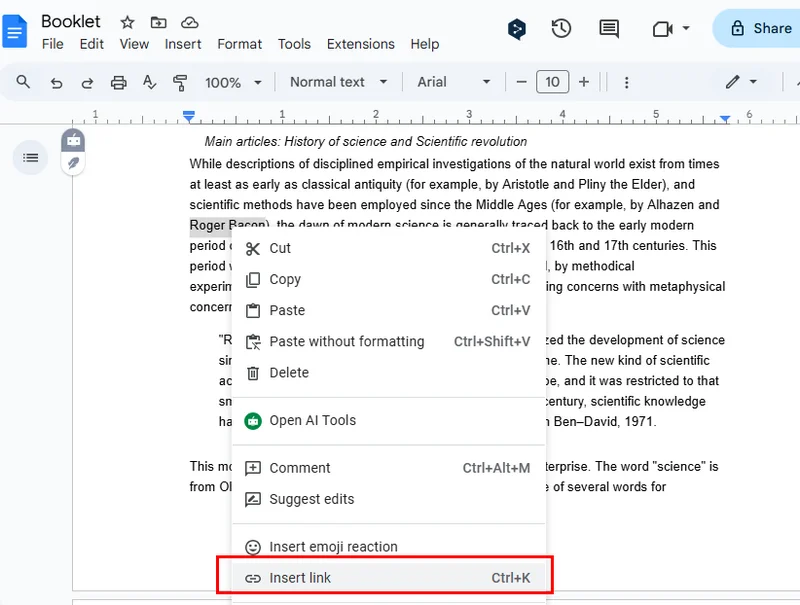
- Incolla il tuo URL (o scegli un documento di Google o un'intestazione all'interno del file).
- Fai clic su Applica per aggiungere il link.
Passaggio 3. Esporta di nuovo il file modificato in PDF
- Vai a File > Scarica.
- Seleziona Documento PDF (.pdf).
- Salva il PDF aggiornato con il collegamento ipertestuale attivo sul tuo computer.
Come Aggiungere un Link a un PDF Usando Strumenti di Terze Parti Gratuiti
Oltre agli strumenti online, anche le applicazioni desktop gratuite di terze parti sono una scelta popolare per la modifica di file PDF. Questi programmi hanno spesso un'interfaccia simile ad Adobe Acrobat, quindi sono solitamente facili da usare. Ci sono molte opzioni disponibili che puoi trovare con una rapida ricerca nel browser. In questa sezione, useremo PDFgear come esempio per mostrarti come inserire un collegamento ipertestuale nei PDF.

Passaggi per aggiungere un link a un PDF con PDFgear:
- Installa e apri PDFgear e carica il tuo PDF.
- Vai a Modifica > Link > Crea/Modifica Link.
- Scegli uno stile di link (visibile o invisibile) e personalizzalo se necessario.
- Imposta la destinazione del link: Pagina, URL, o File Locale, quindi fai clic su OK.
- (Opzionale) Per aggiungere un link di testo cliccabile, vai a Modifica > Modifica Testo, incolla il tuo URL ed esci dalla modalità testo.
- Salva il PDF con i collegamenti ipertestuali attivi.
Come Aggiungere un Link ai PDF Usando il Codice Python
I due metodi precedenti sono più adatti per file PDF piccoli o singoli. Se hai bisogno di elaborare più PDF contemporaneamente, usare Python o altri linguaggi di programmazione popolari è una scelta più efficiente. Con Python, puoi aggiungere automaticamente collegamenti ipertestuali ai PDF, inclusi link di testo, link a file, link email e altro, tutto in una volta.
Per rendere ancora più facile l'aggiunta di collegamenti ipertestuali, questo capitolo utilizza Free Spire.PDF for Python. Questa è la versione gratuita di Spire.PDF for Python, ideale per piccoli progetti e test. La sua API è semplice, quindi anche i principianti possono iniziare rapidamente. Con essa, puoi gestire facilmente sia compiti PDF semplici che complessi.
Passaggi per aggiungere un collegamento ipertestuale a un PDF usando Free Spire.PDF:
- Installa Spire.PDF e importa i moduli.
- Crea un'istanza di PdfDocument e aggiungi pagine al documento.
- Aggiungi testo alla pagina e convertilo in un collegamento ipertestuale — che si tratti di un URL, un indirizzo email o un link a un file. Puoi applicare diversi tipi di collegamenti ipertestuali usando oggetti come PdfTextWebLink o PdfFileLinkAnnotation.
- Personalizza lo stile del link (carattere, colore, sottolineatura, rettangolo, ecc.) se necessario.
- Salva il documento finale come PDF.
Ecco l'esempio di codice completo per aggiungere più collegamenti ipertestuali durante la creazione di un documento PDF:
from spire.pdf.common import *
from spire.pdf import *

# Create a PdfDocument instance
pdf = PdfDocument()

# Add a page
page = pdf.Pages.Add()

# Initialize x, y coordinates
y = 30.0
x = 10.0

# Create true type fonts
font = PdfTrueTypeFont("Arial", 14.0,PdfFontStyle.Regular,True)
font1 = PdfTrueTypeFont("Arial", 14.0, PdfFontStyle.Underline,True)

# Add a simply link
label = "Simple Text Link: "
format = PdfStringFormat()
format.MeasureTrailingSpaces = True
page.Canvas.DrawString(label, font, PdfBrushes.get_Orange(), 0.0, y, format)
x = font.MeasureString(label, format).Width
url = "http://www.e-iceblue.com"
page.Canvas.DrawString(url, font1, PdfBrushes.get_Blue(), x, y)
y = y + 28

# Add a hypertext link
label = "Hypertext Link: "
page.Canvas.DrawString(label, font, PdfBrushes.get_Orange(), 0.0, y, format)
x = font.MeasureString(label, format).Width
webLink = PdfTextWebLink()
webLink.Text = "Home Page"
webLink.Url = url
webLink.Font = font1
webLink.Brush = PdfBrushes.get_Blue()
webLink.DrawTextWebLink(page.Canvas, PointF(x, y))
y = y + 28

# Add an Email link
label = "Email Link:  "
page.Canvas.DrawString(label, font, PdfBrushes.get_Orange(), 0.0, y, format)
x = font.MeasureString(label, format).Width
link = PdfTextWebLink()
link.Text = "Contact Us"
link.Url = "mailto:support @e-iceblue.com"
link.Font = font1
link.Brush = PdfBrushes.get_Blue()
link.DrawTextWebLink(page.Canvas, PointF(x, y))
y = y + 28

# Add a file link
label = "Document Link: "
page.Canvas.DrawString(label, font, PdfBrushes.get_Orange(), 0.0, y, format)
x = font.MeasureString(label, format).Width
text = "Open File"
location = PointF(x, y)
size = font1.MeasureString(text)
linkBounds = RectangleF(location, size)
fileLink = PdfFileLinkAnnotation(linkBounds,"/Desktop/Report.xlsx")
fileLink.Border = PdfAnnotationBorder(0.0)
page.AnnotationsWidget.Add(fileLink)
page.Canvas.DrawString(text, font1, PdfBrushes.get_Blue(), x, y)

#Save the result pdf file
pdf.SaveToFile("E:/Administrator/Python1/output/AddLinkstoPDF.pdf")
pdf.Close()
Ecco il file di output creato dal codice sopra: 
Come Inserire un Collegamento Ipertestuale in un PDF con Adobe Acrobat (Opzione a Pagamento)
Mentre i metodi gratuiti — Google Docs, PDFgear e Free Spire.PDF for Python — ti permettono di aggiungere link ai PDF senza alcun costo, alcuni utenti potrebbero aver bisogno di funzionalità di modifica più avanzate o di una soluzione stabile a livello aziendale. Adobe Acrobat è una scelta comune in questi casi. Tieni presente che la sua funzione di collegamento ipertestuale è disponibile solo nella versione a pagamento. In questa sezione, mostreremo brevemente come aggiungere un collegamento ipertestuale a un documento PDF usando Adobe Acrobat, fornendo una visione completa delle opzioni di modifica PDF disponibili insieme ai metodi gratuiti.
Passaggi per inserire un collegamento ipertestuale in un file PDF con Adobe Acrobat:
- Apri il tuo PDF in Adobe Acrobat.
- Seleziona il testo o l'area in cui desideri aggiungere un collegamento ipertestuale.
- Fai clic con il pulsante destro del mouse sul contenuto selezionato e scegli Crea Link.

- Nella finestra pop-up, imposta l'Aspetto del Link e l'Azione del Link, scegli di aprire una pagina web, andare a una visualizzazione di pagina o aprire un file.
- Fai clic su OK, quindi salva il PDF per applicare il collegamento ipertestuale.
La Tabella di Confronto dei 4 Metodi
Ciascuno di questi quattro metodi per aggiungere collegamenti ipertestuali ai PDF ha i propri vantaggi e scenari di utilizzo ottimali. In questa sezione, abbiamo preparato una tabella di confronto per aiutarti a identificare rapidamente la soluzione che meglio si adatta alle tue esigenze, rendendo più facile la scelta a colpo d'occhio.
| Metodo | Gratuito/A pagamento | Installazione Richiesta | Difficoltà | Caso d'Uso Migliore | Vantaggi | Svantaggi |
|---|---|---|---|---|---|---|
| Google Docs | Gratuito | No | Facile | PDF singolo, modifica leggera | Funziona online, nessuna installazione necessaria; sicuro e stabile | Funzionalità limitate; non adatto per l'elaborazione in batch |
| PDFgear | Gratuito | Richiede installazione | Facile | PDF singolo, piccoli progetti | Interfaccia intuitiva; supporta collegamenti ipertestuali a rettangolo o di testo | Ideale per pochi file; le funzionalità avanzate sono limitate |
| Free Spire.PDF for Python | Gratuito | Richiede ambiente Python | Medio | Elaborazione in batch, sviluppatori, automazione | Supporta più tipi di link; può gestire più file contemporaneamente | Richiede conoscenze di programmazione; la versione gratuita è ideale per piccoli progetti |
| Adobe Acrobat | A pagamento | Richiede installazione | Facile | Aziendale, utenti professionali | Completo di funzionalità; interfaccia familiare; stabile | Richiede un abbonamento a pagamento; relativamente costoso |
La Conclusione
I quattro metodi che abbiamo introdotto per aggiungere collegamenti ipertestuali ai PDF hanno i loro vantaggi e scenari di utilizzo ottimali. Per la modifica quotidiana e le attività su un singolo file, Google Docs o PDFgear sono solitamente sufficienti. Se hai bisogno di gestire più file o richiedi un'automazione più flessibile, Free Spire.PDF for Python offre un'opzione gratuita e facile da usare.
Leggi Anche
Comment ajouter un lien à un PDF gratuitement [Rapide et facile]
Table des matières
Parfois, un PDF a besoin de plus que du simple texte. L'ajout d'hyperliens permet aux lecteurs d'accéder plus facilement à des pages, des ressources ou des détails supplémentaires connexes, sans surcharger le contenu. Dans ce guide, vous apprendrez trois façons gratuites d'ajouter un lien à un PDF, toutes simples et pratiques pour un usage quotidien.
- Ajouter un lien à un PDF en utilisant Google Docs
- Ajouter un lien à un PDF en utilisant des outils gratuits
- Ajouter des hyperliens à un PDF en utilisant du code
- Insérer un hyperlien dans un PDF avec Adobe Acrobat (Option payante)
- Tableau comparatif des 4 méthodes
- La conclusion
Comment ajouter un lien à un PDF en utilisant Google Docs
Nous utilisons souvent Google Docs pour travailler avec des documents Word, mais il peut également modifier des fichiers PDF. En tant qu'outil en ligne, Google Docs vous permet d'ajouter rapidement un lien à un document PDF sans installer de logiciel — tout se fait directement dans votre navigateur. Comme c'est un produit Google, vous bénéficiez également d'une sécurité et d'une fiabilité solides, ce qui en fait une option pratique pour les tâches simples d'édition de PDF.
Étapes pour ajouter des hyperliens à un PDF avec Google Docs :
Étape 1. Ouvrez votre PDF dans Google Drive
- Téléchargez votre PDF dans Google Drive et choisissez Ouvrir avec > Google Docs.
Étape 2. Ajoutez un hyperlien au PDF
- Faites défiler jusqu'à la partie du document où vous souhaitez insérer un lien.
- Sélectionnez le texte que vous souhaitez rendre cliquable.
- Cliquez sur Insertion > Lien dans la barre d'outils, ou appuyez sur Ctrl + K.
- Collez votre URL (ou choisissez un document Google Doc ou un titre dans le fichier).
- Cliquez sur Appliquer pour ajouter le lien.
Étape 3. Exportez le fichier modifié au format PDF
- Allez dans Fichier > Télécharger.
- Sélectionnez Document PDF (.pdf).
- Enregistrez le PDF mis à jour avec l'hyperlien actif sur votre ordinateur.
Comment ajouter un lien à un PDF en utilisant des outils tiers gratuits
Outre les outils en ligne, les applications de bureau tierces gratuites sont également un choix populaire pour l'édition de fichiers PDF. Ces programmes ont souvent une interface similaire à Adobe Acrobat, ils sont donc généralement faciles à utiliser. Il existe de nombreuses options disponibles que vous pouvez trouver via une recherche rapide dans votre navigateur. Dans cette section, nous utiliserons PDFgear comme exemple pour vous montrer comment insérer un hyperlien dans des PDF.
Étapes pour ajouter un lien à un PDF avec PDFgear :
- Installez et ouvrez PDFgear et chargez votre PDF.
- Allez dans Modifier > Lien > Créer/Modifier le lien.
- Choisissez un style de lien (visible ou invisible) et personnalisez si nécessaire.
- Définissez la destination du lien : Page, URL ou Fichier local, puis cliquez sur OK.
- (Facultatif) Pour ajouter un lien texte cliquable, allez dans Modifier > Modifier le texte, collez votre URL et quittez le mode texte.
- Enregistrez le PDF avec les hyperliens actifs.
Comment ajouter un lien à des PDF en utilisant du code Python
Les deux méthodes précédentes sont mieux adaptées aux fichiers PDF de petite taille ou individuels. Si vous devez traiter plusieurs PDF à la fois, l'utilisation de Python ou d'autres langages de programmation populaires est un choix plus efficace. Avec Python, vous pouvez ajouter automatiquement des hyperliens aux PDF, y compris des liens texte, des liens de fichier, des liens e-mail, et plus encore, en une seule fois.
Pour faciliter encore plus l'ajout d'hyperliens, ce chapitre utilise Free Spire.PDF for Python. C'est la version gratuite de Spire.PDF for Python, idéale pour les petits projets et les tests. Son API est simple, donc même les débutants peuvent commencer rapidement. Avec elle, vous pouvez facilement gérer des tâches PDF simples et complexes.
Étapes pour ajouter un hyperlien à un PDF en utilisant Free Spire.PDF :
- Installez Spire.PDF et importez les modules.
- Créez une instance PdfDocument et ajoutez des pages au document.
- Ajoutez du texte à la page et convertissez-le en hyperlien — qu'il s'agisse d'une URL, d'une adresse e-mail ou d'un lien de fichier. Vous pouvez appliquer différents types d'hyperliens en utilisant des objets comme PdfTextWebLink ou PdfFileLinkAnnotation.
- Personnalisez le style du lien (police, couleur, soulignement, rectangle, etc.) si nécessaire.
- Enregistrez le document final au format PDF.
Voici l'exemple de code complet pour ajouter plusieurs hyperliens lors de la création d'un document PDF :
from spire.pdf.common import *
from spire.pdf import *

# Create a PdfDocument instance
pdf = PdfDocument()

# Add a page
page = pdf.Pages.Add()

# Initialize x, y coordinates
y = 30.0
x = 10.0

# Create true type fonts
font = PdfTrueTypeFont("Arial", 14.0,PdfFontStyle.Regular,True)
font1 = PdfTrueTypeFont("Arial", 14.0, PdfFontStyle.Underline,True)

# Add a simply link
label = "Simple Text Link: "
format = PdfStringFormat()
format.MeasureTrailingSpaces = True
page.Canvas.DrawString(label, font, PdfBrushes.get_Orange(), 0.0, y, format)
x = font.MeasureString(label, format).Width
url = "http://www.e-iceblue.com"
page.Canvas.DrawString(url, font1, PdfBrushes.get_Blue(), x, y)
y = y + 28

# Add a hypertext link
label = "Hypertext Link: "
page.Canvas.DrawString(label, font, PdfBrushes.get_Orange(), 0.0, y, format)
x = font.MeasureString(label, format).Width
webLink = PdfTextWebLink()
webLink.Text = "Home Page"
webLink.Url = url
webLink.Font = font1
webLink.Brush = PdfBrushes.get_Blue()
webLink.DrawTextWebLink(page.Canvas, PointF(x, y))
y = y + 28

# Add an Email link
label = "Email Link:  "
page.Canvas.DrawString(label, font, PdfBrushes.get_Orange(), 0.0, y, format)
x = font.MeasureString(label, format).Width
link = PdfTextWebLink()
link.Text = "Contact Us"
link.Url = "mailto:support @e-iceblue.com"
link.Font = font1
link.Brush = PdfBrushes.get_Blue()
link.DrawTextWebLink(page.Canvas, PointF(x, y))
y = y + 28

# Add a file link
label = "Document Link: "
page.Canvas.DrawString(label, font, PdfBrushes.get_Orange(), 0.0, y, format)
x = font.MeasureString(label, format).Width
text = "Open File"
location = PointF(x, y)
size = font1.MeasureString(text)
linkBounds = RectangleF(location, size)
fileLink = PdfFileLinkAnnotation(linkBounds,"/Desktop/Report.xlsx")
fileLink.Border = PdfAnnotationBorder(0.0)
page.AnnotationsWidget.Add(fileLink)
page.Canvas.DrawString(text, font1, PdfBrushes.get_Blue(), x, y)

#Save the result pdf file
pdf.SaveToFile("E:/Administrator/Python1/output/AddLinkstoPDF.pdf")
pdf.Close()
Voici le fichier de sortie créé par le code ci-dessus :
Comment insérer un hyperlien dans un PDF avec Adobe Acrobat (Option payante)
Bien que les méthodes gratuites — Google Docs, PDFgear et Free Spire.PDF for Python — vous permettent d'ajouter des liens aux PDF sans aucun coût, certains utilisateurs peuvent avoir besoin de fonctionnalités d'édition plus avancées ou d'une solution stable de niveau entreprise. Adobe Acrobat est un choix courant dans de tels cas. Gardez à l'esprit que sa fonctionnalité d'hyperlien n'est disponible que dans la version payante. Dans cette section, nous montrerons brièvement comment ajouter un hyperlien à un document PDF en utilisant Adobe Acrobat, offrant une vue complète des options d'édition de PDF disponibles aux côtés des méthodes gratuites.
Étapes pour insérer un hyperlien dans un fichier PDF avec Adobe Acrobat :
- Ouvrez votre PDF dans Adobe Acrobat.
- Sélectionnez le texte ou la zone où vous souhaitez ajouter un hyperlien.
- Faites un clic droit sur le contenu sélectionné et choisissez Créer un lien.
- Dans la fenêtre contextuelle, définissez l'Apparence du lien et l'Action du lien, choisissez d'ouvrir une page Web, d'aller à une vue de page ou d'ouvrir un fichier.
- Cliquez sur OK, puis enregistrez le PDF pour appliquer l'hyperlien.
Le tableau comparatif des 4 méthodes
Chacune de ces quatre méthodes pour ajouter des hyperliens aux PDF a ses propres avantages et scénarios d'utilisation optimaux. Dans cette section, nous avons préparé un tableau comparatif pour vous aider à identifier rapidement la solution qui correspond le mieux à vos besoins, facilitant ainsi le choix en un coup d'œil.
| Méthode | Gratuit/Payant | Installation requise | Difficulté | Meilleur cas d'utilisation | Avantages | Inconvénients |
|---|---|---|---|---|---|---|
| Google Docs | Gratuit | Non | Facile | PDF unique, édition légère | Fonctionne en ligne, aucune installation nécessaire ; sécurisé et stable | Fonctionnalités limitées ; ne convient pas au traitement par lots |
| PDFgear | Gratuit | Nécessite une installation | Facile | PDF unique, petits projets | Interface intuitive ; prend en charge les hyperliens rectangulaires ou textuels | Idéal pour quelques fichiers ; les fonctionnalités avancées sont limitées |
| Free Spire.PDF for Python | Gratuit | Nécessite un environnement Python | Moyen | Traitement par lots, développeurs, automatisation | Prend en charge plusieurs types de liens ; peut traiter plusieurs fichiers à la fois | Nécessite des connaissances en programmation ; la version gratuite est idéale pour les petits projets |
| Adobe Acrobat | Payant | Nécessite une installation | Facile | Entreprise, utilisateurs professionnels | Complet ; interface familière ; stable | Nécessite un abonnement payant ; relativement cher |
La conclusion
Les quatre méthodes que nous avons présentées pour ajouter des hyperliens aux PDF ont leurs propres avantages et scénarios d'utilisation optimaux. Pour l'édition quotidienne et les tâches sur un seul fichier, Google Docs ou PDFgear est généralement suffisant. Si vous devez traiter plusieurs fichiers ou avez besoin d'une automatisation plus flexible, Free Spire.PDF for Python offre une option gratuite et facile à utiliser.
À lire également
Cómo añadir un enlace a un PDF gratis [Rápida y fácilmente]
Tabla de Contenidos
A veces, un PDF necesita más que solo texto. Añadir hipervínculos facilita a los lectores el acceso a páginas relacionadas, recursos o detalles adicionales, sin sobrecargar el contenido. En esta guía, aprenderás tres formas gratuitas de añadir un enlace a un PDF, todas simples y prácticas para el uso diario.
- Añadir un Enlace a un PDF Usando Google Docs
- Añadir un Enlace a un PDF Usando Herramientas Gratuitas
- Añadir Hipervínculos a un PDF Usando Código
- Insertar Hipervínculo en un PDF con Adobe Acrobat (Opción de Pago)
- Tabla Comparativa de los 4 Métodos
- La Conclusión
Cómo Añadir un Enlace a un PDF Usando Google Docs
A menudo usamos Google Docs para trabajar con documentos de Word, pero también puede editar archivos PDF. Como herramienta en línea, Google Docs te permite añadir un enlace a un documento PDF rápidamente sin necesidad de instalar ningún software; todo se hace directamente en tu navegador. Como es un producto de Google, también obtienes una sólida seguridad y fiabilidad, lo que lo convierte en una opción conveniente para tareas sencillas de edición de PDF.
Pasos para añadir hipervínculos a un PDF con Google Docs:
Paso 1. Abre tu PDF en Google Drive
- Sube tu PDF a Google Drive y elige abrir con > Google Docs.
Paso 2. Añade un hipervínculo al PDF
- Desplázate a la parte del documento donde quieres insertar un enlace.
- Selecciona el texto que quieres hacer clicable.
- Haz clic en Insertar > enlace en la barra de herramientas, o presiona Ctrl + K.
- Pega tu URL (o elige un documento de Google o un encabezado dentro del archivo).
- Haz clic en Aplicar para añadir el enlace.
Paso 3. Exporta el archivo editado de nuevo a PDF
- Ve a Archivo > Descargar.
- Selecciona Documento PDF (.pdf).
- Guarda el PDF actualizado con el hipervínculo activo en tu ordenador.
Cómo Añadir un Enlace a un PDF Usando Herramientas Gratuitas de Terceros
Además de las herramientas en línea, las aplicaciones de escritorio gratuitas de terceros también son una opción popular para editar archivos PDF. Estos programas suelen tener una interfaz similar a la de Adobe Acrobat, por lo que son fáciles de usar. Hay muchas opciones disponibles que puedes encontrar con una búsqueda rápida en el navegador. En esta sección, usaremos PDFgear como ejemplo para mostrarte cómo insertar un hipervínculo en los PDF.
Pasos para añadir un enlace a un PDF con PDFgear:
- Instala y abre PDFgear y carga tu PDF.
- Ve a Editar > Enlace > Crear/Editar Enlace.
- Elige un estilo de enlace (visible o invisible) y personalízalo si es necesario.
- Establece el destino del enlace: Página, URL o Archivo Local, y luego haz clic en Aceptar.
- (Opcional) Para añadir un enlace de texto clicable, ve a Editar > Editar Texto, pega tu URL y sal del modo de texto.
- Guarda el PDF con los hipervínculos activos.
Cómo Añadir un Enlace a los PDF Usando Código Python
Los dos métodos anteriores son más adecuados para archivos PDF pequeños o individuales. Si necesitas procesar varios PDF a la vez, usar Python u otros lenguajes de programación populares es una opción más eficiente. Con Python, puedes añadir automáticamente hipervínculos a los PDF, incluyendo enlaces de texto, enlaces a archivos, enlaces de correo electrónico y más, todo de una sola vez.
Para facilitar aún más la adición de hipervínculos, este capítulo utiliza Free Spire.PDF for Python. Esta es la versión gratuita de Spire.PDF for Python, ideal para proyectos pequeños y pruebas. Su API es sencilla, por lo que incluso los principiantes pueden empezar rápidamente. Con ella, puedes manejar fácilmente tareas de PDF tanto simples como complejas.
Pasos para añadir un hipervínculo a un PDF usando Free Spire.PDF:
- Instala Spire.PDF e importa los módulos.
- Crea una instancia de PdfDocument y añade páginas al documento.
- Añade texto a la página y conviértelo en un hipervínculo, ya sea una URL, una dirección de correo electrónico o un enlace a un archivo. Puedes aplicar diferentes tipos de hipervínculos usando objetos como PdfTextWebLink o PdfFileLinkAnnotation.
- Personaliza el estilo del enlace (fuente, color, subrayado, rectángulo, etc.) si es necesario.
- Guarda el documento final como un PDF.
Aquí está el ejemplo de código completo para añadir múltiples hipervínculos mientras se crea un documento PDF:
from spire.pdf.common import *
from spire.pdf import *

# Create a PdfDocument instance
pdf = PdfDocument()

# Add a page
page = pdf.Pages.Add()

# Initialize x, y coordinates
y = 30.0
x = 10.0

# Create true type fonts
font = PdfTrueTypeFont("Arial", 14.0,PdfFontStyle.Regular,True)
font1 = PdfTrueTypeFont("Arial", 14.0, PdfFontStyle.Underline,True)

# Add a simply link
label = "Simple Text Link: "
format = PdfStringFormat()
format.MeasureTrailingSpaces = True
page.Canvas.DrawString(label, font, PdfBrushes.get_Orange(), 0.0, y, format)
x = font.MeasureString(label, format).Width
url = "http://www.e-iceblue.com"
page.Canvas.DrawString(url, font1, PdfBrushes.get_Blue(), x, y)
y = y + 28

# Add a hypertext link
label = "Hypertext Link: "
page.Canvas.DrawString(label, font, PdfBrushes.get_Orange(), 0.0, y, format)
x = font.MeasureString(label, format).Width
webLink = PdfTextWebLink()
webLink.Text = "Home Page"
webLink.Url = url
webLink.Font = font1
webLink.Brush = PdfBrushes.get_Blue()
webLink.DrawTextWebLink(page.Canvas, PointF(x, y))
y = y + 28

# Add an Email link
label = "Email Link:  "
page.Canvas.DrawString(label, font, PdfBrushes.get_Orange(), 0.0, y, format)
x = font.MeasureString(label, format).Width
link = PdfTextWebLink()
link.Text = "Contact Us"
link.Url = "mailto:support @e-iceblue.com"
link.Font = font1
link.Brush = PdfBrushes.get_Blue()
link.DrawTextWebLink(page.Canvas, PointF(x, y))
y = y + 28

# Add a file link
label = "Document Link: "
page.Canvas.DrawString(label, font, PdfBrushes.get_Orange(), 0.0, y, format)
x = font.MeasureString(label, format).Width
text = "Open File"
location = PointF(x, y)
size = font1.MeasureString(text)
linkBounds = RectangleF(location, size)
fileLink = PdfFileLinkAnnotation(linkBounds,"/Desktop/Report.xlsx")
fileLink.Border = PdfAnnotationBorder(0.0)
page.AnnotationsWidget.Add(fileLink)
page.Canvas.DrawString(text, font1, PdfBrushes.get_Blue(), x, y)

#Save the result pdf file
pdf.SaveToFile("E:/Administrator/Python1/output/AddLinkstoPDF.pdf")
pdf.Close()
Aquí está el archivo de salida creado por el código anterior:
Cómo Insertar un Hipervínculo en un PDF con Adobe Acrobat (Opción de Pago)
Aunque los métodos gratuitos —Google Docs, PDFgear y Free Spire.PDF for Python— te permiten añadir enlaces a los PDF sin coste alguno, algunos usuarios pueden necesitar funciones de edición más avanzadas o una solución estable a nivel empresarial. Adobe Acrobat es una opción común en tales casos. Ten en cuenta que su función de hipervínculos solo está disponible en la versión de pago. En esta sección, mostraremos brevemente cómo añadir un hipervínculo a un documento PDF usando Adobe Acrobat, proporcionando una visión completa de las opciones de edición de PDF disponibles junto con los métodos gratuitos.
Pasos para insertar un hipervínculo en un archivo PDF con Adobe Acrobat:
- Abre tu PDF en Adobe Acrobat.
- Selecciona el texto o el área donde quieres añadir un hipervínculo.
- Haz clic derecho en el contenido seleccionado y elige Crear Enlace.
- En la ventana emergente, establece la Apariencia del Enlace y la Acción del Enlace, elige abrir una página web, ir a una vista de página o abrir un archivo.
- Haz clic en Aceptar, luego guarda el PDF para aplicar el hipervínculo.
La Tabla Comparativa de los 4 Métodos
Cada uno de estos cuatro métodos para añadir hipervínculos a los PDF tiene sus propias ventajas y mejores escenarios de uso. En esta sección, hemos preparado una tabla comparativa para ayudarte a identificar rápidamente la solución que mejor se adapte a tus necesidades, facilitando la elección a simple vista.
| Método | Gratis/De Pago | Instalación Requerida | Dificultad | Mejor Caso de Uso | Ventajas | Desventajas |
|---|---|---|---|---|---|---|
| Google Docs | Gratis | No | Fácil | PDF único, edición ligera | Funciona en línea, no necesita instalación; seguro y estable | Funciones limitadas; no apto para procesamiento por lotes |
| PDFgear | Gratis | Requiere instalación | Fácil | PDF único, proyectos pequeños | Interfaz intuitiva; admite hipervínculos de rectángulo o de texto | Ideal para pocos archivos; las funciones avanzadas son limitadas |
| Free Spire.PDF for Python | Gratis | Requiere entorno Python | Medio | Procesamiento por lotes, desarrolladores, automatización | Admite múltiples tipos de enlaces; puede manejar varios archivos a la vez | Requiere conocimientos de programación; la versión gratuita es mejor para proyectos pequeños |
| Adobe Acrobat | De Pago | Requiere instalación | Fácil | Empresas, usuarios profesionales | Completo en funciones; interfaz familiar; estable | Requiere suscripción de pago; relativamente caro |
La Conclusión
Los cuatro métodos que presentamos para añadir hipervínculos a los PDF tienen sus propias ventajas y mejores escenarios de uso. Para la edición diaria y tareas de un solo archivo, Google Docs o PDFgear suelen ser suficientes. Si necesitas manejar múltiples archivos o requieres una automatización más flexible, Free Spire.PDF for Python ofrece una opción gratuita y fácil de usar.
Leer También
So fügen Sie kostenlos einen Link zu einer PDF-Datei hinzu [Schnell und einfach]
Inhaltsverzeichnis
Manchmal benötigt ein PDF mehr als nur Text. Das Hinzufügen von Hyperlinks erleichtert es den Lesern, auf verwandte Seiten, Ressourcen oder zusätzliche Details zuzugreifen, ohne den Inhalt zu überladen. In dieser Anleitung lernen Sie drei kostenlose Möglichkeiten kennen, einen Link zu einem PDF hinzuzufügen, die alle einfach und praktisch für den täglichen Gebrauch sind.
- Einen Link zu einem PDF mit Google Docs hinzufügen
- Einen Link zu einem PDF mit kostenlosen Tools hinzufügen
- Hyperlinks zu PDF mit Code hinzufügen
- Hyperlink in PDF mit Adobe Acrobat einfügen (kostenpflichtige Option)
- Vergleichstabelle der 4 Methoden
- Das Fazit
Wie man einen Link zu einem PDF mit Google Docs hinzufügt
Wir verwenden oft Google Docs für die Arbeit mit Word-Dokumenten, aber es kann auch PDF-Dateien bearbeiten. Als Online-Tool ermöglicht Google Docs das schnelle Hinzufügen eines Links zu einem PDF-Dokument, ohne dass Software installiert werden muss – alles geschieht direkt in Ihrem Browser. Da es sich um ein Google-Produkt handelt, erhalten Sie außerdem solide Sicherheit und Zuverlässigkeit, was es zu einer bequemen Option für einfache PDF-Bearbeitungsaufgaben macht.
Schritte zum Hinzufügen von Hyperlinks zu einem PDF mit Google Docs:
Schritt 1. Öffnen Sie Ihr PDF in Google Drive
- Laden Sie Ihr PDF in Google Drive hoch und wählen Sie Öffnen mit > Google Docs.
Schritt 2. Fügen Sie einen Hyperlink zum PDF hinzu
- Scrollen Sie zu dem Teil des Dokuments, in den Sie einen Link einfügen möchten.
- Wählen Sie den Text aus, den Sie klickbar machen möchten.
- Klicken Sie in der Symbolleiste auf Einfügen > Link oder drücken Sie Strg + K.
- Fügen Sie Ihre URL ein (oder wählen Sie ein Google Doc oder eine Überschrift innerhalb der Datei).
- Klicken Sie auf Anwenden, um den Link hinzuzufügen.
Schritt 3. Exportieren Sie die bearbeitete Datei zurück als PDF
- Gehen Sie zu Datei > Herunterladen.
- Wählen Sie PDF-Dokument (.pdf).
- Speichern Sie das aktualisierte PDF mit dem aktiven Hyperlink auf Ihrem Computer.
Wie man einen Link zu einem PDF mit kostenlosen Drittanbieter-Tools hinzufügt
Neben Online-Tools sind auch kostenlose Desktop-Anwendungen von Drittanbietern eine beliebte Wahl für die Bearbeitung von PDF-Dateien. Diese Programme haben oft eine ähnliche Oberfläche wie Adobe Acrobat und sind daher in der Regel einfach zu bedienen. Es gibt viele verfügbare Optionen, die Sie durch eine schnelle Browsersuche finden können. In diesem Abschnitt verwenden wir PDFgear als Beispiel, um Ihnen zu zeigen, wie Sie einen Hyperlink in PDFs einfügen.
Schritte zum Hinzufügen eines Links zu einem PDF mit PDFgear:
- Installieren und öffnen Sie PDFgear und laden Sie Ihr PDF.
- Gehen Sie zu Bearbeiten > Link > Link erstellen/bearbeiten.
- Wählen Sie einen Link-Stil (sichtbar oder unsichtbar) und passen Sie ihn bei Bedarf an.
- Legen Sie das Link-Ziel fest: Seite, URL oder lokale Datei, und klicken Sie dann auf OK.
- (Optional) Um einen klickbaren Textlink hinzuzufügen, gehen Sie zu Bearbeiten > Text bearbeiten, fügen Sie Ihre URL ein und verlassen Sie den Textmodus.
- Speichern Sie das PDF mit aktiven Hyperlinks.
Wie man mit Python-Code einen Link zu PDFs hinzufügt
Die beiden vorherigen Methoden eignen sich besser für kleine oder einzelne PDF-Dateien. Wenn Sie mehrere PDFs auf einmal verarbeiten müssen, ist die Verwendung von Python oder anderen gängigen Programmiersprachen eine effizientere Wahl. Mit Python können Sie automatisch Hyperlinks zu PDFs hinzufügen, einschließlich Textlinks, Dateilinks, E-Mail-Links und mehr, alles in einem Durchgang.
Um das Hinzufügen von Hyperlinks noch einfacher zu machen, verwendet dieses Kapitel Free Spire.PDF for Python. Dies ist die kostenlose Version von Spire.PDF for Python, ideal für kleine Projekte und zum Testen. Die API ist unkompliziert, sodass auch Anfänger schnell einsteigen können. Damit können Sie sowohl einfache als auch komplexe PDF-Aufgaben problemlos bewältigen.
Schritte zum Hinzufügen eines Hyperlinks zu einem PDF mit Free Spire.PDF:
- Installieren Sie Spire.PDF und importieren Sie Module.
- Erstellen Sie eine PdfDocument-Instanz und fügen Sie dem Dokument Seiten hinzu.
- Fügen Sie Text zur Seite hinzu und wandeln Sie ihn in einen Hyperlink um – sei es eine URL, eine E-Mail-Adresse oder ein Dateilink. Sie können verschiedene Hyperlink-Typen mit Objekten wie PdfTextWebLink oder PdfFileLinkAnnotation anwenden.
- Passen Sie bei Bedarf den Link-Stil an (Schriftart, Farbe, Unterstreichung, Rechteck usw.).
- Speichern Sie das endgültige Dokument als PDF.
Hier ist das vollständige Codebeispiel zum Hinzufügen mehrerer Hyperlinks beim Erstellen eines PDF-Dokuments:
from spire.pdf.common import *
from spire.pdf import *

# Create a PdfDocument instance
pdf = PdfDocument()

# Add a page
page = pdf.Pages.Add()

# Initialize x, y coordinates
y = 30.0
x = 10.0

# Create true type fonts
font = PdfTrueTypeFont("Arial", 14.0,PdfFontStyle.Regular,True)
font1 = PdfTrueTypeFont("Arial", 14.0, PdfFontStyle.Underline,True)

# Add a simply link
label = "Simple Text Link: "
format = PdfStringFormat()
format.MeasureTrailingSpaces = True
page.Canvas.DrawString(label, font, PdfBrushes.get_Orange(), 0.0, y, format)
x = font.MeasureString(label, format).Width
url = "http://www.e-iceblue.com"
page.Canvas.DrawString(url, font1, PdfBrushes.get_Blue(), x, y)
y = y + 28

# Add a hypertext link
label = "Hypertext Link: "
page.Canvas.DrawString(label, font, PdfBrushes.get_Orange(), 0.0, y, format)
x = font.MeasureString(label, format).Width
webLink = PdfTextWebLink()
webLink.Text = "Home Page"
webLink.Url = url
webLink.Font = font1
webLink.Brush = PdfBrushes.get_Blue()
webLink.DrawTextWebLink(page.Canvas, PointF(x, y))
y = y + 28

# Add an Email link
label = "Email Link:  "
page.Canvas.DrawString(label, font, PdfBrushes.get_Orange(), 0.0, y, format)
x = font.MeasureString(label, format).Width
link = PdfTextWebLink()
link.Text = "Contact Us"
link.Url = "mailto:support @e-iceblue.com"
link.Font = font1
link.Brush = PdfBrushes.get_Blue()
link.DrawTextWebLink(page.Canvas, PointF(x, y))
y = y + 28

# Add a file link
label = "Document Link: "
page.Canvas.DrawString(label, font, PdfBrushes.get_Orange(), 0.0, y, format)
x = font.MeasureString(label, format).Width
text = "Open File"
location = PointF(x, y)
size = font1.MeasureString(text)
linkBounds = RectangleF(location, size)
fileLink = PdfFileLinkAnnotation(linkBounds,"/Desktop/Report.xlsx")
fileLink.Border = PdfAnnotationBorder(0.0)
page.AnnotationsWidget.Add(fileLink)
page.Canvas.DrawString(text, font1, PdfBrushes.get_Blue(), x, y)

#Save the result pdf file
pdf.SaveToFile("E:/Administrator/Python1/output/AddLinkstoPDF.pdf")
pdf.Close()
Hier ist die Ausgabedatei, die durch den obigen Code erstellt wurde:
Wie man einen Hyperlink in ein PDF mit Adobe Acrobat einfügt (kostenpflichtige Option)
Während die kostenlosen Methoden – Google Docs, PDFgear und Free Spire.PDF for Python – es Ihnen ermöglichen, Links zu PDFs ohne Kosten hinzuzufügen, benötigen einige Benutzer möglicherweise erweiterte Bearbeitungsfunktionen oder eine stabile, unternehmenstaugliche Lösung. Adobe Acrobat ist in solchen Fällen eine gängige Wahl. Beachten Sie, dass die Hyperlink-Funktion nur in der kostenpflichtigen Version verfügbar ist. In diesem Abschnitt zeigen wir kurz, wie man einen Hyperlink in ein PDF-Dokument mit Adobe Acrobat hinzufügt, und bieten so einen vollständigen Überblick über die verfügbaren PDF-Bearbeitungsoptionen neben den kostenlosen Methoden.
Schritte zum Einfügen eines Hyperlinks in eine PDF-Datei mit Adobe Acrobat:
- Öffnen Sie Ihr PDF in Adobe Acrobat.
- Wählen Sie den Text oder den Bereich aus, in dem Sie einen Hyperlink hinzufügen möchten.
- Klicken Sie mit der rechten Maustaste auf den ausgewählten Inhalt und wählen Sie Link erstellen.
- Legen Sie im Popup-Fenster das Erscheinungsbild des Links und die Link-Aktion fest, und wählen Sie, ob eine Webseite geöffnet, zu einer Seitenansicht gewechselt oder eine Datei geöffnet werden soll.
- Klicken Sie auf OK, und speichern Sie dann das PDF, um den Hyperlink anzuwenden.
Die Vergleichstabelle der 4 Methoden
Jede dieser vier Methoden zum Hinzufügen von Hyperlinks zu PDFs hat ihre eigenen Vorteile und optimalen Anwendungsszenarien. In diesem Abschnitt haben wir eine Vergleichstabelle vorbereitet, die Ihnen hilft, schnell die Lösung zu finden, die am besten zu Ihren Bedürfnissen passt, und die Auswahl auf einen Blick erleichtert.
| Methode | Kostenlos/Kostenpflichtig | Installation erforderlich | Schwierigkeit | Bester Anwendungsfall | Vorteile | Nachteile |
|---|---|---|---|---|---|---|
| Google Docs | Kostenlos | Nein | Einfach | Einzelnes PDF, leichte Bearbeitung | Funktioniert online, keine Installation erforderlich; sicher und stabil | Begrenzte Funktionen; nicht für die Stapelverarbeitung geeignet |
| PDFgear | Kostenlos | Installation erforderlich | Einfach | Einzelnes PDF, kleine Projekte | Intuitive Benutzeroberfläche; unterstützt Rechteck- oder Text-Hyperlinks | Am besten für wenige Dateien; erweiterte Funktionen sind begrenzt |
| Free Spire.PDF for Python | Kostenlos | Python-Umgebung erforderlich | Mittel | Stapelverarbeitung, Entwickler, Automatisierung | Unterstützt mehrere Link-Typen; kann mehrere Dateien gleichzeitig verarbeiten | Programmierkenntnisse erforderlich; kostenlose Version am besten für kleine Projekte |
| Adobe Acrobat | Kostenpflichtig | Installation erforderlich | Einfach | Unternehmen, professionelle Anwender | Voll funktionsfähig; vertraute Benutzeroberfläche; stabil | Kostenpflichtiges Abonnement erforderlich; relativ teuer |
Das Fazit
Die vier von uns vorgestellten Methoden zum Hinzufügen von Hyperlinks zu PDFs haben ihre eigenen Vorteile und optimalen Anwendungsfälle. Für die alltägliche Bearbeitung und Aufgaben mit einzelnen Dateien sind Google Docs oder PDFgear in der Regel ausreichend. Wenn Sie mehrere Dateien bearbeiten oder eine flexiblere Automatisierung benötigen, bietet Free Spire.PDF for Python eine kostenlose und einfach zu bedienende Option.
Lesen Sie auch
Как бесплатно добавить ссылку в PDF [Быстро и легко]
Содержание
Иногда PDF-файлу нужно больше, чем просто текст. Добавление гиперссылок облегчает читателям доступ к связанным страницам, ресурсам или дополнительным сведениям, не перегружая контент. В этом руководстве вы узнаете три бесплатных способа добавить ссылку в PDF, все они просты и практичны для повседневного использования.
- Добавить ссылку в PDF с помощью Google Docs
- Добавить ссылку в PDF с помощью бесплатных инструментов
- Добавить гиперссылки в PDF с помощью кода
- Вставить гиперссылку в PDF с помощью Adobe Acrobat (платный вариант)
- Сравнительная таблица 4 методов
- Заключение
Как добавить ссылку в PDF с помощью Google Docs
Мы часто используем Google Docs для работы с документами Word, но он также может редактировать PDF-файлы. Как онлайн-инструмент, Google Docs позволяет быстро добавлять ссылки в PDF-документы без установки какого-либо программного обеспечения — все делается прямо в вашем браузере. Поскольку это продукт Google, вы также получаете надежную безопасность и стабильность, что делает его удобным вариантом для простых задач по редактированию PDF.
Шаги по добавлению гиперссылок в PDF с помощью Google Docs:
Шаг 1. Откройте ваш PDF в Google Drive
- Загрузите ваш PDF в Google Drive и выберите Открыть с помощью > Google Docs.
Шаг 2. Добавьте гиперссылку в PDF
- Прокрутите до той части документа, куда вы хотите вставить ссылку.
- Выделите текст, который вы хотите сделать кликабельным.
- Нажмите Вставка > ссылка на панели инструментов или нажмите Ctrl + K.
- Вставьте ваш URL (или выберите документ Google Doc или заголовок в файле).
- Нажмите Применить, чтобы добавить ссылку.
Шаг 3. Экспортируйте отредактированный файл обратно в PDF
- Перейдите в Файл > Скачать.
- Выберите Документ PDF (.pdf).
- Сохраните обновленный PDF с активной гиперссылкой на свой компьютер.
Как добавить ссылку в PDF с помощью бесплатных сторонних инструментов
Помимо онлайн-инструментов, бесплатные сторонние настольные приложения также являются популярным выбором для редактирования PDF-файлов. Эти программы часто имеют интерфейс, похожий на Adobe Acrobat, поэтому в них обычно легко ориентироваться. Существует множество доступных вариантов, которые вы можете найти с помощью быстрого поиска в браузере. В этом разделе мы будем использовать PDFgear в качестве примера, чтобы показать вам, как вставить гиперссылку в PDF.
Шаги по добавлению ссылки в PDF с помощью PDFgear:
- Установите и откройте PDFgear и загрузите ваш PDF.
- Перейдите в Редактировать > Ссылка > Создать/Редактировать ссылку.
- Выберите стиль ссылки (видимая или невидимая) и при необходимости настройте.
- Укажите назначение ссылки: Страница, URL или Локальный файл, затем нажмите OK.
- (Необязательно) Чтобы добавить кликабельную текстовую ссылку, перейдите в Редактировать > Редактировать текст, вставьте ваш URL и выйдите из режима редактирования текста.
- Сохраните PDF с активными гиперссылками.
Как добавить ссылку в PDF с помощью кода Python
Предыдущие два метода лучше подходят для небольших или отдельных PDF-файлов. Если вам нужно обработать несколько PDF-файлов одновременно, использование Python или других популярных языков программирования является более эффективным выбором. С помощью Python вы можете автоматически добавлять гиперссылки в PDF, включая текстовые ссылки, ссылки на файлы, ссылки на электронную почту и многое другое, все за один раз.
Чтобы сделать добавление гиперссылок еще проще, в этой главе используется Free Spire.PDF for Python. Это бесплатная версия Spire.PDF for Python, идеально подходящая для небольших проектов и тестирования. Его API прост, поэтому даже новички могут быстро начать работу. С его помощью вы можете легко справляться как с простыми, так и со сложными задачами, связанными с PDF.
Шаги по добавлению гиперссылки в PDF с помощью Free Spire.PDF:
- Установите Spire.PDF и импортируйте модули.
- Создайте экземпляр PdfDocument и добавьте страницы в документ.
- Добавьте текст на страницу и преобразуйте его в гиперссылку — будь то URL, адрес электронной почты или ссылка на файл. Вы можете применять различные типы гиперссылок, используя такие объекты, как PdfTextWebLink или PdfFileLinkAnnotation.
- При необходимости настройте стиль ссылки (шрифт, цвет, подчеркивание, прямоугольник и т. д.).
- Сохраните окончательный документ в формате PDF.
Вот полный пример кода для добавления нескольких гиперссылок при создании PDF документа:
from spire.pdf.common import *
from spire.pdf import *

# Create a PdfDocument instance
pdf = PdfDocument()

# Add a page
page = pdf.Pages.Add()

# Initialize x, y coordinates
y = 30.0
x = 10.0

# Create true type fonts
font = PdfTrueTypeFont("Arial", 14.0,PdfFontStyle.Regular,True)
font1 = PdfTrueTypeFont("Arial", 14.0, PdfFontStyle.Underline,True)

# Add a simply link
label = "Simple Text Link: "
format = PdfStringFormat()
format.MeasureTrailingSpaces = True
page.Canvas.DrawString(label, font, PdfBrushes.get_Orange(), 0.0, y, format)
x = font.MeasureString(label, format).Width
url = "http://www.e-iceblue.com"
page.Canvas.DrawString(url, font1, PdfBrushes.get_Blue(), x, y)
y = y + 28

# Add a hypertext link
label = "Hypertext Link: "
page.Canvas.DrawString(label, font, PdfBrushes.get_Orange(), 0.0, y, format)
x = font.MeasureString(label, format).Width
webLink = PdfTextWebLink()
webLink.Text = "Home Page"
webLink.Url = url
webLink.Font = font1
webLink.Brush = PdfBrushes.get_Blue()
webLink.DrawTextWebLink(page.Canvas, PointF(x, y))
y = y + 28

# Add an Email link
label = "Email Link:  "
page.Canvas.DrawString(label, font, PdfBrushes.get_Orange(), 0.0, y, format)
x = font.MeasureString(label, format).Width
link = PdfTextWebLink()
link.Text = "Contact Us"
link.Url = "mailto:support @e-iceblue.com"
link.Font = font1
link.Brush = PdfBrushes.get_Blue()
link.DrawTextWebLink(page.Canvas, PointF(x, y))
y = y + 28

# Add a file link
label = "Document Link: "
page.Canvas.DrawString(label, font, PdfBrushes.get_Orange(), 0.0, y, format)
x = font.MeasureString(label, format).Width
text = "Open File"
location = PointF(x, y)
size = font1.MeasureString(text)
linkBounds = RectangleF(location, size)
fileLink = PdfFileLinkAnnotation(linkBounds,"/Desktop/Report.xlsx")
fileLink.Border = PdfAnnotationBorder(0.0)
page.AnnotationsWidget.Add(fileLink)
page.Canvas.DrawString(text, font1, PdfBrushes.get_Blue(), x, y)

#Save the result pdf file
pdf.SaveToFile("E:/Administrator/Python1/output/AddLinkstoPDF.pdf")
pdf.Close()
Вот выходной файл, созданный приведенным выше кодом:
Как вставить гиперссылку в PDF с помощью Adobe Acrobat (платный вариант)
Хотя бесплатные методы — Google Docs, PDFgear и Free Spire.PDF for Python — позволяют добавлять ссылки в PDF-файлы бесплатно, некоторым пользователям могут потребоваться более продвинутые функции редактирования или стабильное решение корпоративного уровня. В таких случаях Adobe Acrobat является распространенным выбором. Имейте в виду, что его функция гиперссылок доступна только в платной версии. В этом разделе мы кратко покажем, как добавить гиперссылку в PDF-документ с помощью Adobe Acrobat, предоставляя полный обзор доступных вариантов редактирования PDF наряду с бесплатными методами.
Шаги по вставке гиперссылки в PDF-файл с помощью Adobe Acrobat:
- Откройте ваш PDF в Adobe Acrobat.
- Выберите текст или область, куда вы хотите добавить гиперссылку.
- Щелкните правой кнопкой мыши по выделенному содержимому и выберите Создать ссылку.
- Во всплывающем окне установите Внешний вид ссылки и Действие ссылки, выберите открытие веб-страницы, переход к просмотру страницы или открытие файла.
- Нажмите OK, затем сохраните PDF, чтобы применить гиперссылку.
Сравнительная таблица 4 методов
Каждый из этих четырех методов добавления гиперссылок в PDF имеет свои преимущества и оптимальные сценарии использования. В этом разделе мы подготовили сравнительную таблицу, чтобы помочь вам быстро определить решение, которое наилучшим образом соответствует вашим потребностям, облегчая выбор с первого взгляда.
| Метод | Бесплатно/Платно | Требуется установка | Сложность | Лучший сценарий использования | Преимущества | Недостатки |
|---|---|---|---|---|---|---|
| Google Docs | Бесплатно | Нет | Легкая | Один PDF, легкое редактирование | Работает онлайн, не требует установки; безопасно и стабильно | Ограниченные функции; не подходит для пакетной обработки |
| PDFgear | Бесплатно | Требуется установка | Легкая | Один PDF, небольшие проекты | Интуитивно понятный интерфейс; поддерживает прямоугольные или текстовые гиперссылки | Лучше всего подходит для нескольких файлов; расширенные функции ограничены |
| Free Spire.PDF for Python | Бесплатно | Требуется среда Python | Средняя | Пакетная обработка, разработчики, автоматизация | Поддерживает несколько типов ссылок; может обрабатывать несколько файлов одновременно | Требуются знания в области программирования; бесплатная версия лучше всего подходит для небольших проектов |
| Adobe Acrobat | Платно | Требуется установка | Легкая | Корпоративные, профессиональные пользователи | Полнофункциональный; знакомый интерфейс; стабильный | Требуется платная подписка; относительно дорого |
Заключение
Четыре метода, которые мы представили для добавления гиперссылок в PDF, имеют свои преимущества и оптимальные сценарии использования. Для повседневного редактирования и задач с одним файлом обычно достаточно Google Docs или PDFgear. Если вам нужно обрабатывать несколько файлов или требуется более гибкая автоматизация, Free Spire.PDF for Python предлагает бесплатный и простой в использовании вариант.
Также читайте
4 Maneiras Comprovadas de Converter CSV para Excel (Gratuitas e Automatizadas)
Índice
- Compreendendo os Formatos CSV e Excel
- Método 1: Converter CSV para Excel Usando o Microsoft Excel
- Método 2: Converter CSV para Excel Usando o Google Sheets
- Método 3: Usar Conversores Online Gratuitos de CSV para Excel
- Método 4: Automatizar a Conversão de CSV para Excel com Python
- Comparação de Métodos: Escolha a Ferramenta Certa
Se você já baixou dados de um extrato bancário, uma ferramenta online ou um banco de dados, provavelmente já encontrou um arquivo CSV. Embora incrivelmente úteis para armazenar dados brutos, os CSVs não possuem os recursos poderosos necessários para análise, formatação e visualização. Converter seu CSV para Excel abre um mundo de possibilidades, transformando dados estáticos em uma pasta de trabalho dinâmica e perspicaz.
Este guia abrangente irá orientá-lo através dos métodos mais fáceis e eficazes para converter arquivos CSV para Excel, desde métodos manuais simples até scripts Python automatizados.
- Compreendendo os Formatos CSV e Excel
- Método 1: Converter CSV para Excel Usando o Microsoft Excel
- Método 2: Converter CSV para Excel Usando o Google Sheets
- Método 3: Usar Conversores Online Gratuitos de CSV para Excel
- Método 4: Automatizar a Conversão de CSV para Excel com Python
- Comparação de Métodos: Escolha a Ferramenta Certa
Compreendendo os Formatos CSV e Excel
Qual é a real diferença entre um arquivo CSV e um arquivo Excel? Especificamente:
-
CSV (Valores Separados por V vírgula): Este é um arquivo de texto simples. É como um bloco de notas digital onde os dados são separados por vírgulas (ou, às vezes, outros delimitadores como ponto e vírgula). Sua simplicidade é sua força — é universalmente compatível. No entanto, ele não pode armazenar fórmulas, gráficos, formatação (como cores ou fontes) ou várias planilhas.
-
Excel (XLS/XLSX): Este é um formato de arquivo binário e proprietário. Pense nele como um livro-razão digital completo. Ele pode armazenar dados, além de fórmulas, tabelas dinâmicas, gráficos, várias planilhas, formatação de células e muito mais.
Você deve converter CSV para Excel quando precisar:
- Usar fórmulas (SOMA, PROCV, etc.) em seus dados.
- Criar tabelas ou gráficos para visualização.
- Aplicar filtragem, classificação ou formatação condicional.
- Organizar dados em várias abas.
- Fazer seu relatório parecer profissional com cores e fontes.
Método 1: Converter CSV para Excel Usando o Microsoft Excel
Se você já tem o Microsoft Excel (2016, 2019, 365 ou 2021) instalado, este é o método mais simples e confiável.
O Método Simples "Abrir Com" (Melhor para a Maioria dos Usuários)
Esta é a maneira mais rápida e direta de converter um único arquivo CSV. É essencialmente usar o Excel para "salvar como" um novo formato.
- Localize seu arquivo CSV no Explorador de Arquivos do Windows ou no Finder do Mac.
- Clique com o botão direito no arquivo.
- Passe o mouse sobre "Abrir com" e selecione Microsoft Excel.
- Depois de aberto no Excel, vá para Arquivo > Salvar Como.
- Escolha o local onde deseja salvar o novo arquivo.
- No menu suspenso "Salvar como tipo", selecione Pasta de Trabalho do Excel (*.xlsx) ou Pasta de Trabalho do Excel 97-2003 (*.xls).
- Clique em Salvar.
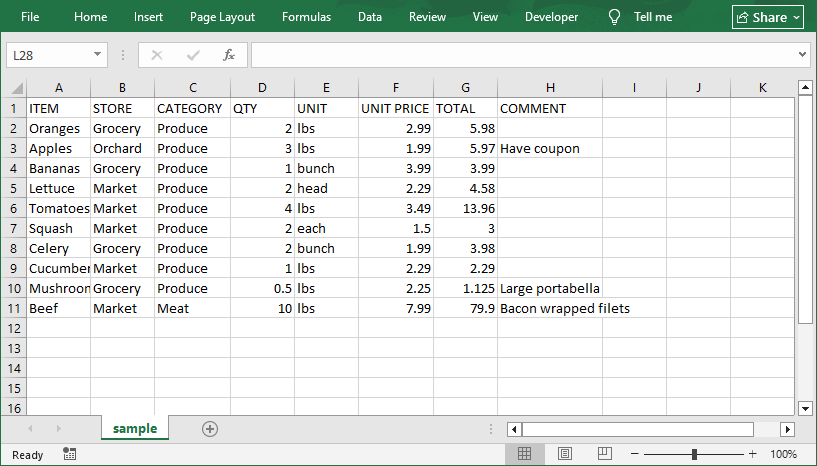
O arquivo Excel convertido:
Importando Dados pela Guia de Dados do Excel (Mais Controle)
Este método oferece precisão, permitindo que você defina os tipos de dados durante a importação para evitar erros de formatação.
Passo 1: Abrir Arquivo CSV no Excel
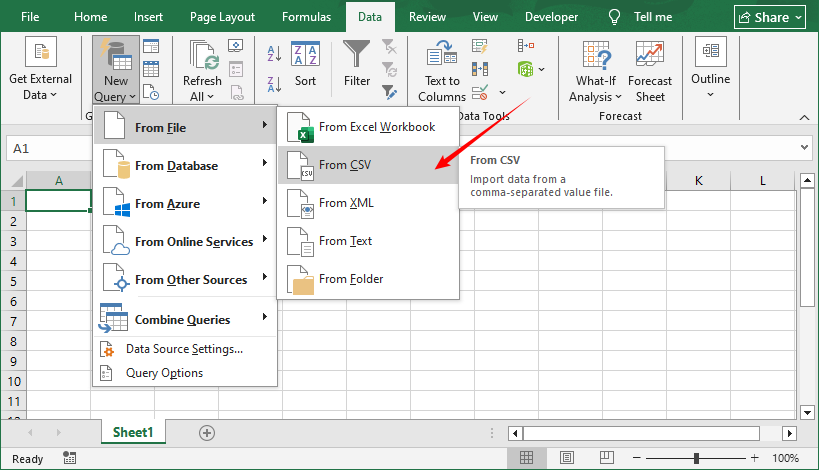
- Inicie o Excel e vá para a guia Dados.
- Clique em Nova Consulta > Do Arquivo > Do CSV.
- Navegue até o seu arquivo CSV, selecione-o e clique em Abrir.
Passo 2: Personalizar as Configurações de Importação
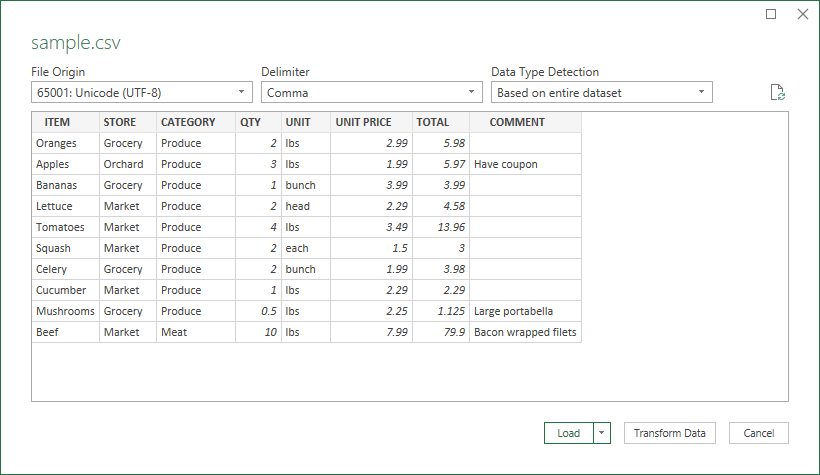
O Excel abrirá uma janela de visualização onde você pode ajustar as configurações para garantir a precisão dos dados:
- Delimitador: Confirme se “Vírgula” está selecionado. Se o seu arquivo usa tabulações ou ponto e vírgula, escolha a opção correta.
- Detecção de Tipo de Dados: Escolha "Com base no conjunto de dados inteiro" para detecção automática, ou "Texto" para campos sensíveis (por exemplo, códigos postais com zeros à esquerda).
- Codificação: Se o seu CSV tiver caracteres especiais, escolha UTF-8 no menu suspenso para evitar texto corrompido.
Clique em Carregar quando estiver pronto.
Passo 3: Salvar como um Arquivo Excel
Os dados CSV agora serão abertos no Excel. Para salvá-lo como um arquivo nativo do Excel:
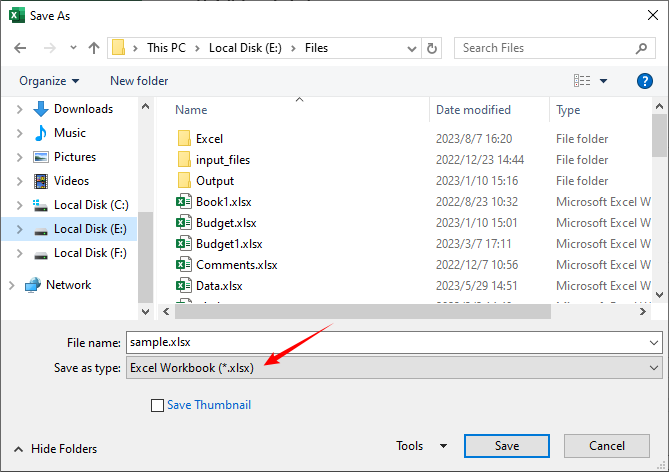
- Vá para Arquivo > Salvar Como.
- Escolha um local para salvar o arquivo.
- Selecione Pasta de Trabalho do Excel (*.xlsx) ou Pasta de Trabalho do Excel 97-2003 (*.xls) no menu suspenso “Salvar como tipo”.
- Clique em Salvar. Seu arquivo CSV agora é uma planilha do Excel com toda a funcionalidade do Excel.
Método 2: Converter CSV para Excel Usando o Google Sheets
Se você não tem o Excel, o Google Sheets (a ferramenta de planilha gratuita do Google) é uma alternativa fantástica. Funciona em qualquer navegador, sincroniza com o seu Google Drive e suporta a conversão perfeita de CSV para Excel. Veja como:
Passo 1: Importar o Arquivo CSV para o Google Sheets
- Acesse o Google Sheets e crie uma nova planilha em branco.
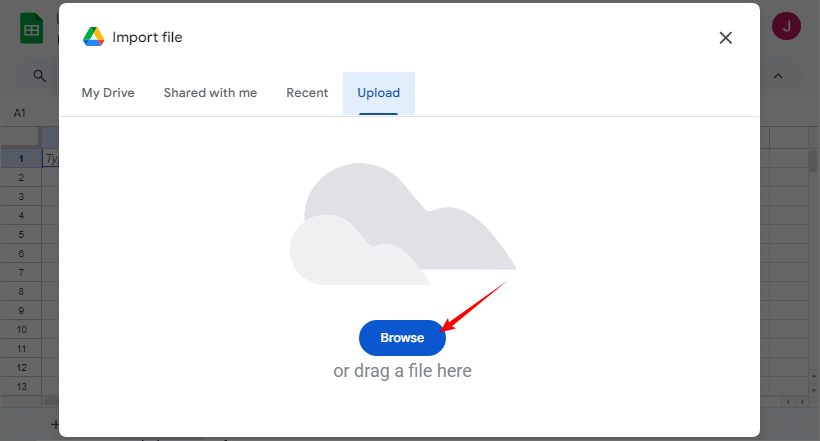
- Clique em Arquivo > Importar > Upload.
- Clique em Procurar para selecionar seu arquivo CSV ou arraste e solte-o.
Passo 2: Configurar Opções de Importação
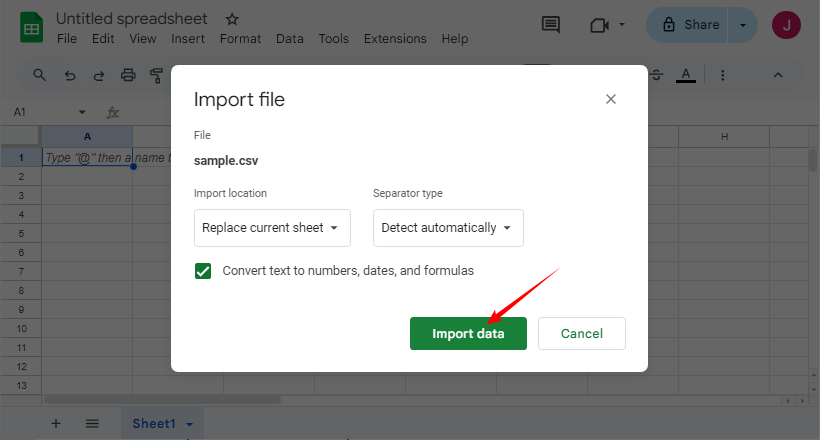
Na janela de importação:
- Selecione o local de Importação e o tipo de Separador de sua preferência.
- Clique em Importar dados.
Passo 3: Exportar como um Arquivo Excel
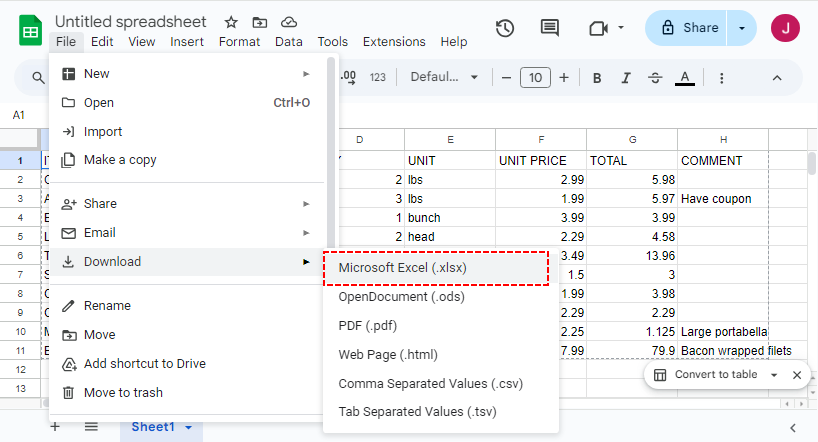
Depois que seus dados estiverem no Google Sheets, vá para Arquivo > Fazer download > Microsoft Excel (.xlsx). O arquivo Excel será baixado para o seu dispositivo automaticamente. Abra-o no Excel ou em outra ferramenta de planilha para verificar os dados.
LEIA TAMBÉM: Converter CSV para PDF: 4 Métodos Eficientes
Método 3: Usar Conversores Online Gratuitos de CSV para Excel
Para conversões únicas, as ferramentas online gratuitas são uma solução rápida. Procure por ferramentas que priorizem a privacidade dos dados e suportem arquivos grandes. Nossas principais escolhas:
Conversor de CSV para XLSX da CLOUDXDOCS
O CLOUDXDOCS é uma ferramenta de conversão de arquivos confiável que suporta conversões de CSV para XLSX. Veja como usá-lo:
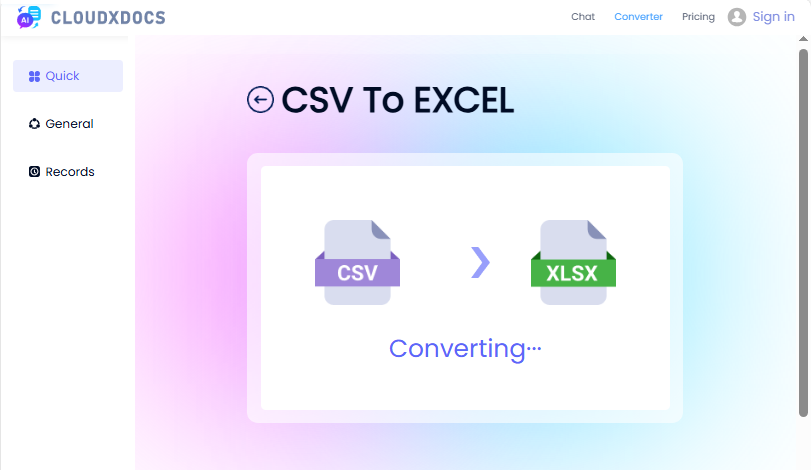
- Acesse a página de CSV para Excel do CLOUDXDOCS.
- Faça o upload do seu arquivo CSV ou arraste e solte-o.
- Aguarde a conclusão da conversão e, em seguida, baixe o arquivo Excel.
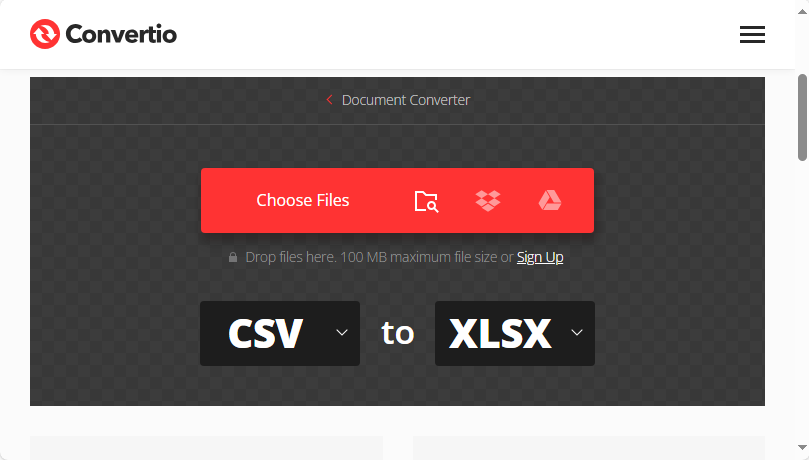
Convertio (Suporta Conversões em Lote)
O Convertio é ideal se você precisar converter vários arquivos CSV de uma só vez. Passos:
- Visite o conversor de CSV para XLSX do Convertio.
- Arraste e solte vários arquivos CSV ou faça o upload deles do Google Drive/Dropbox.
- Certifique-se de que o formato de saída esteja definido como XLSX.
- Clique em Converter e baixe o arquivo zip com seus arquivos Excel.
Método 4: Automatizar a Conversão de CSV para Excel com Python
Para desenvolvedores que precisam converter arquivos CSV em massa ou integrar a conversão de CSV para Excel em fluxos de trabalho Python, o Spire.XLS for Python é a ferramenta perfeita. É uma poderosa biblioteca de planilhas que lida com operações de Excel/CSV programaticamente.
Passo 1: Instalar a Biblioteca Python
Abra seu terminal/prompt de comando e execute o seguinte comando pip:
pip install spire-xls
Passo 2: Código Python para Converter CSV para Excel (Arquivo Único)
Este código converte um único CSV para o formato XLS ou XLSX.
from spire.xls import *
from spire.xls.common import *

# Create a workbook
workbook = Workbook()

# Load a CSV file
workbook.LoadFromFile("sample csv.csv", ",", 1, 1)

# Save to xls format
workbook.SaveToFile("CSVToXLS.xls", ExcelVersion.Version97to2003)

# Save to xlsx format
workbook.SaveToFile("CSVToXLSX.xlsx", ExcelVersion.Version2016)
Passo 3: Código Python para Converter Arquivos CSV em Lote (Vários Arquivos)
Se você tem uma pasta cheia de arquivos CSV, use este código para converter CSV para Excel em lote de uma só vez:
import os
from spire.xls import *

input_folder = r"F:\CSVs"
output_folder = r"F:\Output"

# Loop through each CSV file
for csv_file in os.listdir(input_folder):
    if csv_file.endswith(".csv"):
        input_path = os.path.join(input_folder, csv_file)
        output_name = os.path.splitext(csv_file)[0] + ".xlsx"
        output_path = os.path.join(output_folder, output_name)

        # Create a Workbook instance and load CSV files
        workbook = Workbook()
        workbook.LoadFromFile(input_path, ",", 1, 1)

        # Save each CSV file as an Excel file
        workbook.SaveToFile(output_path, ExcelVersion.Version2016)
Explicação do Código
- Workbook: A classe principal do Spire.XLS for Python — lida com todas as operações de Excel/CSV.
- LoadFromFile: Importa dados CSV para a pasta de trabalho. Você pode personalizar o delimitador (por exemplo, ";" para CSVs europeus).
- SaveToFile: Exporta a pasta de trabalho para um arquivo Excel (suporta os formatos Excel 2003-2019).
- Conversão em Lote: Usa os.listdir para percorrer os arquivos CSV.
Dica Pro: O Spire.XLS for Python também suporta a conversão de CSV para XML e CSV para JSON.
Comparação de Métodos: Escolha a Ferramenta Certa
| Método | Automação | Segurança | Melhor Para |
|---|---|---|---|
| Excel Manual | Nenhuma | Alta | Arquivos únicos, usuários não técnicos |
| Google Sheets | Nenhuma | Média | Conversões rápidas, projetos colaborativos, usuários sem Excel. |
| Ferramentas Online | Nenhuma | Baixa | Uso único, arquivos pequenos não confidenciais, máxima conveniência. |
| Python + Spire.XLS | Completa | Alta | Processamento em lote, automação, integração em fluxos de trabalho. |
Considerações Finais
Converter um arquivo CSV para Excel é uma habilidade simples, mas poderosa, que libera todo o potencial analítico e de apresentação de seus dados. Para necessidades rápidas e simples, use o “Abrir Com” do Excel ou o Google Sheets. Para CSVs desorganizados/complexos, a Guia de Dados do Excel garante precisão. As ferramentas online funcionam para arquivos pequenos e únicos, enquanto o Python + Spire.XLS lida com tarefas em lote/automatizadas para usuários avançados.
Escolha o método que se adapta ao tamanho do seu arquivo e às suas habilidades e, em seguida, aproveite os cálculos, os recursos visuais e a organização do Excel para transformar dados brutos em resultados significativos e acionáveis.
Veja Também
CSV를 Excel로 변환하는 4가지 검증된 방법 (무료 및 자동)
은행 명세서, 온라인 도구 또는 데이터베이스에서 데이터를 다운로드한 적이 있다면 CSV 파일을 접했을 가능성이 높습니다. 원시 데이터를 저장하는 데 매우 유용하지만 CSV에는 분석, 서식 지정 및 시각화에 필요한 강력한 기능이 부족합니다. CSV를 Excel로 변환하면 가능성의 세계가 열리고 정적 데이터가 동적이고 통찰력 있는 통합 문서로 변환됩니다.
이 종합 가이드에서는 간단한 수동 방법부터 자동화된 Python 스크립트까지 CSV 파일을 Excel로 변환하는 가장 쉽고 효과적인 방법을 안내합니다.
- CSV 및 Excel 형식 이해
- 방법 1: Microsoft Excel을 사용하여 CSV를 Excel로 변환
- 방법 2: Google Sheets를 사용하여 CSV를 Excel로 변환
- 방법 3: 무료 온라인 CSV to Excel 변환기 사용
- 방법 4: Python으로 CSV to Excel 변환 자동화
- 방법 비교: 올바른 도구 선택
CSV 및 Excel 형식 이해
CSV와 Excel 파일의 실제 차이점은 무엇입니까? 구체적으로:
-
CSV (쉼표로 구분된 값): 이것은 일반 텍스트 파일입니다. 데이터가 쉼표(또는 세미콜론과 같은 다른 구분 기호)로 구분되는 디지털 메모장과 같습니다. 단순성이 강점이며 보편적으로 호환됩니다. 그러나 수식, 차트, 서식(색상이나 글꼴 등) 또는 여러 시트를 저장할 수 없습니다.
-
Excel (XLS/XLSX): 이것은 독점적인 이진 파일 형식입니다. 모든 기능을 갖춘 디지털 원장이라고 생각하면 됩니다. 데이터와 함께 수식, 피벗 테이블, 차트, 여러 시트, 셀 서식 등을 저장할 수 있습니다.
다음과 같은 경우 CSV를 Excel로 변환해야 합니다.
- 데이터에 수식(SUM, VLOOKUP 등)을 사용합니다.
- 시각화를 위해 차트나 그래프를 만듭니다.
- 필터링, 정렬 또는 조건부 서식을 적용합니다.
- 여러 탭에 걸쳐 데이터를 구성합니다.
- 색상과 글꼴로 보고서를 전문적으로 보이게 만듭니다.
방법 1: Microsoft Excel을 사용하여 CSV를 Excel로 변환
Microsoft Excel(2016, 2019, 365 또는 2021)이 이미 설치되어 있다면 이것이 가장 간단하고 신뢰할 수 있는 방법입니다.
간단한 "연결 프로그램" 방법 (대부분의 사용자에게 가장 적합)
이것은 단일 CSV 파일을 변환하는 가장 빠르고 간단한 방법입니다. 기본적으로 Excel을 사용하여 새 형식으로 "다른 이름으로 저장"하는 것입니다.
- Windows 파일 탐색기 또는 Mac Finder에서 CSV 파일을 찾습니다.
- 파일을 마우스 오른쪽 버튼으로 클릭합니다.
- "연결 프로그램" 위로 마우스를 가져가 Microsoft Excel을 선택합니다.
- Excel에서 열리면 파일 > 다른 이름으로 저장으로 이동합니다.
- 새 파일을 저장할 위치를 선택합니다.
- "파일 형식" 드롭다운 메뉴에서 Excel 통합 문서 (*.xlsx) 또는 Excel 97-2003 통합 문서 (*.xls)를 선택합니다.
- 저장을 클릭합니다.
변환된 Excel 파일:
Excel의 데이터 탭을 통해 데이터 가져오기 (더 많은 제어)
이 방법을 사용하면 가져오는 동안 데이터 유형을 정의하여 서식 오류를 방지할 수 있으므로 정밀도가 높아집니다.
1단계: Excel에서 CSV 파일 열기
- Excel을 시작하고 데이터 탭으로 이동합니다.
- 새 쿼리 > 파일에서 > CSV에서를 클릭합니다.
- CSV 파일로 이동하여 선택하고 열기를 클릭합니다.
2단계: 가져오기 설정 사용자 지정
Excel에서 데이터 정확성을 보장하기 위해 설정을 조정할 수 있는 미리보기 창이 열립니다.
- 구분 기호: "쉼표"가 선택되었는지 확인합니다. 파일에서 탭이나 세미콜론을 사용하는 경우 올바른 옵션을 선택하십시오.
- 데이터 형식 검색: 자동 검색을 위해 "전체 데이터 집합 기반"을 선택하거나 민감한 필드(예: 선행 0이 있는 우편 번호)에 대해 "텍스트"를 선택합니다.
- 인코딩: CSV에 특수 문자가 있는 경우 드롭다운에서 UTF-8을 선택하여 깨진 text를 방지합니다.
준비가 되면 로드를 클릭합니다.
3단계: Excel 파일로 저장
이제 CSV 데이터가 Excel에서 열립니다. 기본 Excel 파일로 저장하려면:
- 파일 > 다른 이름으로 저장으로 이동합니다.
- 파일을 저장할 위치를 선택합니다.
- "파일 형식" 드롭다운에서 Excel 통합 문서 (*.xlsx) 또는 Excel 97-2003 통합 문서 (*.xls)를 선택합니다.
- 저장을 클릭합니다. 이제 CSV 파일은 Excel의 모든 기능을 갖춘 Excel 스프레드시트입니다.
방법 2: Google Sheets를 사용하여 CSV를 Excel로 변환
Excel이 없는 경우 Google의 무료 스프레드시트 도구인 Google Sheets는 훌륭한 대안입니다. 모든 브라우저에서 작동하고 Google Drive와 동기화되며 원활한 CSV-to-Excel 변환을 지원합니다. 방법은 다음과 같습니다.
1단계: Google Sheets로 CSV 파일 가져오기
- Google Sheets로 이동하여 새 빈 스프레드시트를 만듭니다.
- 파일 > 가져오기 > 업로드를 클릭합니다.
- 찾아보기를 클릭하여 CSV 파일을 선택하거나 끌어다 놓습니다.
2단계: 가져오기 옵션 구성
가져오기 창에서:
- 원하는 가져오기 위치 및 구분 기호 유형을 선택합니다.
- 데이터 가져오기를 클릭합니다.
3단계: Excel 파일로 내보내기
데이터가 Google Sheets에 있으면 파일 > 다운로드 > Microsoft Excel (.xlsx)로 이동합니다. Excel 파일이 장치에 자동으로 다운로드됩니다. Excel 또는 다른 스프레드시트 도구에서 열어 데이터를 확인합니다.
또한 읽기: CSV를 PDF로 변환: 4가지 효율적인 방법
방법 3: 무료 온라인 CSV to Excel 변환기 사용
일회성 변환의 경우 무료 온라인 도구가 빠른 해결책입니다. 데이터 개인 정보를 우선시하고 대용량 파일을 지원하는 도구를 찾으십시오. 우리의 최고 추천:
CLOUDXDOCS의 CSV to XLSX 변환기
CLOUDXDOCS는 CSV to XLSX 변환을 지원하는 신뢰할 수 있는 파일 변환 도구입니다. 사용 방법은 다음과 같습니다.
- CLOUDXDOCS CSV to Excel 페이지로 이동합니다.
- CSV 파일을 업로드하거나 끌어다 놓습니다.
- 변환이 완료될 때까지 기다린 다음 Excel 파일을 다운로드합니다.
Convertio (일괄 변환 지원)
Convertio는 한 번에 여러 CSV 파일을 변환해야 하는 경우에 이상적입니다. 단계:
- Convertio의 CSV to XLSX 변환기를 방문하십시오.
- 여러 CSV 파일을 끌어다 놓거나 Google Drive/Dropbox에서 업로드합니다.
- 출력 형식이 XLSX로 설정되었는지 확인합니다.
- 변환을 클릭하고 Excel 파일이 포함된 zip 파일을 다운로드합니다.
방법 4: Python으로 CSV to Excel 변환 자동화
대량 CSV 파일을 변환하거나 CSV-to-Excel을 Python 워크플로에 통합해야 하는 개발자에게 Spire.XLS for Python은 완벽한 도구입니다. 프로그래밍 방식으로 Excel/CSV 작업을 처리하는 강력한 스프레드시트 라이브러리입니다.
1단계: Python 라이브러리 설치
터미널/명령 프롬프트를 열고 다음 pip 명령을 실행합니다.
pip install spire-xls
2단계: CSV를 Excel로 변환하는 Python 코드 (단일 파일)
이 코드는 단일 CSV를 XLS 또는 XLSX 형식으로 변환합니다.
from spire.xls import *
from spire.xls.common import *

# Create a workbook
workbook = Workbook()

# Load a CSV file
workbook.LoadFromFile("sample csv.csv", ",", 1, 1)

# Save to xls format
workbook.SaveToFile("CSVToXLS.xls", ExcelVersion.Version97to2003)

# Save to xlsx format
workbook.SaveToFile("CSVToXLSX.xlsx", ExcelVersion.Version2016)
3단계: CSV 파일을 일괄 변환하는 Python 코드 (여러 파일)
CSV 파일로 가득 찬 폴더가 있는 경우 이 코드를 사용하여 한 번에 CSV를 Excel로 일괄 변환합니다.
import os
from spire.xls import *

input_folder = r"F:\CSVs"
output_folder = r"F:\Output"

# Loop through each CSV file
for csv_file in os.listdir(input_folder):
    if csv_file.endswith(".csv"):
        input_path = os.path.join(input_folder, csv_file)
        output_name = os.path.splitext(csv_file)[0] + ".xlsx"
        output_path = os.path.join(output_folder, output_name)

        # Create a Workbook instance and load CSV files
        workbook = Workbook()
        workbook.LoadFromFile(input_path, ",", 1, 1)

        # Save each CSV file as an Excel file
        workbook.SaveToFile(output_path, ExcelVersion.Version2016)
코드 설명
- Workbook: Spire.XLS for Python의 핵심 클래스로 모든 Excel/CSV 작업을 처리합니다.
- LoadFromFile: CSV 데이터를 통합 문서로 가져옵니다. 구분 기호(예: 유럽 CSV의 경우 ";")를 사용자 지정할 수 있습니다.
- SaveToFile: 통합 문서를 Excel 파일로 내보냅니다(Excel 2003-2019 형식 지원).
- 일괄 변환: os.listdir를 사용하여 CSV 파일을 반복합니다.
전문가 팁: Spire.XLS for Python은 CSV를 XML로 변환하고 CSV를 JSON으로 변환하는 것도 지원합니다.
방법 비교: 올바른 도구 선택
| 방법 | 자동화 | 보안 | 최적 대상 |
|---|---|---|---|
| 수동 Excel | 없음 | 높음 | 단일 파일, 비기술 사용자 |
| Google Sheets | 없음 | 중간 | 빠른 변환, 공동 작업 프로젝트, Excel 없는 사용자. |
| 온라인 도구 | 없음 | 낮음 | 일회성 사용, 중요하지 않은 작은 파일, 최고의 편의성. |
| Python + Spire.XLS | 전체 | 높음 | 일괄 처리, 자동화, 워크플로에 통합. |
마지막 생각
CSV 파일을 Excel로 변환하는 것은 데이터의 전체 분석 및 프레젠테이션 잠재력을 раскры하는 간단하지만 강력한 기술입니다. 빠르고 간단한 요구 사항의 경우 Excel의 "연결 프로그램" 또는 Google Sheets를 사용하십시오. 복잡하거나 지저분한 CSV의 경우 Excel의 데이터 탭이 정밀도를 보장합니다. 온라인 도구는 일회성 소규모 파일에 적합하며 Python + Spire.XLS는 고급 사용자를 위한 일괄/자동화 작업을 처리합니다.
파일 크기와 기술에 맞는 방법을 선택한 다음 Excel의 계산, 시각 자료 및 구성을 활용하여 원시 데이터를 의미 있고 실행 가능한 결과로 바꾸십시오.
참고 항목
4 metodi collaudati per convertire CSV in Excel (Gratuiti e automatizzati)
Indice
- Comprensione dei formati CSV ed Excel
- Metodo 1: Convertire CSV in Excel utilizzando Microsoft Excel
- Metodo 2: Convertire CSV in Excel utilizzando Google Sheets
- Metodo 3: Utilizzare convertitori online gratuiti da CSV a Excel
- Metodo 4: Automatizzare la conversione da CSV a Excel con Python
- Confronto dei metodi: Scegli lo strumento giusto
Se hai mai scaricato dati da un estratto conto bancario, uno strumento online o un database, probabilmente hai incontrato un file CSV. Sebbene incredibilmente utili per archiviare dati grezzi, i CSV mancano delle potenti funzionalità necessarie per l'analisi, la formattazione e la visualizzazione. Convertire il tuo CSV in Excel sblocca un mondo di possibilità, trasformando i dati statici in una cartella di lavoro dinamica e ricca di spunti.
Questa guida completa ti illustrerà i metodi più semplici ed efficaci per convertire i file CSV in Excel, dai semplici metodi manuali agli script Python automatizzati.
- Comprensione dei formati CSV ed Excel
- Metodo 1: Convertire CSV in Excel utilizzando Microsoft Excel
- Metodo 2: Convertire CSV in Excel utilizzando Google Sheets
- Metodo 3: Utilizzare convertitori online gratuiti da CSV a Excel
- Metodo 4: Automatizzare la conversione da CSV a Excel con Python
- Confronto dei metodi: Scegli lo strumento giusto
Comprensione dei formati CSV ed Excel
Qual è la vera differenza tra un file CSV e un file Excel? Nello specifico:
-
CSV (Comma-Separated Values): Questo è un file di testo semplice. È come un blocco note digitale in cui i dati sono separati da virgole (o talvolta da altri delimitatori come i punti e virgola). La sua semplicità è la sua forza: è universalmente compatibile. Tuttavia, non può memorizzare formule, grafici, formattazione (come colori o caratteri) o fogli multipli.
-
Excel (XLS/XLSX): Questo è un formato di file binario proprietario. Pensalo come un registro digitale completo di funzionalità. Può memorizzare dati, oltre a formule, tabelle pivot, grafici, fogli multipli, formattazione delle celle e molto altro.
Dovresti convertire CSV in Excel quando hai bisogno di:
- Utilizzare formule (SOMMA, CERCA.VERT, ecc.) sui tuoi dati.
- Creare diagrammi o grafici per la visualizzazione.
- Applicare filtri, ordinamenti o formattazione condizionale.
- Organizzare i dati su più schede.
- Rendere il tuo report professionale con colori e caratteri.
Metodo 1: Convertire CSV in Excel utilizzando Microsoft Excel
Se hai già installato Microsoft Excel (2016, 2019, 365 o 2021), questo è il metodo più semplice e affidabile.
Il metodo semplice "Apri con" (ideale per la maggior parte degli utenti)
Questo è il modo più veloce e diretto per convertire un singolo file CSV. In sostanza, si tratta di utilizzare Excel per "salvare come" un nuovo formato.
- Individua il tuo file CSV in Esplora file di Windows o nel Finder del Mac.
- Fai clic con il pulsante destro del mouse sul file.
- Passa il mouse su "Apri con" e seleziona Microsoft Excel.
- Una volta aperto in Excel, vai su File > Salva con nome.
- Scegli la posizione in cui desideri salvare il nuovo file.
- Nel menu a discesa "Salva come", seleziona Cartella di lavoro di Excel (*.xlsx) o Cartella di lavoro di Excel 97-2003 (*.xls).
- Fai clic su Salva.
Il file Excel convertito:
Importazione dei dati tramite la scheda Dati di Excel (maggiore controllo)
Questo metodo ti offre precisione, consentendoti di definire i tipi di dati durante l'importazione per prevenire errori di formattazione.
Passaggio 1: Apri il file CSV in Excel
- Avvia Excel e vai alla scheda Dati.
- Fai clic su Nuova query > Da file > Da CSV.
- Cerca il tuo file CSV, selezionalo e fai clic su Apri.
Passaggio 2: Personalizza le impostazioni di importazione
Excel aprirà una finestra di anteprima in cui è possibile regolare le impostazioni per garantire l'accuratezza dei dati:
- Delimitatore: Conferma che “Virgola” sia selezionato. Se il tuo file utilizza tabulazioni o punti e virgola, scegli l'opzione corretta.
- Rilevamento tipo di dati: Scegli "Basato sull'intero set di dati" per il rilevamento automatico o "Testo" per i campi sensibili (ad es. codici postali con zeri iniziali).
- Codifica: Se il tuo CSV contiene caratteri speciali, scegli UTF-8 dal menu a discesa per evitare testo illeggibile.
Fai clic su Carica quando sei pronto.
Passaggio 3: Salva come file Excel
I dati CSV si apriranno ora in Excel. Per salvarli come file Excel nativo:
- Vai su File > Salva con nome.
- Scegli una posizione per salvare il file.
- Seleziona Cartella di lavoro di Excel (*.xlsx) o Cartella di lavoro di Excel 97-2003 (*.xls) dal menu a discesa "Salva come".
- Fai clic su Salva. Il tuo file CSV è ora un foglio di calcolo Excel con tutte le funzionalità di Excel.
Metodo 2: Convertire CSV in Excel utilizzando Google Sheets
Se non hai Excel, Fogli Google (lo strumento per fogli di calcolo gratuito di Google) è un'alternativa fantastica. Funziona in qualsiasi browser, si sincronizza con il tuo Google Drive e supporta la conversione senza interruzioni da CSV a Excel. Ecco come:
Passaggio 1: Importa il file CSV in Fogli Google
- Vai su Fogli Google e crea un nuovo foglio di calcolo vuoto.
- Fai clic su File > Importa > Carica.
- Fai clic su Sfoglia per selezionare il tuo file CSV o trascinalo.
Passaggio 2: Configura le opzioni di importazione
Nella finestra di importazione:
- Seleziona la tua Posizione di importazione e il Tipo di separatore preferiti.
- Fai clic su Importa dati.
Passaggio 3: Esporta come file Excel
Una volta che i tuoi dati sono in Fogli Google, vai su File > Scarica > Microsoft Excel (.xlsx). Il file Excel verrà scaricato automaticamente sul tuo dispositivo. Aprilo in Excel o in un altro strumento per fogli di calcolo per verificare i dati.
LEGGI ANCHE: Convertire CSV in PDF: 4 metodi efficienti
Metodo 3: Utilizzare convertitori online gratuiti da CSV a Excel
Per conversioni una tantum, gli strumenti online gratuiti sono una soluzione rapida. Cerca strumenti che diano priorità alla privacy dei dati e supportino file di grandi dimensioni. Le nostre scelte migliori:
Convertitore da CSV a XLSX di CLOUDXDOCS
CLOUDXDOCS è uno strumento di conversione file affidabile che supporta le conversioni da CSV a XLSX. Ecco come usarlo:
- Vai alla pagina da CSV a Excel di CLOUDXDOCS.
- Carica il tuo file CSV o trascinalo.
- Attendi il completamento della conversione e quindi scarica il file Excel.
Convertio (supporta conversioni batch)
Convertio è l'ideale se devi convertire più file CSV contemporaneamente. Passaggi:
- Visita il convertitore da CSV a XLSX di Convertio.
- Trascina e rilascia più file CSV o caricali da Google Drive/Dropbox.
- Assicurati che il formato di output sia impostato su XLSX.
- Fai clic su Converti e scarica il file zip con i tuoi file Excel.
Metodo 4: Automatizzare la conversione da CSV a Excel con Python
Per gli sviluppatori che necessitano di convertire file CSV in blocco o integrare la conversione da CSV a Excel nei flussi di lavoro Python, Spire.XLS for Python è lo strumento perfetto. È una potente libreria per fogli di calcolo che gestisce le operazioni Excel/CSV a livello di codice.
Passaggio 1: Installa la libreria Python
Apri il tuo terminale/prompt dei comandi ed esegui il seguente comando pip:
pip install spire-xls
Passaggio 2: Codice Python per convertire CSV in Excel (file singolo)
Questo codice converte un singolo CSV in formato XLS o XLSX.
from spire.xls import *
from spire.xls.common import *

# Create a workbook
workbook = Workbook()

# Load a CSV file
workbook.LoadFromFile("sample csv.csv", ",", 1, 1)

# Save to xls format
workbook.SaveToFile("CSVToXLS.xls", ExcelVersion.Version97to2003)

# Save to xlsx format
workbook.SaveToFile("CSVToXLSX.xlsx", ExcelVersion.Version2016)
Passaggio 3: Codice Python per la conversione batch di file CSV (file multipli)
Se hai una cartella piena di file CSV, usa questo codice per convertire in batch da CSV a Excel in una sola volta:
import os
from spire.xls import *

input_folder = r"F:\CSVs"
output_folder = r"F:\Output"

# Loop through each CSV file
for csv_file in os.listdir(input_folder):
    if csv_file.endswith(".csv"):
        input_path = os.path.join(input_folder, csv_file)
        output_name = os.path.splitext(csv_file)[0] + ".xlsx"
        output_path = os.path.join(output_folder, output_name)

        # Create a Workbook instance and load CSV files
        workbook = Workbook()
        workbook.LoadFromFile(input_path, ",", 1, 1)

        # Save each CSV file as an Excel file
        workbook.SaveToFile(output_path, ExcelVersion.Version2016)
Spiegazione del codice
- Workbook: La classe principale di Spire.XLS for Python: gestisce tutte le operazioni Excel/CSV.
- LoadFromFile: Importa i dati CSV nella cartella di lavoro. È possibile personalizzare il delimitatore (ad es. ";" per i CSV europei).
- SaveToFile: Esporta la cartella di lavoro in un file Excel (supporta i formati Excel 2003-2019).
- Conversione in blocco: Utilizza os.listdir per scorrere i file CSV.
Suggerimento professionale: Spire.XLS for Python supporta anche la conversione di CSV in XML e CSV in JSON.
Confronto dei metodi: Scegli lo strumento giusto
| Metodo | Automazione | Sicurezza | Ideale per |
|---|---|---|---|
| Excel manuale | Nessuna | Alta | File singoli, utenti non tecnici |
| Fogli Google | Nessuna | Media | Conversioni rapide, progetti collaborativi, utenti senza Excel. |
| Strumenti online | Nessuna | Bassa | Uso una tantum, file piccoli non riservati, massima praticità. |
| Python + Spire.XLS | Completa | Alta | Elaborazione batch, automazione, integrazione nei flussi di lavoro. |
Considerazioni finali
La conversione di un file CSV in Excel è un'abilità semplice ma potente che sblocca il pieno potenziale analitico e di presentazione dei tuoi dati. Per esigenze rapide e semplici, utilizza “Apri con” di Excel o Fogli Google. Per CSV disordinati/complessi, la scheda Dati di Excel garantisce la precisione. Gli strumenti online funzionano per file di piccole dimensioni una tantum, while Python + Spire.XLS gestisce attività batch/automatizzate per utenti esperti.
Scegli il metodo che si adatta alle dimensioni del tuo file e alle tue competenze, quindi sfrutta i calcoli, gli elementi visivi e l'organizzazione di Excel per trasformare i dati grezzi in risultati significativi e utilizzabili.
Vedi anche
4 méthodes éprouvées pour convertir CSV en Excel (Gratuites et automatisées)
Table des matières
- Comprendre les formats CSV et Excel
- Méthode 1 : Convertir un CSV en Excel à l'aide de Microsoft Excel
- Méthode 2 : Convertir un CSV en Excel à l'aide de Google Sheets
- Méthode 3 : Utiliser des convertisseurs CSV vers Excel en ligne gratuits
- Méthode 4 : Automatiser la conversion de CSV en Excel avec Python
- Comparaison des méthodes : Choisir le bon outil
Si vous avez déjà téléchargé des données à partir d'un relevé bancaire, d'un outil en ligne ou d'une base de données, vous avez probablement rencontré un fichier CSV. Bien qu'incroyablement utiles pour stocker des données brutes, les CSV ne disposent pas des fonctionnalités puissantes nécessaires à l'analyse, au formatage et à la visualisation. La conversion de votre CSV en Excel ouvre un monde de possibilités, transformant des données statiques en un classeur dynamique et perspicace.
Ce guide complet vous présentera les méthodes les plus simples et les plus efficaces pour convertir des fichiers CSV en Excel, des méthodes manuelles simples aux scripts Python automatisés.
- Comprendre les formats CSV et Excel
- Méthode 1 : Convertir un CSV en Excel à l'aide de Microsoft Excel
- Méthode 2 : Convertir un CSV en Excel à l'aide de Google Sheets
- Méthode 3 : Utiliser des convertisseurs CSV vers Excel en ligne gratuits
- Méthode 4 : Automatiser la conversion de CSV en Excel avec Python
- Comparaison des méthodes : Choisir le bon outil
Comprendre les formats CSV et Excel
Quelle est la vraie différence entre un fichier CSV et un fichier Excel ? Spécifiquement :
-
CSV (Comma-Separated Values) : Il s'agit d'un fichier texte brut. C'est comme un bloc-notes numérique où les données sont séparées par des virgules (ou parfois d'autres délimiteurs comme des points-virgules). Sa simplicité fait sa force : il est universellement compatible. Cependant, il ne peut pas stocker de formules, de graphiques, de formatage (comme des couleurs ou des polices) ou plusieurs feuilles.
-
Excel (XLS/XLSX) : Il s'agit d'un format de fichier binaire propriétaire. Considérez-le comme un grand livre numérique complet. Il peut stocker des données, ainsi que des formules, des tableaux croisés dynamiques, des graphiques, plusieurs feuilles, le formatage des cellules et bien plus encore.
Vous devez convertir un CSV en Excel lorsque vous avez besoin de :
- Utiliser des formules (SOMME, RECHERCHEV, etc.) sur vos données.
- Créer des diagrammes ou des graphiques pour la visualisation.
- Appliquer un filtrage, un tri ou une mise en forme conditionnelle.
- Organiser les données sur plusieurs onglets.
- Donnez à votre rapport un aspect professionnel avec des couleurs et des polices.
Méthode 1 : Convertir un CSV en Excel à l'aide de Microsoft Excel
Si vous avez déjà installé Microsoft Excel (2016, 2019, 365 ou 2021), c'est la méthode la plus simple et la plus fiable.
La méthode simple « Ouvrir avec » (idéale pour la plupart des utilisateurs)
C'est le moyen le plus rapide et le plus simple de convertir un seul fichier CSV. Il s'agit essentiellement d'utiliser Excel pour « enregistrer sous » un nouveau format.
- Localisez votre fichier CSV dans l'Explorateur de fichiers Windows ou le Finder Mac.
- Faites un clic droit sur le fichier.
- Passez la souris sur « Ouvrir avec » et sélectionnez Microsoft Excel.
- Une fois ouvert dans Excel, allez dans Fichier > Enregistrer sous.
- Choisissez l'emplacement où vous souhaitez enregistrer le nouveau fichier.
- Dans le menu déroulant « Type de fichier », sélectionnez Classeur Excel (*.xlsx) ou Classeur Excel 97-2003 (*.xls).
- Cliquez sur Enregistrer.
Le fichier Excel converti :
Importation de données via l'onglet Données d'Excel (plus de contrôle)
Cette méthode vous donne de la précision, vous permettant de définir les types de données lors de l'importation pour éviter les erreurs de formatage.
Étape 1 : Ouvrir le fichier CSV dans Excel
- Lancez Excel et allez dans l'onglet Données.
- Cliquez sur Nouvelle requête > À partir d'un fichier > À partir d'un CSV.
- Accédez à votre fichier CSV, sélectionnez-le et cliquez sur Ouvrir.
Étape 2 : Personnaliser les paramètres d'importation
Excel ouvrira une fenêtre d'aperçu où vous pourrez ajuster les paramètres pour garantir l'exactitude des données :
- Délimiteur : Confirmez que « Virgule » est sélectionné. Si votre fichier utilise des tabulations ou des points-virgules, choisissez l'option correcte.
- Détection du type de données : Choisissez « Basé sur l'ensemble des données » pour la détection automatique, ou « Texte » pour les champs sensibles (par exemple, les codes postaux avec des zéros non significatifs).
- Encodage : Si votre CSV contient des caractères spéciaux, choisissez UTF-8 dans le menu déroulant pour éviter le texte tronqué.
Cliquez sur Charger lorsque vous êtes prêt.
Étape 3 : Enregistrer en tant que fichier Excel
Les données CSV s'ouvriront maintenant dans Excel. Pour l'enregistrer en tant que fichier Excel natif :
- Allez dans Fichier > Enregistrer sous.
- Choisissez un emplacement pour enregistrer le fichier.
- Sélectionnez Classeur Excel (*.xlsx) ou Classeur Excel 97-2003 (*.xls) dans le menu déroulant « Type de fichier ».
- Cliquez sur Enregistrer. Votre fichier CSV est maintenant une feuille de calcul Excel avec toutes les fonctionnalités d'Excel.
Méthode 2 : Convertir un CSV en Excel à l'aide de Google Sheets
Si vous n'avez pas Excel, Google Sheets (l'outil de feuille de calcul gratuit de Google) est une excellente alternative. Il fonctionne dans n'importe quel navigateur, se synchronise avec votre Google Drive et prend en charge la conversion transparente de CSV vers Excel. Voici comment :
Étape 1 : Importer le fichier CSV dans Google Sheets
- Allez sur Google Sheets et créez une nouvelle feuille de calcul vierge.
- Cliquez sur Fichier > Importer > Télécharger.
- Cliquez sur Parcourir pour sélectionner votre fichier CSV ou faites-le glisser et déposez-le.
Étape 2 : Configurer les options d'importation
Dans la fenêtre d'importation :
- Sélectionnez votre emplacement d'importation et votre type de séparateur préférés.
- Cliquez sur Importer les données.
Étape 3 : Exporter en tant que fichier Excel
Une fois vos données dans Google Sheets, allez dans Fichier > Télécharger > Microsoft Excel (.xlsx). Le fichier Excel sera téléchargé automatiquement sur votre appareil. Ouvrez-le dans Excel ou un autre outil de feuille de calcul pour vérifier les données.
LIRE AUSSI : Convertir un CSV en PDF : 4 méthodes efficaces
Méthode 3 : Utiliser des convertisseurs CSV vers Excel en ligne gratuits
Pour les conversions ponctuelles, les outils en ligne gratuits sont une solution rapide. Recherchez des outils qui privilégient la confidentialité des données et prennent en charge les fichiers volumineux. Nos meilleurs choix :
Convertisseur CSV vers XLSX par CLOUDXDOCS
CLOUDXDOCS est un outil de conversion de fichiers fiable qui prend en charge les conversions de CSV en XLSX. Voici comment l'utiliser :
- Allez à la page CSV vers Excel de CLOUDXDOCS.
- Téléchargez votre fichier CSV ou faites-le glisser et déposez-le.
- Attendez la fin de la conversion, puis téléchargez le fichier Excel.
Convertio (prend en charge les conversions par lots)
Convertio est idéal si vous avez besoin de convertir plusieurs fichiers CSV à la fois. Étapes :
- Visitez le convertisseur CSV vers XLSX de Convertio.
- Faites glisser et déposez plusieurs fichiers CSV ou téléchargez-les depuis Google Drive/Dropbox.
- Assurez-vous que le format de sortie est défini sur XLSX.
- Cliquez sur Convertir et téléchargez le fichier zip avec vos fichiers Excel.
Méthode 4 : Automatiser la conversion de CSV en Excel avec Python
Pour les développeurs qui ont besoin de convertir des fichiers CSV en masse ou d'intégrer la conversion CSV vers Excel dans des flux de travail Python, Spire.XLS for Python est l'outil parfait. C'est une puissante bibliothèque de feuilles de calcul qui gère les opérations Excel/CSV par programme.
Étape 1 : Installer la bibliothèque Python
Ouvrez votre terminal/invite de commande et exécutez la commande pip suivante :
pip install spire-xls
Étape 2 : Code Python pour convertir un CSV en Excel (fichier unique)
Ce code convertit un seul CSV au format XLS ou XLSX.
from spire.xls import *
from spire.xls.common import *

# Create a workbook
workbook = Workbook()

# Load a CSV file
workbook.LoadFromFile("sample csv.csv", ",", 1, 1)

# Save to xls format
workbook.SaveToFile("CSVToXLS.xls", ExcelVersion.Version97to2003)

# Save to xlsx format
workbook.SaveToFile("CSVToXLSX.xlsx", ExcelVersion.Version2016)
Étape 3 : Code Python pour convertir par lots des fichiers CSV (plusieurs fichiers)
Si vous avez un dossier plein de fichiers CSV, utilisez ce code pour convertir par lots des CSV en Excel en une seule fois :
import os
from spire.xls import *

input_folder = r"F:\CSVs"
output_folder = r"F:\Output"

# Loop through each CSV file
for csv_file in os.listdir(input_folder):
    if csv_file.endswith(".csv"):
        input_path = os.path.join(input_folder, csv_file)
        output_name = os.path.splitext(csv_file)[0] + ".xlsx"
        output_path = os.path.join(output_folder, output_name)

        # Create a Workbook instance and load CSV files
        workbook = Workbook()
        workbook.LoadFromFile(input_path, ",", 1, 1)

        # Save each CSV file as an Excel file
        workbook.SaveToFile(output_path, ExcelVersion.Version2016)
Explication du code
- Workbook : La classe principale de Spire.XLS for Python — gère toutes les opérations Excel/CSV.
- LoadFromFile : Importe les données CSV dans le classeur. Vous pouvez personnaliser le délimiteur (par exemple, ";" pour les CSV européens).
- SaveToFile : Exporte le classeur vers un fichier Excel (prend en charge les formats Excel 2003-2019).
- Conversion en masse : Utilise os.listdir pour parcourir les fichiers CSV.
Conseil de pro : Spire.XLS for Python prend également en charge la conversion de CSV en XML et de CSV en JSON.
Comparaison des méthodes : Choisir le bon outil
| Méthode | Automatisation | Sécurité | Idéal pour |
|---|---|---|---|
| Excel manuel | Aucun | Élevée | Fichiers uniques, utilisateurs non techniques |
| Google Sheets | Aucun | Moyenne | Conversions rapides, projets collaboratifs, utilisateurs sans Excel. |
| Outils en ligne | Aucun | Faible | Utilisation unique, petits fichiers non confidentiels, commodité maximale. |
| Python + Spire.XLS | Complète | Élevée | Traitement par lots, automatisation, intégration dans les flux de travail. |
Réflexions finales
La conversion d'un fichier CSV en Excel est une compétence simple mais puissante qui libère tout le potentiel analytique et de présentation de vos données. Pour des besoins rapides et simples, utilisez « Ouvrir avec » d'Excel ou Google Sheets. Pour les CSV désordonnés/complexes, l'onglet Données d'Excel garantit la précision. Les outils en ligne fonctionnent pour les petits fichiers ponctuels, tandis que Python + Spire.XLS gère les tâches par lots/automatisées pour les utilisateurs expérimentés.
Choisissez la méthode qui correspond à la taille de votre fichier et à vos compétences, puis tirez parti des calculs, des visuels et de l'organisation d'Excel pour transformer les données brutes en résultats significatifs et exploitables.
Voir également
4 formas comprobadas de convertir CSV a Excel (Gratuitas y automatizadas)
Tabla de Contenidos
- Entendiendo los Formatos CSV y Excel
- Método 1: Convertir CSV a Excel Usando Microsoft Excel
- Método 2: Convertir CSV a Excel Usando Google Sheets
- Método 3: Usar Conversores Gratuitos en Línea de CSV a Excel
- Método 4: Automatizar la Conversión de CSV a Excel con Python
- Comparación de Métodos: Elija la Herramienta Adecuada
Si alguna vez ha descargado datos de un extracto bancario, una herramienta en línea o una base de datos, es probable que se haya encontrado con un archivo CSV. Aunque son increíblemente útiles para almacenar datos sin procesar, los CSV carecen de las potentes funciones necesarias para el análisis, el formato y la visualización. Convertir su CSV a Excel desbloquea un mundo de posibilidades, transformando datos estáticos en un libro de trabajo dinámico y revelador.
Esta guía completa le mostrará los métodos más fáciles y efectivos para convertir archivos CSV a Excel, desde métodos manuales simples hasta scripts automatizados de Python.
- Entendiendo los Formatos CSV y Excel
- Método 1: Convertir CSV a Excel Usando Microsoft Excel
- Método 2: Convertir CSV a Excel Usando Google Sheets
- Método 3: Usar Conversores Gratuitos en Línea de CSV a Excel
- Método 4: Automatizar la Conversión de CSV a Excel con Python
- Comparación de Métodos: Elija la Herramienta Adecuada
Entendiendo los Formatos CSV y Excel
¿Cuál es la verdadera diferencia entre un archivo CSV y un archivo de Excel? Específicamente:
-
CSV (Valores Separados por Comas): Este es un archivo de texto plano. Es como un bloc de notas digital donde los datos están separados por comas (o a veces otros delimitadores como punto y coma). Su simplicidad es su fortaleza: es universalmente compatible. Sin embargo, no puede almacenar fórmulas, gráficos, formato (como colores o fuentes) ni múltiples hojas.
-
Excel (XLS/XLSX): Este es un formato de archivo binario y propietario. Piense en él como un libro de contabilidad digital con todas las funciones. Puede almacenar datos, además de fórmulas, tablas dinámicas, gráficos, múltiples hojas, formato de celdas y mucho más.
Debería convertir CSV a Excel cuando necesite:
- Usar fórmulas (SUMA, BUSCARV, etc.) en sus datos.
- Crear cuadros o gráficos para visualización.
- Aplicar filtrado, ordenación o formato condicional.
- Organizar datos en múltiples pestañas.
- Hacer que su informe se vea profesional con colores y fuentes.
Método 1: Convertir CSV a Excel Usando Microsoft Excel
Si ya tiene instalado Microsoft Excel (2016, 2019, 365 o 2021), este es el método más simple y confiable.
El Método Simple de "Abrir Con" (Mejor para la Mayoría de los Usuarios)
Esta es la forma más rápida y directa de convertir un solo archivo CSV. Esencialmente, es usar Excel para "guardar como" en un nuevo formato.
- Localice su archivo CSV en el Explorador de archivos de Windows o en el Finder de Mac.
- Haga clic derecho en el archivo.
- Pase el cursor sobre "Abrir con" y seleccione Microsoft Excel.
- Una vez abierto en Excel, vaya a Archivo > Guardar como.
- Elija la ubicación donde desea guardar el nuevo archivo.
- En el menú desplegable "Guardar como tipo", seleccione Libro de Excel (*.xlsx) o Libro de Excel 97-2003 (*.xls).
- Haga clic en Guardar.
El archivo de Excel convertido:
Importar Datos a Través de la Pestaña de Datos de Excel (Más Control)
Este método le brinda precisión, permitiéndole definir tipos de datos durante la importación para evitar errores de formato.
Paso 1: Abrir archivo CSV en Excel
- Inicie Excel y vaya a la pestaña Datos.
- Haga clic en Nueva consulta > Desde archivo > Desde CSV.
- Busque su archivo CSV, selecciónelo y haga clic en Abrir.
Paso 2: Personalizar la configuración de importación
Excel abrirá una ventana de vista previa donde puede ajustar la configuración para garantizar la precisión de los datos:
- Delimitador: Confirme que "Coma" esté seleccionado. Si su archivo usa tabulaciones o punto y coma, elija la opción correcta.
- Detección del tipo de datos: Elija "Basado en todo el conjunto de datos" para la autodetección, o "Texto" para campos sensibles (por ejemplo, códigos postales con ceros a la izquierda).
- Codificación: Si su CSV tiene caracteres especiales, elija UTF-8 en el menú desplegable para evitar texto ilegible.
Haga clic en Cargar cuando esté listo.
Paso 3: Guardar como un archivo de Excel
Los datos del CSV ahora se abrirán en Excel. Para guardarlo como un archivo nativo de Excel:
- Vaya a Archivo > Guardar como.
- Elija una ubicación para guardar el archivo.
- Seleccione Libro de Excel (*.xlsx) o Libro de Excel 97-2003 (*.xls) en el menú desplegable "Guardar como tipo".
- Haga clic en Guardar. Su archivo CSV es ahora una hoja de cálculo de Excel con toda la funcionalidad de Excel.
Método 2: Convertir CSV a Excel Usando Google Sheets
Si no tiene Excel, Google Sheets (la herramienta de hoja de cálculo gratuita de Google) es una alternativa fantástica. Funciona en cualquier navegador, se sincroniza con su Google Drive y admite la conversión perfecta de CSV a Excel. A continuación se explica cómo:
Paso 1: Importar el archivo CSV a Google Sheets
- Vaya a Google Sheets y cree una nueva hoja de cálculo en blanco.
- Haga clic en Archivo > Importar > Subir.
- Haga clic en Explorar para seleccionar su archivo CSV o arrástrelo y suéltelo.
Paso 2: Configurar las opciones de importación
En la ventana de importación:
- Seleccione su Ubicación de importación y Tipo de separador preferidos.
- Haga clic en Importar datos.
Paso 3: Exportar como un archivo de Excel
Una vez que sus datos estén en Google Sheets, vaya a Archivo > Descargar > Microsoft Excel (.xlsx). El archivo de Excel se descargará en su dispositivo automáticamente. Ábralo en Excel u otra herramienta de hoja de cálculo para verificar los datos.
LEA TAMBIÉN: Convertir CSV a PDF: 4 Métodos Eficientes
Método 3: Usar Conversores Gratuitos en Línea de CSV a Excel
Para conversiones únicas, las herramientas gratuitas en línea son una solución rápida. Busque herramientas que prioricen la privacidad de los datos y admitan archivos grandes. Nuestras mejores selecciones:
Convertidor de CSV a XLSX por CLOUDXDOCS
CLOUDXDOCS es una herramienta de conversión de archivos de confianza que admite conversiones de CSV a XLSX. A continuación se explica cómo usarla:
- Vaya a la página de CSV a Excel de CLOUDXDOCS.
- Suba su archivo CSV o arrástrelo y suéltelo.
- Espere a que se complete la conversión y luego descargue el archivo de Excel.
Convertio (Admite Conversiones por Lotes)
Convertio es ideal si necesita convertir varios archivos CSV a la vez. Pasos:
- Visite el convertidor de CSV a XLSX de Convertio.
- Arrastre y suelte varios archivos CSV o súbalos desde Google Drive/Dropbox.
- Asegúrese de que el formato de salida esté configurado en XLSX.
- Haga clic en Convertir y descargue el archivo zip con sus archivos de Excel.
Método 4: Automatizar la Conversión de CSV a Excel con Python
Para los desarrolladores que necesitan convertir archivos CSV en masa o integrar la conversión de CSV a Excel en flujos de trabajo de Python, Spire.XLS for Python es la herramienta perfecta. Es una potente biblioteca de hojas de cálculo que maneja operaciones de Excel/CSV de forma programática.
Paso 1: Instalar la biblioteca de Python
Abra su terminal/símbolo del sistema y ejecute el siguiente comando pip:
pip install spire-xls
Paso 2: Código de Python para convertir CSV a Excel (archivo único)
Este código convierte un solo CSV a formato XLS o XLSX.
from spire.xls import *
from spire.xls.common import *

# Crear un libro de trabajo
workbook = Workbook()

# Cargar un archivo CSV
workbook.LoadFromFile("sample csv.csv", ",", 1, 1)

# Guardar en formato xls
workbook.SaveToFile("CSVToXLS.xls", ExcelVersion.Version97to2003)

# Guardar en formato xlsx
workbook.SaveToFile("CSVToXLSX.xlsx", ExcelVersion.Version2016)
Paso 3: Código de Python para convertir archivos CSV por lotes (varios archivos)
Si tiene una carpeta llena de archivos CSV, use este código para convertir por lotes de CSV a Excel de una sola vez:
import os
from spire.xls import *

input_folder = r"F:\CSVs"
output_folder = r"F:\Output"

# Recorrer cada archivo CSV
for csv_file in os.listdir(input_folder):
    if csv_file.endswith(".csv"):
        input_path = os.path.join(input_folder, csv_file)
        output_name = os.path.splitext(csv_file)[0] + ".xlsx"
        output_path = os.path.join(output_folder, output_name)

        # Crear una instancia de Workbook y cargar archivos CSV
        workbook = Workbook()
        workbook.LoadFromFile(input_path, ",", 1, 1)

        # Guardar cada archivo CSV como un archivo de Excel
        workbook.SaveToFile(output_path, ExcelVersion.Version2016)
Explicación del código
- Workbook: La clase principal de Spire.XLS for Python: maneja todas las operaciones de Excel/CSV.
- LoadFromFile: Importa datos CSV al libro de trabajo. Puede personalizar el delimitador (por ejemplo, ";" para CSV europeos).
- SaveToFile: Exporta el libro de trabajo a un archivo de Excel (admite formatos de Excel 2003-2019).
- Conversión masiva: Usa os.listdir para recorrer los archivos CSV.
Consejo profesional: Spire.XLS for Python también admite la conversión de CSV a XML y CSV a JSON.
Comparación de Métodos: Elija la Herramienta Adecuada
| Método | Automatización | Seguridad | Mejor para |
|---|---|---|---|
| Excel manual | Ninguna | Alta | Archivos únicos, usuarios no técnicos |
| Google Sheets | Ninguna | Media | Conversiones rápidas, proyectos colaborativos, usuarios sin Excel. |
| Herramientas en línea | Ninguna | Baja | Uso único, archivos pequeños no confidenciales, máxima comodidad. |
| Python + Spire.XLS | Completa | Alta | Procesamiento por lotes, automatización, integración en flujos de trabajo. |
Conclusiones
Convertir un archivo CSV a Excel es una habilidad simple pero poderosa que desbloquea todo el potencial analítico y de presentación de sus datos. Para necesidades rápidas y sencillas, use "Abrir con" de Excel o Google Sheets. Para CSV desordenados/complejos, la pestaña de datos de Excel garantiza la precisión. Las herramientas en línea funcionan para archivos pequeños de un solo uso, mientras que Python + Spire.XLS maneja tareas por lotes/automatizadas para usuarios avanzados.
Elija el método que se adapte al tamaño de su archivo y a sus habilidades, luego aproveche los cálculos, las imágenes y la organización de Excel para convertir los datos sin procesar en resultados significativos y procesables.