
Knowledgebase (2417)
Children categories
There are two kinds of watermarks in PowerPoint documents we usually used in presentation slides: text watermark and image watermark. Text watermark and image watermark are used to make the presentation slides more attractive and shows the copyright information of the presentation slides. We have already shown you how to add text watermark to presentation slides, this section will show you how to add image watermark in PowerPoint document in C#.
Firstly, please check the effective screenshot of the image watermark in PowerPoint file added by Spire.Presentation.
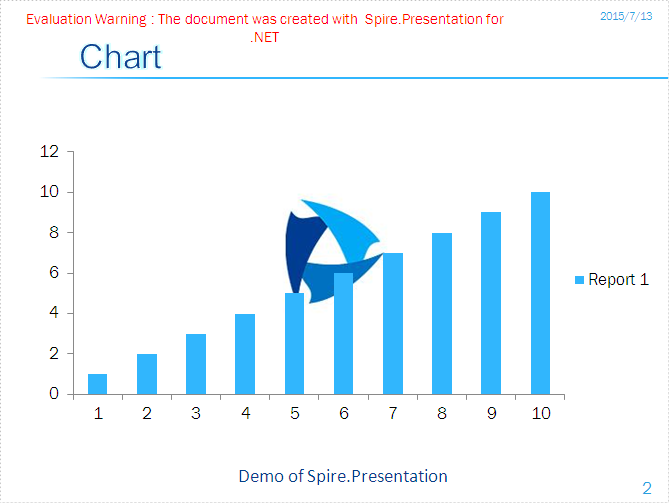
Here comes to the steps of how to add text watermark in C#:
Step 1: Create a presentation document and load the document from the file
Presentation ppt = new Presentation();
ppt.LoadFromFile("sample.pptx");
Step 2: Set the image background type and style for the second slide in the presentation.
ppt.Slides[1].SlideBackground.Type = Spire.Presentation.Drawing.BackgroundType.Custom;
ppt.Slides[1].SlideBackground.Fill.FillType = FillFormatType.Picture;
ppt.Slides[1].SlideBackground.Fill.PictureFill.FillType = PictureFillType.Stretch;
Step 3: Insert the image as the image watermark.
Image img= Image.FromFile ("logo.png");
IImageData image = ppt.Images.Append(img);
ppt.Slides[1].SlideBackground.Fill.PictureFill.Picture.EmbedImage = image;
Step 4: Save the document.
ppt.SaveToFile("result.pptx", Spire.Presentation.FileFormat.Pptx2007);
Full codes:
using Spire.Presentation;
using Spire.Presentation.Drawing;
using System.Drawing;
namespace AddimageWatermark
{

    class Program
    {

        static void Main(string[] args)
        {
            Presentation ppt = new Presentation();
            ppt.LoadFromFile("sample.pptx");

            ppt.Slides[1].SlideBackground.Type = Spire.Presentation.Drawing.BackgroundType.Custom;
            ppt.Slides[1].SlideBackground.Fill.FillType = FillFormatType.Picture;
            ppt.Slides[1].SlideBackground.Fill.PictureFill.FillType = PictureFillType.Stretch;

            Image img = Image.FromFile("logo.png");
            IImageData image = ppt.Images.Append(img);
            ppt.Slides[1].SlideBackground.Fill.PictureFill.Picture.EmbedImage = image;
            ppt.SaveToFile("result.pptx", Spire.Presentation.FileFormat.Pptx2007);
        }
    }
}
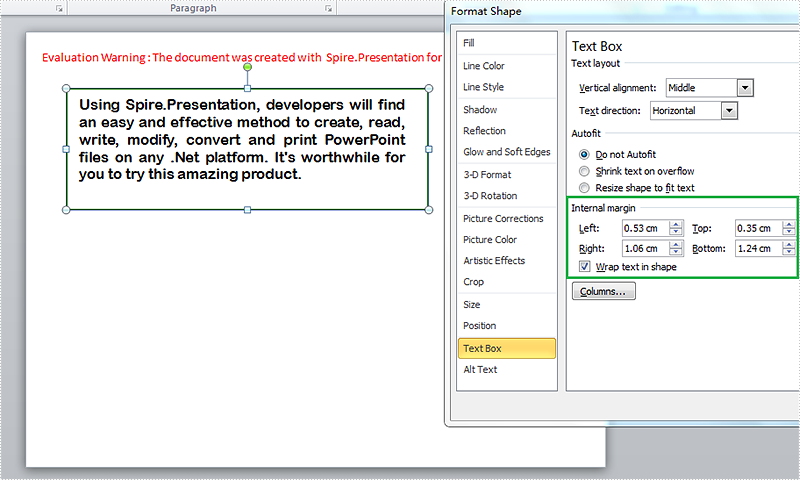
Margin is the space between the text and the edge of paper or shape. MS office sets default margins for users but usually we need to reset the margins to best fit our formatting needs. In Presentation, text is often inside a shape or textbox, and there is an option to set the margins for text inside shapes. It’s worthy of mentioning that Spire.Presentation provides the APIs to help users set margins for text inside shapes. This article is going to introduce the method to set the internal margins of shapes in C# using Spire.Presentation.
Note: before start, please download the latest version of Spire.Presentation and use the .dll in the bin folder as the reference of Visual Studio.
Step 1: Initial a new Presentation and insert a sample shape.
Presentation presentation = new Presentation();
IAutoShape shape = presentation.Slides[0].Shapes.AppendShape(ShapeType.Rectangle, new RectangleF(50, 70, 450, 150));
Step 2: Add sample text into the shape and format the text.
            shape.Fill.FillType = FillFormatType.None;
            shape.ShapeStyle.LineColor.Color = Color.DarkGreen;
            shape.TextFrame.Paragraphs[0].Alignment = TextAlignmentType.Justify;
            shape.TextFrame.Text = "Using Spire.Presentation, developers will find an easy and effective method to create, read, write, modify, convert and print PowerPoint files on any .Net platform. It's worthwhile for you to try this amazing product.";
            shape.TextFrame.Paragraphs[0].TextRanges[0].LatinFont = new TextFont("Arial Rounded MT Bold");
            shape.TextFrame.Paragraphs[0].TextRanges[0].Fill.FillType = FillFormatType.Solid;
            shape.TextFrame.Paragraphs[0].TextRanges[0].Fill.SolidColor.Color = Color.Black;
Step 3: Set the margins for the text frame.
            shape.TextFrame.MarginTop = 10;
            shape.TextFrame.MarginBottom = 35;
            shape.TextFrame.MarginLeft = 15;
            shape.TextFrame.MarginRight = 30;
Step 4: Save the document and launch to see effects.
            presentation.SaveToFile("result.pptx", FileFormat.Pptx2010);
            System.Diagnostics.Process.Start("result.pptx");
Effects:
Full Codes:
using System;
using System.Collections.Generic;
using System.Linq;
using System.Text;
using Spire.Presentation;
using Spire.Presentation.Drawing;
using System.Drawing;

namespace test
{
    class Program
    {
        static void Main(string[] args)
        {
            Presentation presentation = new Presentation();
            IAutoShape shape = presentation.Slides[0].Shapes.AppendShape(ShapeType.Rectangle, new RectangleF(50, 70, 450, 150));

            shape.Fill.FillType = FillFormatType.None;
            shape.ShapeStyle.LineColor.Color = Color.DarkGreen;
            shape.TextFrame.Paragraphs[0].Alignment = TextAlignmentType.Justify;
            shape.TextFrame.Text = "Using Spire.Presentation, developers will find an easy and effective method to create, read, write, modify, convert and print PowerPoint files on any .Net platform. It's worthwhile for you to try this amazing product.";
            shape.TextFrame.Paragraphs[0].TextRanges[0].LatinFont = new TextFont("Arial Rounded MT Bold");
            shape.TextFrame.Paragraphs[0].TextRanges[0].Fill.FillType = FillFormatType.Solid;
            shape.TextFrame.Paragraphs[0].TextRanges[0].Fill.SolidColor.Color = Color.Black;

            shape.TextFrame.MarginTop = 10;
            shape.TextFrame.MarginBottom = 35;
            shape.TextFrame.MarginLeft = 15;
            shape.TextFrame.MarginRight = 30;

            presentation.SaveToFile("result.pptx", FileFormat.Pptx2010);
            System.Diagnostics.Process.Start("result.pptx");

        }
    }
}
Show formula and its result separately when converting excel to datatable in C#
2015-07-10 05:37:43 Written by KoohjiThis article shows how to display formula and its result separately when converting excel to database via Spire.XLS. This demo uses an Excel file with formula in it and show the conversion result in a Windows Forms Application project.
Screenshot of the test excel file:
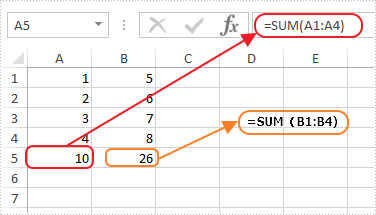
Here are the detailed steps:
Steps 1: Create a Windows Forms Application in Visual Studio.
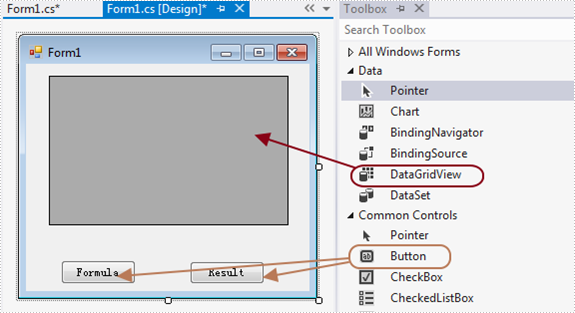
Steps 2: Drag a DataGridView and two Buttons from Toolbox to the Form and change names of the buttons as Formula and Result to distinguish.
Steps 3: Double click Button formula and add the following code.
3.1 Load test file and get the first sheet.
Workbook workbook = new Workbook();
workbook.LoadFromFile(@"1.xlsx");
Worksheet sheet = workbook.Worksheets[0];
3.2 Invoke method ExportDataTable of the sheet and output data range. Parameters of ExportDataTable are range to export, indicates if export column name and indicates whether compute formula value, then it will return exported datatable.
Description of ExportDataTable:
public DataTable ExportDataTable(CellRange range, bool exportColumnNames, bool computedFormulaValue);
Code:
DataTable dt = sheet.ExportDataTable(sheet.AllocatedRange, false, false);
3.3 Show in DataGridView
this.dataGridView1.DataSource = dt;
Steps 4: Do ditto to Button Result. Only alter parameter computedFormulaValue as true.
Workbook workbook = new Workbook();
workbook.LoadFromFile(@"1.xlsx");
Worksheet sheet = workbook.Worksheets[0];
DataTable dt = sheet.ExportDataTable(sheet.AllocatedRange, false, true);
this.dataGridView1.DataSource = dt;
Steps 5: Start the project and check the result.
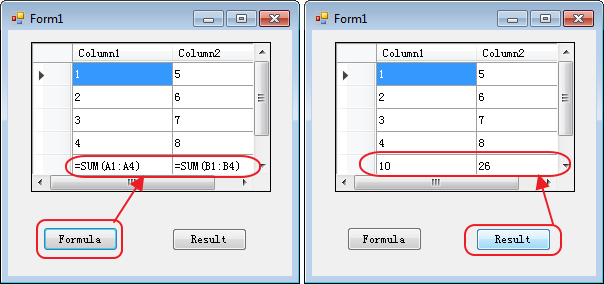
Button code here:
//Formula
private void button1_Click(object sender, EventArgs e)
{
Workbook workbook = new Workbook();
workbook.LoadFromFile(@"1.xlsx");
Worksheet sheet = workbook.Worksheets[0];
DataTable dt = sheet.ExportDataTable(sheet.AllocatedRange, false, false);
this.dataGridView1.DataSource = dt;

}
//Result
private void button2_Click(object sender, EventArgs e)
{
Workbook workbook = new Workbook();
workbook.LoadFromFile(@"1.xlsx");
Worksheet sheet = workbook.Worksheets[0];
DataTable dt = sheet.ExportDataTable(sheet.AllocatedRange, false, true);
this.dataGridView1.DataSource = dt;
}
