Knowledgebase (2417)
Children categories
How to get the height and width of text in word document in C#
2015-05-06 08:27:14 Written by KoohjiBy using Spire.Doc, developers can find and highlight the text, extract the text in word document. This article will show you how to get the height and width of text in a word document in C# with the help of Spire.Doc.
Firstly, Download and install Spire.Doc for .NET and then add Spire.Doc.dll as reference in the downloaded Bin folder though the below path: "..\Spire.Doc\Bin\NET4.0\ Spire.Doc.dll". Here comes to the details of how to get the height and width of text in a word document in C#.
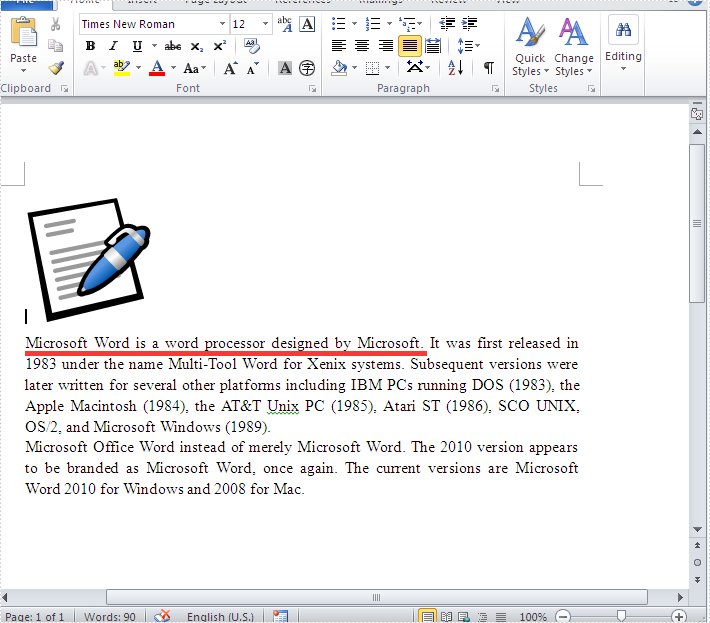
Check the original word document at first:
Step 1: Create a new document and load from file.
Document doc = new Document();
doc.LoadFromFile("Word.doc");
Step 2: Define the text string that we need to get the height and width.
string text = "Microsoft Word is a word processor designed by Microsoft.";
Step 3: Get the text string and measure the string.
//finds and returns the string with formatting
TextSelection selection = doc.FindString(text, true, true);
//get the font
Font font = selection.GetAsOneRange().CharacterFormat.Font;
//initialize graphics object
Image fakeImage = new Bitmap(1, 1);
Graphics graphics = Graphics.FromImage(fakeImage);
//measure string
SizeF size = graphics.MeasureString(text, font);
Step 4: Get the text height and width and read it.
Console.WriteLine("text height:{0}",size.Height);
Console.WriteLine("text width:{0}", size.Width);
Console.ReadLine();
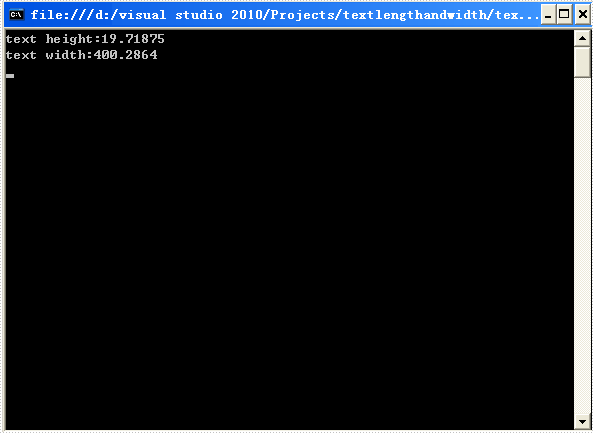
Effective screenshot:
Full codes:
using Spire.Doc;
using Spire.Doc.Documents;
using System;
using System.Drawing;
namespace GetHeightandWidth
{

    class Program
    {
        static void Main(string[] args)
        {
            Document doc = new Document();
            doc.LoadFromFile("Word.doc");
            string text = "Microsoft Word is a word processor designed by Microsoft.";

            TextSelection selection = doc.FindString(text, true, true);
            Font font = selection.GetAsOneRange().CharacterFormat.Font;
            Image fakeImage = new Bitmap(1, 1);
            Graphics graphics = Graphics.FromImage(fakeImage);
            SizeF size = graphics.MeasureString(text, font);

            Console.WriteLine("text height:{0}", size.Height);
            Console.WriteLine("text width:{0}", size.Width);
            Console.ReadLine();
        }
    }
}
Change font can offer more variability to PDF files, now Spire.PDF can allow developers change font of pdf files without install the font to the disk. This article is talk about this realization process.
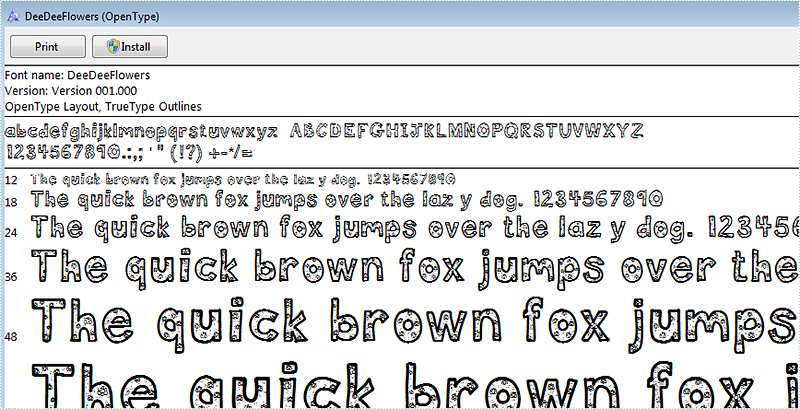
Below is the screenshot of the uninstalled font DeeDeeFlowers.ttf
Here are the steps:
Step 1: Create a new blank PDF document.
PdfDocument doc = new PdfDocument();
Step 2: Add a new page to the PDF.
PdfPageBase page = doc.Pages.Add();
Step 3: Create a TrueType font object with DeeDeeFlowers.ttf as parameter
String fontFileName = "DeeDeeFlowers.ttf";
PdfTrueTypeFont trueTypeFont = new PdfTrueTypeFont(fontFileName, 20f);
Step 4: Add text and set property.
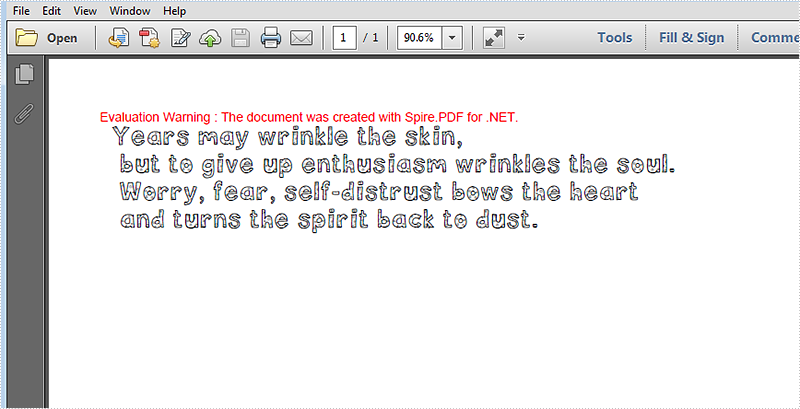
page.Canvas.DrawString("Years may wrinkle the skin,\n"
+ " but to give up enthusiasm wrinkles the soul.\n"
+ " Worry, fear, self-distrust bows the heart\n"
+" and turns the spirit back to dust.", trueTypeFont, new PdfSolidBrush(Color.Black), 10, 10);
Step 5: Save and review.
doc.SaveToFile("result.pdf");
System.Diagnostics.Process.Start("result.pdf");
Here is the screenshot of result.pdf.
Full Code:
using Spire.Pdf;
using Spire.Pdf.Graphics;
using System;
using System.Drawing;


namespace EmbedPrivateFont
{
    class Program
    {
        static void Main(string[] args)
        {
            PdfDocument doc = new PdfDocument();
            PdfPageBase page = doc.Pages.Add();
            String fontFileName = "DeeDeeFlowers.ttf";
            PdfTrueTypeFont trueTypeFont = new PdfTrueTypeFont(fontFileName, 20f);
            page.Canvas.DrawString("Years may wrinkle the skin,\n"
            + " but to give up enthusiasm wrinkles the soul.\n"
            + " Worry, fear, self-distrust bows the heart\n"
            + " and turns the spirit back to dust.", trueTypeFont, new PdfSolidBrush(Color.Black), 10, 10);
            doc.SaveToFile("result.pdf");
            System.Diagnostics.Process.Start("result.pdf");
        }
    }
}
Introduction to SQL CLR and Spire.PDF
SQL CLR is technology for hosting of the Microsoft .NET common language runtime engine within SQL Server. The SQLCLR allows managed code to be hosted by, and run in, the Microsoft SQL Server environment.
This technology, introduced in Microsoft SQL Server 2005, allow users for example to create the following types of managed code objects in SQL Server in .NET languages such as C# or VB.NET.
- Stored Procedures
- User defined aggregates
- Triggers
- User defined types
- User defined functions
Spire.PDF is a PDF library which contains an incredible wealth of features to create, read, edit and manipulate PDF documents on .NET, Silverlight and WPF Platform. As an independent PDF library, it does not need users to install Adobe Acrobat or any other third party libraries. Spire.PDF for .NET is completely written in C#, but also supports VB.NET, Windows Forms and ASP.NET Applications.
How to Utilize Spire.PDF in SQL CLR?
In this article we will see, how to create a simple PDF document in SQL CLR using Spire.PDF and how to deploy it in SQL Server. Just follow following steps and it will get done.
Enabling SQL CLR Integration
For SQL Server is, SQL CLR assembly is an external code, so in SQL Server default installation configuration, SQL CLR is blocked not used, to use it, we must first open it.
- Open SQL Server Management Studio, connect and create a new database named SpirePDFCLR.
- Enable the SQL CLR with the following code.
sp_configure 'clr enabled', 1
GO
RECONFIGURE
GO
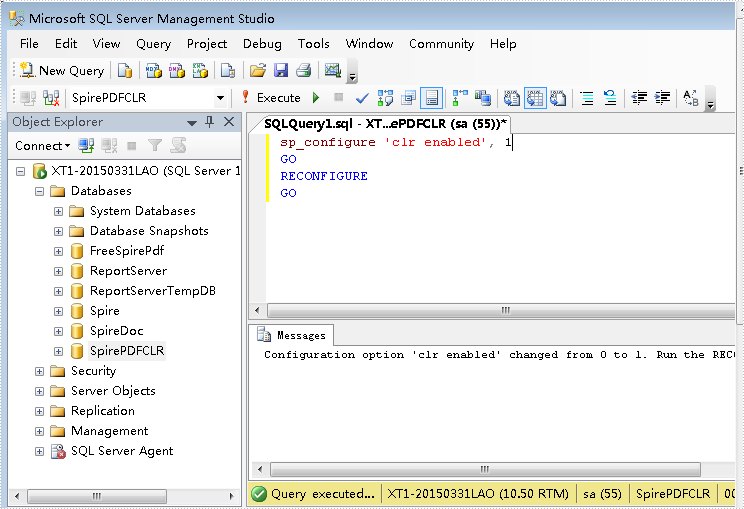
Now the SQL Server is ready to execute the database objects that are built using the C# programming language.
Adding Dependency Assemblies
For the sake of using non-SAFE CLR Assemblies, firstly we need to turn Trustworthy on.
ALTER DATABASE SpirePDFCLR SET TRUSTWORTHY ON
Now, we can add the dependency assemblies by following code.
CREATE ASSEMBLY [System.Windows.Forms]
FROM'C:\WINDOWS\Microsoft.NET\Framework\v2.0.50727\System.Windows.Forms.dll'
WITH PERMISSION_SET=UNSAFE
CREATE ASSEMBLY [System.Web]
FROM 'C:\Windows\Microsoft.NET\Framework\v2.0.50727\System.Web.dll'
WITH PERMISSION_SET=UNSAFE
CREATE ASSEMBLY [Microsoft.mshtml]
FROM'C:\Windows\Microsoft.NET\Framework\v2.0.50727\Microsoft.mshtml.dll'
WITH PERMISSION_SET=UNSAFE
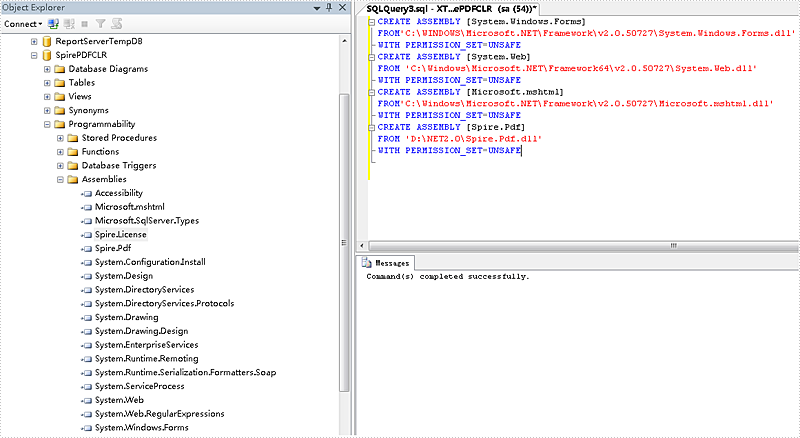
Once these assemblies are added, we can add the Spire.Pdf.Dll.
CREATE ASSEMBLY [Spire.Pdf]
FROM 'D:\NET2.0\Spire.Pdf.dll'
WITH PERMISSION_SET=UNSAFE
Then go to the Object Browser, select the SpirePDFCLR database, right-click and choose "Refresh". They will be shown under Assemblies as below.
Creating and Manipulate PDF document in SQL CLR
Once the Spire.Pdf.dll is added into the database, we can create and manipulate the PDF document in SQL CLR. Here we will take a Stored Procedure as an example.
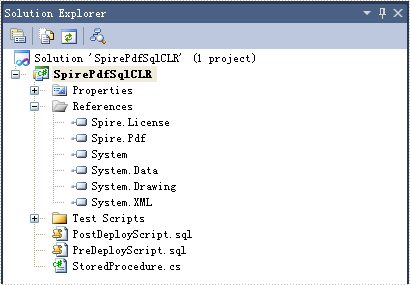
Put the following code in the Stored Procedure. It will create a PDF document when we execute the Stored Procedure.
using System;
using System.Data;
using System.Data.SqlClient;
using System.Data.SqlTypes;
using Microsoft.SqlServer.Server;
using Spire.Pdf;
using Spire.Pdf.Graphics;

public partial class UserDefinedFunctions
{
    [Microsoft.SqlServer.Server.SqlProcedure]
    public static void StoreProcedure()
    {
        PdfDocument doc = new PdfDocument();
        PdfPageBase page = doc.Pages.Add();
        page.Canvas.DrawString("Hello world", new PdfFont(PdfFontFamily.Courier, 100), PdfBrushes.Black, 0, 0);
        doc.SaveToFile("d:\\result.pdf");
    }
};
Next build and deploy the solution. If everything is fine then it will say that the deployment was successful. Then we will see the Store Procedure in the SpirePDFCLR database.
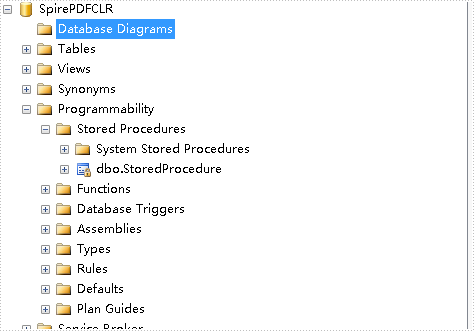
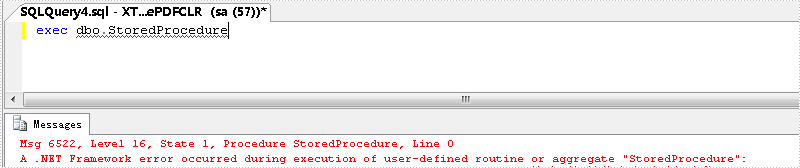
Now we will run the Stored Procedure from SQL Server, but here we will get an error as below.
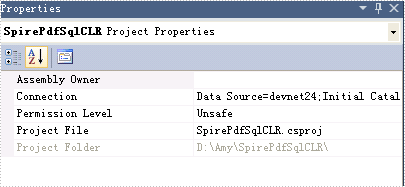
We need to change the permission level of the CLR project as unsafe and deploy it again.
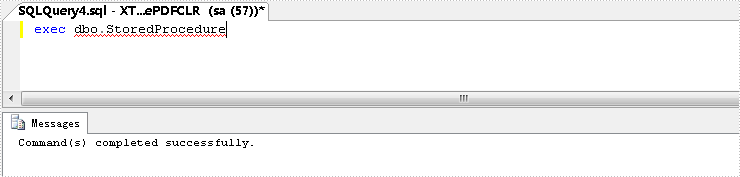
Now run it again, it will work fine and we will get the PDF document.