
Knowledgebase (2417)
Children categories
PDF form is often used to display, catch and edit data. People can fill blanks with data and submit data to server. Spire.PDF now enables users to add fields and create form in existing PDF document.
Here are the steps:
Step 1: Create PDF document, and load a blank PDF file, then get the first page.
PdfDocument pdf = new PdfDocument("Blank.pdf");
pdf.AllowCreateForm = (pdf.Form == null) ? true : false;
PdfPageBase page = pdf.Pages[0];
Step 2: Set font and font color. Preset coordinate.
PdfFont font = new PdfFont(PdfFontFamily.Helvetica, 13f);
PdfBrush brush = PdfBrushes.Black;
float x = 10;
float y = 10;
float tempX = 0;
float tempY = 0;
Step 3: Draw textbox.
string text = "Textbox: ";
page.Canvas.DrawString(text, font, brush, x, y);
tempX = font.MeasureString(text).Width + 15;
tempY = font.MeasureString(text).Height + 15;
PdfTextBoxField textbox = new PdfTextBoxField(page, "TextBox");
textbox.Bounds = new RectangleF(tempX, y, tempX * 2, 15);
textbox.BorderWidth = 0.75f;
textbox.BorderStyle = PdfBorderStyle.Solid;
pdf.Form.Fields.Add(textbox);
Step 4: Draw checkbox.
text = "Checkbox: ";
y += tempY;
page.Canvas.DrawString(text, font, brush, x, y);
tempX = font.MeasureString(text).Width + 15;
tempY = font.MeasureString(text).Height + 15;
PdfCheckBoxField checkbox = new PdfCheckBoxField(page, "CheckBox");
checkbox.Bounds = new RectangleF(tempX, y, 15, 15);
checkbox.BorderWidth = 0.75f;
checkbox.Style = PdfCheckBoxStyle.Cross;
pdf.Form.Fields.Add(checkbox);
Step 5: Draw Listbox and add content.
//ListBox
text = "Listbox: ";
y += tempY;
page.Canvas.DrawString(text, font, brush, x, y);
tempX = font.MeasureString(text).Width + 15;
tempY = font.MeasureString(text).Height + 15;
PdfListBoxField listbox = new PdfListBoxField(page, "ListBox");
listbox.Bounds = new RectangleF(tempX, y, tempX * 2, tempY * 2);
listbox.BorderWidth = 0.75f;
for (int i = 0; i < 3; i++)
{
     string tempText = string.Format("Text {0}", i);
     string tempValue = string.Format("Value {0}", i);
     listbox.Items.Add(new PdfListFieldItem(tempText, tempValue));
}
pdf.Form.Fields.Add(listbox);
Step 6: Draw RadioButton.
//RadioButton
text = "Radiobutton: ";
y += tempY * 2 + 15;
page.Canvas.DrawString(text, font, brush, x, y);
tempX = font.MeasureString(text).Width + 15;
tempY = font.MeasureString(text).Height + 15;
PdfRadioButtonListField radiobutton = new PdfRadioButtonListField(page, "RadioButton");
for (int i = 0; i < 3; i++)
{
     PdfRadioButtonListItem item = new PdfRadioButtonListItem(string.Format("rb{0}", i));
     item.BorderWidth = 0.75f;
     item.Bounds = new RectangleF(tempX + i * 20, y, 15, 15);
     radiobutton.Items.Add(item);
}
pdf.Form.Fields.Add(radiobutton);
Step 7: Draw combobox and add content.
//ComboBox
text = "ComboBox: ";
y += tempY;
page.Canvas.DrawString(text, font, brush, x, y);
tempX = font.MeasureString(text).Width + 15;
tempY = font.MeasureString(text).Height + 15;
PdfComboBoxField combobox = new PdfComboBoxField(page, "ComboBox");
combobox.Bounds = new RectangleF(tempX, y, tempX, 15);
combobox.BorderWidth = 0.75f;
for (int i = 0; i < 3; i++)
{
    string tempText = string.Format("Text {0}", i);
    string tempValue = string.Format("Value {0}", i);
    combobox.Items.Add(new PdfListFieldItem(tempText, tempValue));
}
pdf.Form.Fields.Add(combobox);
Step 8: Save and review
loDoc.SaveToFile("result.pdf");
System.Diagnostics.Process.Start("result.pdf");
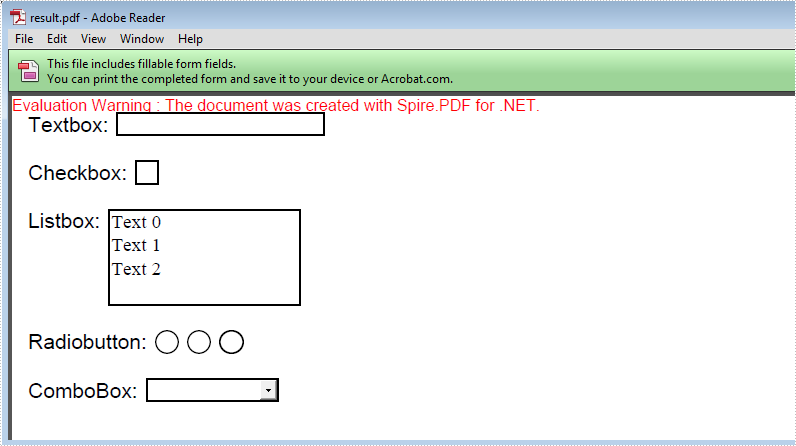
Result screenshot:
Full Code:
using Spire.Pdf;
using Spire.Pdf.Fields;
using Spire.Pdf.Graphics;
using System.Drawing;


namespace AddFormFieldToExistingPDF
{
    class Program
    {
        static void Main(string []args)
        {
            PdfDocument pdf = new PdfDocument("Blank.pdf");
            pdf.AllowCreateForm = (pdf.Form == null) ? true : false;
            PdfPageBase page = pdf.Pages[0];


            PdfFont font = new PdfFont(PdfFontFamily.Helvetica, 13f);
            PdfBrush brush = PdfBrushes.Black;
            float x = 10;
            float y = 10;
            float tempX = 0;
            float tempY = 0;

            //TextBox
            string text = "Textbox: ";
            page.Canvas.DrawString(text, font, brush, x, y);
            tempX = font.MeasureString(text).Width + 15;
            tempY = font.MeasureString(text).Height + 15;
            PdfTextBoxField textbox = new PdfTextBoxField(page, "TextBox");
            textbox.Bounds = new RectangleF(tempX, y, tempX * 2, 15);
            textbox.BorderWidth = 0.75f;
            textbox.BorderStyle = PdfBorderStyle.Solid;
            pdf.Form.Fields.Add(textbox);

            //CheckBox
            text = "Checkbox: ";
            y += tempY;
            page.Canvas.DrawString(text, font, brush, x, y);
            tempX = font.MeasureString(text).Width + 15;
            tempY = font.MeasureString(text).Height + 15;
            PdfCheckBoxField checkbox = new PdfCheckBoxField(page, "CheckBox");
            checkbox.Bounds = new RectangleF(tempX, y, 15, 15);
            checkbox.BorderWidth = 0.75f;
            checkbox.Style = PdfCheckBoxStyle.Cross;
            pdf.Form.Fields.Add(checkbox);

            //ListBox
            text = "Listbox: ";
            y += tempY;
            page.Canvas.DrawString(text, font, brush, x, y);
            tempX = font.MeasureString(text).Width + 15;
            tempY = font.MeasureString(text).Height + 15;
            PdfListBoxField listbox = new PdfListBoxField(page, "ListBox");
            listbox.Bounds = new RectangleF(tempX, y, tempX * 2, tempY * 2);
            listbox.BorderWidth = 0.75f;
            for (int i = 0; i < 3; i++)
            {
                string tempText = string.Format("Text {0}", i);
                string tempValue = string.Format("Value {0}", i);
                listbox.Items.Add(new PdfListFieldItem(tempText, tempValue));
            }
            pdf.Form.Fields.Add(listbox);

            //RadioButton
            text = "Radiobutton: ";
            y += tempY * 2 + 15;
            page.Canvas.DrawString(text, font, brush, x, y);
            tempX = font.MeasureString(text).Width + 15;
            tempY = font.MeasureString(text).Height + 15;
            PdfRadioButtonListField radiobutton = new PdfRadioButtonListField(page, "RadioButton");
            for (int i = 0; i < 3; i++)
            {
                PdfRadioButtonListItem item = new PdfRadioButtonListItem(string.Format("rb{0}", i));
                item.BorderWidth = 0.75f;
                item.Bounds = new RectangleF(tempX + i * 20, y, 15, 15);
                radiobutton.Items.Add(item);
            }
            pdf.Form.Fields.Add(radiobutton);

            //ComboBox
            text = "ComboBox: ";
            y += tempY;
            page.Canvas.DrawString(text, font, brush, x, y);
            tempX = font.MeasureString(text).Width + 15;
            tempY = font.MeasureString(text).Height + 15;
            PdfComboBoxField combobox = new PdfComboBoxField(page, "ComboBox");
            combobox.Bounds = new RectangleF(tempX, y, tempX, 15);
            combobox.BorderWidth = 0.75f;
            for (int i = 0; i < 3; i++)
            {
                string tempText = string.Format("Text {0}", i);
                string tempValue = string.Format("Value {0}", i);
                combobox.Items.Add(new PdfListFieldItem(tempText, tempValue));
            }
            pdf.Form.Fields.Add(combobox);

            pdf.SaveToFile("Result.pdf");
            System.Diagnostics.Process.Start("Result.pdf");
        }
    }
}
When we create a PowerPoint slide that contains charts on it, we may not want others to change the chart data, especially when we create a presentation of financial report, it is very important for legal reasons that no changes get made when the slides are presented. In this article, I'll introduce how to protect chart on PowerPoint slide via Spire.Presentation in C# and VB.NET.
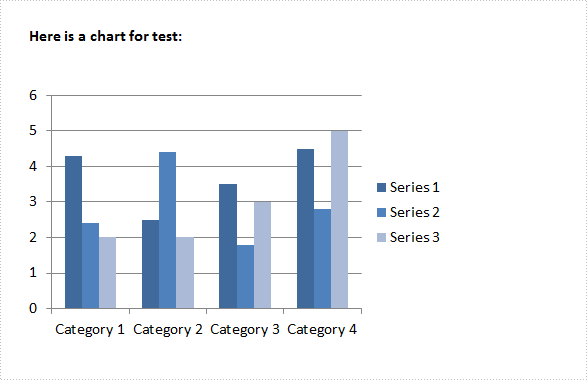
Test File:
Code Snippet:
Step 1: Create a new instance of Presentation class. Load the sample file to PPT document by calling LoadFromFile() method.
Presentation ppt = new Presentation();
ppt.LoadFromFile("sample.pptx",FileFormat.Pptx2010);
Step 2: Get the second shape from slide and convert it as IChart. The first shape in the sample file is a textbox.
IChart chart = ppt.Slides[0].Shapes[1] as IChart;
Step 3: Set the Boolean value of IChart.IsDataProtect as true.
chart.IsDataProtect = true;
Step 4: Save the file.
ppt.SaveToFile("result.pptx", FileFormat.Pptx2010);
Output:
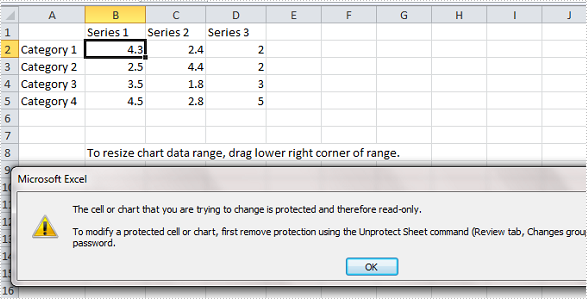
Run this program and open the result file, you’ll get following warning message if you try to modify the chart data in Excel.
Full Code:
using Spire.Presentation;
using Spire.Presentation.Charts;

namespace ProtectChart
{

    class Program
    {
        static void Main(string[] args)
        {

            Presentation ppt = new Presentation();
            ppt.LoadFromFile("sample.pptx", FileFormat.Pptx2010);

            IChart chart = ppt.Slides[0].Shapes[1] as IChart;
            chart.IsDataProtect = true;
            ppt.SaveToFile("result.pptx", FileFormat.Pptx2010);


        }
    }
}
Imports Spire.Presentation
Imports Spire.Presentation.Charts

Namespace ProtectChart

	Class Program
		Private Shared Sub Main(args As String())

			Dim ppt As New Presentation()
			ppt.LoadFromFile("sample.pptx", FileFormat.Pptx2010)

			Dim chart As IChart = TryCast(ppt.Slides(0).Shapes(1), IChart)
			chart.IsDataProtect = True
			ppt.SaveToFile("result.pptx", FileFormat.Pptx2010)


		End Sub
	End Class
End Namespace
How to use uninstalled font when converting Doc to PDF via Spire.Doc
2015-03-25 03:21:26 Written by KoohjiNow Spire.Doc support using uninstalled font when converting Doc to PDF to diversity text content. In this article, we'll talk about how to realize this function:
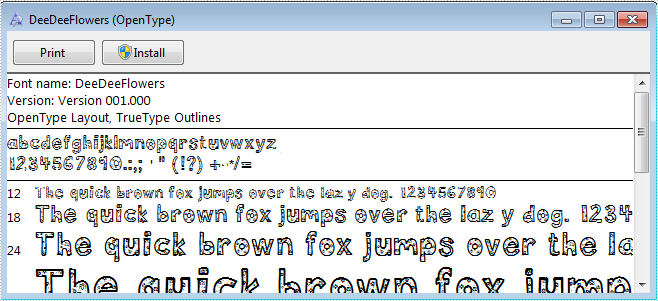
Step 1: Download a font uninstalled in system.
Step 2: Create a new blank Word document.
Document document = new Document();
Step 3: Add a section and create a new paragraph.
Section section = document.AddSection();
Paragraph paragraph = section.Paragraphs.Count > 0 ? section.Paragraphs[0] : section.AddParagraph();
Step 4: Append text for a txtRange.
TextRange txtRange = paragraph.AppendText(text);
Step 5: Create an example for class ToPdfParameterList named to pdf, and create a new PrivateFontPathlist for property PrivateFontPaths, instantiate one PrivateFontPath with name and path of downloaded font.
ToPdfParameterList toPdf = new ToPdfParameterList()
{
    PrivateFontPaths = new List()
        {
          new PrivateFontPath("DeeDeeFlowers",@"D:\DeeDeeFlowers.ttf")
        }
};
Step 6: Set the new font for the txtaRange.
txtRange.CharacterFormat.FontName = "DeeDeeFlowers";
Step 7: Convert the Doc to PDF.
document.SaveToFile("result.pdf", toPdf);
Step 8: Review converted PDF files.
System.Diagnostics.Process.Start("result.pdf");
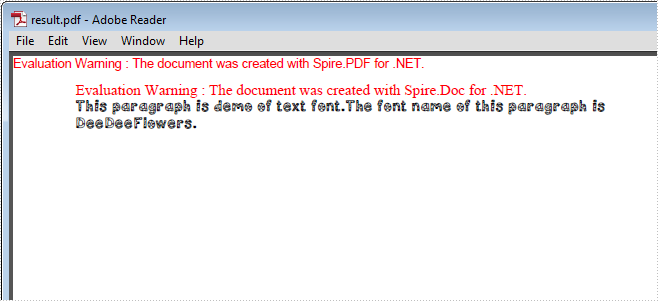
Result screenshot:
Full Code Below:
Document document = new Document();

//Add the first secition
Section section = document.AddSection();
//Create a new paragraph and get the first paragraph
Paragraph paragraph
    = section.Paragraphs.Count > 0 ? section.Paragraphs[0] : section.AddParagraph();

//Append Text
String text
    = "This paragraph is demo of text font and color. "
    + "The font name of this paragraph is Tahoma. "
    + "The font size of this paragraph is 20. "
    + "The under line style of this paragraph is DotDot. "
    + "The color of this paragraph is Blue. ";
 TextRange txtRange = paragraph.AppendText(text);

//Import the font
 ToPdfParameterList toPdf = new ToPdfParameterList()
 {
     PrivateFontPaths = new List<PrivateFontPath>()
         {
          new PrivateFontPath("DeeDeeFlowers",@"D:\DeeDeeFlowers.ttf")
         }
};
//Make use of the font.
txtRange.CharacterFormat.FontName = "DeeDeeFlowers";

document.SaveToFile("result.pdf", toPdf);

System.Diagnostics.Process.Start("result.pdf");
