
Knowledgebase (2417)
Children categories
How to save Chart and table on Presentation Slide as image in C#
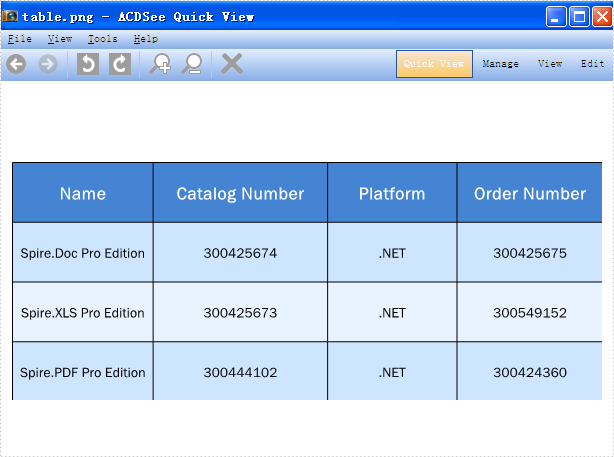
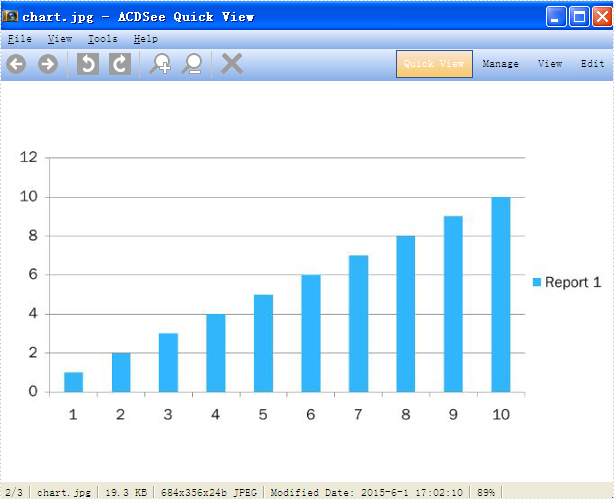
2015-06-02 07:40:40 Written by KoohjiSpire.Presentation enables developers to export the whole presentation slides with table, chart and shape to image. And it also supports to export the single element in the presentation slides, such as chart, table and shape into image. This article will show you how to save chart and table on Presentation Slide as image in C# and please check the steps as below:
Step 1: Create a presentation document and load from file.
Presentation ppt = new Presentation();
ppt.LoadFromFile("sample.pptx");
Step 2: Traverse every shape in the slide. Call ShapeList.SaveAsImage(int shapeIndex) to save table and chart as image.
//Save table as image in .Png format
Image image = ppt.Slides[0].Shapes.SaveAsImage(4);
image.Save("table.png", System.Drawing.Imaging.ImageFormat.Png);

//Save chart as image in .Jpeg format
image = ppt.Slides[1].Shapes.SaveAsImage(3);
image.Save("chart.jpg", System.Drawing.Imaging.ImageFormat.Jpeg);
You can use Shapes.SaveAsEMF method to save the chart and table to image in EMF format.
Effective screenshot:
Save Presentation table as image:
Save Presentation chart as image:
Full codes:
using Spire.Presentation;
using System.Drawing;

     namespace SaveTableChartasImage
{
    class Program
    {
        static void Main(string[] args)
        {
            Presentation ppt = new Presentation();
            ppt.LoadFromFile("sample.pptx");

            Image image = ppt.Slides[0].Shapes.SaveAsImage(4);
            image.Save("table.png", System.Drawing.Imaging.ImageFormat.Png);
            image = ppt.Slides[1].Shapes.SaveAsImage(3);
            image.Save("chart.jpg", System.Drawing.Imaging.ImageFormat.Jpeg);

            //ppt.Slides[1].Shapes.SaveAsEMF(3, "chart.emf");
        }
    }
}
C#/VB.NET: Change Security Permissions of PDF Documents
2022-09-29 07:38:00 Written by AdministratorWhen you protect your PDF documents with passwords you can optionally specify a set of permissions. The permissions determine how users can interact with the file. For example, you can apply permissions to your document to prohibit the user from printing or using cut and paste operations. This article demonstrates how to change security permissions of PDF documents using Spire.PDF for .NET in C# and VB.NET.
Install Spire.PDF for .NET
To begin with, you need to add the DLL files included in the Spire.PDF for.NET package as references in your .NET project. The DLL files can be either downloaded from this link or installed via NuGet.
PM> Install-Package Spire.PDF
Change Security Permissions of a PDF Document
The following are the steps to apply security permissions to a PDF document using Spire.PDF for .NET.
- Create a PdfDocument object.
- Load a sample PDF file using PdfDocument.LoadFileFile() method.
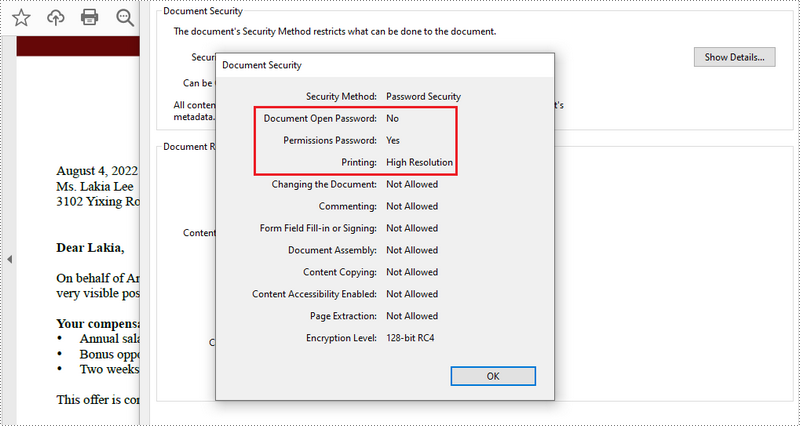
- Specify open password and permission password. The open password can be set to empty so that the generated document will not require a password to open.
- Encrypt the document with the open password and permission password, and set the security permissions using PdfDocument.Security.Encypt() method. This method takes PdfPermissionsFlags enumeration as a parameter, which defines user access permissions for an encrypted document.
- Save the document to another PDF file using PdfDocument.SaveToFile() method.
- C#
- VB.NET
using Spire.Pdf;
using Spire.Pdf.Security;

namespace ChangeSecurityPermission
{
    class Program
    {
        static void Main(string[] args)
        {
            //Create a PdfDocument object
            PdfDocument doc = new PdfDocument();

            //Load a sample PDF file
            doc.LoadFromFile(@"C:\Users\Administrator\Desktop\sample.pdf");

            //Specify open password
            string openPsd = string.Empty;

            //Specify permission password
            string permissionPsd = "e-iceblue";

            //Encrypt the document with open password and permission password, and set the permissions and encryption key size
            PdfSecurityPolicy securityPolicy = new PdfPasswordSecurityPolicy(openPsd, permissionPsd);

            // Set the encryption algorithm to AES 128-bit
            securityPolicy.EncryptionAlgorithm = PdfEncryptionAlgorithm.AES_128;

            // Allow printing of the document
            securityPolicy.DocumentPrivilege.AllowPrint = true;

            // Allow filling form fields in the document
            securityPolicy.DocumentPrivilege.AllowFillFormFields = true;

            doc.Encrypt(securityPolicy);

            //Save the document to another PDF file
            doc.SaveToFile("SecurityPermissions.pdf");
        }
    }
}
Apply for a Temporary License
If you'd like to remove the evaluation message from the generated documents, or to get rid of the function limitations, please request a 30-day trial license for yourself.
How to split text into two columns and add line between them
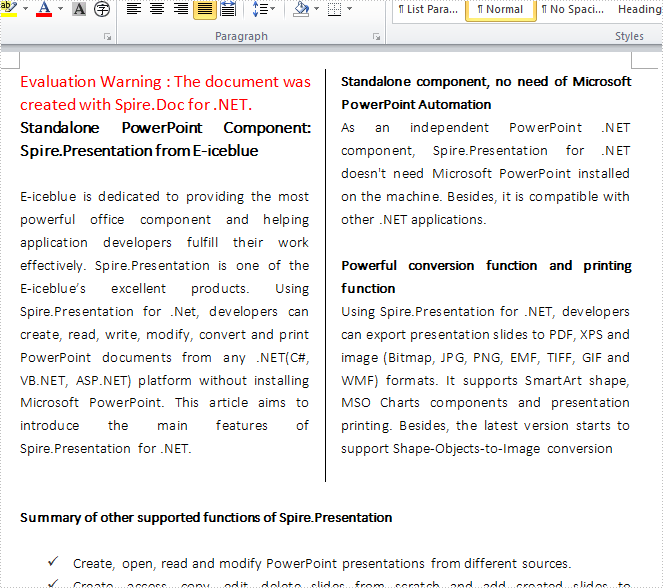
2015-05-28 08:51:50 Written by AdministratorColumns are widely used to set page layout, for which could split text into two or more columns so that the text could flow from one column to the next on the same page. Using Spire.Doc, we could achieve this feature and add a line between columns at the same time. This article is going to introduce how to split text into two columns and add line between them.
Note: please download the latest version of Spire.Doc and add Spire.Doc .dll as reference of Visual Studio.
Step 1: Create a new document and load from file
Document document = new Document();
document.LoadFromFile("S.docx");
Step 2: Add a column to section one, set the width of columns and the spacing between columns. Here we set width as 100f and spacing as 20f.
document.Sections[0].AddColumn(100f, 20f);
Step 3: Add a line between the two columns
document.Sections[0].PageSetup.ColumnsLineBetween = true;
Step 4: Save the document and launch to see effects
document.SaveToFile("result.docx",FileFormat.Docx2013);
System.Diagnostics.Process.Start("result.docx");
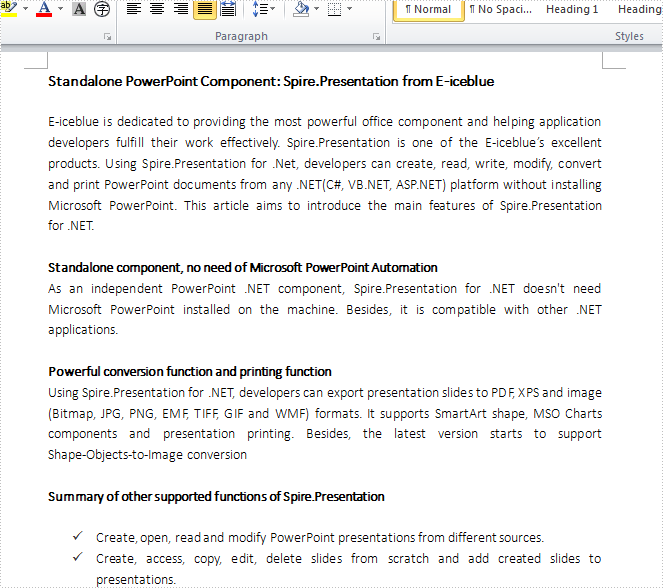
Before adding the columns:
Effects:
Full Code:
using System;
using System.Collections.Generic;
using System.Linq;
using System.Text;
using Spire.Doc;

namespace Column
{
    class Program
    {
        static void Main(string[] args)
        {
            Document document = new Document();

            document.LoadFromFile("S.docx");

            document.Sections[0].AddColumn(100f, 20f);

            document.Sections[0].PageSetup.ColumnsLineBetween = true;

            document.SaveToFile("result.docx",FileFormat.Docx2013);
            System.Diagnostics.Process.Start("result.docx");

        }
    }
}
