
Knowledgebase (2417)
Children categories
Add page numbers in different sections in Word document via Spire.Doc
2015-06-25 08:04:08 Written by KoohjiSometimes in one Word document developers need to add page numbers for different sections, for example cover, directory and content are in different sections. This article talks about how to add page numbers for different sections via Spire.Doc.
Here will import a test document within 3 sections inside as followed screenshot.
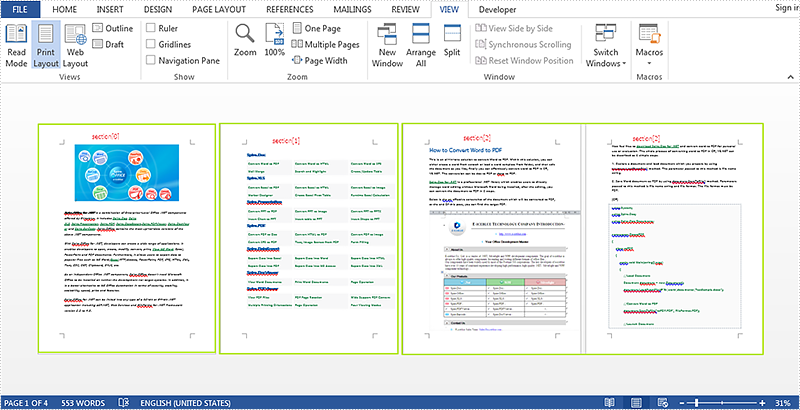
Here are the detailed steps:
Step 1: Create a new document and load the test word file.
Document document = new Document("test.docx");
Step 2: Create footer for the first section and add page number inside.
HeaderFooter footer = document.Sections[0].HeadersFooters.Footer;
Paragraph footerParagraph = footer.AddParagraph();
footerParagraph.AppendField("page number", FieldType.FieldPage);
footerParagraph.AppendText(" of ");
footerParagraph.AppendField("number of pages", FieldType.FieldSectionPages);
footerParagraph.Format.HorizontalAlignment = HorizontalAlignment.Right;
Step 3: Restart page number of next section and set the starting page number to 1.
document.Sections[1].PageSetup.RestartPageNumbering = true;
document.Sections[1].PageSetup.PageStartingNumber = 1;
Step 4: Repeat step2 and Step3 for the rest sections, so change the code with for loop.
for (int i = 0; i < 3; i++)
            {
                HeaderFooter footer = document.Sections[i].HeadersFooters.Footer;
                Paragraph footerParagraph = footer.AddParagraph();
                footerParagraph.AppendField("page number", FieldType.FieldPage);
                footerParagraph.AppendText(" of ");
                footerParagraph.AppendField("number of pages", FieldType.FieldSectionPages);
                footerParagraph.Format.HorizontalAlignment = HorizontalAlignment.Right;

                if (i == 2)
                    break;
                else
                {
                    document.Sections[i + 1].PageSetup.RestartPageNumbering = true;
                    document.Sections[i + 1].PageSetup.PageStartingNumber = 1;
                }
            }
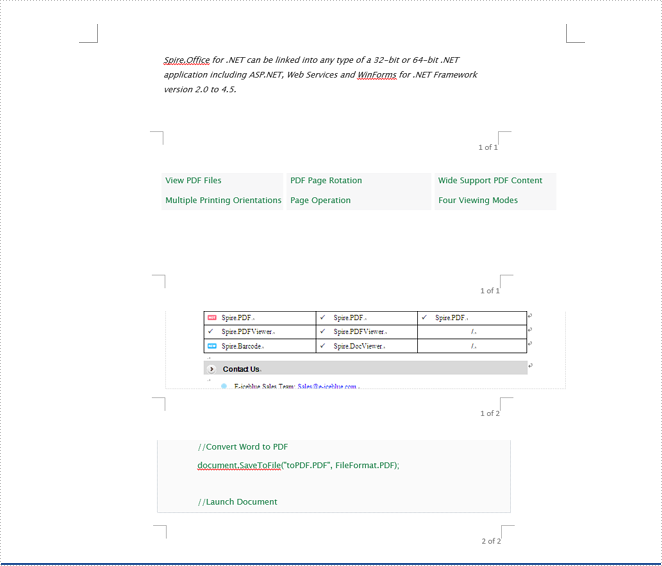
Step 5: Save and review.
document.SaveToFile("result.docx", FileFormat.Docx);
System.Diagnostics.Process.Start("result.docx");
Result screenshot:
Only convert visible or hidden worksheet to image in C#
2015-06-25 07:51:18 Written by AdministratorSpire.XLS supports to convert the whole excel workbook into Image, PDF, HTML and other files formats; it also supports to hide or show the worksheet in C#. When we have hidden worksheet in the excel files, developers can also use Spire.XLS to only convert the visible or hidden excel worksheets to other file formats by judge the property of WorksheetVisibility. This article will show you how to only convert visible or hidden worksheet to image in C#.
Here comes to the steps:
Step 1: Create a new document and load from file.
Workbook book = new Workbook();
book.LoadFromFile("sample.xlsx", ExcelVersion.Version2010);
Step 2: Traverse every worksheet in the excel file.
foreach (Spire.Xls.Worksheet ws2 in book.Worksheets)
Step 3: Call the property of WorksheetVisibility to judge visible or hidden excel worksheet.
//only converts the visible sheet
if (ws2.Visibility == WorksheetVisibility.Visible)
//only converts the hidden sheet
if (ws2.Visibility == WorksheetVisibility.Hidden)
Step 4: Use SaveToImage to convert Excel worksheet to Image.
ws2.SaveToImage("result.jpg");
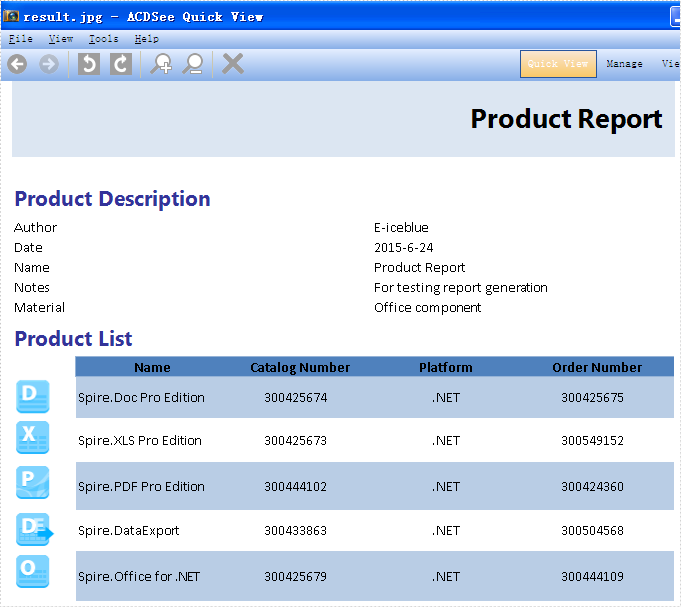
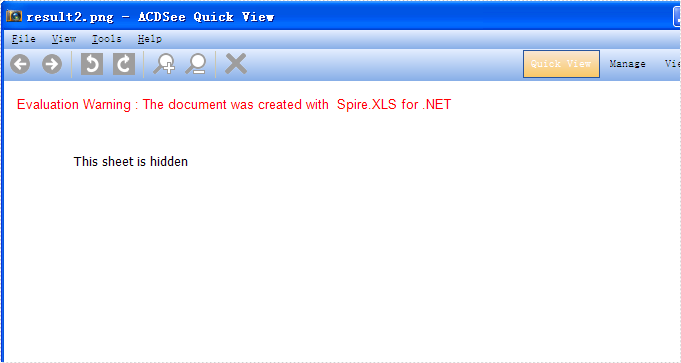
Effective screenshots:
Only convert the visible worksheet to Image in .jpg format.
Only convert the hidden worksheet to Image in .png format.
Full codes:
using Spire.Xls;

namespace ConsoleTest
{
    class Program
    {
        static void Main(string[] args)
        {
            Workbook book = new Workbook();
            book.LoadFromFile("sample.xlsx", ExcelVersion.Version2010);

            foreach (Spire.Xls.Worksheet ws2 in book.Worksheets)
            {
                //only convert the visible sheet
                if (ws2.Visibility == WorksheetVisibility.Visible)
                    ////only convert the hidden sheet
                    //if (ws2.Visibility == WorksheetVisibility.Hidden)
                    ws2.SaveToImage("result.jpg");
            }
        }
    }
}
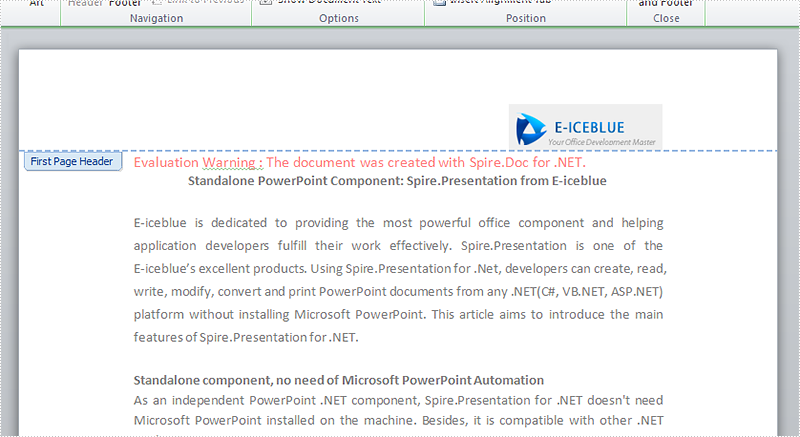
In the MS Word Header & Footer Tools options, we could choose "Different First Page" and "Different odd and even pages". The article "How to create different headers/footers for odd and even pages" introduces the method to set different odd and even pages using Spire.Doc. Spire.DOC also provides an easy and quick method to add different first page header & footer. This article is going to introduce the method to add different first page header & footer.
FYI, if you only need the first page header and footer, please just set the first page header & footer and leave the rest alone. In this way, your Word document will only have header & footer in the first page, which provides a simpler way to add a header only into the first page of a document than the method mentioned in the article "How to add a header only into the first page of a document".
Note: before start, please download the latest version of Spire.Doc and add Spire.Doc .dll in the bin folder as the reference of Visual Studio.
Step 1: Load the sample document that only contains text.
Document document = new Document();
document.LoadFromFile("T.docx");
Step 2: Get the section and set the property true.
Section section = document.Sections[0];
section.PageSetup.DifferentFirstPageHeaderFooter = true;
Step 3: Set the first page header. Here we append a picture as the header.
Paragraph paragraph1 = section.HeadersFooters.FirstPageHeader.AddParagraph();
paragraph1.Format.HorizontalAlignment = HorizontalAlignment.Right;
DocPicture headerimage = paragraph1.AppendPicture(Image.FromFile("2.bmp"));
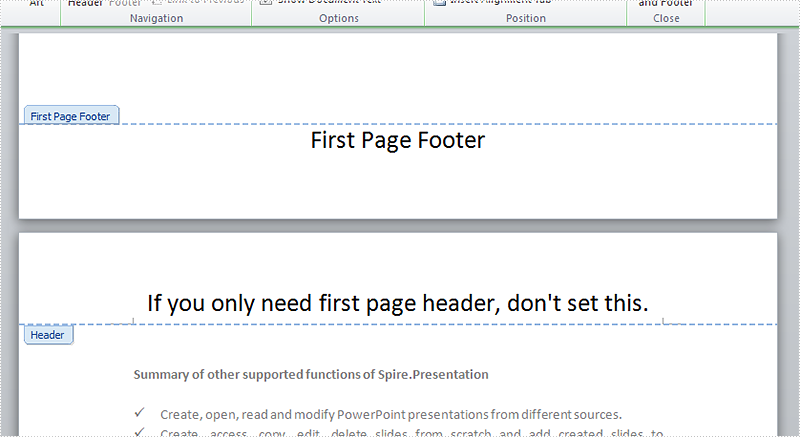
Step 4: Set the first page footer.
Paragraph paragraph2 = section.HeadersFooters.FirstPageFooter.AddParagraph();
paragraph2.Format.HorizontalAlignment = HorizontalAlignment.Center;
TextRange FF = paragraph2.AppendText("First Page Footer");
FF.CharacterFormat.FontSize = 20;
Step 5: Set the other header & footer. If you only need the first page header & footer, don't set this.
Paragraph paragraph3 = section.HeadersFooters.Header.AddParagraph();
paragraph3.Format.HorizontalAlignment = HorizontalAlignment.Center;
TextRange NH = paragraph3.AppendText("If you only need first page header, don't set this.");
NH.CharacterFormat.FontSize = 20;

Paragraph paragraph4 = section.HeadersFooters.Footer.AddParagraph();
paragraph4.Format.HorizontalAlignment = HorizontalAlignment.Center;
TextRange NF = paragraph4.AppendText("If you only need first page footer, don't set this.");
NF.CharacterFormat.FontSize = 20;
Step 6: save the document and launch to see effects.
document.SaveToFile("R.docx", FileFormat.Docx2010);
System.Diagnostics.Process.Start("R.docx");
Effects:
Full codes:
using System;
using System.Collections.Generic;
using System.Linq;
using System.Text;
using Spire.Doc;
using Spire.Doc.Documents;
using Spire.Doc.Fields;
using System.Drawing;

namespace Mirror_Margin
{
    class Program
    {
        static void Main(string[] args)
        {
            Document document = new Document();
            document.LoadFromFile("T.docx");

            Section section = document.Sections[0];
            section.PageSetup.DifferentFirstPageHeaderFooter = true;

            Paragraph paragraph1 = section.HeadersFooters.FirstPageHeader.AddParagraph();
            paragraph1.Format.HorizontalAlignment = HorizontalAlignment.Right;
            DocPicture headerimage = paragraph1.AppendPicture(Image.FromFile("2.bmp"));

            Paragraph paragraph2 = section.HeadersFooters.FirstPageFooter.AddParagraph();
            paragraph2.Format.HorizontalAlignment = HorizontalAlignment.Center;
            TextRange FF = paragraph2.AppendText("First Page Footer");
            FF.CharacterFormat.FontSize = 20;

            Paragraph paragraph3 = section.HeadersFooters.Header.AddParagraph();
            paragraph3.Format.HorizontalAlignment = HorizontalAlignment.Center;
            TextRange NH = paragraph3.AppendText("If you only need first page header, don't set this.");
            NH.CharacterFormat.FontSize = 20;

            Paragraph paragraph4 = section.HeadersFooters.Footer.AddParagraph();
            paragraph4.Format.HorizontalAlignment = HorizontalAlignment.Center;
            TextRange NF = paragraph4.AppendText("If you only need first page footer, don't set this.");
            NF.CharacterFormat.FontSize = 20;

            document.SaveToFile("R.docx", FileFormat.Docx2010);
            System.Diagnostics.Process.Start("R.docx");
        }
    }
}
