
Knowledgebase (2417)
Children categories
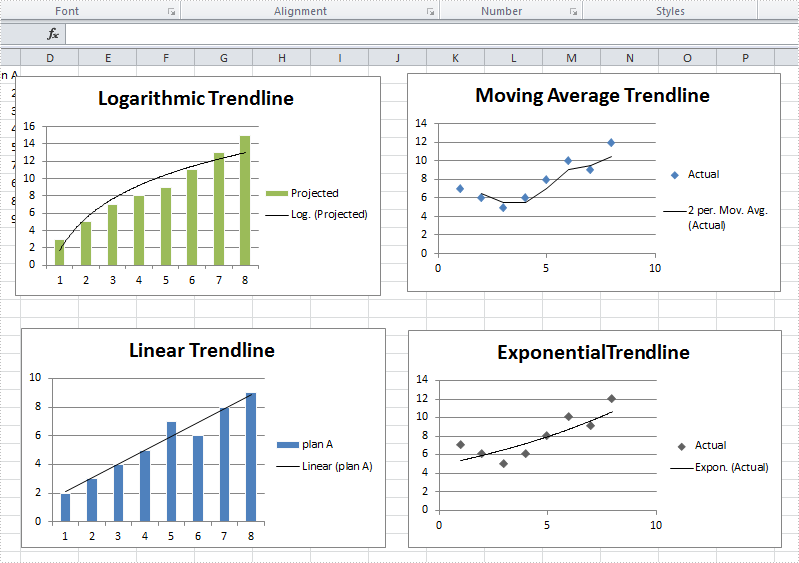
A trendline is used to show the trend of data series and predict future tendency. Totally, there are six different types: linear trendline, logarithmic trendline, polynomial trendline, power trendline, exponential trendline, and moving average trendline. We may choose different trendline based on the data type we have for different trendline has different advantages to show trend.
For example, a linear trendline works well to show the increase or decrease of data at a steady rate while a logarithmic trendline is often used to show the rate of change in the data increases or decreases quickly and then levels out.
Spire.XLS supports to add all of those six trendlines in charts. This article is going to show how to add trendlines in visual studio.
Before adding trendlines

After adding trendlines
Step 1: Load the workbook and create a sheet
Workbook workbook = new Workbook();
workbook.LoadFromFile("S2.xlsx");
Worksheet sheet = workbook.Worksheets[0];
Step 2: Select targeted chart, add trendline and set its type
//select chart and set logarithmic trendline
Chart chart = sheet.Charts[0];
chart.Series[0].TrendLines.Add(TrendLineType.Logarithmic);
//select chart and set moving_average trendline
Chart chart1 = sheet.Charts[1];
chart1.Series[0].TrendLines.Add(TrendLineType.Moving_Average);
//select chart and set linear trendline
Chart chart2 = sheet.Charts[2];
chart2.Series[0].TrendLines.Add(TrendLineType.Linear);
//select chart and set exponential trendline
Chart chart3 = sheet.Charts[3];
chart3.Series[0].TrendLines.Add(TrendLineType.Exponential);
Step 3: Save and launch the document
workbook.SaveToFile("S3.xlsx", ExcelVersion.Version2010);
System.Diagnostics.Process.Start("S3.xlsx");
Full code:
using System;
using System.Collections.Generic;
using System.Linq;
using System.Text;
using Spire.Xls;

namespace TradeLine
{
    class Program
    {
        static void Main(string[] args)
        {
            Workbook workbook = new Workbook();
            workbook.LoadFromFile("S2.xlsx");
            Worksheet sheet = workbook.Worksheets[0];


            Chart chart = sheet.Charts[0];
            chart.Series[0].TrendLines.Add(TrendLineType.Logarithmic);

            Chart chart1 = sheet.Charts[1];
            chart1.Series[0].TrendLines.Add(TrendLineType.Moving_Average);

            Chart chart2 = sheet.Charts[2];
            chart2.Series[0].TrendLines.Add(TrendLineType.Linear);

            Chart chart3 = sheet.Charts[3];
            chart3.Series[0].TrendLines.Add(TrendLineType.Exponential);

            workbook.SaveToFile("S3.xlsx", ExcelVersion.Version2010);
            System.Diagnostics.Process.Start("S3.xlsx");

        }
    }
}
Please note that we cannot add a trendline to data series in a stacked, 3-D, radar, pie, surface, or doughnut chart because those types of chart don't support trendline.
How to add hyperlink to the existing text on presentation slides in C#
2015-05-18 08:15:52 Written by KoohjiWith the help of Spire.Presentation, developers can insert new hyperlink into PowerPoint Presentation and edit the existing hyperlinks in C# and VB.NET. This article will show you how to add hyperlink to the existing text on presentation slides.
Firstly check the screenshot of the original presentation slides.
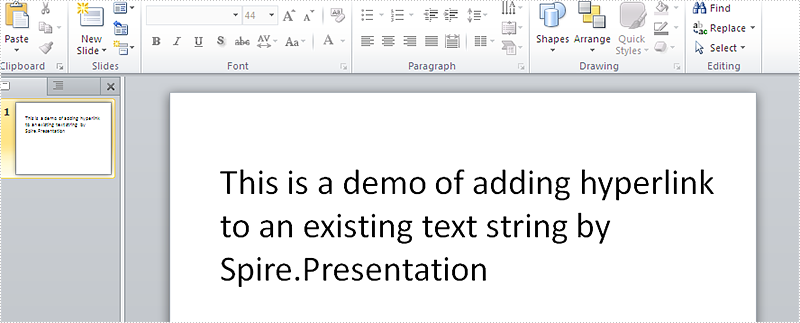
Here comes to the steps of how to adding hyperlink to an existing text in Presentation slide:
Step 1: Create a new presentation document and load from file.
Presentation ppt = new Presentation();
ppt.LoadFromFile("Sample.pptx", FileFormat.Pptx2010);
Step 2: Find the text we want to add link to it.
IAutoShape shape = ppt.Slides[0].Shapes[0] as IAutoShape;
TextParagraph tp = shape.TextFrame.TextRange.Paragraph;
string temp = tp.Text;
Step 3: Adding the hyperlink to the existing text.
//split the original text
string textToLink = "Spire.Presentation";
string[] strSplit = temp.Split(new string[] { "Spire.Presentation" }, StringSplitOptions.None);

//Clear all text
tp.TextRanges.Clear();

//Add new text
TextRange tr = new TextRange(strSplit[0]);
tp.TextRanges.Append(tr);

//Add the hyperlink
tr = new TextRange(textToLink);
tr.ClickAction.Address = "http://www.e-iceblue.com/Introduce/presentation-for-net-introduce.html";

tp.TextRanges.Append(tr);
Step 4: Save the document to file.
ppt.SaveToFile("Result.pptx", FileFormat.Pptx2010);
Effective screenshot after adding the hyperlink to the existing text:
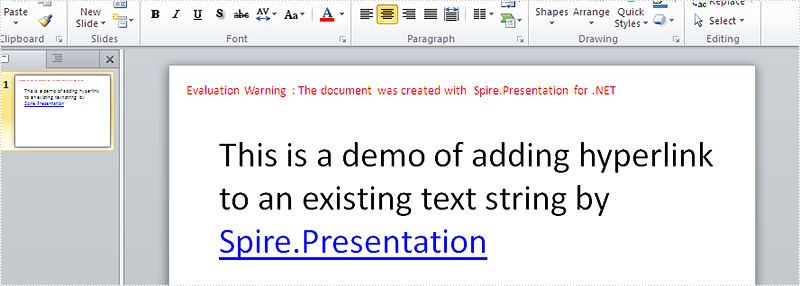
Full codes:
using Spire.Presentation;
using System;
namespace AddHyperlink
{

    class Program
    {

        static void Main(string[] args)
        {
            Presentation ppt = new Presentation();
            ppt.LoadFromFile("Sample.pptx", FileFormat.Pptx2010);

            IAutoShape shape = ppt.Slides[0].Shapes[0] as IAutoShape;
            TextParagraph tp = shape.TextFrame.TextRange.Paragraph;
            string temp = tp.Text;

            //split the original text
            string textToLink = "Spire.Presentation";
            string[] strSplit = temp.Split(new string[] { "Spire.Presentation" }, StringSplitOptions.None);

            //Clear all text
            tp.TextRanges.Clear();

            //Add new text
            TextRange tr = new TextRange(strSplit[0]);
            tp.TextRanges.Append(tr);

            //Add the hyperlink
            tr = new TextRange(textToLink);
            tr.ClickAction.Address = "http://www.e-iceblue.com/Introduce/presentation-for-net-introduce.html";

            tp.TextRanges.Append(tr);

            ppt.SaveToFile("Result.pptx", FileFormat.Pptx2010);

        }
    }
}
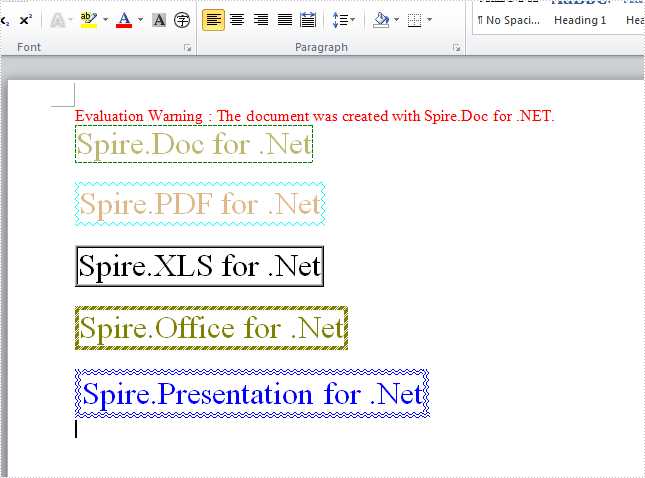
To emphasize and beautify a set of characters or sentence, applying a border around the characters or sentence is a good option. Spire.Doc enables developers to achieve this feature in C#. And there are plenty of built-in border styles available, such as: Wave, Hairline, DotDash, DashSmallGap, DashLargeGap, DoubleWave, DashDotStroker, Emboss3D, Engrave3D, TwistedLines1 and so on. The following codes show how to achieve character border with some border styles mentioned above:
Note: Before start, please make sure that Visual Studio and Spire.Doc have been installed properly. We will use Spire.Doc .dll as reference.
Step 1: Load word document
Document doc = new Document();
Section section = doc.AddSection();
Step 2: Add the characters needed to apply a border and set the border style
//DashSmallGap Border
Paragraph para = section.AddParagraph();
para.Format.HorizontalAlignment = HorizontalAlignment.Left;
TextRange tr = para.AppendText("Spire.Doc for .Net");
tr.CharacterFormat.Border.BorderType = Spire.Doc.Documents.BorderStyle.DashSmallGap;
tr.CharacterFormat.Border.Color = Color.Green;
tr.CharacterFormat.FontSize = 24;
tr.CharacterFormat.TextColor = Color.DarkKhaki;
para.AppendBreak(BreakType.LineBreak);

//Wave Border
para = section.AddParagraph();
para.Format.HorizontalAlignment = HorizontalAlignment.Left;
tr = para.AppendText("Spire.PDF for .Net");
tr.CharacterFormat.Border.BorderType = Spire.Doc.Documents.BorderStyle.Wave;
tr.CharacterFormat.Border.Color = Color.Aqua;
tr.CharacterFormat.FontSize = 24;
tr.CharacterFormat.TextColor = Color.BurlyWood;
para.AppendBreak(BreakType.LineBreak);

//Emboss3D Border
para = section.AddParagraph();
para.Format.HorizontalAlignment = HorizontalAlignment.Left;
tr = para.AppendText("Spire.XLS for .Net");
tr.CharacterFormat.Border.BorderType = Spire.Doc.Documents.BorderStyle.Emboss3D;
tr.CharacterFormat.FontSize = 24;
para.AppendBreak(BreakType.LineBreak);

//DashDotStroker Border
para = section.AddParagraph();
para.Format.HorizontalAlignment = HorizontalAlignment.Left;
tr = para.AppendText("Spire.Office for .Net");
tr.CharacterFormat.Border.BorderType = Spire.Doc.Documents.BorderStyle.DashDotStroker;
tr.CharacterFormat.Border.Color = Color.Olive;
tr.CharacterFormat.FontSize = 24;
tr.CharacterFormat.TextColor = Color.Olive;
para.AppendBreak(BreakType.LineBreak);

//DoubleWave Border
para = section.AddParagraph();
para.Format.HorizontalAlignment = HorizontalAlignment.Left;
tr = para.AppendText("Spire.Presentation for .Net");
tr.CharacterFormat.Border.BorderType = Spire.Doc.Documents.BorderStyle.DoubleWave;
tr.CharacterFormat.Border.Color = Color.Blue;
tr.CharacterFormat.FontSize = 24;
tr.CharacterFormat.TextColor = Color.Blue;
para.AppendBreak(BreakType.LineBreak);
Step 3: Save and launch word document
doc.SaveToFile("S1.docx", FileFormat.Docx);
System.Diagnostics.Process.Start("S1.docx");
Effect of screenshot:
Full Code:
using System;
using System.Collections.Generic;
using System.Linq;
using System.Text;
using Spire.Doc;
using Spire.Doc.Documents;
using Spire.Doc.Fields;
using System.Drawing;

namespace ConsoleApplication1
{
    class Program
    {
        static void Main(string[] args)
        {
            Document doc = new Document();
            Section section = doc.AddSection();

            //DashSmallGap Border
            Paragraph para = section.AddParagraph();
            para.Format.HorizontalAlignment = HorizontalAlignment.Left;
            TextRange tr = para.AppendText("Spire.Doc for .Net");
            tr.CharacterFormat.Border.BorderType = Spire.Doc.Documents.BorderStyle.DashSmallGap;
            tr.CharacterFormat.Border.Color = Color.Green;
            tr.CharacterFormat.FontSize = 24;
            tr.CharacterFormat.TextColor = Color.DarkKhaki;
            para.AppendBreak(BreakType.LineBreak);

            //Wave Border
            para = section.AddParagraph();
            para.Format.HorizontalAlignment = HorizontalAlignment.Left;
            tr = para.AppendText("Spire.PDF for .Net");
            tr.CharacterFormat.Border.BorderType = Spire.Doc.Documents.BorderStyle.Wave;
            tr.CharacterFormat.Border.Color = Color.Aqua;
            tr.CharacterFormat.FontSize = 24;
            tr.CharacterFormat.TextColor = Color.BurlyWood;
            para.AppendBreak(BreakType.LineBreak);

            //Emboss3D Border
            para = section.AddParagraph();
            para.Format.HorizontalAlignment = HorizontalAlignment.Left;
            tr = para.AppendText("Spire.XLS for .Net");
            tr.CharacterFormat.Border.BorderType = Spire.Doc.Documents.BorderStyle.Emboss3D;
            tr.CharacterFormat.FontSize = 24;
            para.AppendBreak(BreakType.LineBreak);

            //DashDotStroker Border
            para = section.AddParagraph();
            para.Format.HorizontalAlignment = HorizontalAlignment.Left;
            tr = para.AppendText("Spire.Office for .Net");
            tr.CharacterFormat.Border.BorderType = Spire.Doc.Documents.BorderStyle.DashDotStroker;
            tr.CharacterFormat.Border.Color = Color.Olive;
            tr.CharacterFormat.FontSize = 24;
            tr.CharacterFormat.TextColor = Color.Olive;
            para.AppendBreak(BreakType.LineBreak);

            //DoubleWave Border
            para = section.AddParagraph();
            para.Format.HorizontalAlignment = HorizontalAlignment.Left;
            tr = para.AppendText("Spire.Presentation for .Net");
            tr.CharacterFormat.Border.BorderType = Spire.Doc.Documents.BorderStyle.DoubleWave;
            tr.CharacterFormat.Border.Color = Color.Blue;
            tr.CharacterFormat.FontSize = 24;
            tr.CharacterFormat.TextColor = Color.Blue;
            para.AppendBreak(BreakType.LineBreak);

            doc.SaveToFile("S1.docx", FileFormat.Docx);
            System.Diagnostics.Process.Start("S1.docx");

        }
    }
}
