
Knowledgebase (2417)
Children categories
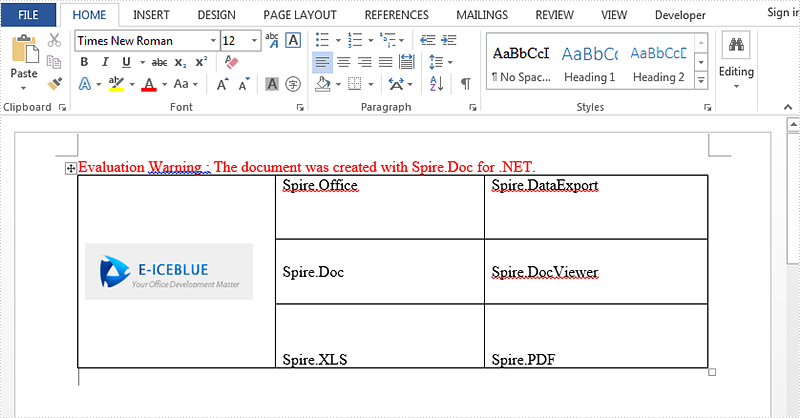
Set vertical alignment for table can show contents in different positions. There are three options including Top, Bottom, Middle. Default is Middle. This article talk about how to set vertical alignment for tables via Spire.Doc, the following is the detailed steps:
Step 1: Create a new Word document and add a new section.
Document document = new Document();
Section section = document.AddSection();
Step 2: Add a table with 3 columns and 3 rows. You can set showBoder property as true when you creating the table. Merge the first column as one cell.
Table table = section.AddTable(true);
table.ResetCells(3, 3);
table.ApplyVerticalMerge(0, 0, 2);
Step 3: Set the vertical alignment for each cell, default is top. Here we set the first row as Top, second row as Middle, third row as Bottom.
table.Rows[0].Cells[0].CellFormat.VerticalAlignment = VerticalAlignment.Middle;
table.Rows[0].Cells[1].CellFormat.VerticalAlignment = VerticalAlignment.Top;
table.Rows[0].Cells[2].CellFormat.VerticalAlignment = VerticalAlignment.Top;
table.Rows[1].Cells[1].CellFormat.VerticalAlignment = VerticalAlignment.Middle;
table.Rows[1].Cells[2].CellFormat.VerticalAlignment = VerticalAlignment.Middle;
table.Rows[2].Cells[1].CellFormat.VerticalAlignment = VerticalAlignment.Bottom;
table.Rows[2].Cells[2].CellFormat.VerticalAlignment = VerticalAlignment.Bottom;
Step 4: Append data to table.
Paragraph paraPic = table.Rows[0].Cells[0].AddParagraph();
DocPicture pic = paraPic.AppendPicture(Image.FromFile("1.png"));

String[][] data = {
                       new string[] {"","Spire.Office","Spire.DataExport"},
                       new string[] {"","Spire.Doc","Spire.DocViewer"},
                       new string[] {"","Spire.XLS","Spire.PDF"}
                            };

      for (int r = 0; r < 3; r++)
      {
        TableRow dataRow = table.Rows[r];
        dataRow.Height = 50;
        for (int c = 0; c < 3; c++)
           {
             if (c == 1)
               {
                  Paragraph par = dataRow.Cells[c].AddParagraph();
                  par.AppendText(data[r][c]);
                  dataRow.Cells[c].Width = (section.PageSetup.ClientWidth) / 2;
                }
             if (c == 2)
                {
                  Paragraph par = dataRow.Cells[c].AddParagraph();
                  par.AppendText(data[r][c]);
                  dataRow.Cells[c].Width = (section.PageSetup.ClientWidth) / 2;
                 }
              }
         }
Step 5: Save and review.
document.SaveToFile(@"result.docx", FileFormat.Docx2013);
System.Diagnostics.Process.Start(@"result.docx");
Result screenshot:
Full code:
using Spire.Doc;
using Spire.Doc.Documents;
using Spire.Doc.Fields;
using System;
using System.Drawing;
namespace SetVerticalAlignment
{
    class Program
    {

        static void Main(string[] args)
        {

            Document document = new Document();
            Section section = document.AddSection();

            Table table = section.AddTable(true);
            table.ResetCells(3, 3);

            table.ApplyVerticalMerge(0, 0, 2);

            table.Rows[0].Cells[0].CellFormat.VerticalAlignment = VerticalAlignment.Middle;
            table.Rows[0].Cells[1].CellFormat.VerticalAlignment = VerticalAlignment.Top;
            table.Rows[0].Cells[2].CellFormat.VerticalAlignment = VerticalAlignment.Top;
            table.Rows[1].Cells[1].CellFormat.VerticalAlignment = VerticalAlignment.Middle;
            table.Rows[1].Cells[2].CellFormat.VerticalAlignment = VerticalAlignment.Middle;
            table.Rows[2].Cells[1].CellFormat.VerticalAlignment = VerticalAlignment.Bottom;
            table.Rows[2].Cells[2].CellFormat.VerticalAlignment = VerticalAlignment.Bottom;

            Paragraph paraPic = table.Rows[0].Cells[0].AddParagraph();
            DocPicture pic = paraPic.AppendPicture(Image.FromFile("1.png"));

            String[][] data = {
                       new string[] {"","Spire.Office","Spire.DataExport"},
                       new string[] {"","Spire.Doc","Spire.DocViewer"},
                       new string[] {"","Spire.XLS","Spire.PDF"}
                            };

            for (int r = 0; r < 3; r++)
            {
                TableRow dataRow = table.Rows[r];
                dataRow.Height = 50;
                for (int c = 0; c < 3; c++)
                {
                    if (c == 1)
                    {
                        Paragraph par = dataRow.Cells[c].AddParagraph();
                        par.AppendText(data[r][c]);
                        dataRow.Cells[c].Width = (section.PageSetup.ClientWidth) / 2;
                    }
                    if (c == 2)
                    {
                        Paragraph par = dataRow.Cells[c].AddParagraph();
                        par.AppendText(data[r][c]);
                        dataRow.Cells[c].Width = (section.PageSetup.ClientWidth) / 2;
                    }
                }
            }
            document.SaveToFile(@"result.docx", FileFormat.Docx2013);
            System.Diagnostics.Process.Start(@"result.docx");
        }
    }
}
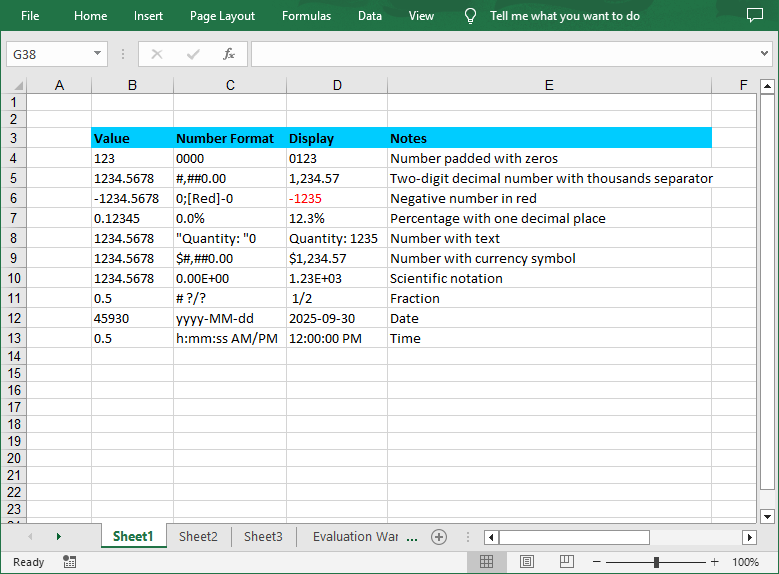
In Excel worksheets, the raw data is often displayed as plain numbers that lack intuitiveness. By setting number format, these numbers can be transformed into a more understandable form. For example, setting sales data in a currency format, i.e., adding a currency symbol and a thousands separator, can make the represented amounts clear at a glance. Formatting market share data into a percentage format can clearly shows the proportions of each part, facilitating quick comparisons and analysis. In this article, you will learn how to set number formats in Excel cells in C# using Spire.XLS for .NET.
Install Spire.XLS for .NET
To begin with, you need to add the DLL files included in the Spire.XLS for .NET package as references in your .NET project. The DLL files can be either downloaded from this link or installed via NuGet.
PM> Install-Package Spire.XLS
Symbols in Excel Number Format
In Excel number format codes, several symbols are used to define how numbers are displayed. Below is a detailed explanation of the common symbols:
| Symbols | Description |
| 0 | A required digit placeholder, padded with zeros if necessary. |
| # | An optional digit placeholder. It does not display insignificant zeros. |
| ? | An optional digit placeholder. It adds spaces to align decimal points and trailing zeros for fractions. |
| . | Represents the decimal point. |
| , | Serves as a thousands separator. |
| ; | Separates different sections of a number format code for positive, negative, zero, and text values. |
| % | Multiplies the number by 100 and adds a percentage sign. |
| E - + | Scientific notation. |
| Currency ($, €, ¥, etc.) | Displays the respective currency symbol. |
| [Color] | Specifies a color for the number display. |
| Date/Time (yyyy, mmmm, mm, dd, hh, ss, AM/PM) | Represent year, full month name, month, day, hour, minute, second, and 12-hour clock markers respectively. |
Set Number Format in Excel Cells in C#
Spire.XLS for .NET provides the CellRange.NumberValue property to set the number value of a cell and the CellRange.NumberFormat property to set the number format with format code. The detailed steps are as follows:
- Create a Workbook instance.
- Get a specified worksheet through Workbook.Worksheets[] property.
- Get a specified cell through Worksheet.Range[] property.
- Add text to specified cells through CellRange.Text property.
- Add numeric values to specified cells through CellRange.NumberValue property, and then set the number formats through CellRange.NumberFormat property.
- Save the result file using Workbook.SaveToFile() method.
- C#
using Spire.Xls;

namespace SetNumberFormat
{
    class Program
    {
        static void Main(string[] args)
        {
            // Create a Workbook instance
            Workbook workbook = new Workbook();

            // Get the first worksheet
            Worksheet sheet = workbook.Worksheets[0];

            // Add text to sepcified cells and set cell styles
            sheet.Range["B3"].Text = "Value";
            sheet.Range["C3"].Text = "Number Format";
            sheet.Range["D3"].Text = "Display";
            sheet.Range["E3"].Text = "Notes";
            sheet.Range["B3:E3"].Style.Font.IsBold = true;
            sheet.Range["B3:E3"].Style.KnownColor = ExcelColors.SkyBlue;

            // Number padded with zeros
            sheet.Range["B4"].Text = "123";
            sheet.Range["C4"].Text = "0000";
            sheet.Range["D4"].NumberValue = 123;
            sheet.Range["D4"].NumberFormat = "0000";
            sheet.Range["E4"].Text = "Number padded with zeros";

            // Two-digit decimal number with thousands separator
            sheet.Range["B5"].Text = "1234.5678";
            sheet.Range["C5"].Text = "#,##0.00";
            sheet.Range["D5"].NumberValue = 1234.5678;
            sheet.Range["D5"].NumberFormat = "#,##0.00";
            sheet.Range["E5"].Text = "Two-digit decimal number with thousands separator";

            // Negative number in red
            sheet.Range["B6"].Text = "-1234.5678";
            sheet.Range["C6"].Text = "0;[Red]-0";
            sheet.Range["D6"].NumberValue = -1234.5678;
            sheet.Range["D6"].NumberFormat = "0;[Red]-0";
            sheet.Range["E6"].Text = "Negative number in red";

            // Percentage with one decimal place
            sheet.Range["B7"].Text = "0.12345";
            sheet.Range["C7"].Text = "0.0%";
            sheet.Range["D7"].NumberValue = 0.12345;
            sheet.Range["D7"].NumberFormat = "0.0%";
            sheet.Range["E7"].Text = "Percentage with one decimal place";

            // Number with text
            sheet.Range["B8"].Text = "1234.5678";
            sheet.Range["C8"].Text = "\"Quantity: \"0";
            sheet.Range["D8"].NumberValue = 1234.5678;
            sheet.Range["D8"].NumberFormat = "\"Quantity: \"0";
            sheet.Range["E8"].Text = "Number with text";

            // Number with currency symbol
            sheet.Range["B9"].Text = "1234.5678";
            sheet.Range["C9"].Text = "$#,##0.00";
            sheet.Range["D9"].NumberValue = 1234.5678;
            sheet.Range["D9"].NumberFormat = "$#,##0.00";
            sheet.Range["E9"].Text = "Number with currency symbol";

            // Scientific notation format
            sheet.Range["B10"].Text = "1234.5678";
            sheet.Range["C10"].Text = "0.00E+00";
            sheet.Range["D10"].NumberValue = 1234.5678;
            sheet.Range["D10"].NumberFormat = "0.00E+00";
            sheet.Range["E10"].Text = "Scientific notation";

            // Fraction
            sheet.Range["B11"].Text = "0.5";
            sheet.Range["C11"].Text = "# ?/?";
            sheet.Range["D11"].NumberValue = 0.5;
            sheet.Range["D11"].NumberFormat = "# ?/?";
            sheet.Range["E11"].Text = "Fraction";

            // Date
            sheet.Range["B12"].Text = "45930";
            sheet.Range["C12"].Text = "yyyy-MM-dd";
            sheet.Range["D12"].NumberValue = 45930;
            sheet.Range["D12"].NumberFormat = "yyyy-MM-dd";
            sheet.Range["E12"].Text = "Date";

            // Time
            sheet.Range["B13"].Text = "0.5";
            sheet.Range["C13"].Text = "h:mm:ss AM/PM";
            sheet.Range["D13"].NumberValue = 0.5;
            sheet.Range["D13"].NumberFormat = "h:mm:ss AM/PM";
            sheet.Range["E13"].Text = "Time";

            // Set cell styles for the used range
            sheet.AllocatedRange.Style.Font.FontName = "Calibri";
            sheet.AllocatedRange.Style.Font.Size = 11;
            sheet.AllocatedRange.Style.HorizontalAlignment = HorizontalAlignType.Left;

            // Autofit column width
            sheet.AutoFitColumn(2);
            sheet.AutoFitColumn(3);
            sheet.AutoFitColumn(4);
            sheet.AutoFitColumn(5);

            // Save the result file
            workbook.SaveToFile("ExcelNumberFormat.xlsx", ExcelVersion.Version2016);
        }
    }
}
Apply for a Temporary License
If you'd like to remove the evaluation message from the generated documents, or to get rid of the function limitations, please request a 30-day trial license for yourself.
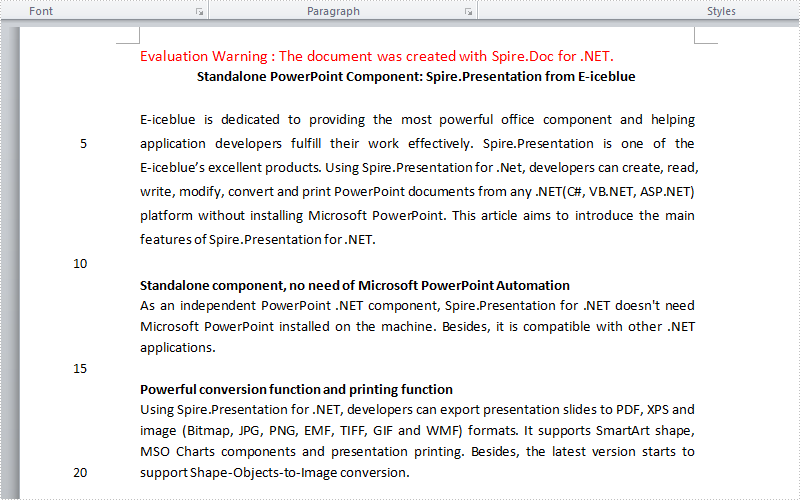
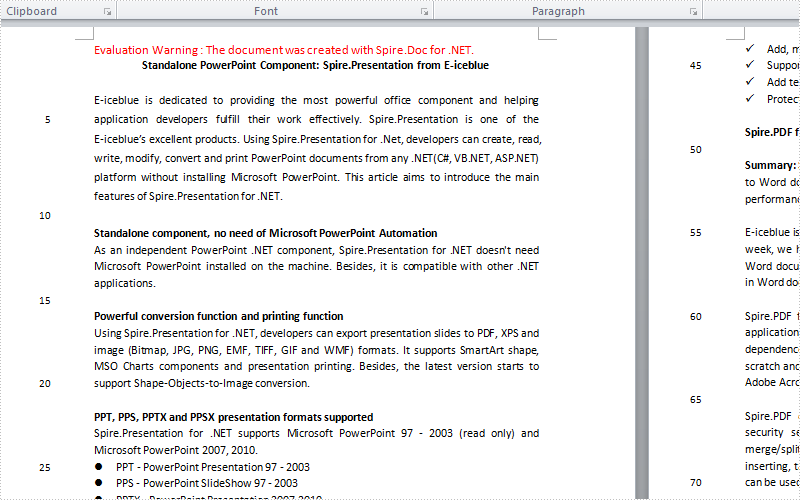
Line numbers is used to display the number of lines counted automatically by Word next to each line of text. It's very useful when we need to refer to specific lines in a document such as contract or legal papers. Line numbers function in word allows us to set the start value, the number interval, the distance from text and the numbering mode of line numbers. Using Spire.Doc, we could achieve all of features mentioned above. This article is going to introduce how to add line numbers in C# using Spire.Doc.
Note: Before start, please download the latest version of Spire.Doc and add Spire.Doc .dll in the bin folder as the reference of visual studio.
Step 1: Load the sample document which only has text.
Document document = new Document();
document.LoadFromFile("T.docx");
Step 2: Set the start value of the line numbers.
document.Sections[0].PageSetup.LineNumberingStartValue = 1;
Step 3: Set the interval between displayed numbers.
document.Sections[0].PageSetup.LineNumberingStep = 6;
Step 4: Set the distance between line numbers and text.
document.Sections[0].PageSetup.LineNumberingDistanceFromText = 40f;
Step 5: Set the numbering mode of line numbers. Here we have four choices: None, Continuous, RestartPage and RestartSection.
document.Sections[0].PageSetup.LineNumberingRestartMode = LineNumberingRestartMode.Continuous;
Step 6: Save the document and launch to see effects.
 document.SaveToFile("result.docx",FileFormat.Docx2013);
System.Diagnostics.Process.Start("result.docx");
Effects:
Single Page:
Continuous Page:
Full Codes:
using System;
using System.Collections.Generic;
using System.Linq;
using System.Text;
using Spire.Doc;

namespace How_to_add_line_numbering
{
    class Program
    {
        static void Main(string[] args)
        {
            Document document = new Document();
            document.LoadFromFile("T.docx");

            document.Sections[0].PageSetup.LineNumberingStartValue = 1;
            document.Sections[0].PageSetup.LineNumberingStep = 6;
            document.Sections[0].PageSetup.LineNumberingDistanceFromText = 40f;
            document.Sections[0].PageSetup.LineNumberingRestartMode = LineNumberingRestartMode.Continuous;

             document.SaveToFile("result.docx",FileFormat.Docx2013);
            System.Diagnostics.Process.Start("result.docx");
        }
    }
}
