
Knowledgebase (2417)
Children categories
Speaker notes in PowerPoint play a crucial role in enhancing the presenter's delivery and ensuring a seamless presentation experience. They can be added to individual slides to provide valuable guidance, reminders, and supplementary information for the presenter. Unlike the content displayed on the slides, speaker notes are typically not visible to the audience during the actual presentation. In this article, we'll explain how to add, read or delete speaker notes in a PowerPoint presentation in Python using Spire.Presentation for Python.
- Add Speaker Notes to PowerPoint in Python
- Read Speaker Notes in PowerPoint in Python
- Delete Speaker Notes from PowerPoint in Python
Install Spire.Presentation for Python
This scenario requires Spire.Presentation for Python and plum-dispatch v1.7.4. They can be easily installed in your Windows through the following pip command.
pip install Spire.Presentation
If you are unsure how to install, please refer to this tutorial: How to Install Spire.Presentation for Python on Windows
Add Speaker Notes to PowerPoint in Python
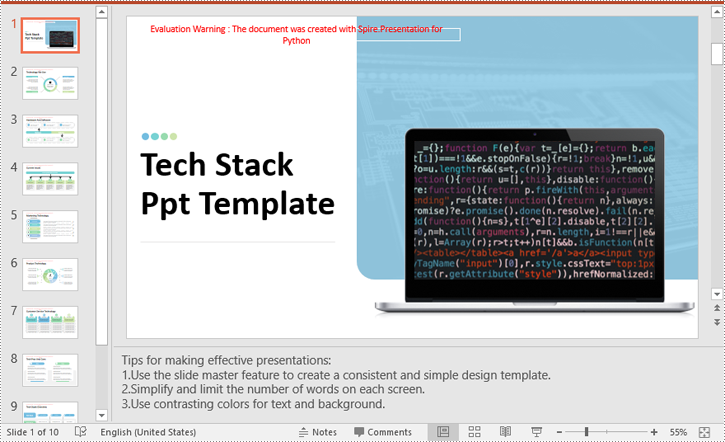
Spire.Presentation for Python provides the ISlide.AddNotesSlides() method to add notes to a PowerPoint slide. The detailed steps are as follows.
- Create a Presentation object.
- Load a PowerPoint presentation using Presentation.LoadFromFile() method.
- Get the slide that you want to add notes to using Presentation.Slides[index] property.
- Add a notes slide to the slide using ISlide.AddNotesSlides() method.
- Create TextParagraph objects and set text for the paragraphs using TextParagraph.Text property, then add the paragraphs to the notes slide using NotesSlide.NotesTextFrame.Paragraphs.Append() method.
- Save the resulting presentation using Presentation.SaveToFile() method.
- Python
from spire.presentation.common import *
from spire.presentation import *

# Create a Presentation object
ppt = Presentation()
# Load a PowerPoint presentation
ppt.LoadFromFile("Sample.pptx")

# Get the first slide
slide = ppt.Slides[0]

# Add a notes slide to the slide
notesSlide = slide.AddNotesSlide()

# Add 4 paragraphs to the notes slide
paragraph = TextParagraph()
paragraph.Text = "Tips for making effective presentations:"
notesSlide.NotesTextFrame.Paragraphs.Append(paragraph)

paragraph = TextParagraph()
paragraph.Text = "Use the slide master feature to create a consistent and simple design template."
notesSlide.NotesTextFrame.Paragraphs.Append(paragraph)

paragraph = TextParagraph()
paragraph.Text = "Simplify and limit the number of words on each screen."
notesSlide.NotesTextFrame.Paragraphs.Append(paragraph)

paragraph = TextParagraph()
paragraph.Text = "Use contrasting colors for text and background."
notesSlide.NotesTextFrame.Paragraphs.Append(paragraph)

# Set bullet type and style for specific paragraphs
for i in range(1, notesSlide.NotesTextFrame.Paragraphs.Count):
    notesSlide.NotesTextFrame.Paragraphs[i].BulletType = TextBulletType.Numbered
    notesSlide.NotesTextFrame.Paragraphs[i].BulletStyle = NumberedBulletStyle.BulletArabicPeriod

# Save the resulting presentation
ppt.SaveToFile("AddSpeakerNotes.pptx", FileFormat.Pptx2016)
ppt.Dispose()
Read Speaker Notes in PowerPoint in Python
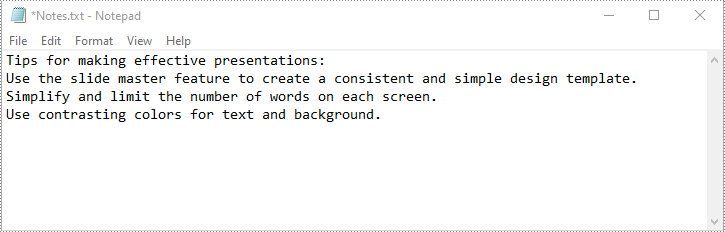
To read the text content of the notes, you can use the NotesSlide.NotesTextFrame.Text property. The detailed steps are as follows.
- Create a Presentation object.
- Load a PowerPoint presentation using Presentation.LoadFromFile() method.
- Get the slide that you want to read notes from using Presentation.Slides[index] property.
- Get the notes slide of the slide using ISlide.NotesSlide property.
- Get the text content of the notes slide using NotesSlide.NotesTextFrame.Text property.
- Write the text content into a text file.
- Python
from spire.presentation.common import *
from spire.presentation import *

# Create a Presentation object
ppt = Presentation()
# Load a PowerPoint presentation
ppt.LoadFromFile("AddSpeakerNotes.pptx")

# Get the first slide
slide = ppt.Slides[0]

# Get the notes slide of the slide
notesSlide = slide.NotesSlide

# Get the text content of the notes slide
notes = notesSlide.NotesTextFrame.Text

# Write the text content to a text file
with open("Notes.txt", 'w') as file:
    file.write(notes)

ppt.Dispose()
Delete Speaker Notes from PowerPoint in Python
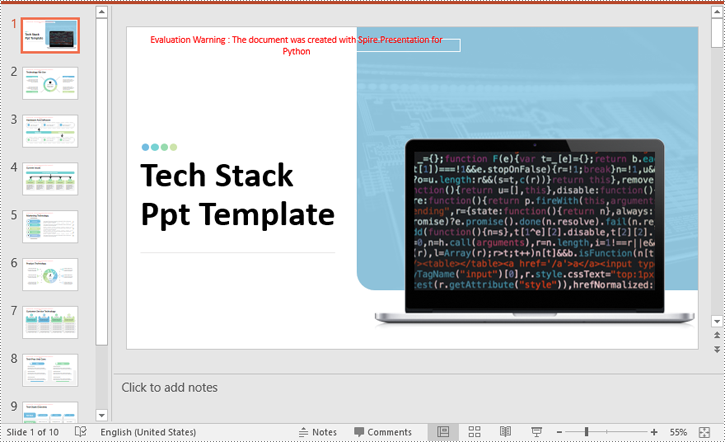
You can delete a specific paragraph of note or delete all the notes from a slide using the NotesSlide.NotesTextFrame.Paragraphs.RemoveAt(index) or NotesSlide.NotesTextFrame.Paragraphs.Clear() method. The detailed steps are as follows.
- Create a Presentation object.
- Load a PowerPoint presentation using Presentation.LoadFromFile() method.
- Get the slide that you want to delete notes from using Presentation.Slides[index] property.
- Get the notes slide of the slide using ISlide.NotesSlide property.
- Delete a specific paragraph of note or delete all the notes from the notes slide using the NotesSlide.NotesTextFrame.Paragraphs.RemoveAt(index) or NotesSlide.NotesTextFrame.Paragraphs.Clear() method.
- Save the resulting presentation using Presentation.SaveToFile() method.
- Python
from spire.presentation.common import *
from spire.presentation import *

# Create a Presentation object
presentation = Presentation()
# Load a PowerPoint presentation
presentation.LoadFromFile("AddSpeakerNotes.pptx")

# Get the first slide
slide = presentation.Slides[0]

# Get the notes slide of the slide
notesSlide = slide.NotesSlide

# Remove a specific paragraph of note from the notes slide
# notesSlide.NotesTextFrame.Paragraphs.RemoveAt(1)

# Remove all the notes from the notes slide
notesSlide.NotesTextFrame.Paragraphs.Clear()

# Save the resulting presentation
presentation.SaveToFile("DeleteSpeakerNotes.pptx", FileFormat.Pptx2013)
presentation.Dispose()
Apply for a Temporary License
If you'd like to remove the evaluation message from the generated documents, or to get rid of the function limitations, please request a 30-day trial license for yourself.
Dealing with a large number of Word documents can be very challenging. Whether it's editing or reviewing a large number of documents, there's a lot of time wasted on opening and closing documents. What's more, sharing and receiving a large number of separate Word documents can be annoying, as it may require a lot of repeated sending and receiving operations by both the sharer and the receiver. Therefore, in order to enhance efficiency and save time, it is advisable to merge related Word documents into a single file. From this article, you will know how to use Spire.Doc for Python to easily merge Word documents through Python programs.
- Merge Word Documents by Inserting Files with Python
- Merge Word Documents by Cloning Contents with Python
Install Spire.Doc for Python
This scenario requires Spire.Doc for Python and plum-dispatch v1.7.4. They can be easily installed in your Windows through the following pip command.
pip install Spire.Doc
If you are unsure how to install, please refer to this tutorial: How to Install Spire.Doc for Python on Windows
Merge Word Documents by Inserting Files with Python
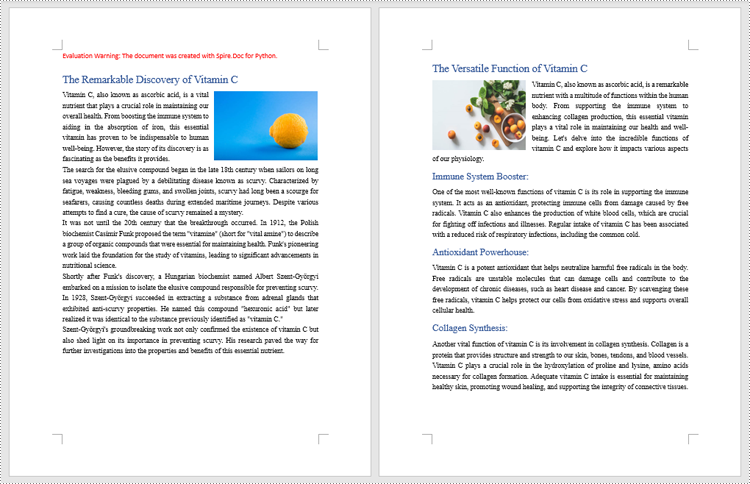
The method Document.insertTextFromFile() is used to insert other Word documents to the current one, and the inserted content will start from a new page. The detailed steps for merging Word documents by inserting are as follows:
- Create an object of Document class and load a Word document using Document.LoadFromFile() method.
- Insert the content from another document to it using Document.InsertTextFromFile() method.
- Save the document using Document.SaveToFile() method.
- Python
from spire.doc import *
from spire.doc.common import *

# Create an object of Document class and load a Word document
doc = Document()
doc.LoadFromFile("Sample1.docx")

# Insert the content from another Word document to this one
doc.InsertTextFromFile("Sample2.docx", FileFormat.Auto)

# Save the document
doc.SaveToFile("output/InsertDocuments.docx")
doc.Close()
Merge Word Documents by Cloning Contents with Python
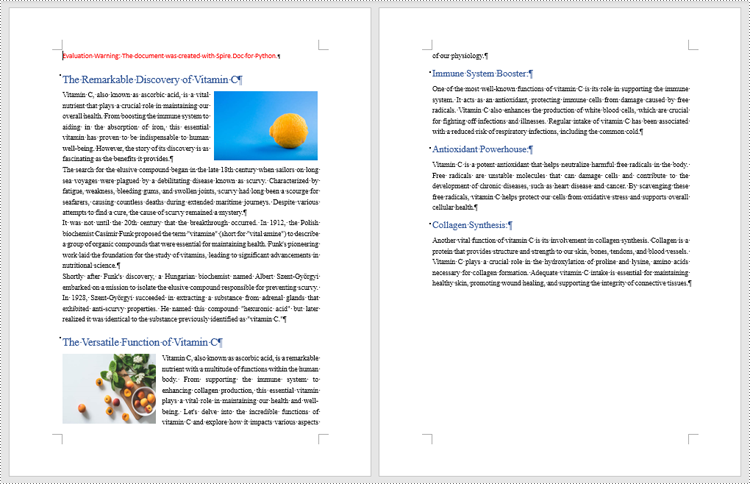
Merging Word documents can also be achieved by cloning contents from one Word document to another. This method maintains the formatting of the original document, and content cloned from another document continues at the end of the current document without starting a new Page. The detailed steps are as follows:
- Create two objects of Document class and load two Word documents using Document.LoadFromFile() method.
- Get the last section of the destination document using Document.Sections.get_Item() method.
- Loop through the sections in the document to be cloned and then loop through the child objects of the sections.
- Get a section child object using Section.Body.ChildObjects.get_Item() method.
- Add the child object to the last section of the destination document using Section.Body.ChildObjects.Add() method.
- Save the result document using Document.SaveToFile() method.
- Python
from spire.doc import *
from spire.doc.common import *

# Create two objects of Document class and load two Word documents
doc1 = Document()
doc1.LoadFromFile("Sample1.docx")
doc2 = Document()
doc2.LoadFromFile("Sample2.docx")

# Get the last section of the first document
lastSection = doc1.Sections.get_Item(doc1.Sections.Count - 1)

# Loop through the sections in the second document
for i in range(doc2.Sections.Count):
    section = doc2.Sections.get_Item(i)
    # Loop through the child objects in the sections
    for j in range(section.Body.ChildObjects.Count):
        obj = section.Body.ChildObjects.get_Item(j)
        # Add the child objects from the second document to the last section of the first document
        lastSection.Body.ChildObjects.Add(obj.Clone())

# Save the result document
doc1.SaveToFile("output/MergeByCloning.docx")
doc1.Close()
doc2.Close()
Apply for a Temporary License
If you'd like to remove the evaluation message from the generated documents, or to get rid of the function limitations, please request a 30-day trial license for yourself.
The ability to set a password for a PDF document or remove the password from an encrypted PDF document is invaluable for securing sensitive information while maintaining the flexibility and convenience of working with PDF files. By setting up passwords for PDF documents, individuals can control access to their files, preventing unauthorized viewing, editing, or copying. Conversely, unprotecting a PDF document can make the document accessible or editable again. In this article, you will learn how to password-protect PDF documents as well as how to remove passwords from encrypt PDF documents using Spire.PDF for Python.
Install Spire.PDF for Python
This scenario requires Spire.PDF for Python and plum-dispatch v1.7.4. They can be easily installed in your Windows through the following pip command.
pip install Spire.PDF
If you are unsure how to install, please refer to this tutorial: How to Install Spire.PDF for Python on Windows
Protect PDF with Password in Python
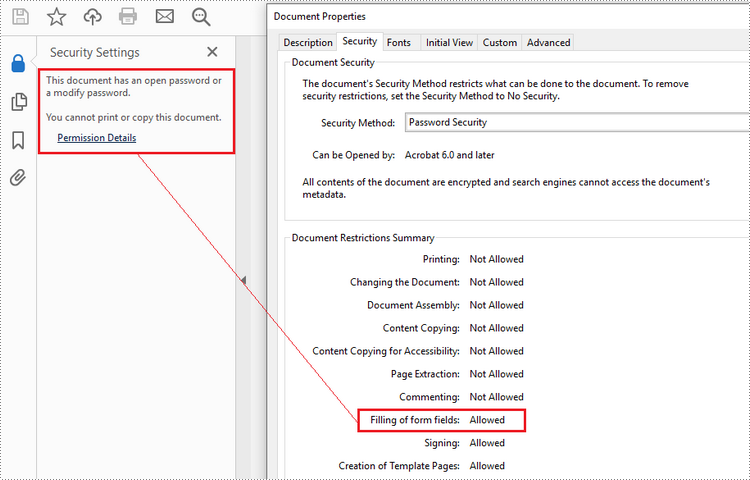
There are two types of passwords that can be used for security purposes: the "open password" and the "permission password". An open password, also known as a user password, is used to restrict unauthorized access to a PDF file. A permission password, also referred to as a master password or owner password, allows you to set various restrictions on what others can do with the PDF file. If a PDF file is secured with both types of passwords, it can be opened with either password.
The PdfDocument.Security.Encrypt(String openPassword, String permissionPassword, PdfPermissionsFlags permissions, PdfEncryptionKeySize keySize) method offered by Spire.PDF for Python allows you to protect PDF files with an open password and/or a permission password. The parameter PdfPermessionsFlags is used to specify the user's permission to operate the document.
Here are the steps to password-protect a PDF with Spire.PDF for Python.
- Create a PdfDocument object.
- Load a sample PDF file using PdfDocument.LoadFromFile() method.
- Encrypt the PDF file with an open password and permission password using PdfDocument.Security.Encrypt(String openPassword, String permissionPassword, PdfPermissionsFlags permissions, PdfEncryptionKeySize keySize) method.
- Save the result file using PdfDocument.SaveToFile() method.
- Python
from spire.pdf.common import *
from spire.pdf import *

# Create a PdfDocument object
doc = PdfDocument()

# Load a sample PDF file
doc.LoadFromFile("C:/Users/Administrator/Desktop/input.pdf")

# Encrypt the PDF file with an open password and a permission password
doc.Security.Encrypt("openPsd", "permissionPsd", PdfPermissionsFlags.FillFields, PdfEncryptionKeySize.Key128Bit)

# Save the result file
doc.SaveToFile("output/Encrypted.pdf", FileFormat.PDF)
Remove Password from an Encrypted PDF in Python
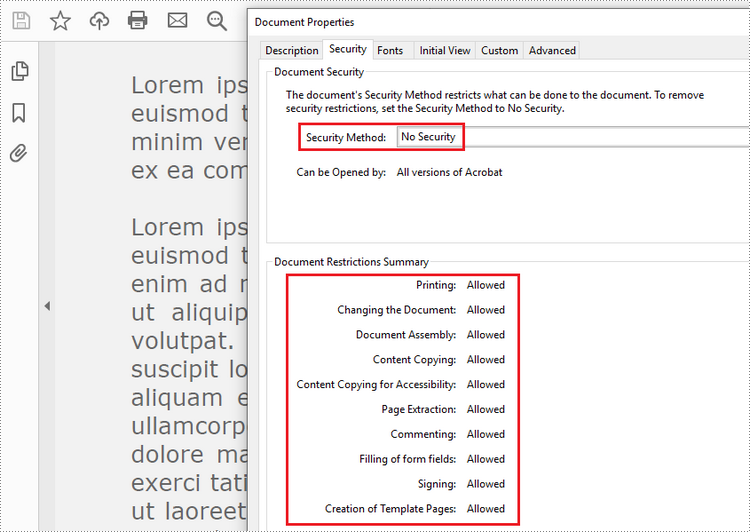
To remove the password from a PDF file, call the PdfDocument.Security.Encrypt() method and leave the open password and permission password empty. The following are the detailed steps.
- Create a PdfDocument object.
- Load an encrypted PDF file using PdfDocument.LoadFromFile(String fileName, String password) method.
- Decrypt the PDF file by setting the open password and permission password to empty using PdfSecurity.Encrypt(String openPassword, String permissionPassword, PdfPermissionsFlags permissions, PdfEncryptionKeySize keySize, String originalPermissionPassword) method.
- Save the result file using PdfDocument.SaveToFile() method.
- Python
from spire.pdf.common import *
from spire.pdf import *

# Create a PdfDocument object
doc = PdfDocument()

# Load an encrypted PDF file
doc.LoadFromFile("C:/Users/Administrator/Desktop/Encrypted.pdf", "openPsd")

# Set the open password and permission password as empty
doc.Security.Encrypt(str(), str(), PdfPermissionsFlags.Default, PdfEncryptionKeySize.Key128Bit, "permissionPsd")

# Save the result file
doc.SaveToFile("output/RemovePassword.pdf", FileFormat.PDF)
Apply for a Temporary License
If you'd like to remove the evaluation message from the generated documents, or to get rid of the function limitations, please request a 30-day trial license for yourself.
