
Knowledgebase (2417)
Children categories
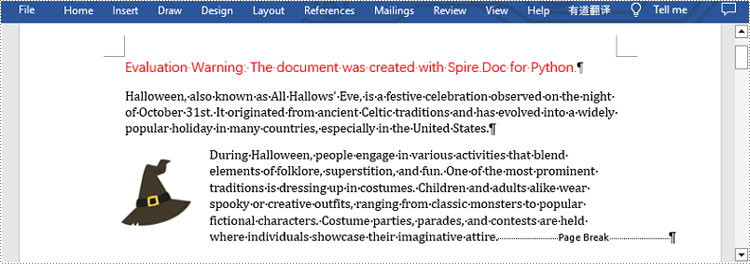
A page break is a formatting element used in documents to indicate the end of one page and the beginning of a new page. It is typically represented by a horizontal line or other visual indicator that separates content into different pages. This feature is commonly used when creating lengthy documents such as reports, essays, or books to enhance the overall layout and readability. In this article, you will learn how to how to insert page break into Word documents in Python using Spire.Doc for Python.
Install Spire.Doc for Python
This scenario requires Spire.Doc for Python and plum-dispatch v1.7.4. They can be easily installed in your Windows through the following pip command.
pip install Spire.Doc
If you are unsure how to install, please refer to this tutorial: How to Install Spire.Doc for Python on Windows
Insert Page Break after a Specific Paragraph
Spire.Doc for Python provides Paragraph.AppendBreak(BreakType.PageBreak) method to insert a page break after a specific paragraph. The following are detailed steps.
- Create an object of Document class.
- Load a sample file from disk using Document.LoadFromFile() method.
- Get the first section of this file by Document.Sections[sectionIndex] property.
- Get the second paragraph in the section by Section.Paragraphs[paragraphIndex] property.
- Insert a page break after this paragraph using Paragraph.AppendBreak(BreakType.PageBreak) method.
- Save the result file using Document.SaveToFile() method.
- Python
from spire.doc import *
from spire.doc.common import *

inputFile =  "sample.docx"
outputFile = "InsertPageBreak.docx"

#Create an object of Document class
document = Document()

#Load a sample file from disk
document.LoadFromFile(inputFile)

#Insert a page break after this paragraph
paragraph.AppendBreak(BreakType.PageBreak)

#Save the result file
document.SaveToFile(outputFile, FileFormat.Docx2013)
document.Close()
Insert Page Break after a Specific Text
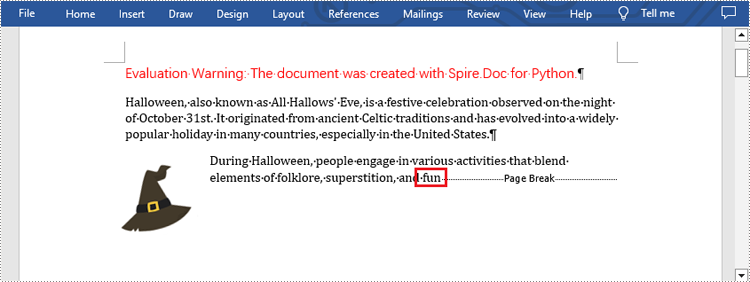
What's more, you are also allowed to insert page break after a specific text by using Paragraph.ChildObjects.Insert() method provided by this library. The following are detailed steps.
- Create an object of Document class.
- Load a sample file from disk using Document.LoadFromFile() method.
- Find a specific text using Document.FindAllString() method.
- Loop through all searched text and access the text range of it by calling TextSelection.GetAsOneRange() method.
- Get the paragraph where the text range is located by ParagraphBase.OwnerParagraph property.
- Get the position index of the text range in the paragraph using Paragraph.ChildObjects.IndexOf() method.
- Create an object of Break class to create a page break.
- Insert page break after the searched text using Paragraph.ChildObjects.Insert() method.
- Save the result file using Document.SaveToFile() method.
- Python
from spire.doc import *
from spire.doc.common import *

inputFile = "sample.docx"
outputFile =  "InsertPageBreakAfterText.docx"

#Create an object of Document class
document = Document()

#Load a sample file from disk
document.LoadFromFile(inputFile)

#Find the specified text
selection = document.FindAllString("fun", True, True)

#Loop through all searched text
for ts in selection:

    #Get the text range of the searched text
    range = ts.GetAsOneRange()

    #Get the paragraph where the text range is located
    paragraph = range.OwnerParagraph

    #Get the position index of the text range in the paragraph
    index = paragraph.ChildObjects.IndexOf(range)

    #Create an object of Break class
    pageBreak = Break(document, BreakType.PageBreak)

    #Insert page break after the searched text
    paragraph.ChildObjects.Insert(index + 1, pageBreak)

#Save the result file
document.SaveToFile(outputFile, FileFormat.Docx2013)
document.Close()
Apply for a Temporary License
If you'd like to remove the evaluation message from the generated documents, or to get rid of the function limitations, please request a 30-day trial license for yourself.
Image watermarks are frequently found on shared documents. Unlike text watermarks, image watermarks provide a simpler and less intrusive way to emphasize copyright, ownership, and confidentiality by displaying company logos, trademarks, warning icons, etc. In addition, adding image watermarks to PDF documents can also help brand promotion and enhance the visual appeal of the documents. This article will explain how to insert image watermarks to PDF documents using Spire.PDF for Python in Python programs.
Install Spire.PDF for Python
This scenario requires Spire.PDF for Python and plum-dispatch v1.7.4. They can be easily installed in your Windows through the following pip commands.
pip install Spire.PDF
If you are unsure how to install, please refer to this tutorial: How to Install Spire.PDF for Python on Windows
Add Single Image Watermarks to PDF Documents
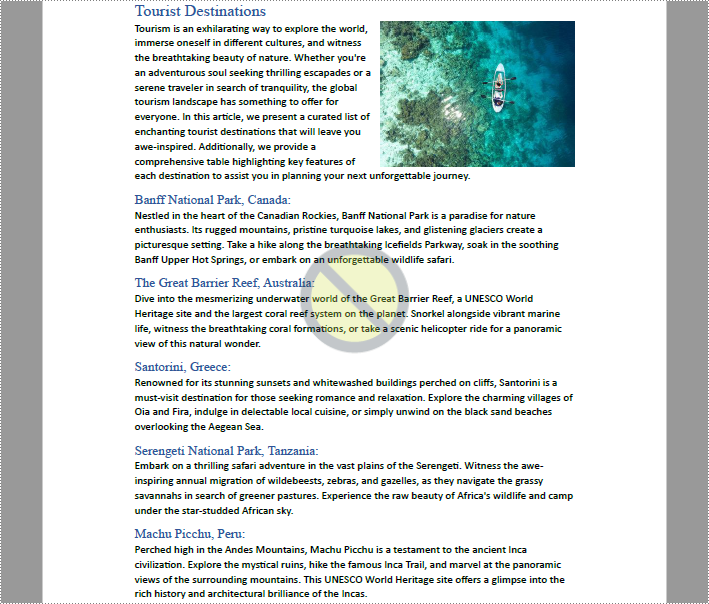
Single image watermarks are transparent images at the center of PDF pages. With Spire.PDF for Python, users can draw a specified image as a watermark on any PDF page. The detailed steps are as follows:
- Create an object of PdfDocument class.
- Load a PDF document using PdfDocument.LoadFromFile() method.
- Load the watermark image using PdfImage.FromFile() method.
- Loop through the pages in the document to add the watermark.
- Get a page using PdfDocument.Pages.get_Item() method.
- Set the transparency of the watermark using PdfPageBase.Canvas.SetTransparency() method.
- Draw the watermark image in the center of the page using PdfPageBase.Canvas.DrawImage() method.
- Save the document using PdfDocument.SaveToFile() method.
- Python
from spire.pdf import *
from spire.pdf.common import *

# Create an object of PdfDocument class
pdf = PdfDocument()

# Load a PDF document
pdf.LoadFromFile("Sample.pdf")

# Load the watermark image
image = PdfImage.FromFile("watermark.png")

# Get the width and height of the image
imageWidth = float(image.Width)
imageHeight = float(image.Height)

# Loop through the pages in the document
for i in range(pdf.Pages.Count):
    # Get a page
    page = pdf.Pages.get_Item(i)
    # Set the transparency of the watermark
    page.Canvas.SetTransparency(0.3)
    # Get the width and height of the page
    pageWidth = page.ActualSize.Width
    pageHeight = page.ActualSize.Height
    # Draw the watermark image on the page
    page.Canvas.DrawImage(image, pageWidth/2 - imageWidth/2, pageHeight/2 - imageHeight/2, imageWidth, imageHeight)

# Save the document
pdf.SaveToFile("output/SingleImageWatermark.pdf")
pdf.Close()
Add Repeating Image Watermarks to PDF Documents
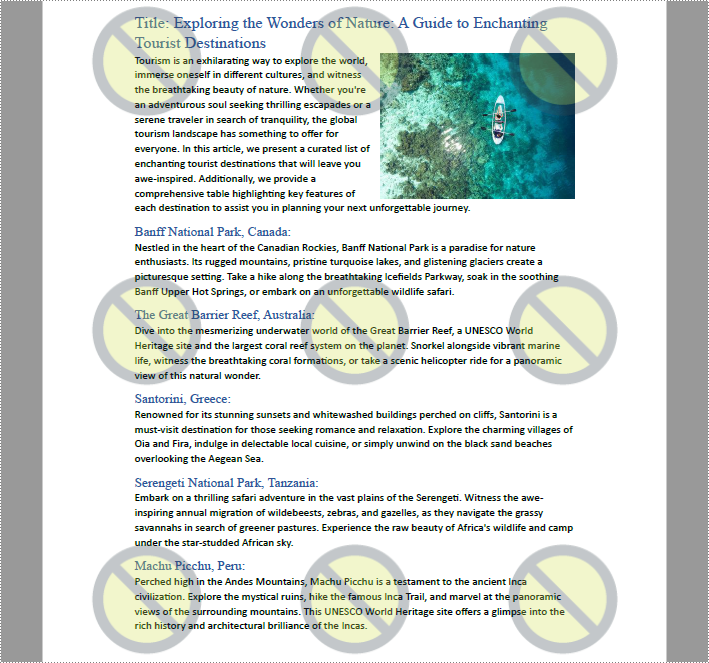
Repeating image watermarks are images repeated regularly on PDF pages. Drawing repeated image watermarks on PDF pages with Spire.PDF for Python involves the use of the PdfTillingBrush class. Below are the detailed steps:
- Create an object of PdfDocument class.
- Load a PDF document using PdfDocument.LoadFromFile() method.
- Load the watermark image using PdfImage.FromFile() method.
- Loop through the pages in the document to add the watermark.
- Get a page using PdfDocument.Pages.get_Item() method.
- Create an object of PdfTilingBrush class and set its size to determine the number of repetitions of the watermark.
- Set the transparency of the watermark using PdfTillingBrush.Graphics.SetTransparency() method.
- Translate the coordinate system to the specified position using PdfTillingBrush.Graphics.TranslateTransform() method to make the watermark displayed in the center of each repetition.
- Draw the watermark image on the tilling brush using PdfTillingBrush.Graphics.DrawImage() method.
- Draw the watermark on the page using PdfPageBase.Canvas.DrawRectangle() method.
- Save the document using PdfDocument.SaveToFile() method.
- Python
from spire.pdf.common import *
from spire.pdf import *

# Create an object of PdfDocument class
pdf = PdfDocument()

# Load a PDF document
pdf.LoadFromFile("Sample.pdf")

# Load the watermark image
image = PdfImage.FromFile("watermark.png")

# Loop through the pages of the document
for i in range(pdf.Pages.Count):
    # Get a page
    page = pdf.Pages.get_Item(i)
    # Create an object of PdfTilingBrush class and set its size
    brush = PdfTilingBrush(SizeF(page.Canvas.Size.Width / float(3), page.Canvas.Size.Height / float(3)))
    # Set the transparency of the watermark
    brush.Graphics.SetTransparency(0.3)
    brush.Graphics.Save()
    # Translate the coordinate to the specified position
    brush.Graphics.TranslateTransform(brush.Size.Width/2 - image.Width/2, brush.Size.Height/2 - image.Height/2)
    # Draw the watermark image on the brush
    brush.Graphics.DrawImage(image, 0.0, 0.0, float(image.Width), float(image.Height))
    brush.Graphics.Restore()
    # Draw the watermark on the page
    page.Canvas.DrawRectangle(brush, RectangleF(PointF(0.0, 0.0), page.Canvas.Size))

# Save the PDF document
pdf.SaveToFile("output/RepeatingImageWatermark.pdf", FileFormat.PDF)
pdf.Close()
Apply for a Temporary License
If you'd like to remove the evaluation message from the generated documents, or to get rid of the function limitations, please request a 30-day trial license for yourself.
Headers and footers are areas located at the top and bottom of each page in a document, used to add additional information or elements. Headers typically include document titles, company names, dates, and other information, while footers often contain page numbers, file paths, copyright statements, and other details. By setting headers and footers in Excel, documents can be made more professional and organized. In this article, we will show you how to add headers and footers to Excel by using Spire.XLS for Python.
Spire.XLS for Python provides the PageSetup class to work with the page setup in Excel including headers and footers. Specifically, it contains LeftHeader property, CenterHeader property, RightHeader property, LeftFooter property, etc. to represent the left section, center section and right section of a header or footer. To add fields to headers or footers, or to apply formatting to text, you'll need to use the scripts listed in the following table.
| Script | Description |
| &P | The current page numbers. |
| &N | The total number of pages. |
| &D | The current data. |
| &T | The current time. |
| &G | A picture. |
| &A | The worksheet name. |
| &F | The file name. |
| &B | Make text bold. |
| &I | Italicize text. |
| &U | Underline text. |
| &"font name" | Represents a font name, for example, &"Arial". |
| & + Integer | Represents font size, for example, &12. |
| &K + Hex color code | Represents font color, for example, &KFF0000. |
Install Spire.XLS for Python
This scenario requires Spire.XLS for Python and plum-dispatch v1.7.4. They can be easily installed in your Windows through the following pip command.
pip install Spire.XLS
If you are unsure how to install, please refer to this tutorial: How to Install Spire.XLS for Python on Windows
Add Text to the Header or Footer in Excel
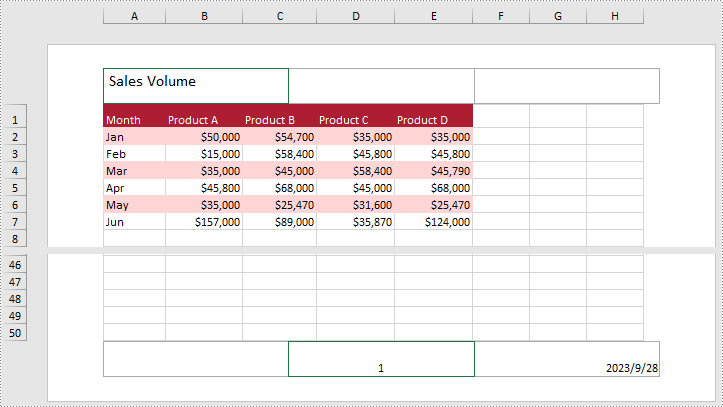
Spire.XLS for Python allows you to add formatted text to the certain section of the header or footer. In this way, you can set different elements in Excel, such as file titles, page numbers or date. Here are the detailed steps.
- Create an object of Workbook class.
- Load a sample Excel file using Workbook.LoadFromFile() method.
- Get the specific worksheet by Workbook.Worksheets[index] property.
- Add text to the left header by setting PageSetup.LeftHeader property as you like.
- Add page number to the center footer by setting PageSetup.CenterFooter property to &P.
- Add the current date to the right footer by setting PageSetup.RightFooter property to &D.
- Save the result file using Workbook.SaveToFile() method.
- Python
from spire.xls import *
from spire.xls.common import *

inputFile = "sample.xlsx"
outputFile = "TextHeaderFooter.xlsx"

#Create an object of Workbook class
workbook = Workbook()

#Load a sample file from disk
workbook.LoadFromFile(inputFile)

#Get the first worksheet of this file
Worksheet = workbook.Worksheets[0]

#Add text to the left header
Worksheet.PageSetup.LeftHeader = "&\"Calibri\"&14 Sales Volume"

#Add page number to the center footer
Worksheet.PageSetup.CenterFooter = "&P"

#Add the current date to the right footer
Worksheet.PageSetup.RightFooter = "&D"

#Set the view mode of the sheet
Worksheet.ViewMode = ViewMode.Layout

#Save the result file
workbook.SaveToFile(outputFile, ExcelVersion.Version2010)
workbook.Dispose()
Add Images to the Header or Footer in Excel
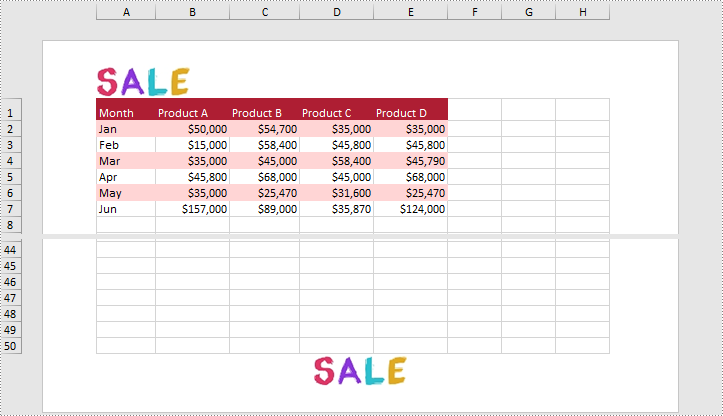
What's more, Spire.XLS for Python also supports adding images to the header or footer. The following are detailed steps.
- Create an object of Workbook class.
- Load a sample Excel file using Workbook.LoadFromFile() method.
- Get the specific worksheet by Workbook.Worksheets[index] property.
- Load an image and set it as the image source of the left header by PageSetup.LeftHeaderImage property.
- Display the image in the left header section by setting PageSetup.LeftHeader property to “&G”.
- Set it as the image source of the center footer by PageSetup.CenterFooterImage property.
- Display the image in the center footer section by setting PageSetup.CenterFooter property to “&G”.
- Save the result file using Workbook.SaveToFile() method.
- Python
from spire.xls import *
from spire.xls.common import *

inputFile = "sample.xlsx"
inputImage = "Logo.png"
outputFile = "ImageHeaderFooter.xlsx"

#Create an object of workbook class
workbook = Workbook()

#Load a sample file from disk
workbook.LoadFromFile(inputFile)

#Get the first sheet of this file
sheet = workbook.Worksheets[0]

#Load an image from disk
image = Image.FromFile(inputImage)

#Add the image to the left header
sheet.PageSetup.LeftHeaderImage = image
sheet.PageSetup.LeftHeader = "&G"

#Add the image to the center footer
sheet.PageSetup.CenterFooterImage = image
sheet.PageSetup.CenterFooter = "&G"

#Set the view mode of the sheet
sheet.ViewMode = ViewMode.Layout

#Save the result file
workbook.SaveToFile(outputFile, ExcelVersion.Version2010)
workbook.Dispose()
Apply for a Temporary License
If you'd like to remove the evaluation message from the generated documents, or to get rid of the function limitations, please request a 30-day trial license for yourself.
