
Knowledgebase (2417)
Children categories
Extract Text from PDF in Python: A Complete Guide with Practical Code Samples
2023-10-09 01:26:32 Written by Administrator
PDF files are everywhere—from contracts and research papers to eBooks and invoices. While they preserve formatting perfectly, extracting text from PDFs can be challenging, especially with large or complex documents. Manual copying is not only slow but often inaccurate.
Whether you’re a developer automating workflows, a data analyst processing content, or simply someone needing quick text extraction, programmatic methods can save you valuable time and effort.
In this comprehensive guide, you’ll learn how to extract text from PDF files in Python using Spire.PDF for Python — a powerful and easy-to-use PDF processing library. We’ll cover extracting all text, targeting specific pages or areas, ignoring hidden text, and capturing layout details such as text position and size.
Table of Contents
- Why Extract Text from PDF Files
- Install Spire.PDF for Python: Powerful PDF Parser Library
- Extract Text from PDF (Basic Example)
- Advanced Text Extraction Features
- Conclusion
- FAQs
Why Extract Text from PDF Files
Text extraction from PDFs is essential for many use cases, including:
- Automating data entry and document processing
- Enabling full-text search and indexing
- Performing data analysis on reports and surveys
- Extracting content for machine learning and NLP
- Converting PDFs to other editable formats
Install Spire.PDF for Python: Powerful PDF Parser Library
Spire.PDF for Python is a comprehensive and easy-to-use PDF processing library that simplifies all your PDF manipulation needs. It offers advanced text extraction capabilities that work seamlessly with both simple and complex PDF documents.
Installation
The library can be installed easily via pip. Open your terminal and run the following command:
pip install spire.pdf
Need help with the installation? Follow this step-by-step guide: How to Install Spire.PDF for Python on Windows
Extract Text from PDF (Basic Example)
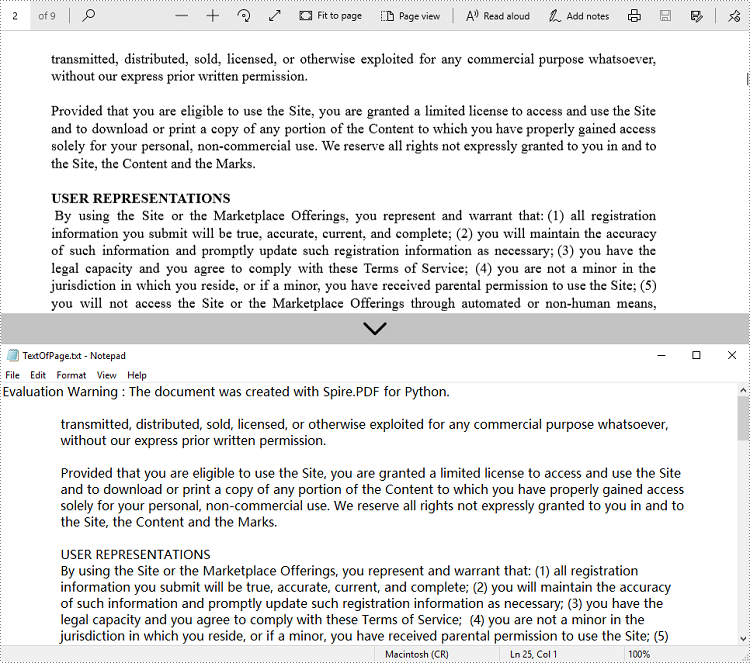
If you just want to quickly read all the text from a PDF, this simple example shows how to do it. It iterates over each page, extracts the full text using PdfTextExtractor, and saves it to a text file with spacing and line breaks preserved.
from spire.pdf.common import *
from spire.pdf import *

# Create a PdfDocument object
doc = PdfDocument()

# Load a PDF document
doc.LoadFromFile('C:/Users/Administrator/Desktop/Terms of service.pdf')

# Prepare a variable to hold the extracted text
all_text = ""

# Create a PdfTextExtractOptions object
extractOptions = PdfTextExtractOptions()
# Extract all text including whitespaces
extractOptions.IsExtractAllText = True

# Loop through all pages and extract text
for i in range(doc.Pages.Count):
    page = doc.Pages.get_Item(i)
    textExtractor = PdfTextExtractor(page)
    text = textExtractor.ExtractText(extractOptions)
    # Append text from each page
    all_text += text + "\n"

# Write all extracted text to a file
with open('output/TextOfAllPages.txt', 'w', encoding='utf-8') as file:
    file.write(all_text)
Advanced Text Extraction Features
For greater control over what and how text is extracted, Spire.PDF for Python offers advanced options. You can selectively extract content from specific pages or regions, or even with layout details, such as text position and size, to better suit your specific data processing needs.
Retrieve Text from Selected Pages
Instead of processing an entire PDF, you can target specific pages for text extraction. This is especially useful for large documents where only certain sections are relevant for your task.
from spire.pdf.common import *
from spire.pdf import *

# Create a PdfDocument object
doc = PdfDocument()

# Load a PDF document
doc.LoadFromFile('C:/Users/Administrator/Desktop/Terms of service.pdf')

# Create a PdfTextExtractOptions object and enable full text extraction
extractOptions = PdfTextExtractOptions()
# Extract all text including whitespaces
extractOptions.IsExtractAllText = True

# Get a specific page (e.g., page 2)
page = doc.Pages.get_Item(1)

# Create a PdfTextExtractor object
textExtractor = PdfTextExtractor(page)

# Extract text from the page
text = textExtractor.ExtractText(extractOptions)

# Write the extracted text to a file using UTF-8 encoding
with open('output/TextOfPage.txt', 'w', encoding='utf-8') as file:
    file.write(text)
Get Text from Defined Area
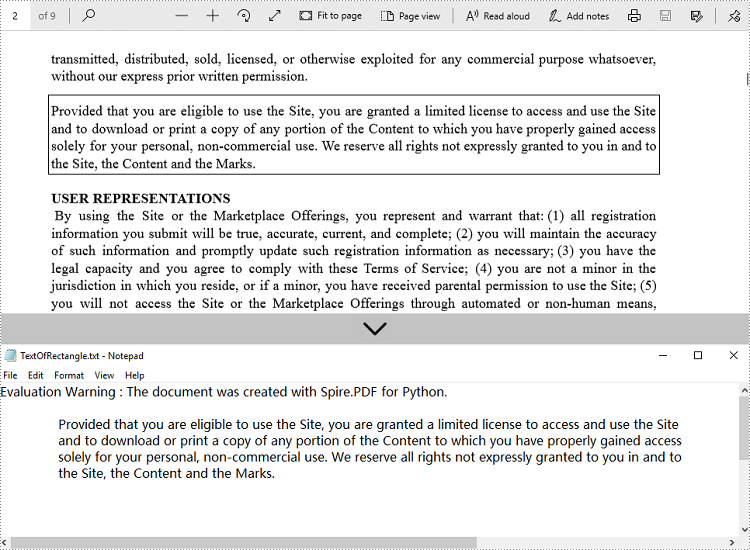
When dealing with structured documents like forms or invoices, extracting text from a specific region can be more efficient. You can define a rectangular area and extract only the text within that boundary on the page.
from spire.pdf.common import *
from spire.pdf import *

# Create a PdfDocument object
doc = PdfDocument()

# Load a PDF document
doc.LoadFromFile('C:/Users/Administrator/Desktop/Terms of service.pdf')

# Get a specific page (e.g., page 2)
page = doc.Pages.get_Item(1)

# Create a PdfTextExtractor object
textExtractor = PdfTextExtractor(page)

# Create a PdfTextExtractOptions object
extractOptions = PdfTextExtractOptions()

# Define the rectangular area to extract text from
# RectangleF(left, top, width, height)
extractOptions.ExtractArea = RectangleF(0.0, 100.0, 890.0, 80.0)

# Extract text from the specified area, keeping white spaces
text = textExtractor.ExtractText(extractOptions)

# Write the extracted text to a file using UTF-8 encoding
with open('output/TextOfRectangle.txt', 'w', encoding='utf-8') as file:
    file.write(text)
Ignore Hidden Text During Extraction
Some PDFs contain hidden or invisible text, often used for accessibility or OCR layers. You can choose to ignore such content during extraction to focus only on what is actually visible to users.
from spire.pdf.common import *
from spire.pdf import *

# Create a PdfDocument object
doc = PdfDocument()

# Load a PDF document
doc.LoadFromFile('C:/Users/Administrator/Desktop/Terms of service.pdf')

# Create a PdfTextExtractOptions object
extractOptions = PdfTextExtractOptions()
# Ignore hidden text during extraction
extractOptions.IsShowHiddenText = False

# Get a specific page (e.g., page 2)
page = doc.Pages.get_Item(1)

# Create a PdfTextExtractor object
textExtractor = PdfTextExtractor(page)

# Extract text from the page
text = textExtractor.ExtractText(extractOptions)

# Write the extracted text to a file using UTF-8 encoding
with open('output/ExcludeHiddenText.txt', 'w', encoding='utf-8') as file:
    file.write(text)
Retrieve Text with Position (Coordinates) and Size Information
For layout-sensitive applications—such as converting PDF content into editable formats or reconstructing page structure—you can extract text along with its position and size. This provides precise control over how content is interpreted and used.
from spire.pdf.common import *
from spire.pdf import *

# Create a PdfDocument object
doc = PdfDocument()

# Load a PDF document
doc.LoadFromFile('C:/Users/Administrator/Desktop/Terms of service.pdf')

# Loop through all pages of the document
for i in range(doc.Pages.Count):
    page = doc.Pages.get_Item(i)

    # Create a PdfTextFinder object for the current page
    finder = PdfTextFinder(page)

    # Find all text fragments on the page
    fragments = finder.FindAllText()

    print(f"Page {i + 1}:")

    # Loop through all text fragments
    for fragment in fragments:
        # Extract text content from the current text fragment
        text = fragment.Text

        # Get bounding rectangles with position and size
        rects = fragment.Bounds

        print(f'Text: "{text}"')

        # Iterate through all rectangles
        for rect in rects:
            # Print the position and size information of the current rectangle
            print(f"Position: ({rect.X}, {rect.Y}), Size: ({rect.Width} x {rect.Height})")

        print()
Conclusion
Extracting text from PDF files in Python becomes efficient and flexible with Spire.PDF for Python. Whether you need to process entire documents or extract text from specific pages or regions, Spire.PDF provides a robust set of tools to meet your needs. By automating text extraction, you can streamline workflows, power intelligent search systems, or prepare data for analysis and machine learning.
FAQs
Q1: Can text be extracted from password-protected PDFs?
A1: Yes, Spire.PDF for Python can open and extract text from secured files by providing the correct password when loading the PDF document.
Q2: Is batch text extraction from multiple PDFs supported?
A2: Yes, you can programmatically iterate through a directory of PDF files and apply text extraction to each file efficiently using Spire.PDF for Python.
Q3: Is it possible to extract images or tables from PDFs?
A3: While this guide focuses on text extraction, Spire.PDF for Python also supports image extraction and table extraction.
Q4: Can text be extracted from scanned (image-based) PDFs?
A4: Extracting text from scanned PDFs requires OCR (Optical Character Recognition). Spire.PDF for Python does not include built-in OCR, but you can combine it with an OCR library like Spire.OCR for image-to-text conversion.
Get a Free License
To fully experience the capabilities of Spire.PDF for Python without any evaluation limitations, you can request a free 30-day trial license.
PDF files often contain critical embedded images (e.g., charts, diagrams, scanned documents). For developers, knowing how to extract images from PDF in Python allows them to repurpose graphical content for automated report generation or feed these visuals into machine learning models for analysis and OCR tasks.
This article explores how to leverage the Spire.PDF for Python library to extract images from PDF files via Python, covering the following aspects:
- Installation & Environment Setup
- How to Extract Images from PDFs using Python
- Handle Different Image Formats While Extraction
- Frequently Asked Questions
- Conclusion (Extract Text and More)
Installation & Environment Setup
Before you start using Spire.PDF for Python to extract images from PDF, make sure you have the following in place:
-
Python Environment: Ensure that you have Python installed on your system. It is recommended to use the latest stable version for the best compatibility and performance.
-
Spire.PDF for Python Library: You need to install the Python PDF SDK, and the easiest way is using pip, the Python package installer.
Open your command prompt or terminal and run the following command:
pip install Spire.PDF
How to Extract Images from PDFs using Python
Example 1: Extract Images from a PDF Page
Here’s a complete Python script to extract and save images from a specified page in PDF:
from spire.pdf.common import *
from spire.pdf import *

# Create a PdfDocument instance
pdf = PdfDocument()

# Load a PDF file
pdf.LoadFromFile("template1.pdf")

# Get the first page
page = pdf.Pages.get_Item(0)

# Create a PdfImageHelper instance
imageHelper = PdfImageHelper()

# Get the image information on the page
imageInfo = imageHelper.GetImagesInfo(page)

# Iterate through the image information
for i in range(0, len(imageInfo)):
    # Save images to file
    imageInfo[i].Image.Save("PageImage\\Image" + str(i) + ".png")

# Release resources
pdf.Dispose()
Key Steps Explained:
- Load the PDF: Use the LoadFromFile() method to load a PDF file.
- Access a Page: Access a specified PDF page by index.
- Extract Image information:
- Create a PdfImageHelper instance to facilitate image extraction.
- Use the GetImagesInfo() method to retrieve image information from the specified page, and return a list of PdfImageInfo objects.
- Save Images to Files:
- Loops through all detected images on the page
- Use the PdfImageInfo[].Image.Save() method to save the image to disk.
Output:
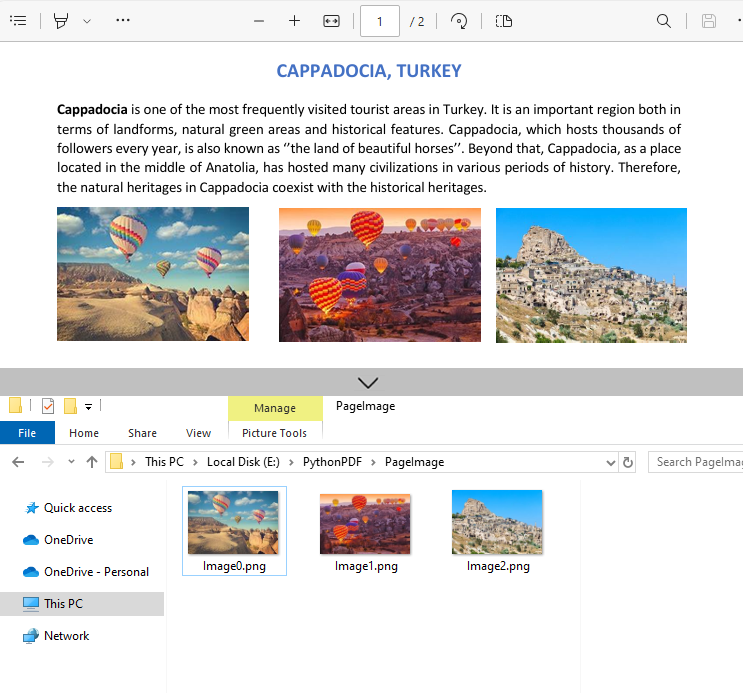
Example 2: Extract All Images from a PDF File
Building on the single-page extraction method, you can iterate through all pages of the PDF document to extract every embedded image.
Python code example:
from spire.pdf.common import *
from spire.pdf import *

# Create a PdfDocument instance
pdf = PdfDocument()

# Load a PDF file
pdf.LoadFromFile("template1.pdf")

# Create a PdfImageHelper instance
imageHelper = PdfImageHelper()

# Iterate through the pages in the document
for i in range(0, pdf.Pages.Count):
    # Get the current page
    page = pdf.Pages.get_Item(i)
    # Get the image information on the page
    imageInfo = imageHelper.GetImagesInfo(page)
    # Iterate through the image information items
    for j in range(0, len(imageInfo)):
        # Save the current image to file
        imageInfo[j].Image.Save(f"Images\\Image{i}_{j}.png")

# Release resources
pdf.Close()
Output:
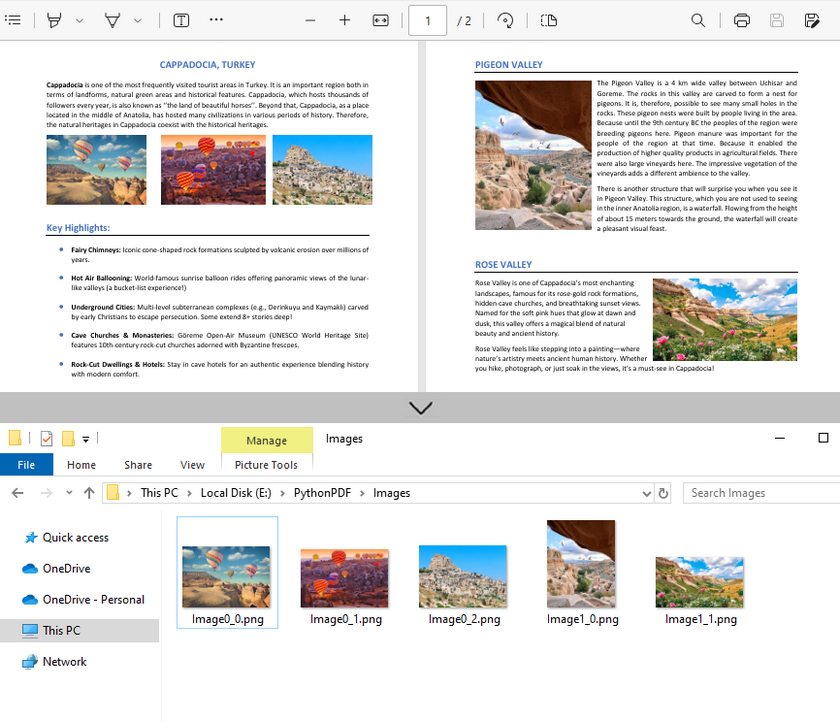
Handle Different Image Formats While Extraction
Spire.PDF for Python supports extracting images in various formats such as PNG, JPG/JPEG, BMP, etc. When saving the extracted images, you can choose the appropriate format based on your needs.
Common Image Formats:
| Format | Best Use Cases | PDF Extraction Notes |
|---|---|---|
| JPG/JPEG | Photos, scanned documents | Common in PDFs; quality loss on re-compress |
| PNG | Web graphics, diagrams, screenshots | Preserves transparency; larger file sizes |
| BMP | Windows applications, temp storage | Rare in modern PDFs; avoid for web use |
| TIFF | Archiving, print, OCR input | Ideal for document preservation; multi-page |
| EMF | Windows vector editing | Editable in Illustrator/Inkscape |
Frequently Asked Questions
Q1: Is Spire.PDF for Python a free library?
Spire.PDF for Python offers both free and commercial versions. The free version has limitations, such as a maximum of 10 pages per PDF. For commercial use or to remove these restrictions, you can request a trial license here.
Q2: Can I extract images from a specified page range only?
Yes. Instead of iterating through all pages, specify the page indices you want. For example, to extract images from the pages 2 to 5:
# Extract images from pages 2 to 5
for i in range(1, 4): # Pages are zero-indexed
    page = pdf.Pages.get_Item(i)
    # Process images as before
Q3: Is it possible to extract text from images?
Yes. For scanned PDF files, after extracting the images, you can extract the text in the images in conjunction with the Spire.OCR for Python library.
A step-by-step guide: How to Extract Text from Image Using Python (OCR Code Examples)
Conclusion (Extract Text and More)
Spire.PDF simplifies image extraction from PDF in Python with minimal code. By following this guide, you can:
- Extract images from single pages or entire PDF documents.
- Save images from PDF in various formats (PNG, JPG, BMP or TIFF).
As a PDF document can contain different elements, the Python PDF library is also capable of:
Adding bookmarks to Word documents is a useful feature that allows users to mark specific locations within their documents for quick reference or navigation. Bookmarks serve as virtual placeholders, making it easier to find and revisit important sections of a document without scrolling through lengthy pages. In this article, you will learn how to add bookmarks to a Word document in Python using Spire.Doc for Python.
Install Spire.Doc for Python
This scenario requires Spire.Doc for Python and plum-dispatch v1.7.4. They can be easily installed in your Windows through the following pip command.
pip install Spire.Doc
If you are unsure how to install, please refer to this tutorial: How to Install Spire.Doc for Python on Windows
Add Bookmarks to a Paragraph in Python
Spire.Doc for Python offers the BookmarkStart to represent the start of a bookmark and the BookmarkEnd to represent the end of a bookmark. To bookmark a paragraph, a BookmarkStart object is placed at the beginning of the paragraph and a BookmarkEnd object is appended at the end of the paragraph. The following are the detailed steps.
- Create a Document object.
- Load a Word file using Document.LoadFromFile() method.
- Get a specific paragraph through Document.Sections[index].Paragraphs[index] property.
- Create a BookmarkStart using Paragraph.AppendBookmarkStart() method and insert it at the beginning of the paragraph using Paragraph.Items.Insert() method.
- Append a BookmarkEnd at the end of the paragraph using Paragraph.AppendBookmarkEnd() method.
- Save the document to a different Word file using Document.SaveToFile() method.
- Python
from spire.doc import *
from spire.doc.common import *

# Create a Document object
doc = Document()

# Load a sample Word file
doc.LoadFromFile('C:/Users/Administrator/Desktop/input.docx')

# Get the second paragraph
paragraph = doc.Sections[0].Paragraphs[2]

# Create a bookmark start
start = paragraph.AppendBookmarkStart('myBookmark')

# Insert it at the beginning of the paragraph
paragraph.Items.Insert(0, start)

# Append a bookmark end at the end of the paragraph
paragraph.AppendBookmarkEnd('myBookmark')

# Save the file
doc.SaveToFile('output/AddBookmarkToParagraph.docx', FileFormat.Docx2019)
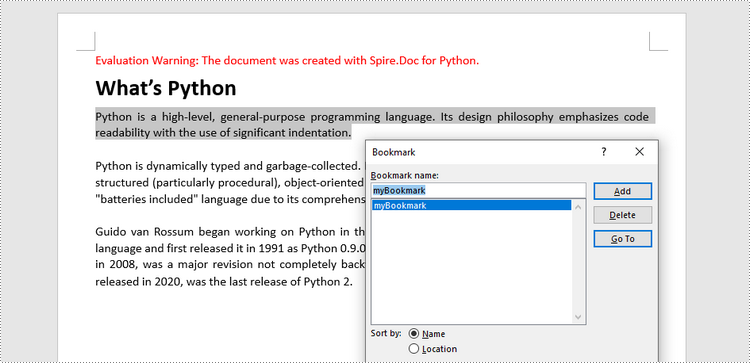
Add Bookmarks to Selected Text in Python
To bookmark a piece of text, you need first to get the text from the document and get its position inside its owner paragraph. And then place a BookmarkStart before it and a BookmarEnd after it. The detailed steps are as follows.
- Create a Document object.
- Load a Word file using Document.LoadFromFile() method.
- Find the string to be marked from the document.
- Get its owner paragraph and its position inside the paragraph.
- Insert a BookmarkStart before the text and a BookmarkEnd after the text.
- Save the document to a different Word file using Document.SaveToFile() method.
- Python
from spire.doc import *
from spire.doc.common import *

# Create a Document object
doc = Document()

# Load a sample Word file
doc.LoadFromFile('C:/Users/Administrator/Desktop/input.docx')

# Specify the string to find
stringToFind = 'programming paradigms'

# Find the selected text from the document
finds = doc.FindAllString(stringToFind, False, True)
specificText = finds[0]

# Find the paragraph where the text is located
paragraph = specificText.GetAsOneRange().OwnerParagraph

# Get the index of the text in the paragraph
index = paragraph.ChildObjects.IndexOf(specificText.GetAsOneRange())

# Create a bookmark start
start = paragraph.AppendBookmarkStart("myBookmark")

# Insert the bookmark start at the index position
paragraph.ChildObjects.Insert(index, start)

# Create a bookmark end
end = paragraph.AppendBookmarkEnd("myBookmark")

# Insert the bookmark end at the end of the selected text
paragraph.ChildObjects.Insert(index + 2, end)

# Save the document to a different file
doc.SaveToFile("output/AddBookmarkToSelectedText.docx", FileFormat.Docx2019)
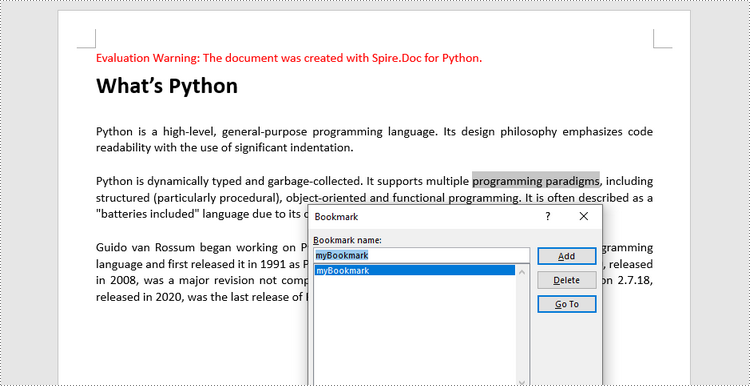
Apply for a Temporary License
If you'd like to remove the evaluation message from the generated documents, or to get rid of the function limitations, please request a 30-day trial license for yourself.
