
Knowledgebase (2417)
Children categories
Converting a Word document into images can be a useful and convenient option when you want to share or present the content without worrying about formatting issues or compatibility across devices. By converting a Word document into images, you can ensure that the text, images, and formatting remain intact, making it an ideal solution for sharing documents on social media, websites, or through email. In this article, you will learn how to convert Word to PNG, JPEG or SVG in Python using Spire.Doc for Python.
Install Spire.Doc for Python
This scenario requires Spire.Doc for Python and plum-dispatch v1.7.4. They can be easily installed in your Windows through the following pip command.
pip install Spire.Doc
If you are unsure how to install, please refer to this tutorial: How to Install Spire.Doc for Python on Windows
Convert Word to PNG or JPEG in Python
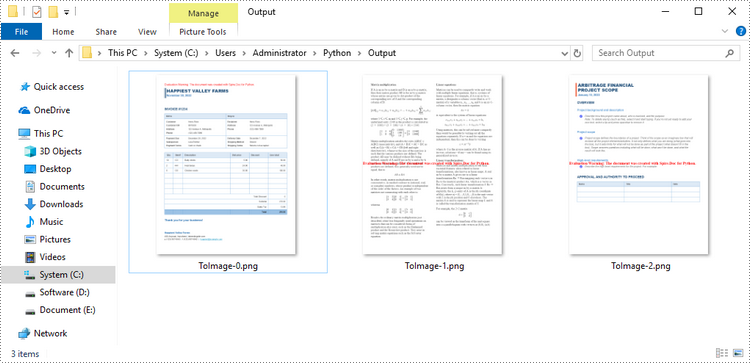
Spire.Doc for Python offers the Document.SaveImageToStream() method to convert a certain page into a bitmap image. Afterwards, you can save the bitmap image to a popular image format such as PNG, JPEG, or BMP. The detailed steps are as follows.
- Create a Document object.
- Load a Word file using Document.LoadFromFile() method.
- Retrieve each page in the document, and convert a specific page into a bitmap image using Document.SaveImageToStreams() method.
- Save the bitmap image into a PNG or JPEG file.
- Python
from spire.doc import *
from spire.doc.common import *

# Create a Document object
document = Document()

# Load a Word file
document.LoadFromFile("C:\\Users\\Administrator\\Desktop\\input.docx")

# Loop through the pages in the document
for i in range(document.GetPageCount()):

    # Convert a specific page to bitmap image
    imageStream = document.SaveImageToStreams(i, ImageType.Bitmap)

    # Save the bitmap to a PNG file
    with open('Output/ToImage-{0}.png'.format(i),'wb') as imageFile:
        imageFile.write(imageStream.ToArray())

document.Close()
Convert Word to SVG in Python
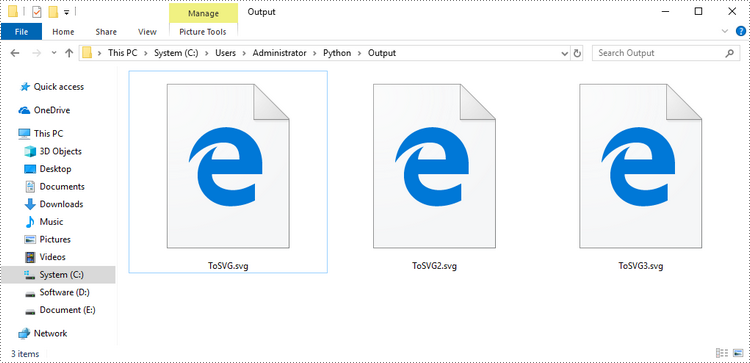
To convert a Word document into multiple SVG files, you can simply use the Document.SaveToFile() method. Here are the steps.
- Create a Document object.
- Load a Word file using Document.LoadFromFile() method.
- Convert it to individual SVG files using Document.SaveToFile() method.
- Python
from spire.doc import *
from spire.doc.common import *

# Create a Document object
document = Document()

# Load a Word file
document.LoadFromFile("C:\\Users\\Administrator\\Desktop\\input.docx")

# Convert it to SVG files
document.SaveToFile("output/ToSVG.svg", FileFormat.SVG)

document.Close()
Get a Free License
To fully experience the capabilities of Spire.Doc for Python without any evaluation limitations, you can request a free 30-day trial license.
Watermarks in Word documents serve as overlayed text or pictures that are typically used to indicate documents’ status, confidentiality, draft nature, etc. While they are useful in certain contexts, watermarks often become a hindrance when it comes to presenting documents. They can be distracting, obscuring the readability, and reduce the overall quality of the document. This article will show how to remove watermarks from Word documents in Python programs using Spire.Doc for Python.
Install Spire.Doc for Python
This scenario requires Spire.Doc for Python and plum-dispatch v1.7.4. They can be easily installed in your Windows through the following pip commands.
pip install Spire.Doc
If you are unsure how to install, please refer to this tutorial: How to Install Spire.Doc for Python on Windows
Remove the Watermark from a Word Document
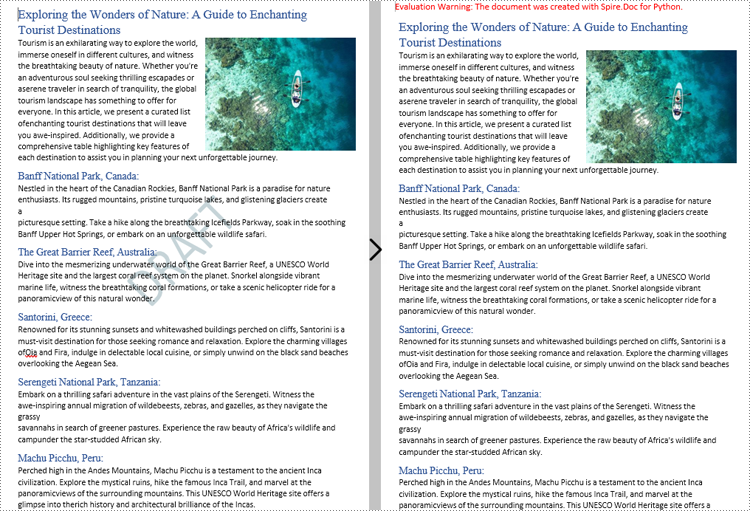
Spire.Doc for Python provides the Document.Watermark property which allows users to deal with the watermark of a Word document. Users can assign a null value to this property to remove the watermark of Word document. The detailed steps are as follows:
- Create an object of Document class.
- Load a Word document using Document.LoadFromFile() method.
- Remove the watermark by assigning a null value to Document.Watermark property.
- Save the document using Document.SaveToFile() method.
- Python
from spire.doc import *
from spire.doc.common import *

# Create an object of Document class
doc = Document()

# Load a Word document
doc.LoadFromFile("Sample.docx")

# Remove the watermark
doc.Watermark = None

# Save the document
doc.SaveToFile("output/RemoveWatermark.docx", FileFormat.Auto)
Apply for a Temporary License
If you'd like to remove the evaluation message from the generated documents, or to get rid of the function limitations, please request a 30-day trial license for yourself.
Convert PowerPoint PPT or PPTX to PDF in Python: A Comprehensive Guide
2023-09-12 01:08:24 Written by Koohji
Looking to convert PowerPoint PPT or PPTX files to PDF using Python? This comprehensive guide walks you through the process of converting PowerPoint to PDF with ease. You'll learn how to perform quick conversions using default settings, as well as explore advanced features such as exporting specific slides, adjusting slide size for optimal output, including hidden slides, and generating PDF/A-compliant files for archival use.
- Why Convert PowerPoint to PDF
- Python PowerPoint to PDF Converter Library Installation
- Convert PowerPoint to PDF with Default Settings
- Export PowerPoint to PDF with Advanced Settings
- Conclusion
- FAQs
Why Convert PowerPoint to PDF?
Converting PowerPoint files to PDF offers several advantages:
- Universal Compatibility: PDF files can be opened on virtually any device or operating system without needing PowerPoint installed.
- Preserved Formatting: Unlike PowerPoint files, PDFs lock in layout, fonts, and images to avoid rendering inconsistencies.
- Enhanced Security: PDF files can be encrypted, making them ideal for sharing confidential information.
- Reduced File Size: PDFs often have a smaller file size than PowerPoint presentations, making them easier to share via email or upload online.
Python PowerPoint to PDF Converter Library Installation
To convert PowerPoint presentations to PDF in Python, you can use Spire.Presentation for Python. This powerful library allows you to create, read, modify, and convert PowerPoint PPTX and PPT files without needing Microsoft PowerPoint installed.
Why Choose Spire.Presentation for Python?
- High Fidelity: Ensures accurate conversion while preserving formatting and layout.
- User-Friendly: Simple API makes it easy to implement in your projects.
- Versatile: Supports a wide range of PowerPoint features and formats.
Install Spire.Presentation for Python
Before starting with the conversion process, install Spire.Presentation via pip using the following command:
pip install Spire.Presentation
Need help with installation? Refer to this detailed documentation: How to Install Spire.Presentation for Python on Windows
Convert PowerPoint to PDF with Default Settings
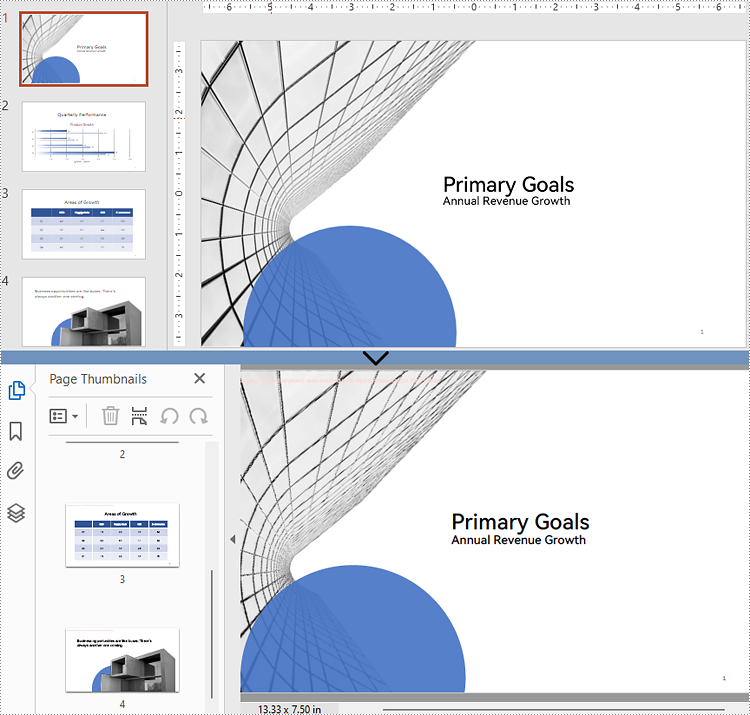
Spire.Presentation makes it easy to convert PowerPoint files to PDF with just a few lines of code.
The example below shows how to load a .pptx or .ppt file and export it to PDF using default settings - ideal for quick conversions where no customization is needed.
from spire.presentation import *

# Create a Presentation object
presentation = Presentation()

# Load a PPTX file
presentation.LoadFromFile("Input.pptx")
# Or load a PPT file
# presentation.LoadFromFile("Input.ppt")

# Save the file as a PDF
presentation.SaveToFile("Basic_conversion.pdf", FileFormat.PDF)
presentation.Dispose()
Export PowerPoint to PDF with Advanced Settings
Spire.Presentation provides a range of advanced settings that give you control over how the PDF output is generated, making it ideal for both professional use and archival purposes. For example, you can:
- Export a Particular Slide to PDF
- Adjust Slide Size for Optimal PDF Output
- Include Hidden Slides in the Converted PDF
- Generate PDF/A-compliant Files from PowerPoint
Export a Particular Slide to PDF
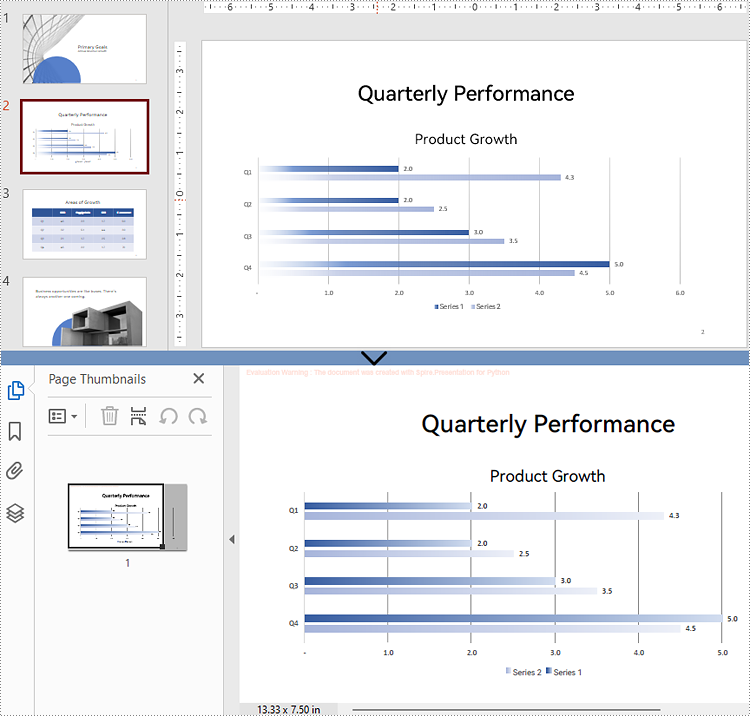
If you only need to share a specific part of your presentation, Spire.Presentation allows you to extract and convert individual slides to a PDF. This is especially useful for generating slide-specific reports or handouts.
from spire.presentation import *

# Create a Presentation object
presentation = Presentation()

# Load the PowerPoint file
presentation.LoadFromFile("Input.pptx")

# Get the desired slide (e.g., the second slide)
slide = presentation.Slides.get_Item(1)

# Save the slide as a PDF
slide.SaveToFile("Single_slide.pdf", FileFormat.PDF)
presentation.Dispose()
Adjust Slide Size for Optimal PDF Output
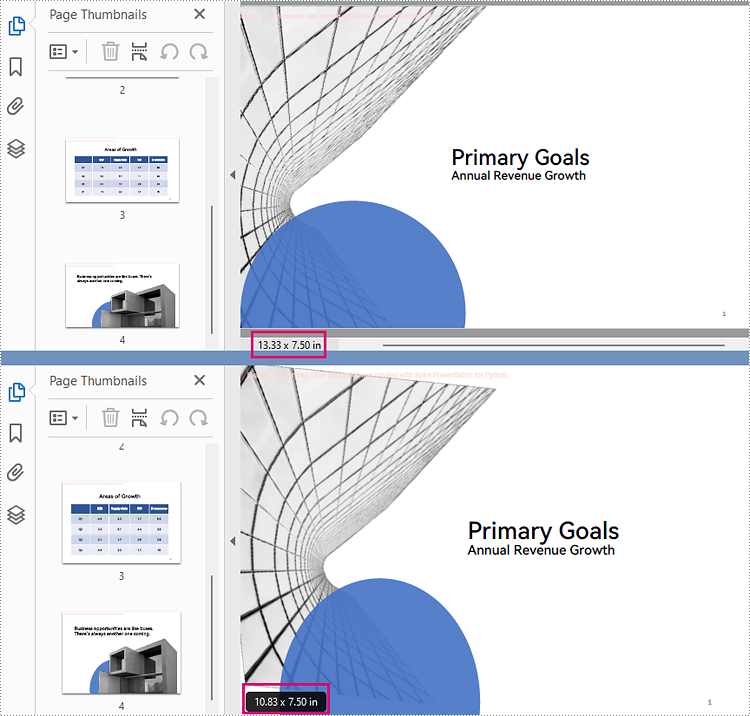
To ensure that your PDF meets printing or layout requirements, you can adjust the slide dimensions before conversion. Spire.Presentation lets you set standard slide sizes as well as custom slide dimensions so the output aligns with your document formatting needs.
from spire.presentation import *

# Create a Presentation object
presentation = Presentation()
# Load the PowerPoint file
presentation.LoadFromFile("Input.pptx")

# Set the slide size to a standard slide size like A4
presentation.SlideSize.Type = SlideSizeType.A4

# # Or you can set custom slide size (e.g., 720x540 points)
# presentation.SlideSize.Size = SizeF(720.0, 540.0)

# Fit content to the new slide size
presentation.SlideSizeAutoFit = True

# Save the presentation as a PDF
presentation.SaveToFile("Resized_output.pdf", FileFormat.PDF)
presentation.Dispose()
Include Hidden Slides in the Converted PDF
By default, hidden slides are excluded from conversion. However, if your workflow requires complete documentation, Spire.Presentation enables you to include hidden slides in the output PDF.
from spire.presentation import *

# Create a Presentation object
presentation = Presentation()

# Load the PowerPoint file
presentation.LoadFromFile("Input.pptx")

# Get the SaveToPdfOption object
option = presentation.SaveToPdfOption

# Enable ContainHiddenSlides option
option.ContainHiddenSlides = True

# Save the presentation as a PDF
presentation.SaveToFile("Include_hidden_slides.pdf", FileFormat.PDF)
presentation.Dispose()
Generate PDF/A-compliant Files from PowerPoint
PDF/A is a specialized format intended for long-term digital preservation. If your organization needs to archive presentations in a standards-compliant format, Spire.Presentation allows you to export PDF/A files that conform to archival best practices.
from spire.presentation import *

# Create a Presentation object
presentation = Presentation()

# Load the PowerPoint file
presentation.LoadFromFile("Input.pptx")

# Get the SaveToPdfOption object
option = presentation.SaveToPdfOption

# Set PDF compliance to PDF/A-1a
option.PdfConformanceLevel = PdfConformanceLevel.Pdf_A1A

# Save the presentation as a PDF
presentation.SaveToFile("Pdf_a_output.pdf", FileFormat.PDF)
presentation.Dispose()
Conclusion
Spire.Presentation for Python offers a robust set of features for converting PowerPoint files to PDF with minimal effort and maximum flexibility. Whether you require simple conversions or advanced customization options, this library gives developers full control over the process. From exporting individual slides to generating archival-quality outputs, it’s a comprehensive tool for PowerPoint-to-PDF conversion workflows in Python.
FAQs
Q1: Can I convert PPTX and PPT files without installing Microsoft PowerPoint?
A1: Yes, Spire.Presentation is a standalone library and does not require Microsoft Office or PowerPoint to be installed.
Q2: Does the library support batch conversion of multiple PowerPoint files?
A2: Yes, you can write scripts to loop through multiple files and convert each to PDF programmatically.
Q3: Is PDF/A-1a the only compliance level supported for PPT to PDF/A conversion?
A3: No, Spire.Presentation supports multiple compliance levels for PPT to PDF/A conversion, including PDF/A-1a, PDF/A-2a, PDF/A-3a, PDF/A-1b, PDF/A-2b, and PDF/A-3b.
Get a Free License
To fully experience the capabilities of Spire.Presentation for Python without any evaluation limitations, you can request a free 30-day trial license.
